
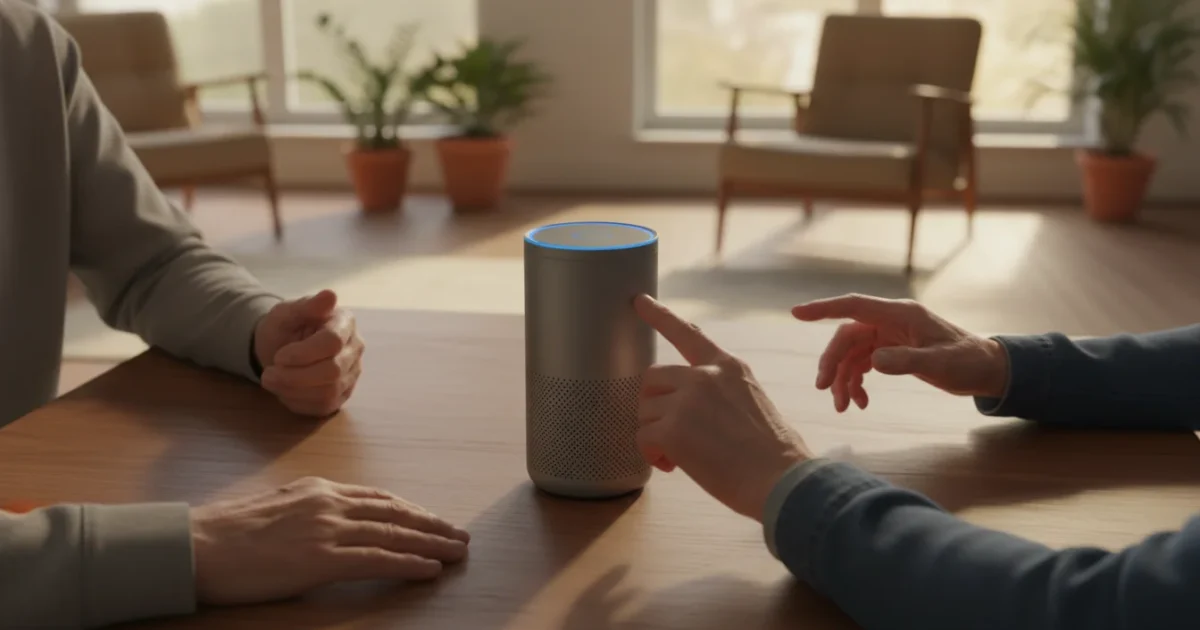
Technology continues to evolve, offering incredible tools to simplify daily life, enhance safety, and bring joy. Google Nest, often known by its older name, Google Home, stands out as a smart speaker system designed to do exactly that. You might feel uncertain about diving into new gadgets, worried they are too complex, too intrusive, or simply not worth the investment. However, many people find Google Nest devices genuinely make their routines easier and more connected.
This guide explains how to set up your Google Nest device and use its core features. We provide straightforward instructions, clarify common concerns, and help you determine if this technology truly benefits your lifestyle. You deserve technology that works for you, not against you.
Table of Contents
- What Is Google Nest (Google Home) and What Can It Do?
- Is Google Nest Right for You?
- What You’ll Need to Get Started with Google Nest
- Step-by-Step Google Nest Setup Guide
- Useful Things to Try with Your Google Nest Device
- Privacy and Security Considerations for Google Nest
- Common Google Nest Problems and Solutions
- Frequently Asked Questions

What Is Google Nest (Google Home) and What Can It Do?
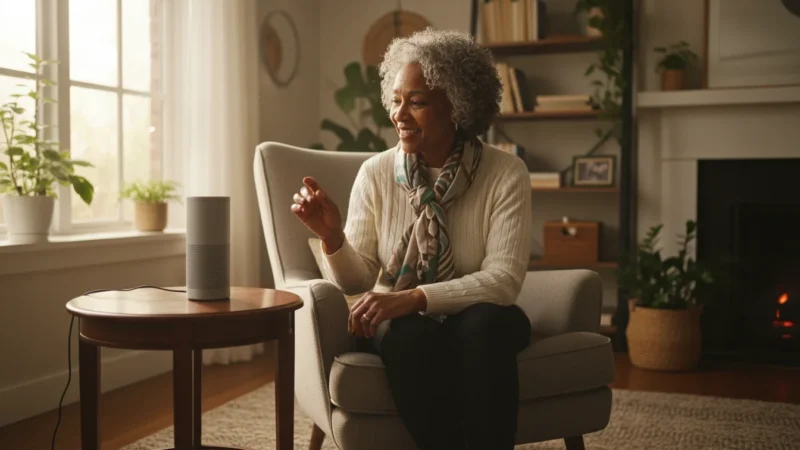
Google Nest devices are smart speakers or smart displays that use the Google Assistant, a voice assistant, to respond to your commands and questions. Think of it as having a helpful assistant ready to serve you with just your voice. You speak commands starting with “Hey Google” or “OK Google,” and the device listens, processes your request, and responds.
The Nest Hub screen models can also function like digital photo frames, showing your favorite pictures when you aren’t using the device.
If you have an Android smartphone, you may already be familiar with using Google Assistant on your mobile device.
These devices come in various forms, from the small, disc-shaped Nest Mini smart speaker to the Nest Hub, which features a screen for visual information. They connect to your home’s Wi-Fi, your wireless internet connection, to access information from the internet and control other compatible smart devices.

Practical Benefits of Google Nest for Seniors:
- Convenience: You can set timers, check the weather, or get answers to questions without lifting a finger or finding your glasses. Imagine asking for today’s forecast while getting ready in the morning, or setting a timer for dinner with messy hands.
- Communication: Call family and friends using just your voice. Some devices allow you to make speakerphone calls, which is especially helpful if you misplace your phone or have difficulty dialing.
- Entertainment: Play your favorite music, audiobooks, or radio stations by simply asking. If you have a Nest Hub, you can even watch YouTube videos or view family photos.
- Information Access: Get news updates, sports scores, or find out historical facts instantly. You can ask for recipes, trivia, or directions.
- Organization: Create shopping lists, set reminders for medications or appointments, and manage your daily schedule. Your Google Nest keeps track of these details for you.
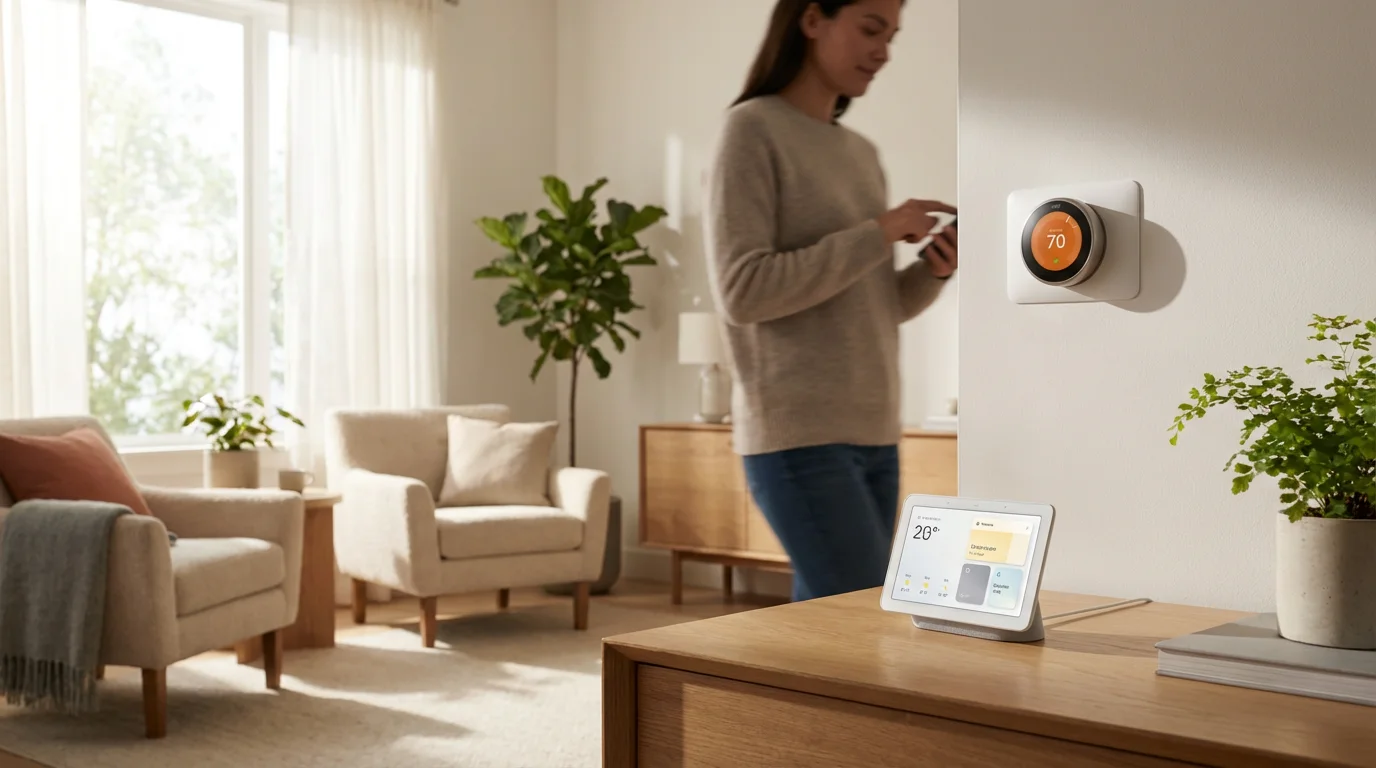
- Smart Home Control: Connect other smart home devices, such as smart plugs or smart lights, and control them with your voice. Turn off the lights in another room without getting up, or adjust your smart thermostat from the comfort of your armchair.
Google Nest devices range in price, typically from around $30 for a Nest Mini up to $200 for a Nest Hub Max. Most features do not require ongoing monthly fees; you just pay for the device itself. Some premium services, like certain music streaming subscriptions, might have a separate cost if you choose to use them, but the core functionality is free.
Is Google Nest Right for You?
Deciding if a Google Nest device is a good fit involves considering your needs and comfort level with new technology. It is not for everyone, and that is perfectly fine. This section helps you weigh the pros and cons.
Before committing to a specific brand, it helps to understand the general pros and cons of smart speakers for seniors.
You might benefit from Google Nest if you:
- Appreciate hands-free convenience: If you find yourself fumbling with your phone, or if mobility challenges make reaching for devices difficult, voice control offers a significant advantage.
- Enjoy listening to music or audiobooks: Google Nest makes playing audio content incredibly easy.
- Want quick answers to questions: For weather, news, facts, or simple calculations, it provides immediate verbal responses.
- Seek better organization: Voice-activated reminders, alarms, and lists can help you stay on top of daily tasks and appointments.
- Already use other Google services: If you use Gmail, Google Calendar, or have an Android phone, Google Nest integrates smoothly with these existing services.
- Are curious about smart home technology: It serves as an excellent entry point into controlling lights, thermostats, or doorbells with your voice.

Consider alternatives or a slower approach if you:
- Prefer traditional methods: If you enjoy dialing numbers, manually adjusting thermostats, or writing physical lists, you might not find enough added value.
- Have concerns about privacy: While we address privacy in a later section, some people simply do not feel comfortable with a voice assistant in their home.
- Lack reliable home internet: Google Nest requires a stable Wi-Fi connection to function properly. Without it, the device has very limited capabilities.
- Find technology frustrating: While we aim to simplify the setup, some initial troubleshooting or learning a few commands is necessary.
You do not need to adopt every new gadget. Focus on what truly solves a problem or enhances your enjoyment. If a device adds stress, it defeats the purpose.
What You’ll Need to Get Started with Google Nest
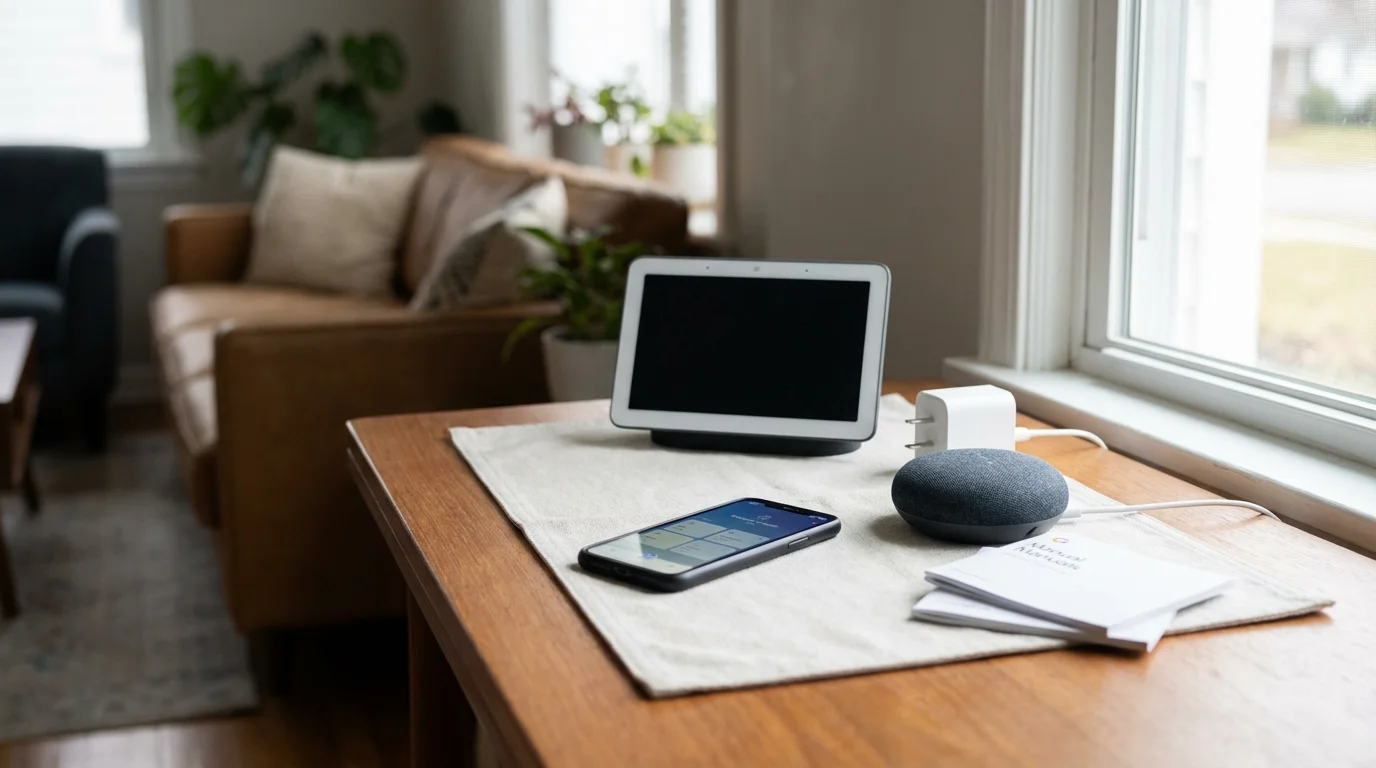
Before you unbox your new Google Nest device, gather a few essentials. Having these ready makes the setup process much smoother.
- A Google Nest Device: This seems obvious, but ensure you have the device itself, along with its power adapter. Common models include the Nest Mini, Nest Audio, Nest Hub, or Nest Hub Max.
- A Smartphone or Tablet: You need an Apple iPhone or iPad, or an Android smartphone or tablet to complete the initial setup. You will download the Google Home app onto this device.
- A Stable Wi-Fi Connection: Your Google Nest device connects to your home’s wireless internet connection. Ensure your Wi-Fi network works well throughout your home, especially where you plan to place the device. If your Wi-Fi is spotty, your Nest device might struggle to understand commands or perform tasks.
- A Google Account: If you use Gmail, YouTube, or an Android phone, you likely already have a Google account. If not, you can create one for free during the setup process. This account links your Nest device to your personalized settings and services.
- Power Outlet: Google Nest devices need constant power, so place it near an electrical outlet.
That is all you need. You do not require any special technical skills, just patience and a willingness to follow instructions.
Step-by-Step Google Nest Setup Guide
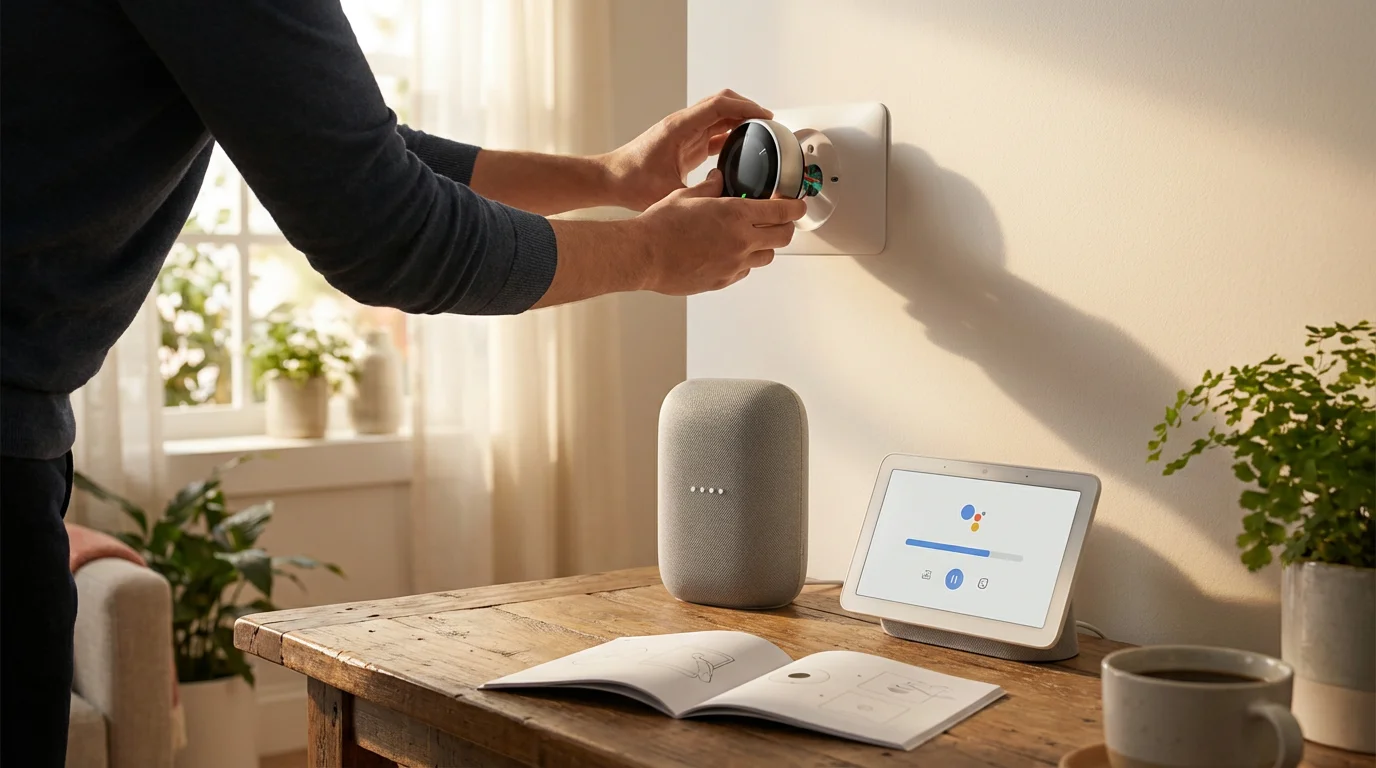
Setting up your Google Nest device involves a few simple steps using the Google Home app on your smartphone or tablet. Follow these instructions carefully.

Step 1: Unbox Your Device and Plug It In
- Remove your Google Nest device and its power adapter from the box.
- Find an electrical outlet near where you want to place the device. Choose a central location, if possible, so it can hear you easily from different parts of the room.
- Plug the power adapter into your Google Nest device, then plug it into the wall outlet.
- Your device will power on. For smart speakers, you will usually hear a chime or a welcome message from the Google Assistant. If you have a Nest Hub with a screen, you will see a welcome message or the Google “G” logo appear.

Step 2: Download the Google Home App
- On your smartphone or tablet, open the App Store (for iPhones/iPads) or the Google Play Store (for Android devices).
- Search for “Google Home” and download the app. It has a colorful icon that looks like a house.
- Install the app.

Step 3: Open the Google Home App and Sign In
- Once the app downloads, tap to open it.
- The app will ask you to sign in with your Google Account. Enter your Gmail address and password. If you do not have a Google Account, the app will guide you through creating one. This takes a few minutes but is straightforward.
- Grant any necessary permissions the app requests, such as access to your location or Wi-Fi. These permissions help the app find and set up your Nest device.

Step 4: Set Up Your Google Nest Device
- Inside the Google Home app, tap the “Devices” icon or the “+” sign in the top left corner to add a new device.
- Tap “Set up device,” then “New device.”
- The app will search for nearby devices. It should find your Google Nest. Tap on your device when it appears.
- Follow the on-screen prompts:
- Connect to Wi-Fi: Select your home Wi-Fi network from the list. You will need to enter your Wi-Fi password. This connects your Nest device to the internet.
- Room Assignment: Choose which room your device is in (e.g., “Living Room,” “Kitchen”). This helps you organize multiple smart devices later.
- Voice Match: The app will guide you through setting up Voice Match. This allows Google Assistant to recognize your voice and personalize responses for you, like providing your calendar appointments or specific music preferences. You will say “Hey Google” and “OK Google” a few times.
- Personal Results: Decide if you want your Nest device to provide personal results (like calendar events or reminders) based on your voice. We recommend enabling this for convenience.
- Music Services: Link your preferred music streaming services, such as Spotify or Pandora, if you use them. You can always skip this step and add them later.
- Once you complete these steps, the Google Home app confirms your device is ready. You should also hear a confirmation from your Google Nest device.
Congratulations, your Google Nest device is now set up and ready to use!

Useful Things to Try with Your Google Nest Device
Now that your Google Nest is set up, let’s explore some practical commands you can use right away. Remember to start each command with “Hey Google” or “OK Google.”

Basic Commands to Get Started:
- “Hey Google, what’s the weather like today?” Get instant weather reports for your location.
- “Hey Google, set a timer for 10 minutes.” Perfect for cooking, gardening, or remembering to take medications. You can set multiple timers, too: “Hey Google, set a second timer for 5 minutes for the tea.”
- “Hey Google, play some classical music.” Or specify a genre, artist, or specific song.
- “Hey Google, tell me the news.” It provides a brief summary of top headlines from various sources.
- “Hey Google, what time is it?”
- “Hey Google, what’s 25 plus 17?” Use it as a quick calculator.
- “Hey Google, how do you spell ‘rendezvous’?” Get help with spelling.
Staying Organized:
- “Hey Google, remind me to call Sarah at 3 PM tomorrow.”
- “Hey Google, add milk to my shopping list.” You can later check this list in your Google Home app.
- “Hey Google, what’s on my calendar today?” If you use Google Calendar, it reads your appointments.
Communication (with Voice Match enabled):
- “Hey Google, call Mom.” (You need to link your contacts in the Google Home app, or say the full number: “Hey Google, call 555-123-4567”). This uses your phone’s cellular service via the Google Home app, or Google’s own calling service for landlines.
- “Hey Google, broadcast ‘Dinner is ready!’” If you have multiple Google Nest devices in your home, this sends an announcement to all of them, useful for calling family members for meals.

Enhancing Safety and Peace of Mind:
- “Hey Google, tell me a joke.” Sometimes a little humor is exactly what you need.
- “Hey Google, find my phone.” If your phone is connected to your Google account, it will ring loudly, even if on silent.
Remember, the more you use your Google Nest, the better it understands your voice and preferences. Do not be afraid to experiment with different commands.
Privacy and Security Considerations for Google Nest
It is natural to wonder about privacy when you bring a voice-activated device into your home. Google takes privacy seriously, and you have control over many settings. Addressing these concerns directly helps you make informed decisions.
Is it always listening?
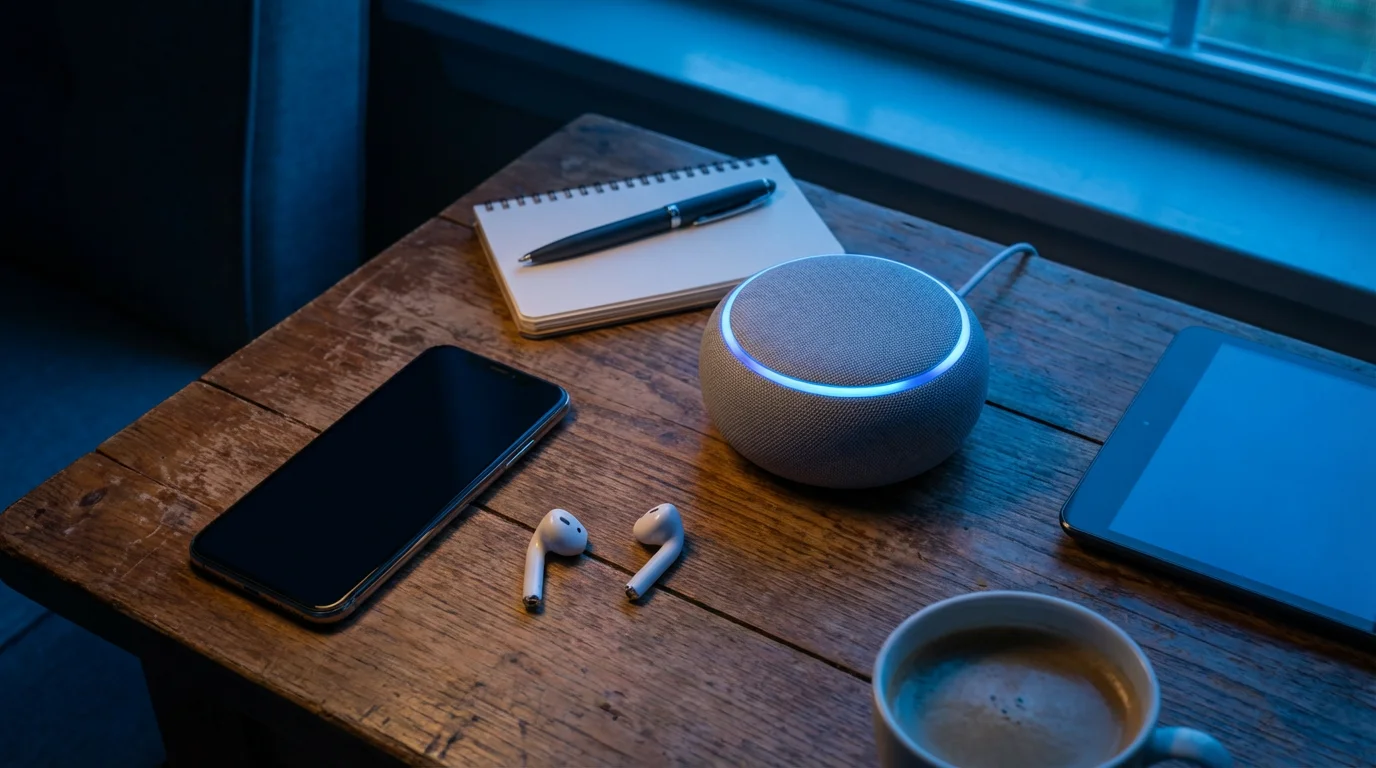
Google Nest devices are always in a low-power listening mode, waiting for the “Hey Google” or “OK Google” wake word. They do not record or send your conversations to Google unless they detect this wake word. Think of it like a guard dog trained to bark only when it hears its name. Once it hears the wake word, it records a short snippet, sends it to Google’s servers for processing, and then responds.
What about my personal data?
- Activity Controls: You have the power to review and delete your voice recordings. Visit your Google Account’s Activity Controls (activity.google.com) to see what information Google collects and to manage or delete it. You can even set recordings to delete automatically after a certain period.
- Guest Mode: You can enable Guest Mode on your Google Nest device. This allows visitors to use Google Assistant without affecting your personal results or history.
- Microphone Mute: Every Google Nest device has a physical microphone mute switch or button. When you activate this, the device cannot hear anything you say, including the wake word. A clear orange or red light indicates the microphone is off. Use this feature whenever you want complete privacy.
- Personal Results: You control whether your device provides “Personal Results,” which include information from your calendar, contacts, or commute. You can disable this if you prefer.

Security:
- Software Updates: Google regularly sends security updates to your Nest devices automatically. This keeps your device protected against new threats.
- Secure Connections: Your Google Nest communicates with Google’s servers over secure, encrypted connections.
Ultimately, your comfort level determines how you use smart home technology. We encourage you to explore Google’s privacy settings in your Google Account and configure them to suit your preferences. For more comprehensive information, you can visit the official Google Support pages on privacy and security.
Common Google Nest Problems and Solutions
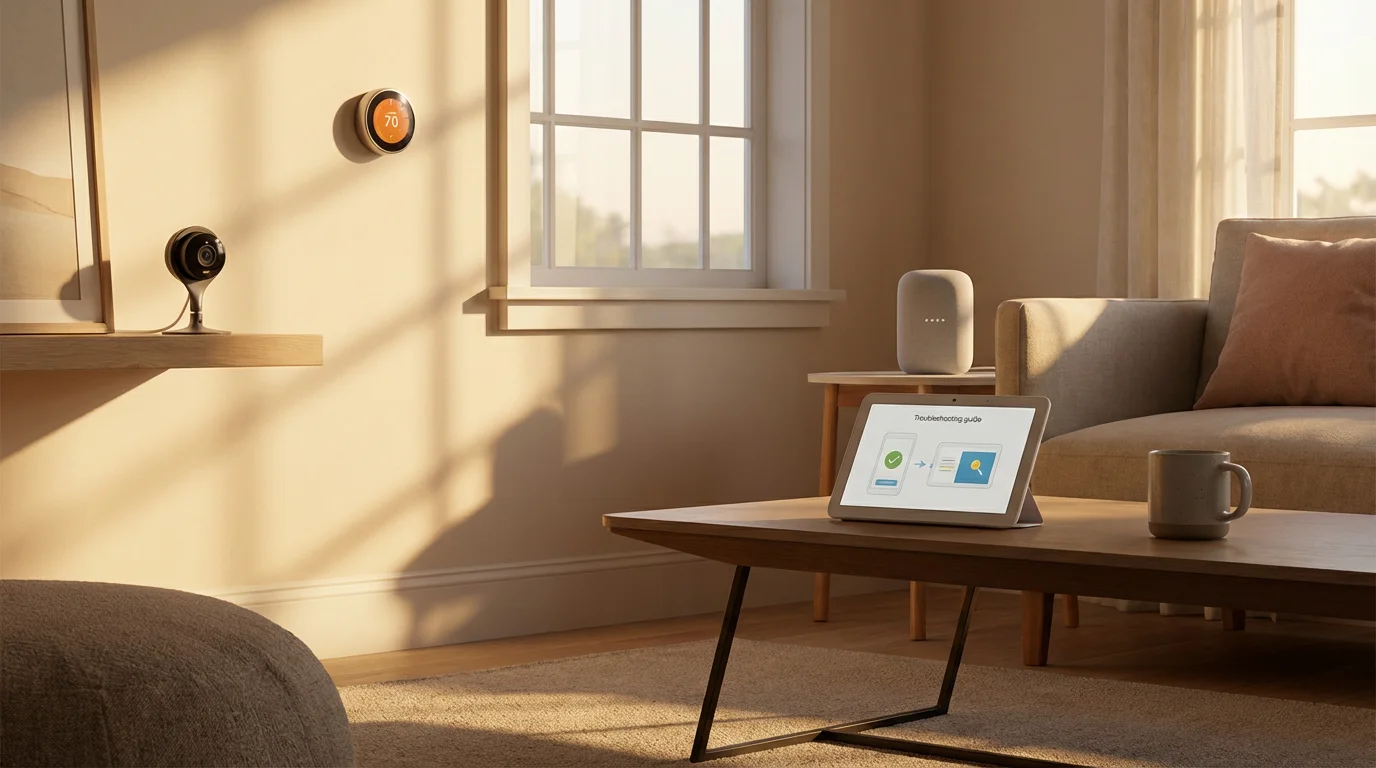
Even with straightforward technology, you might encounter a hiccup or two. Here are some common issues and simple solutions to get your Google Nest device back on track.
1. “Hey Google” is not responding.
- Check the Microphone: Is the microphone muted? Look for an orange or red light on your device. If it is on, toggle the mute switch or button to turn the microphone back on.
- Check Power: Ensure the device is plugged in and powered on.
- Speak Clearly: Try speaking closer to the device and articulating your words clearly.
- Restart the Device: Unplug the power cord from the device, wait for 10-15 seconds, then plug it back in. This often resolves minor software glitches.
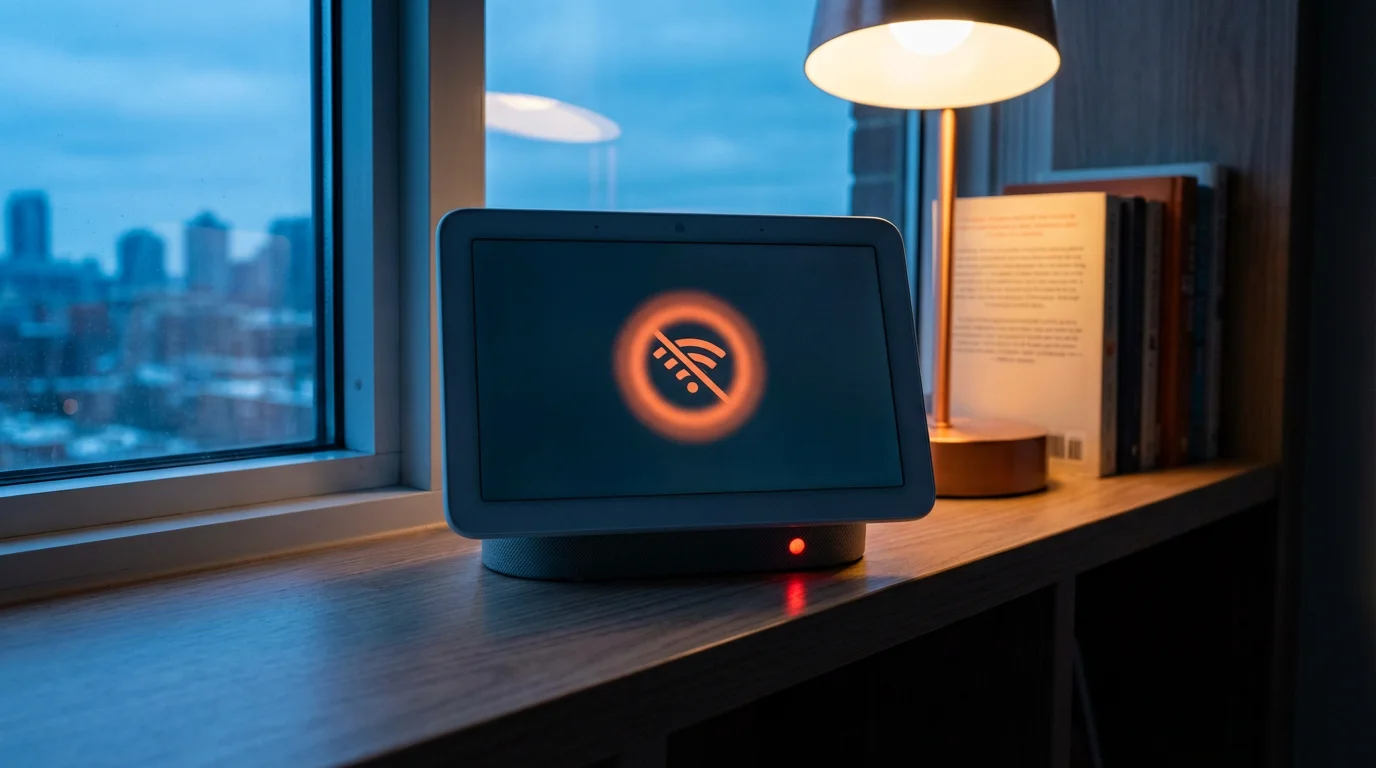
- Check Wi-Fi: Make sure your home Wi-Fi works. If your internet is down, Google Nest cannot connect to Google’s servers to process commands. Check other devices, like your phone, to confirm your Wi-Fi connection is active.
2. Google Nest says it cannot connect to Wi-Fi.
- Restart Your Router: Unplug your home Wi-Fi router from its power source, wait 30 seconds, and plug it back in. Allow a few minutes for it to fully restart. Then try connecting your Google Nest again via the Google Home app.
- Move Closer to Router: If your Google Nest is far from your Wi-Fi router, the signal might be weak. Try moving it closer.
- Re-enter Wi-Fi Password: In the Google Home app, try to “Forget” the Wi-Fi network for your device and then re-add it, carefully re-entering your password.

3. Google Nest is playing the wrong music or not understanding me.
- Be Specific: Try to be more precise with your requests. Instead of “Play some music,” try “Play classical music by Beethoven” or “Play relaxing jazz.”
- Check Voice Match: If multiple people use the device, ensure Voice Match is set up correctly for everyone. Sometimes it might confuse voices.
- Adjust Device Sensitivity: In the Google Home app, you can sometimes adjust the microphone sensitivity for your device if it is too close to a TV or other noise source. Go to device settings, then “Audio” or “Recognition.”
4. My smart home devices are not connecting to Google Nest.
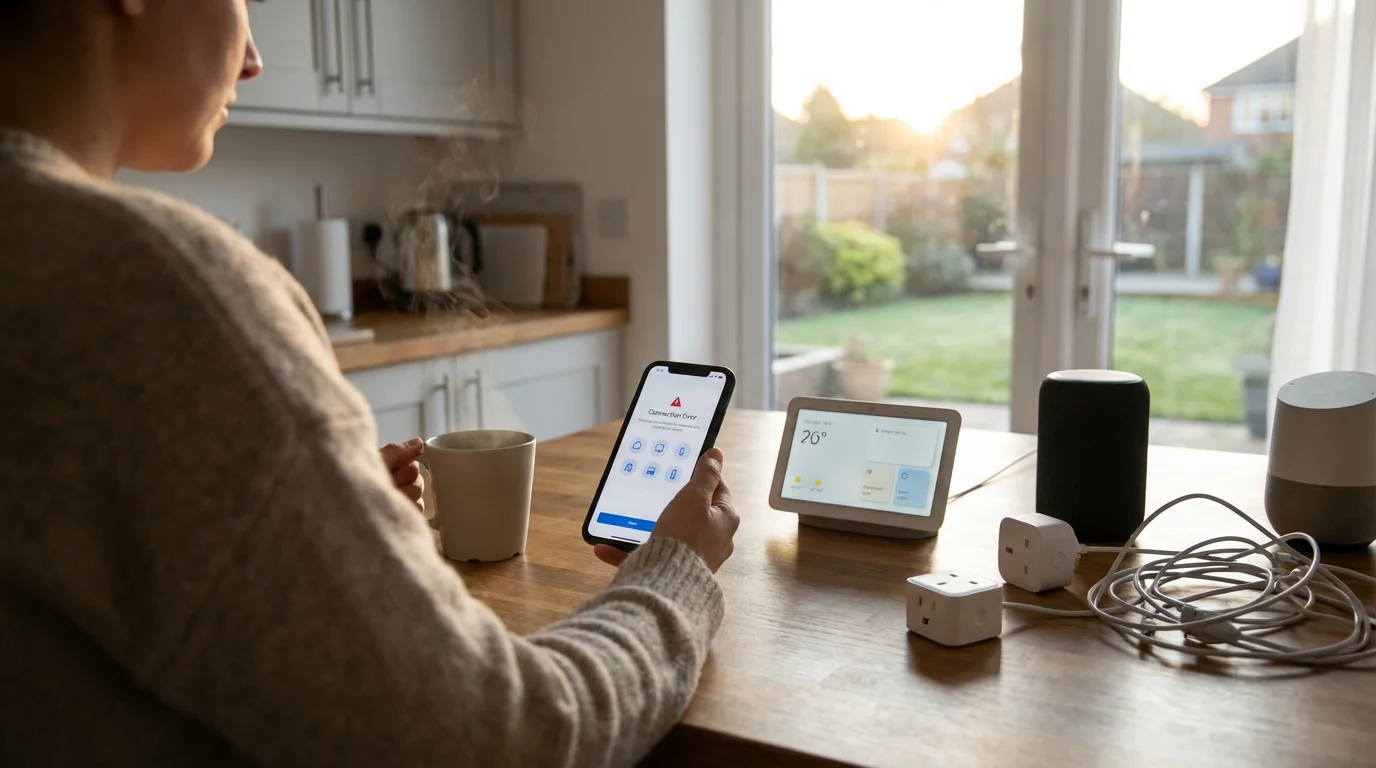
- Check Compatibility: Ensure your smart light, thermostat, or other device is compatible with Google Assistant. Most smart home product packaging or websites clearly state this.
- Link Accounts: You must link the accounts for your smart home devices (e.g., your Philips Hue account) to your Google Home app. In the Google Home app, go to “Settings,” then “Works with Google,” and follow the prompts to add and link new services.
- Power Cycle Both Devices: Try restarting both your Google Nest device and the smart home device you are trying to connect.
Many solutions involve simply restarting the device or checking your Wi-Fi. Do not hesitate to consult Google Support for specific troubleshooting tips if these general solutions do not work.
Frequently Asked Questions
Does Google Nest require a monthly fee?
No, Google Nest devices generally do not require a monthly subscription fee for their core features. You pay for the device once. You might choose to subscribe to optional services like premium music streaming (e.g., Spotify Premium) or certain smart home services, but these are entirely optional and not necessary for the device to function.
Is Google Nest always listening to everything I say?
Google Nest devices listen for the “wake word” (“Hey Google” or “OK Google”). They only begin recording and sending audio to Google’s servers for processing after detecting this wake word. You can also physically mute the microphone at any time using the switch on the device for complete privacy.
Can I make calls with Google Nest?
Yes, you can make calls using your Google Nest device. You can link your contacts through the Google Home app to call family and friends by name, or you can say the full phone number. These calls use either your phone’s cellular service via the Google Home app or Google’s own voice calling services, typically over Wi-Fi.
What if I do not have a smartphone? Can I still use Google Nest?
You need a smartphone or tablet (Apple iPhone/iPad or Android device) to complete the initial setup of your Google Nest device using the Google Home app. After the setup, the device operates independently for most voice commands. However, you will need the app for any configuration changes, adding new services, or managing settings.
Can Google Nest help if I have trouble seeing or moving around?
Absolutely. Google Nest devices offer significant benefits for accessibility. Voice commands reduce the need to press small buttons or navigate complex screens. For those with low vision, it provides audible answers, reads out recipes, or tells you the news without needing to read text. If you have mobility challenges, you can control lights, adjust thermostats, or make calls without physically moving.
Disclaimer: This article is for informational purposes only. Product features and prices change frequently. Always check current specifications and reviews before purchasing. We recommend buying from authorized retailers with good return policies.




Leave a Reply