
Do you ever wish your phone could understand you and help with tasks just by listening to your voice? With Google Assistant, your Android smartphone or tablet can do exactly that. Google Assistant is a powerful voice control tool that simplifies many everyday actions, making your device easier and more enjoyable to use. Imagine asking your phone to call a loved one, check the weather, or even set a reminder, all without typing a single word.
This guide will walk you through setting up and using Google Assistant on your Android device, step by step. We understand that new technology can sometimes feel overwhelming, but we promise to explain everything clearly and patiently. By the end of this article, you will feel confident using your voice to interact with your phone, unlocking a new level of convenience and accessibility. Many people, especially those who have recently switched from a flip phone or received a smartphone as a gift, find Google Assistant incredibly helpful for navigating their new device.
Let’s get started and discover how “OK Google” can make your life a little simpler.
Table of Contents
- What You’ll Need to Get Started
- Turning On Google Assistant for the First Time
- Setting Up “OK Google” Voice Match
- How to Use Google Assistant with Your Voice
- Common & Helpful Things Google Assistant Can Do For You
- Adjusting Google Assistant Settings
- What to Do If Something Goes Wrong
- Frequently Asked Questions
- Quick Reference Checklist

What You’ll Need to Get Started
Before we dive in, let’s make sure you have everything ready for a smooth setup. You likely have most of these items already.
If you enjoy this hands-free approach, you might also find it useful to learn if a smart speaker is right for you to decide if you want voice control throughout your home.
Before starting the setup, it is a good idea to update your Android phone to the latest version to ensure compatibility.
- An Android Smartphone or Tablet: Google Assistant works on most Android devices. If your device is relatively new, purchased in the last few years, it almost certainly supports Google Assistant.
- A Stable Internet Connection: Google Assistant needs to connect to the internet, either through Wi-Fi or your mobile data, to understand your requests and provide answers. Make sure your device connects to your home Wi-Fi or shows a strong signal for your carrier’s network.
- A Google Account: You probably already set up a Google Account when you first started using your Android phone. This account links to services like Gmail, Google Maps, and Google Play Store. Google Assistant uses this account to personalize your experience, remember your preferences, and access your contacts and calendar. If you do not have one, your phone will guide you to create one during the setup process.
- A Charged Battery: We recommend ensuring your phone or tablet has at least 50% battery life, or even better, plug it into its charger. This prevents your device from running out of power in the middle of an important step.
Remember, taking your time with each step makes the process much easier. There is no rush, and your phone is designed to be user-friendly.
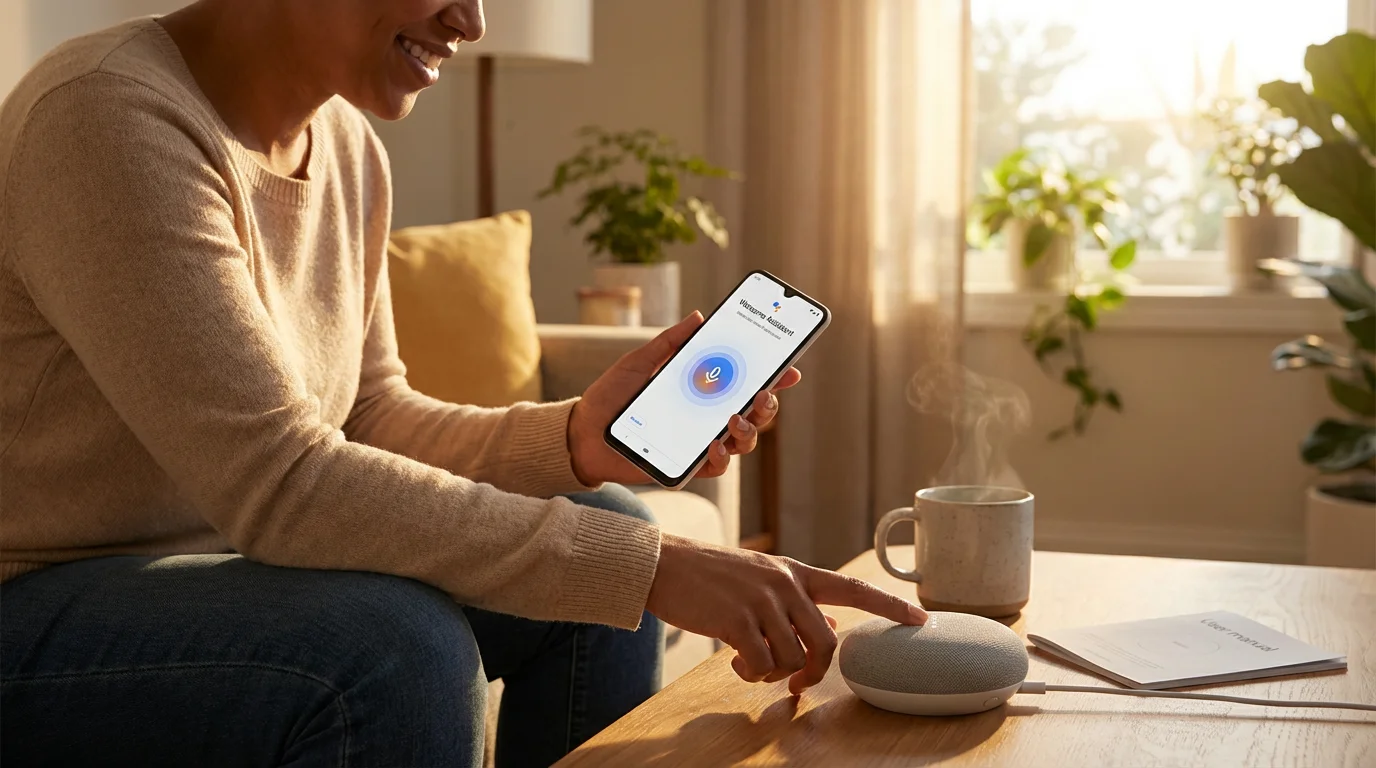
Turning On Google Assistant for the First Time
Enabling Google Assistant is usually a straightforward process. You can often activate it in a few different ways, depending on your device. Let’s explore the most common methods.

Method 1: Using the Home Button (Most Common)
- Find Your Home Button: Look at the bottom center of your phone’s screen. Many Android phones have a virtual home button, which looks like a circle. Some older models might have a physical button you can press.
- Press and Hold: Gently press and hold the Home button for a few seconds.
- Look for the Google Assistant Screen: After holding the button, you should see a screen pop up, often with Google’s colorful logo at the top. This screen will likely say something like “Meet your Google Assistant” or “Get started with Assistant.”
- Follow the On-Screen Prompts: Tap the button that says “Get Started” or “Agree.” Your phone might ask for permission to access your microphone or contacts. Tap “Allow” to grant these permissions. These permissions allow Google Assistant to hear your voice and perform helpful tasks like calling people from your contact list. An “app” is a program or application on your phone, and allowing permissions helps the app work correctly.

Method 2: Through Your Phone’s Settings
If holding the Home button does not work, or if you prefer to go through your settings, here is how:
- Open Your Settings App: Find the “Settings” icon on your home screen or in your app drawer. This icon typically looks like a small gear or cogwheel (⚙️). Tap it to open.
- Search for “Assistant”: Once in Settings, look for a search bar at the top of the screen. Tap on it and type “Assistant.” Then, tap on the search result that says “Google Assistant” or “Assistant settings.”
- Navigate Manually (if no search): If your Settings app does not have a search bar, you might need to look through categories. Common paths include “Apps & notifications” > “Default apps” > “Digital assistant app” or “Google” > “Settings for Google apps” > “Search, Assistant & Voice.” The exact path can vary slightly between different Android phone brands like Samsung, LG, or Motorola.
- Turn On Assistant: Once you find the Google Assistant settings, look for a toggle switch or an option to “Turn on” or “Activate” the Assistant. Tap it to enable it.
- Follow Prompts: Just like with the Home button method, you will likely see prompts to agree to terms and grant necessary permissions. Tap “Accept” or “Allow” to continue.
Once you complete these steps, you have successfully enabled Google Assistant. You are now ready to make your phone even smarter!

Setting Up “OK Google” Voice Match (Teaching Your Phone Your Voice)
Voice Match is a clever feature that allows Google Assistant to recognize your unique voice. This means that only you can activate your Assistant by saying “OK Google” or “Hey Google,” even if other people are speaking nearby. Setting this up makes using voice commands incredibly convenient and personal.

Steps to Set Up Voice Match:
If you just enabled Google Assistant, your phone might automatically prompt you to set up Voice Match. If not, you can find it in the Google Assistant settings.
- Access Google Assistant Settings:
- Method A (Quickest): Press and hold your Home button again to open Google Assistant. Then, look for a small icon that often looks like a compass (🧭) or a small profile picture in the top right or left corner. Tap it. This usually takes you directly to the Assistant’s settings.
- Method B (Through Settings App): Go back to your phone’s main “Settings” app (the gear icon ⚙️). Search for “Assistant” and tap “Google Assistant settings.”
- Find Voice Match: In the Google Assistant settings, scroll down and look for an option called “Hey Google & Voice Match” or simply “Voice Match.” Tap on it.
- Turn On “Hey Google”: You will see a toggle switch next to “Hey Google” or “OK Google.” Tap this switch to turn it on. It will likely turn blue or green, indicating it is active.
- Train Your Voice: The screen will now guide you through teaching your phone to recognize your voice. You will see instructions to say phrases like “OK Google” and “Hey Google” a few times. Speak clearly and naturally into your phone’s microphone. The microphone is usually a small hole at the bottom of your phone.
- Complete the Training: After you say the phrases successfully, your phone confirms that it has learned your voice. Tap “Done” or “Finish.”
Now, when your phone is awake, you can simply say “OK Google” or “Hey Google,” and your Assistant will activate, ready to listen to your commands. This feature provides a significant advantage for those who find typing challenging or prefer a hands-free experience.
How to Use Google Assistant with Your Voice
With Voice Match set up, using Google Assistant is simple. You have two primary ways to activate it:
Once you are comfortable with voice commands on your phone, you can even set up a Google Nest device to use these same features throughout your home.

Method 1: Using Your Voice (“OK Google”)
- Say the Wake Phrase: Clearly say “OK Google” or “Hey Google.”
- Listen for the Prompt: Your phone will give a small sound or show a colorful bar at the bottom of the screen, indicating it is listening.
- Speak Your Command: Immediately after the prompt, tell Google Assistant what you want to do.
Example: You say, “OK Google.” Your phone makes a sound. Then you say, “What’s the weather like today?”

Method 2: Pressing and Holding the Home Button
- Press and Hold: Press and hold the Home button (the circle at the bottom of your screen) for a few seconds.
- Speak Your Command: The Assistant screen will pop up. You can immediately speak your command. You do not need to say “OK Google” if you activated it this way.
Example: You press and hold the Home button. The Assistant screen appears. You say, “Call John Smith.”
Google Assistant understands a wide range of natural language, meaning you do not have to use specific robotic phrases. You can speak to it much like you would speak to another person. It uses advanced technology to interpret your words and provide relevant information or actions. For example, Google’s own support resources highlight its ability to handle complex requests.

Common & Helpful Things Google Assistant Can Do For You
Google Assistant truly shines when it comes to everyday tasks, especially for seniors who appreciate efficiency and ease of use. Here are some practical examples of what you can ask your Google Assistant to do:

Making Calls and Sending Messages:
This feature is incredibly useful if you have trouble seeing small text or dialing numbers. Voice commands make these tasks much simpler.
- “Hey Google, call Mom.” (Your phone will call the contact named “Mom.”)
- “OK Google, text Mary ‘I’m running five minutes late.’” (It will compose and send the message to Mary.)
- “Hey Google, make a video call to Sarah.” (This will initiate a video call using an app like Google Duo or Meet, if available.)

Getting Information:
Instant answers to your questions, without needing to open a web browser.
- “OK Google, what’s the weather like in Boston?”
- “Hey Google, what’s 50 plus 25?” (It acts as a calculator.)
- “OK Google, how do you spell ‘broccoli’?”
- “Hey Google, what time is it in London?”
- “OK Google, tell me a joke.” (Sometimes a little humor brightens the day!)

Setting Reminders and Alarms:
Never forget an appointment or to take medication again.
- “Hey Google, set an alarm for 7:00 AM tomorrow.”
- “OK Google, remind me to take my medicine at 2 PM.”
- “Hey Google, set a timer for 10 minutes.” (Great for cooking!)

Navigating and Finding Places:
Get directions without fumbling with maps apps.
- “OK Google, give me directions to the nearest grocery store.”
- “Hey Google, how far is it to the park?”
- “OK Google, what’s the traffic like on the way to my doctor’s appointment?”

Controlling Your Phone’s Features:
Quickly adjust settings or open apps.
- “Hey Google, turn on Wi-Fi.”
- “OK Google, open the camera.” (Ready for photos!)
- “Hey Google, turn up the volume.”
- “OK Google, take a selfie.” (Activates the front camera and takes a photo after a countdown.)
These are just a few examples. The more you use Google Assistant, the more you will discover its capabilities and how it can tailor to your specific needs. It’s designed to be your personal digital helper.
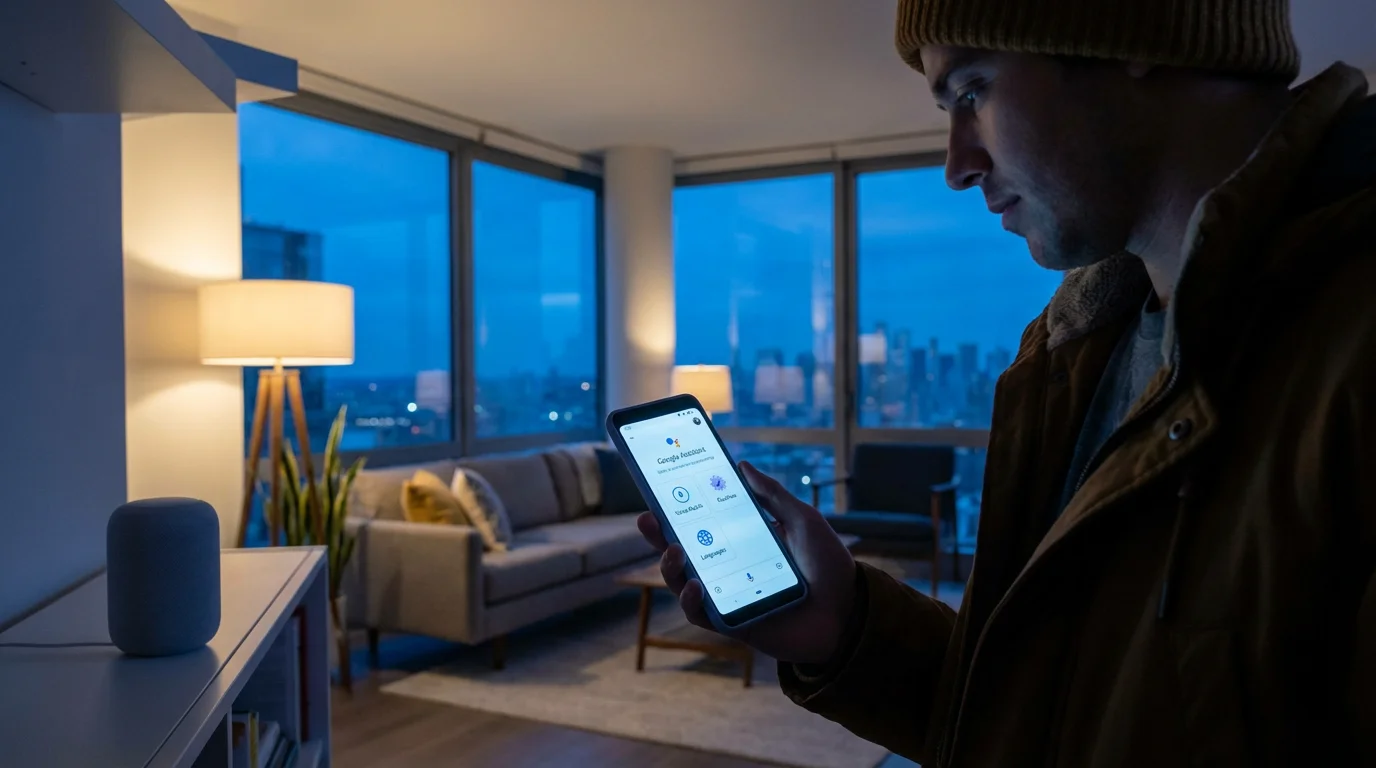
Adjusting Google Assistant Settings (Making It Work Best For You)
Google Assistant offers many settings you can adjust to personalize your experience. These options help you control your privacy, change how the Assistant sounds, and fine-tune its behavior.
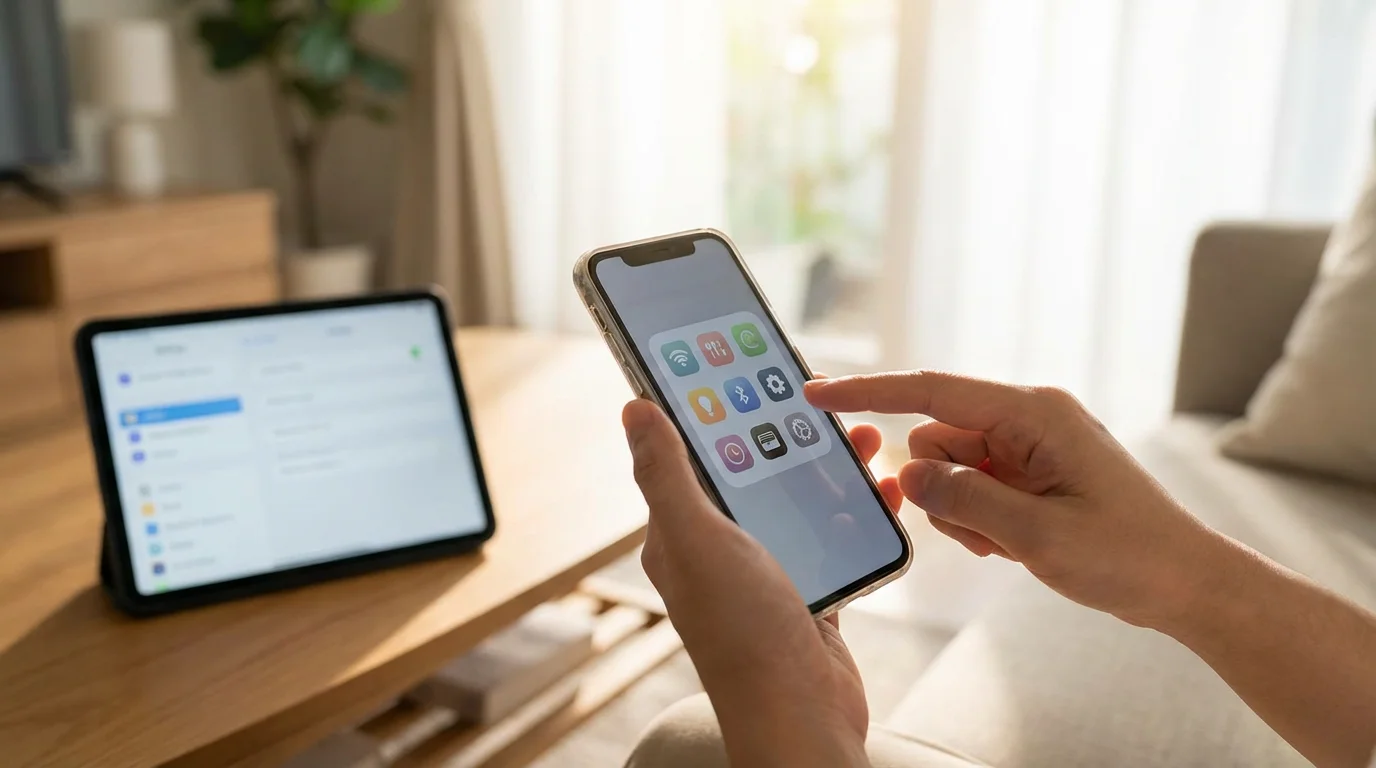
How to Access Assistant Settings:
- Activate Assistant: Say “Hey Google” or press and hold the Home button.
- Tap the Compass/Profile Icon: Look for the small icon in the top corner (often a compass 🧭 or your profile picture if you have one set up). Tap it to enter the Assistant’s main settings area.

Key Settings You Might Want to Adjust:
Once in the settings, you will see a list of options. Here are some important ones:
- Voice Match: (We covered this) This is where you can retrain your voice if the Assistant is having trouble understanding you, or turn “Hey Google” on or off.
- Personalization:
- Personal results: This allows Google Assistant to show you private results, like calendar events or contact information, even when your screen is locked. Decide if you are comfortable with this for convenience or prefer more privacy. Tap the toggle switch to turn it on or off.
- Your data in the Assistant: Here, you can review and delete past conversations you have had with the Assistant. Google stores these interactions to improve its understanding and provide better responses. You have full control over this data.
- Assistant Voice & Sound:
- Assistant voice: You can choose from different voices for your Assistant. Tap this option and listen to the various samples to find one you like.
- Speech output: This lets you decide if the Assistant always speaks back to you, only speaks when you are hands-free, or never speaks. If you prefer to read answers on the screen, you might choose “Hands-free only” or “None.”
- Other sound settings: You can turn off the “start” or “end” sound that Google Assistant makes when it activates or finishes listening.
- Languages: If you speak more than one language, you can set additional languages for your Assistant here. Tap “Add a language” and choose from the list.
- Devices: This section shows you all the devices where you use Google Assistant, like your phone, tablet, or smart speakers.
Experiment with these settings to tailor Google Assistant exactly to your preferences. Making these adjustments ensures you receive the most helpful and comfortable experience.

What to Do If Something Goes Wrong (Troubleshooting Tips)
Even with the most user-friendly technology, sometimes things do not work exactly as expected. Do not worry, most issues with Google Assistant have simple solutions. Here are common problems and how to address them:

1. Google Assistant Is Not Responding to “OK Google”:
- Check Voice Match: Go back into “Assistant settings” > “Hey Google & Voice Match.” Make sure the “Hey Google” toggle is on and consider tapping “Retrain voice model” to teach your phone your voice again. Speak clearly and in a quiet environment when retraining.
- Microphone Issues: Ensure nothing covers the microphone at the bottom of your phone. Sometimes a case or even your hand can block it.
- Permissions: Double-check that Google Assistant has microphone permission. Go to your phone’s main “Settings” ⚙️ > “Apps” > “Google” > “Permissions” > “Microphone” and ensure it is set to “Allow.”
- Is Your Screen On?: For some older devices or specific settings, “OK Google” might only work when your screen is already on.

2. Google Assistant Gives Wrong Answers or Doesn’t Understand:
- Be Specific: Try to be as clear and concise as possible with your commands. Instead of “Show me pictures,” try “Show me pictures of cats.”
- Speak Clearly: Enunciate your words. If you have a strong accent, try to speak a bit slower initially.
- Internet Connection: Google Assistant relies heavily on the internet. Check if your Wi-Fi is connected or if you have a strong mobile data signal. An unstable connection can lead to errors.
- Update the Google App: Ensure your Google app is up to date. Go to the Google Play Store (the colorful triangle icon ▶️), tap your profile picture at the top right, then “Manage apps & device,” and check for updates for the “Google” app.

3. Google Assistant Is Too Quiet or Too Loud:
- Adjust Device Volume: Use the physical volume buttons on the side of your phone (usually on the left) to increase or decrease the media volume while the Assistant is speaking.
- Assistant Voice & Sound Settings: Go to “Assistant settings” > “Assistant Voice & Sound” and adjust the speech output or turn off startup/end sounds.
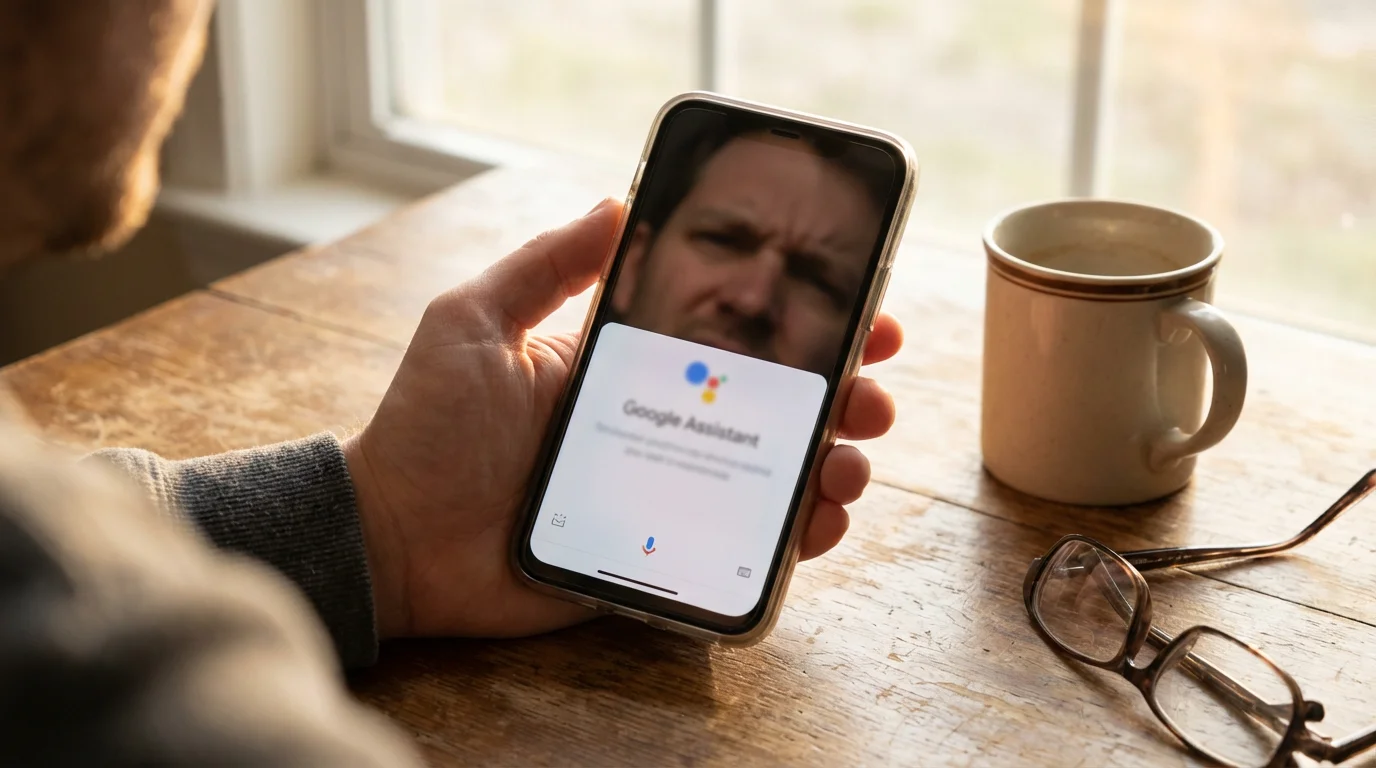
4. Google Assistant Is Not Working at All:
- Restart Your Phone: The classic fix for many tech issues! Hold down your phone’s power button (usually on the right side) until you see options to “Restart” or “Power off.” Tap “Restart.”
- Clear Cache for Google App: Go to “Settings” ⚙️ > “Apps” > “Google” > “Storage & cache” > “Clear cache.” This often resolves minor glitches without deleting any personal data.
- Check for System Updates: Sometimes, an outdated Android operating system can cause issues. Go to “Settings” ⚙️ > “System” > “System update” to check if an update is available.
If you encounter persistent problems, do not hesitate to reach out for additional help. Your carrier store (like Verizon, AT&T, T-Mobile), a trusted family member, or a local tech support center can provide hands-on assistance. You can also visit Google Support’s official website for device-specific troubleshooting guides.
Frequently Asked Questions
Here are answers to some common questions about Google Assistant that many people, especially seniors, often ask.
Q1: Is Google Assistant always listening to me?
A1: Google Assistant only actively listens for the “OK Google” or “Hey Google” wake phrase. It processes audio locally on your device for these specific keywords. Once it detects the wake phrase, it then begins sending audio to Google’s servers to process your request. When it is not activated, it does not record or store your conversations.
Q2: Do I need to pay to use Google Assistant?
A2: No, Google Assistant is completely free to use on your Android phone or tablet. It comes built into the Android operating system. While some premium services or apps might integrate with Google Assistant, the core functionality of the Assistant itself costs nothing.
Q3: Will using Google Assistant drain my phone’s battery faster?
A3: Keeping “Hey Google” active and ready to listen does use a small amount of battery power. However, for most modern Android phones, this impact is minimal. Google designs these features to be efficient. You might notice a slight increase in battery usage, but it should not significantly drain your battery life during normal daily use.
Q4: Can I use Google Assistant if I don’t have internet access?
A4: Google Assistant primarily requires an internet connection (Wi-Fi or mobile data) to process your requests and provide most answers. Without internet, it cannot perform tasks that involve searching for information, sending messages, making calls, or setting reminders that sync with your Google account. It might be able to perform a few very basic, offline functions, but its usefulness significantly diminishes without connectivity.
Q5: What if I have trouble speaking clearly or my voice changes sometimes?
A5: Google Assistant is quite good at understanding different voices and accents. If you find it struggles, ensure you speak clearly and at a moderate pace. You can always retrain your voice model in the “Hey Google & Voice Match” settings. If a specific command does not work, try rephrasing it. For example, instead of “Call Mom,” try “Call my mother.” In cases of consistent difficulty, you can always activate Google Assistant by pressing and holding the Home button and then typing your request instead of speaking it.

Quick Reference Checklist
Here is a summary of the key steps and commands for using Google Assistant:
- Enable Assistant: Press and hold the Home button, or go to Settings ⚙️ > Search for “Assistant” > Turn it on.
- Set Up Voice Match: In Assistant settings, find “Hey Google & Voice Match” > Turn on “Hey Google” > Retrain your voice by saying “OK Google” and “Hey Google” a few times.
- Activate by Voice: Say “OK Google” or “Hey Google,” then speak your command. These are your primary voice commands.
- Activate by Button: Press and hold the Home button, then speak or type your command.
- Common Commands:
- “Call [contact name]”
- “Text [contact name] [your message]”
- “What’s the weather?”
- “Set an alarm for [time]”
- “Remind me to [task] at [time]”
- “Open [app name]”
- “Take a photo” or “Take a selfie”
- “Directions to [place]”
- Troubleshooting: Retrain voice, check microphone, ensure internet connection, restart phone, update Google app.
Learning to use Google Assistant empowers you to use your Android device more efficiently and comfortably. We hope this guide helps you feel more confident and in control of your smartphone or tablet. Enjoy exploring all the helpful things your voice can do!
Disclaimer: This article is for informational purposes only. Screens and menus may look slightly different depending on your device model and software version. When in doubt, visit your device’s official support website or ask a trusted family member for help.





Leave a Reply