
Managing your money might seem complicated, especially with new technology. However, using your bank’s mobile app offers a simple, secure, and convenient way to handle your finances right from your phone, tablet, or computer. Many people, including those over 55, now use these powerful tools to stay on top of their financial lives without needing to visit a bank branch or even a computer.
Safe banking is the first step; many also find it helpful to learn how to use Amazon safely for their everyday shopping needs.
Once you are comfortable with banking on your phone, you might also want to learn how to shop online safely to keep your card details protected during purchases.
This comprehensive guide helps you understand how a bank app works, how to get started, and most importantly, how to use it safely. You will gain confidence in managing your accounts, paying bills, and even depositing checks, all while keeping your financial information secure. Your bank designs these tools to make your life easier, and with a few simple steps, you can start benefiting from them today.
Table of Contents
- What is Your Bank’s Mobile App and Why Use It?
- Finding and Downloading Your Bank’s Mobile App
- Setting Up Your Mobile Banking Account
- Key Features of Your Bank App and How to Use Them Safely
- Essential Safety Tips for Secure Mobile Banking
- What to Do if You Encounter Problems or Suspect Fraud
- Frequently Asked Questions

What is Your Bank’s Mobile App and Why Use It?
Your bank’s mobile app is a program you can download and use on your smartphone or tablet. Think of it as a small, secure version of your bank branch or online banking website, fitting right in your pocket. This app lets you perform many banking tasks from almost anywhere, at any time.
Using these tools safely also helps you stay vigilant against common tech support scams that might target your digital devices.
For those who prefer a larger screen or use a desktop computer, you can usually access the same services through your bank’s website using a web browser. This is called online banking. The bank app and online banking often offer similar functions, providing flexibility for how you choose to manage your money.
Benefits of Using Your Bank’s Mobile App:
- Convenience: Check balances, pay bills, and transfer money without leaving your home. You can handle banking tasks during bank holidays or late at night.
- Time-Saving: Avoid trips to the bank. A few taps on your device can accomplish tasks that once required a branch visit or a phone call.
- Financial Control: Easily track your spending, review transactions, and catch any unfamiliar activity quickly. This helps you manage your budget and stay aware of your financial situation.
- Security: Banks invest heavily in making their apps secure. They use encryption and other advanced measures to protect your information, often providing more immediate fraud detection than traditional methods. Data shows that financial institutions continually enhance their app security, making them a safe choice for transactions.
- Alerts and Notifications: Set up alerts, also known as notifications, for things like large purchases, low balances, or incoming deposits. These alerts help you stay informed and react quickly to any unusual activity.
Using a bank app might seem like a big step, but it offers immense convenience and peace of mind. It puts you in control of your finances in a simple, direct way.
Finding and Downloading Your Bank’s Mobile App
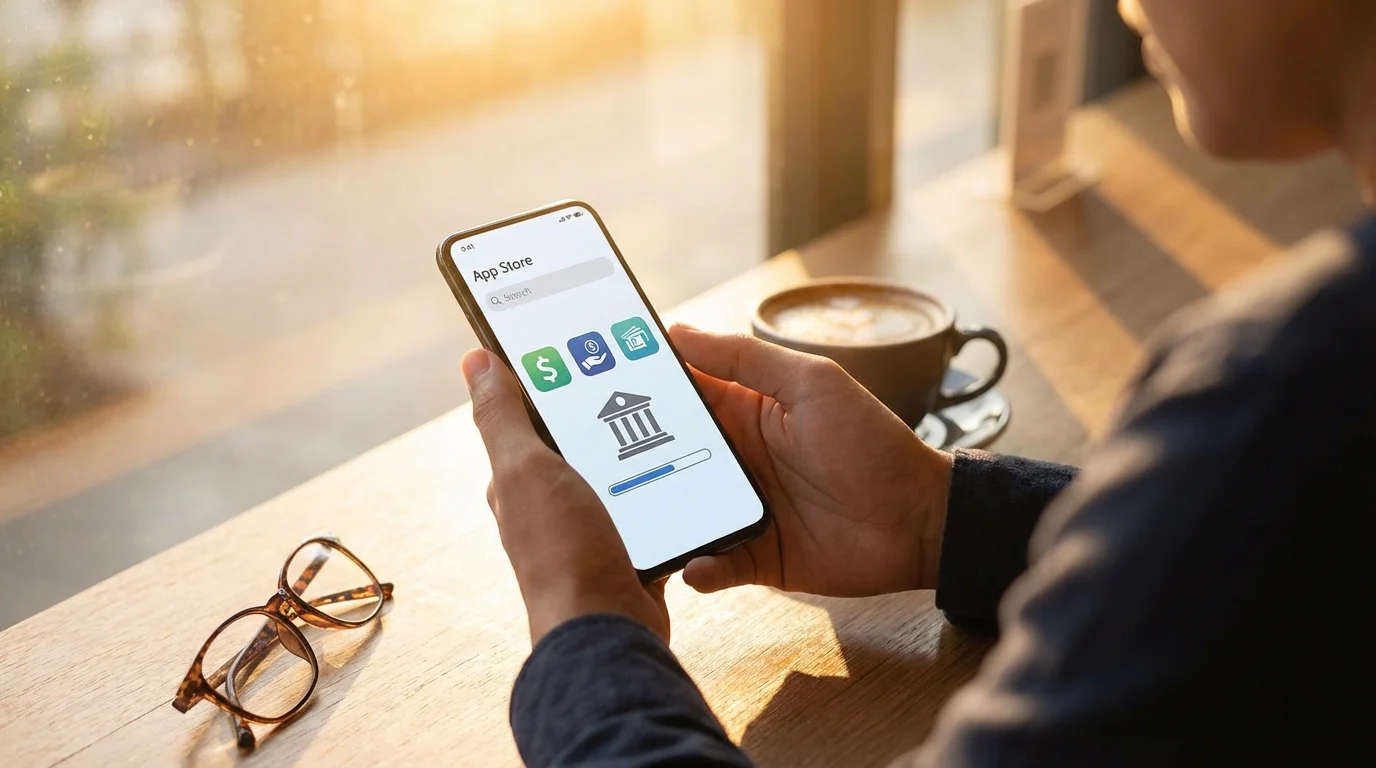
Before you can use your bank’s app, you need to download it and install it on your device. “Download” means getting the app from the official app store and putting it on your device. “Install” means setting up the app so it is ready to use. This process is straightforward, but it is very important to make sure you download the correct, official app to protect your security.

Step-by-Step for Smartphones and Tablets:
- Identify Your Device’s App Store:
- For iPhone or iPad (Apple devices): Look for an app called “App Store.” It usually has a blue icon with a white ‘A’ in the middle.
- For Android Phones or Tablets (Samsung, LG, Google Pixel, etc.): Look for an app called “Google Play Store.” It often has a colorful triangle icon.
- Open the App Store: Tap on the “App Store” or “Google Play Store” icon on your device’s home screen.
- Use the Search Bar:
- Once inside the app store, you will see a search bar, usually at the top or bottom of the screen. Tap on it.
- Type the exact name of your bank (e.g., “Bank of America,” “Wells Fargo,” “Chase Bank”). Make sure you spell it correctly.
- Find the Official App:
- Look carefully at the search results. Your bank’s official app will usually have your bank’s logo and clearly state your bank’s name.
- Check who developed the app. It should be listed as your bank’s official name. For example, for “Chase Mobile,” it should say “Developer: JPMorgan Chase Bank, N.A.” This step is crucial for security. Beware of apps with similar names or logos that are not from your bank.
- Download and Install the App:
- Once you have found the correct app, tap the “Get” or “Install” button. It is usually a free app.
- Your device may ask for your Apple ID password, Face ID, Touch ID, or Google account password to confirm the download. This is a normal security measure.
- The app will then download and install onto your device. You will see its icon appear on one of your home screens.

For Desktop or Laptop Computers:
Unlike phones and tablets, you do not typically “download” a banking app to your computer in the same way. Instead, you access your bank’s online banking services directly through a web browser. Common web browsers include Google Chrome, Mozilla Firefox, Microsoft Edge, or Apple Safari.
- Open Your Web Browser: Click on your preferred web browser icon on your computer.
- Go to Your Bank’s Official Website: Type your bank’s exact website address into the address bar at the top of the browser window (e.g., “www.bankofamerica.com”). Always type the address yourself or use a bookmark you have created. Avoid clicking links from emails or pop-ups, as these can be phishing attempts.
- Look for “Login” or “Online Banking”: Once on your bank’s homepage, look for a prominent “Login,” “Sign In,” or “Online Banking” button or link.
Whether you use a mobile app or online banking via a browser, the goal is the same: secure access to your financial information.
Setting Up Your Mobile Banking Account
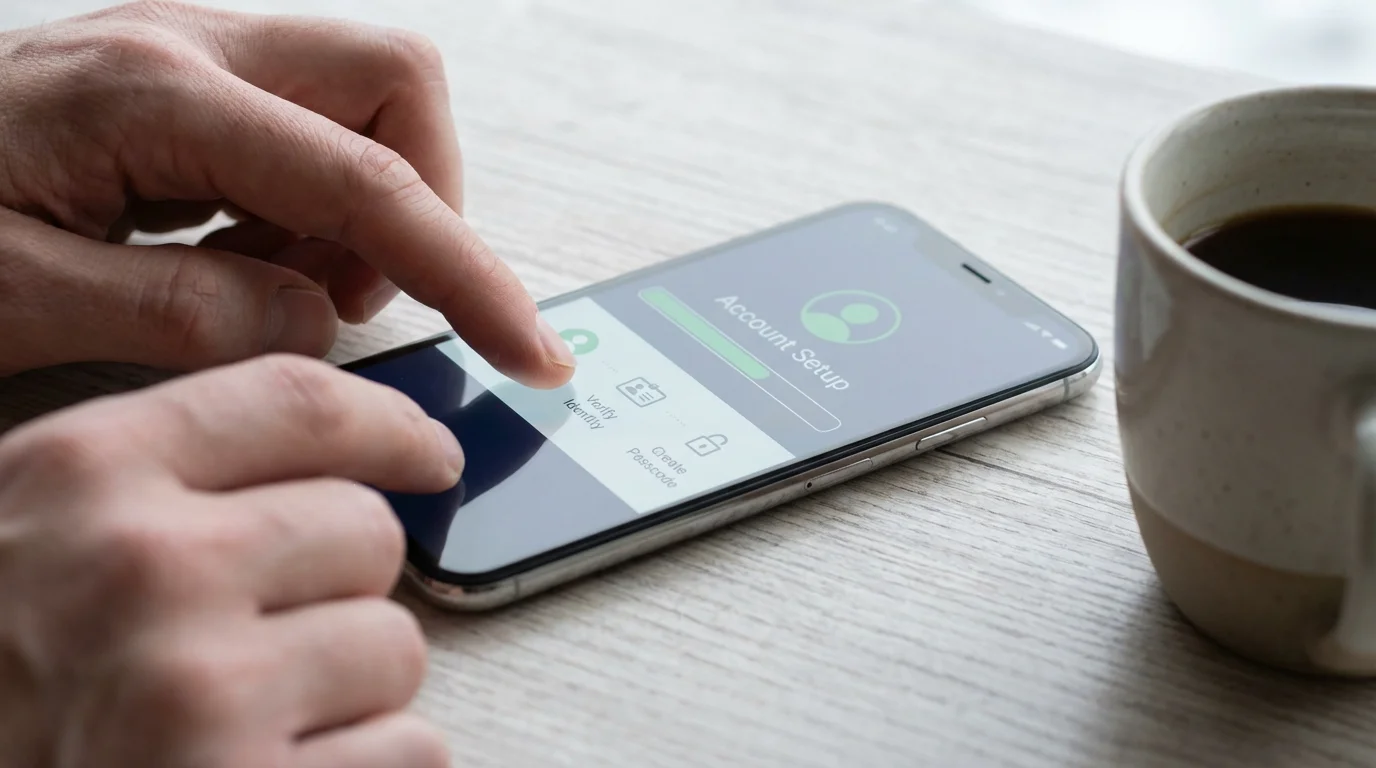
After you download and install your bank’s app, you need to set up your account for the first time. This involves logging in with your personal credentials. “Account” refers to your personal login, usually with a username and password, that links to your bank accounts.
When setting up your profile, you can also manage app permissions on your phone to control which parts of your device the bank can access.
First-Time Login Steps:
- Open the App: Tap on your bank’s app icon on your device’s home screen.
- Register or Log In:
- If you already have an online banking account set up through your bank’s website, you will typically use the same username and password to log into the mobile app. Look for a “Login” or “Sign In” option.
- If you have never set up online banking before, the app will guide you through a “Enroll,” “Register,” or “Create Account” process. You will need information like your account number, Social Security number, and potentially your debit card number to verify your identity.
- Create a Strong Password: If you are creating a new account, choose a strong, unique password. A strong password combines uppercase and lowercase letters, numbers, and symbols. Avoid using easily guessable information like birthdays or common words. A password manager can help you create and remember these complex passwords safely.
- Set Up Two-Factor Authentication (2FA): This is a critical security step. Many banks now require or strongly recommend two-factor authentication, also called multi-factor authentication. This means that in addition to your username and password, you provide a second piece of verification, such as a code sent to your phone via text message, an email, or a fingerprint scan. This extra layer of security significantly reduces the risk of unauthorized access. Always enable 2FA if your bank offers it.
- Enable Biometric Login (Optional): Many apps let you log in using your fingerprint (Touch ID) or facial recognition (Face ID). This provides quick and secure access without typing your password every time. If your device supports it, and your bank app offers this feature, you might find it very convenient.
- Review Terms and Conditions: The app might ask you to review and accept its terms and conditions. Read through them to understand how your data is used and what responsibilities you have.
Setting up your account correctly from the start, especially with strong passwords and two-factor authentication, establishes a secure foundation for all your mobile banking activities. It is a one-time effort that protects your money long-term.
Key Features of Your Bank App and How to Use Them Safely
Once you have set up your account, you can begin using the various features of your bank app. “Update” means getting the newest version of an app, usually free, which often includes security enhancements and new features.
Whenever you use these features on the go, make sure you know how to safely use public Wi-Fi to avoid prying eyes.
1. Checking Account Balances and History:
- What it does: Gives you an immediate view of how much money you have in your checking, savings, or other accounts. You can also see a detailed list of past transactions, including deposits, withdrawals, and purchases.
- How to use it:
- Log into your bank app.
- On the main screen, you will usually see a summary of your accounts. Tap on a specific account (e.g., “Checking Account”) to see its balance and transaction history.
- Scroll through the list to review recent activities.
- Safety tip: Regularly review your transaction history. If you see any transactions you do not recognize, contact your bank immediately. Fraudulent charges often start small.
2. Transferring Funds:
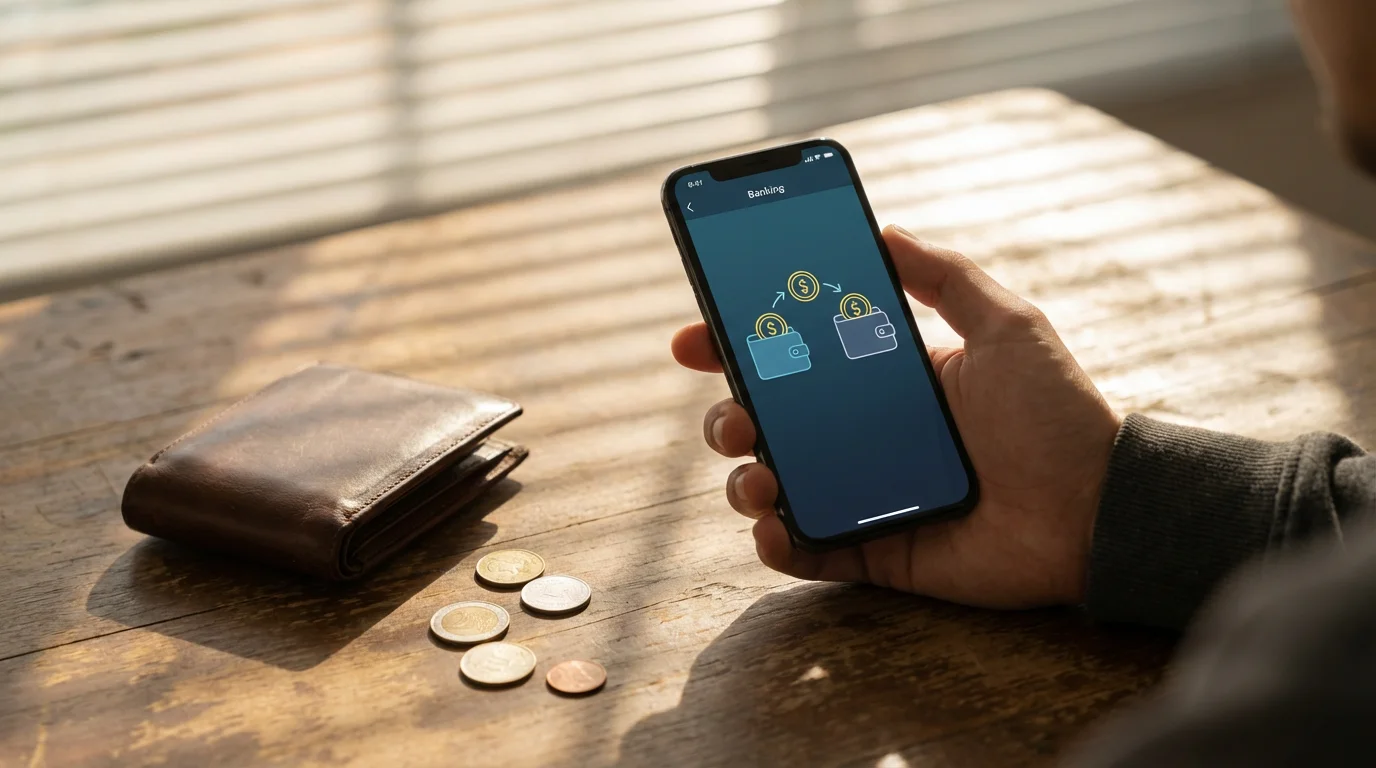
- What it does: Allows you to move money between your own accounts (e.g., from savings to checking) or, in some cases, to other people’s accounts at the same bank or even different banks.
- How to use it:
- Log into your bank app.
- Look for a “Transfer” or “Move Money” option.
- Select the “from” account and the “to” account.
- Enter the amount you wish to transfer.
- Confirm the details carefully before finalizing the transfer.
- Safety tip: Always double-check the recipient’s information and the amount before confirming a transfer, especially when sending money to another person. Mistakes can be difficult to reverse. Only transfer money to people you know and trust.
3. Paying Bills:
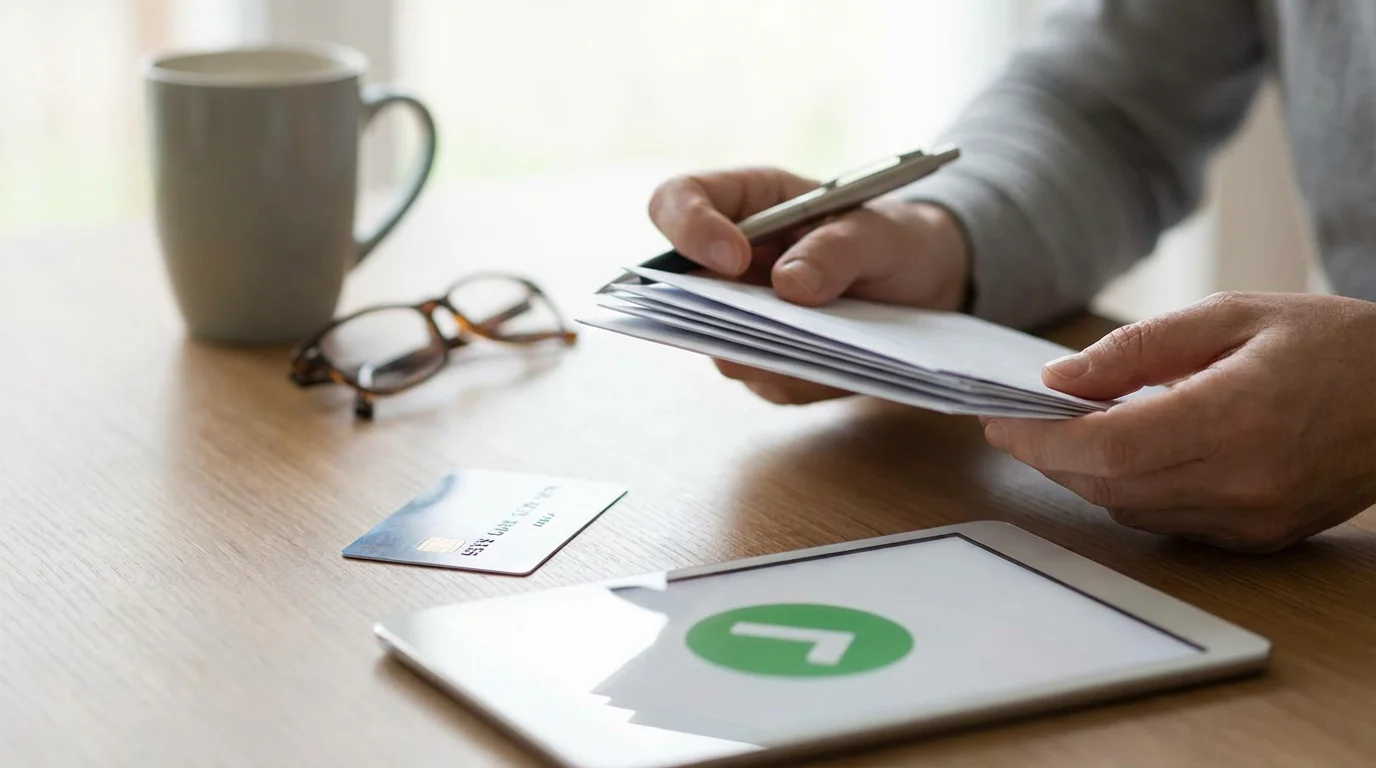
- What it does: Enables you to set up and pay your bills directly from your bank account. You can often schedule one-time payments or recurring payments.
- How to use it:
- Log into your bank app.
- Find the “Bill Pay” section.
- Add a new payee (the company or person you are paying) by providing their account number and address information (found on your bill). Many apps let you simply scan a bill.
- Select the payee, enter the amount, and choose the payment date.
- Review and confirm the payment.
- Safety tip: Set up notifications for bill payments so you receive an alert when a payment is due or has been made. This helps ensure bills are paid on time and prevents double payments.
4. Depositing Checks (Mobile Deposit):
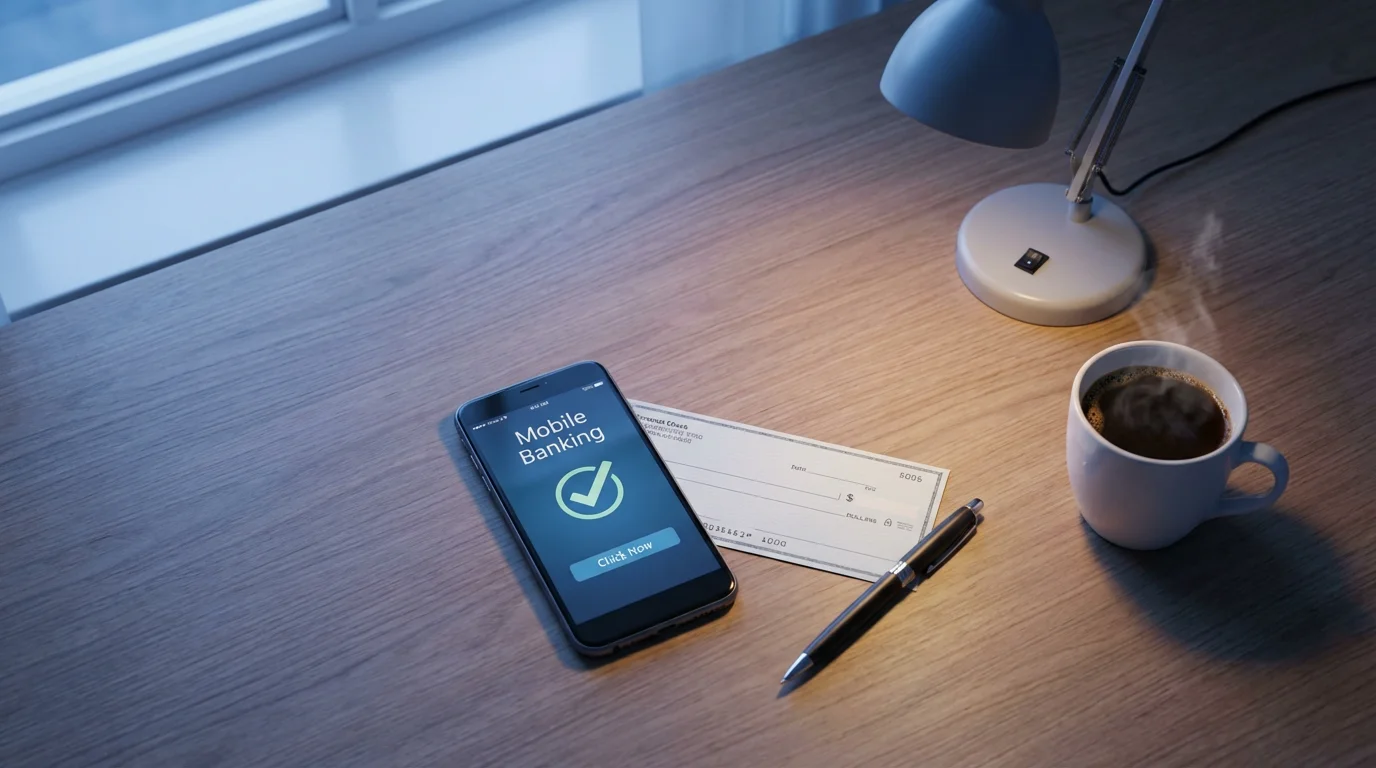
- What it does: Lets you deposit checks by taking pictures of them with your phone or tablet camera, saving you a trip to the ATM or bank branch.
- How to use it:
- Log into your bank app.
- Look for “Deposit Check” or “Mobile Deposit.”
- Select the account where you want to deposit the check.
- Endorse the back of your check. Write “For Mobile Deposit Only [Your Bank Name]” and sign your name. This is crucial for security.
- Take clear pictures of the front and back of the check when prompted by the app. Ensure all four corners are visible and the numbers are legible.
- Enter the check amount.
- Review all details and confirm the deposit.
- Safety tip: Keep the physical check in a secure place for a few days after depositing, then shred it to prevent fraud. Never try to deposit the same check twice. Most banks will automatically detect this, but it is a security risk.
5. Setting Up Account Alerts (Notifications):
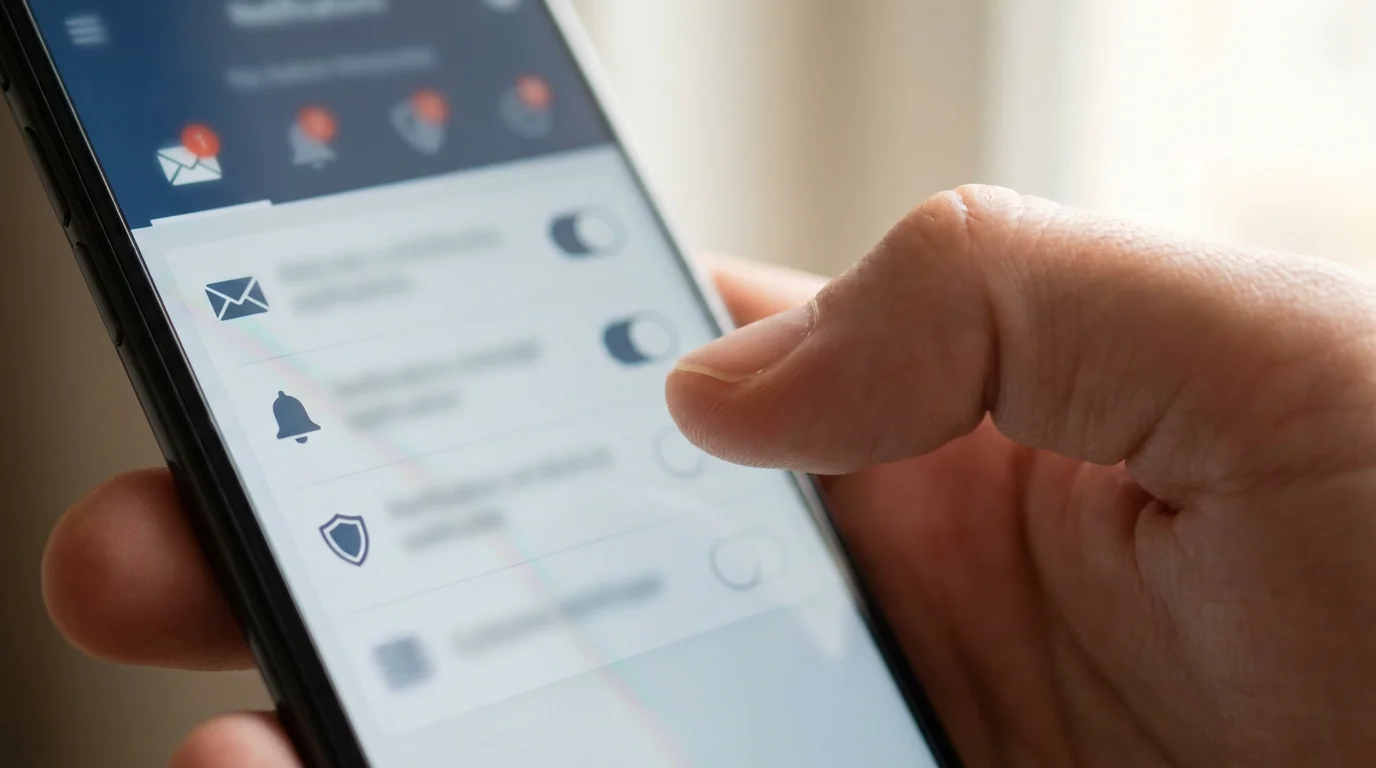
- What it does: Allows you to receive text messages, emails, or in-app messages (notifications) about specific account activities.
- How to use it:
- Log into your bank app.
- Go to “Settings” or “Alerts” within the app.
- Choose the types of alerts you want to receive (e.g., when your balance falls below a certain amount, when a large transaction occurs, or when a deposit is made).
- Select how you want to receive these alerts (text, email, or app notification).
- Safety tip: Enable alerts for large transactions or unusual activity. This provides an early warning system against potential fraud. For instance, if someone uses your card, you get an immediate alert.

Essential Safety Tips for Secure Mobile Banking
While bank apps offer strong security, your actions play a significant role in keeping your financial information safe. Following these tips helps you maintain a secure mobile banking experience.
One of the most important rules is to avoid banking on open networks; learning how to safely use public Wi-Fi can help you identify when it is safe to log in.
- Use Strong, Unique Passwords: Never use the same password for your bank app as you do for email, social media, or other websites. Create a complex password that is at least 12 characters long and includes a mix of uppercase and lowercase letters, numbers, and symbols. Consider using a reputable password manager to help you create and store these unique passwords.
- Enable Two-Factor Authentication (2FA): This is one of the most effective ways to protect your account. Even if someone guesses your password, they cannot access your account without the second factor (like a code sent to your phone). Make sure this feature is turned on for your bank app and for your email account associated with the bank.
- Keep Your App and Device Updated:
- App Updates: When your bank releases an app update, download it promptly. “Update” means getting the newest version of an app. These updates often include important security fixes that protect you from new threats. Your app store will usually notify you of available updates, or you can check manually.
- Device Updates: Keep your smartphone or tablet’s operating system (iOS for Apple, Android for others) up to date. System updates also include security patches.
- Avoid Public Wi-Fi for Banking: Public Wi-Fi networks (found in coffee shops, airports, libraries) are often not secure. Malicious individuals can sometimes intercept data transmitted over these networks. Always use your bank app on a secure, private Wi-Fi network or your mobile data (4G/5G) connection.
- Be Wary of Phishing Attempts: Phishing is when criminals try to trick you into giving them your personal information. Be suspicious of emails, text messages, or phone calls that claim to be from your bank and ask for your username, password, or account numbers. Your bank will never ask for this sensitive information via email or text. If you receive such a message, do not click any links. Instead, go directly to your bank’s official website or call the customer service number on your bank statement.
- Monitor Your Accounts Regularly: Frequently check your account balances and transaction history. Catching unauthorized transactions quickly increases your chances of recovering lost funds. Setting up “notifications” for unusual activity helps with this.
- Secure Your Device: Always use a passcode, PIN, fingerprint, or facial recognition to lock your smartphone or tablet. If your device falls into the wrong hands, this prevents immediate access to your banking app and other sensitive information.
- Log Out After Each Session: Make it a habit to log out of your bank app when you finish your banking tasks. While many apps log you out automatically after a period of inactivity, explicitly logging out adds another layer of security.
- Clear Browsing Data (for online banking on computer): If you use online banking on a public or shared computer, always clear your browser’s history and cookies when you are finished.
- Understand “Sync”: While “sync” most commonly refers to matching information across devices for photos or contacts, in a broader security context, it means ensuring your security settings, like password changes or multi-factor authentication preferences, are consistently applied across all ways you access your bank account.
Your vigilance is a powerful defense. By adopting these simple habits, you significantly reduce the risk of financial fraud and keep your money safe.

What to Do if You Encounter Problems or Suspect Fraud
Even with careful use, you might occasionally face a problem with your bank app or, more seriously, suspect fraud. Knowing what steps to take helps you resolve issues quickly and protect your finances.

Common App Problems and Solutions:
- Forgotten Username or Password:
- Most bank apps and websites have a “Forgot Username” or “Forgot Password” link on the login screen. Click this and follow the prompts. You will usually need to verify your identity with some personal information or a code sent to your phone or email.
- If you cannot recover your login, call your bank’s customer service number.
- App Not Loading or Crashing:
- First, try closing the app completely and reopening it.
- If that does not work, restart your phone or tablet.
- Ensure your app and device’s operating system are up to date. Sometimes old versions have bugs. “Update” means getting the newest version of an app, usually free.
- Check your internet connection. A weak signal can prevent the app from working correctly.
- If problems persist, try uninstalling and reinstalling the app from the official app store. This often resolves corrupted files.
- Technical Support: If you are still having trouble, do not hesitate to contact your bank’s customer service. They have dedicated support teams to help you. You can usually find their contact number on their official website or on your bank statement.

What to Do if You Suspect Fraud:
If you see unauthorized transactions, receive suspicious communications, or believe your account has been compromised, act immediately. Time is critical in limiting potential damage.
- Contact Your Bank Immediately: This is the most crucial step. Call the customer service number found on your bank’s official website or on the back of your debit/credit card. Do not use a number from a suspicious email or text message. Report the suspicious activity and follow their instructions. Banks have robust fraud departments ready to assist you.
- Change Your Passwords: Immediately change your password for your bank account. Also, change passwords for any other online accounts that use the same password or are linked to your bank account (like email).
- Monitor Your Accounts Closely: Continue to check your bank and credit card statements frequently for any further unauthorized activity.
- Consider a Credit Freeze: If you believe your identity might be compromised, consider placing a freeze on your credit reports with the three major credit bureaus (Experian, Equifax, and TransUnion). This prevents new accounts from being opened in your name. You can learn more about this at the Federal Trade Commission’s consumer information website: https://consumer.ftc.gov.
- Report Phishing Attempts: If you received a suspicious email or text, forward it to your bank’s fraud department. They can investigate and take action to protect other customers. You can also report phishing to the FTC.
Prompt action significantly improves your chances of recovering funds and preventing further issues. Banks are generally very proactive in helping customers resolve fraud issues.
Frequently Asked Questions
Here are answers to some common questions about using your bank’s mobile app safely.
Q: Is my bank’s mobile app truly safe?
A: Yes, your bank’s mobile app is generally very safe. Banks invest heavily in advanced security measures, including encryption, multi-factor authentication, and constant monitoring, to protect your financial data. They use industry-standard protocols to secure your information. Your safety also depends on following best practices, such as using strong passwords and avoiding public Wi-Fi for sensitive transactions. According to data from the American Bankers Association, banks are continually enhancing their digital security to protect customer accounts.
Q: Do I have to pay to use my bank’s app?
A: No, your bank’s mobile app is free to download and use. Banks offer these apps as a complimentary service to their customers to provide convenient access to banking services. Any charges you might incur are standard banking fees related to specific transactions (e.g., overdraft fees, wire transfer fees), not for the use of the app itself.
Q: What if I do not have a smartphone? Can I still do online banking?
A: Absolutely. If you do not have a smartphone or tablet, you can still access most banking services through your bank’s official website using a desktop or laptop computer. This is called online banking. You will use a web browser like Chrome, Firefox, or Safari to log in to your account securely. The features available are very similar to what the mobile app offers.
Q: How often should I check for app updates?
A: You should enable automatic updates for your bank app if your device allows it. If not, check for updates manually at least once a month. “Update” means getting the newest version of an app. App updates frequently include critical security enhancements and bug fixes that protect you from emerging threats. Keeping your app updated is a fundamental step in maintaining secure mobile banking.
Using your bank’s mobile app safely empowers you to manage your finances with ease and confidence. By understanding how to find, download, and use the app, and by following key security practices, you gain control over your money in a modern, convenient way. Remember, your bank is there to help, and continuous learning helps you navigate the digital world securely. Start exploring your bank’s app today and discover how it simplifies your financial life.
Disclaimer: This article is for informational purposes only. App interfaces change frequently with updates, so screens may look slightly different from what’s described. Always download apps from official app stores (Apple App Store or Google Play Store) to ensure safety.






Leave a Reply