

Do you ever feel like you spend too much time navigating your computer with your mouse, wishing there was a quicker way to get things done? Many adults, especially those who learned on older computer systems, often find new interfaces a bit confusing. You are not alone in seeking more efficient ways to manage your digital life. This guide will introduce you to keyboard shortcuts, which are combinations of keys you press on your keyboard to perform tasks faster. Think of them as secret codes that unlock speed and simplify common actions like copying text, opening a new tab in your internet browser, or saving a document.
Before practicing these shortcuts, ensure you know how to shut down your computer safely once your work is finished.
Learning just a few essential keyboard shortcuts can dramatically increase your productivity. You can accomplish everyday tasks with fewer mouse clicks, saving you time and making your computing experience smoother and more enjoyable. This guide covers practical shortcuts for Windows 10/11, macOS, and Chrome OS, providing clear, actionable insights to help you master these time-saving tools. Let us begin by understanding what these shortcuts are and why they are so valuable.
Table of Contents
- What Are Keyboard Shortcuts and Why Use Them?
- The Essential Keys: Understanding Your Keyboard
- Universal Shortcuts for Text Editing and Navigation
- Managing Files and Folders with Shortcuts
- Browser Shortcuts for Easier Internet Use
- Common Problems and Solutions
- Essential Keyboard Shortcuts Reference Table
- When to Ask for Help
- Frequently Asked Questions

What Are Keyboard Shortcuts and Why Use Them?
Keyboard shortcuts are combinations of keys you press to quickly perform an action that would otherwise require using your mouse or trackpad to navigate menus. Instead of moving your mouse pointer, pressing the left mouse button once, or “clicking,” through several menus to find a command, you simply press two or three keys simultaneously. This direct interaction with your keyboard speeds up your work and reduces repetitive mouse movements.
To ensure your system remains responsive as you learn these tips, it helps to follow basic computer maintenance routines.
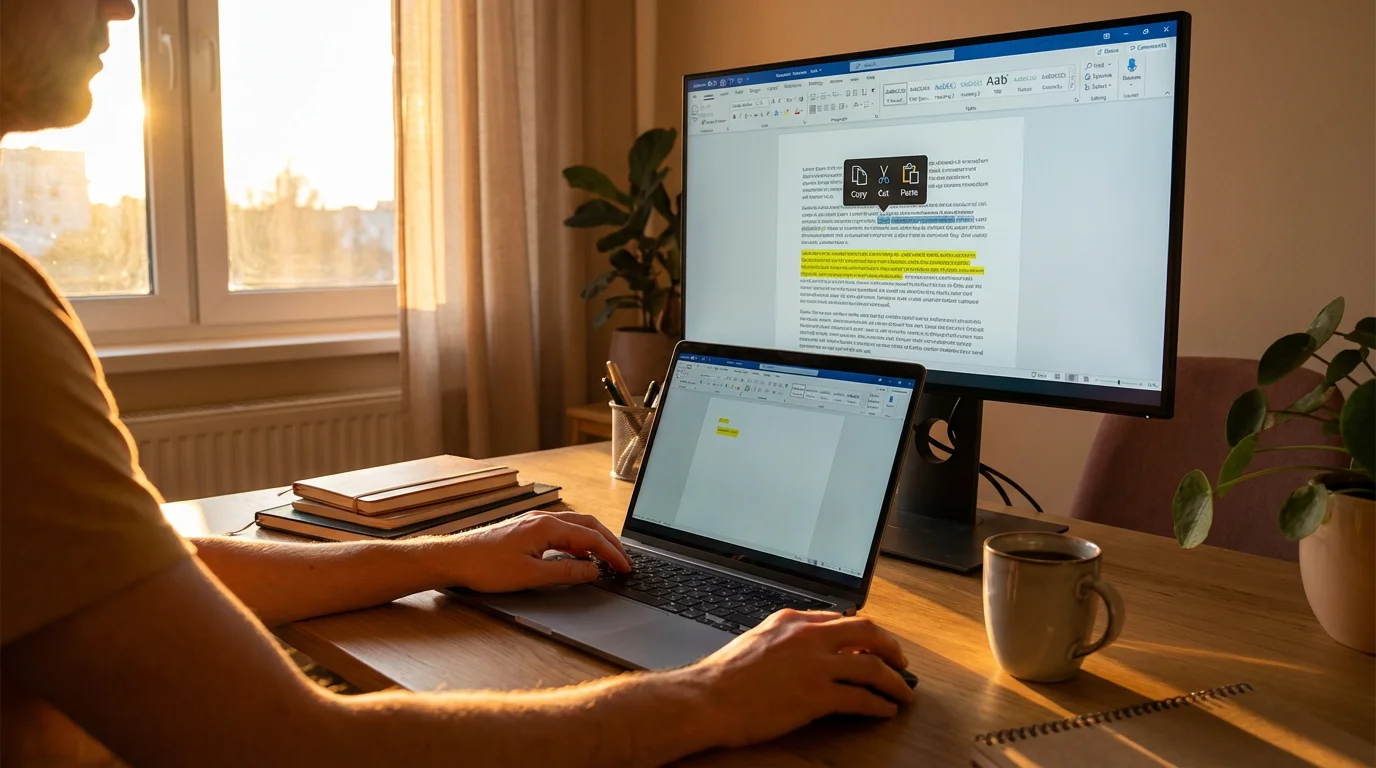
For example, to copy text, you might usually highlight the text, press the right mouse button once, or “right-click,” select “Copy” from the menu that appears, then move to a new location, right-click again, and select “Paste.” With keyboard shortcuts, you simply highlight the text and press two keys: one to copy, and another to paste. This efficiency is a powerful benefit.
Many people find new computer interfaces confusing, especially if they have grown accustomed to older systems. Keyboard shortcuts offer a consistent way to interact with your computer, regardless of interface changes. Once you learn a shortcut, it often applies across many different programs and operating systems, making your computer use feel more intuitive and less daunting. These productivity tips empower you to take more control over your computer, simplifying your daily tasks and saving you valuable time.
Learning new technology can feel challenging, but resources like GCFGlobal offer free tutorials to help you build confidence and skills. Keyboard shortcuts are a great starting point for improving your computer proficiency.

The Essential Keys: Understanding Your Keyboard
Before diving into specific shortcuts, let us identify the important keys you will use regularly. These keys often work in combination with other keys to perform specific actions.
For those using a PC, understanding your Windows 11 desktop will provide a helpful visual guide to your computer’s main interface.
While mastering the keys, you might also find it helpful to learn how to make your computer screen easier to read to reduce eye strain.
- Ctrl (Control) Key: You will find this key in the bottom left and often bottom right corners of your keyboard. It is a primary modifier key for Windows and Chrome OS.
- Cmd (Command) Key: On Apple Mac computers, this key replaces the Ctrl key for many shortcuts. It has a cloverleaf or pretzel-like symbol on it, and is located next to the spacebar.
- Alt (Alternate) Key: Found near the Ctrl key (Windows/Chrome OS) or Cmd key (Mac). On Mac, it may be labeled “Option.”
- Shift Key: Located on both sides of the keyboard, above the Ctrl or Cmd key. You use it to type capital letters or the symbols found on the top part of number keys.
- Function (Fn) Key: Often found on laptops, this key activates secondary functions on other keys, like adjusting screen brightness or volume. You might need to hold Fn while pressing another key for certain actions.
- Windows Key (Start Key): This key, found on Windows keyboards, usually has the Windows logo on it. It opens the Start menu and is used in many Windows-specific shortcuts.
- Tab Key: Located on the far left, above Caps Lock. It moves your cursor through fields in a form or indents text.
- Esc (Escape) Key: Found in the top left corner of your keyboard. It cancels actions or closes menus.
Most keyboard shortcuts involve holding down one of these modifier keys (Ctrl, Cmd, Alt, Shift) and then pressing another key. You release both keys once you complete the action. For instance, to use a “Ctrl + C” command, you hold down the Ctrl key, press the “C” key once, and then release both keys.
Universal Shortcuts for Text Editing and Navigation
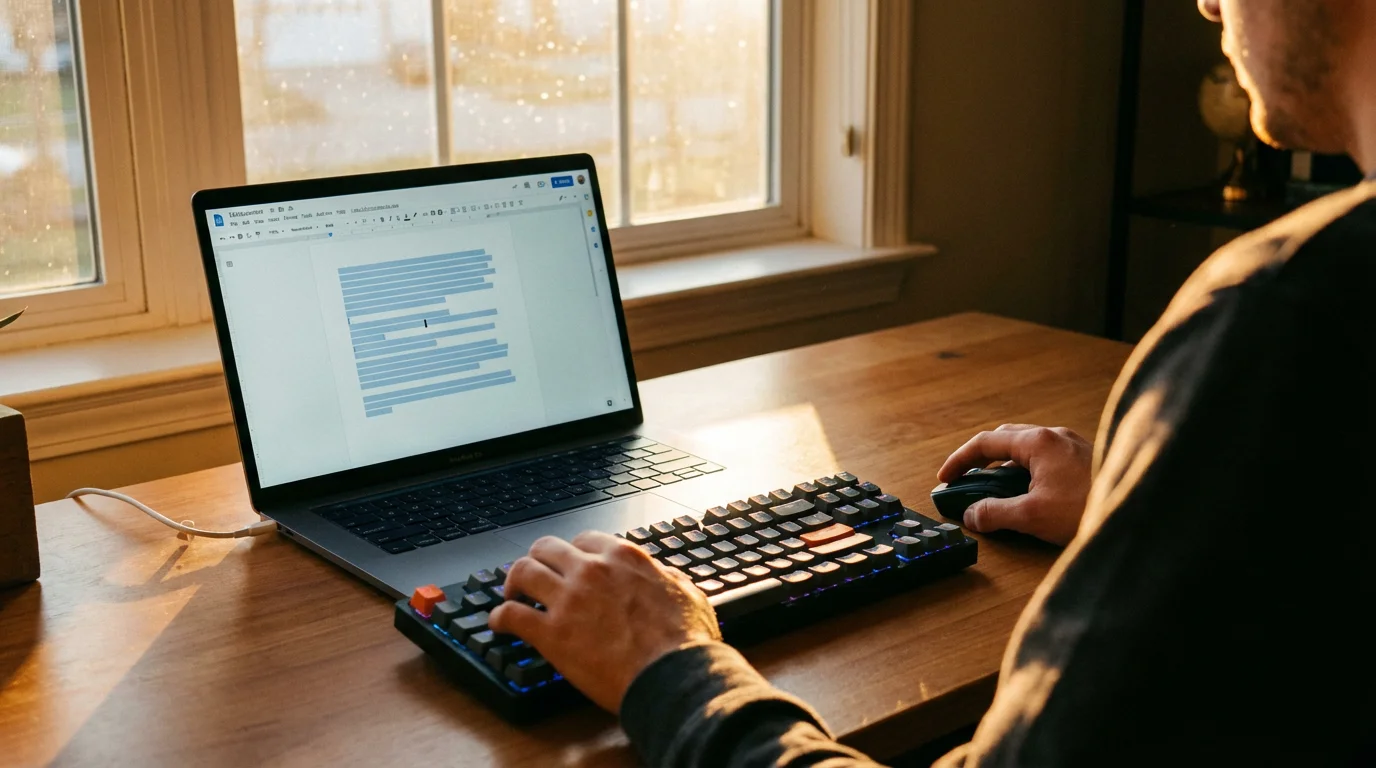
Many of the most useful keyboard shortcuts apply across different programs, especially when you are working with text, documents, or photos. These are truly essential keyboard shortcuts for beginners.
Once you have mastered selecting text, you might want to learn how to create folders to keep your files organized.
Copy, Cut, and Paste
These commands are fundamental for moving text, images, or files. Copy duplicates an item, Cut removes it, and Paste places it in a new location.
- Copy:
- Windows 10/11: Press and hold Ctrl, then press C.
- macOS: Press and hold Cmd, then press C.
- Chrome OS: Press and hold Ctrl, then press C.
What You’ll See On Screen: The selected text or item remains in its original place, but a copy is now ready to be pasted elsewhere.
- Cut:
- Windows 10/11: Press and hold Ctrl, then press X.
- macOS: Press and hold Cmd, then press X.
- Chrome OS: Press and hold Ctrl, then press X.
What You’ll See On Screen: The selected text or item disappears from its original location, ready to be pasted elsewhere. It is temporarily stored in your computer’s memory.
- Paste:
- Windows 10/11: Press and hold Ctrl, then press V.
- macOS: Press and hold Cmd, then press V.
- Chrome OS: Press and hold Ctrl, then press V.
What You’ll See On Screen: The copied or cut item appears at your cursor’s current location.

Undo and Redo
Made a mistake? Undo reverses your last action. Redo brings it back if you undid too much.
- Undo:
- Windows 10/11: Press and hold Ctrl, then press Z.
- macOS: Press and hold Cmd, then press Z.
- Chrome OS: Press and hold Ctrl, then press Z.
What You’ll See On Screen: Your last action reverses. For example, if you typed text, it disappears. If you deleted text, it reappears.
- Redo:
- Windows 10/11: Press and hold Ctrl, then press Y.
- macOS: Press and hold Cmd, then press Shift, then press Z.
- Chrome OS: Press and hold Ctrl, then press Shift, then press Z.
What You’ll See On Screen: The action you just “undid” reappears.

Select All
This command quickly selects all text or items in a document or window.
- Select All:
- Windows 10/11: Press and hold Ctrl, then press A.
- macOS: Press and hold Cmd, then press A.
- Chrome OS: Press and hold Ctrl, then press A.
What You’ll See On Screen: All content in the active window or document highlights, typically in blue or gray, indicating it is selected.

Find
Quickly search for specific words or phrases within a document or web page.
- Find:
- Windows 10/11: Press and hold Ctrl, then press F.
- macOS: Press and hold Cmd, then press F.
- Chrome OS: Press and hold Ctrl, then press F.
What You’ll See On Screen: A small search box appears, usually at the top or bottom of the window. Type your search term there, and the computer highlights matches.

Save
Saving your work frequently prevents data loss. Use this shortcut often.
- Save:
- Windows 10/11: Press and hold Ctrl, then press S.
- macOS: Press and hold Cmd, then press S.
- Chrome OS: Press and hold Ctrl, then press S.
What You’ll See On Screen: If it is a new document, a “Save As” window opens, asking for a file name and location. If you have already saved it, your changes simply update without a pop-up.

Ready to print your document or photo? This shortcut opens the print dialog.
- Print:
- Windows 10/11: Press and hold Ctrl, then press P.
- macOS: Press and hold Cmd, then press P.
- Chrome OS: Press and hold Ctrl, then press P.
What You’ll See On Screen: The “Print” dialog box appears, allowing you to select your printer, page range, and other settings before you click the “Print” button.
Managing Files and Folders with Shortcuts
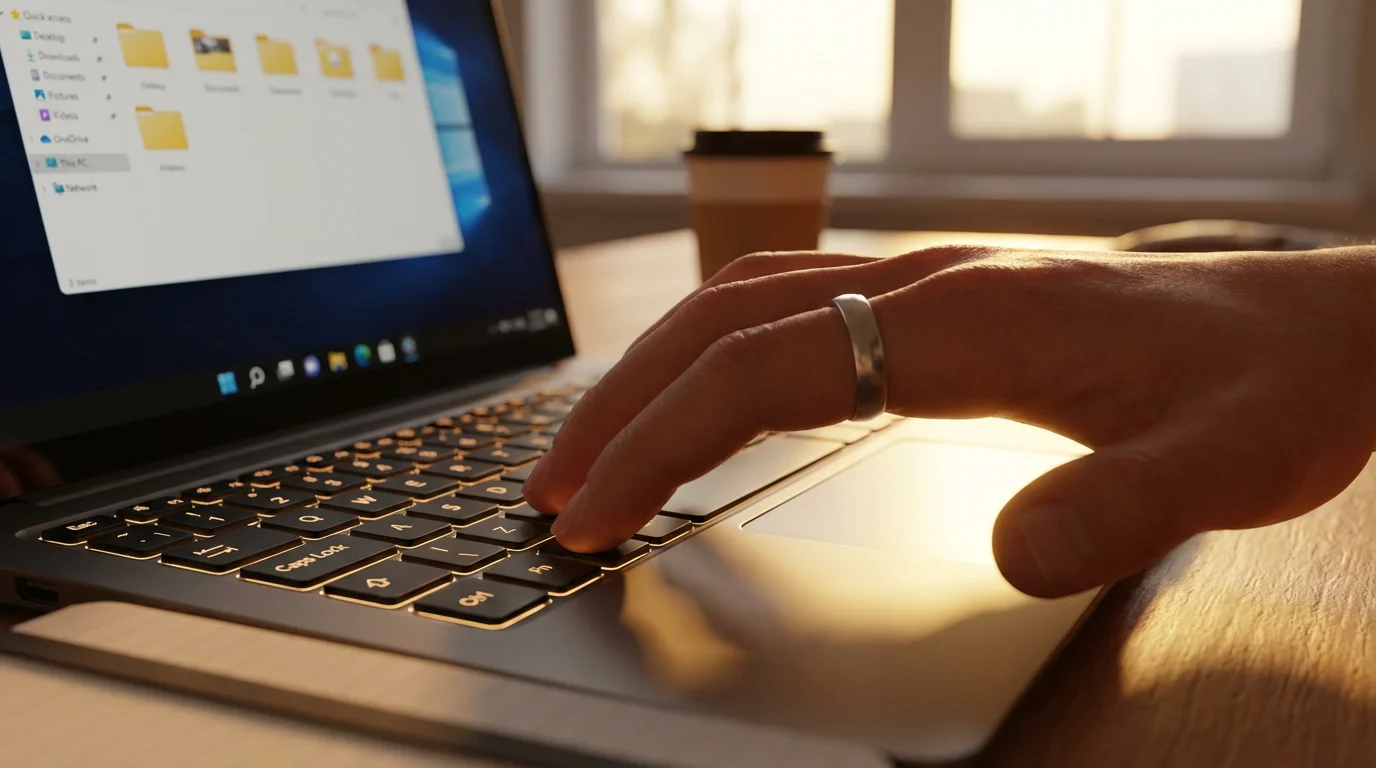
Organizing your digital life involves creating folders, moving files, and managing your storage. Keyboard shortcuts make file management faster and more straightforward. A folder is like a manila folder that holds your files, and a file is a document, photo, or other item saved on your computer.
Security is just as important as speed, so be sure to learn how to protect your computer from viruses while you explore the digital world.
Beyond organization, it is also essential to know how to back up your computer files to an external drive for safety.

Creating a New Folder
Organize your documents and photos by quickly creating new folders.
- Windows 10/11:
Navigate to the location where you want the new folder. Press and hold Ctrl, then press Shift, then press N.
What You’ll See On Screen: A new folder icon appears, labeled “New folder,” with the name highlighted. Type a new name for your folder and press Enter.
- macOS:
Open Finder (the smiling face icon in your Dock, the bar of icons at the bottom of the screen). Navigate to the desired location. Press and hold Cmd, then press Shift, then press N.
What You’ll See On Screen: A new folder icon appears, labeled “untitled folder,” with the name highlighted. Type a new name for your folder and press Return.
- Chrome OS:
Open the Files app (the blue folder icon). Navigate to the desired location. Press and hold Ctrl, then press E. Then, select “New folder.”
What You’ll See On Screen: A new folder appears with a default name. Type a new name and press Enter.
Renaming Files or Folders
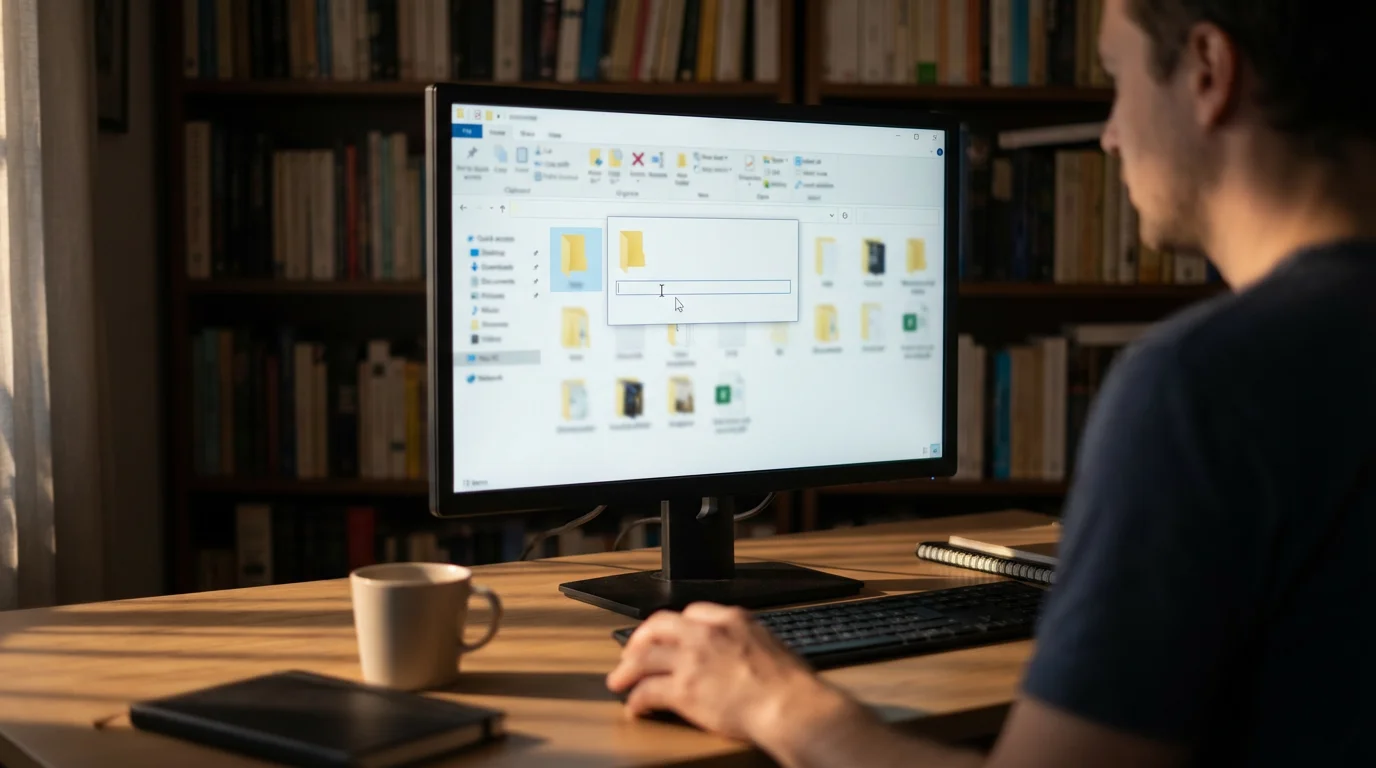
Give your files and folders clear, descriptive names with this shortcut.
- Windows 10/11:
Select the file or folder with a single left mouse button press, or “click” it once. Press F2.
What You’ll See On Screen: The name of the file or folder highlights, allowing you to type a new name. Press Enter when you finish.
- macOS:
Select the file or folder with a single click. Press Return (the Enter key).
What You’ll See On Screen: The name of the file or folder highlights. Type a new name and press Return when you finish.
- Chrome OS:
Select the file or folder with a single click. Press and hold Ctrl, then press Enter.
What You’ll See On Screen: The name of the file or folder highlights. Type a new name and press Enter when you finish.

Deleting Files or Folders
Quickly send unwanted items to the recycling bin or trash.
- Windows 10/11:
Select the file or folder. Press the Delete key.
What You’ll See On Screen: The item moves to the Recycle Bin. You can typically recover it from there if you change your mind.
- macOS:
Select the file or folder. Press and hold Cmd, then press Delete.
What You’ll See On Screen: The item moves to the Trash. You can typically recover it from there.
- Chrome OS:
Select the file or folder. Press Alt, then press Backspace.
What You’ll See On Screen: The item moves to the Trash. You can typically recover it from there.

Browser Shortcuts for Easier Internet Use
Most of us spend a good amount of time browsing the internet for news, email, or connecting with family. These browser shortcuts will make your online experience much smoother. They generally work across popular browsers like Google Chrome, Mozilla Firefox, Microsoft Edge, and Apple Safari.

Open a New Tab
Quickly open a fresh browser tab without touching your mouse.
- Windows 10/11 (all browsers): Press and hold Ctrl, then press T.
- macOS (all browsers): Press and hold Cmd, then press T.
- Chrome OS (all browsers): Press and hold Ctrl, then press T.
What You’ll See On Screen: A new, empty tab appears next to your current tab.

Close Current Tab
Close a tab you no longer need with a quick key press.
- Windows 10/11 (all browsers): Press and hold Ctrl, then press W.
- macOS (all browsers): Press and hold Cmd, then press W.
- Chrome OS (all browsers): Press and hold Ctrl, then press W.
What You’ll See On Screen: The tab you were actively viewing closes.

Reopen Closed Tab
Accidentally closed a tab? This shortcut is a lifesaver.
- Windows 10/11 (all browsers): Press and hold Ctrl, then press Shift, then press T.
- macOS (all browsers): Press and hold Cmd, then press Shift, then press T.
- Chrome OS (all browsers): Press and hold Ctrl, then press Shift, then press T.
What You’ll See On Screen: The most recently closed tab reappears.

Refresh Current Page
If a web page is not loading correctly or you need to see the latest information, refresh it.
- Windows 10/11 (all browsers): Press F5, or press and hold Ctrl, then press R.
- macOS (all browsers): Press and hold Cmd, then press R.
- Chrome OS (all browsers): Press and hold Ctrl, then press R.
What You’ll See On Screen: The web page reloads, often showing a spinning icon in the tab to indicate it is refreshing.

Go Back/Forward in Browser History
Navigate between pages you have recently visited without clicking the back or forward arrows.
- Back:
- Windows 10/11 (all browsers): Press Backspace, or press and hold Alt, then press the Left Arrow key.
- macOS (all browsers): Press and hold Cmd, then press the Left Arrow key.
- Chrome OS (all browsers): Press and hold Alt, then press the Left Arrow key.
What You’ll See On Screen: Your browser returns to the previous page you visited.
- Forward:
- Windows 10/11 (all browsers): Press and hold Alt, then press the Right Arrow key.
- macOS (all browsers): Press and hold Cmd, then press the Right Arrow key.
- Chrome OS (all browsers): Press and hold Alt, then press the Right Arrow key.
What You’ll See On Screen: Your browser moves to the next page in your browsing history, if you previously went back.
Common Problems and Solutions
Sometimes keyboard shortcuts do not work as expected. Here are some common issues and straightforward solutions:
- Shortcut Not Working:
Problem: You press the keys, but nothing happens.
Solution:
- Check if the correct window is active: Ensure the program you want to use the shortcut in is the one currently on top, or “active.” Click anywhere on that program’s window to make it active.
- Verify the shortcut: Double-check that you are pressing the correct keys for your operating system (Windows, macOS, or Chrome OS) and the specific action. Small differences, like using Ctrl instead of Cmd, can prevent success.
- Try a different application: Some shortcuts are application-specific. For example, a shortcut in a word processor might not work in your email program. Test it in another common application, like a web browser or a basic text editor, to see if the shortcut functions there.
- Restart the application: Sometimes an application glitches. Close the program completely and reopen it.
- Restart your computer: A full restart can often resolve temporary software conflicts or issues that prevent shortcuts from working. This is a common solution for many computer problems.
- Difficulty with Simultaneous Key Presses:
Problem: You find it hard to press multiple keys at the exact same time.
Solution:
- Practice slowly: Keyboard shortcuts require a specific rhythm. Hold down the modifier key (Ctrl, Cmd, Alt, or Shift) first, then press the second key once, then release both. Do not try to press them all at the exact same instant.
- Use both hands if comfortable: For some shortcuts, using one hand for the modifier key and the other for the action key can be easier.
- Accessibility settings: Your computer has accessibility features that can help. For instance, “Sticky Keys” (Windows) or “Sticky Keys” (macOS) allow you to press modifier keys one at a time, and they remain active until you press the next key. To enable Sticky Keys on Windows 10/11, click the Start button (Windows logo on the taskbar, the bar at the bottom of the screen), then click Settings, then Accessibility, then Keyboard, and toggle on Sticky Keys. On macOS, click the Apple menu (top left corner), then System Settings, then Accessibility, then Keyboard, and enable Sticky Keys.
- Accidentally Triggering Shortcuts:
Problem: You are pressing keys and unintentionally activating shortcuts, causing unexpected actions.
Solution:
- Be mindful of key placement: Ensure your fingers are on the correct keys for typing and not accidentally resting on a modifier key.
- Understand common shortcuts: Familiarize yourself with the most frequent shortcuts so you recognize them if you trigger them by mistake. For instance, if text suddenly disappears, you might have accidentally pressed Ctrl+X (Cut) or Ctrl+Z (Undo).

Essential Keyboard Shortcuts Reference Table
This table provides a quick reference to the most common and useful keyboard shortcuts discussed in this guide. Keep it handy as you practice your new productivity tips.
| Action | Windows 10/11 | macOS | Chrome OS | Explanation |
|---|---|---|---|---|
| Copy | Ctrl + C | Cmd + C | Ctrl + C | Duplicates selected item. |
| Cut | Ctrl + X | Cmd + X | Ctrl + X | Removes selected item, ready to paste. |
| Paste | Ctrl + V | Cmd + V | Ctrl + V | Inserts copied/cut item. |
| Undo | Ctrl + Z | Cmd + Z | Ctrl + Z | Reverses the last action. |
| Redo | Ctrl + Y | Cmd + Shift + Z | Ctrl + Shift + Z | Reverses an Undo action. |
| Select All | Ctrl + A | Cmd + A | Ctrl + A | Selects all content in active window/document. |
| Find | Ctrl + F | Cmd + F | Ctrl + F | Opens search box to find text. |
| Save | Ctrl + S | Cmd + S | Ctrl + S | Saves current document. |
| Ctrl + P | Cmd + P | Ctrl + P | Opens print dialog. | |
| New Folder | Ctrl + Shift + N | Cmd + Shift + N | Ctrl + E, then “New folder” | Creates a new folder. |
| Rename File/Folder | F2 | Return | Ctrl + Enter | Allows renaming selected item. |
| Delete File/Folder | Delete | Cmd + Delete | Alt + Backspace | Sends selected item to Recycle Bin/Trash. |
| New Tab (Browser) | Ctrl + T | Cmd + T | Ctrl + T | Opens a new browser tab. |
| Close Tab (Browser) | Ctrl + W | Cmd + W | Ctrl + W | Closes the current browser tab. |
| Reopen Last Tab (Browser) | Ctrl + Shift + T | Cmd + Shift + T | Ctrl + Shift + T | Reopens the most recently closed browser tab. |
| Refresh Page (Browser) | F5 or Ctrl + R | Cmd + R | Ctrl + R | Reloads the current web page. |
| Back (Browser) | Backspace or Alt + Left Arrow | Cmd + Left Arrow | Alt + Left Arrow | Goes back to the previous web page. |
| Forward (Browser) | Alt + Right Arrow | Cmd + Right Arrow | Alt + Right Arrow | Goes forward to the next web page. |

When to Ask for Help
Learning something new takes time and patience. While this guide provides a solid foundation for using keyboard shortcuts, remember that it is perfectly normal to encounter situations where you need additional support. You should not hesitate to ask for help.
If you face a persistent problem, such as a shortcut that consistently fails to work, or if you feel overwhelmed by a particular task, reaching out is a smart step. Consider these resources:
- Trusted Family or Friends: A tech-savvy family member or friend can often provide hands-on help and clarification. They can observe what you are doing and offer real-time feedback.
- Official Support Resources:
- For Windows users, Microsoft Support offers extensive documentation and troubleshooting guides.
- Mac users can find detailed assistance on Apple Support.
- Chromebook users have access to comprehensive help via Google Support.
- Community Learning Centers: Many local libraries or senior centers offer free computer classes or drop-in tech help sessions. These can provide personalized guidance and a supportive learning environment.
- Professional Computer Repair Shops: For more complex issues that go beyond simple shortcuts, a professional can diagnose and fix underlying software or hardware problems.
Remember, your goal is to make computing easier and more enjoyable. These tools are there to serve you, and seeking help ensures you continue to use your computer with confidence.
Frequently Asked Questions
Here are answers to some common questions about using keyboard shortcuts.
Q1: Are keyboard shortcuts the same on all computers?
No, keyboard shortcuts are not identical on all computers. They often differ based on the operating system you use. For example, Windows PCs primarily use the Ctrl key for shortcuts, while Apple Macs use the Cmd (Command) key for many of the same actions. Chrome OS, found on Chromebooks, also uses Ctrl for many actions, similar to Windows, but can have its own unique combinations. While the core idea of a shortcut remains consistent, the specific keys you press will vary, so always check the correct command for your system.
Q2: Can I create my own keyboard shortcuts?
Yes, you can create your own keyboard shortcuts, though the process varies by operating system and sometimes by application. For instance, on Windows, you can sometimes assign custom shortcuts to open programs or specific functions within applications. macOS offers robust customization options in its System Settings, allowing you to create shortcuts for menu commands in any application. Chrome OS has more limited direct customization, but third-party browser extensions can add similar capabilities. Creating custom shortcuts is an advanced productivity tip, and you might want to master the built-in shortcuts first.
Q3: Do keyboard shortcuts work in all programs?
Many common keyboard shortcuts, like copy (Ctrl+C or Cmd+C) and paste (Ctrl+V or Cmd+V), work in nearly all programs that handle text or files. These are considered universal shortcuts. However, some shortcuts are specific to a particular program. For example, a shortcut to apply a special filter in a photo editing program will only work within that program. Always refer to the program’s help menu or documentation if you are looking for specific shortcuts within an application. Modern programs strive for consistency, so many of the essential keyboard shortcuts for beginners will function broadly.
Q4: What if I forget a shortcut?
Forgetting a shortcut is completely normal, especially when you are just starting. Do not get discouraged. You have several easy ways to remind yourself. First, you can refer to a computer shortcuts guide like this one. Second, many programs display their keyboard shortcuts right next to the command in their menus. For example, if you click “File” in a program, you might see “Save” listed with “Ctrl+S” (or “Cmd+S”) next to it. Third, simply use your mouse to perform the action. The goal is to save time and reduce frustration, not to memorize everything instantly. Practice makes perfect.
Disclaimer: This article is for informational purposes only. Your computer’s screens may look slightly different depending on your operating system version and settings. When in doubt, consult official support resources or ask someone you trust for help.







Leave a Reply