
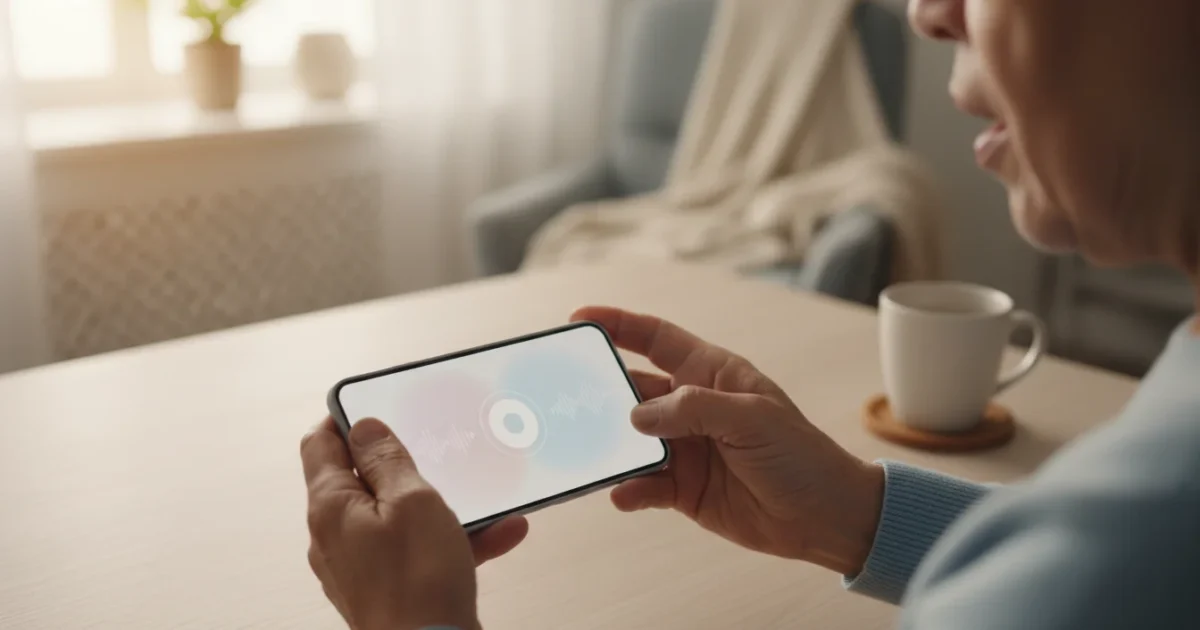
Your iPhone is a powerful tool, and you can make it even more accessible and convenient with Voice Control. Imagine navigating your phone, sending messages, or even taking photos, all simply by speaking. Voice Control empowers you to use your iPhone hands-free, offering a wonderful solution if you find tapping or swiping challenging, or if you simply prefer using your voice. This guide will walk you through setting up and using this remarkable accessibility feature step by step.
This method of hands-free interaction is also incredibly useful when you set up and use WhatsApp to stay connected with family.
While many people know about Siri, your iPhone’s helpful voice assistant, Voice Control offers a different, deeper level of interaction. Siri answers questions and performs specific tasks you ask for, but Voice Control lets you literally control your entire phone interface with your voice, much like using your finger to tap and swipe, but without needing to touch the screen at all. It is perfect for making your iPhone truly work for you, in a way that feels natural and intuitive.
Table of Contents
- What is Voice Control and Why Use It?
- What You’ll Need Before You Start
- Setting Up Voice Control on Your iPhone
- Understanding Voice Commands and Navigation
- Using Voice Control for Everyday Tasks
- Customizing Voice Control for Your Needs
- Troubleshooting Common Voice Control Issues
- Quick Reference Checklist for Voice Control
- Frequently Asked Questions

What is Voice Control and Why Use It?
Voice Control is an accessibility feature on your iPhone that allows you to operate your device entirely with your voice. Instead of using your fingers to gently touch (tap) icons, slide your finger (swipe) through screens, or type messages, you simply speak your commands. Your iPhone listens and responds, carrying out the actions you instruct it to do.
If you ever switch to a different device, you might be interested in how to use Google Assistant on Android for a similar voice-controlled experience.
Along with using your voice, you might also want to make text bigger on your iPhone to improve readability and reduce eye strain.
You might wonder, “How is this different from Siri?” Siri is like a personal assistant you ask questions or give general commands to, such as “What’s the weather?” or “Set a timer for 10 minutes.” Voice Control, on the other hand, lets you navigate your phone directly. Think of it as replacing your finger with your voice. You can say “Open Messages,” “Tap the compose button,” “Type, Hello there,” and “Tap Send.” It gives you incredibly precise control over every element on your screen.
Many seniors find Voice Control incredibly helpful for several reasons:
- Hands-Free Convenience: Keep your hands free for other tasks, like cooking, cleaning, or simply relaxing. You can control your phone without ever picking it up.
- Enhanced Accessibility: If you experience conditions that affect fine motor skills, such as arthritis, or have temporary injuries, Voice Control makes using your iPhone much easier and less frustrating.
- Reduced Strain: Less tapping and swiping means less strain on your fingers and wrists.
- Increased Independence: Gain more confidence and independence in using your smartphone when physical interaction becomes challenging.
Remember, your iPhone is designed to adapt to your needs. Voice Control is one of many powerful features that ensure you can use your device comfortably and effectively. Do not hesitate to explore how it can make your digital life easier.

What You’ll Need Before You Start
Before we dive into setting up Voice Control, let us make sure you have everything ready for a smooth experience. You are likely holding your iPhone right now, so let us check these simple points:
These accessibility features are very similar across devices, including if you are using an iPad for the first time.
Before setting up new features, ensure your device is running the latest system version by learning how to update your iPhone software safely.
- An iPhone: This guide specifically covers iPhones. Voice Control is available on iPhones running iOS 13 or newer. Most modern iPhones will have this version or a more recent one.
- Charged Battery: Ensure your iPhone has a good amount of battery life. Setting up new features uses a bit of power.
- Wi-Fi or Cellular Data: While Voice Control mostly works offline after its initial setup, it might need an internet connection to download necessary files during the first activation. Make sure you are connected to your home Wi-Fi or have a cellular data connection. If you are unsure, look for the Wi-Fi symbol (it looks like three curved lines getting bigger) at the top left of your screen.
- A Quiet Environment: For the best results during setup and initial use, try to be in a quiet space. This helps your iPhone accurately hear and understand your voice commands.
Setting Up Voice Control on Your iPhone
Now, let us activate Voice Control. We will go through this process together, step by step.
While enabling these settings, it is a good time to review how to manage app permissions to ensure your device stays secure.
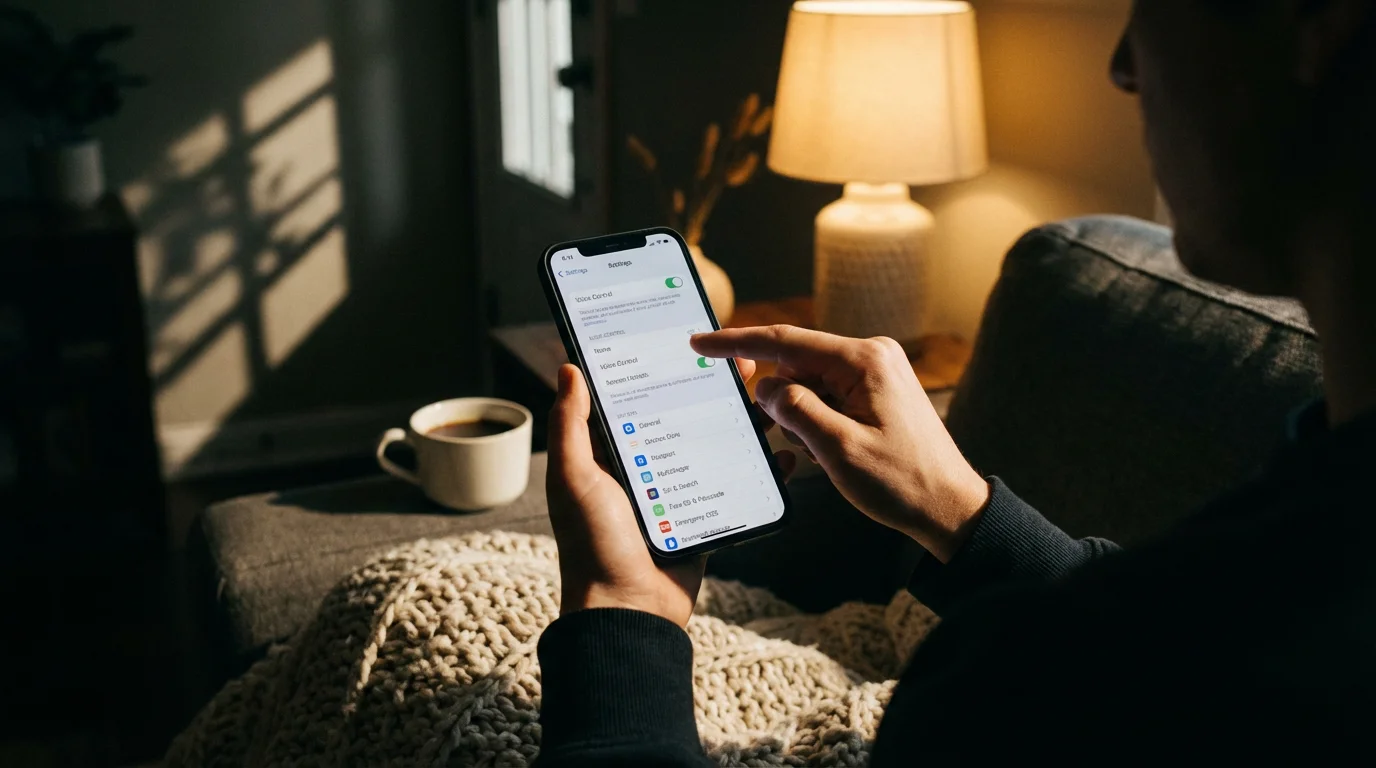
- Open the Settings App: Find the “Settings” app icon on your iPhone’s Home screen. It looks like a gray gear or a small wheel. Gently touch this icon once with your finger to open it. This action is called a “tap.”
- Navigate to Accessibility: Once you are in the Settings menu, you will see a long list of options. Slide your finger upwards on the screen to scroll down. Look for “Accessibility” and tap it. It usually has an icon that looks like a person inside a circle.
- Find Voice Control: Inside the Accessibility menu, scroll down again until you see “Voice Control.” Tap on it.
- Set Up Voice Control (First Time Users): If this is your first time using Voice Control, you might see an option that says “Set Up Voice Control.” Tap on this. Your iPhone might need to download a small file to enable the feature. This download is quick and necessary for Voice Control to work offline later.
- You may see a screen explaining Voice Control. Tap “Continue” at the bottom right.
- Another screen will appear. Tap “Done” at the bottom right.
- Turn On Voice Control: After setup, or if you have enabled it before, you will see a switch next to “Voice Control.” This switch will be gray if it is off and green if it is on. Tap this switch to turn it on. When it turns green, Voice Control is active.
Once you turn Voice Control on, you should see a small blue microphone icon appear at the very top of your iPhone screen, usually next to the clock or battery indicator. This icon means your iPhone is now listening for your commands.

Understanding Voice Commands and Navigation
With Voice Control now active, your iPhone is ready to listen. It waits for you to tell it what to do. Here is how to start interacting with your device using your voice.
You can even say ‘Open Maps’ to begin using Google Maps entirely with your voice for easy navigation.

Key Commands to Get Started:
When Voice Control is active (and you see the blue microphone icon), simply speak clearly and naturally. Here are some fundamental commands to try:
- “Go home”: This command takes you back to your iPhone’s main Home screen, where all your application (app) icons are located. An “app” is a program on your phone, and an “icon” is the small picture you tap to open it.
- “Open [App Name]”: To open any app, just say “Open” followed by the app’s name. For example, “Open Messages,” “Open Safari,” or “Open Photos.”
- “Tap [Item Name]”: This is one of the most useful commands. When you see text on the screen, like a button or an option, you can say “Tap” followed by the exact text. For example, if you see a button that says “Done,” you would say “Tap Done.”
- “Swipe [direction]”: Use this to move between screens or scroll within an app. For example, “Swipe left” to go to the next page of apps, or “Swipe up” to scroll down a web page. You can also say “Scroll up” or “Scroll down.”
- “Show numbers”: Sometimes, there are many items on the screen, or the text is hard to read. When you say “Show numbers,” your iPhone places a small number next to every tappable item on the screen. You can then say “Tap [Number]” to select it. This is incredibly precise.
- “Show names”: Similar to “Show numbers,” this command can display the names of items on the screen, which helps you identify what to say.
- “Go to sleep”: This command pauses Voice Control. The blue microphone icon will change to a faded gray, indicating it is no longer actively listening. This saves battery and prevents accidental commands.
- “Wake up”: To reactivate Voice Control after it is “asleep,” simply say “Wake up.” The microphone icon will turn blue again, and your iPhone will start listening.
You can also use Siri alongside Voice Control. For instance, you could say “Hey Siri, what’s the weather?” and then use Voice Control commands to navigate your phone afterward. They work together seamlessly.

Using Voice Control for Everyday Tasks
Now that you know the basics, let us apply Voice Control to some common activities you do on your iPhone every day.
In addition to daily tasks, voice control is a vital tool for safety; make sure you also know how to set up Emergency SOS on your smartphone.
This technology is also perfect for using voice memos on your phone to quickly record and save important reminders without typing.

Making Phone Calls
- Open Phone App: Say “Open Phone.” The Phone app icon looks like a green square with a white telephone receiver.
- Initiate a Call:
- To call someone in your contacts, say “Call [Contact Name].” For example, “Call Mary Smith.”
- To dial a number directly, say “Dial [Phone Number].” For example, “Dial five five five, one two three, four five six seven.”
- End a Call: During a call, you can say “Tap End Call” or “End call.”

Sending Text Messages
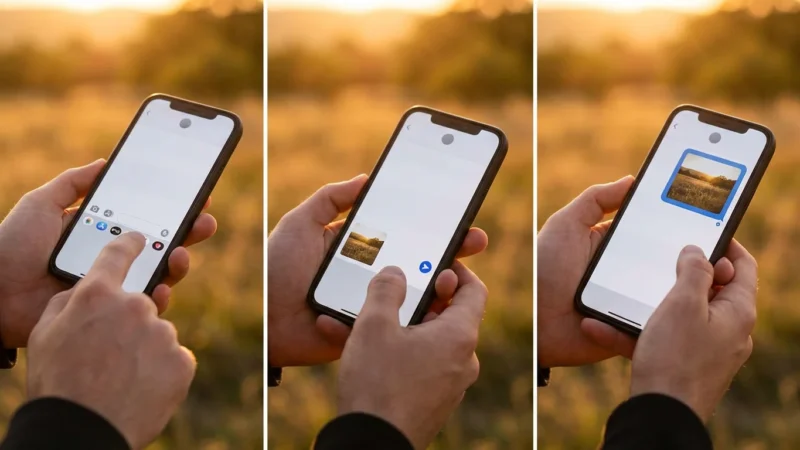
- Open Messages App: Say “Open Messages.” The Messages app icon looks like a green speech bubble.
- Start a New Message: Once the Messages app is open, you will see a compose button, usually at the top right of the screen. Say “Tap Compose” or “Tap new message.”
- Choose a Contact:
- To add a recipient from your contacts, say “Type [Contact Name]” in the “To:” field.
- Alternatively, you can say “Tap the plus button” (it looks like a circle with a plus sign inside) to open your contact list, then say “Tap [Contact Name]” from the list.
- Write Your Message: When the message input area is ready, simply speak your message. For example, “Type, I am running a little late, see you soon.”
- Send the Message: After speaking your message, say “Tap Send.” The send button is usually a blue arrow icon.

Taking Photos and Videos
- Open Camera App: Say “Open Camera.” The Camera app icon looks like a gray camera.
- Take a Picture: Once the camera is open and ready, say “Tap Shutter” or “Take picture.” The shutter button is the large white circle usually at the bottom center of the screen.
- Switch to Video: If you want to record a video, say “Tap Video.” Then, say “Tap Record” to start and “Tap Stop” to finish.
- View Photos: Say “Open Photos” to go to your Photos app and review your pictures.

Browsing the Internet with Safari
- Open Safari: Say “Open Safari.” The Safari app icon looks like a blue compass.
- Go to a Website: Once Safari is open, say “Go to [Website Name].” For example, “Go to aarp.org” to visit AARP’s website. If you need to type into the address bar, say “Tap address bar,” then “Type [Website Address],” and finally “Tap Go.”
- Navigate a Page: You can say “Scroll up,” “Scroll down,” “Scroll left,” or “Scroll right” to move around a webpage.
- Tap Links: When you see a link or button on a webpage, say “Tap [Text of the link or button].” If there are many links, remember to say “Show numbers” and then “Tap [Number].”

Customizing Voice Control for Your Needs
Voice Control offers several options to personalize how it works, making it even more tailored to your specific preferences. Let us look at some useful adjustments.
- Accessing Voice Control Settings:
- Go to the “Settings” app (the gear icon).
- Tap “Accessibility.”
- Tap “Voice Control.”
- Command Overlays (Visual Aids):
Inside the Voice Control settings, find the “Overlay” option. Tapping this lets you choose how Voice Control visually helps you navigate. You have a few choices:
- None: No visual overlays appear.
- Item Numbers: This is the most popular option and often the most helpful. When active, saying “Show numbers” (or just by default if you set this here) will place numbers next to every interactive element on your screen. This is incredibly precise for tapping small items.
- Item Names: This shows the names of various items on the screen, which can guide your voice commands.
- Numbered Grid: This divides your screen into a numbered grid. You can then say “Tap [Grid Number]” to zoom into a specific area, and the grid will subdivide further, allowing you to pinpoint elements very accurately. This is fantastic for screens with many small buttons or complex layouts.
Try different overlays to see which one works best for you. Many people find “Item Numbers” to be the easiest to start with.
- Custom Commands: Make Your Own Phrases
One of the most powerful features of Voice Control is creating your own custom commands. This means you can create a unique phrase that performs a specific action. For example, you could say “Open my news” to open your favorite news app.
Here is how to do it:
- From the main Voice Control settings, tap “Customize Commands.”
- Tap “Create New Command.”
- In the “Phrase” field, type the exact phrase you want to say (e.g., “Open my news”).
- Tap “Action,” then choose “Run Custom Gesture” (if you want to simulate a tap or swipe sequence) or “Run Shortcut” (if you have created a shortcut) or “Open App” (and choose your desired app). For opening an app, select “Open App” and then pick the app from the list.
- Tap “Back” in the top left, then “Save” in the top right.
Now, whenever you say your custom phrase, your iPhone will perform the action you set.
- Attention Awareness:
This setting, found within the Voice Control menu, uses your iPhone’s camera to detect if you are looking at your screen before responding to “Hey Siri” or pausing Voice Control if you look away. It helps prevent accidental commands. To enable or disable it, simply tap the switch next to “Attention Awareness.” It will turn green when on.

Troubleshooting Common Voice Control Issues
Even with the best instructions, sometimes technology can be a bit finicky. Here are solutions to common issues you might encounter with Voice Control. Do not worry, these are usually easy to fix!
- Voice Control Is Not Responding:
- Check the Microphone Icon: Look at the very top of your iPhone screen. Is the microphone icon blue, or is it faded gray? If it is gray, Voice Control is “asleep.” Say “Wake up” to reactivate it.
- Is Voice Control Enabled? Go to “Settings” > “Accessibility” > “Voice Control” and make sure the main switch is green.
- Check Your Microphone: Ensure nothing covers the small microphone holes on your iPhone (usually at the bottom near the charging port, and sometimes at the top). Try speaking a bit louder or closer to the phone.
- Restart Your iPhone: Sometimes a simple restart can fix many small glitches. Turn your iPhone completely off, wait 30 seconds, and then turn it back on.
- Voice Control Misunderstands My Commands:
- Speak Clearly: Articulate your words clearly and at a moderate pace.
- Reduce Background Noise: Try to use Voice Control in a quiet environment, especially when giving precise commands.
- Use Specific Commands: Instead of general phrases, try being more direct. For example, instead of “Go to photos,” say “Open Photos.”
- Use “Show numbers” or “Show grid”: For tricky screens, these visual aids make it much easier for you to specify exactly what you want to tap by number.
- Practice: It takes a little practice for both you and your iPhone to get used to each other’s “voice.” The more you use it, the better it becomes.
- Voice Control Is Draining My Battery Quickly:
- Put It to Sleep: Voice Control constantly listens when active, which uses battery power. When you are not actively using it, say “Go to sleep.” You can also turn it off completely in “Settings” > “Accessibility” > “Voice Control.”
- Adjust Attention Awareness: If you enabled “Attention Awareness,” ensure it is working correctly. It helps pause listening when you are not looking at the screen.
- I Cannot Find a Specific App or Button:
- Try “Show numbers”: This is your best friend for finding and tapping precise items on the screen.
- Go to Home Screen First: If you are lost, say “Go home.” Then try to open the app you want from your Home screen.
- Ask Siri: Remember, you can still use Siri. “Hey Siri, open the App Store” might be easier if Voice Control struggles to find a specific app directly.
If you continue to have trouble, do not get discouraged. Technology can sometimes be tricky. Sometimes, a quick visit to an Apple Store or your carrier store can provide hands-on help. Also, do not hesitate to ask a trusted family member or friend to sit with you and help troubleshoot. Resources like Apple Support also offer extensive guides and assistance.

Quick Reference Checklist for Voice Control
Here is a handy checklist of common Voice Control commands and tips to keep in mind. Consider it your cheat sheet!
- Activate/Deactivate:
- “Turn on Voice Control” (in Settings > Accessibility > Voice Control)
- “Go to sleep” (to pause listening)
- “Wake up” (to resume listening)
- Navigation:
- “Go home”
- “Open [App Name]” (e.g., “Open Messages,” “Open Safari”)
- “Tap [Item Name/Number]” (e.g., “Tap Settings,” “Tap 5”)
- “Swipe up/down/left/right” or “Scroll up/down”
- Visual Aids:
- “Show numbers” (displays numbers next to tappable items)
- “Show grid” (overlays a grid for precise tapping)
- Text Input:
- “Type [your message here]”
- “Delete that”
- “New line”
- Actions:
- “Make a call to [Contact Name]”
- “Send a message to [Contact Name]”
- “Take picture” (in Camera app)
- “Turn up/down volume”
- General Tips:
- Speak clearly and in a quiet environment.
- Use specific commands.
- Practice regularly to become more comfortable.
Frequently Asked Questions
Q1: Is Voice Control the same as Siri?
No, Voice Control is different from Siri, though they both use your voice. Siri is a virtual assistant that answers questions and performs general tasks like “What’s the weather?” or “Set an alarm.” Voice Control, on the other hand, allows you to navigate and control your entire iPhone by speaking specific commands to tap buttons, scroll screens, and type text, effectively replacing your finger with your voice. You can use them both.
Q2: Do I need an internet connection for Voice Control to work?
No, not generally. After the initial setup, which might require a brief internet connection to download necessary files, Voice Control works offline. Your iPhone processes your voice commands directly on the device, meaning you can use it even when you do not have Wi-Fi or cellular data.
Q3: Will Voice Control drain my iPhone’s battery quickly?
Voice Control constantly listens when it is active (blue microphone icon), which does use more battery power than when it is off. To manage battery life, say “Go to sleep” when you are not actively using Voice Control. This pauses listening and conserves power. You can also turn it off completely in the Settings app when you do not need it.
Q4: What should I do if Voice Control does not understand my commands?
If Voice Control struggles to understand you, first ensure you are speaking clearly and concisely in a quiet environment. Try using specific commands like “Tap Settings” instead of more general phrases. If there are many options on screen, say “Show numbers” and then speak the number of the item you want to select. Practice helps, as your iPhone learns to recognize your voice better over time. If the issue persists, check your iPhone’s microphone to ensure it is clean and unobstructed.
Q5: Can I use Voice Control with other accessibility features?
Absolutely! Voice Control is designed to work seamlessly with other accessibility features on your iPhone. For example, you can use it alongside features like Zoom (to magnify parts of the screen), Display & Text Size adjustments, or even AssistiveTouch. These features together offer a comprehensive suite of tools to customize your iPhone experience to your exact needs, making it easier and more comfortable to use.
Embracing Voice Control on your iPhone opens up a world of convenience and accessibility. It might feel a little new at first, but with a bit of practice, you will find yourself navigating your device with ease, simply by speaking. Take your time, follow these steps, and enjoy the freedom that comes with hands-free control. Your iPhone is now even more responsive to you!
For more detailed support and troubleshooting, you can always visit the official Apple Support website. Additionally, resources like Senior Planet from AARP provide valuable insights and community support for seniors embracing technology.
Disclaimer: This article is for informational purposes only. Screens and menus may look slightly different depending on your device model and software version. When in doubt, visit your device’s official support website or ask a trusted family member for help.

![[FEATURED]](https://cleartechguide.com/wp-content/uploads/2026/01/how-to-use-google-maps-on-your-phone-or-computer-featured-16x9-1-800x450.webp)



Leave a Reply