

Technology connects you to your family through video calls, allows you to manage your banking from your living room, and keeps your favorite photos just a click away. However, computers occasionally behave in ways that feel unpredictable or frustrating. You might see a strange pop-up message, find that your printer refuses to cooperate, or notice that your machine is running much slower than usual. When these moments happen, you do not have to struggle alone.
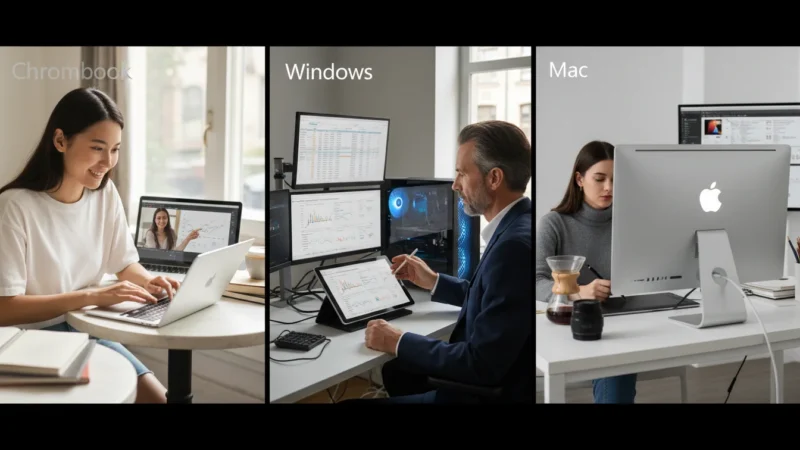
Seeking technical assistance is a normal part of owning a computer. Even experts occasionally need a second pair of eyes to solve a problem. This guide will help you understand the different types of tech support available to you, how to prepare for a support session, and how to stay safe while getting your computer back in top shape. Whether you use a Windows PC, a Mac, or a Chromebook, you have several reliable paths to finding a solution.
Finding the right help builds your confidence. Every time you solve a technical hurdle with a professional or a friend, you learn a little more about how your computer works.
Table of Contents
- Preparing for Help: Gathering Your Information
- Official Manufacturer Support for Windows, Mac, and Chromebooks
- Local and In-Person Support Options
- Understanding Remote Support: How It Works
- Asking Family and Friends for Assistance
- Identifying and Avoiding Tech Support Scams
- Simple Troubleshooting You Can Try Yourself
- Frequently Asked Questions

Preparing for Help: Gathering Your Information
Before you contact a support technician or ask a neighbor for help, you should collect a few details about your computer. Having this information ready saves time and helps the person assisting you identify the problem more quickly. Think of this like preparing a list of symptoms before a doctor’s appointment.
First, identify your operating system. The operating system is the main software that runs your computer. On a Windows PC, you likely use Windows 10 or Windows 11. On an Apple computer, you use macOS. If you have a laptop that primarily runs the Google Chrome browser, you have a Chromebook running Chrome OS.
Write down the following details on a piece of paper:
- The Make and Model: Look for a sticker on the bottom of your laptop or the back of your desktop computer. Examples include “Dell Inspiron 15” or “HP Pavilion.”
- The Serial Number: This is a unique code of letters and numbers that identifies your specific machine. Manufacturers use this to check your warranty status.
- The Exact Error Message: If a box pops up on your screen with a warning, write down exactly what it says. Better yet, take a photo of the screen with your smartphone.
- When the Problem Started: Did the issue begin after you installed a new program, or perhaps after a recent thunderstorm?
To find your system details on a Windows 11 computer, click the Start button (the icon with four blue squares on the taskbar, which is the bar at the bottom of the screen), click the Settings gear icon, and then click on System in the left-hand menu. Scroll down and click About. On a Mac, click the Apple icon in the top left corner of the screen and click About This Mac.

Official Manufacturer Support for Windows, Mac, and Chromebooks
The company that made your computer or its software usually provides the most reliable technical assistance. Most new computers come with a period of free support or a warranty that covers hardware repairs.
Windows PC Support (Microsoft)
If your issue involves Windows itself—such as updates failing or the desktop looking strange—Microsoft offers built-in tools. On your taskbar, click the magnifying glass or the search box and type “Get Help.” Click the “Get Help” app that appears. This app allows you to type in your problem and read articles, or eventually chat with a live person. You can also visit the Microsoft Support website for step-by-step guides.
Apple Mac Support
Apple provides excellent support for Mac users. You can visit the Apple Support website to schedule a phone call or a chat session. If you live near an Apple Store, you can make an appointment at the “Genius Bar.” This is a dedicated station where technicians look at your computer in person. To find your nearest store, click the Apple menu on your computer, choose “About This Mac,” and look for the “Support” tab.
Chromebook Support (Google)
Chromebooks are designed to be simple. If you encounter a problem, press the “Search” key on your keyboard (often where the Caps Lock key usually sits) and type “Explore.” Open the Explore app to find help articles specifically for your device. You can also visit the Google Support website and select “Chromebook” from the list of products.

Local and In-Person Support Options
Sometimes, you need someone to physically touch the computer to fix a hardware problem, such as a broken screen or a keyboard that will not type. In these cases, local options are your best bet.
Retail Computer Centers
Large electronics retailers, such as Best Buy, offer repair services like the “Geek Squad.” You can bring your computer into the store, and they will diagnose the problem for a fee. Many of these services also offer “in-home” visits where a technician comes to your house to help you set up a wireless network or a new printer.
Independent Repair Shops
Your town may have a local computer repair shop. These small businesses often provide personalized service and may be more patient with explaining things. Before you go, check online reviews or ask your friends for a recommendation. Ensure the shop provides an estimate in writing before they begin any work.
Community Resources
Do not overlook your local library or senior center. Many libraries host “tech cafes” where volunteers help you with basic tasks like setting up an email account or organizing your folders (the digital containers that hold your files). Organizations like Senior Planet from AARP also offer free or low-cost classes and hotlines specifically designed for older adults.

Understanding Remote Support: How It Works
You may encounter a situation where a technician asks to “remotely access” your computer. For many people, watching their mouse move on its own while a stranger controls the computer from another city feels unsettling. However, when used by a legitimate company, this is a very efficient way to get tech support.
During a remote session, you will download a small piece of software that creates a secure bridge between your computer and the technician’s. You must give them a specific code to allow them in. You can see everything they do on your screen. They might click on your Start menu, open a folder to look at settings, or run a diagnostic program. You can end the session at any time by closing the program or turning off your computer.
Important Safety Rule: Only allow remote access if you initiated the contact with a known, reputable company. Never allow a stranger who called you unexpectedly to access your computer.

Asking Family and Friends for Assistance
A tech-savvy child, grandchild, or neighbor is often the first person you think to call. This can be a great way to get help in a comfortable environment, but it helps to set some ground rules to keep the relationship stress-free.
When asking a family member for help, try to be specific. Instead of saying “The computer is broken,” try saying “I cannot get my photos to move from my camera into my Pictures folder.” If they show you how to do something, ask them to wait while you try it yourself. Taking your own notes during the process ensures you can repeat the steps later without needing to call them again.
If your family member seems frustrated, remember that they may not be trained teachers. Technology feels like a second language to younger generations, and they sometimes forget that it has a learning curve. If family help becomes a source of tension, transitioning to a professional service might be better for everyone involved.

Identifying and Avoiding Tech Support Scams
Unfortunately, some criminals pretend to be tech support to steal your money or personal information. Knowing their tactics will help you stay safe.
The most common scam involves a “pop-up” message. While you are browsing the internet, a box may appear on your screen with loud noises or flashing lights, claiming that your computer is infected with a virus. It will provide a phone number and tell you to call immediately. This is a lie. Real companies like Microsoft or Apple will never put a phone number in a pop-up and demand that you call them.
Another common tactic is the “cold call.” Someone may call your phone claiming to be from “Windows Support” or “The Help Desk.” They will tell you they noticed an error on your computer. Again, this is a scam. These companies do not monitor individual computers and will never call you out of the blue. If you receive one of these calls, simply hang up.
| Real Tech Support | Tech Support Scams |
|---|---|
| You initiate the contact. | They contact you first (phone or pop-up). |
| They ask for your serial number. | They ask for your bank details or gift cards. |
| They use official websites (microsoft.com, apple.com). | They use scary language like “Your data will be deleted!” |

Simple Troubleshooting You Can Try Yourself
Before you pay for tech support, you can try a few simple steps that resolve many common issues. These steps are safe and will not harm your computer or your files.
The “Restart” Method
This is the most effective troubleshooting step. Over time, your computer’s software can get “confused” by too many open programs. Restarting clears the computer’s temporary memory and starts everything fresh. In Windows, click the Start button, click the Power icon, and choose Restart. On a Mac, click the Apple menu and choose Restart. On a Chromebook, click the time in the bottom right corner and click the Power icon, then turn it back on.
Check Your Connections
If a device like a printer or a mouse is not working, check the physical connection. Unplug the cable and plug it back in firmly. If you use a wireless mouse, try replacing the batteries. If your internet is not working, look at your internet router (the box with the blinking lights) and ensure it is plugged into the wall.
Look for Updates
Software companies frequently release “updates” to fix known bugs. If your computer is acting strangely, check for updates. In Windows 11, go to Settings, then click Windows Update and press “Check for updates.” On a Mac, go to the Apple menu, click System Settings (or System Preferences), and look for Software Update.
Use the “Right-Click”
If you are unsure how to delete a file or rename a folder, try a right-click. Press the right mouse button once while your cursor is over the item. This opens a special menu of options that are specific to that item. It is one of the fastest ways to find the “Delete,” “Copy,” or “Rename” commands.
Frequently Asked Questions
Is tech support always expensive?
Not necessarily. Many manufacturer support services are free if your computer is still under warranty. Local libraries and senior centers often provide free assistance for basic tasks. However, specialized repairs or home visits from companies like Best Buy usually involve a fee.
What is the difference between a file and a folder?
A file is a single item, like one digital photo or one typed letter. A folder is a container where you can store multiple files to keep them organized, much like a physical manila folder in a filing cabinet.
How do I know if a website is safe for tech support?
Always look at the address bar at the very top of your browser. Official support sites will end in their company name, such as support.microsoft.com or support.apple.com. Avoid any site that uses strange spellings or long strings of random numbers in the address.
Should I pay for tech support with a gift card?
No. Legitimate businesses will never ask you to pay for services using gift cards (like Google Play or Amazon cards), wire transfers, or cryptocurrency. If someone asks for this, they are a scammer.
Disclaimer: This article is for informational purposes only. Your computer’s screens may look slightly different depending on your operating system version and settings. When in doubt, consult official support resources or ask someone you trust for help.
Keywords: tech support, computer help, technical assistance, tech support for seniors, remote computer repair
Meta Description: Learn how to find reliable tech support for your computer. This guide covers official manufacturer help, avoiding scams, and simple DIY troubleshooting tips.








Leave a Reply