

You may find yourself in a situation where your computer acts up, your printer refuses to connect, or a software program suddenly stops working. In the past, you might have invited a tech-savvy neighbor over to take a look.
Today, most technical help happens through remote access. This technology allows a professional to see your screen and move your mouse from their own office, regardless of where they are in the world.
It is an incredibly efficient way to solve problems, but it requires you to open a digital door to your private information.
Allowing someone else to control your computer can feel a bit vulnerable. You might wonder if they can see your personal photos, access your bank accounts, or stay connected after the call ends.
These are valid concerns. Understanding how to manage this process safely puts you back in the driver’s seat.
By following a few specific safety protocols, you can get the help you need without compromising your privacy or security.
This guide will teach you how to identify legitimate help, set up a secure connection, and recognize the warning signs of a scammer—someone trying to trick you out of money or information.
Table of Contents
- Understanding Remote Access and Why It Is Used
- The Golden Rule: You Must Initiate the Contact
- How to Identify Legitimate Tech Support vs. Scammers
- Preparing Your Computer Before You Give Access
- Common and Safe Remote Access Tools
- Safety Steps to Take During the Support Session
- How to Properly End a Remote Session
- What to Do If You Suspect Something Went Wrong
- Frequently Asked Questions
Understanding Remote Access and Why It Is Used
Remote access is essentially a digital bridge between two computers. When you grant permission, a piece of software sends a live video feed of your desktop to the technician.
It also allows their keyboard and mouse movements to control your cursor. Think of it like a “view-only” or “co-pilot” mode for your device.
Technicians use this to diagnose “malware” (bad software that can harm your computer or steal information), update your security settings, or fix confusing software errors that are hard to describe over the phone.
Most legitimate companies, including Microsoft, Apple, and large internet service providers, use remote access as a standard part of their customer service. It saves time and prevents you from having to lug a heavy computer tower or laptop to a repair shop.
However, because this tool is so powerful, scammers often impersonate these companies to gain entry to your files. Knowing that you are the one in control of the connection is the first step toward staying safe.

The Golden Rule: You Must Initiate the Contact
The single most important rule of online safety is this: Never give remote access to anyone who contacts you first.
Legitimate companies like Microsoft, Google, or your bank will never call you out of the blue to tell you there is a problem with your computer.
They do not monitor your individual machine for “viruses” or “errors” in real-time and then call your home phone or cell phone to fix them.
If you receive an unexpected phone call, text, or email claiming your computer is infected, hang up or delete the message. Even if the caller sounds professional or knows your name, they are likely a scammer.
Real tech support starts when you decide to seek help and you look up the official phone number yourself.
Scammers often use “phishing”—fake emails or messages trying to trick you into giving personal information—to start their trap. They might also use “suspicious” pop-up ads that take over your web browser, flashing bright colors and claiming your hard drive is failing.
These pop-ups often include a “toll-free” number. Do not call it.
These are high-pressure tactics designed to make you panic and give up control of your device.
How to Identify Legitimate Tech Support vs. Scammers
Distinguishing between a helpful professional and a criminal requires a keen eye for “red flags.” Scammers rely on urgency and fear.
They want you to believe that if you don’t act within the next five minutes, your files will be deleted or your bank account will be emptied. A legitimate technician will be patient and will never pressure you.
To provide an extra layer of defense for your digital life, you should also learn what is two-factor authentication and why you need it for your most sensitive accounts.
Watch for these common red flags that indicate a scam:
- Unsolicited contact: As mentioned, they called you, or a pop-up appeared on your screen telling you to call them.
- Demands for payment: Legitimate tech support for a product you already own is often free or charged to a credit card through an official website. Scammers often ask for payment via gift cards (like iTunes or Amazon), wire transfers, or cryptocurrency. No real business will ever ask you to pay with a gift card.
- Requesting passwords: A technician may need you to log in to your computer, but they should never ask for your email, bank, or social media passwords.
- Accessing your bank: There is absolutely no reason a tech support agent needs to see your bank account to fix a printer or a slow computer. If they ask you to log in to your bank “to verify a refund” or “check for a payment,” hang up immediately.
If you need help, find the contact information on the official website of the company. For example, use the AARP Technology Resources to find guidance on reaching trusted vendors.
Always type the web address into your browser yourself rather than clicking a link in an email.

Preparing Your Computer Before You Give Access
Before you start a remote support session with a trusted professional, take a few minutes to tidy up your digital workspace. This protects your privacy and ensures the technician only sees what they need to see to fix the problem.
First, close all programs and windows that contain personal information. This includes your email, your banking website, and any private documents or photos.
If you use a “password manager”—a secure app that remembers all your passwords for you—make sure it is locked or closed. While most technicians are honest, it is best practice to remove any temptation or accidental exposure of your private data.
Second, clear your desktop of sensitive files. If you have a document named “Tax Return 2023” sitting on your desktop, move it into a folder where it isn’t the first thing the technician sees.
Finally, ensure your internet connection is stable. A dropped connection during a repair can sometimes cause more issues, though it is usually easy to fix by restarting the process.
Common and Safe Remote Access Tools
When you work with a legitimate company, they will ask you to download or open a specific program. You should be familiar with the names of these tools so you aren’t surprised when they are mentioned.
Most are very easy to use and involve a “one-time” code that expires after the session.
Common tools include:
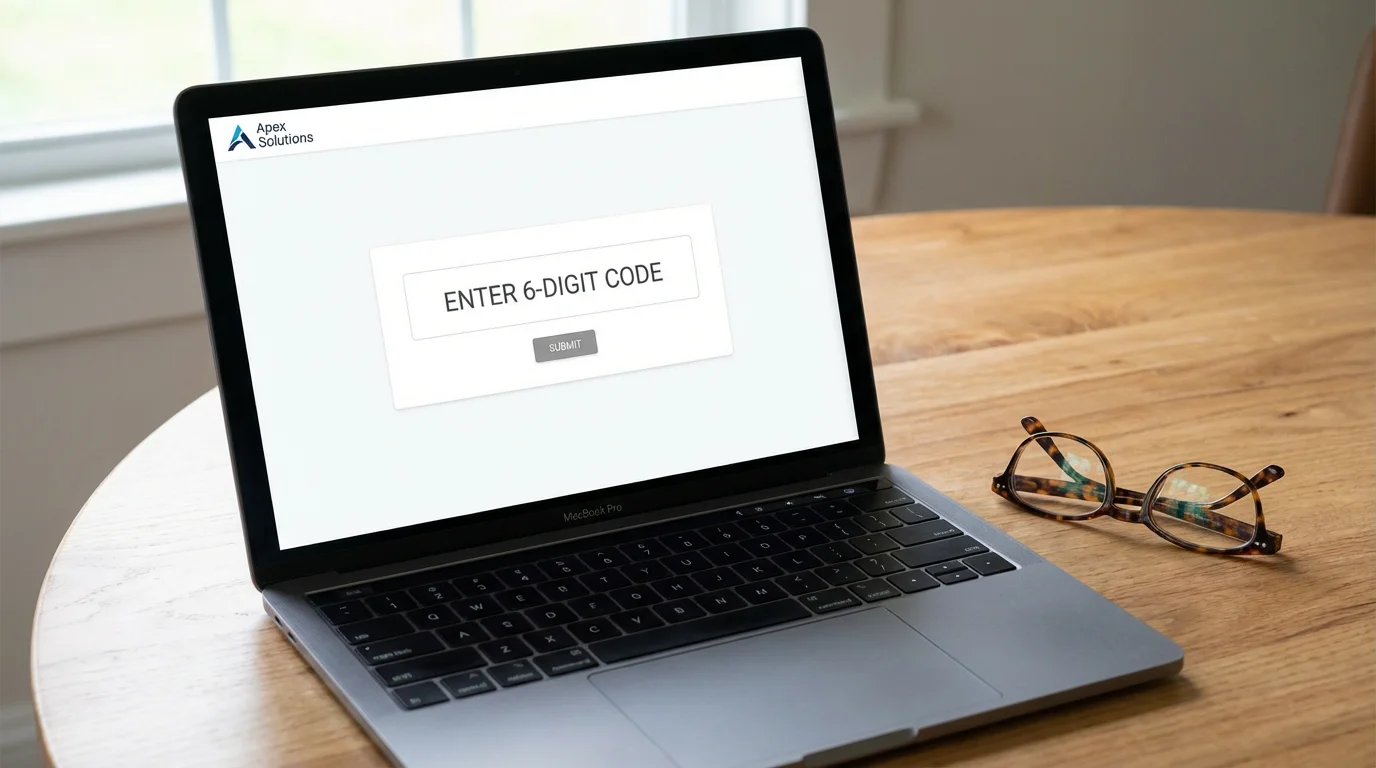
- Windows Quick Assist: This is built directly into Windows 10 and 11. The technician will give you a six-digit code to type into the app. It is one of the most secure methods because it is a Microsoft product.
- TeamViewer or AnyDesk: These are professional-grade programs. You will see a “Your ID” and a “Password” on the screen. You read these numbers to the tech, and they use them to connect.
- Zoom or Microsoft Teams: Sometimes, a tech will simply ask you to “Share Your Screen” during a video call. This allows them to see what you see, though they may not always be able to move your mouse unless you click a second “Allow Remote Control” button.
Regardless of the tool, you should always see a notification on your screen that says something like “Technician is now connected to your computer.” If this notification disappears or if the screen goes black, that is a sign of trouble.

Safety Steps to Take During the Support Session
Once the session begins, your job is to stay at the computer and watch. Never walk away to Fold laundry or make a sandwich while someone is remotely logged into your device.
Treat it as if a stranger is in your living room fixing your television—you want to keep an eye on what they are doing.
Watch the mouse cursor. A legitimate technician will usually explain what they are doing as they do it.
They might say, “I’m going to open your settings to check your printer driver.” If you see them opening folders that have nothing to do with the problem, such as your “Documents” or “Pictures” folder, ask them why.
You have the right to challenge anything that feels “suspicious” or wrong.
Remember: You are in control. At any moment, you can end the session by closing the remote access window or simply turning off your computer.
If the person on the phone becomes rude, pushy, or starts asking about your finances, do not hesitate to disconnect.
How to Properly End a Remote Session
When the repair is finished, the technician should close the connection from their end. However, you should also take steps to ensure the “digital door” is locked behind them.
Look for the remote access software window and click the “X” or “Disconnect” button. Most reputable software will show a clear message stating “Session Ended” or “Your computer is no longer being controlled.”
If you ever feel uneasy after a session and want to ensure your privacy was not violated, it is helpful to know how to tell if your computer has been hacked.
It is a good idea to restart your computer after a remote session. This clears the temporary memory and ensures that any background processes started by the software are completely shut down.
If the technician asked you to download a specific file to start the session (like a file ending in .exe), you can drag that file to your Trash or Recycle Bin and empty it.
This prevents anyone from using that specific “key” to enter your computer again later.

What to Do If You Suspect Something Went Wrong
If you realize mid-session that you are talking to a scammer, or if you feel uneasy about the technician’s actions, do not worry about being polite. Your priority is protecting your information.
Immediately turn off your computer. If it is a laptop, hold down the power button until the screen goes dark.
If it is a desktop, you can even pull the power cord or disconnect your internet router. This severs the connection instantly.
If you believe an unauthorized person has accessed your files, you should immediately learn how to tell if your computer has been hacked to take the next steps.
If you believe a scammer had access to your computer, follow these steps:
- Use a different device: Use a tablet or phone to change your most important passwords, starting with your email and bank accounts.
- Contact your bank: If you gave any financial information or if you saw the scammer looking at banking sites, call your bank’s fraud department immediately. They can freeze your accounts and issue new cards.
- Scan for malware: Use a trusted antivirus program to scan your computer. If you aren’t sure how to do this, take the computer to a local, reputable repair shop in person. Explain that you may have been a victim of a remote access scam.
- Report the incident: Help others by reporting the scam to the Federal Trade Commission (FTC) or the FBI Internet Crime Complaint Center.
Falling for a clever trick does not make you foolish. Scammers are professionals who spend all day refining their scripts to deceive people.
The most important thing is how you respond after you realize something is wrong. Taking swift action can prevent a small mistake from becoming a larger problem.
Frequently Asked Questions
Q: Can a technician see me through my webcam during a remote session?
A: Most remote support tools only share your screen, not your camera. However, some tools like Zoom or Teams might have the camera on by default.
You can always put a piece of tape over your webcam or close your laptop lid slightly to ensure your physical privacy.
Q: How do I know if the person calling me is really from Microsoft?
A: They aren’t. Microsoft does not make unsolicited support calls.
If someone calls you claiming to be from Microsoft, they are a scammer. You should only speak to Microsoft if you called the number listed on their official website.
Q: Is it safe to give my “two-factor authentication” code to a technician?
A: No. “Two-factor authentication”—that extra security step where a code is texted to your phone—is meant only for you. A legitimate technician will never ask for this code.
If they do, they are likely trying to break into one of your accounts.
Q: What if I already paid a scammer with a gift card?
A: Contact the company that issued the gift card immediately (e.g., Apple, Google, or Amazon). Tell them the card was used in a scam.
If the money hasn’t been spent yet, they may be able to freeze it. Also, report the incident to the Better Business Bureau Scam Tracker.
Managing your computer’s health is part of modern life, and remote support is a valuable tool when used correctly. By staying vigilant and remembering that you hold the power to start and end any session, you can use the internet with confidence.
Your caution is not a sign of being “behind the times”—it is a sign of a smart, secure digital citizen.
If you ever feel unsure, talk to a trusted family member or visit the National Cyber Security Alliance for more tips on staying safe in our connected world.
Disclaimer: This article provides general information about online safety and is not a substitute for professional advice.
If you believe you’ve been a victim of fraud, contact your bank immediately and report the incident to the FTC at ReportFraud.ftc.gov or call 1-877-382-4357. If you’ve lost money, also file a report with your local police.
Keywords: remote access, tech support, computer help, remote support safety, identify tech scams
Meta Description: Learn how to safely give remote access for tech support while protecting your privacy and avoiding common scams with our comprehensive guide for seniors.
