The internet connects you to family, news, and services that make life easier. However, the same technology that brings a video call from a grandchild into your living room can also feel mysterious and occasionally intimidating.
You might notice your computer acting strangely—perhaps it is running slower than usual or showing unexpected windows—and wonder if someone else has gained access to your private information. This feeling of uncertainty is common, but you do not have to navigate it alone.
Proactively learning how to keep your computer safe from viruses is the best way to prevent these situations before they start.
Understanding the signs of a hacked computer is the first step toward securing your personal information. Cybersecurity experts at the Federal Trade Commission (FTC) reported that consumers lost more than $10 billion to fraud in 2023, a significant increase from previous years.
While these numbers sound large, most digital intrusions are preventable or manageable when you know what to look for. Think of this guide as a digital home inspection.
We will walk through your computer together to identify what is normal and what deserves a second look.
Remember, if you discover something is wrong, it does not mean you did something foolish. Scammers—people who try to trick you out of money or information—spend their entire careers developing sophisticated ways to bypass security.
If your computer has been compromised, the focus should be on fixing the problem and moving forward with confidence. You have the power to protect your privacy, and this guide provides the tools to do exactly that.
In this guide9 sections
- Performance Changes That Signal Trouble
- Account and Password Red Flags
- Recognizing Browser Hijacking
- Hardware Clues: Webcam, Fans, and Battery
- Financial and Communication Warning Signs
- What to Do if Your Computer is Hacked
- How to Prevent Future Intrusions
- Where to Report Scams and Find Help
- Frequently Asked Questions

Performance Changes That Signal Trouble
Your computer generally maintains a consistent “personality.” You know how long it takes to turn on and how quickly your favorite programs open.
When malware—bad software that can harm your computer or steal information—infects a system, it often consumes significant resources. This consumption leads to noticeable changes in how your device behaves.
If your computer suddenly feels like it is “thinking” much harder than usual, pay attention. You might notice that your mouse cursor moves on its own or that programs open and close without your input.
While a slow computer can simply be a sign of an older device, a sudden and dramatic drop in speed often indicates that a background process is running without your permission.
These background tasks might be sending your data to a scammer or using your computer’s power to perform tasks for someone else.
Pop-up messages are another major red flag. If you see frequent advertisements or “security warnings” that appear even when you are not browsing the internet, your computer likely has “adware.”
This is a type of malware specifically designed to clutter your screen with ads. Often, these pop-ups will look like official antivirus alerts, claiming your computer is infected and urging you to “click here” or call a specific phone number.
Genuine security software will never ask you to call a random number to fix a problem.
Scammers often use “urgency” to make you panic. If a window pops up telling you your computer will be deleted in five minutes unless you call a number, it is almost certainly a scam.
Deep breaths and a calm mind are your best defense.

Account and Password Red Flags
Sometimes the evidence of a hacked computer appears outside the computer itself, specifically within your online accounts. One of the clearest signs of an intrusion is being unable to log into your email, social media, or banking accounts.
If you are certain you are using the correct password but the site rejects it, a scammer may have gained access and changed your password to lock you out.
Using a secure system like a password manager can help you maintain different passwords for every site without having to memorize them all.
You should also monitor your “Sent” folder in your email. Scammers often use compromised computers to send out thousands of “phishing” emails—fake messages trying to trick other people into giving away personal information.
If friends or family members ask why you sent them a strange link or a request for money, check your sent messages immediately. If you see emails there that you did not write, your account and likely your computer have been compromised.
Watch for unexpected “password reset” emails in your inbox. If you receive a message saying your password was changed for a service like Amazon or Facebook when you didn’t request a change, it means someone else is trying to take over your digital identity.
Many services now send “new login” alerts that tell you when your account was accessed from a new city or device. Do not ignore these notifications; they are your early warning system.

Recognizing Browser Hijacking
The web browser is your window to the world. Scammers often target this window because it is where you enter passwords and credit card numbers.
A “hijacked” browser is one that has been altered by malware to redirect you to sites you didn’t intend to visit.
One common sign of hijacking is a change to your homepage. If you usually see Google or a news site when you open your browser, but now you see a strange search engine you’ve never heard of, something is wrong.
Similarly, look at your “toolbars”—the rows of icons at the top of your browser. If new toolbars or icons appear that you did not install, they may be tracking your every click.
Search redirects are another subtle but dangerous sign. If you search for “official bank login” and your computer takes you to a website that looks slightly “off”—perhaps the colors are wrong or the web address has extra letters—you may be experiencing a redirect.
These fake sites are designed to capture your login credentials. Always look at the address bar at the top of the screen to ensure you are on the correct website before typing any sensitive information.

Hardware Clues: Webcam, Fans, and Battery
Sometimes your computer’s physical components provide the best evidence of a hack. Your hardware reacts to the software running inside it.
For example, if you hear your computer’s fans spinning loudly while the device is sitting idle, it means the processor is working hard. Unless you are editing a video or playing a high-end game, your fans should generally be quiet.
A constantly running fan suggests that hidden malware is taxing your system.
One way to keep your hardware safe is to set up automatic updates, which ensures your computer always has the latest security patches.
For laptop users, battery life is a key indicator. Malware often runs 24/7, even when you aren’t actively using the computer.
If your laptop used to last four hours on a charge but now dies in forty-five minutes, bad software may be draining the power. You might also notice the bottom of the laptop feels unusually hot to the touch.
The most concerning hardware sign is the webcam light. Most computers have a small light next to the camera that glows when the camera is active.
If that light flickers or stays on when you aren’t in a video call, someone may be remotely viewing your home.
While this is a scary thought, a simple piece of opaque tape over the camera lens provides an immediate physical barrier to your privacy while you work on cleaning the system.
Financial and Communication Warning Signs
Financial discrepancies are often the most stressful signs of a hacked computer. Scammers frequently gain access to computers to find saved credit card numbers or to access online banking portals.
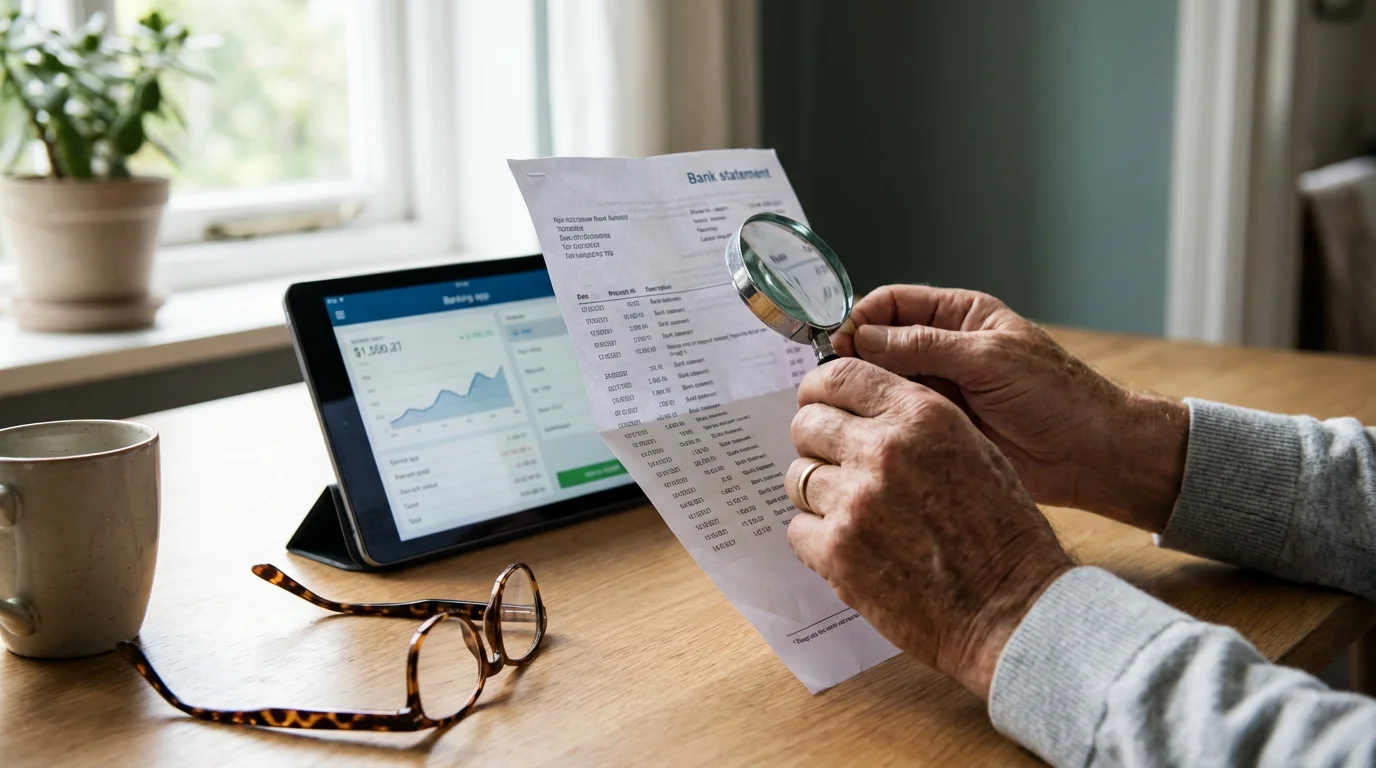
Review your bank and credit card statements at least once a week. Look for small “test” charges of just a dollar or two; scammers often do this to see if a card works before attempting a large purchase.
Beyond your bank, check your mobile phone bill and your internet service provider (ISP) account. Some malware uses your internet connection to “mine” cryptocurrency or send massive amounts of data.
If your ISP warns you that you have exceeded your monthly data limit, and you haven’t been watching significantly more video than usual, your computer might be communicating with a scammer’s server in the background.
Social media accounts also serve as a barometer for safety. If your Facebook or Instagram profile is posting advertisements for discounted sunglasses or weight-loss “miracles,” your account has likely been hijacked.
This often happens because a scammer stole your password from your computer using a “keylogger”—a type of malware that records every keystroke you make.

What to Do if Your Computer is Hacked
If you recognize these signs, do not panic. Follow these logical steps to secure your information and clear the intrusion.
Dealing with a hack is like dealing with a leaky pipe; the first step is to turn off the water to prevent more damage.
If you need help from a family member, you can learn how to give someone remote access to your computer safely.
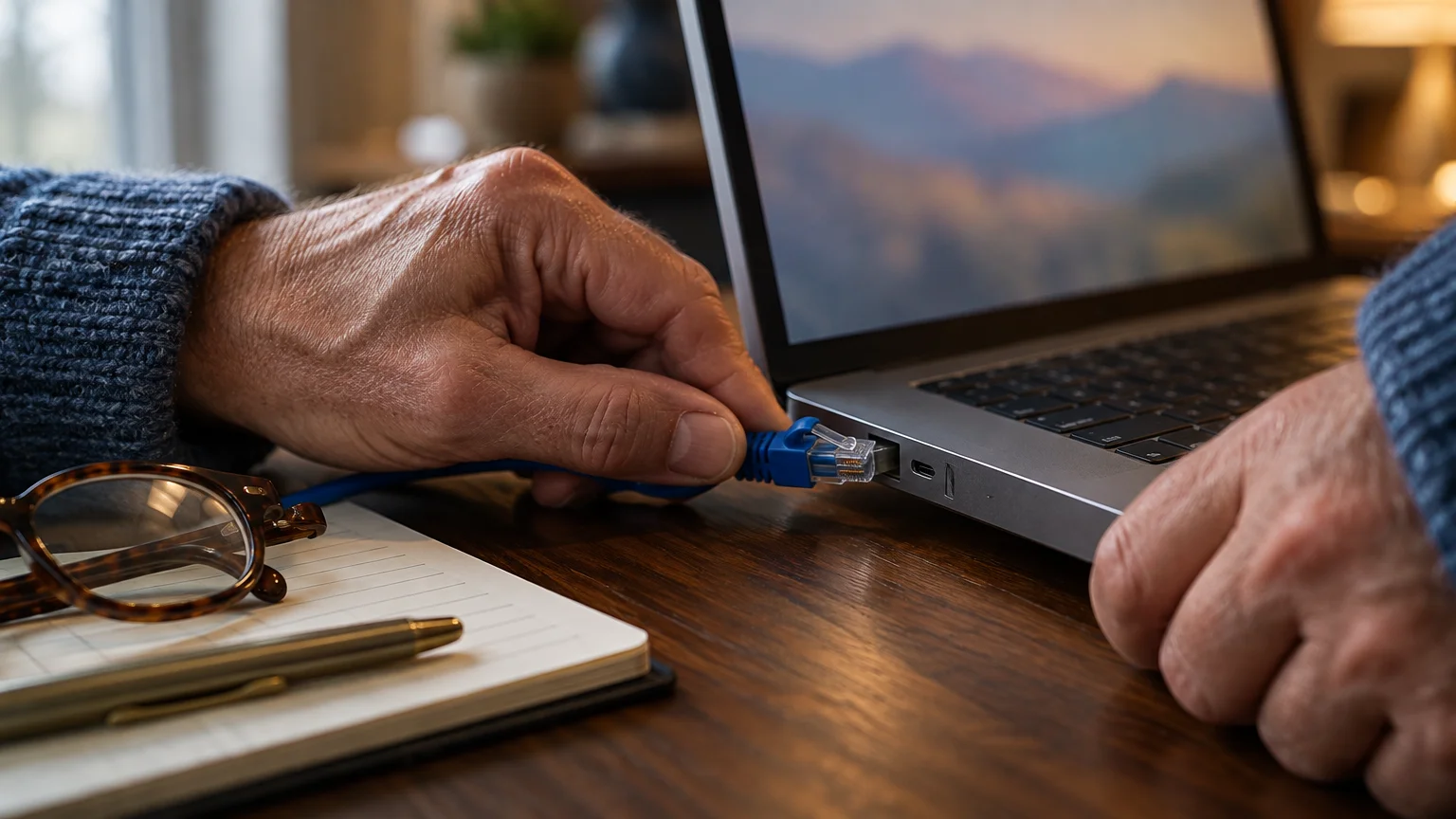
- Disconnect from the internet: Turn off your Wi-Fi or unplug your internet cable. This stops the “leak.” It prevents the scammer from receiving more data from your computer and stops the malware from spreading.
- Use a different device for passwords: Do not change your passwords using the computer you suspect is hacked. Use a separate tablet, smartphone, or a trusted friend’s computer. Focus on your most important accounts first: your email and your primary bank.
- Enable two-factor authentication: This is an extra security step, like getting a code texted to your phone. Even if a scammer has your password, they cannot get into your account without that second code.
- Run a full security scan: If you have antivirus software, run a “Full System Scan” while the computer is offline. If you do not have software, or if the software seems broken, you may need to take the computer to a professional, such as a local computer repair shop or a service like Best Buy’s Geek Squad.
- Notify your financial institutions: Call your bank and credit card companies. Tell them you suspect your computer was compromised. They can put a “fraud alert” on your account or issue you new cards.
Falling for a scam or having your computer hacked is not a reflection of your intelligence. Scammers are professional criminals who use psychological tricks to bypass even the most cautious people.
Be kind to yourself as you resolve the issue.

How to Prevent Future Intrusions
Once your computer is clean, you can take simple steps to make it a much harder target for scammers. You don’t need to be a computer scientist to maintain a secure machine; you just need a few good habits and the right tools.
First, embrace updates. When your computer or phone asks to “Update Software,” it is usually fixing a security “hole” that scammers have discovered.
Think of updates as adding a new, stronger lock to your front door. Set your computer to install these updates automatically so you don’t have to remember to do it yourself.
Second, consider using a password manager. A password manager is a secure app that remembers all your passwords for you.
This allows you to have a different, very long password for every single website without having to memorize them or write them on a piece of paper near your desk.
Using the same password for every site is like having one key that opens your house, your car, and your safe—if a scammer gets that one key, they have everything.
Finally, be “suspicious”—if something seems wrong or too good to be true, it probably is. If you receive an unexpected email from the Social Security Administration or your bank asking you to click a link, stop.
Instead of clicking, go to your browser and type the bank’s address in yourself, or call them using a phone number from your actual bank statement. Trusted organizations will never pressure you to provide personal information via an unverified link.

Where to Report Scams and Find Help
Reporting a hack or a scam helps protect others. When you report what happened, law enforcement agencies can track patterns and shut down the systems scammers use.
You are not just helping yourself; you are helping your community.
The Federal Trade Commission (FTC) is the primary agency for reporting consumer fraud. You can visit consumer.ftc.gov to learn about the latest scams or report an incident at ReportFraud.ftc.gov.
If you have lost money, you should also contact the FBI’s Internet Crime Complaint Center at www.ic3.gov.
For more personal support and technology education, the AARP Fraud Watch Network provides a wealth of resources tailored specifically for adults over 50. They offer a free helpline where you can speak with trained volunteers about your concerns.
Additionally, StaySafeOnline.org, powered by the National Cybersecurity Alliance, offers easy-to-understand guides on how to secure your home network and devices.
Frequently Asked Questions
What if I already clicked a link in a suspicious email?
If you clicked a link but did not enter any information, immediately close the page and run a virus scan on your computer.
If you did enter a password or financial information, change that password immediately from a different device and call your bank to report the potential breach.
How do I know if a call is really from my bank?
Scammers can “spoof” phone numbers to make them look like they are coming from your bank’s local branch. If you receive a call about “fraudulent activity” that asks for your account number or password, hang up.
Call your bank back using the official number on the back of your debit or credit card. A real bank employee will never be upset that you are being cautious.
Can my computer be hacked if it is turned off?
No, a computer cannot be actively hacked while it is completely powered down and disconnected from electricity. However, if the computer is just “sleeping,” it may still be connected to the internet.
If you suspect an active intrusion, turning the computer completely off is an effective way to stop the scammer while you decide your next steps.
Is it safe to use public Wi-Fi at a library or coffee shop?
Public Wi-Fi is convenient but less secure than your home network. Avoid logging into your bank or entering credit card information while using public Wi-Fi.
If you must use it for sensitive tasks, consider using a “VPN” (Virtual Private Network), which acts as a secure tunnel for your information, though for most people, simply waiting until you get home is the safest option.
Staying safe online is a journey, not a destination. By staying observant and following these practical steps, you can enjoy the many benefits of the digital world while keeping your personal information exactly where it belongs—under your control.
Your computer is a tool for your convenience and joy; with these security habits in place, you can keep it that way.
Disclaimer: This article provides general information about online safety and is not a substitute for professional advice.
If you believe you’ve been a victim of fraud, contact your bank immediately and report the incident to the FTC at ReportFraud.ftc.gov or call 1-877-382-4357. If you’ve lost money, also file a report with your local police.