

Shopping online offers tremendous convenience, especially for adults aged 55 and over. You can find almost anything you need without leaving your home, from groceries and household essentials to books and gifts. Amazon stands out as one of the largest and most popular online marketplaces. This guide shows you how to use Amazon effectively and, most importantly, safely. We cover everything from setting up your account to placing an order and recognizing potential scams, ensuring you gain confidence in your online shopping journey.
For a broader look at protecting yourself on the web, you can also consult our comprehensive guide to shopping online safely.
Table of Contents
- What is Amazon and How Does it Help You?
- Getting Started: Creating Your Amazon Account
- Accessing Amazon: App on Your Phone/Tablet or Website on Your Computer
- Navigating Amazon: Finding What You Need
- Adding Items to Your Cart and Checking Out
- Understanding Payment and Shipping Options
- Ensuring Your Safety: Best Practices for Secure Amazon Shopping
- Managing Your Orders and Returns
- Tips for a Smooth Amazon Experience
- Frequently Asked Questions
What is Amazon and How Does it Help You?
Amazon is a vast online store where you can buy millions of different products. Imagine walking into the world’s largest department store, a grocery store, a bookstore, and an electronics shop all at once, without ever leaving your armchair. That is Amazon. This platform makes shopping easier for many people because it:
While Amazon is a secure platform, it is helpful to know how to identify social media scams where fraudulent ads might try to mimic big retailers.
In addition to their store, many people enjoy using the Amazon Echo with Alexa to set reminders or play music using voice commands.
- Offers Incredible Variety: You find almost any item you need, from everyday groceries to unique gifts, electronics, clothing, and home goods.
- Provides Convenience: Shop any time, day or night, and have your purchases delivered directly to your doorstep. This eliminates the need for travel, parking, or carrying heavy bags.
- Allows Price Comparison: You can often compare prices from different sellers directly on the platform, helping you find the best deals.
- Features Customer Reviews: Millions of other shoppers share their experiences with products. You read these reviews to make informed decisions before you buy.
- Simplifies Gifting: Send gifts directly to friends and family, even if they live far away.
You gain control over your shopping experience with Amazon. It puts a vast marketplace at your fingertips, offering convenience and choice, whether you need a new coffee maker or want to send flowers to a loved one.

Getting Started: Creating Your Amazon Account
Before you begin shopping, you need an Amazon account. An “account” is your personal login, which includes a unique username (usually your email address) and a password. This account keeps track of your orders, shipping addresses, and payment information securely.
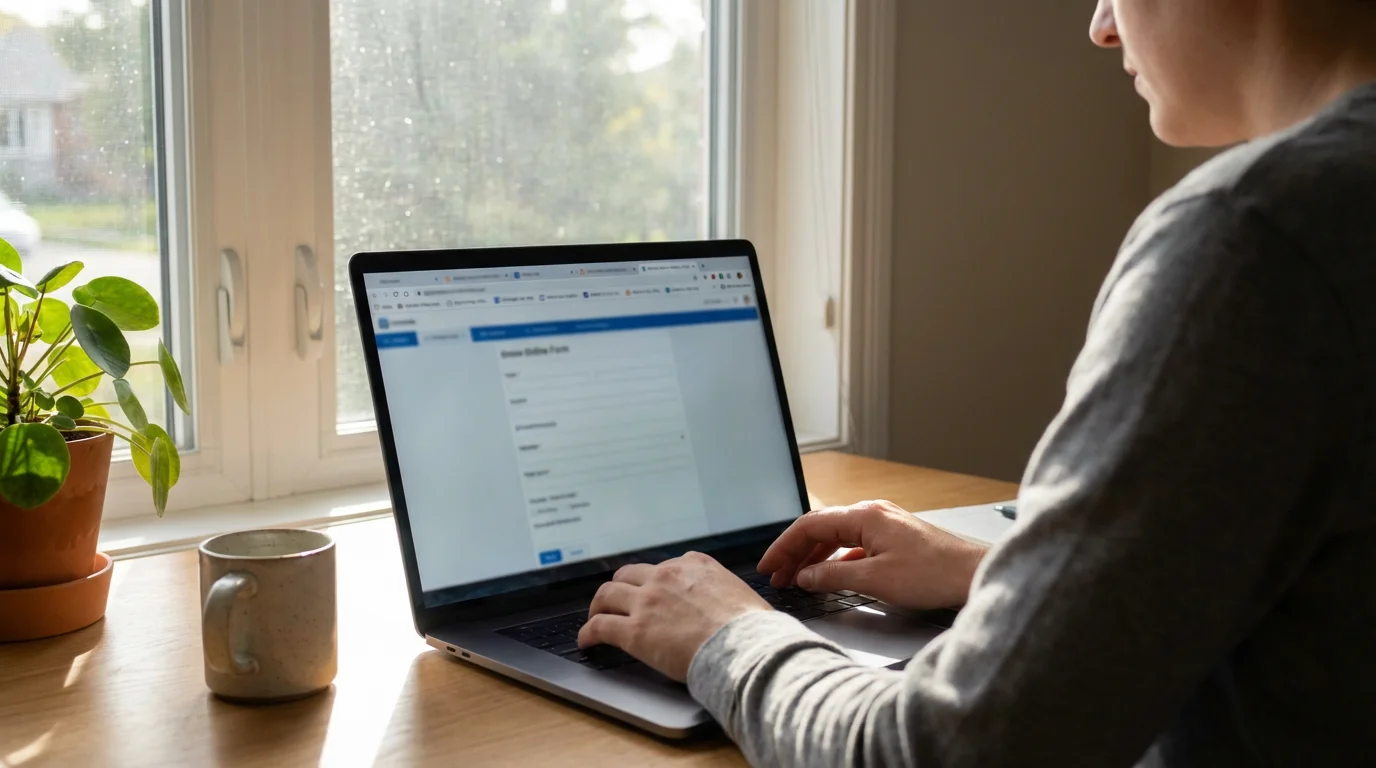
Step-by-Step: Creating Your Amazon Account
- Open Your Web Browser or Amazon App:
- On a Computer: Open your internet browser (like Chrome, Firefox, Safari, or Edge) and type
www.amazon.cominto the address bar, then press Enter. - On a Phone or Tablet: If you have already downloaded the Amazon Shopping app (we cover this in the next section), open it.
- On a Computer: Open your internet browser (like Chrome, Firefox, Safari, or Edge) and type
- Find the “Account & Lists” or “New Account” Option:
- On a Computer: Look for “Account & Lists” at the top right of the Amazon homepage. Move your mouse over it, and a menu appears. Click on “Start here” next to “New customer?”
- On a Phone or Tablet: If you are not logged in, the app usually shows a screen prompting you to “Sign in” or “Create account.” Tap “Create account.”
- Enter Your Details:
- Amazon asks for your name, email address, and a new password.
- Your Name: Type your full name.
- Email Address: Use an email address you check regularly. Amazon sends order confirmations and shipping updates to this address.
- Create a Password: Choose a strong password. A strong password combines uppercase letters, lowercase letters, numbers, and symbols (like !, @, #, $). Make it at least 8-10 characters long. Avoid using personal information like birthdays or simple words like “password123.” Write your password down and keep it in a safe place, or use a password manager.
- Re-enter Password: Type the same password again to confirm you typed it correctly.
- Verify Your Email (if prompted): Amazon might send a verification code to your email address to ensure it is yours. Check your email inbox (and possibly your spam folder) for a message from Amazon, then enter the code on the Amazon website or app.
- Click “Continue” or “Create your Amazon account.”
Congratulations! You now have an Amazon account. You are ready to start exploring the vast selection of products.
Accessing Amazon: App on Your Phone/Tablet or Website on Your Computer
You can access Amazon in two primary ways: through the Amazon Shopping app on a smartphone or tablet, or through their website on any computer.
If you are accessing your account while away from home, be sure to review how to safely use public Wi-Fi to keep your information secure.

Using Amazon on Your Computer
This method requires only an internet browser and your existing Amazon account.
- Open Your Internet Browser: Launch a web browser such as Google Chrome, Mozilla Firefox, Apple Safari, or Microsoft Edge.
- Type the Amazon Address: In the address bar at the very top of the browser window, type
www.amazon.com. Then press the Enter key on your keyboard. - Sign In: On the Amazon homepage, look for “Account & Lists” at the top right. Move your mouse over it and click on “Sign in.” Enter your email address and password, then click “Sign in.”
You are now ready to shop on Amazon from your computer.
Using the Amazon Shopping App on Your Phone or Tablet
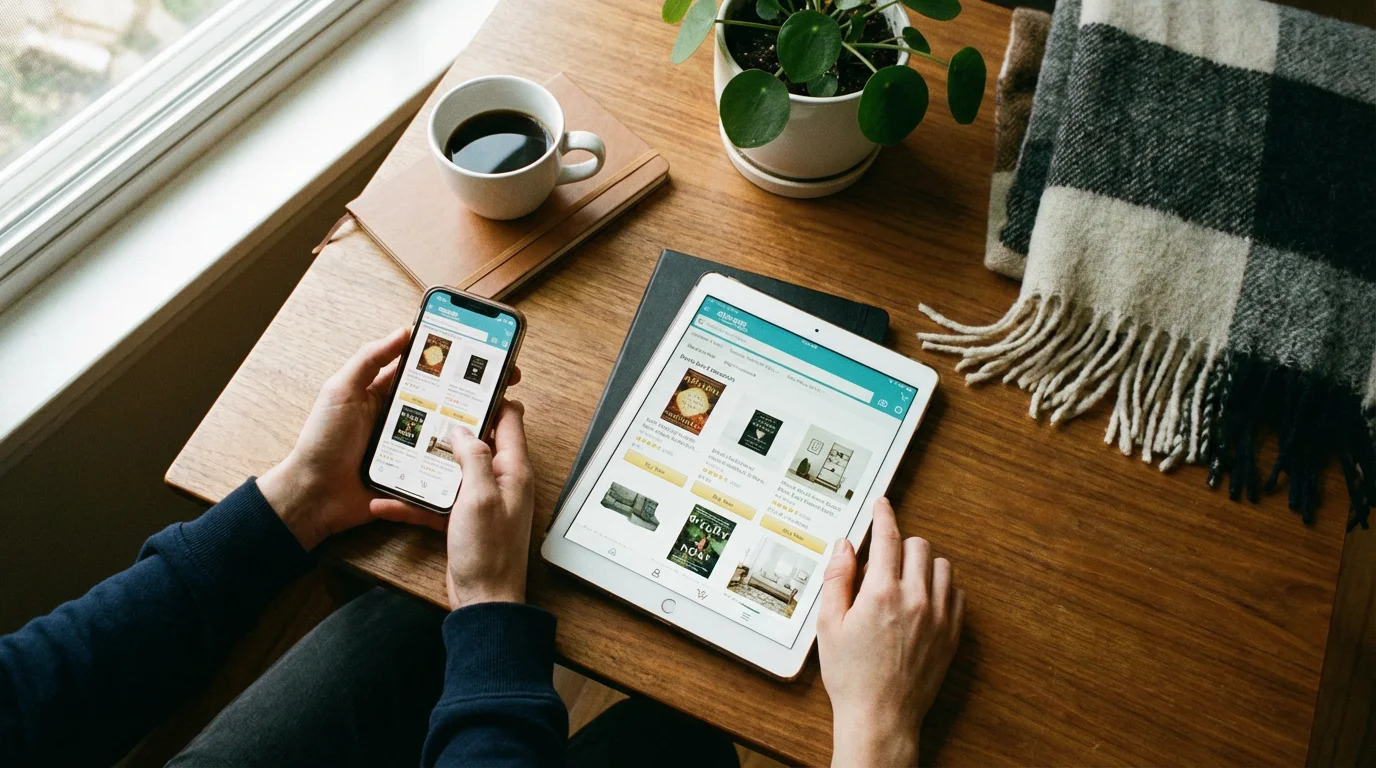
An “app” is a program you download and use on your phone or tablet. The Amazon Shopping app gives you quick and easy access to the store.
How to Download and Install the Amazon Shopping App
To “download” means to get the app from the app store and put it on your device. To “install” means to set up the app so it is ready to use.
- Locate Your Device’s App Store:
- For Apple iPhones or iPads: Find the “App Store” icon. It looks like a blue square with a white “A” made of three lines. Tap it.
- For Android Phones or Tablets (like Samsung, Google, LG): Find the “Google Play Store” icon. It looks like a colorful triangle. Tap it.
- Search for the Amazon Shopping App:
- Once the app store opens, look for a “Search” button or a magnifying glass icon. Tap it.
- Type “Amazon Shopping” into the search bar. Press the Search or Enter button on your keyboard.
- Download and Install the App:
- You will see a list of results. Look for the official “Amazon Shopping” app, usually with the Amazon logo (a stylized “A” with an arrow underneath).
- For Apple devices: Tap the “GET” button next to the app name. You might need to use your Face ID, Touch ID (fingerprint), or enter your Apple ID password to confirm the download.
- For Android devices: Tap the “Install” button.
- The app begins to download and install automatically. This may take a moment depending on your internet speed.
- Open the App:
- Once the installation finishes, an “Open” button appears in the app store. Tap it.
- Alternatively, return to your device’s home screen. You will find the new “Amazon Shopping” icon there. Tap it to open the app.
- Sign In to the App:
- The first time you open the app, it asks you to sign in or create an account. Since you already created an account, tap “Sign in.”
- Enter your email address and password, then tap “Sign in.”
You have successfully downloaded, installed, and logged into the Amazon Shopping app. You are now ready to shop from your phone or tablet.
Navigating Amazon: Finding What You Need
Amazon organizes millions of products, but finding what you need is straightforward. Here is how you navigate the platform effectively and safely.
As you browse, staying alert can help you spot fake websites that might try to look like the real Amazon storefront.

Using the Search Bar
The search bar is your most powerful tool. You find it prominently displayed at the top of every Amazon page, whether you are on the website or in the app.
- Type What You Need: Type keywords for the product you want. For example, “coffee maker,” “book by James Patterson,” “dog food for small breeds,” or “non-slip bath mat.”
- Be Specific: The more specific you are, the better your search results. Instead of “shoes,” try “women’s walking shoes size 8.”
- Press Enter or Tap the Search Icon: After typing, press the Enter key on your keyboard (computer) or tap the magnifying glass icon (app) to see your results.
Browsing by Categories
If you are not sure exactly what you want or just want to browse, use the category navigation.
- On a Computer: Look for “All” or “Departments” near the search bar on the left side. Click it to see a menu of broad categories like “Electronics,” “Home & Kitchen,” “Books,” and “Groceries.” Hover over or click a category to see subcategories.
- On a Phone or Tablet: Tap the three horizontal lines (often called a “hamburger menu”) usually found at the top left or bottom of the app screen. This opens a menu with categories like “Shop by Department.”
Understanding Product Pages
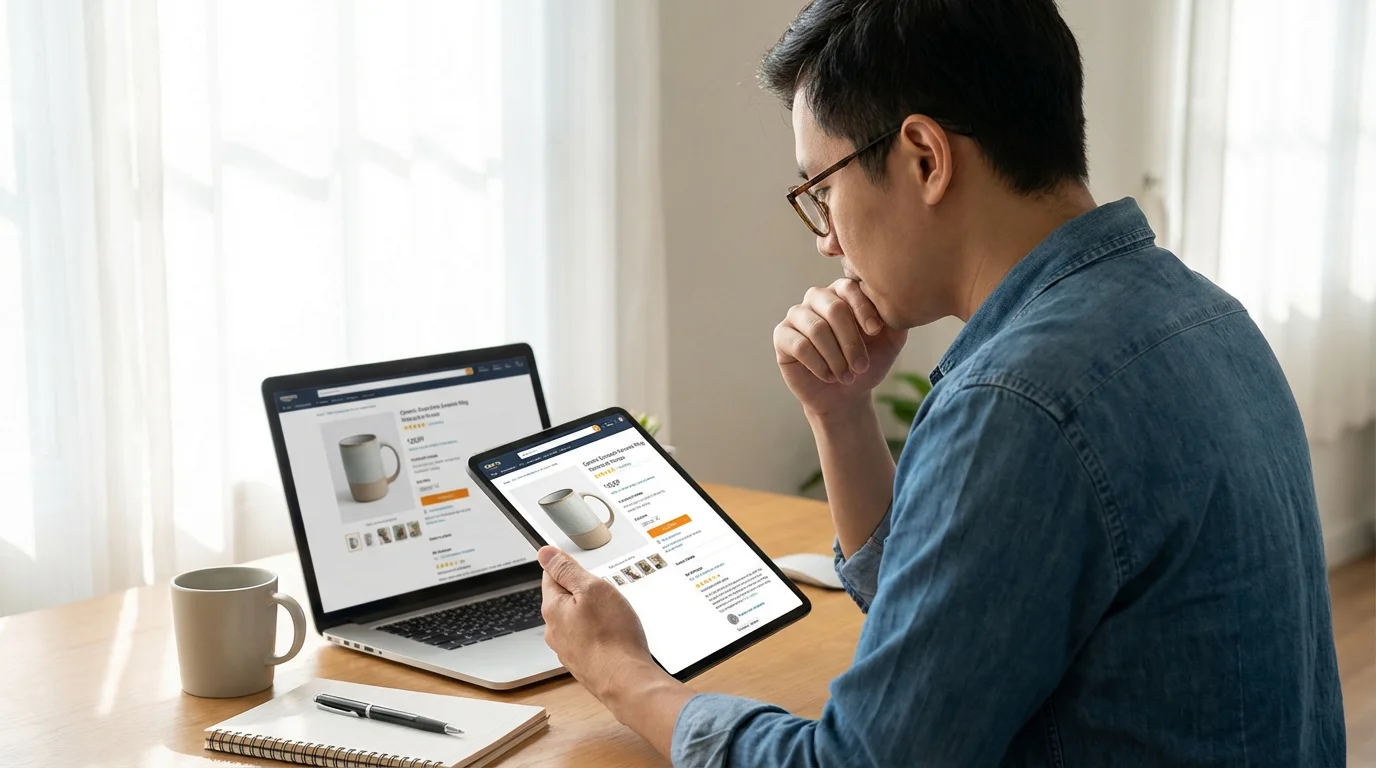
When you click on a product from your search results or category browsing, you land on its product page. This page provides all the details you need to make a purchase decision.
- Product Images: Look at all the pictures. They show the item from different angles.
- Product Title and Description: Read what the item is and what it does. The description provides features, dimensions, and other important information.
- Price: Clearly displayed. Look for any shipping costs or taxes that might add to the total.
- Customer Reviews and Ratings: This is crucial. Stars (out of five) show the average rating, and you read individual reviews. Pay attention to reviews from “Verified Purchase” customers, which means Amazon confirmed they actually bought the product.
- “Add to Cart” Button: This button adds the item to your virtual shopping cart.
- Seller Information: Pay close attention to “Sold by” and “Ships from.”
- “Sold by Amazon.com” and “Ships from Amazon” means Amazon handles the sale and shipping directly. This generally provides the most reliable experience.
- “Sold by [Seller Name] and Fulfilled by Amazon” means a third-party seller listed the item, but Amazon stores it and ships it. This is also generally reliable.
- “Sold by [Seller Name] and Ships from [Seller Name]” means a third-party seller handles everything. You rely on that specific seller’s reputation. Always check their seller rating (usually a percentage of positive reviews) and read feedback about them.
Adding Items to Your Cart and Checking Out
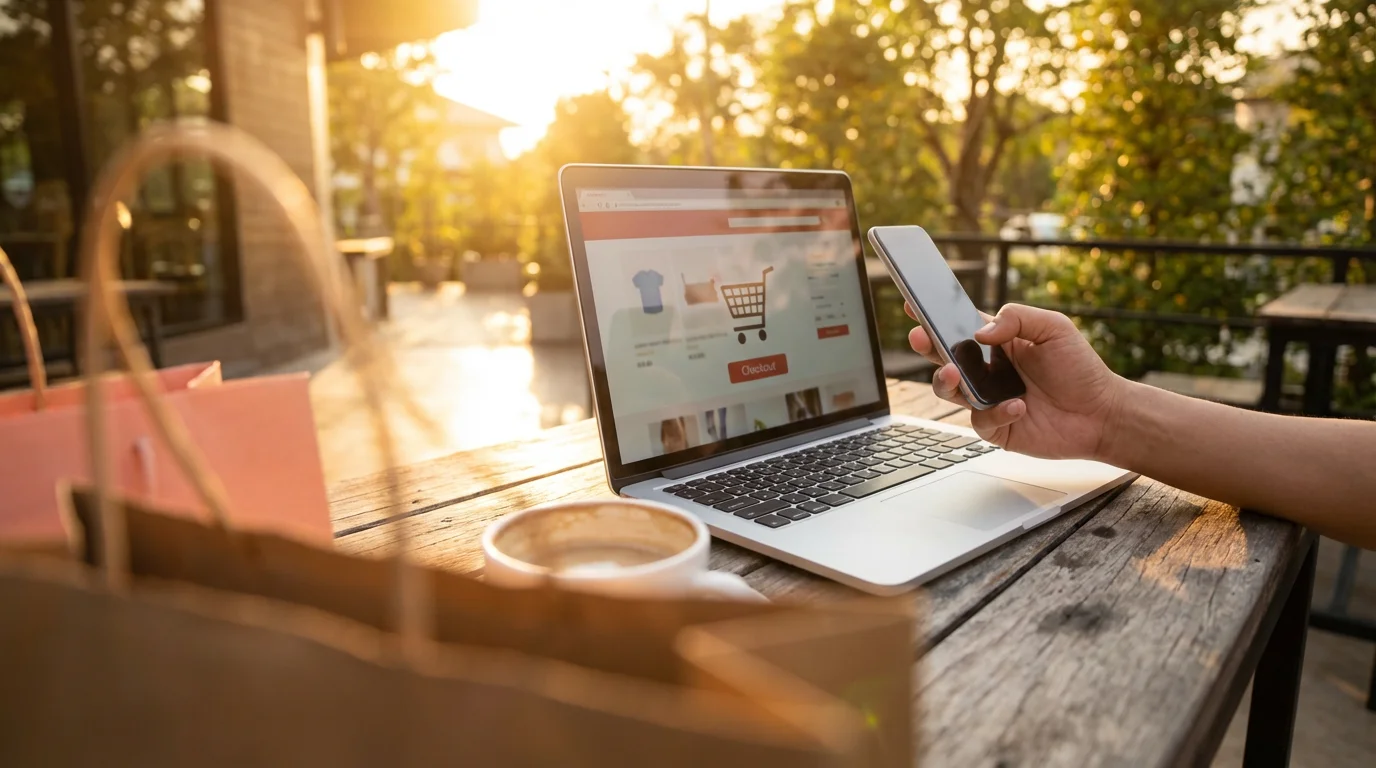
Once you find an item you want, you add it to your “cart,” similar to putting items in a physical shopping cart. Then you proceed to “checkout” to complete your purchase.
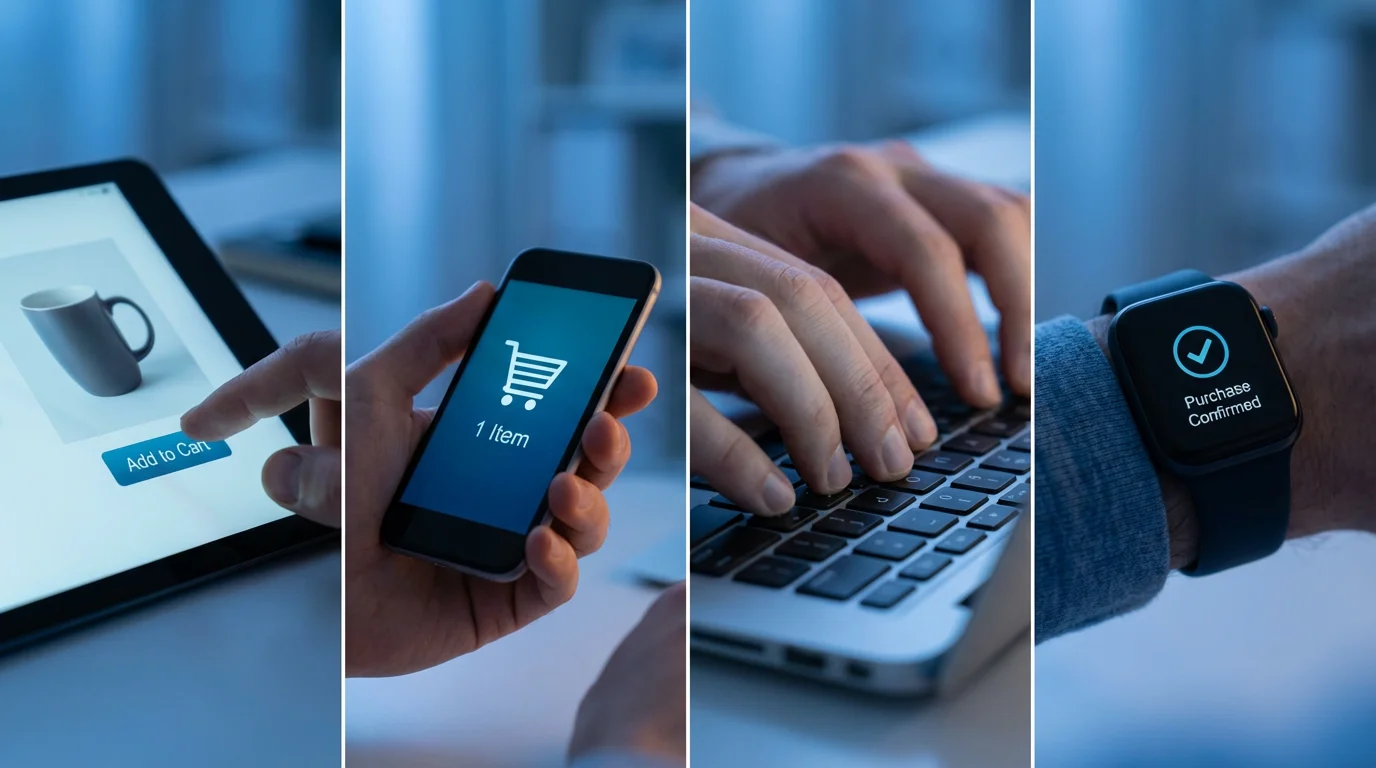
Step-by-Step: Adding to Cart and Checking Out
- Add to Cart: On the product page, click or tap the “Add to Cart” button. You can continue shopping for more items. The cart icon (often a shopping trolley or basket) at the top of the page shows how many items you have.
- View Your Cart: When you are ready to buy, click or tap the cart icon. This takes you to your Shopping Cart page, where you review all the items you plan to purchase. You can adjust quantities, remove items, or save items for later.
- Proceed to Checkout: On the Shopping Cart page, click or tap the “Proceed to Checkout” button.
- Confirm Your Shipping Address: Amazon prompts you to confirm or enter your shipping address. This is the physical address where you want your order delivered. Ensure all details, including street number, street name, city, state, and zip code, are correct.
- Choose a Shipping Speed: You select how quickly you want your items to arrive. Options range from standard shipping (often free for Prime members or orders over a certain amount) to expedited or one-day shipping (which usually costs extra).
- Select Your Payment Method: Choose from existing payment methods you have saved or add a new one. (We cover payment methods in detail in the next section.)
- Review Your Order: This is a crucial step. On the “Place Your Order” or “Review Order” page, you see a summary of everything: the items, prices, shipping address, shipping speed, payment method, and the final total cost including taxes. Double-check all details.
- Place Your Order: If everything looks correct, click or tap the “Place Your Order” button. This confirms your purchase. Amazon immediately sends an “order confirmation” email to the address linked to your account. This email details your purchase and provides an order number.
Take your time on the “Review Your Order” page. You are in control of your purchase, and this final check prevents mistakes with items, addresses, or payment.
Understanding Payment and Shipping Options
Amazon offers several ways to pay and various shipping methods to get your items to you. Understanding these options helps you shop with confidence.
To keep a close eye on your spending and secure your finances, you might also want to learn how to use your bank’s mobile app safely.
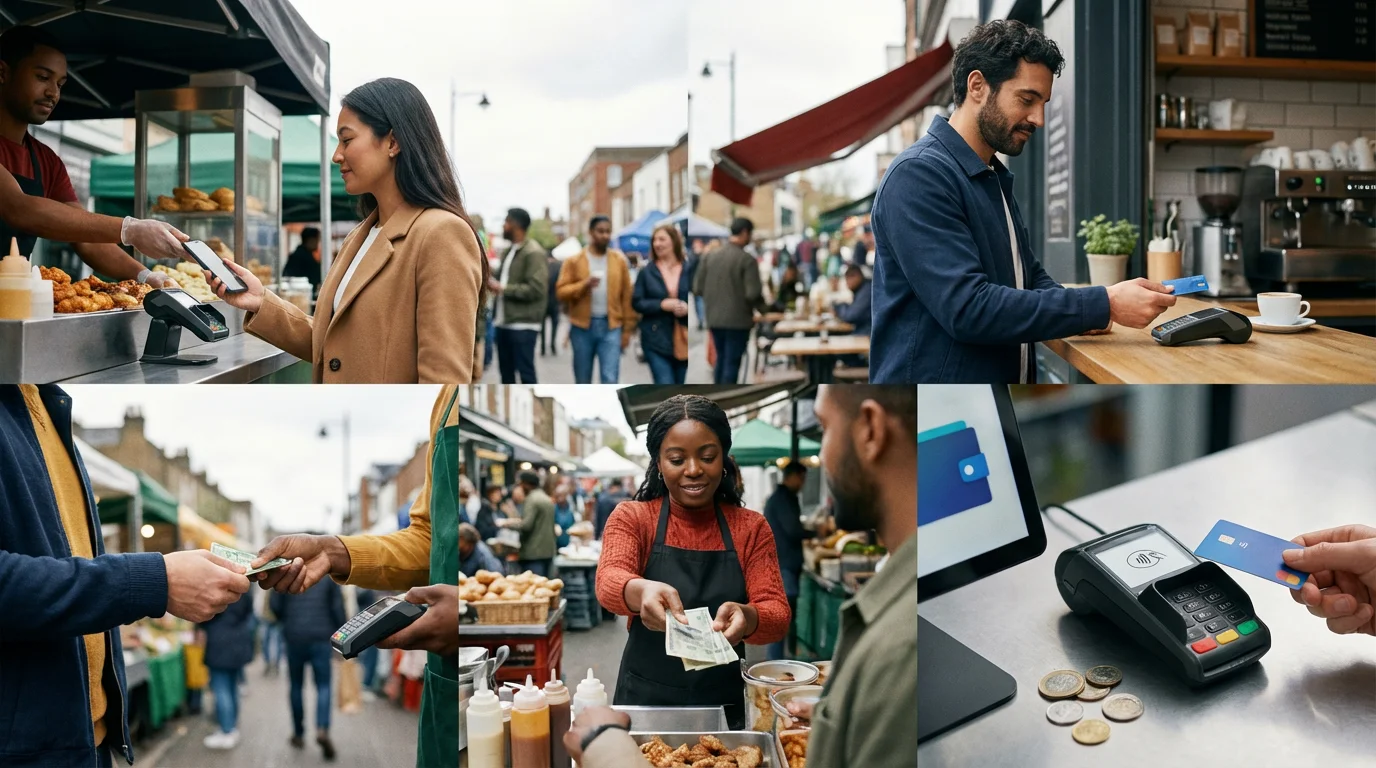
Payment Methods
When you set up your account or during checkout, you select how you pay for your purchases.
- Credit and Debit Cards: Most people use their Visa, MasterCard, American Express, or Discover credit or debit cards. You enter the card number, expiration date, and the three or four-digit security code (CVV) usually found on the back of the card.
- Amazon Gift Cards: If you receive an Amazon gift card, you can apply its balance to your account. The amount then deducts from your purchases.
- Amazon Store Card/Credit Card: Amazon offers its own credit products, often with rewards.
- Bank Accounts (ACH): In some cases, you can link your bank account for direct deductions.
Adding and Managing Payment Methods
- On a Computer: Hover over “Account & Lists” at the top right, then click “Your Account.” Under “Payment,” click “Payment options.”
- On a Phone or Tablet: Tap the three horizontal lines (menu icon), then tap “Your Account.” Scroll down and tap “Manage payment options.”
You can add new cards, edit existing ones, or remove old ones. Amazon encrypts your payment information, keeping it secure. However, never save your credit card details on a public or shared computer.
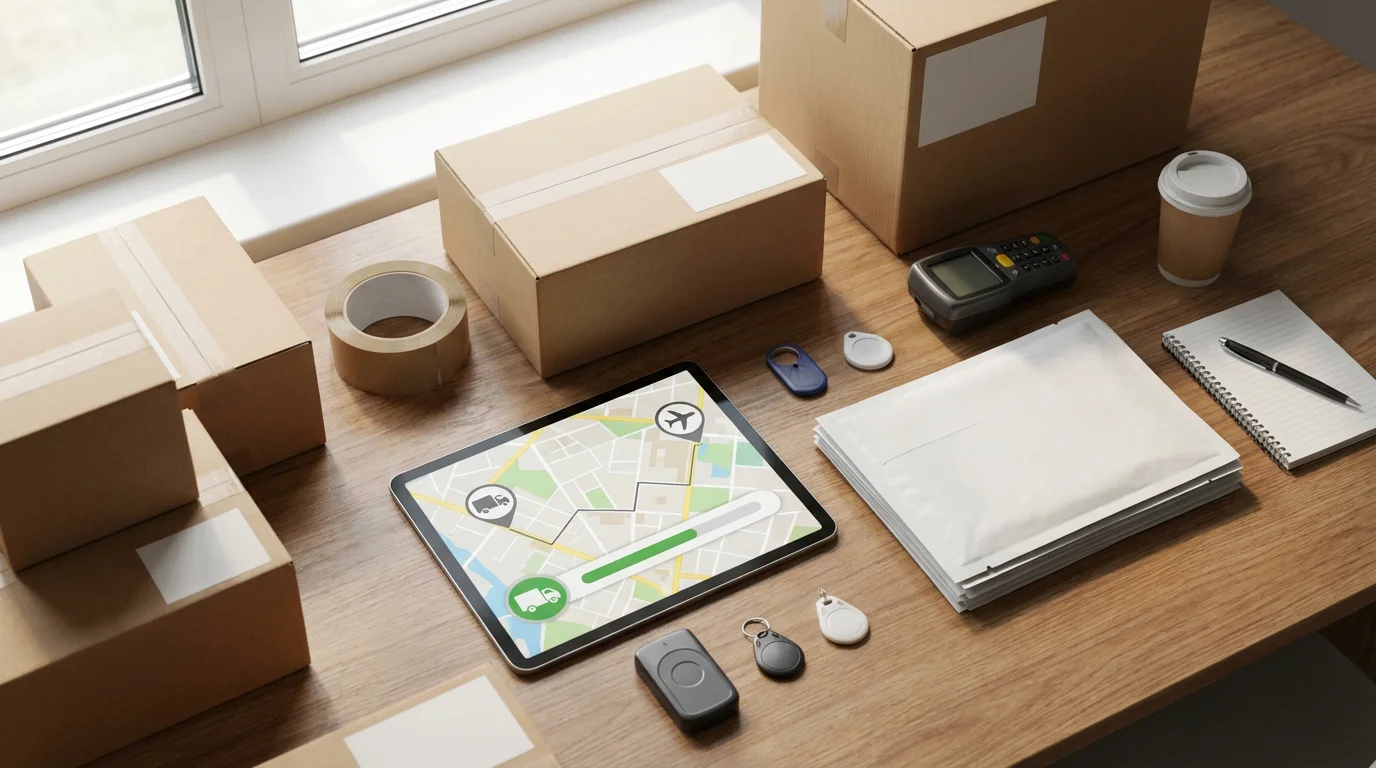
Shipping Options and Tracking
After you place an order, Amazon ships your items. You receive “notifications,” or alerts, about your order status.
- Shipping Speeds:
- Standard Shipping: This is often the most economical option, sometimes free for larger orders or specific items. It takes several business days.
- Amazon Prime: Amazon offers a paid membership called Prime. Prime members often receive free two-day, one-day, or even same-day shipping on eligible items, as well as access to streaming movies and music. You decide if the annual fee for Prime benefits suits your shopping habits.
- Expedited/Priority Shipping: Faster shipping options are available for an extra fee if you need an item quickly.
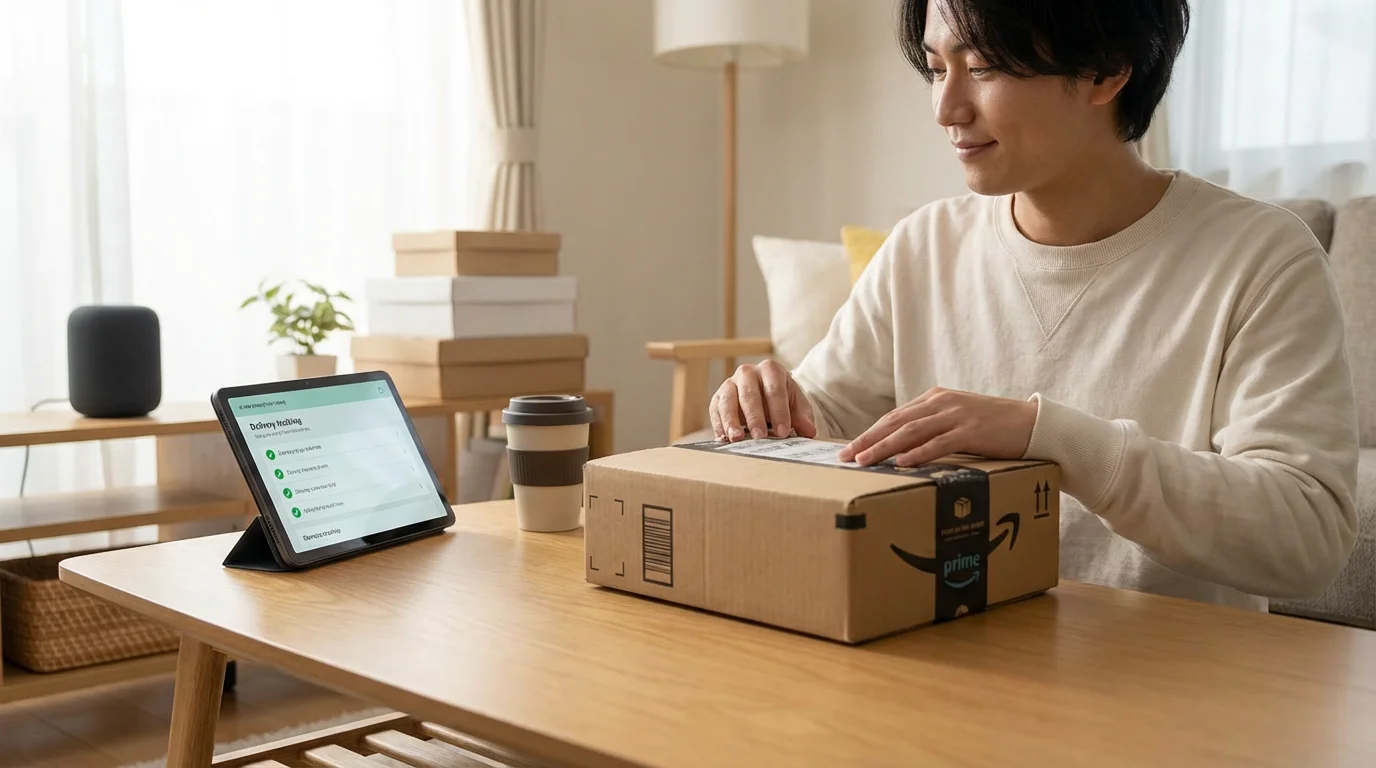
- Tracking Your Order: Amazon provides a “tracking number” for your packages. This number allows you to follow your package’s journey from the warehouse to your door.
- On a Computer: Hover over “Account & Lists,” then click “Your Orders.”
- On a Phone or Tablet: Tap the three horizontal lines (menu icon), then tap “Your Orders.”
- Find the order you want to track and click or tap “Track Package.” You see updates like “Shipped,” “Out for Delivery,” and “Delivered.” Sometimes, information on different devices needs to “sync,” meaning the tracking details update automatically across all your devices once Amazon updates them.
Ensuring Your Safety: Best Practices for Secure Amazon Shopping
Shopping online safely is paramount. While Amazon takes many precautions, you play a vital role in protecting yourself. Implementing these best practices significantly reduces your risk.
Always remember that Amazon will never call you asking for your password or remote access to your computer; you should learn how to recognize tech support scams to stay protected.
- Use Strong, Unique Passwords and Two-Factor Authentication:
- Strong Passwords: As mentioned, create a password that is long, complex, and unique for your Amazon account. Never use the same password for Amazon that you use for your email or bank.
- Two-Factor Authentication (2FA): This adds an extra layer of security. After you enter your password, Amazon sends a temporary code to your phone (via text message or an authenticator app). You enter this code to log in. Even if someone steals your password, they cannot access your account without your phone. We highly recommend enabling 2FA for your Amazon account. You find this option in “Your Account” under “Login & security.”
- Recognize Secure Websites:
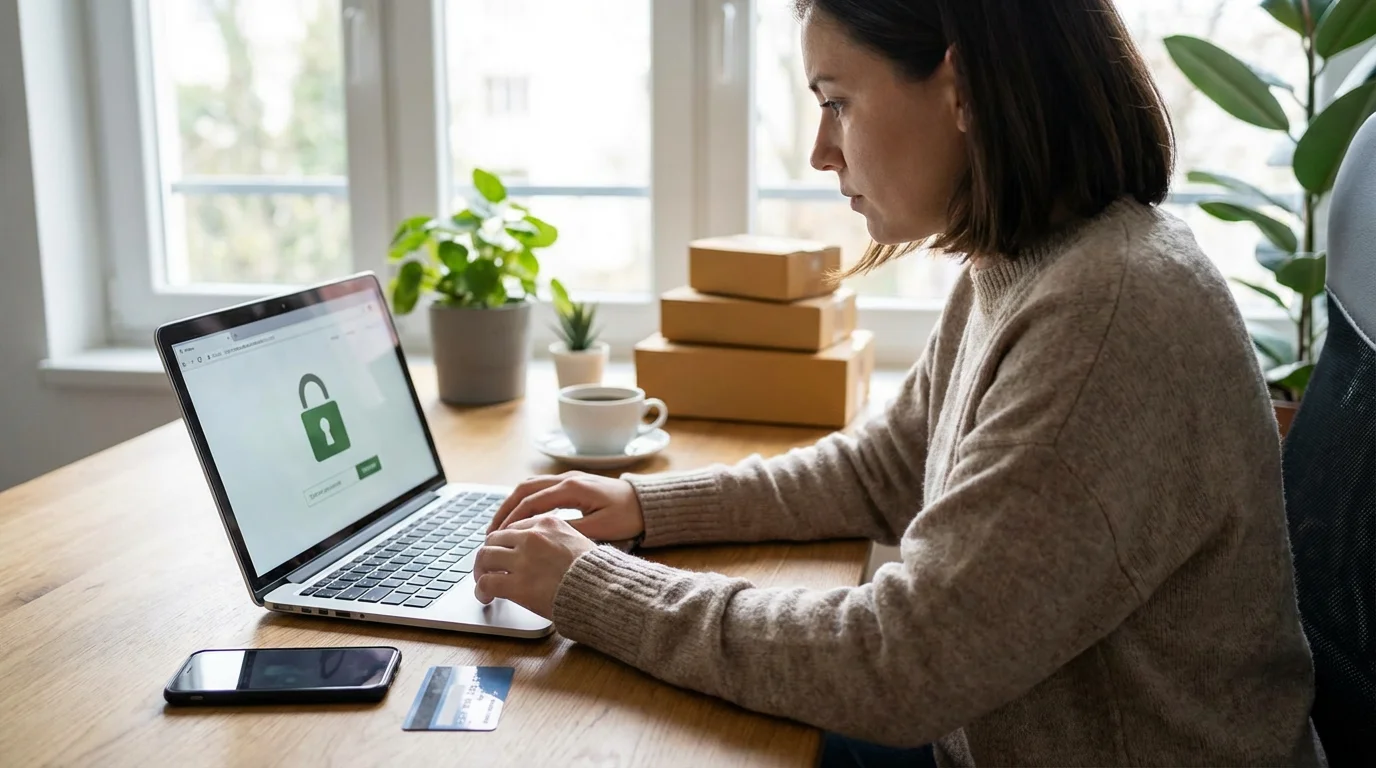
- Always ensure the website address begins with
https://(not justhttp://). The “s” stands for secure. - Look for a padlock icon in the address bar of your browser. This indicates a secure, encrypted connection, meaning your information is safe as it travels to Amazon. If you do not see the padlock, do not proceed with sensitive actions like entering payment information.
- Always ensure the website address begins with
- Be Wary of Phishing Scams:
- “Phishing” describes attempts by criminals to trick you into revealing personal information, often through fake emails or text messages that look like they come from Amazon.
- Look for Red Flags: Phishing messages often contain poor grammar, generic greetings (e.g., “Dear Customer” instead of your name), urgent demands, or suspicious links.
- Never Click Suspicious Links: If an email or text looks suspicious, do not click any links. Instead, go directly to
www.amazon.comin your browser or open your Amazon app to check your orders or account status. Amazon sends legitimate notifications through your account, which you can verify there. - Amazon Never Asks for Personal Information via Email: Amazon will never ask you to confirm credit card numbers, Social Security numbers, or other sensitive personal information via email.
- Monitor Your Bank and Credit Card Statements:
- Regularly review your bank and credit card statements for any unauthorized or unfamiliar charges.
- If you spot something suspicious, contact your bank or credit card company immediately.
- Understand Amazon’s A-to-z Guarantee:
- Amazon stands behind purchases made on its platform. The Amazon A-to-z Guarantee protects you when you buy items sold and fulfilled by a third-party seller. If an item does not arrive, arrives damaged, or is significantly different from its description, Amazon often refunds your money. This provides a strong layer of buyer protection.
- Check Seller Ratings and Reviews:
- As mentioned earlier, always check the “Sold by” information and the seller’s rating, especially for third-party sellers. High ratings and numerous positive reviews suggest a trustworthy seller.
You empower yourself by staying vigilant. Your awareness, combined with Amazon’s security measures, creates a much safer online shopping environment.
Managing Your Orders and Returns
Sometimes you need to check on an order or return an item. Amazon makes these processes straightforward.
Accessing Your Orders
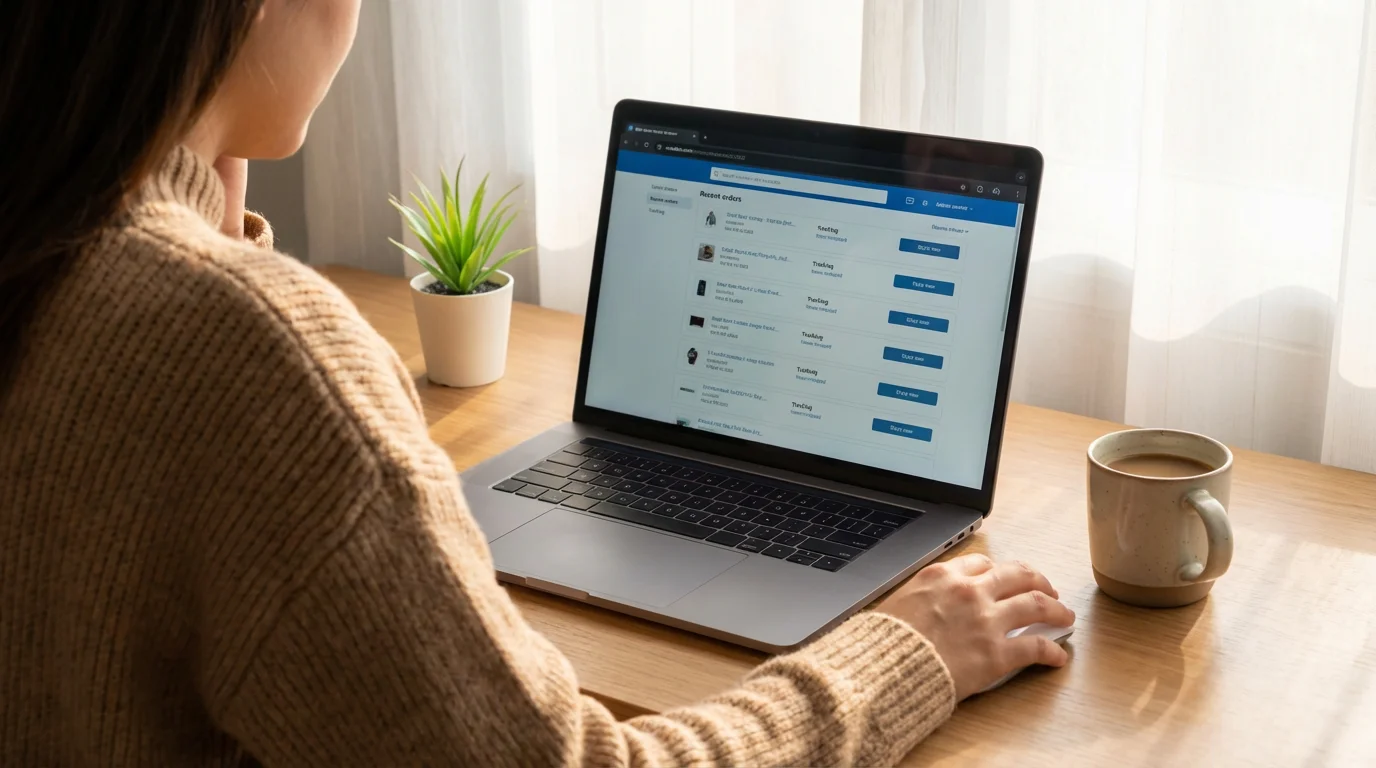
You can always see a complete history of your purchases.
- On a Computer: Look for “Returns & Orders” at the top right of the Amazon homepage. Click it.
- On a Phone or Tablet: Tap the person icon at the bottom of the app, then tap “Your Orders.”
- This section shows all your past and current orders. You can view order details, track packages, and initiate returns from here.
Initiating a Return
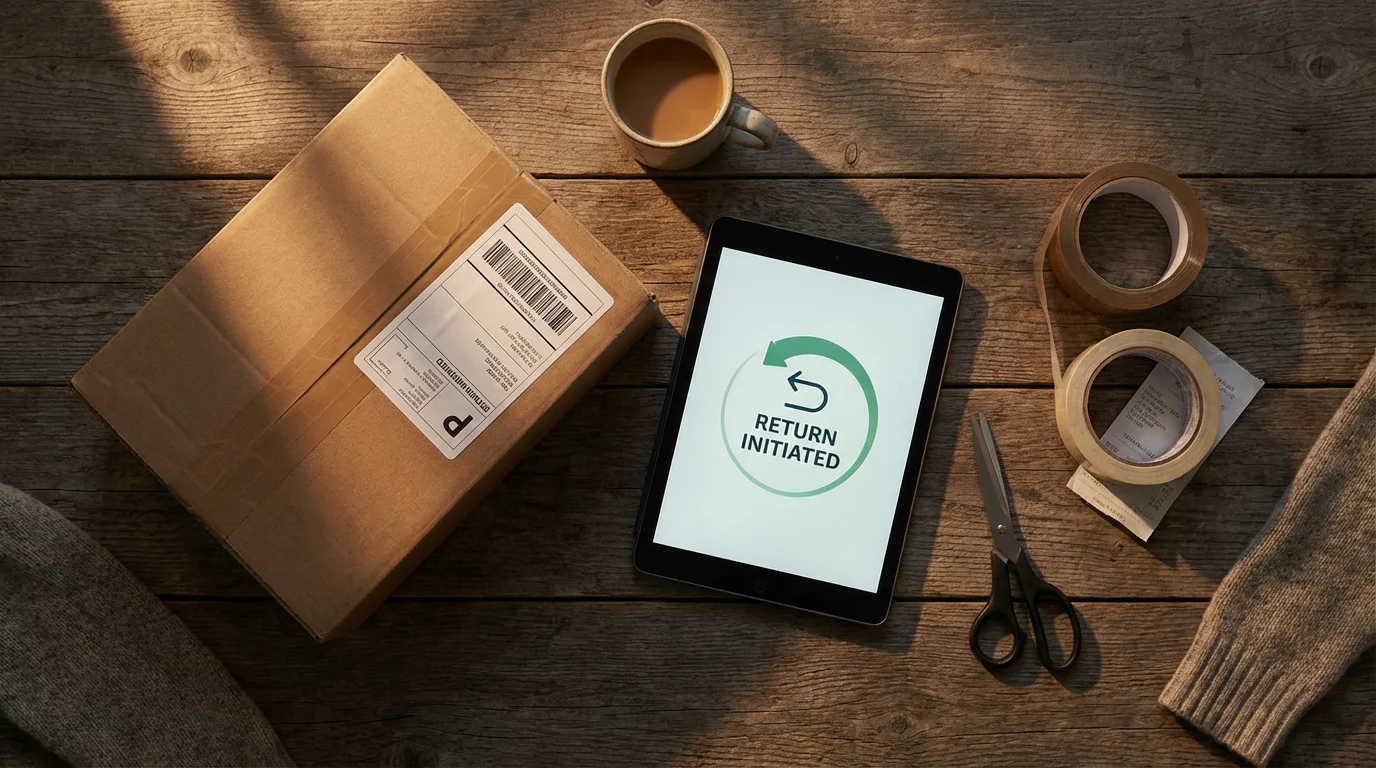
If you receive a damaged item, the wrong item, or simply change your mind, you can usually return products within a specific timeframe (often 30 days).
- Find the Item in Your Orders: Go to “Your Orders” (as described above).
- Click “Return or Replace Items”: Next to the item you want to return, click this button.
- Select a Reason for Return: Amazon asks why you are returning the item (e.g., “damaged,” “not as described,” “no longer needed”). Choose the most accurate reason.
- Choose Your Return Method: Amazon offers various return options:
- Print a Return Label: You print a shipping label, pack the item, and drop it off at a designated carrier (like UPS or USPS).
- QR Code Drop-off: For many returns, Amazon sends a QR code to your phone. You show this code at a participating store (like Kohl’s or UPS Store), and they print the label and package it for you. This is often the easiest method as it requires no printer.
- Receive Your Refund: Once Amazon processes your return, they issue a refund to your original payment method. This usually takes a few business days to appear on your statement.
Contacting Customer Service
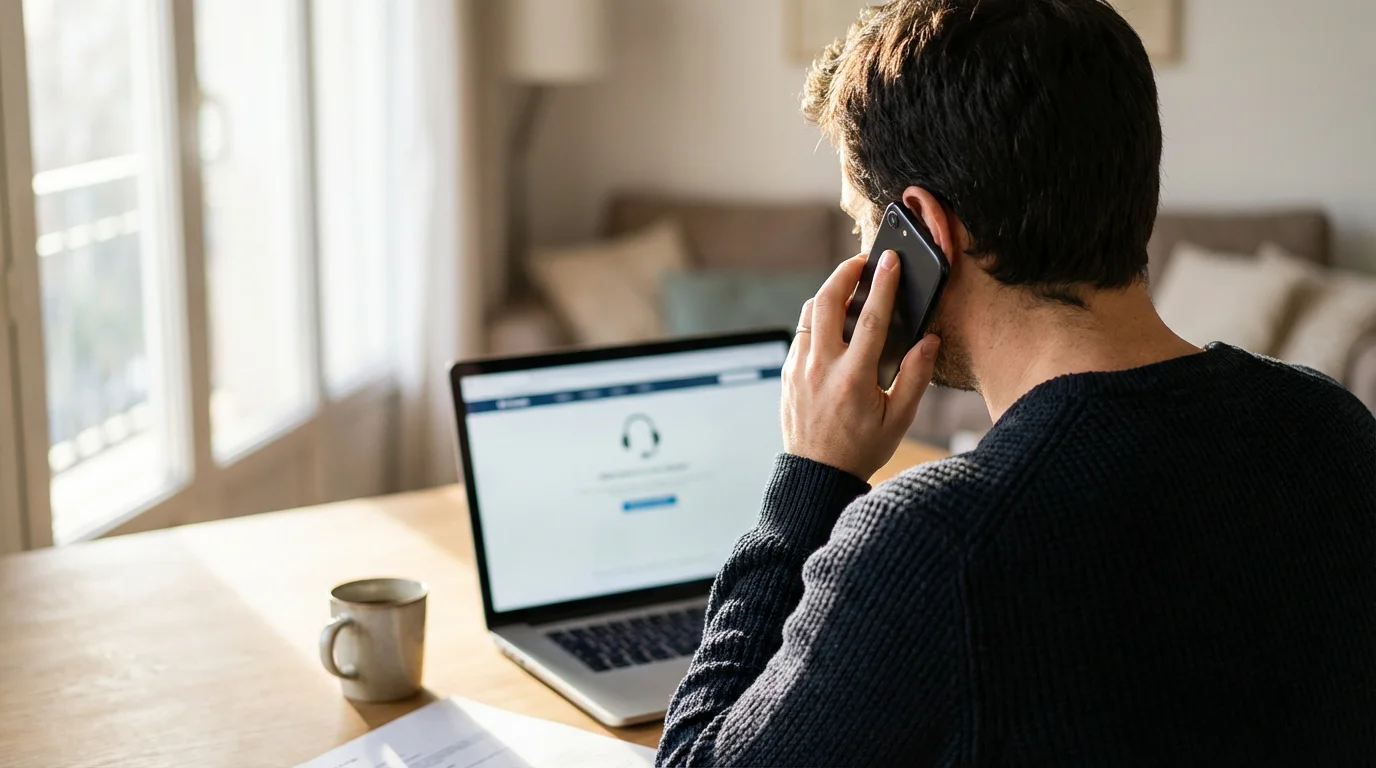
If you encounter a problem that you cannot resolve yourself, Amazon’s customer service can help.
- On a Computer: Scroll to the very bottom of any Amazon page and click “Customer Service.”
- On a Phone or Tablet: Tap the three horizontal lines (menu icon), then scroll down and tap “Customer Service.”
You can usually choose to chat with a representative, have them call you, or send an email. Be ready with your order number and a clear explanation of your issue.
Tips for a Smooth Amazon Experience
Maximize your enjoyment and efficiency on Amazon with these helpful tips:
- Utilize Wish Lists: If you see something you like but are not ready to buy, add it to a “Wish List.” This saves the item for later, and you easily share your list with family and friends for gift ideas. You find “Lists” in the “Account & Lists” menu on a computer or under the menu icon in the app.
- Read Reviews Critically: While reviews are helpful, read them carefully. Look for trends in feedback, not just one-off positive or negative comments. Pay attention to “Verified Purchase” reviews. Be cautious of reviews that seem overly enthusiastic or generic, as some sellers attempt to manipulate ratings. Consumer Reports offers excellent guidance on identifying fake reviews.
- Compare Prices: Amazon’s vast marketplace often means different sellers offer the same item at varying prices. After searching for a product, scroll down on the product page to see “Other Sellers on Amazon” or similar sections to ensure you get the best deal.
- Use the “Buy Again” Feature: For items you frequently repurchase, like pet food or supplements, Amazon’s “Buy Again” section in “Your Orders” makes reordering incredibly simple.
- Subscribe & Save for Essentials: For certain recurring purchases (like toilet paper, coffee, or dog food), Amazon’s “Subscribe & Save” program offers a discount and automatic delivery. You choose the delivery frequency and cancel anytime without penalty. This provides convenience and savings on regular household items.
You are in charge of your Amazon experience. Using these features helps you save time, money, and makes shopping more enjoyable and efficient.
Frequently Asked Questions
Is Amazon shopping safe?
Yes, Amazon shopping is generally safe, especially when you follow best practices. Amazon uses encryption to protect your payment information, offers buyer protection through its A-to-z Guarantee, and provides tools like Two-Factor Authentication to secure your account. Your vigilance against phishing emails and your use of strong, unique passwords significantly enhance your safety.
Do I have to pay for the Amazon app?
No, the Amazon Shopping app is free to download and install on your phone or tablet. You only pay for the items you purchase through the app and any associated shipping costs or optional services like Amazon Prime membership.
What if I receive a damaged item?
If you receive a damaged item, you can usually return it for a refund or replacement. Go to “Your Orders” in your Amazon account, find the specific item, and select the “Return or Replace Items” option. Amazon guides you through the process, which often involves selecting a reason for the return and choosing a convenient return method.
How do I track my order?
You track your Amazon order by visiting the “Your Orders” section of your Amazon account. On a computer, hover over “Account & Lists” and click “Your Orders.” In the app, tap the person icon then “Your Orders.” Locate the specific order and click or tap “Track Package” to see its current status and estimated delivery date.
Can someone help me if I get stuck while shopping on Amazon?
Absolutely. If you get stuck or have questions, you have several options. Amazon’s customer service is available through chat, phone, or email via the “Customer Service” link at the bottom of their website or in the app’s menu. Additionally, many local community centers, libraries, or organizations like Senior Planet from AARP offer free technology classes and one-on-one assistance for online tasks like Amazon shopping.
Disclaimer: This article is for informational purposes only. App interfaces change frequently with updates, so screens may look slightly different from what’s described. Always download apps from official app stores (Apple App Store or Google Play Store) to ensure safety.




Leave a Reply