

Modern television shows and movies often feel louder and faster than the programs we grew up with. You might find yourself constantly adjusting the volume—turning it up to hear a whispered conversation and then scrambling for the remote when a loud explosion or musical score shakes the room. If you find yourself straining to catch every word, you are not alone. Millions of viewers now use closed captions to ensure they never miss a beat of their favorite stories.
Closed captions act as a bridge between the screen and your ears. They provide a text version of the spoken dialogue and describe relevant background sounds, such as a door creaking or a phone ringing. While people once viewed these as a tool strictly for the hearing impaired, they have become a standard feature for everyone from college students in noisy dorms to parents watching TV while a baby sleeps. This guide will help you master the settings on your smart TV so you can enjoy your programs with clarity and confidence.
Table of Contents
- What Are Closed Captions and Subtitles?
- Is This Right for You?
- What You Will Need to Get Started
- Step-by-Step Setup for Popular Brands
- Using Captions on Roku, Fire TV, and Apple TV
- Customizing the Look for Better Visibility
- Privacy and Practical Considerations
- Common Problems and Solutions
- Frequently Asked Questions
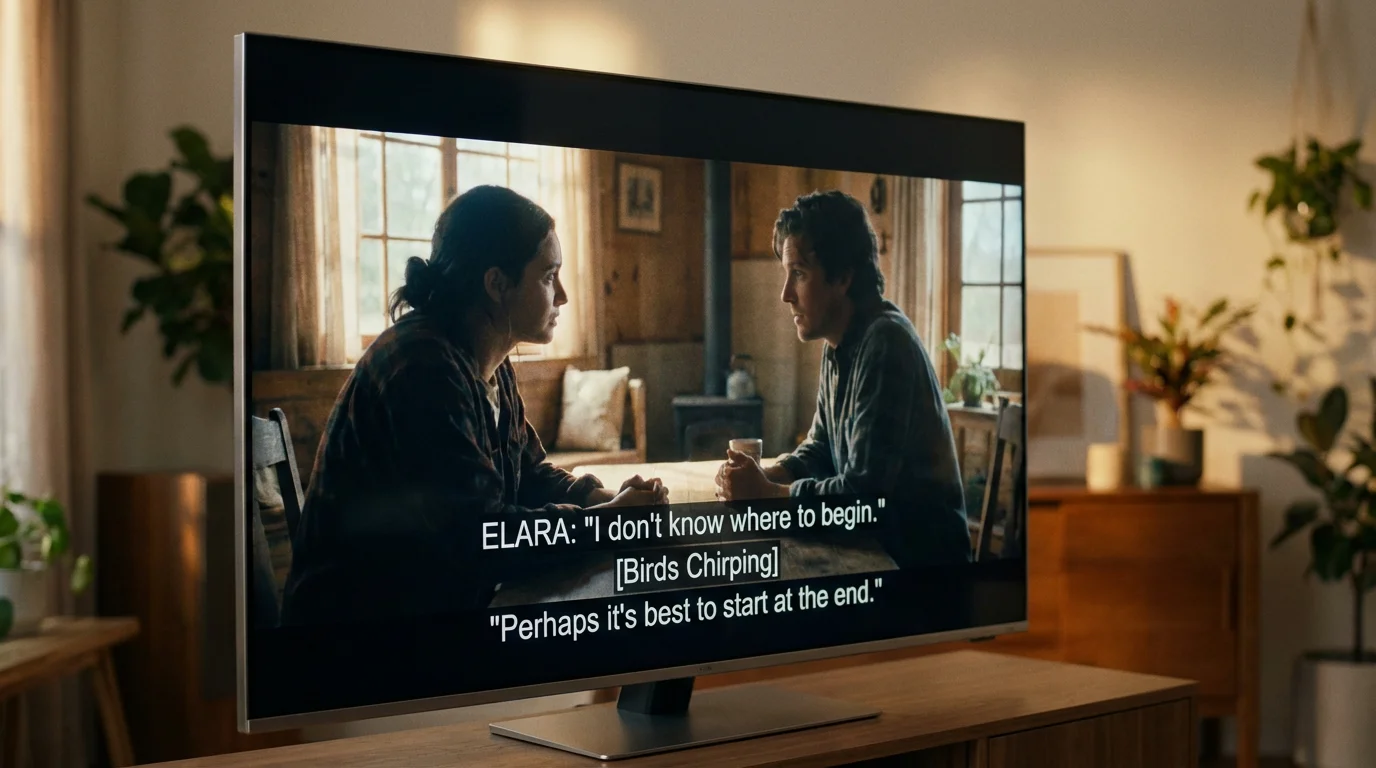
What Are Closed Captions and Subtitles?
In plain English, closed captions (CC) are the words that appear at the bottom of your screen to represent the audio of a program. However, there is a small but important difference between “closed captions” and “subtitles” that you should understand. Subtitles generally only translate the spoken dialogue—useful if you are watching a French film and need the English translation. Closed captions go a step further; they include descriptions of sound effects, speaker identification, and other non-speech information. This ensures that a person who cannot hear the audio at all still gets the full experience of the story.
The term “closed” simply means that the captions are not baked into the video image. You have the choice to turn them on or off. “Open captions,” on the other hand, are permanent and cannot be hidden. On a smart TV—a television that connects to the internet to run apps like Netflix or YouTube—these settings are usually found in the accessibility or display menus.
“Captions transformed how I watch my nightly news. I no longer have to ask my husband ‘What did he say?’ every five minutes. It has made our evenings much more peaceful.” — Margaret, 72, cleartechguide.com reader.
Is This Right for You?
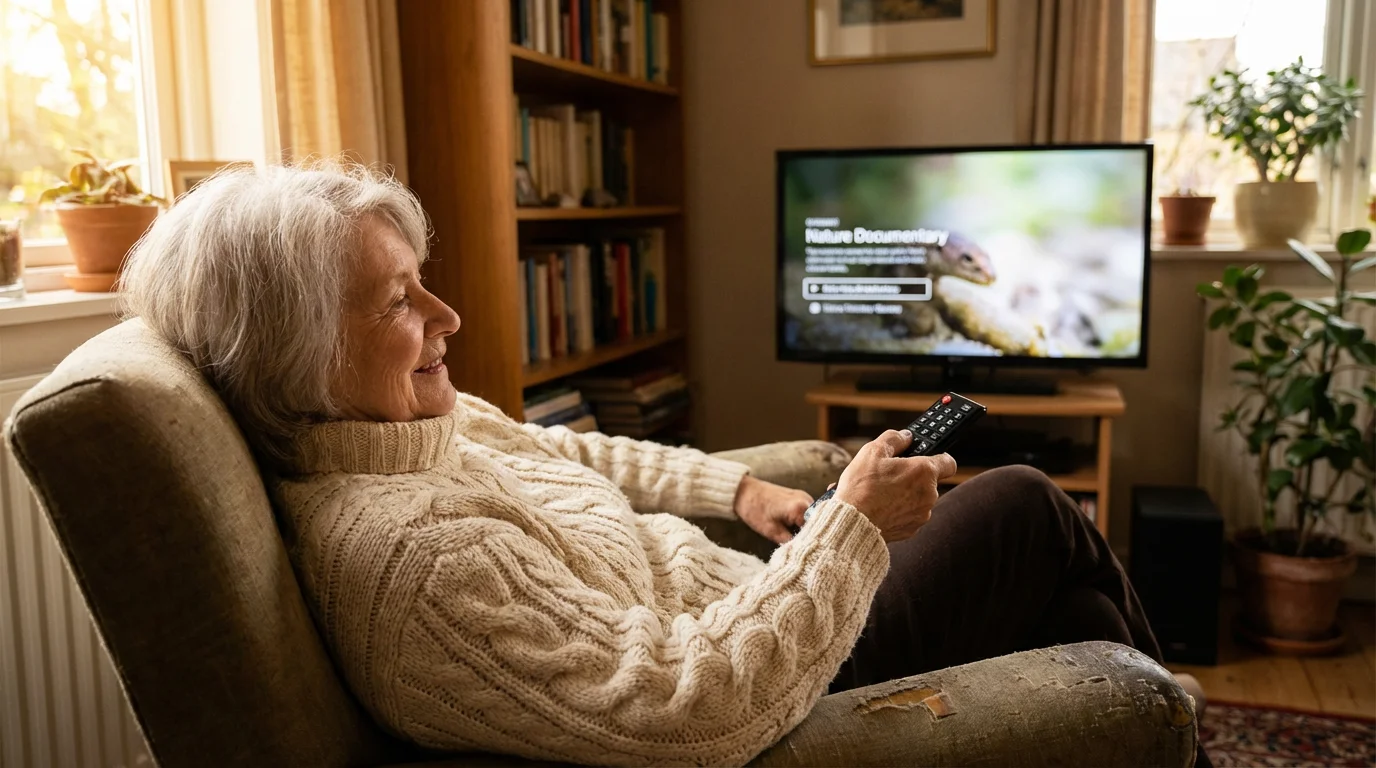
You might wonder if you truly “need” captions. After all, if you can still hear well enough, isn’t text on the screen just a distraction? Consider these honest benefits before you decide:
- Clarity in Dialogue: Many modern directors prioritize “natural” sound, which often results in actors mumbling or background noise overpowering the speech. Captions solve this instantly.
- Understanding Accents: If you enjoy international dramas or shows with thick regional accents, captions help you decipher unfamiliar pronunciations.
- Low-Volume Watching: If you live with others who prefer a quiet house, you can keep the TV volume low and rely on the text to follow the plot.
- Cognitive Ease: Following a complex plot with many characters and technical jargon is easier when you see the names and terms written out.
According to Senior Planet from AARP, utilizing accessibility features like captions can significantly reduce the “listening fatigue” that occurs when we work too hard to process audio. If you find yourself feeling tired after an hour of TV, captions might be the simple solution you need.
What You Will Need to Get Started
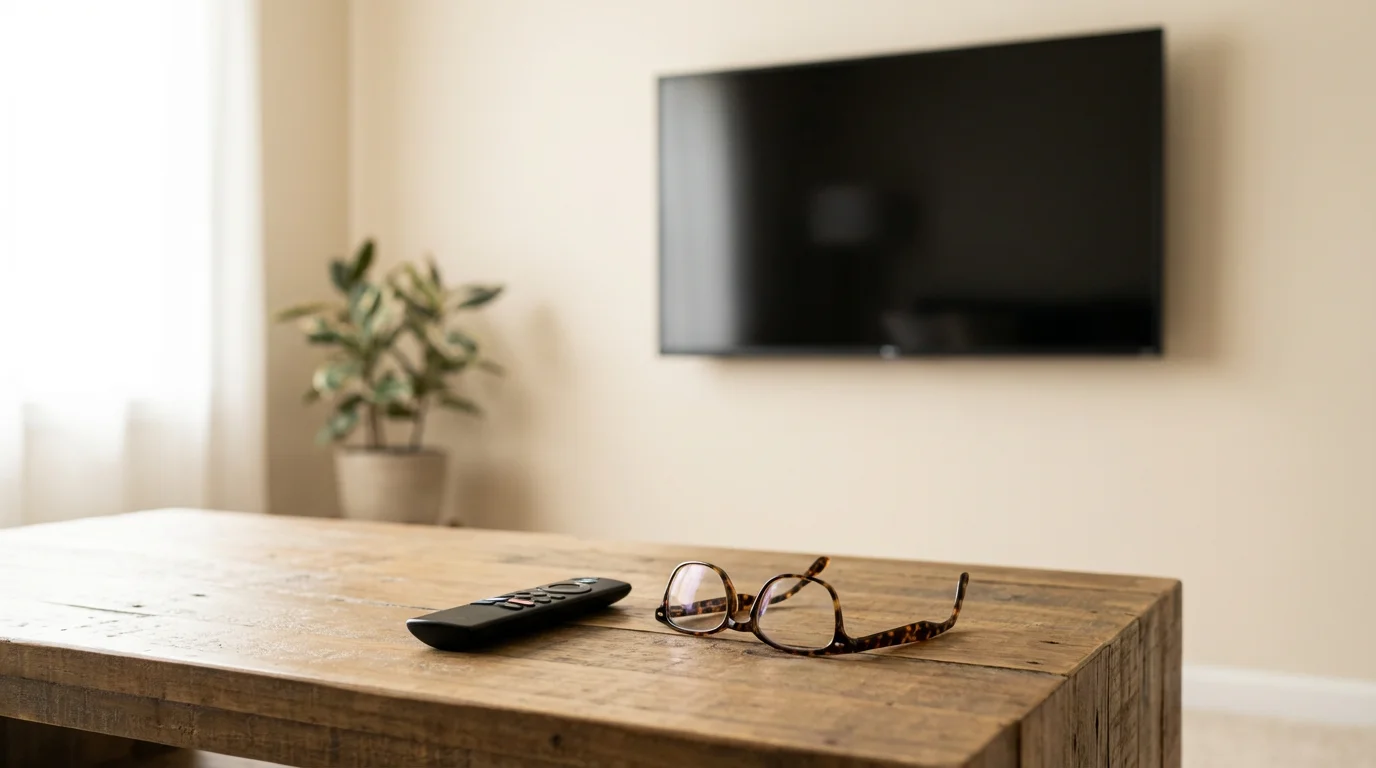
Turning on captions does not require any special equipment or monthly fees. It is a built-in feature of almost every television manufactured in the last thirty years. However, the process looks different depending on how you watch your shows. To get started, you should have the following ready:
1. Your Remote Control: Look for a button labeled “CC” or “Settings.” If your remote has a microphone button, you might even be able to use your voice to turn them on.
2. An Active Internet Connection: If you are using a smart TV to watch apps like Netflix, Amazon Prime, or Hulu, your TV must be connected to Wi-Fi (your home’s wireless internet) or an Ethernet cable.
3. Knowledge of Your Source: Are you watching cable TV through a box from a company like Comcast or Spectrum? Or are you using the “smart” apps built into the TV itself? This determines which remote you need to use.
Step-by-Step Setup for Popular Brands
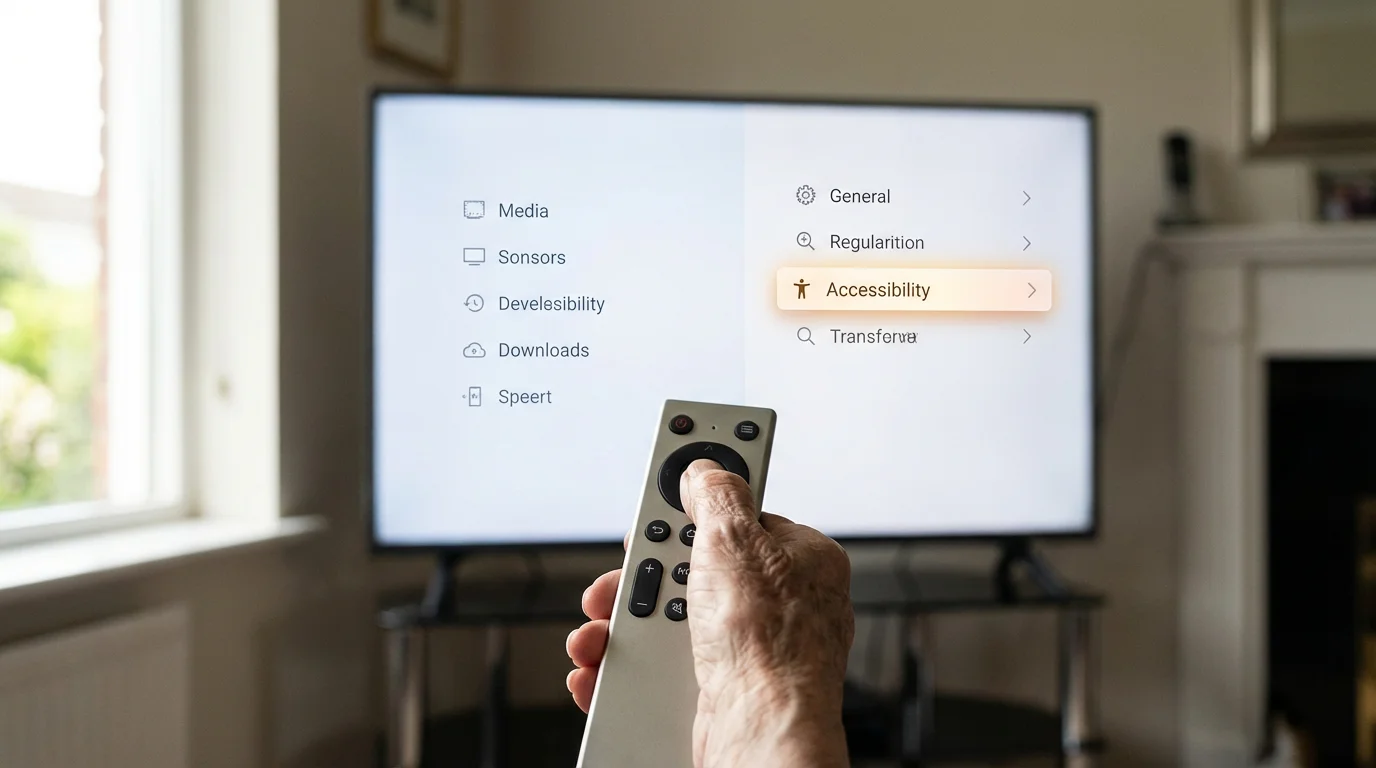
Each TV manufacturer organizes its menus differently. While we cannot cover every single model, most follow a similar logic. Here is how to find the caption settings on the most popular brands sold in the USA today.
Samsung Smart TVs
- Press the Home button on your Samsung remote.
- Navigate to the left and select Settings (it looks like a small gear icon).
- Select General and then Accessibility.
- Find Caption Settings and select Caption to toggle it to “On.”
LG Smart TVs (webOS)
- Press the Settings button (gear icon) on your remote.
- Select the All Settings icon (three vertical dots) at the bottom of the side menu.
- Go to Accessibility.
- Select Closed Caption and switch the toggle to “On.”
Sony Smart TVs (Android or Google TV)
- Press the Settings or Quick Settings button on your remote.
- Select System or Device Preferences.
- Navigate to Accessibility.
- Select Captions.
- Choose Display and set the toggle to “On.”
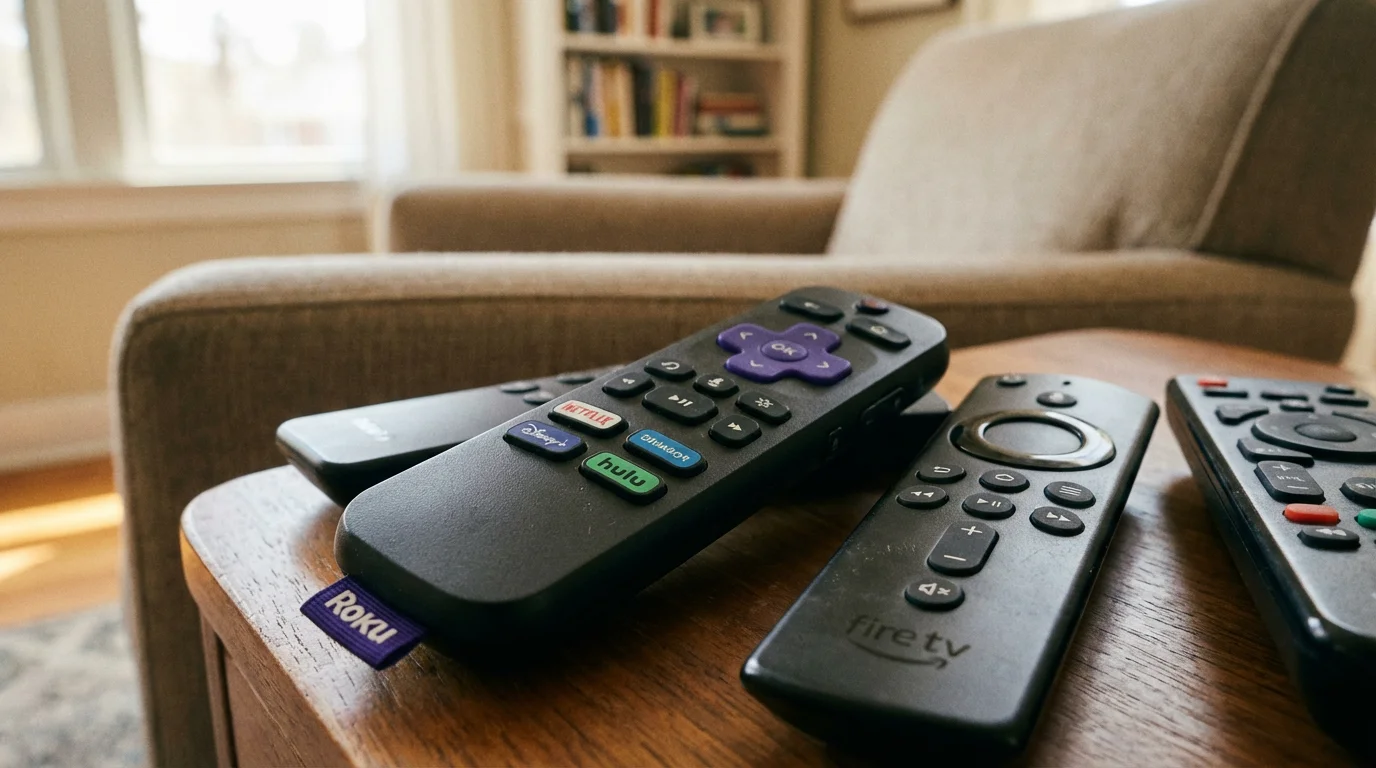
Using Captions on Roku, Fire TV, and Apple TV
If you use a small stick or box plugged into your TV—often called a streaming device—the settings on the TV itself might not matter. Instead, you need to change the settings on that specific device. This is a common point of confusion for many users.
Roku Devices
Roku makes it very simple. You can actually turn captions on or off without leaving the show you are watching. Press the Star (*) button on your Roku remote. A small menu will appear on the left side of the screen. Look for Closed Captioning and use the directional pad to change it to “Always On” or “On Replay” (which only shows captions if you rewind a few seconds).
Amazon Fire TV Stick
While playing a movie or show, press the Menu button (the three horizontal lines) on your Fire TV remote. A menu will appear at the bottom of the screen. Select Subtitles and then select the language you prefer (usually English CC). This will activate the captions for that specific app.
Apple TV
Apple TV allows you to use your voice. You can hold down the Siri button (the microphone icon) and say, “Turn on closed captions.” If you prefer to use the menus, swipe down on the remote’s touch surface while a video is playing, navigate to the Subtitles tab, and select English.
Customizing the Look for Better Visibility
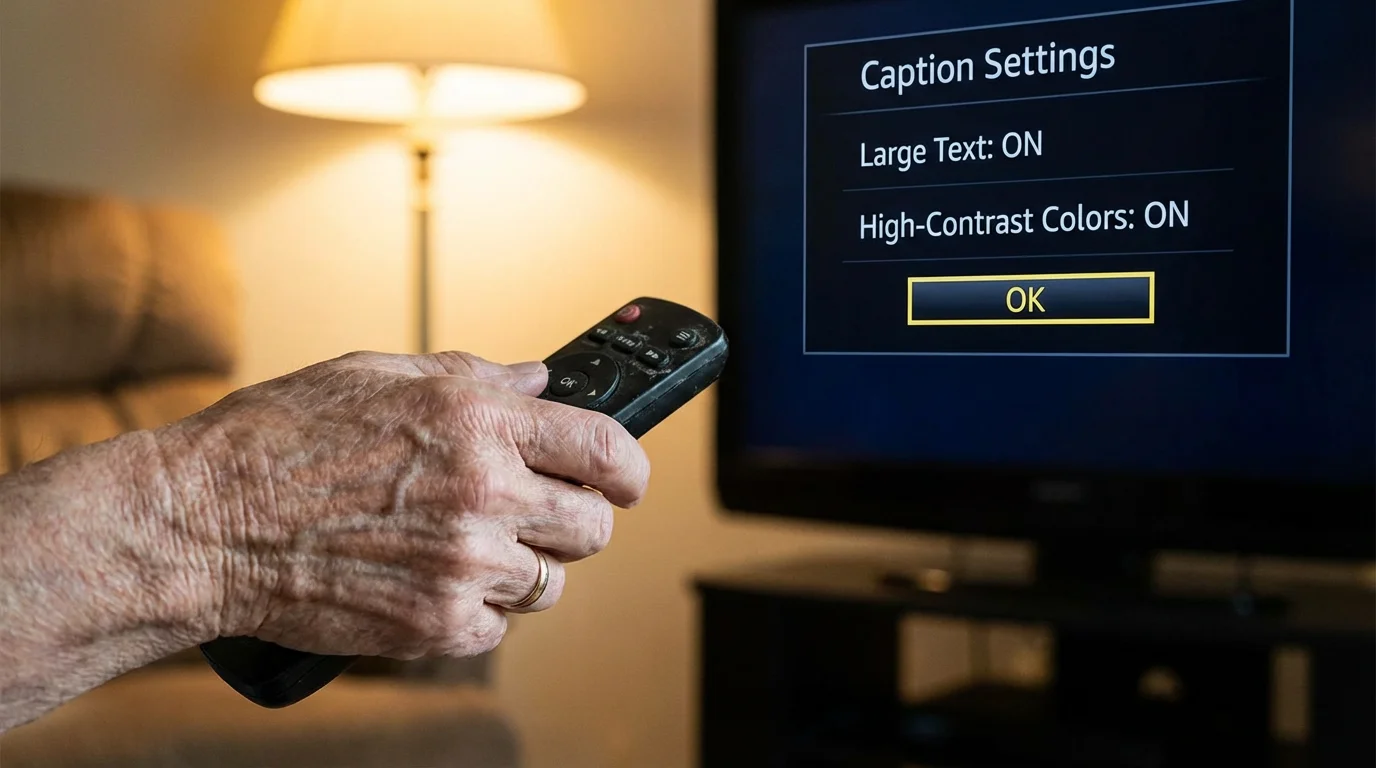
One of the best parts of modern smart TVs is that you are no longer stuck with tiny, hard-to-read white text. You can customize the captions to fit your visual needs. If the text is too small, you can make it larger; if the white letters blend into a bright background, you can add a black box behind them.
Look for a menu called Caption Mode or Digital Caption Options in your TV’s accessibility settings. From there, you can typically adjust:
- Font Size: Change the text from “Standard” to “Large” or “Extra Large.”
- Font Color: Choose yellow or green text if white is difficult for you to see.
- Background Opacity: This is the most helpful setting. By setting the background to “Solid Black,” you create a high-contrast box behind the words, making them much easier to read against bright scenes like snowy landscapes or sunny skies.
- Font Style: You can choose between “Serif” (letters with small feet) and “Sans Serif” (clean, straight letters). Most people find Sans Serif easier to read on a digital screen.
Privacy and Practical Considerations
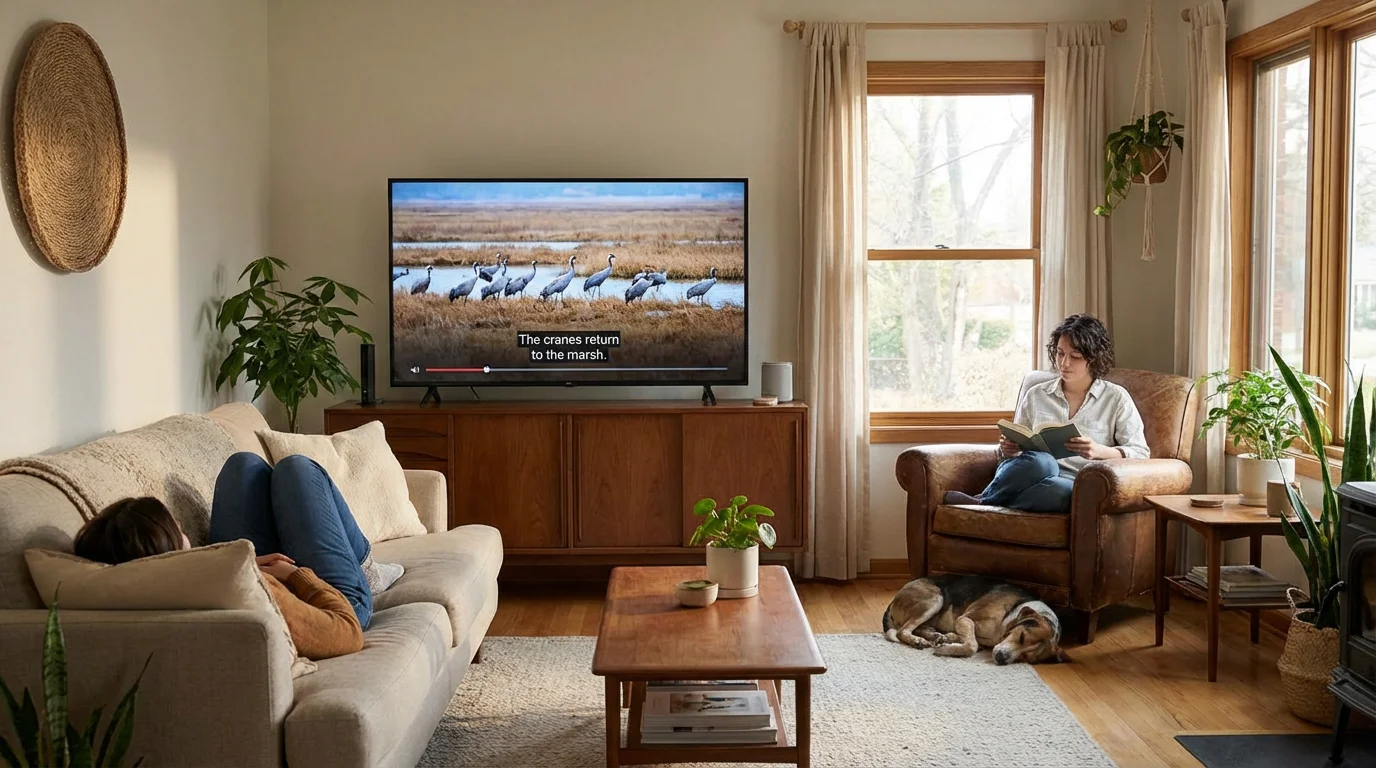
You might worry if turning on these features allows the TV to “track” you. Rest assured, closed captions are a one-way street of information. The TV receives the data from the broadcaster or the streaming service and displays it on your screen. Activating captions does not enable your TV’s microphone or camera, nor does it share your personal information with third parties in a way that standard TV viewing doesn’t already.
However, be aware of the “learning curve” with different apps. Even if you turn on captions in your TV’s main settings, some apps—like Netflix or YouTube—have their own internal settings that might override the TV. If you turn on captions and they don’t appear, you may need to find the settings icon inside the specific app you are using. This can be frustrating, but once you set it once within an app, it usually remembers your preference for every future show.
Common Problems and Solutions
Technology is rarely perfect, and you might encounter a few hiccups. Here is how to handle the most common issues:
| Problem | Solution |
|---|---|
| Captions are out of sync with the speech. | This is usually a problem with the streaming service, not your TV. Try exiting the show and restarting it. If that fails, restart your TV by unplugging it for 30 seconds. |
| The text is covering important parts of the image. | Go into your Caption Settings and look for “Position.” Some TVs allow you to move the text to the top of the screen. Alternatively, reducing the font size can help. |
| I turned them on, but nothing is showing up. | Ensure you are not watching a very old program that was never captioned. Also, check if you need to enable captions within the specific app (like Netflix) rather than the TV menu. |
| The captions are in a different language. | Navigate back to the Accessibility or Subtitle menu and ensure “English CC” is selected rather than “Spanish” or “French.” |
Frequently Asked Questions
Do I have to pay monthly to use closed captions?
No. Closed captioning is a free accessibility feature. By law in the United States, television manufacturers and broadcasters must provide captions for the vast majority of programmed content. You will never be charged extra for this service.
Is the TV always listening to me when I use these features?
Standard closed captions do not use the microphone at all. If you choose to use “Voice Commands” to turn your captions on (by speaking into the remote), the remote only listens when you hold down the microphone button. It does not monitor your private conversations.
Can I turn captions off easily if my grandkids don’t like them?
Yes. Using the “CC” button on your remote or the Star (*) button on a Roku allows you to toggle the feature off in seconds. It is never a permanent change.
Why do some captions look like they are typed live with errors?
This typically happens during “live” broadcasts like local news or sports. A human stenographer is typing the words in real-time, leading to occasional typos or a slight delay. For pre-recorded movies and sitcoms, the captions are usually perfect because they were created in advance.
If you find that captions are still difficult to read, you might want to explore further accessibility resources. Organizations like the National Council on Aging offer extensive guides on how technology can support vision and hearing needs as we age. Don’t be afraid to experiment with your settings; you cannot “break” the TV by trying out different font colors or sizes.
Watching television should be a relaxing and engaging experience. By taking five minutes to set up your closed captions, you remove the frustration of missed dialogue and bring the focus back to the story. Whether you are catching up on the latest dramas or watching the evening news, clarity is just a few clicks away.
Disclaimer: This article is for informational purposes only. Product features and prices change frequently. Always check current specifications and reviews before purchasing. We recommend buying from authorized retailers with good return policies.
Keywords: closed captions, subtitles, accessibility, smart TV guide, how to turn on subtitles
Meta Description: Learn how to easily turn on and customize closed captions on your Smart TV to improve dialogue clarity and your overall viewing experience.


Leave a Reply