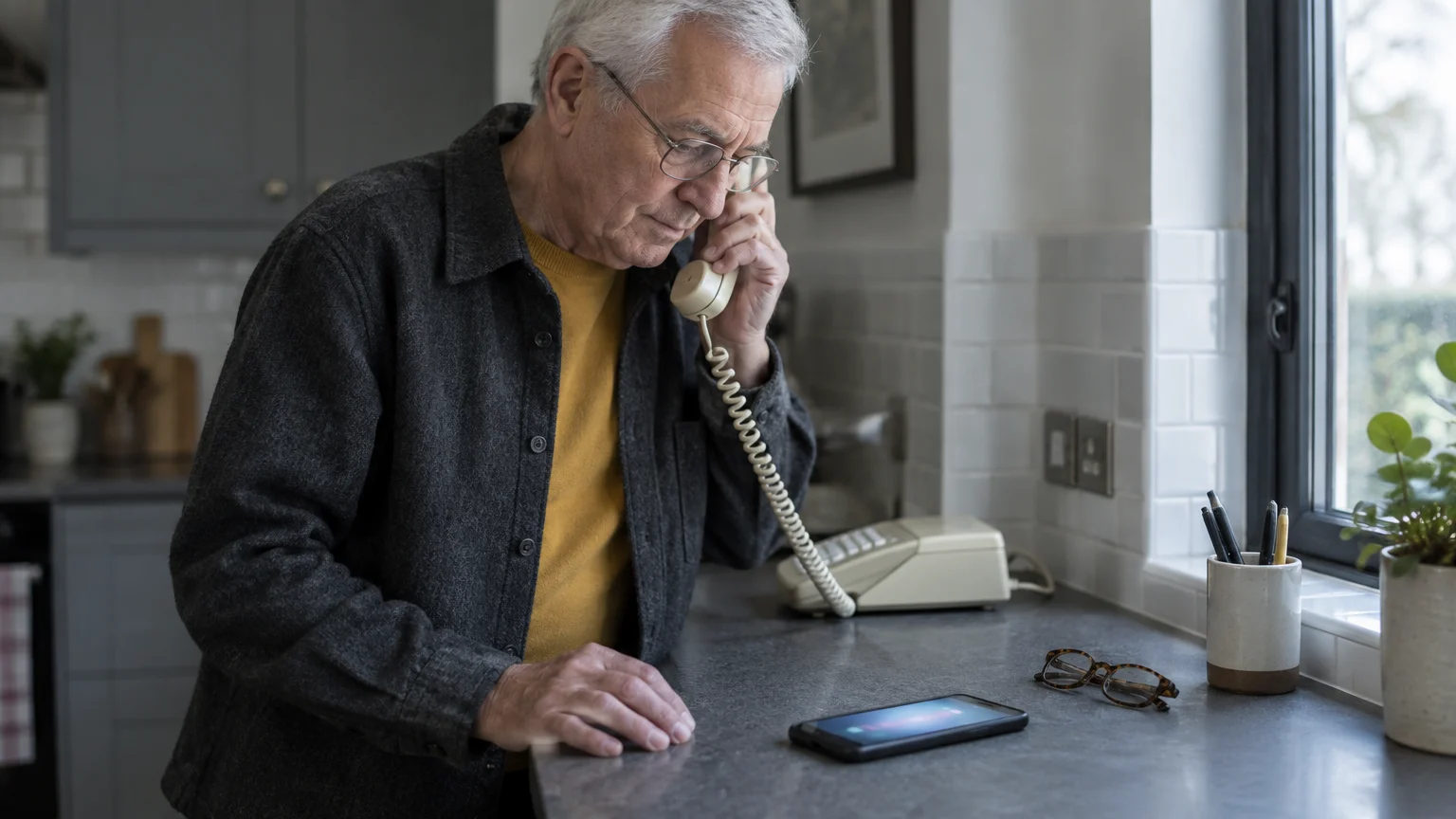
Missing an important phone call is incredibly frustrating. You might look down at your screen only to see a notification for a “missed call” from a grandchild, a doctor, or a friend, yet you never heard the phone make a sound.
You are not alone in this experience; in fact, this is one of the most common issues smartphone users face. Usually, the phone is not “broken” in the traditional sense.
Instead, a specific setting or a physical switch has likely silenced the ringer without you realizing it.
While you focus on audio calls, you might also find it helpful to learn how to answer a video call for when you want to see your loved ones face-to-face.
In this guide, you will learn how to investigate your phone like a detective. We will walk through the most likely causes for a silent phone, starting with the simplest physical buttons and moving into the internal settings.
Whether you use an iPhone or an Android device (such as a Samsung, Motorola, or Google Pixel), these steps will help you restore your ringtone so you never miss another connection.
Grab your phone, find a comfortable place to sit, and let us get your ringer working again.
- What You’ll Need
- Step 1: Check Physical Switches and Buttons
- Step 2: Check Your Internal Volume Settings
- Step 3: Understanding Do Not Disturb and Focus Modes
- Step 4: Check for Bluetooth Connections
- Step 5: Silence Unknown Callers and Spam Filters
- Step 6: The Universal Fix: Restarting and Updates
- What to Do If Something Goes Wrong
- Quick Reference Checklist
- Frequently Asked Questions
What You’ll Need
Before we begin the troubleshooting process, ensure you have the following items and conditions ready:
You might also want to use the Notes app on your phone to keep a record of which settings you decided to change.
- Your Smartphone: Have your iPhone or Android phone in your hand.
- A Steady Power Supply: Ensure your phone has at least 20% battery life, or keep it plugged into a charger while you work.
- Your Reading Glasses: Some of the icons we will look for are small, so having clear vision is helpful.
- A Second Phone (Optional): If you have a landline or a spouse’s phone nearby, it is helpful for “test calling” yourself once we finish the steps.
Step 1: Check Physical Switches and Buttons
The most common reason a phone remains silent is that a physical button was bumped while the phone was in a pocket or purse. Modern smartphones have external controls that can instantly silence all noise.
If you ever find that your phone isn’t just silent but is actually missing, you can learn to use the Find My Device feature to track it down.
Beyond basic volume controls, it is also wise to learn how to set up Emergency SOS so you can quickly call for help if needed.
On iPhone:
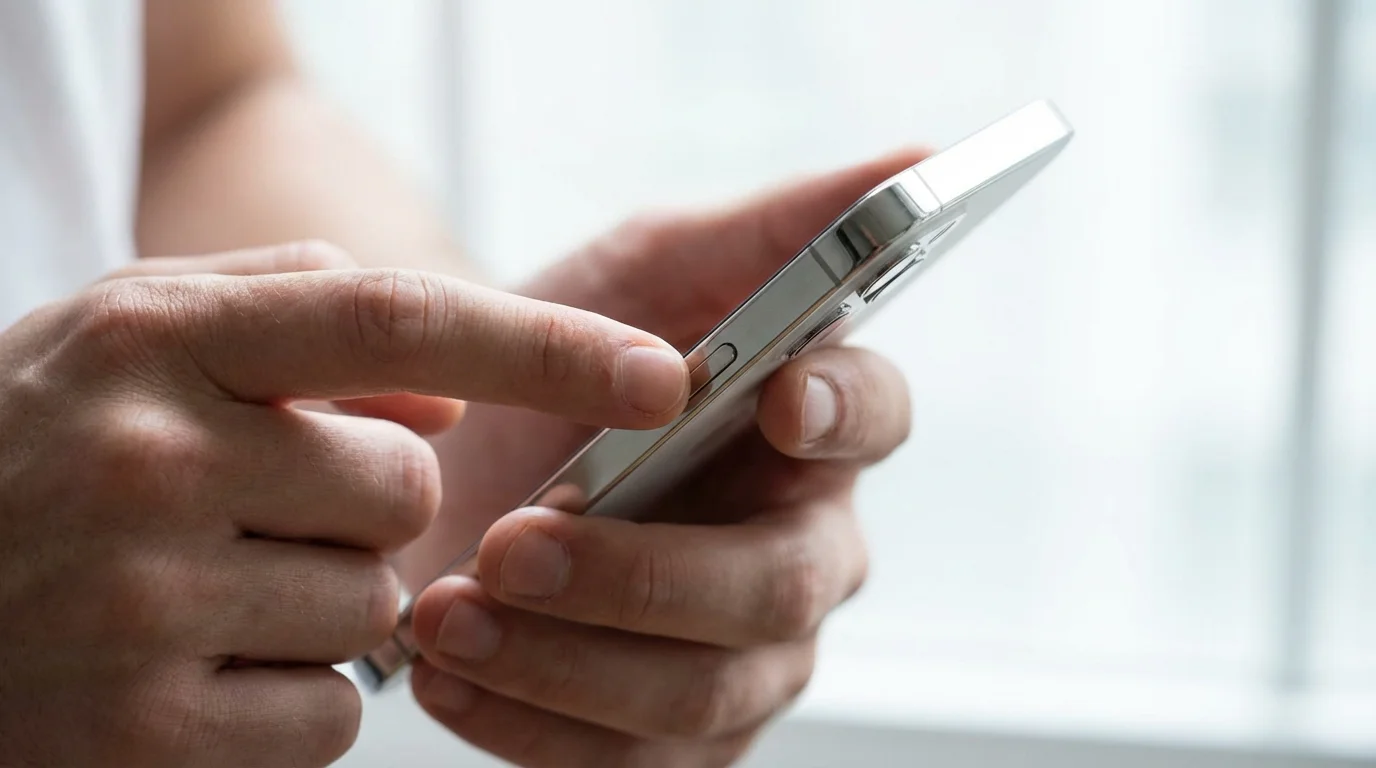
Look at the left edge of your iPhone. Just above the two volume buttons, you will find a small, flat switch.
This is the Ring/Silent switch. If you see a small strip of orange inside that switch, your phone is in Silent Mode.
Gently flip that switch toward the front of the screen (the glass side) so the orange strip disappears. You should see a notification on your screen that says “Silent Mode Off.”
If you have a newer iPhone 15 Pro or iPhone 16 model, you might have an Action Button instead of a switch. Press and hold this button briefly to see if a bell icon appears on your screen indicating that silent mode has been turned off.
On Android:
Most Android phones do not have a physical sliding switch for silence. Instead, they rely on the volume buttons located on the side of the device.
Press the Volume Up button (the top half of the long button on the side). As you press it, a slider bar will appear on your screen.
Ensure that the slider moves upward. Look closely at the icon above or below that slider; it should look like a ringing bell.
If the bell has a line through it or looks like a vibrating phone, tap that icon once to change it back to the ringing bell mode.
“Technology can be sensitive. A simple bump of a button in your handbag can change how your phone behaves, but it is always easy to flip back once you know where to look.”
Step 2: Check Your Internal Volume Settings
Sometimes the side buttons only control the volume for videos or music, while the “Ringer” volume stays hidden in a different menu. We need to make sure the specific volume for incoming calls is turned up high.
For those who have difficulty hearing standard alerts, understanding text-to-speech can provide helpful audio cues for your incoming messages.
On iPhone:
- Locate the Settings app. It looks like a grey icon with gears (wheels) on it. Tap it once.
- Scroll down until you find Sounds & Haptics. It usually has a red icon with a white speaker. Tap it.
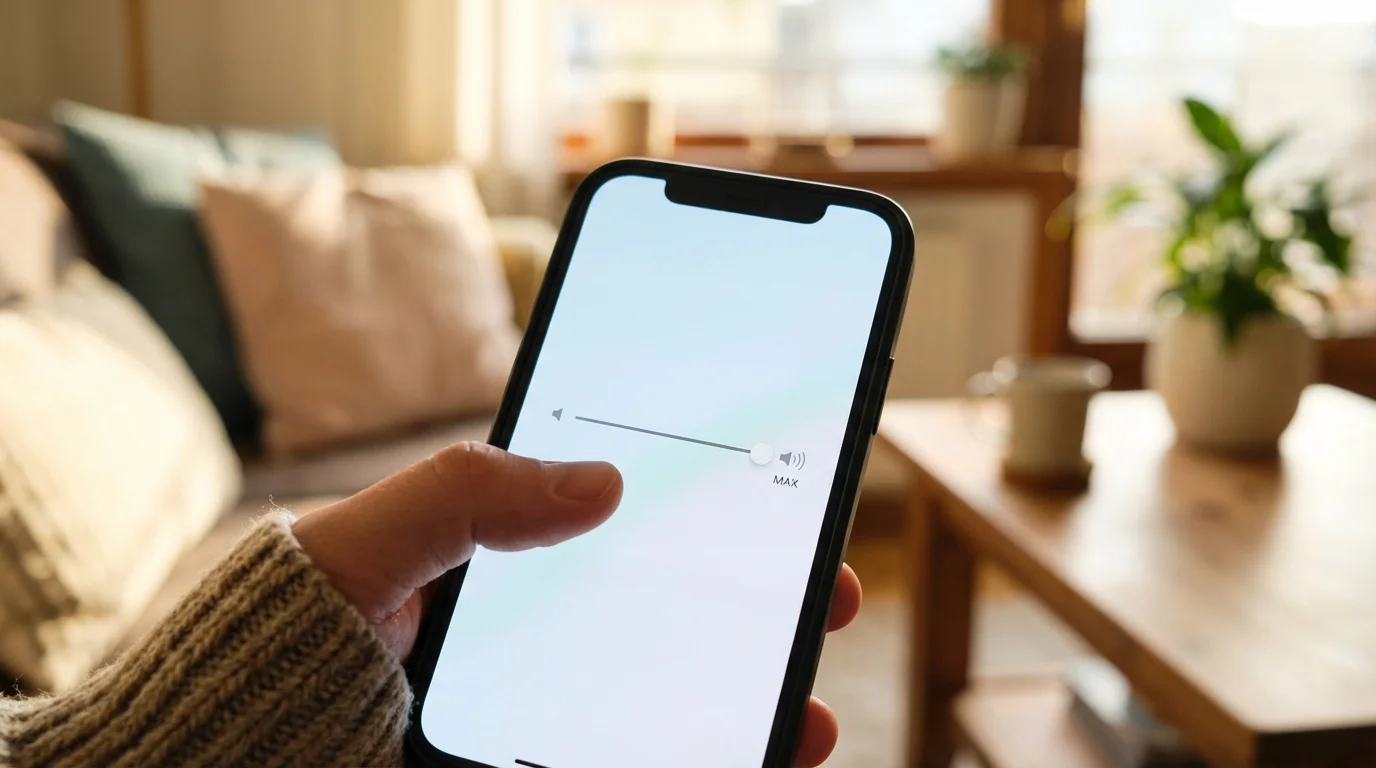
- Look for the section labeled Ringtone and Alert Volume. You will see a horizontal slider bar.
- Place your finger on the round knob in that bar and slide it to the right. As you slide it, your phone will play your ringtone so you can hear how loud it is.
- Below that slider, ensure the switch labeled Change with Buttons is turned on (it should be green). This allows you to use the side buttons to adjust the ringer in the future.
On Android:
- Find the Settings app. It typically looks like a gear or a cogwheel. Tap it.
- Tap on Sound & vibration (on some phones, it might just say “Sounds”).
- You will likely see several sliders here: Media, Call, Ring, and Alarm.
- Find the Ring volume slider. Slide it to the right with your finger to increase the loudness.
- Ensure the “Vibrate for calls” setting is also turned on if you like to feel the phone move in your pocket.
If you find it difficult to navigate these menus, GCFGlobal offers excellent free tutorials on basic smartphone navigation that can help you become more familiar with these screens.
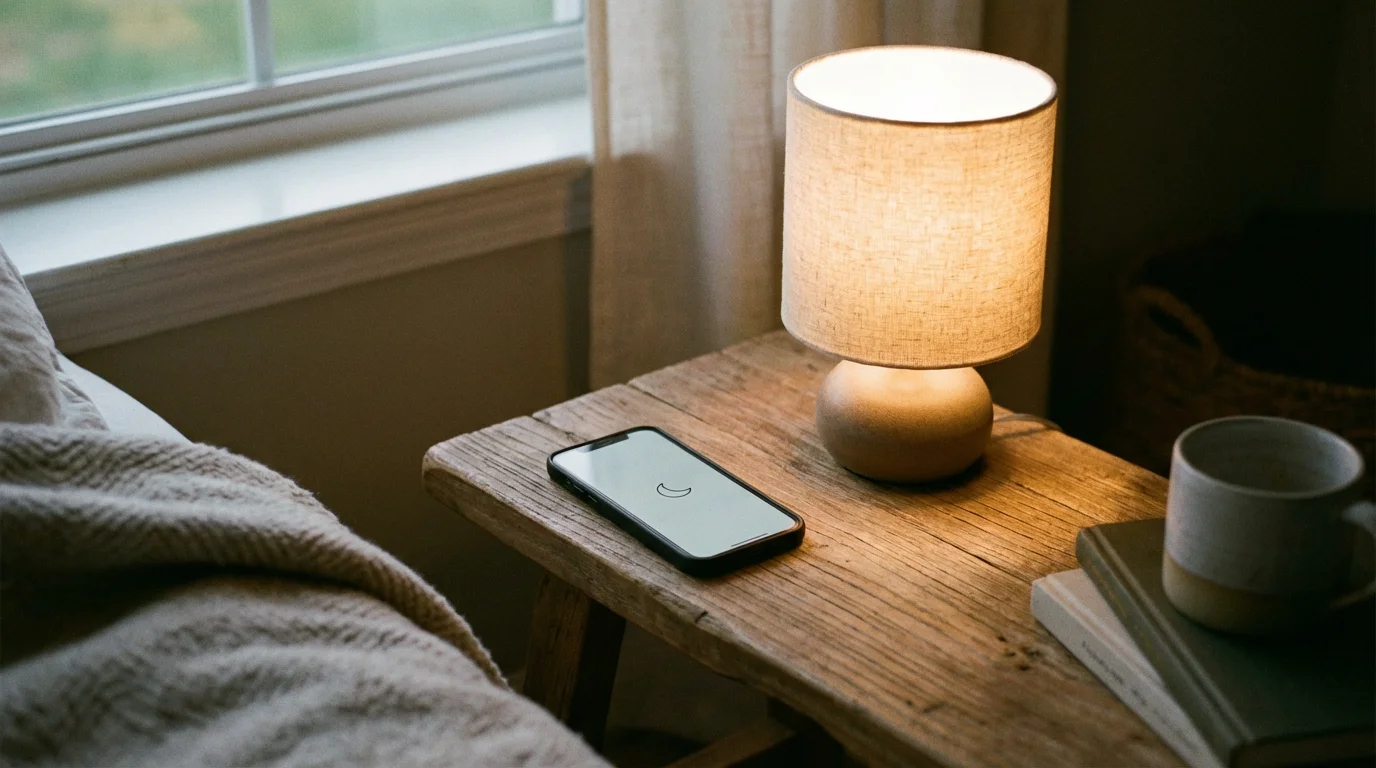
Step 3: Understanding Do Not Disturb and Focus Modes
Both iPhones and Androids have a feature called “Do Not Disturb.” This is designed for sleeping or being in a theater, as it blocks all incoming calls from making sound.
However, it is very easy to turn this on by accident.
While you are checking your screen for the moon icon, it is also a good time to adjust your screen brightness to make everything easier to read.
If you find navigating menus difficult, learning how to use Google Assistant on Android can help you control your phone using just your voice.
On iPhone:
- Open the Control Center. If your iPhone has a home button (a circle at the bottom), swipe your finger from the very bottom of the screen upward. If your iPhone does not have a home button, swipe down from the top-right corner of the screen (where the battery icon is).
- Look for a button that says Focus or has a Crescent Moon icon.
- If that button is white or highlighted, it means a Focus mode like “Do Not Disturb” is active.
- Tap the moon icon once to turn it off. The button should turn clear or grey.
- When “Do Not Disturb” is off, you will see your regular wallpaper without any moon icons at the top of your screen.
On Android:
- Swipe your finger down from the very top of the screen. This opens your Quick Settings menu.
- Swipe down a second time to see the full list of icons.
- Look for an icon labeled Do Not Disturb. It often looks like a circle with a horizontal minus sign in the middle or a crescent moon.
- If the icon is colored (usually blue or teal), it is turned on. Tap it once to turn it off.
- You can also find this in Settings > Sound > Do Not Disturb to make sure there are no “Schedules” set that might be turning it on automatically at night.

Step 4: Check for Bluetooth Connections
Bluetooth is a technology that allows your phone to talk to other devices, like your car, hearing aids, or wireless headphones.
If your phone thinks it is still connected to your car (even if you are inside the house) or to a pair of headphones in a drawer, it will send the “ring” sound to those devices instead of the phone’s speaker.
How to check Bluetooth (Both iPhone and Android):
- Open your Settings app.
- Tap on Bluetooth.
- Look at the list of devices. If any device says “Connected,” your phone is sending sound there.
- The fastest way to test this is to turn Bluetooth off entirely. Tap the green or blue switch next to the word “Bluetooth” to turn it off (it should turn grey).
- Try calling your phone from another device. If it rings, you know that a Bluetooth device was “stealing” your sound.
Many seniors use modern hearing aids that connect via Bluetooth. While this is helpful, it can sometimes cause confusion if you aren’t wearing the hearing aids but they are still turned on nearby.
You can find more specific guidance on medical device connectivity at Apple Support or Google Support.
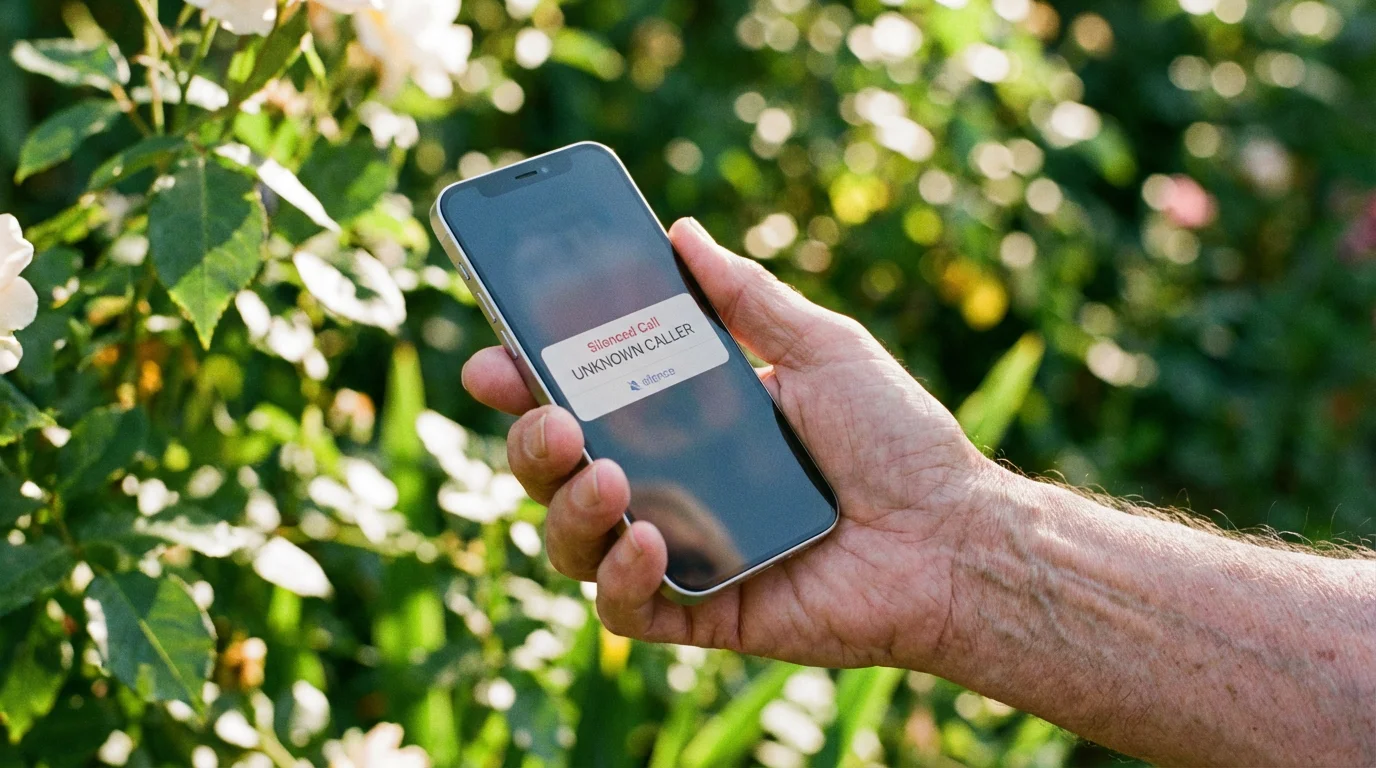
Step 5: Silence Unknown Callers and Spam Filters
If your phone rings for people in your “Contacts” list (like your children) but does not ring when the pharmacy or a new friend calls, you might have a “Silence Unknown Callers” feature active.
This is meant to stop telemarketers, but it can be too aggressive.
If you use specialized apps to talk to family, you may also need to check how to use WhatsApp for calls to ensure those specific notifications are active.
To further protect your privacy, you should also learn how to recognize and avoid phone scams that often target unsuspecting users.
On iPhone:
- Open Settings.
- Scroll down and tap on Phone (the green icon with a white handset).
- Scroll down to find Silence Unknown Callers. Tap it.
- If the switch is green, tap it to turn it off. Now, all calls will ring, even if the number is not saved in your phonebook.
On Android:
- Open the Phone app (the app you use to dial numbers).
- Tap the three vertical dots in the top right corner.
- Tap Settings.
- Tap on Blocked numbers or Spam and Call Screen.
- Ensure that the setting “Block calls from unidentified callers” is turned off.
Step 6: The Universal Fix: Restarting and Updates
Sometimes, the software inside your phone gets “confused.” A temporary glitch might prevent the ringer from triggering.
The most effective way to clear these glitches is to restart the device. Think of this as giving your phone a quick nap to refresh its memory.
Keeping your device current helps prevent audio bugs, so make sure you know how to update your Android phone to the latest version.
To keep your device running its best, make sure you know how to update your Android phone to receive the latest software fixes.
To Restart Your Phone:
For iPhone: Press and hold the side button and the volume up button at the same time until a slider appears on the screen that says “slide to power off.” Slide it.
Wait 30 seconds until the screen is completely black, then press and hold the side button again until the Apple logo appears.
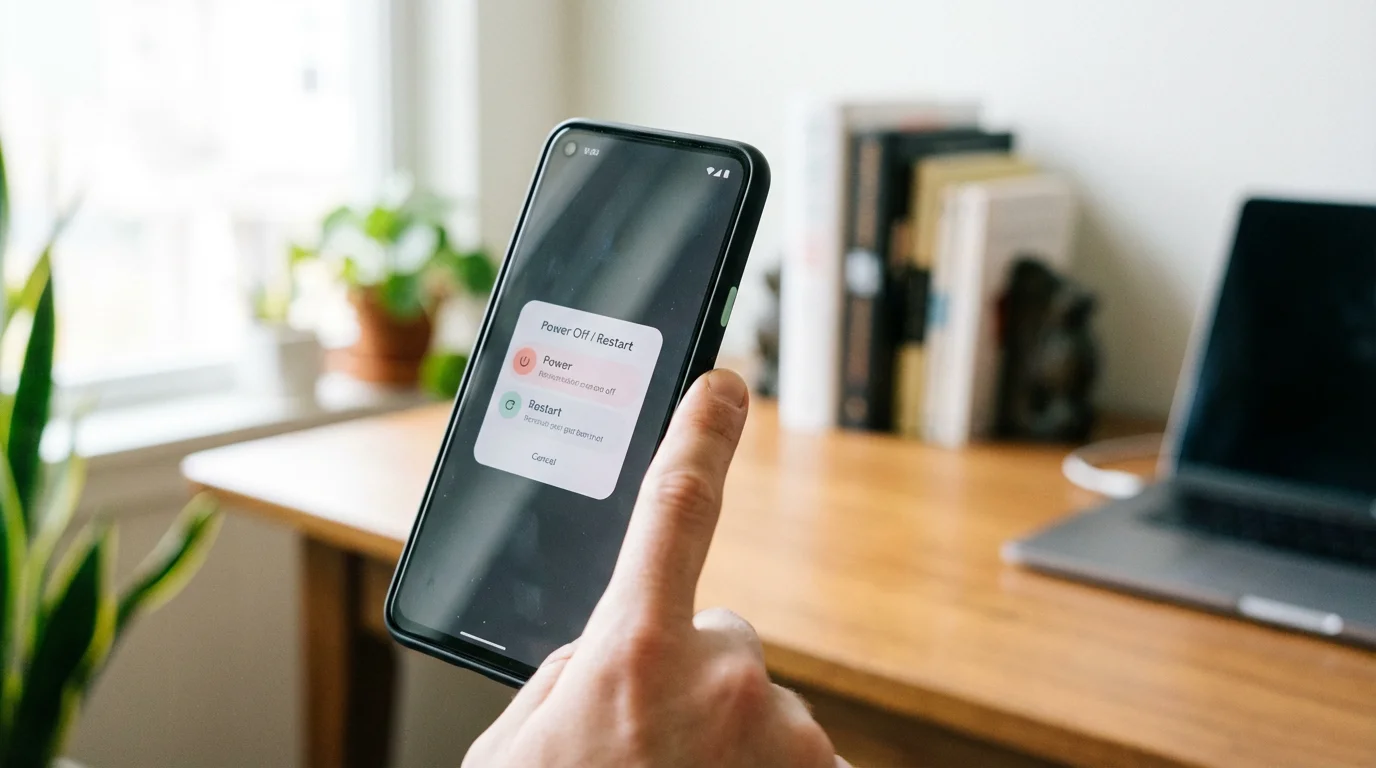
For Android: Press and hold the power button on the side for about three seconds. A menu will appear on the screen.
Tap Restart. If you do not see “Restart,” tap Power Off, then turn it back on after a minute by holding the power button.
Check for Updates:
Manufacturers often release “patches” to fix known bugs like ringer issues. Ensure your phone is up to date.
- iPhone: Go to Settings > General > Software Update.
- Android: Go to Settings > System > System Update (or Settings > Software Update).

What to Do If Something Goes Wrong
If you have followed every step above and your phone still refuses to make a sound when someone calls, it is possible there is a hardware issue with the speaker itself. Here is how to handle that situation:
If these steps haven’t solved the mystery of the silent ringer, you can look into various options for tech support to get one-on-one help.
- Test the Speaker: Open a video on YouTube or play a song. If you can hear the music clearly, your speaker is fine, and the issue is still a setting. If you hear no sound at all from music or videos, the speaker may be broken.
- Clean the Ports: Sometimes lint from a pocket gets stuck in the headphone jack (if your phone has one) or the charging port. This can trick the phone into thinking headphones are plugged in. Use a wooden toothpick to very gently—and I mean very gently—see if any fluff is inside the openings.
- Ask for a “Test Call”: Do not feel embarrassed to ask a neighbor or a family member to call you while you are looking at the phone. This helps you see if the screen lights up even if there is no sound.
- Visit the Pros: If you are still stuck, take your phone to your carrier’s store (like Verizon, AT&T, or T-Mobile). They deal with this daily and can usually fix it in two minutes. If you have an iPhone, you can also make an appointment at an Apple Store “Genius Bar.”
“Remember, you didn’t do anything wrong. Phones are complex computers, and even the most tech-savvy people have to troubleshoot these exact same issues from time to time.”
Quick Reference Checklist
Use this list as a final sweep to make sure everything is set correctly:
| Checkpoint | What to Look For |
|---|---|
| Physical Switch | Ensure no orange is showing on the side of the iPhone. |
| Volume Level | Ringer volume slider should be at 75% or higher. |
| Do Not Disturb | No moon icon at the top of the screen; Focus mode is OFF. |
| Bluetooth | Bluetooth is OFF for testing purposes. |
| Airplane Mode | Ensure the airplane icon is not visible (this cuts off all signals). |
Frequently Asked Questions
Why does my phone only ring for some people and not others?
This is usually caused by the “Silence Unknown Callers” feature on iPhone or “Spam Filtering” on Android. It allows people in your contacts to get through while silencing everyone else.
Refer to Step 5 above to turn this off so all calls ring through.
Can a protective case interfere with my ringer?
Yes. Some heavy-duty cases can accidentally press the volume down button or the silent switch.
If you are having trouble, try taking the phone out of its case and see if the ringer starts working again.
I see the call on the screen, but there is no sound. Is my phone broken?
Usually, no. If the call appears on the screen, your phone is receiving the signal perfectly. The lack of sound is almost always a setting like “Silent Mode,” “Do Not Disturb,” or the volume being turned all the way down.
What if my phone rings but the sound is very faint?
Check your volume settings in the Settings menu (Step 2). Also, check the physical speaker holes at the bottom of the phone.
If they are covered in dust or wax, the sound will be muffled. You can gently clean them with a soft, dry toothbrush.
If you would like to explore more ways to make your device easier to use, Senior Planet from AARP offers fantastic resources and online classes specifically designed for older adults.
Learning these small tricks will give you the confidence to enjoy your technology rather than fearing it.
Disclaimer: This article is for informational purposes only. Screens and menus may look slightly different depending on your device model and software version.
When in doubt, visit your device’s official support website or ask a trusted family member for help.