
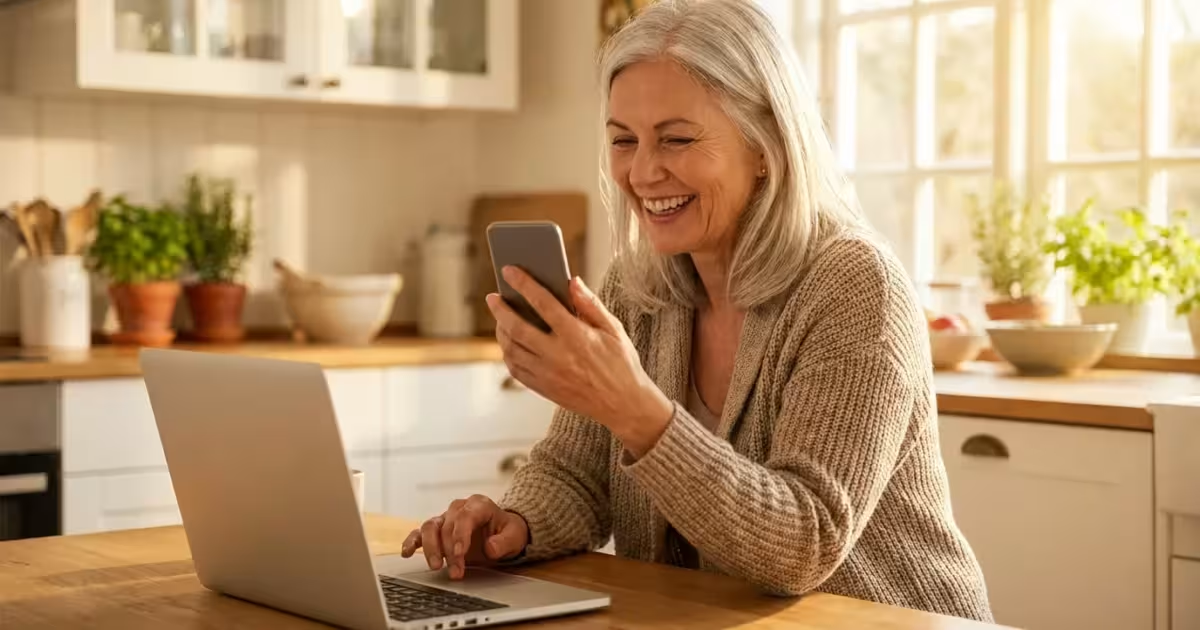
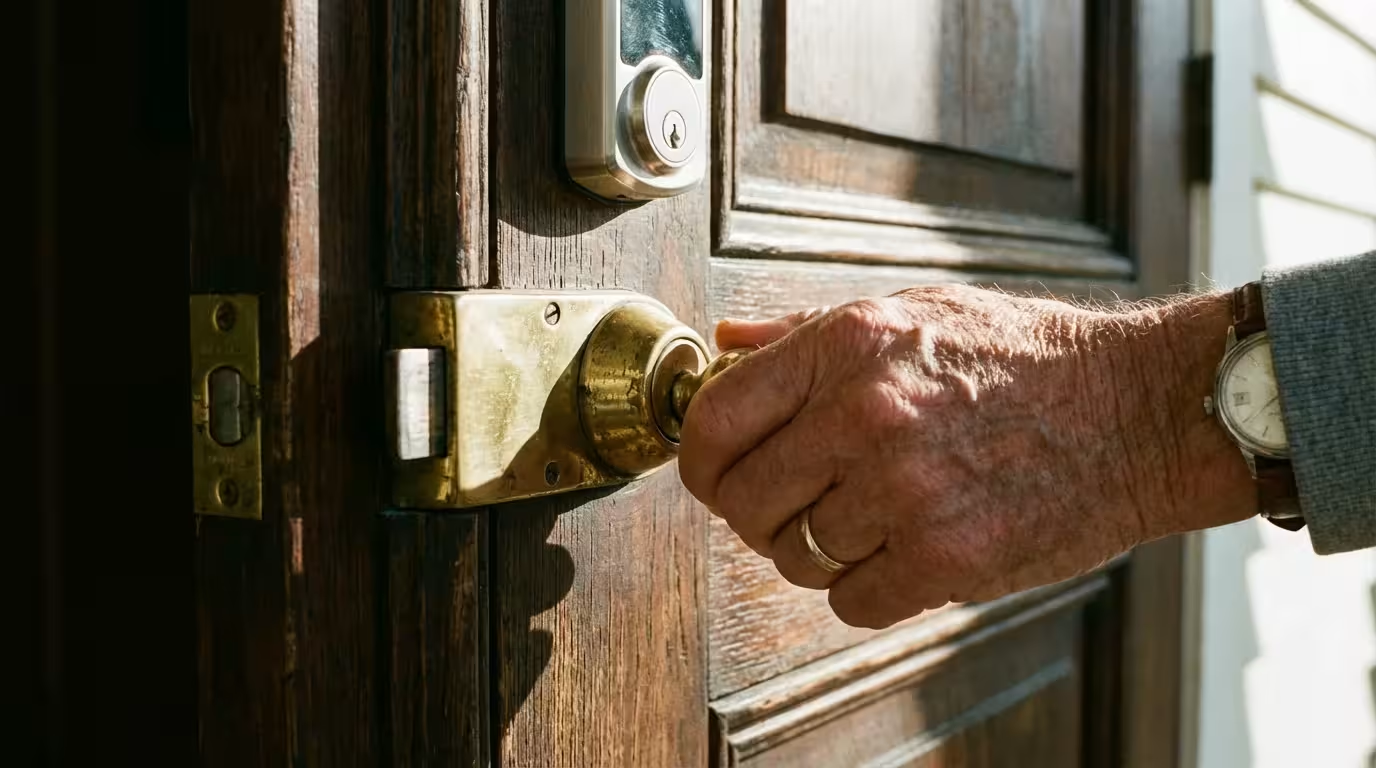
You have likely encountered a situation where, after entering your password to log into your bank or email, the website asks you to enter a six-digit code sent to your phone. This extra step might feel like a minor inconvenience—a momentary pause in your busy day—but it is actually one of the most powerful tools available to keep your digital life private. This process is called two-factor authentication, or 2FA for short. Think of it as an extra security step, like having both a deadbolt and a security chain on your front door.
Understanding the benefits of using a password manager can help you simplify your security while staying safe.
In an era where we manage our retirement accounts, health records, and family photos online, the traditional password is no longer enough to keep us safe. Scammers—the individuals trying to trick you out of your money or personal information—have developed sophisticated ways to guess or steal passwords. By the time you finish this guide, you will understand how two-factor authentication works, why it is your best defense against modern scams, and how you can easily set it up on your most important accounts.
Staying safe online does not require you to be a computer scientist; it simply requires having the right tools in your belt. We are going to break down the technical mystery of 2FA into simple, actionable steps so you can browse, shop, and connect with your loved ones with total confidence.
Table of Contents
- Why Your Password Needs a Partner
- How Two-Factor Authentication Works
- Choosing Your Method: The Different Types of 2FA
- Recognizing Scams That Target Your Codes
- Step-by-Step: Setting Up 2FA on Your Accounts
- What to Do If You Lose Access or Get Locked Out
- Frequently Asked Questions
Why Your Password Needs a Partner
For decades, we relied on a single password to protect everything. Unfortunately, that single line of defense is now quite vulnerable. Data breaches—events where hackers break into a company’s database and steal millions of usernames and passwords—happen with alarming frequency. If you use the same password for your email that you used for a retail website that was breached three years ago, a scammer could potentially buy your login information on the dark web and gain access to your life.
It is also vital to keep your computer safe from viruses that may attempt to record your sensitive information.
One of the easiest ways to manage these complex logins is to use a password manager that stores everything securely for you.
According to research from Microsoft, multi-factor authentication (another name for 2FA) blocks more than 99.9% of account compromise attacks. This is a staggering statistic. It means that even if a criminal manages to guess your password or buy it from a hacker, they still cannot get into your account because they do not have that second “factor”—the code that goes only to you.
Two-factor authentication is the single most effective thing you can do to protect your online identity. It turns a stolen password from a catastrophe into a minor annoyance for the hacker who can’t get past your second lock.
Many of us tend to use passwords that are easy to remember, such as the name of a pet or a significant anniversary. While these are convenient, they are also easy for automated computer programs to guess through a method called a “brute force” attack. Even if you use a “strong” password with symbols and numbers, it can still be stolen through a fake email or message—known as phishing—that tricks you into typing your password into a fake website. 2FA is the safety net that catches you when these situations occur.
How Two-Factor Authentication Works
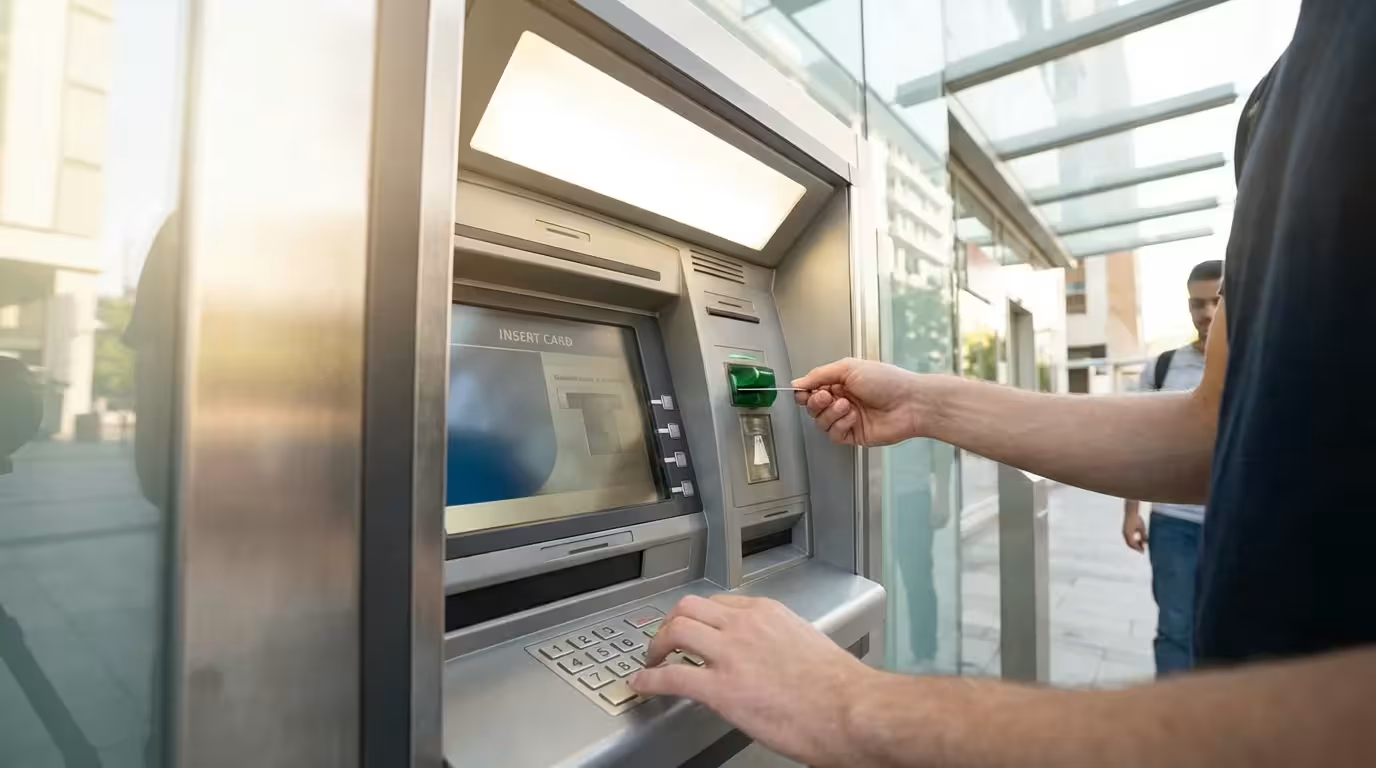
To understand 2FA, it helps to think about how you use an ATM. To get cash, you need two things: your physical debit card and your secret PIN. If a thief steals your card, they cannot get your money because they do not know your PIN. If they manage to peek over your shoulder and see your PIN, they still cannot get your money because they do not have your physical card. This is the essence of “two factors.”
Learning more about what websites know about you can help you appreciate why these extra layers of security are so necessary.
For those who manage their accounts on a smartphone, it is helpful to understand how to use mobile banking apps safely.
In the digital world, these factors usually fall into three categories:
- Something you know: This is your password or your PIN.
- Something you have: This is your smartphone, a physical security key, or a specific email account.
- Something you are: This refers to your fingerprint or your face, which many modern phones use to unlock (biometrics).
When you enable 2FA, the website you are logging into checks for at least two of these categories. Typically, you provide something you know (your password) and the site then asks for proof of something you have (a code sent to your phone). Without both pieces of the puzzle, the door remains locked. This protects you because even if a scammer in another country gets your password, they do not have your physical phone sitting on your nightstand.
This process adds perhaps five to ten seconds to your login time. While it may feel repetitive, those few seconds are preventing hours of stress, financial loss, and the headache of trying to recover a stolen identity. You are trading a small amount of convenience for a massive amount of security.
Choosing Your Method: The Different Types of 2FA
Not all two-factor authentication methods are created equal. Some are more convenient, while others offer a higher level of protection. You can choose the one that feels most comfortable for your technical level and lifestyle.
If you use your phone for these codes, remember to manage app permissions to ensure only trusted programs have access to your device.
1. Text Message (SMS) Codes
This is the most common form of 2FA. When you log in, the service sends a text message to your mobile phone with a short code, usually six digits. You then type that code into the website. It is very easy to use because it requires no special apps. However, experts consider it slightly less secure than other methods because clever scammers can sometimes “hijack” a phone number through a process called a SIM swap. For most people, however, SMS codes are infinitely better than having no 2FA at all.
2. Authenticator Apps
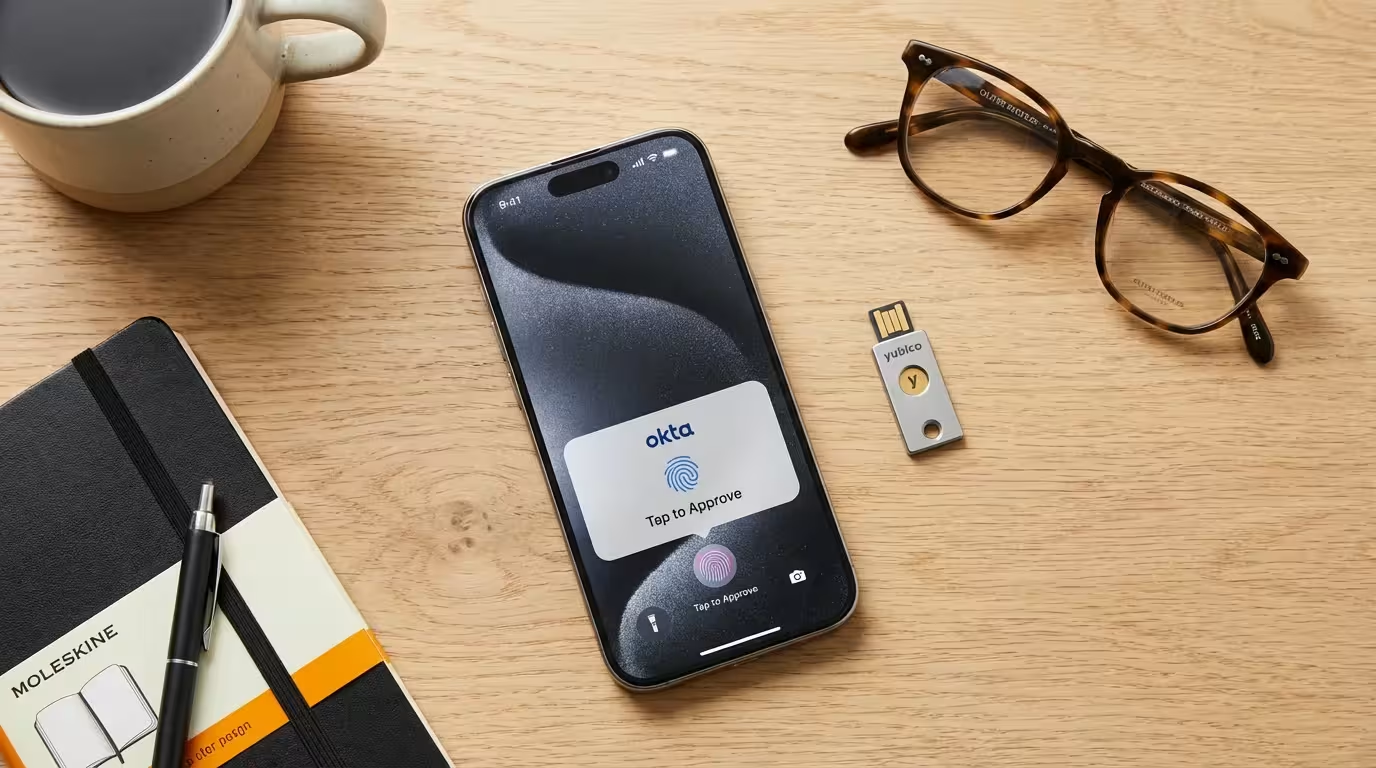
An “authenticator app” is a small, secure program you install on your smartphone. Google Authenticator and Microsoft Authenticator are two popular, free choices. Instead of waiting for a text message, you open the app, and it displays a code that changes every 30 seconds. This is more secure because the codes stay on your physical device and are not sent over the cellular network where they could potentially be intercepted.
3. Email Codes
Some websites will send a code to your email address instead of your phone. This is useful if you have poor cell service or if you do not have a smartphone. However, if your email account itself is not protected with a strong password and 2FA, this method is less secure. If a scammer gets into your email, they can see those codes as they arrive.
4. Physical Security Keys
For those who want the “gold standard” of security, there are physical security keys. These look like small USB thumb drives that you plug into your computer or tap against your phone. You cannot log into your account unless that physical key is present. This is the method used by many high-security professionals and is virtually impossible for a remote hacker to bypass. Companies like Yubico make these devices, which you can purchase online.
| Method | Pros | Cons |
|---|---|---|
| Text Message (SMS) | Easy to use; no app needed. | Vulnerable to phone-number hijacking. |
| Authenticator App | More secure than SMS; works without cell signal. | Requires installing and learning a new app. |
| Security Key | Most secure; cannot be tricked by fake sites. | Costs money to buy; can be lost. |
Recognizing Scams That Target Your Codes
Because 2FA is so effective, scammers have pivoted their tactics. They know they can’t get into your account with just your password, so they will try to trick you into giving them your 2FA code. This is a common tactic in “social engineering,” where a criminal uses psychological manipulation to get you to lower your guard.
These high-pressure tactics are similar to what you might see in package delivery scams that arrive via text or email.
Imagine you receive a phone call from someone claiming to be from your bank’s fraud department. They sound professional and concerned. They tell you there is a suspicious charge on your account and say, “I am going to send a security code to your phone to verify your identity. Please read it back to me.”
Stop. This is a scam. The “bank employee” is actually a scammer who is currently at your bank’s website trying to log into your account. They have your password, and they just triggered the 2FA code. If you give them that code, you are giving them the final key to your money. Your bank, the IRS, and tech support from companies like Microsoft or Apple will never ask you for a 2FA code over the phone or via text.
Red Flags to Watch For:
- Unsolicited Codes: If you receive a text message with a login code when you aren’t trying to log in, someone else is trying to access your account. Do not click any links in that message; simply delete it.
- Urgency: Scammers love to create a sense of panic. If someone tells you that you must provide a code “immediately” to stop a theft, they are trying to rush you into making a mistake.
- Phone Requests: Again, no legitimate company will call you and ask you to read a security code to them. The code is for you to type into a secure website, and no one else.
- MFA Fatigue: This is a newer trick where a scammer repeatedly tries to log in, causing your phone to buzz with dozens of “Allow this login?” notifications. They hope you will eventually get annoyed and just tap “Yes” to make it stop. If this happens, do not tap “Yes.” Instead, change your password immediately.
If you ever feel suspicious or pressured, the best thing to do is hang up. Look up the official phone number for your bank or service on your physical statement or the back of your credit card, and call them back directly. For more information on identifying these types of tricks, visit the AARP Fraud Watch Network.
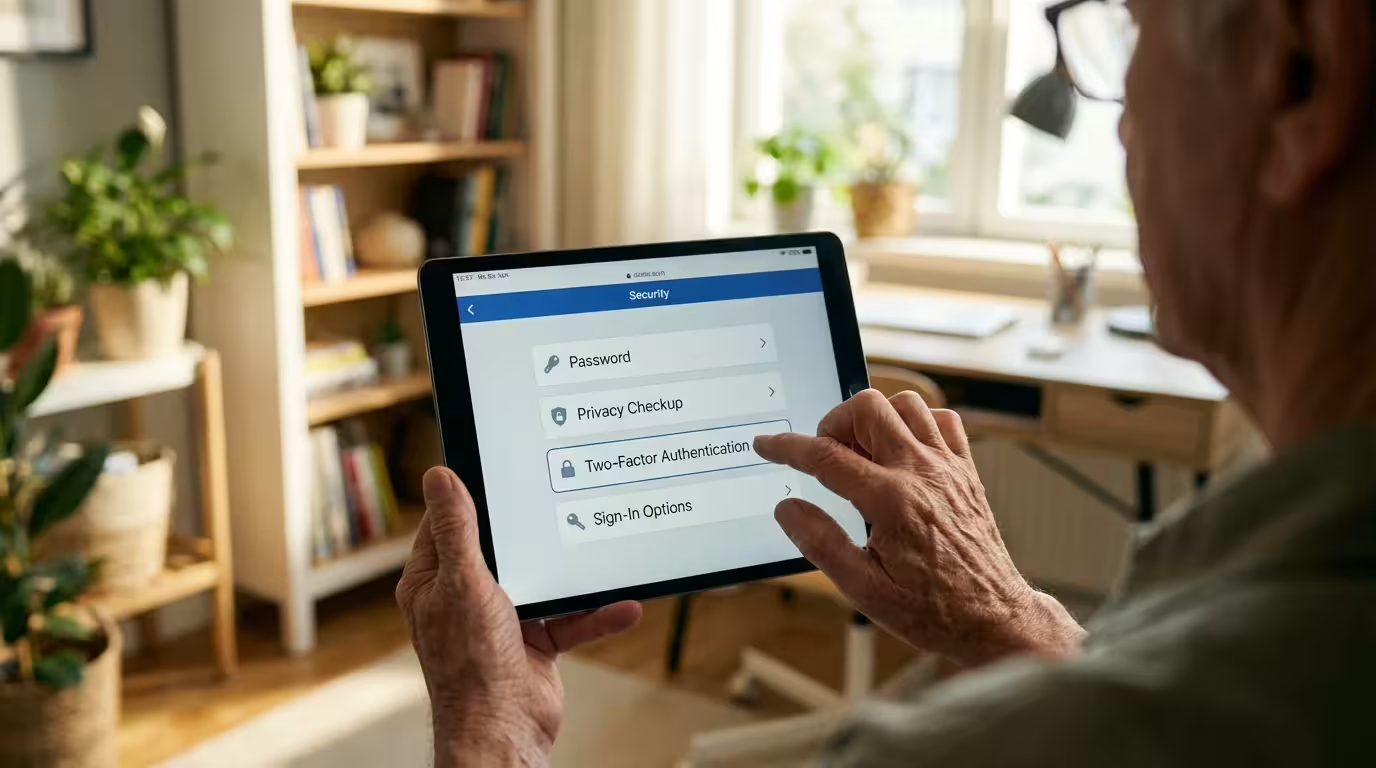
Step-by-Step: Setting Up 2FA on Your Accounts
Setting up two-factor authentication is usually a one-time process that takes just a few minutes. Most major services now encourage it, and some even require it. Here is how you can set it up on the most important accounts in your life.
Beyond setting up security codes, you can learn more about staying safe on Facebook to protect your profile from other common threats.
Protecting Your Email (Example: Gmail/Google)
Your email is your most important account because it is the “master key” to your digital life. If someone gets into your email, they can request password resets for your bank and social media. To protect it:
- Log into your Google account and click on your profile picture in the top right corner.
- Select “Manage your Google Account.”
- On the left-hand menu, click “Security.”
- Under “How you sign in to Google,” find “2-Step Verification” and click it.
- Follow the prompts to add your phone number. Google will send you a test code to make sure it works.
Protecting Your Social Media (Example: Facebook)
Scammers love to steal Facebook accounts so they can message your friends and family asking for money while pretending to be you. To stop them:
- Click your profile picture in the top right of Facebook and select “Settings & privacy,” then “Settings.”
- Click “Accounts Center” on the left, then “Password and security.”
- Select “Two-factor authentication” and choose your Facebook account.
- Choose your preferred method (Text message or Authenticator app) and follow the instructions.
Protecting Your Financial Accounts
Every bank is a little different, but you can usually find 2FA settings by looking for a menu labeled “Security,” “Privacy,” or “Profile Settings.” Many banks now offer “Push Notifications” through their mobile app, which is a very secure and convenient way to verify your identity. If your bank does not offer 2FA, you might consider asking them why or even looking for a financial institution that takes your security more seriously.
If you find this process overwhelming, don’t be afraid to ask for help from a tech-savvy family member or a trusted friend. You can also visit StaySafeOnline.org for more simplified guides on various platforms.

What to Do If You Lose Access or Get Locked Out
A common fear for many people is: “What happens if I lose my phone? Will I be locked out of my accounts forever?” This is a valid concern, but every service that uses 2FA has a “backup plan” in place. When you set up 2FA, you will often be given a list of “Recovery Codes” or “Backup Codes.” These are one-time-use codes that you should print out and keep in a safe place, like your physical filing cabinet or a safe-deposit box.
If you lose your phone or it stops working, you can use one of these backup codes to log in. Once you are in, you can update your settings with your new phone number or device.
If you suspect you have been scammed:
- Contact your financial institutions: If you think your banking login was compromised, call your bank immediately. They can freeze your accounts and issue new cards.
- Change your passwords: Change the password for the affected account and your email account from a different, secure device if possible.
- Report the incident: Visit the FTC’s consumer information site or the FBI’s Internet Crime Complaint Center to file a report. This helps authorities track down the scammers and prevents others from being targeted.
- Check your credit: You can get a free credit report to ensure no one has opened new accounts in your name.
It is important to remember: If you fall for a scam, it is not your fault. Scammers are professional criminals who spend eight hours a day practicing how to deceive people. They are the ones who committed a crime; you are a person who was trying to navigate a complex digital world.
Frequently Asked Questions
Q: Does 2FA cost money?
A: No, for almost all consumer services like Gmail, Facebook, and your bank, 2FA is a free security feature. The only cost would be if you choose to buy a physical security key device.
Q: I don’t have a smartphone. Can I still use 2FA?
A: Yes! Many services allow you to use a traditional landline phone to receive a voice call with your code. You can also use email-based 2FA or a physical security key that plugs into your computer.
Q: Do I have to enter a code every single time I log in?
A: Usually, no. Most websites have a “Trust this device” checkbox. If you check it, the site will remember your computer or tablet and won’t ask for a code again for a while (often 30 days) unless you log in from a different location or a new device.
Q: What if I accidentally shared a code with someone?
A: Change your password for that account immediately. If it was a bank account, call your bank’s fraud department right away. Sharing a code gives the scammer temporary access, but changing your password and resetting your 2FA can kick them out.
Q: How do I know if a call is really from my bank?
A: You can’t always trust the Caller ID on your phone, as scammers can “spoof” it to make it look like it’s from your bank. The safest way is to hang up and call the number printed on the back of your debit or credit card. If the call was real, the bank will have a record of it.
Embracing two-factor authentication is a significant step toward peace of mind. While the internet can sometimes feel like a wild frontier, tools like 2FA provide you with a sturdy set of locks and a reliable alarm system. By taking these steps today, you are ensuring that your digital memories, your financial future, and your personal privacy remain exactly where they belong—in your hands.
Disclaimer: This article provides general information about online safety and is not a substitute for professional advice. If you believe you’ve been a victim of fraud, contact your bank immediately and report the incident to the FTC at ReportFraud.ftc.gov or call 1-877-382-4357. If you’ve lost money, also file a report with your local police.
Keywords: two-factor authentication, 2FA, online security, secure online banking for seniors, protecting personal information online
Meta Description: Learn how two-factor authentication (2FA) adds a vital layer of security to your accounts and discover practical steps to protect yourself from online scams.






Leave a Reply