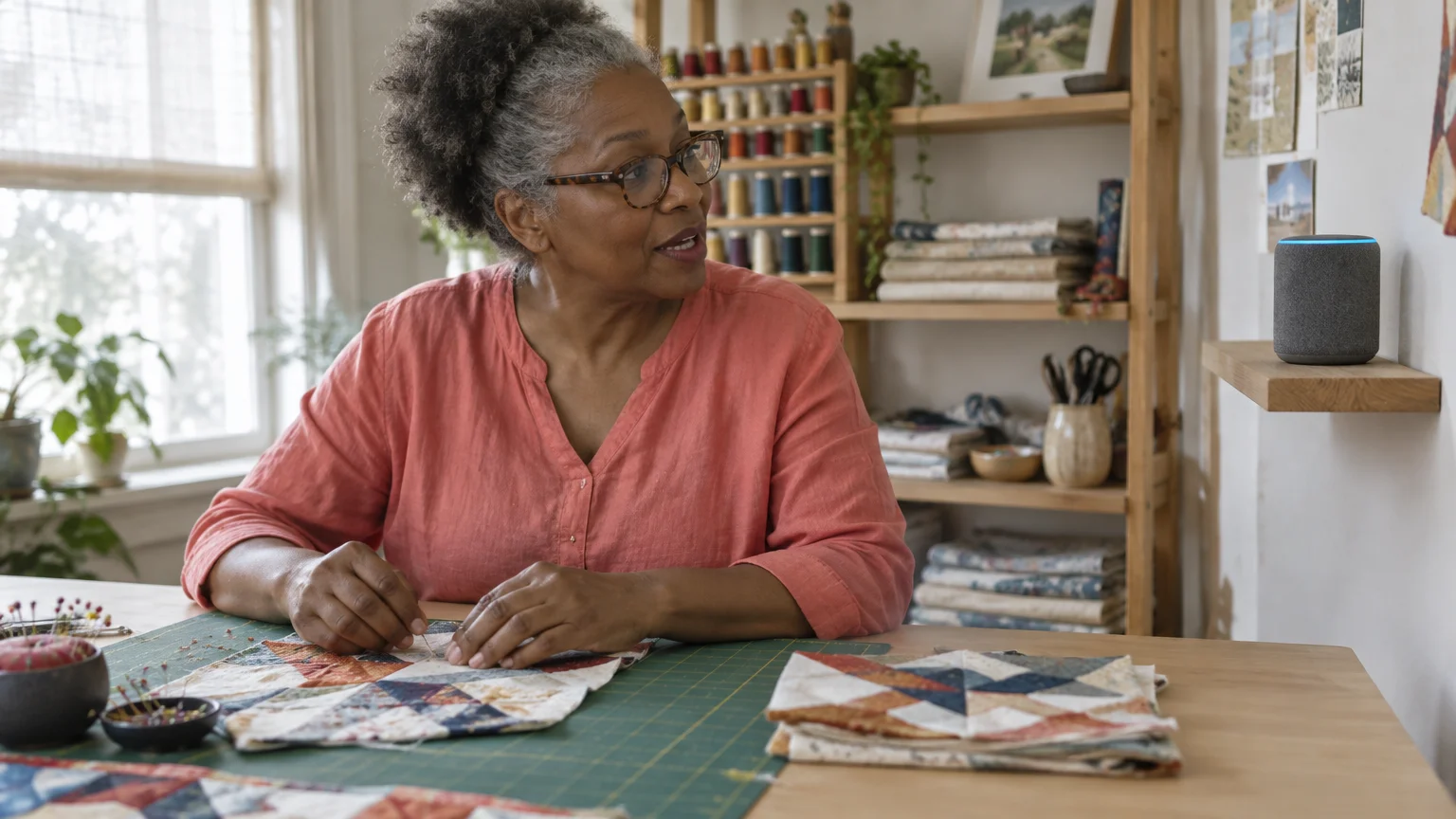
Imagine you are in the kitchen, hands covered in flour while following a favorite bread recipe, and you suddenly realize you need to ask your daughter a question about the ingredients.
Instead of wiping your hands and fumbling for your smartphone, you simply say, “Alexa, call Sarah.” Within seconds, your daughter’s voice fills the room, and you continue kneading your dough while you chat.
This scenario illustrates the simple, hands-free power of using an Amazon Alexa device to stay connected.
While voice commands are perfect for quick chats, many seniors also find using Facebook to stay in touch with friends and sharing photos is another great way to keep your social circle active.
For many adults over 55, technology often feels like it adds more steps to a task rather than removing them. However, voice-controlled calling stands out as a genuine exception.
It eliminates the need to navigate small screens, remember where you left your glasses, or struggle with tiny buttons.
Whether you want to check in on a friend or need a convenient way to reach family members throughout the day, the Amazon Echo—a “smart speaker” you talk to that responds to your voice—offers a remarkably reliable solution.
In this guide, we will walk you through everything you need to know about setting up and using Alexa for phone calls.
We will cover the different ways to call, the privacy settings you should know about, and how to decide if this technology fits your lifestyle.
Our goal is to make you feel confident using these tools without any unnecessary technical jargon or expensive “upgrades” you don’t actually need.
In this guide10 sections
- What Is Alexa Calling and How Does It Work?
- Is This Right for You? Evaluating the Benefits
- What You Will Need to Get Started
- Step-by-Step Setup Guide
- Useful Commands and Features to Try
- Understanding “Drop In” vs. Standard Calling
- Privacy and Security Considerations
- Costs and International Limitations
- Troubleshooting Common Problems
- Frequently Asked Questions
What Is Alexa Calling and How Does It Work?
At its core, Alexa calling uses your home’s Wi-Fi (wireless internet connection) to send your voice to another person’s phone or smart speaker. You do not need a traditional landline plugged into the wall to make this work.
Instead, the voice assistant—the software inside the speaker that listens for its name—translates your spoken command into a digital signal that travels over the internet.
To see how Amazon’s calling features compare to other popular tools, you might want to look at our comparison of video calling apps for families.
There are three primary ways Alexa handles calls:
- Alexa-to-Alexa: You can call anyone else who owns an Amazon Echo device or has the Alexa app on their phone. This is often the clearest connection and supports video if both of you have an Echo Show (the version with a screen).
- Alexa-to-Phone: In the United States, Canada, and Mexico, you can ask Alexa to call almost any mobile or landline number for free. The person receiving the call doesn’t need any special equipment; they just answer their phone as they normally would.
- Carrier Integration: If you are an AT&T, Verizon, or T-Mobile customer, you can link your existing mobile plan to Alexa. This allows your Echo device to essentially act as an extension of your mobile phone, using your actual phone number and contacts.
The beauty of this system lies in its simplicity. Once configured, you no longer need to look up numbers or scroll through contact lists.
As long as the device can hear you, you have a direct line to the outside world.

Is This Right for You? Evaluating the Benefits
Deciding whether to bring “smart” technology into your home often comes down to one question: Does this make my life easier? For many, the answer regarding Alexa calling is a resounding yes, but it depends on your specific needs.
Once you have your Echo Show set up for video, there are many fun things to do with grandchildren over video call that help bridge the distance between visits.
Finding new ways to talk is essential for staying connected when family lives far away, and voice technology is one of the most convenient methods available.
You might benefit from Alexa calling if:
- You have mobility challenges: If it is difficult for you to get to the phone quickly, having a voice-activated speaker in the rooms where you spend the most time ensures you can make or answer calls without rushing.
- You struggle with arthritis or vision: Navigating a smartphone’s touchscreen can be frustrating. Using your voice removes the physical barrier of small buttons and glaring screens.
- You enjoy long conversations: Holding a phone to your ear for thirty minutes can lead to a cramped hand or a sore neck. A smart speaker allows for a “speakerphone” experience that feels more natural—like the person is sitting in the room with you.
- You want to see your family: If your grandkids live across the country, an Echo Show allows for easy video calls. Seeing a smiling face is often much more rewarding than just hearing a voice.
If holding a phone is painful because of arthritis, an Echo Dot can help. You can place calls simply by speaking aloud, without needing to hold a device.
Voice commands make it easier to stay in touch with family every day.
On the other hand, if you rarely use the phone or if you feel deeply uncomfortable with the idea of a microphone in your home, this might not be the right fit.
We will address those privacy concerns in detail later, but it is important to know that you are always in control of the device.
What You Will Need to Get Started
You don’t need a complicated “smart home” setup to make phone calls. You only need a few basic components to get up and running:
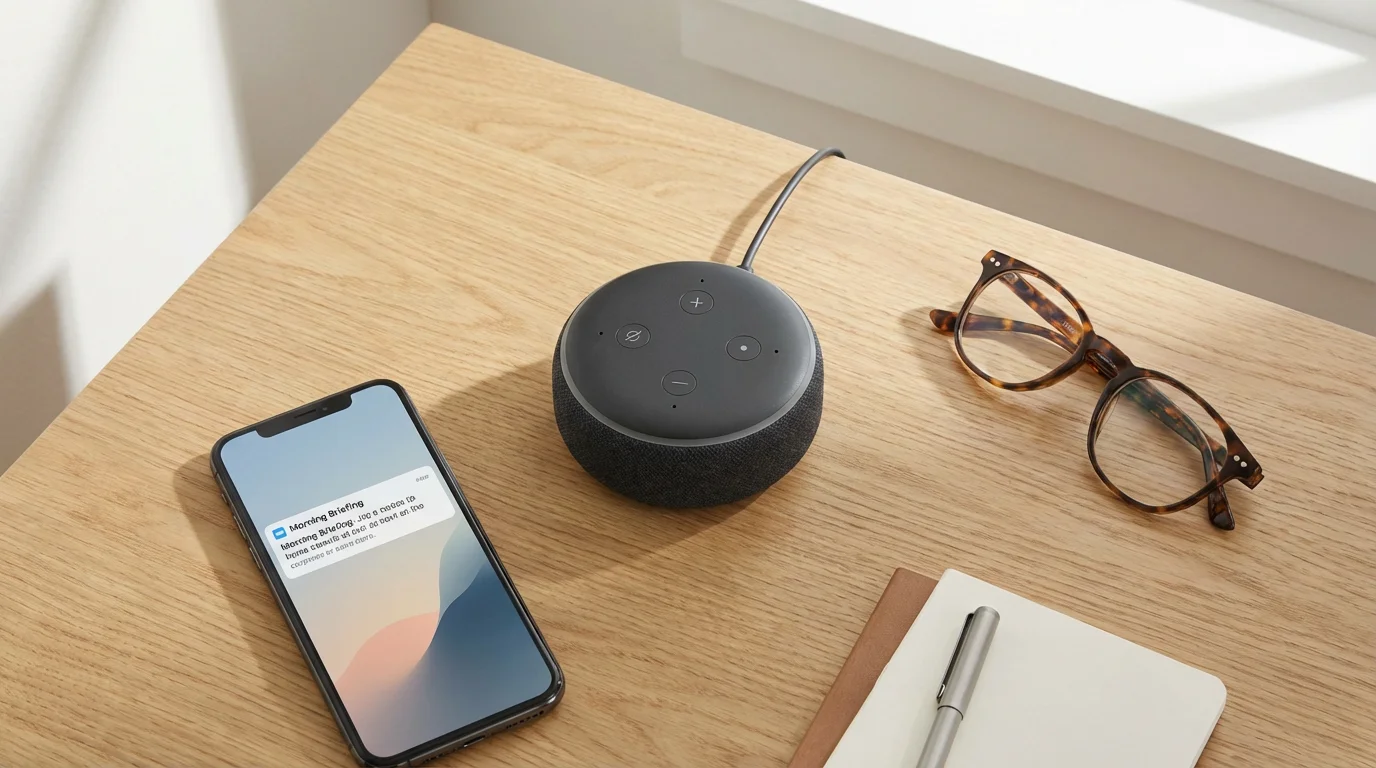
- An Amazon Echo Device: This could be the small, puck-shaped Echo Dot, the standard Echo speaker, or the Echo Show (which includes a screen). According to Wirecutter, the Echo Pop is also a great, budget-friendly entry point for basic voice tasks.
- A Smartphone or Tablet: Even though you will use your voice to make calls, you need a smartphone (iPhone or Android) for the initial setup. This is where you will install the Alexa app to link your contacts.
- A Reliable Wi-Fi Connection: Since the calls travel over the internet, your Wi-Fi needs to be stable. If you can watch a video on your computer without it buffering, your internet is likely fast enough for Alexa calling.
- An Amazon Account: You probably already have one if you shop online. You don’t need a paid Prime membership to make calls; a standard free account works perfectly.
- A Mobile Phone Number: Amazon uses your existing mobile number to verify your identity and to show your name on the Caller ID of the people you call.
Step-by-Step Setup Guide
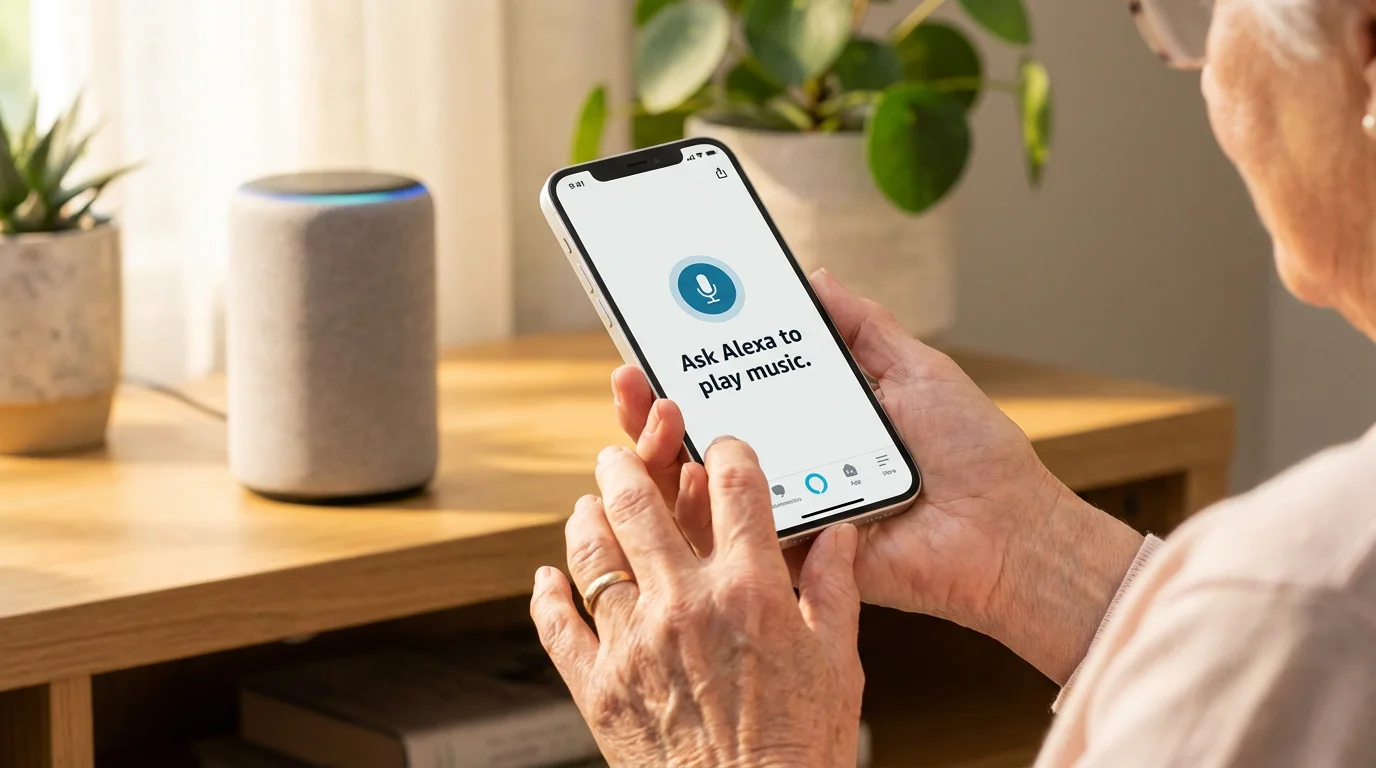
Setting up your Alexa device for calling is a one-time process. Once it is done, you rarely have to touch the app again.
Follow these steps to get connected:
Step 1: Download and Log In
Open the App Store (on iPhone) or Play Store (on Android) and search for “Amazon Alexa.” Download the app and log in using your Amazon email and password.
If you don’t have an account, the app will guide you through creating one.
Step 2: Grant Permissions
When you first open the app, it will ask for permission to access your “Contacts” and “Microphone.” This is a crucial step.
By allowing access to your contacts, Alexa learns the names and numbers of your friends and family so you can call them by name.
Step 3: Verify Your Phone Number
Tap the “Communicate” tab at the bottom of the screen (it looks like a speech bubble). Follow the prompts to enter your mobile phone number.
Amazon will send you a text message with a verification code. Enter that code into the app.
This ensures that when you call someone, they see your name on their screen instead of “Unknown Caller.”
Step 4: Set Up Your Profile
The app might ask “Who are you?” Select your name from the list.
If you share the account with a spouse, you can set up multiple profiles so Alexa can distinguish between your voices, though this isn’t strictly necessary for basic calling.
Step 5: Test the Connection
Walk over to your Echo device and say, “Alexa, call [Name of a friend in your contacts].” If the device says “Calling [Name],” you are all set!
To hang up, simply say, “Alexa, hang up” or “Alexa, end call.”

Useful Commands and Features to Try
Once you are comfortable with the basics, you can use more specific commands to make the experience even smoother. Alexa is quite good at understanding natural speech, so you don’t have to sound like a robot.
- Calling by Name: “Alexa, call Diane.” (If you have two Dianes in your contacts, Alexa will ask which one you mean).
- Calling a Specific Location: “Alexa, call Diane on her mobile” or “Alexa, call Diane at home.”
- Dialing a Number: “Alexa, dial 555-0199.”
- Answering a Call: When the speaker rings and the light turns green, just say, “Alexa, answer” or “Alexa, pick up.”
- Sending a Message: “Alexa, send a message to Sarah.” You can then dictate a short message, which Alexa will deliver as a voice recording or a text-to-speech message to Sarah’s Alexa device.
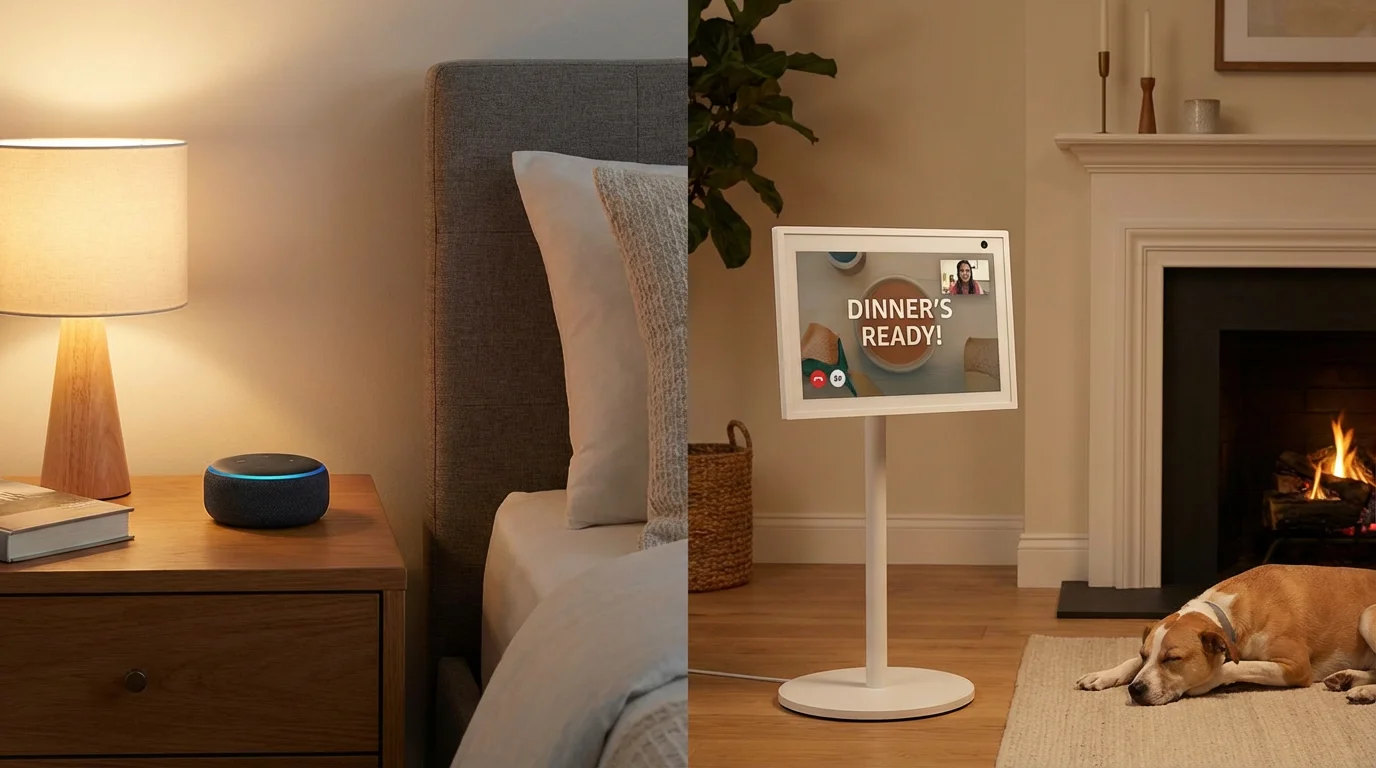
- Announcements: This is a “one-way” call to all the speakers in your house. “Alexa, announce that dinner is ready.” Every Echo device in your home will chime and play your voice recording.
Using these commands helps you realize that the device is more than just a speaker; it’s a helpful assistant that manages the “busy work” of finding numbers and holding the phone for you.
Understanding “Drop In” vs. Standard Calling
One feature that often confuses new users is Drop In. It is important to understand the difference between a standard call and a Drop In, as it has significant privacy implications.
For more formal or larger group meetings that require a screen, you might also find it helpful to learn how to use Google Meet for video calls as an alternative.
A standard call works like a telephone. Your device rings, the light flashes, and you must choose to answer before the connection begins.
You have total control over whether you want to talk or not.
Drop In is more like a two-way intercom. When someone “drops in” on you, the device makes a specific chime, and then the audio (and video, if applicable) starts automatically.
There is no need for the receiver to “answer.”
While this sounds intrusive, it is designed for very specific uses:
- Within your own home: You can Drop In on the kitchen Echo from your bedroom Echo to ask a quick question.
- With close family: You can grant permission to a specific person (like a child or caregiver) to Drop In on you in case of emergencies or for quick check-ins.
Our Recommendation: By default, we suggest keeping Drop In turned off for everyone except perhaps one or two extremely close family members. You can manage these permissions in the Alexa app under the “Communicate” tab by tapping on “Contacts” and selecting your own name.
Privacy and Security Considerations
It is perfectly natural to feel a bit skeptical about having a “listening” device in your home. However, it is helpful to understand exactly how the technology functions to make an informed decision.
Is it always listening?
Alexa is technically “listening” for only one thing: its “wake word” (usually “Alexa”). Until it hears that specific word, it does not record or transmit your conversations to the cloud.
You can see when Alexa is active because a blue light ring will appear on the device. If that light isn’t on, it isn’t sending audio anywhere.
The Mute Button
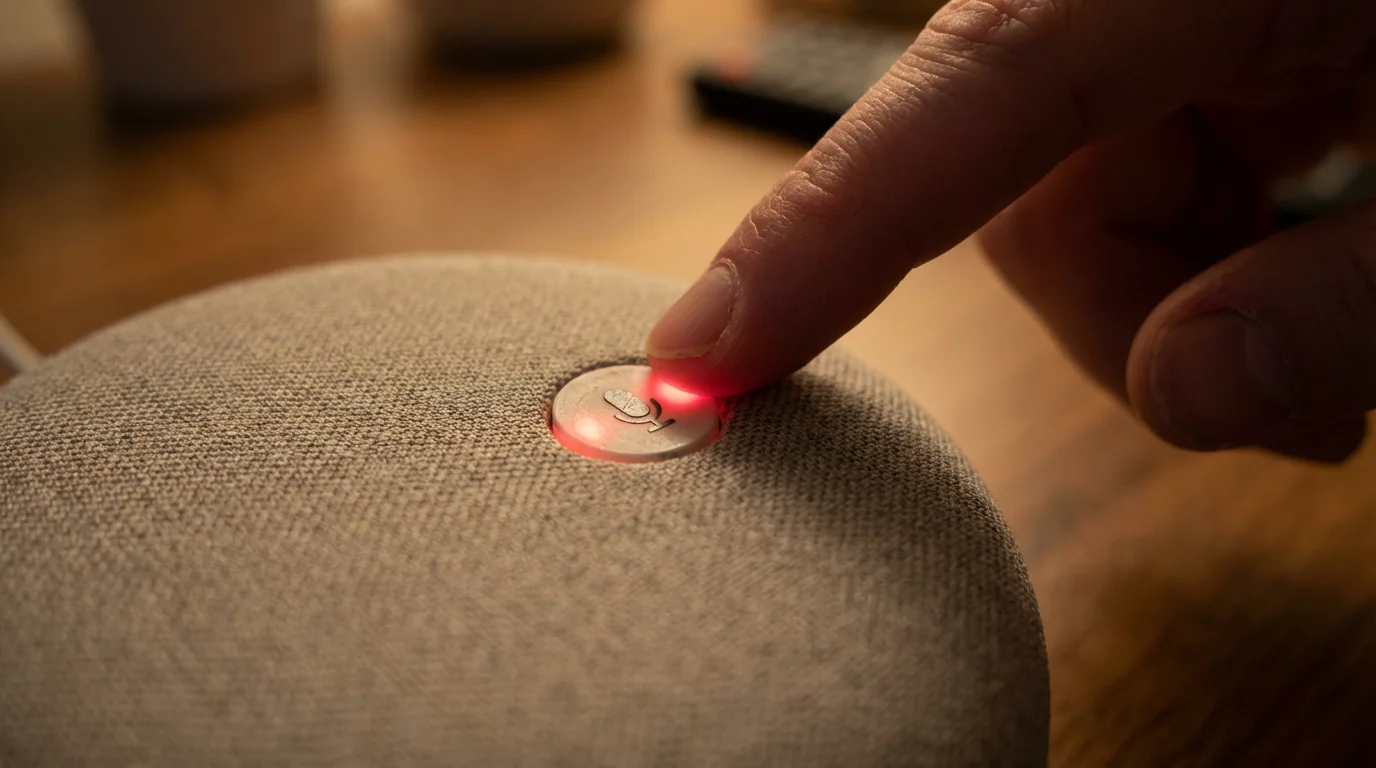
Every Echo device has a physical button on top (usually marked with a circle with a line through it) that electronically disconnects the microphones. When you press this, a red light will appear on the device.
As long as that red light is on, the device cannot hear anything—even the wake word.
Data Management
You can review and delete your voice recordings at any time through the Alexa app or by saying, “Alexa, delete everything I said today.”
Organizations like Consumer Reports frequently review these privacy settings and suggest that while there is always a small risk with internet-connected devices, the physical mute buttons and transparency settings make Alexa a relatively safe choice for most households.
Costs and International Limitations
One of the best parts of Alexa calling is the price. For most users in the USA, it is completely free.
However, there are a few nuances to keep in mind regarding costs and where you can call.
| Service Type | Estimated Cost | Details |
|---|---|---|
| Alexa-to-Alexa Calling | Free | Calls between any two Alexa devices or the app. |
| US/Canada/Mexico Mobile/Landlines | Free | Standard outbound calling to most numbers. |
| International Calling | Varies | Usually requires a subscription or linking a mobile plan. |
| Emergency Services (911) | Requires Add-on | Alexa cannot call 911 directly unless you have Alexa Together ($14.99/mo) or an Echo Connect bridge. |
Note on Emergency Calling: It is vital to remember that a standard Echo speaker is not a replacement for a medical alert pendant or a traditional phone during a 911 emergency.
Because the device relies on Wi-Fi and power, it will not work if the internet goes out or if you have a power failure.
If you want Alexa to function as an emergency system, you should look into the Alexa Together service, which connects you to a professional urgent response team.
Troubleshooting Common Problems
Even the best technology has hiccups. If you run into trouble, try these simple fixes before giving up.
“Alexa says she can’t find the contact.”
This is the most common issue. Ensure you have allowed the Alexa app to access your phone’s contacts.
If you just added a new person to your phone, it may take a few minutes for the Alexa system to see them. You can also try saying the full name exactly as it is written in your phone.
“The call quality is choppy or keeps dropping.”
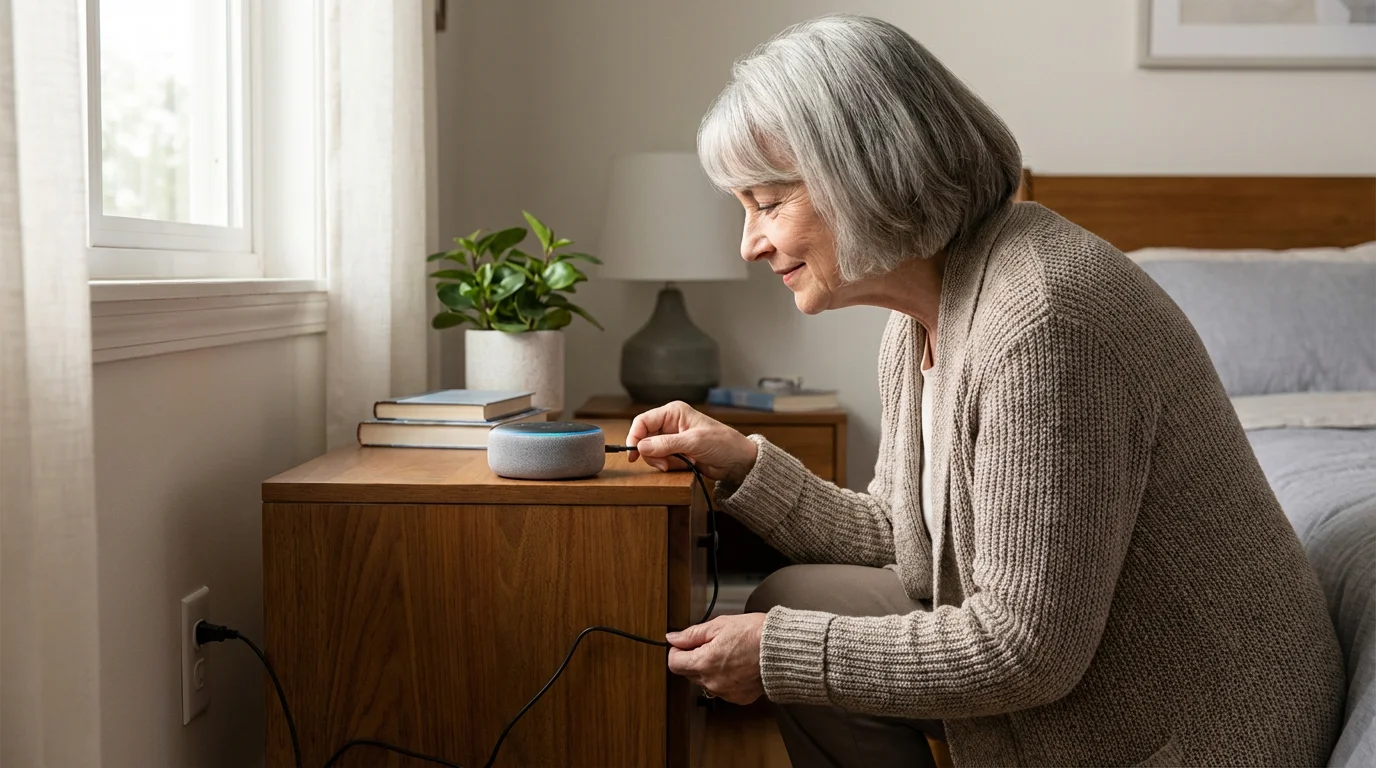
This is almost always a Wi-Fi issue. If your speaker is tucked behind a television or in a corner far from your internet router, try moving it to a more open area.
If other people in your house are downloading large files or streaming high-definition movies, it may temporarily slow down your call quality.
“The person I’m calling can’t hear me clearly.”
Make sure your Echo device isn’t sitting right next to a noisy appliance like a dishwasher or a loud fan. Also, check that you haven’t accidentally pressed the mute button (the light will be red if you have).
Frequently Asked Questions
Do I need to pay a monthly fee to use Alexa for calling?
No. Standard calling to most phone numbers in the US, Canada, and Mexico is free. You only pay for your existing internet service and the initial cost of the Echo device itself.
Can I use Alexa to call 911 if I fall?
By default, no. Alexa cannot dial 911 directly due to FCC regulations regarding internet-based calls. To have emergency calling capabilities, you would need to subscribe to the “Alexa Together” service or link a compatible mobile carrier plan that specifically supports emergency dialing through the speaker.
Does the person I am calling need an Alexa too?
No. You can call almost any mobile or landline number. The recipient will see your name on their caller ID and answer their phone just like a normal call.
Is the Echo always recording my conversations?
No. The device only records and sends audio to Amazon’s secure servers after it hears its wake word (“Alexa”). You can verify this by looking for the blue light ring on the device.
Staying connected with your loved ones shouldn’t feel like a chore. By utilizing the voice-calling features of your Amazon Alexa device, you can bridge the distance with a simple spoken command.
Whether it’s for the convenience of hands-free chatting or the security of knowing you can reach out for help even if your phone is out of reach, this technology offers a practical, modern solution to staying in touch.
We encourage you to start with one or two important contacts—perhaps a child or a close friend—and see how much easier it makes your daily communication.
If you’re looking for more ways to simplify your life with technology, you might explore resources from the Senior Planet from AARP, which offers excellent tutorials specifically designed for older adults.
Disclaimer: This article is for informational purposes only. Product features and prices change frequently.
Always check current specifications and reviews before purchasing. We recommend buying from authorized retailers with good return policies.
Keywords: Amazon Alexa, voice calling, smart speaker, hands-free phone calls, Alexa setup for seniors
Meta Description: Learn how to use Amazon Alexa to make hands-free phone calls, stay connected with family, and improve your home safety with our simple, senior-friendly guide.