

Staying on top of your health becomes increasingly important as we age. Smart technology, once seemingly complex, now offers incredibly practical tools to help you do just that. The Apple Watch is a powerful example, moving beyond just telling time to become a personal health companion right on your wrist. If you are curious about how an Apple Watch can support your well-being, this guide explains its health tracking capabilities clearly and directly. You will learn what an Apple Watch does, whether it is a good fit for your needs, and how to use its key features to monitor your health and enhance your safety.
Table of Contents
- What Is Apple Watch and What Can It Do for Your Health?
- Is an Apple Watch Right for You?
- What You will Need to Get Started with Apple Watch Health Tracking
- Step-by-Step Setup: Getting Your Apple Watch Ready for Health Tracking
- Useful Health Tracking Features and How to Use Them
- Understanding Your Health Data: Key Metrics and Insights
- Privacy and Security Considerations for Your Health Data
- Common Problems and Solutions When Using Your Apple Watch
- Cost of an Apple Watch and Ongoing Expenses
- Frequently Asked Questions

What Is Apple Watch and What Can It Do for Your Health?
An Apple Watch is more than a simple watch, it is a small, powerful computer you wear on your wrist. It connects wirelessly to your iPhone, putting many of your phone’s capabilities, along with specialized health and fitness tools, right at hand. Think of it as a personal assistant and health monitor designed to make your daily life a bit easier and safer. You communicate with it by tapping the screen, pressing buttons, or speaking to Siri, Apple’s voice assistant.
While Apple products are popular, you might also want to compare these features with how to use a Fitbit to see which tracker best fits your lifestyle.
For your health, an Apple Watch provides an impressive array of functions:
- Activity Tracking: It monitors your daily movement, exercise, and how often you stand. This helps you stay active and achieve personal fitness goals.
- Heart Rate Monitoring: The watch continuously tracks your heart rate throughout the day. It can alert you to unusually high or low heart rates, and even check for irregular heart rhythms, which could indicate a condition like Atrial Fibrillation (AFib).
- Fall Detection: This is a critical safety feature. If you take a hard fall, the watch can detect it and, if you do not respond, automatically call emergency services and notify your emergency contacts.
- Emergency SOS: You can manually trigger an emergency call and alert your contacts with the press of a button, providing peace of mind.
- Sleep Tracking: It monitors your sleep patterns, helping you understand your sleep quality and make adjustments for better rest.
- Medication Reminders: You can set up discreet reminders directly on your wrist, ensuring you take your medications on time.
- Blood Oxygen and ECG Apps: Newer models include sensors that can measure your blood oxygen levels and take an electrocardiogram (ECG) to check your heart rhythm. It is important to remember these are not medical diagnostic tools, but they offer valuable insights you can share with your doctor.
In essence, an Apple Watch acts as a vigilant, non-intrusive health partner, offering data and safety features that can empower you to live a more independent and secure life.

Is an Apple Watch Right for You?
Deciding if an Apple Watch fits your lifestyle involves weighing its benefits against potential considerations. Here is an honest assessment to help you make an informed choice.
For those primarily concerned with personal safety, you might also want to read about how to use a medical alert device to see which setup is best for you.

Who Benefits Most from an Apple Watch?
- Individuals focused on fitness and activity: If you want to track your steps, encourage yourself to move more, or monitor specific workouts, the activity rings and workout tracking provide clear motivation and data.
- Those prioritizing safety: The fall detection and Emergency SOS features are significant advantages, offering reassurance for you and your loved ones, especially if you live alone. Many users report these features providing immense peace of mind.
- People with certain health conditions: If your doctor recommends monitoring heart rate or rhythm, the Apple Watch offers an easy way to collect this data for discussion with your healthcare provider. For example, the irregular rhythm notifications can be a useful prompt to seek medical advice.
- Anyone seeking convenience: Receiving notifications, making calls, or sending messages directly from your wrist means you do not always need to locate your iPhone. This simplifies daily tasks.
- Users already comfortable with Apple devices: If you already own an iPhone and enjoy its simplicity, integrating an Apple Watch into your routine will feel natural because of the familiar interface.

Considerations Before Purchasing:
- You need an iPhone: An Apple Watch requires an iPhone (typically an iPhone 8 or newer, depending on the watch model) to set up and function fully. It does not work with Android phones.
- Learning curve: While designed to be intuitive, any new technology has a learning curve. You will need to learn how to navigate the screen, use the buttons, and understand the various app icons. However, many seniors find it manageable with a bit of practice.
- Cost: Apple Watches range in price from a few hundred dollars for older or SE models to much higher for the latest versions or the Ultra. Factor this into your budget.
- Battery life: Most Apple Watch models require daily charging, often overnight. If remembering to charge a device is a concern, this is something to consider.
- Privacy concerns: While Apple has strong privacy policies, your health data lives on your device and in the Health app. You maintain control over sharing this data. We will discuss this further in a dedicated section.
Consider your daily habits and your comfort level with new technology. If the safety and health monitoring benefits significantly outweigh the learning and cost factors, an Apple Watch can be an incredibly valuable addition to your life. For more insights on digital literacy for seniors, you might find resources like Senior Planet from AARP helpful.
What You will Need to Get Started with Apple Watch Health Tracking
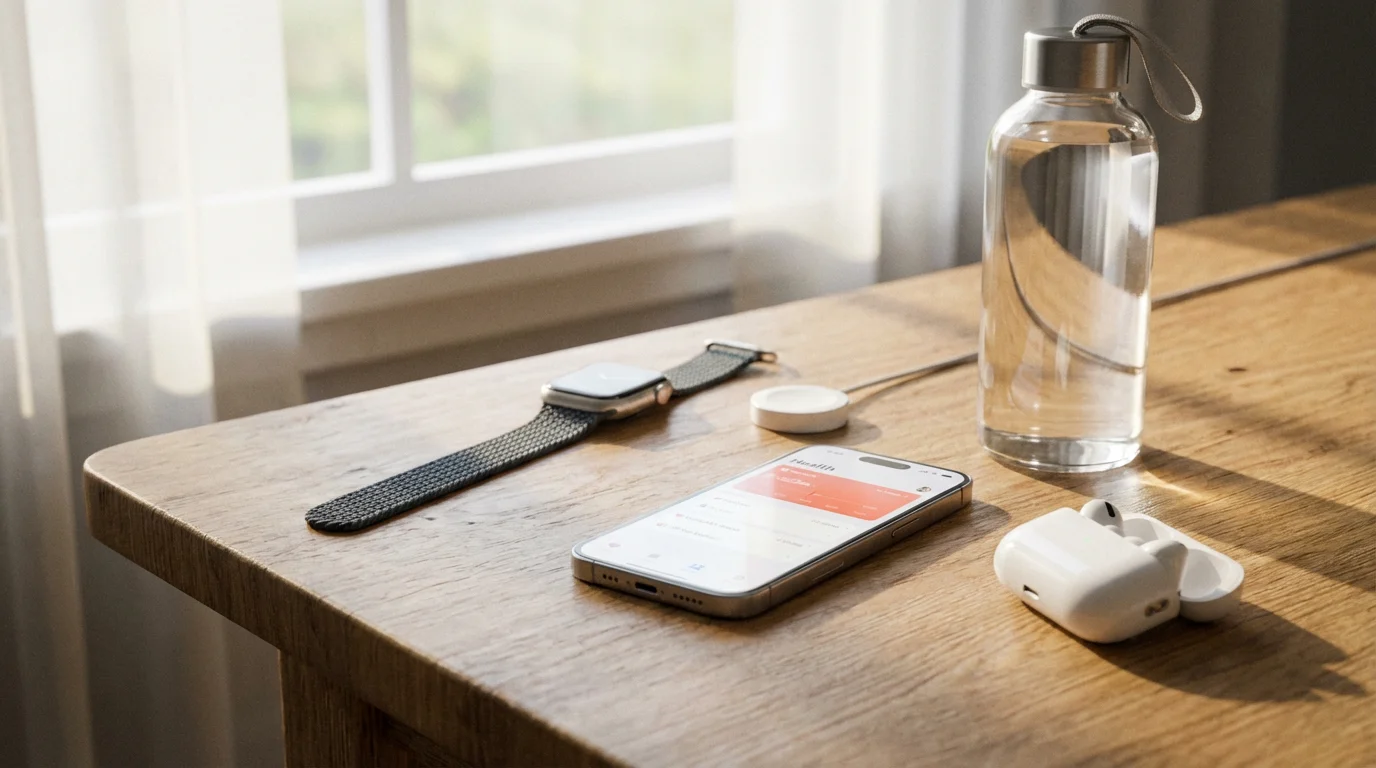
Before you unbox your new Apple Watch, gather a few essentials to ensure a smooth setup process. You will find that these items are likely already part of your daily routine.
- An iPhone: An Apple Watch requires an iPhone to set it up, sync data, and manage its settings. Make sure your iPhone is updated to the latest version of iOS, Apple’s operating system. The specific iPhone model required depends on the Apple Watch model you choose, but generally, an iPhone 8 or newer is sufficient for most current watches. The watch connects to your phone wirelessly using Bluetooth, a technology that allows devices to communicate over short distances without cables.
- Your Apple ID and Password: This is the account you use for all Apple services, including downloading apps and making purchases. If you have an iPhone, you already have an Apple ID. You will need your password during the setup process. If you forget your Apple ID password, you can reset it through Apple’s support website.
- A Wi-Fi Connection: You will need access to a wireless internet connection in your home to set up and update your Apple Watch and iPhone. Wi-Fi provides a fast and reliable way for your devices to communicate with the internet.
- The Included Apple Watch Charger: Every Apple Watch comes with a magnetic charging cable. You will need to plug this into a USB power adapter (which may or may not be included, depending on the watch model and region) and then into a wall outlet. Ensure you have a convenient spot to charge your watch daily.
- Comfortable Lighting and Reading Glasses (if needed): The Apple Watch screen is small, so good lighting and any necessary vision aids will make the setup process much easier.
- Time and Patience: Give yourself ample time for the initial setup. Rushing can lead to frustration. Taking it slow ensures you understand each step.
Once you have these items ready, you are prepared to begin setting up your Apple Watch and unlock its health tracking potential.
Step-by-Step Setup: Getting Your Apple Watch Ready for Health Tracking
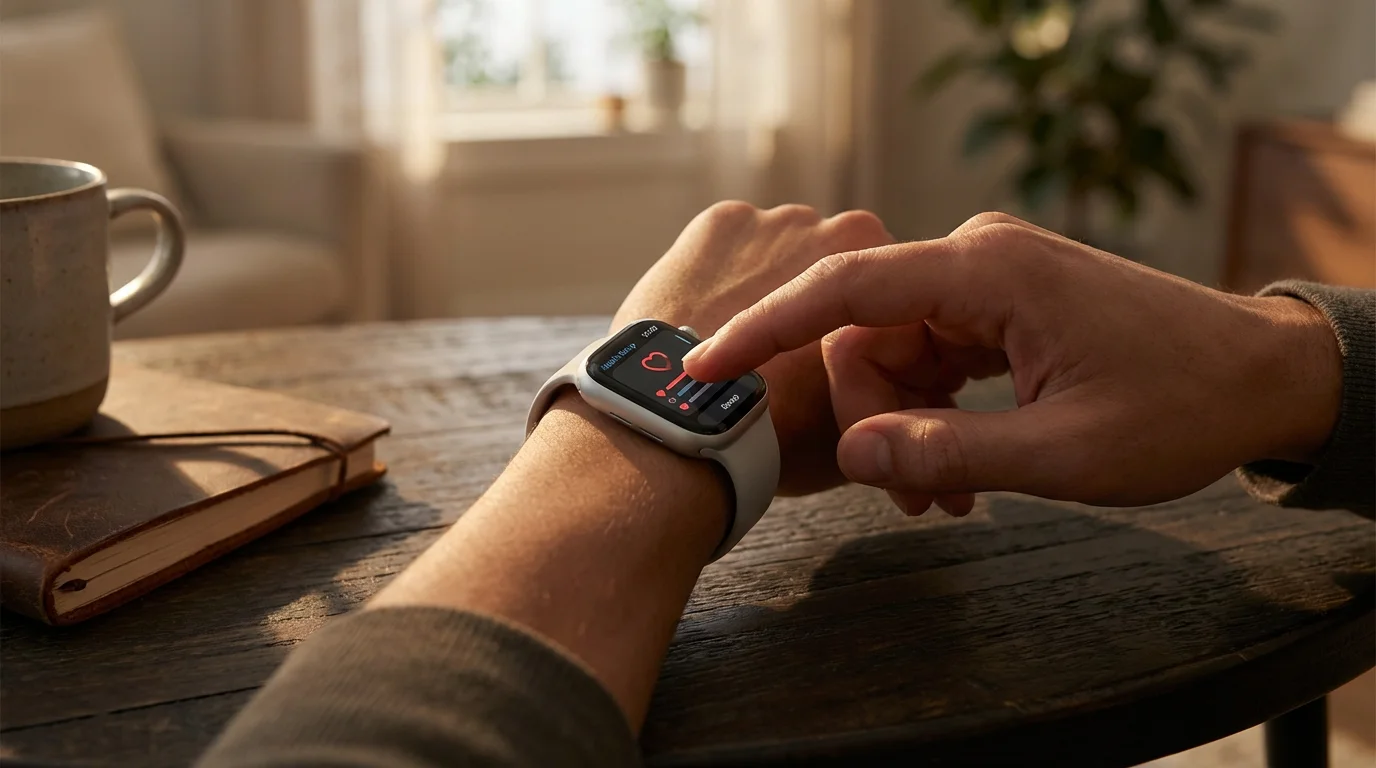
Setting up your Apple Watch for the first time might seem daunting, but by following these clear steps, you will be tracking your health in no time. Remember, your iPhone is essential for this process.
If the watch screen feels too small for reading detailed reports, you may find that using an iPad for beginners provides a much clearer view of your health progress.
After your watch is set up, you can expand your digital skills by learning how to use FaceTime for video calls with your grandchildren.

Step 1: Charge Your Apple Watch
Unbox your Apple Watch and place it on its magnetic charging puck. Plug the charger into a wall outlet. Let it charge for at least 30 minutes, or until the battery icon appears on the screen, indicating it has enough power to begin setup. You will know it is charging correctly when you see a green charging symbol.
Step 2: Turn On Your Apple Watch
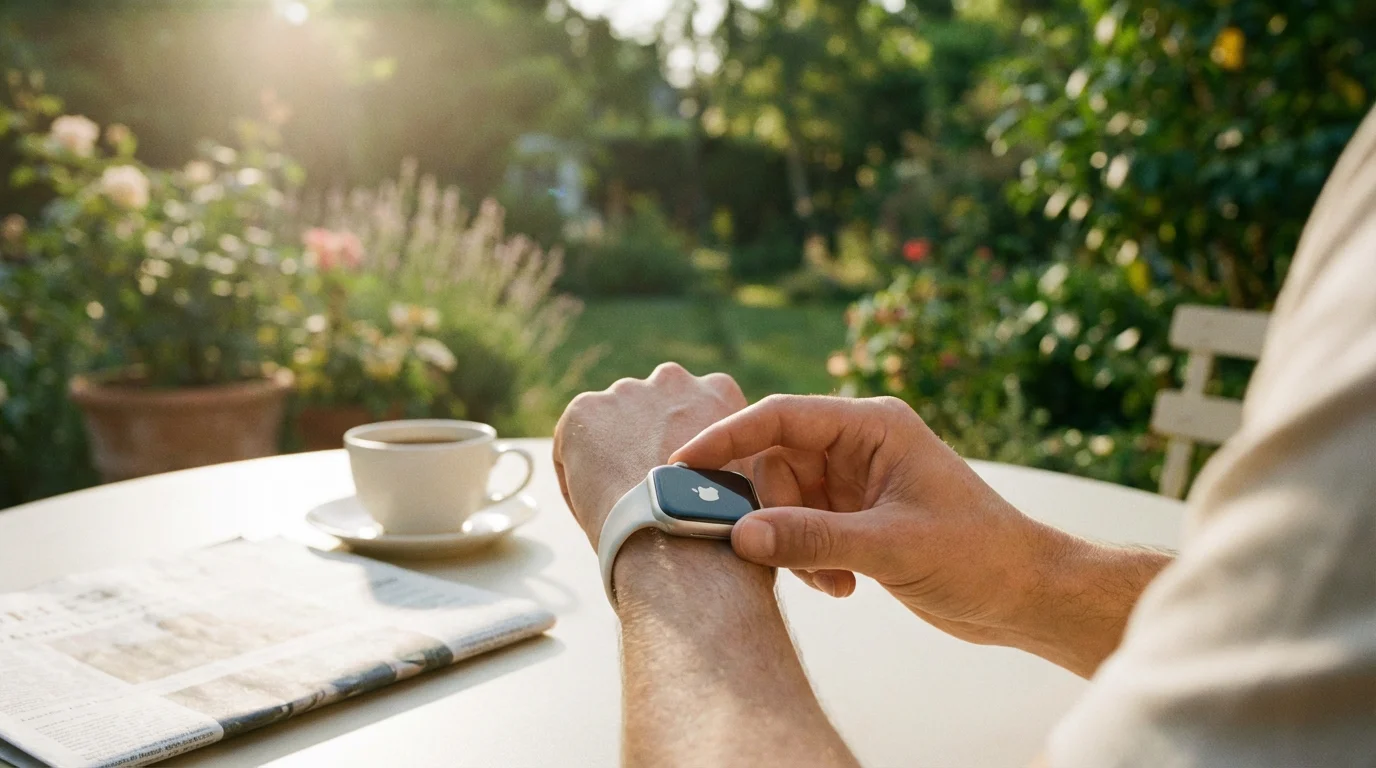
Once charged, press and hold the side button (the flat oval button below the Digital Crown) until you see the Apple logo. The watch will then display a message to “Bring iPhone near Apple Watch.”
Step 3: Pair Your Apple Watch with Your iPhone
- Open the Apple Watch App: On your iPhone, open the “Watch” app. If you do not have it, download it from the App Store.
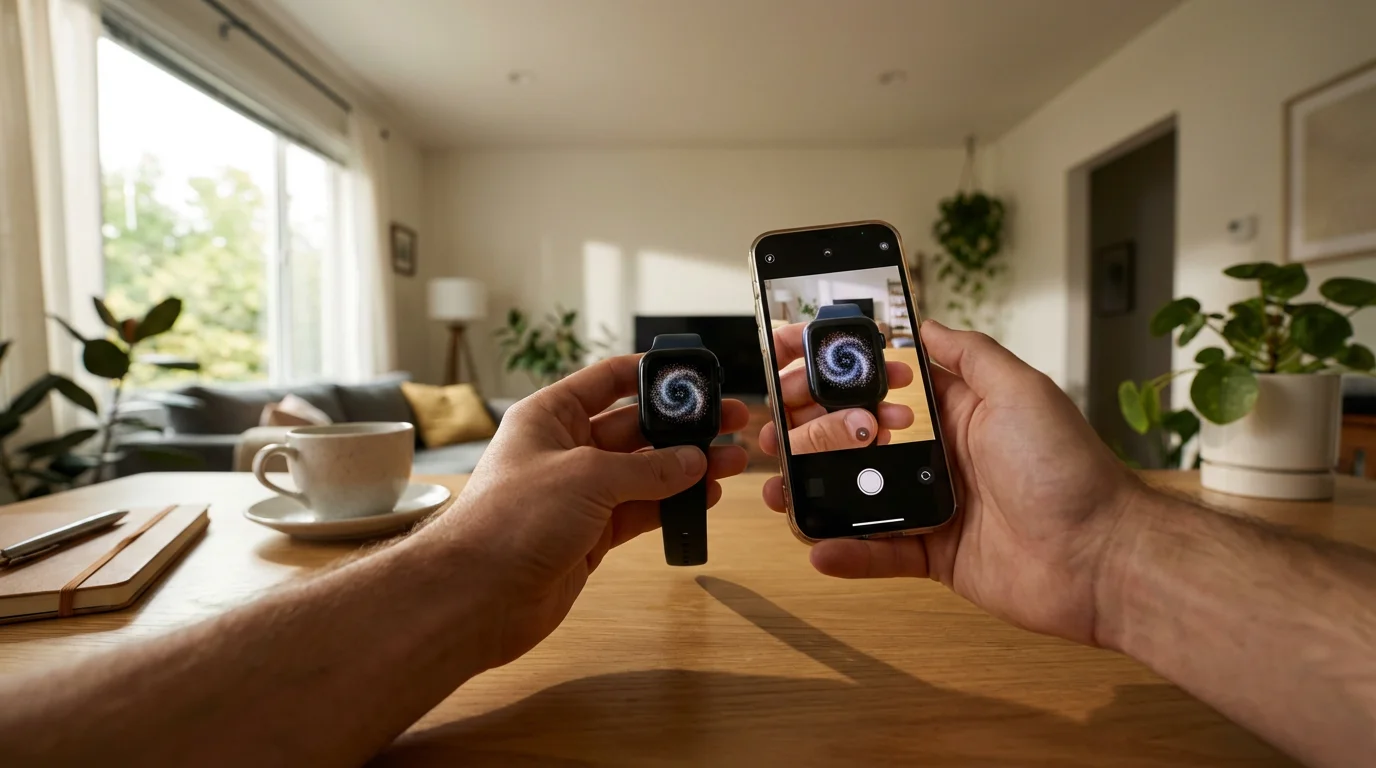
- Start Pairing: Bring your iPhone close to your Apple Watch. Your iPhone will detect the watch and display a prompt “Use your iPhone to set up this Apple Watch.” Tap “Continue.”
- Position the Watch: A unique animation will appear on your Apple Watch. Use your iPhone camera to scan this animation. Align the watch in the viewfinder that appears on your iPhone screen. This visually pairs the two devices using Bluetooth.
- Manual Pairing (if needed): If the camera does not work, tap “Pair Manually” on your iPhone. Your Apple Watch will display an “i” icon. Tap that icon to reveal a six-digit code. Enter this code into your iPhone.

Step 4: Choose Setup Options
Your iPhone will ask if you want to set up the watch for yourself or a family member. Choose “Set Up for Myself.” Then, follow the prompts to restore from a backup (if you have a previous Apple Watch) or set up as a new Apple Watch.

Step 5: Sign In with Your Apple ID
Enter your Apple ID password when prompted. This connects your watch to your Apple account, allowing it to sync data and use services. You may need to review and agree to terms and conditions.
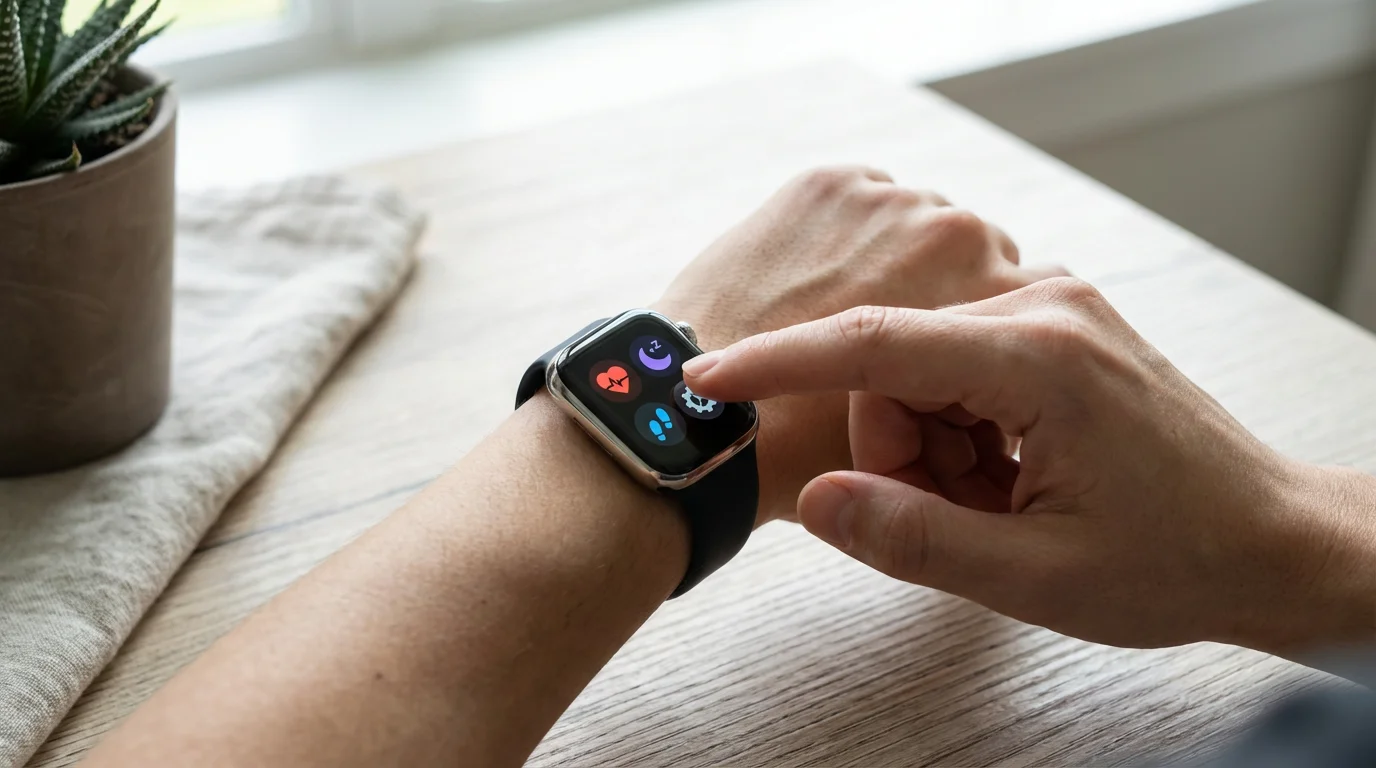
Step 6: Personalize Settings and Enable Health Features
This is a crucial step for health tracking. You will be asked to:
- Enter your wrist preference: Left or right.
- Set your passcode: Create a four-digit code for your watch. This protects your data.
- Adjust text size: Make the display easier to read.
- Share Activity and Health Data: Crucially, enable “Share Activity” and “Share Health Data.” This allows the watch to send your activity and health measurements to the Health app on your iPhone.
- Enter personal health details: Provide your age, gender, height, and weight. This information helps the Apple Watch accurately calculate calories burned, distance, and other health metrics.
- Enable Fall Detection: You will receive a prompt to enable this important safety feature. Confirm you want to turn it on.
- Set up Emergency Contacts: You can add specific contacts from your iPhone that the watch will alert in an emergency.
Continue following the on-screen instructions until your watch is fully synced and ready. This process can take a few minutes as apps and data transfer to your watch.
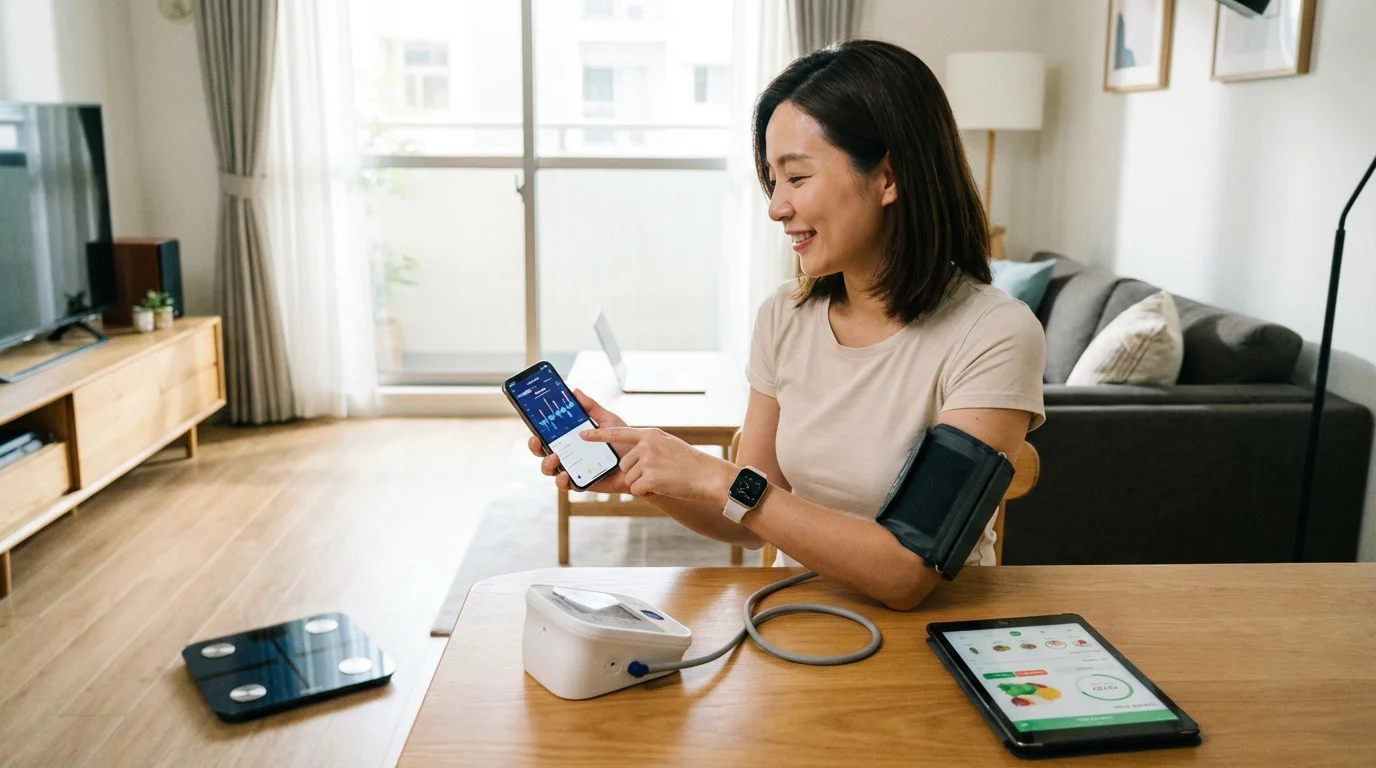
Useful Health Tracking Features and How to Use Them
Once your Apple Watch is set up, you can start leveraging its powerful health tracking capabilities. Here is how to use the most beneficial features.
Beyond health tracking, the device is great for daily activities like checking the weather app before heading outdoors.
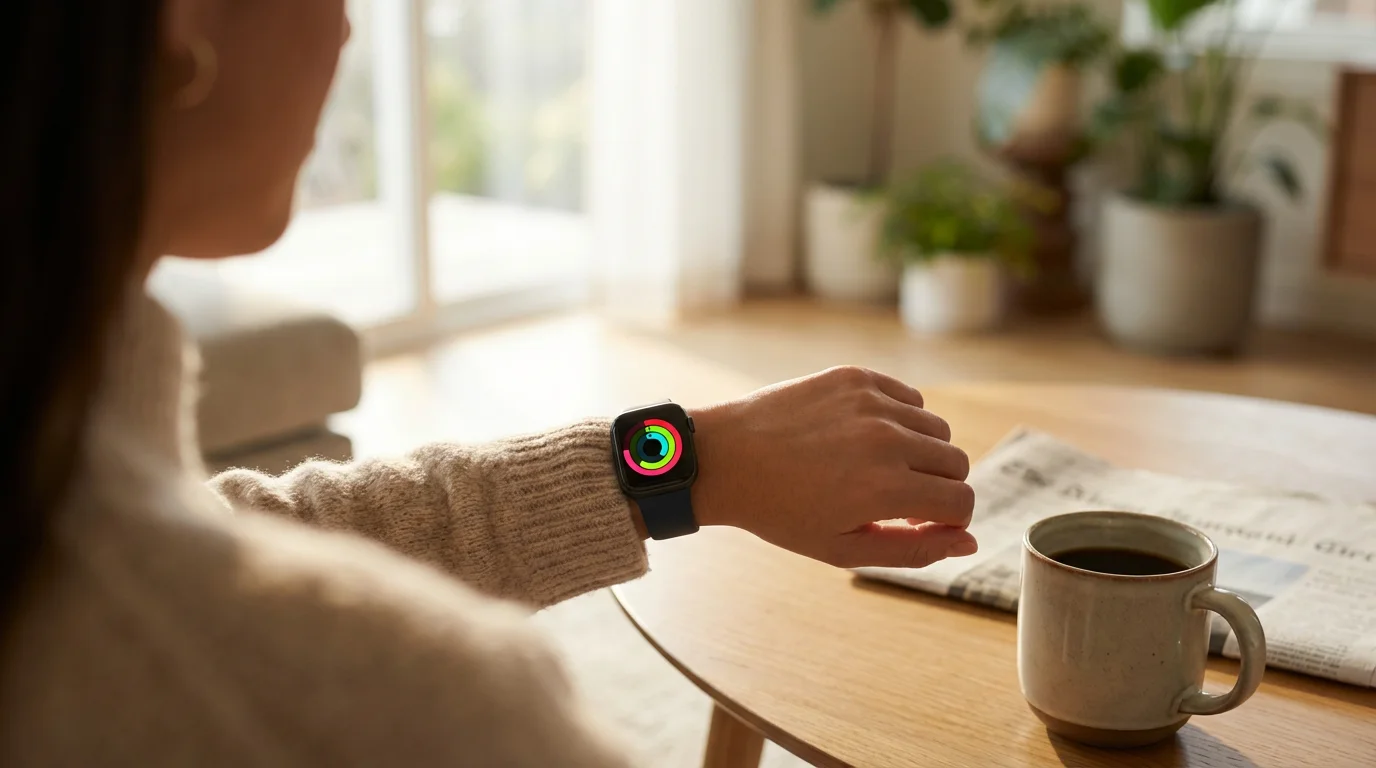
1. Activity Rings: Move, Exercise, Stand
The Activity app on your Apple Watch displays three colored rings:
- Move (Red): Shows active calories burned. Your goal is to fill this ring daily.
- Exercise (Green): Tracks minutes of brisk activity. Aim for 30 minutes each day.
- Stand (Blue): Prompts you to stand up and move for at least one minute each hour for 12 hours a day.
How to use:
- Check your progress: Raise your wrist and look at the Activity watch face, or open the Activity app on your watch.
- Get motivated: The watch sends notifications to encourage you to close your rings. For example, “You are close to reaching your Move goal!”
- Adjust goals: You can customize your daily Move goal in the Activity app on your iPhone (under the Summary tab, then tap Activity, then Change Goals).
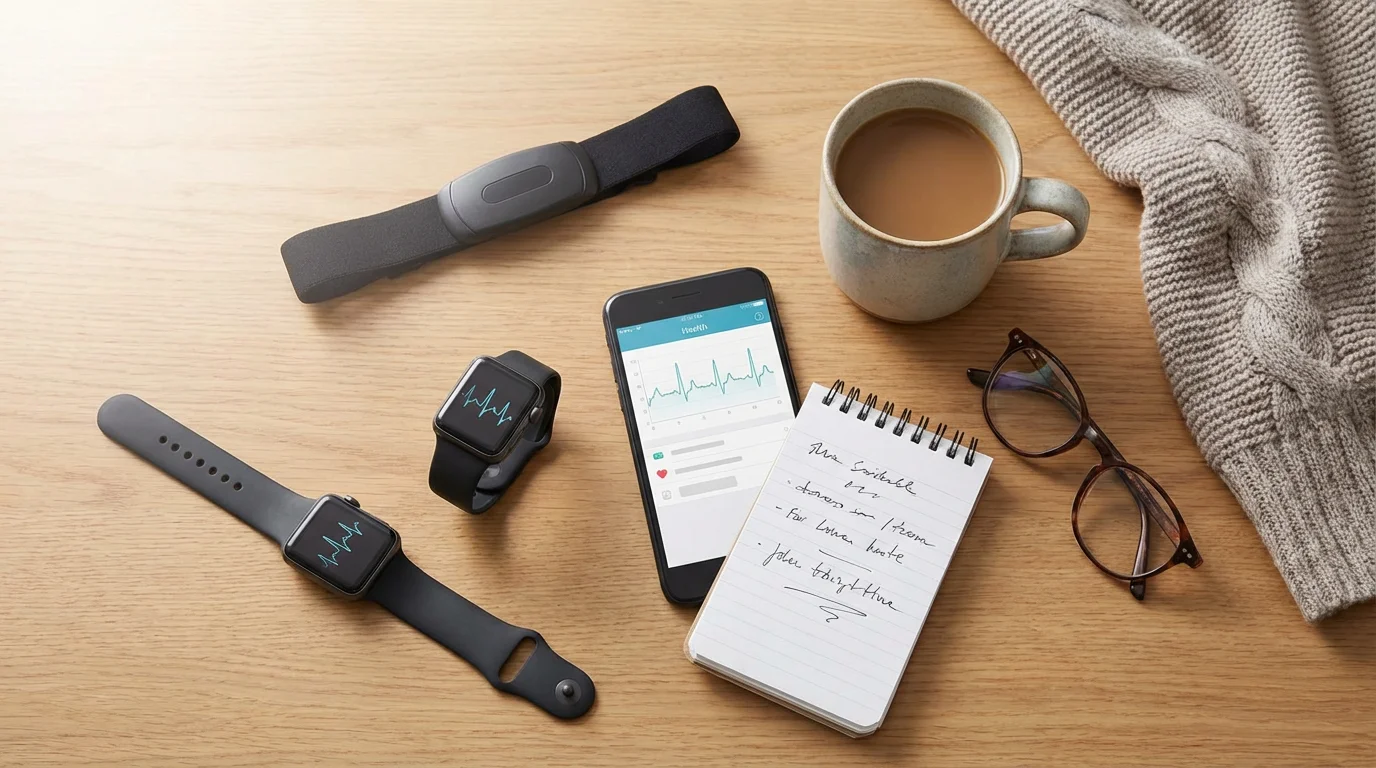
2. Heart Rate Monitoring
Your Apple Watch continuously monitors your heart rate. It provides valuable data and can alert you to potential issues.
How to use:
- Check current heart rate: Open the Heart Rate app on your watch. It will take a reading.
- Review historical data: All heart rate data syncs to the Health app on your iPhone. Open the Health app, tap “Browse,” then “Heart,” to see trends, resting heart rate, and more.
- Receive alerts: Go to the Watch app on your iPhone, tap “Heart,” and turn on “High Heart Rate Notifications,” “Low Heart Rate Notifications,” and “Irregular Rhythm Notifications.” Your watch will notify you if it detects readings outside your set thresholds or an irregular rhythm. While helpful, these notifications are not a substitute for professional medical advice.
3. Fall Detection
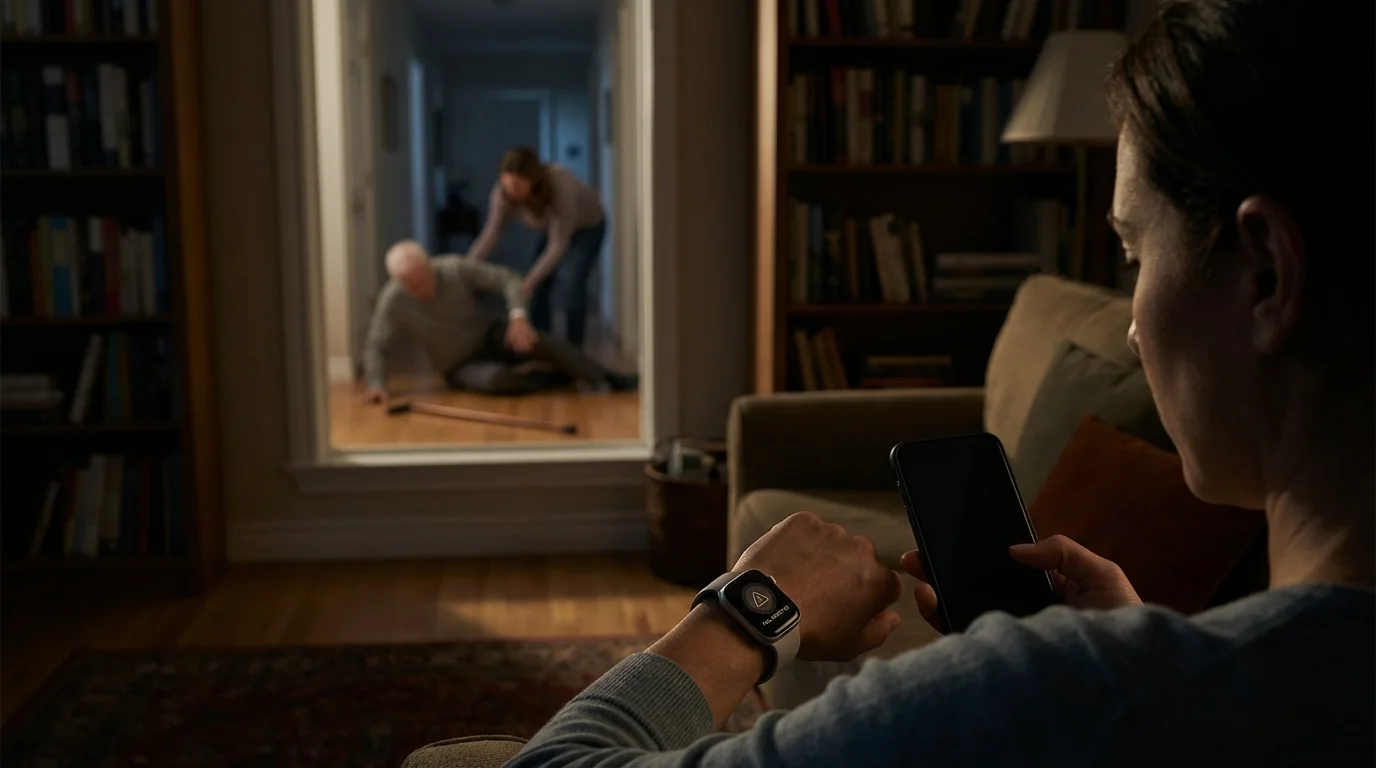
This feature can be life-saving. If the watch detects a hard fall, it taps your wrist, sounds an alarm, and displays an alert. If you do not respond within a minute, it automatically calls emergency services and sends a message to your emergency contacts with your location.
How to use:
- Ensure it is enabled: Fall Detection is automatically on for users aged 65 and older when you set up your watch and enter your age. To check or enable it manually, open the Watch app on your iPhone, go to “Emergency SOS,” and make sure “Fall Detection” is toggled on.
- Add Emergency Contacts: In the Health app on your iPhone, go to your Medical ID and add emergency contacts. These are the people the watch will notify.
- Practice calling for help: You can learn how to manually activate Emergency SOS by pressing and holding the side button until the “Emergency SOS” slider appears.

4. Emergency SOS
Beyond fall detection, you can manually trigger an emergency call.
How to use:
- Press and hold the side button: Continue holding until the “Emergency SOS” slider appears.
- Drag the slider: Slide the “Emergency SOS” slider to make the call.
- Automatic call: If you continue holding the button, the watch will automatically call emergency services after a countdown.
5. Sleep Tracking
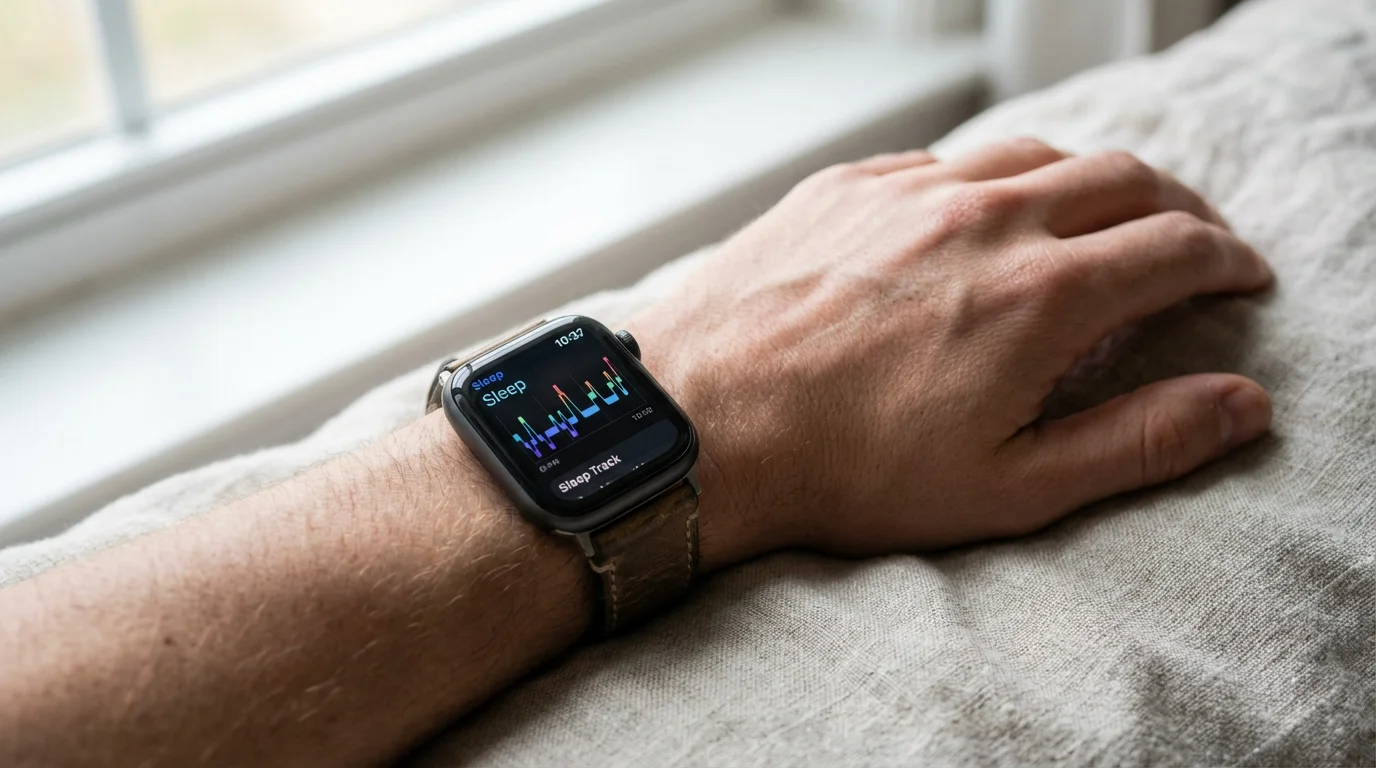
Monitor your sleep patterns to understand your rest better.
How to use:
- Set a Sleep Schedule: On your iPhone, open the Health app, tap “Browse,” then “Sleep.” Follow the steps to “Set Up Sleep.” This allows you to create a regular bedtime and wake-up time.
- Wear your watch to bed: The watch automatically tracks your sleep duration and patterns. Ensure it has enough battery (at least 30%).
- Review sleep data: In the Health app on your iPhone, view graphs of your sleep duration and trends over time. This helps identify if you are getting enough consistent rest.

6. Medication Tracking
The Medications app helps you remember to take your prescriptions and supplements.
How to use:
- Add Medications: On your iPhone, open the Health app, tap “Browse,” then “Medications.” Tap “Add a Medication” and follow the prompts to enter medication names, dosage, schedule, and any specific instructions.
- Receive reminders: Your Apple Watch will send discreet notifications at your scheduled times. Tap “Taken” or “Skipped” on the watch face.
7. Blood Oxygen and ECG (Newer Models)
These features offer more detailed insights into your cardiovascular and respiratory health. Remember, these are not diagnostic tools.
How to use:
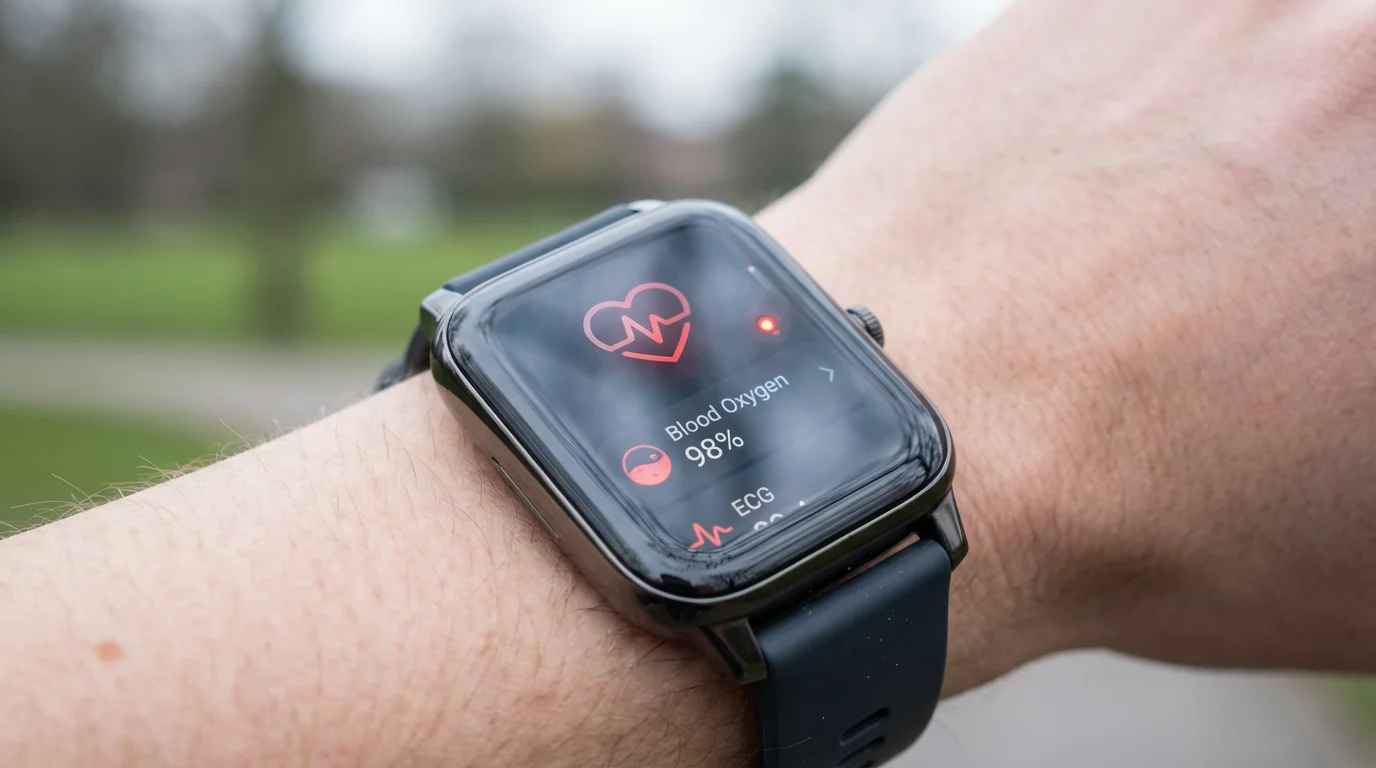
- Blood Oxygen App: Open the Blood Oxygen app on your watch. Keep your wrist flat and still for 15 seconds. Ensure the watch fits snugly.
- ECG App: Open the ECG app on your watch. Rest your arm on a table, place your finger on the Digital Crown, and hold still for 30 seconds. The app will generate an electrocardiogram and classify your heart rhythm.
- Review results: All readings are saved to the Health app on your iPhone. You can generate a PDF report to share with your doctor.
By regularly using these features, you gain a clearer picture of your health, empowering you to discuss any concerns knowledgeably with your doctor and make informed lifestyle choices.

Understanding Your Health Data: Key Metrics and Insights
Your Apple Watch collects a wealth of health data, but understanding what it all means is key to making it useful. Most of this information lives in the Health app on your iPhone, which acts as a central hub for your well-being metrics.

Accessing Your Data in the Health App
On your iPhone, locate and open the “Health” app (it has a white icon with a pink heart).
- Summary Tab: This is your personalized dashboard. It shows highlights like your daily activity, recent heart rate readings, sleep analysis, and other key trends. You can customize this view to see what matters most to you.
- Browse Tab: Here, you find a comprehensive list of all categories the Health app tracks, from Activity to Vitals. Tap on any category, such as “Heart,” “Activity,” or “Sleep,” to see detailed historical data, trends, and explanations.

Key Metrics and What They Mean for You:
- Heart Rate (BPM – Beats Per Minute):
- Resting Heart Rate: This is your heart rate when you are calm and at rest. A lower resting heart rate often indicates better cardiovascular fitness. Typical resting rates for adults range from 60 to 100 BPM.
- Walking Average: Your average heart rate during walks. This provides insight into your heart’s response to light activity.
- Heart Rate Variability (HRV): This measures the variation in time between your heartbeats. Higher variability can suggest better fitness and stress management.
- High/Low Heart Rate Alerts: If your heart rate goes significantly above or below typical ranges while you appear inactive, your watch can alert you. This can be an early indicator to discuss with your doctor.
- Irregular Rhythm Notifications: These alerts suggest an irregular heart rhythm that could be Atrial Fibrillation (AFib). While not a diagnosis, it is a strong recommendation to seek medical consultation. Research indicates the Apple Watch can accurately detect AFib in many cases, prompting individuals to consult their doctors for a definitive diagnosis.
- Activity Data:
- Move (Active Calories): Represents calories burned during physical activity. Increasing this number helps with weight management and overall energy.
- Exercise (Minutes): Time spent in brisk activity. Aim for at least 30 minutes most days, as recommended by health organizations for maintaining cardiovascular health.
- Stand (Hours): Measures how often you stand up and move around each hour. Reducing sedentary time is vital for preventing various health issues.
- Sleep Data:
- Time Asleep: The total duration you slept. Consistent sleep duration is crucial for cognitive function and overall well-being. Adults typically need 7-9 hours of sleep.
- Sleep Stages: Newer Apple Watch models can differentiate between sleep stages (awake, REM, Core, Deep). Understanding these stages can help you identify patterns that affect your energy levels.
- Blood Oxygen (SpO2): Measures the percentage of oxygen your red blood cells carry from your lungs to the rest of your body. A healthy range is generally 95-100%. Lower levels might indicate a respiratory issue and warrant a doctor’s visit.
- ECG (Electrocardiogram): Provides a single-lead ECG that can classify your heart rhythm as Sinus Rhythm (normal), Atrial Fibrillation, or Inconclusive. This is a snapshot and not a comprehensive medical ECG, but it can offer valuable information for your physician.
The beauty of the Health app is its ability to present this complex data in easy-to-understand graphs and summaries. You gain insights into patterns over days, weeks, or months, helping you and your doctor make more informed health decisions. Remember, your Apple Watch is a tool for awareness, not a substitute for professional medical advice or diagnosis. Always consult your doctor with any health concerns.

Privacy and Security Considerations for Your Health Data
When you use a device that collects personal health information, it is natural to think about privacy and security. Apple takes these concerns seriously, and you have significant control over your data.

How Your Data Is Protected:
- Encryption: Your health and fitness data collected by your Apple Watch is encrypted on your iPhone. When you back up your iPhone to iCloud, your health data is encrypted as well, ensuring its confidentiality. If you back up to your computer, ensure the backup is encrypted with a password.
- On-Device Processing: Much of the processing for health data happens directly on your Apple Watch and iPhone. This minimizes the need to send sensitive information to external servers.
- Apple’s Stance: Apple has a strong privacy policy, stating they do not sell your data to third parties. They emphasize that your health data is yours.

What You Control:
- Sharing with Third-Party Apps: You decide which, if any, third-party apps can access your health data. When an app requests access, it explicitly asks for your permission for specific categories of data (e.g., activity, heart rate). You can grant or revoke these permissions at any time through the Health app on your iPhone (tap your profile picture in the top right, then “Apps”).
- Medical ID: You create your Medical ID in the Health app. This feature allows first responders to access critical medical information from your iPhone or Apple Watch Lock screen without needing your passcode. You control what information is included in your Medical ID, such as allergies, medical conditions, and emergency contacts.
- Research Participation: Apple occasionally offers opportunities to participate in health studies. You have full control over whether to opt in, and you can withdraw at any time.
- Emergency Contacts: You manually add your emergency contacts. The watch only notifies them in case of an Emergency SOS activation or a detected fall where you are unresponsive.

Best Practices for Protecting Your Data:
- Use a Strong Passcode: Always set a passcode for your Apple Watch. This prevents unauthorized access if your watch is lost or stolen.
- Keep Your iPhone Secure: Since your watch syncs with your iPhone, ensuring your iPhone has a strong passcode or Face ID/Touch ID enabled is paramount.
- Review App Permissions: Periodically check which apps have access to your Health data in the Health app settings. Remove access for any apps you no longer use or trust.
- Update Your Software: Regularly update your Apple Watch and iPhone software. Updates often include critical security enhancements.
Your health data is personal. Apple provides robust tools to keep it private, but your choices about passcodes and app permissions are crucial for maintaining its security. By being mindful of these settings, you empower yourself to use your Apple Watch for health tracking with confidence.
Common Problems and Solutions When Using Your Apple Watch
Even with user-friendly technology like the Apple Watch, you might encounter a few hiccups. Here are some common issues and straightforward solutions to help you troubleshoot.
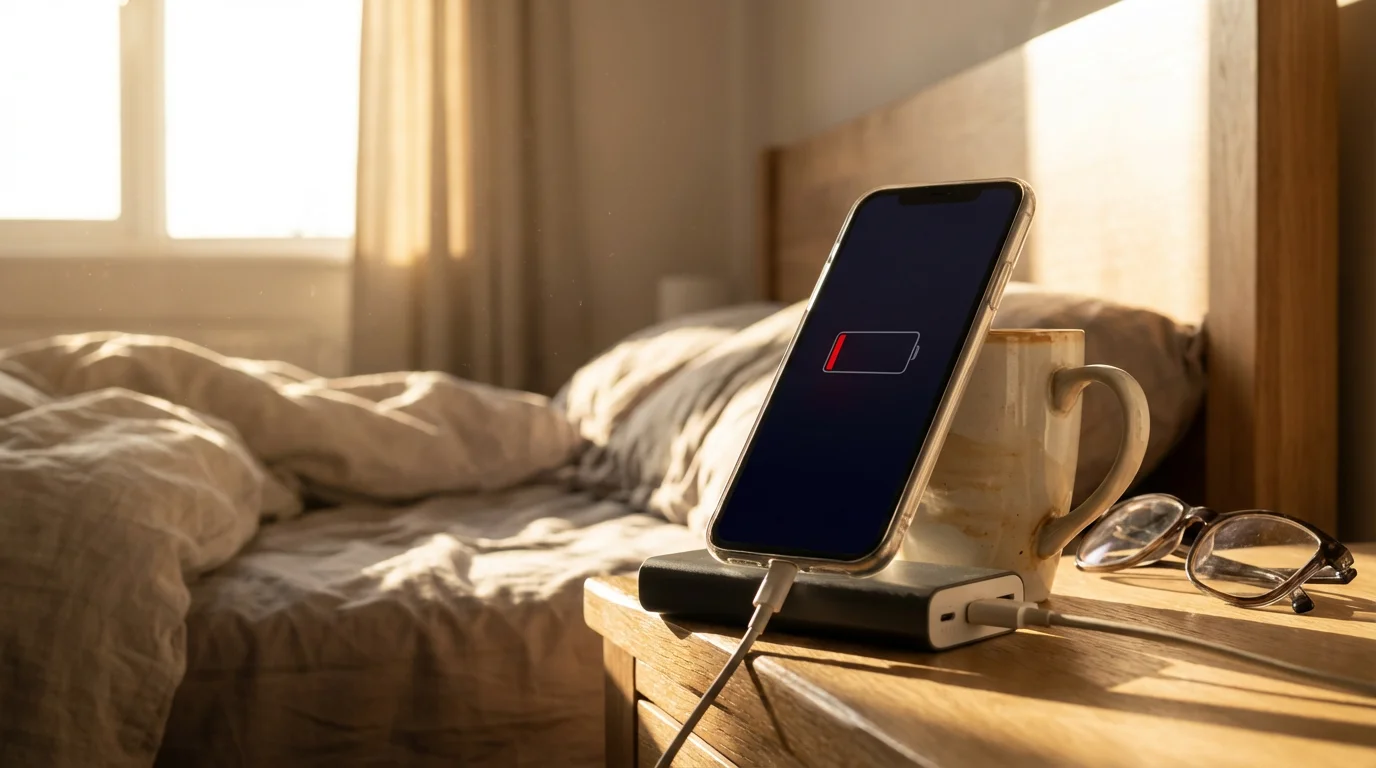
1. Battery Drains Too Quickly
Problem: Your watch battery does not last through the day, or it seems to die faster than it should.
Solutions:
- Check for excessive background activity: Some apps may run in the background more than necessary. On your iPhone, open the Watch app, go to “General,” then “Background App Refresh.” Turn off refresh for apps you do not need constant updates from.
- Manage notifications: Too many notifications can wake the screen frequently. In the Watch app on your iPhone, go to “Notifications” and customize which apps can send alerts to your watch.
- Reduce screen brightness: On your watch, go to “Settings,” then “Display & Brightness,” and lower the brightness.
- Turn off “Always On” display: If your watch has this feature, it can consume more power. Go to “Settings,” then “Display & Brightness,” and toggle off “Always On.”
- Restart your watch and iPhone: A simple restart can often resolve minor software glitches affecting battery life.

2. Heart Rate or Activity Readings Seem Inaccurate
Problem: Your watch is not consistently tracking your heart rate, or your activity rings are not reflecting your actual movement.
Solutions:
- Ensure a snug fit: The watch needs to be snug but comfortable on your wrist to get accurate sensor readings. If it is too loose, it cannot read your pulse correctly.
- Clean the back of the watch: Dirt or sweat on the optical heart sensor can interfere with readings. Wipe the back of your watch with a soft, lint-free cloth.
- Check wrist placement: Wear the watch on top of your wrist, above the wrist bone.
- Update your personal information: Make sure your age, height, weight, and gender are accurate in the Health app on your iPhone (tap your profile picture in the top right, then “Health Details”). These details are crucial for calorie and distance calculations.
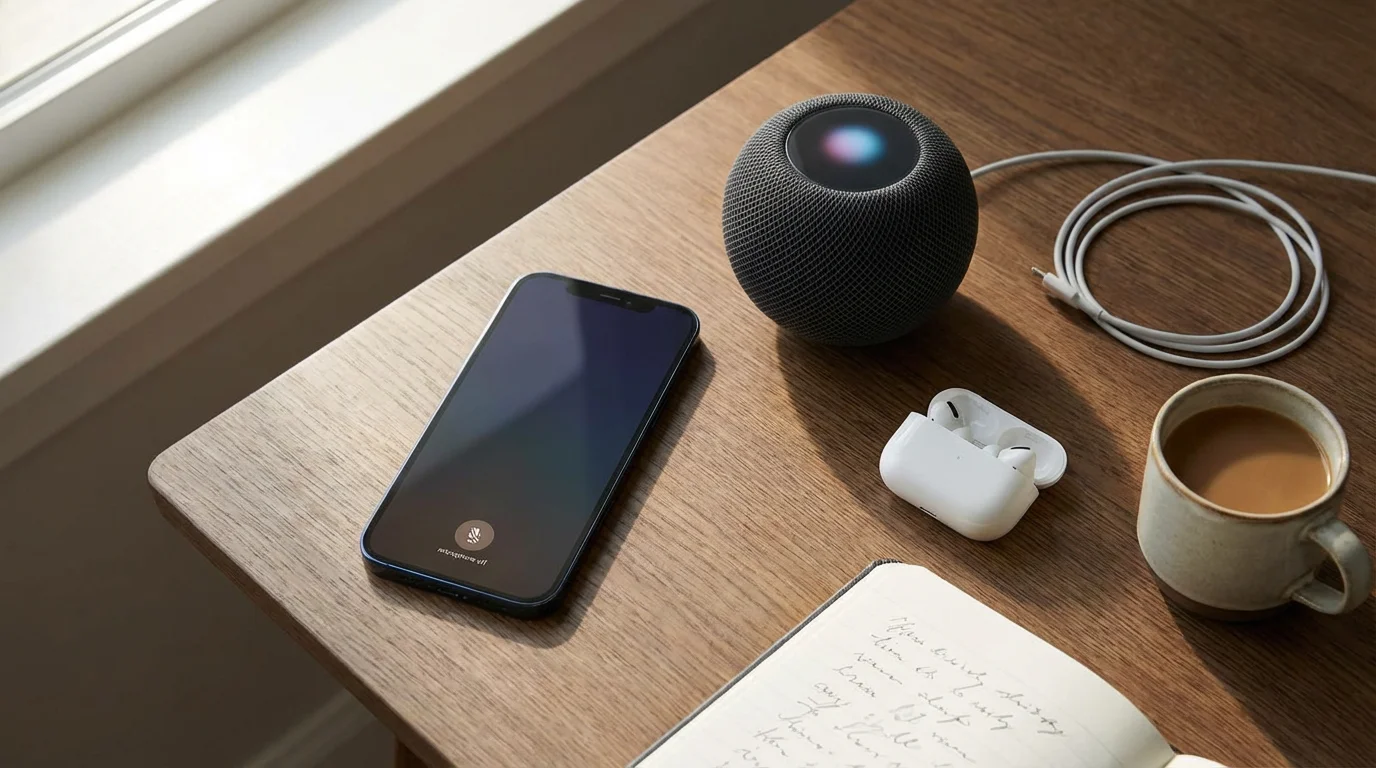
3. “Hey Siri” Not Working
Problem: You say “Hey Siri” but the voice assistant does not respond.
Solutions:
- Check Siri settings: On your iPhone, open the Watch app, go to “Siri,” and make sure “Listen for Hey Siri” is enabled. Also, ensure “Raise to Speak” is on if you want to speak to Siri by raising your wrist.
- Speak clearly: Speak directly into the watch, clearly and at a normal volume.
- Check internet connection: Siri requires an internet connection (via your iPhone’s Wi-Fi or cellular, or your watch’s cellular if applicable) to function.
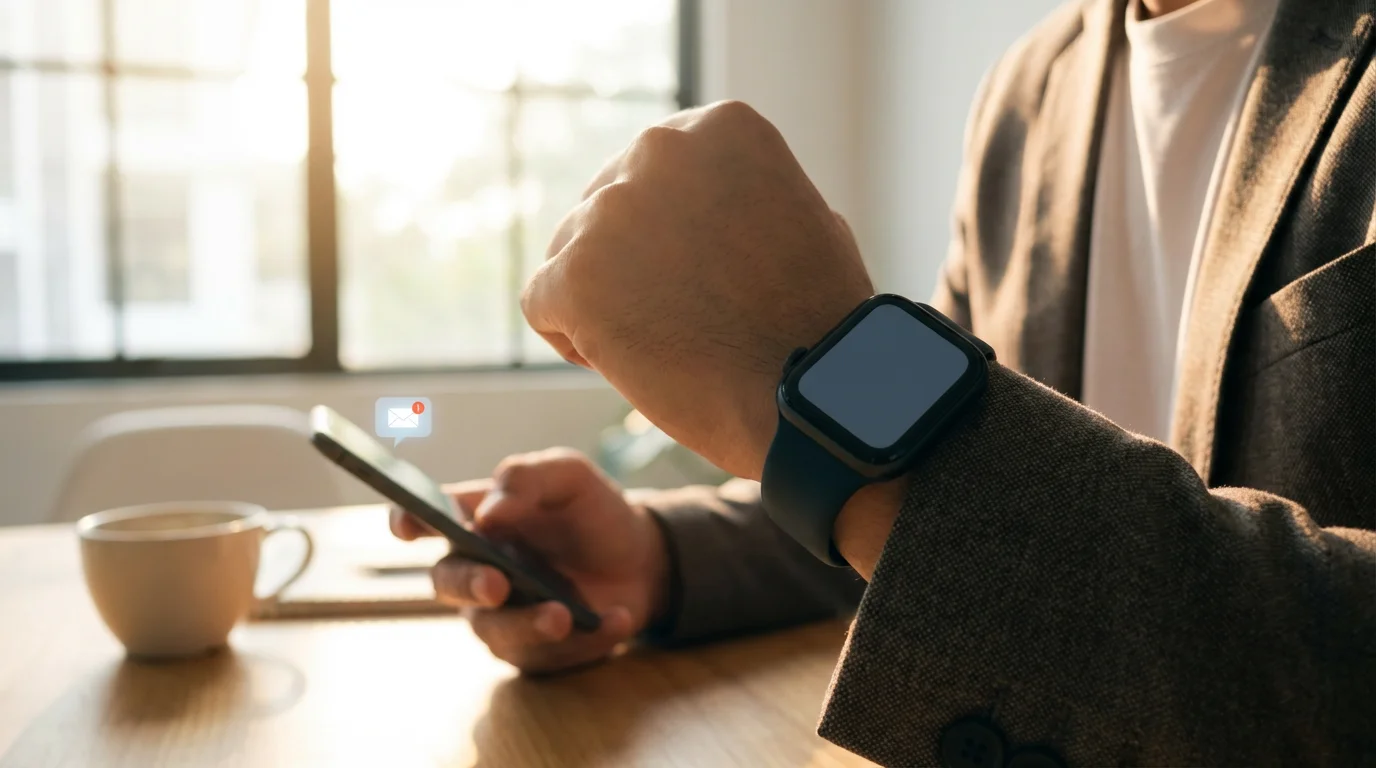
4. Notifications Not Appearing on Watch
Problem: You receive notifications on your iPhone, but they do not show up on your Apple Watch.
Solutions:
- Check “Do Not Disturb” and “Focus” modes: Ensure your watch is not in Do Not Disturb mode or a Focus mode that silences notifications. Swipe up from the watch face to open Control Center and check the moon icon.
- Verify notification settings: On your iPhone, open the Watch app, then “Notifications.” Ensure notifications are enabled for the specific apps you want to see on your watch. Also, make sure “Mirror my iPhone” is selected for apps where you want identical alerts.
- Make sure your iPhone is locked: If your iPhone is unlocked and in active use, notifications will usually go to your phone, not your watch. This is by design.
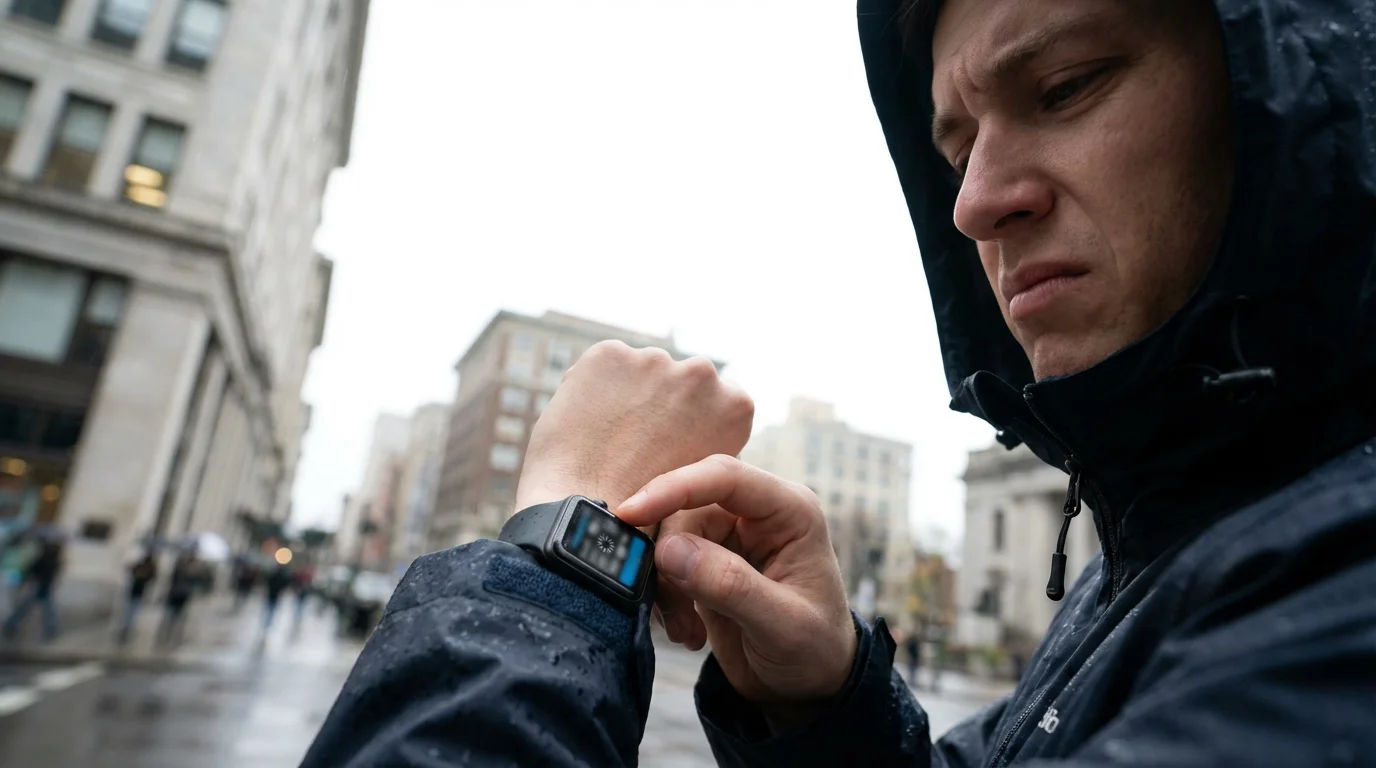
5. Screen Not Responding or Watch Frozen
Problem: The watch screen is unresponsive, or an app is frozen.
Solution:
- Force Restart: Press and hold both the side button and the Digital Crown simultaneously for about 10 seconds, until you see the Apple logo. This forces the watch to restart without affecting your data.
Many common issues can be resolved with a simple restart or by checking your settings. If a problem persists, visiting Apple Support online can provide more detailed troubleshooting guides.

Cost of an Apple Watch and Ongoing Expenses
Understanding the financial commitment for an Apple Watch involves both the upfront purchase price and any potential ongoing costs. The price varies significantly based on the model, features, and whether you choose a cellular version.

Upfront Purchase Cost:
Apple offers several models, catering to different budgets and needs:
- Apple Watch SE: This is the most affordable option, typically starting around $249-$279. It provides excellent core health and safety features, including fall detection, heart rate monitoring, and activity tracking. It is a fantastic entry point for most seniors.
- Apple Watch Series (e.g., Series 9): These models offer more advanced features like the Blood Oxygen app, ECG app, and an “Always On” display. Prices for these models usually start around $399-$429, increasing with larger screen sizes or premium materials.
- Apple Watch Ultra: This is Apple’s most robust and feature-rich watch, designed for extreme sports and outdoor adventures. It features a larger, brighter display, an extra action button, and significantly longer battery life. Its price starts around $799. Most seniors do not need the advanced capabilities of the Ultra unless they have specific, demanding requirements.
Prices can fluctuate, and you might find sales from authorized retailers. Buying directly from Apple or a reputable store like Best Buy, Target, or your cellular carrier ensures you receive genuine products and good customer support. Look for previous generation models of the Apple Watch SE or Series lineup. These older models still offer robust health tracking features at a lower price point. Often, these models go on sale when new ones are released, making them an excellent value.

Ongoing Expenses:
For most users, there are no mandatory ongoing monthly fees directly associated with the Apple Watch itself for its core health tracking functions.
- No Subscription for Basic Health Features: You do not need a subscription to use the Activity rings, heart rate monitor, fall detection, Emergency SOS, sleep tracking, or the Medications app. These features work right out of the box with your iPhone.
- Optional Cellular Plan: If you purchase an Apple Watch with cellular capabilities (which costs about $50 more upfront), you can choose to add it to your existing iPhone cellular plan. This typically costs an additional $10-$15 per month. With cellular service, your watch can make calls, send messages, and stream music even if your iPhone is not nearby. For safety features like Emergency SOS, a cellular-enabled watch provides an extra layer of independence, allowing you to call for help even if you leave your phone at home. However, if your iPhone is always with you, a Wi-Fi only model is sufficient.
- AppleCare+ (Optional): Like with an iPhone, you can purchase AppleCare+, an extended warranty and accidental damage protection plan. This costs an additional fee, typically around $4-$5 per month or a one-time payment for two years of coverage, depending on the watch model. It provides peace of mind against drops or other damage.
For many seniors, the Apple Watch SE (GPS only, no cellular) offers the best balance of essential health and safety features at an accessible price, with no ongoing monthly costs beyond your existing iPhone plan. Assess your personal needs and budget to determine the best model for you. Always check current pricing and details before making a purchase decision.
Frequently Asked Questions
Is the Apple Watch always listening to me?
No, the Apple Watch is not always listening to everything you say and recording it. It primarily listens for the “Hey Siri” command. When you say “Hey Siri,” the watch processes that command on the device or sends a snippet to Apple’s servers to understand your request. If “Hey Siri” is off, it only listens when you manually activate Siri by pressing the Digital Crown. You have full control over Siri settings in the Watch app on your iPhone.
Do I need to pay a monthly fee to use the Apple Watch for health tracking?
No, you do not need to pay a monthly fee for the core health tracking features of the Apple Watch. Features like activity tracking, heart rate monitoring, fall detection, Emergency SOS, and sleep tracking work without any additional subscription. A monthly fee, typically around $10-$15, is only required if you choose an Apple Watch model with cellular capabilities and activate that service through your mobile carrier. This allows your watch to make calls and use data independently of your iPhone, but it is entirely optional.
Is the Apple Watch waterproof?
The Apple Watch is water resistant, not entirely waterproof. This means you can wear it while swimming, showering, or in the rain without worry. It is generally water resistant up to 50 meters. You should avoid using it for scuba diving or high-velocity water sports, and Apple recommends avoiding direct exposure to soaps, shampoos, and lotions, which can affect the seals over time. You can use Water Lock mode before swimming, which prevents accidental screen touches and ejects water from the speaker when turned off.
How long does the Apple Watch battery typically last?
Most Apple Watch models (SE, Series) offer approximately 18 hours of battery life on a single charge with typical usage, meaning you will likely need to charge it daily, often overnight. If you use features like GPS tracking for long workouts, cellular calls, or the “Always On” display frequently, the battery may drain faster. The Apple Watch Ultra offers significantly longer battery life, typically up to 36 hours. To maximize battery life, you can adjust settings like screen brightness and background app refresh.
Can the Apple Watch replace visits to my doctor or medical equipment?
The Apple Watch is a powerful health and fitness tool, but it is not a medical device designed to diagnose conditions or replace professional medical advice. While it provides valuable insights into your heart rate, activity levels, and can detect potential issues like irregular rhythms or falls, these are meant to be prompts for discussion with your doctor, not definitive diagnoses. Always consult your healthcare provider for any medical concerns or before making changes to your health regimen.
The Apple Watch offers a remarkable blend of convenience, motivation, and vital safety features that can truly enhance your daily life and provide peace of mind for both you and your family. By understanding its capabilities and how to use them, you gain a valuable tool in managing your health proactively. It empowers you with information, encourages activity, and offers a discreet safety net. Consider your needs, explore the options, and take a step towards integrating smart technology for a healthier, more connected future.
Disclaimer: This article is for informational purposes only. Product features and prices change frequently. Always check current specifications and reviews before purchasing. We recommend buying from authorized retailers with good return policies.






Leave a Reply