

Do you ever miss an important appointment? Perhaps you forget a loved one’s birthday or misplace a note about a medication refill. Remembering every important date, from doctor visits to family gatherings, feels like a constant challenge. But what if a simple, free tool could keep track of it all for you, even sending you reminders?
To capture quick thoughts on the go, you might also find using voice memos to be a helpful addition to your digital routine.
Google Calendar is that powerful tool. It acts as your personal digital assistant, meticulously organizing your schedule and ensuring you never miss a beat. You can use it on your smartphone, tablet, or computer, keeping your schedule perfectly synchronized wherever you are. This guide will walk you through setting up and using Google Calendar, transforming how you manage your daily life and helping you stay connected to what matters most.
Let’s make remembering effortless.
Table of Contents
- What Google Calendar Does for You
- Getting Google Calendar on Your Devices
- Creating or Signing Into Your Google Account
- Creating Your First Event and Setting Reminders
- Managing Your Schedule and Different Views
- Advanced Tips to Master Your Digital Calendar
- Syncing Across Devices and Staying Organized
- Frequently Asked Questions
- Troubleshooting Common Google Calendar Issues
What Google Calendar Does for You
Google Calendar is a free schedule app from Google. Think of it as your traditional paper planner, but with significant upgrades. Instead of flipping through pages, you see your entire week or month at a glance on your screen. Instead of crossing out rescheduled appointments, you simply drag and drop them to a new time. Most importantly, it gives you reminders.
For a hands-free experience, you can also set up a Google Nest to hear your daily schedule read aloud.
Since many appointments require travel, you can also learn how to use Google Maps to find directions to your next event.
Here’s how Google Calendar significantly improves your ability to remember important dates:
- Centralized Schedule: Keep all appointments, birthdays, and tasks in one place. No more scattered notes or multiple calendars.
- Reliable Reminders: Set up reminders that notify you before an event. You choose how you receive them, whether through a pop-up on your device, an email, or both. For example, a study showed that proactive reminders can significantly improve medication adherence, reducing missed doses by up to 50 percent in some groups. While Google Calendar doesn’t manage medication directly, its reminder function applies to any important task.
- Easy Editing: Change event times, locations, or details in seconds. No messy erasing.
- Share with Others: You can share specific events or even your entire calendar with family members or caregivers. This ensures everyone stays informed about shared activities or appointments, reducing miscommunication.
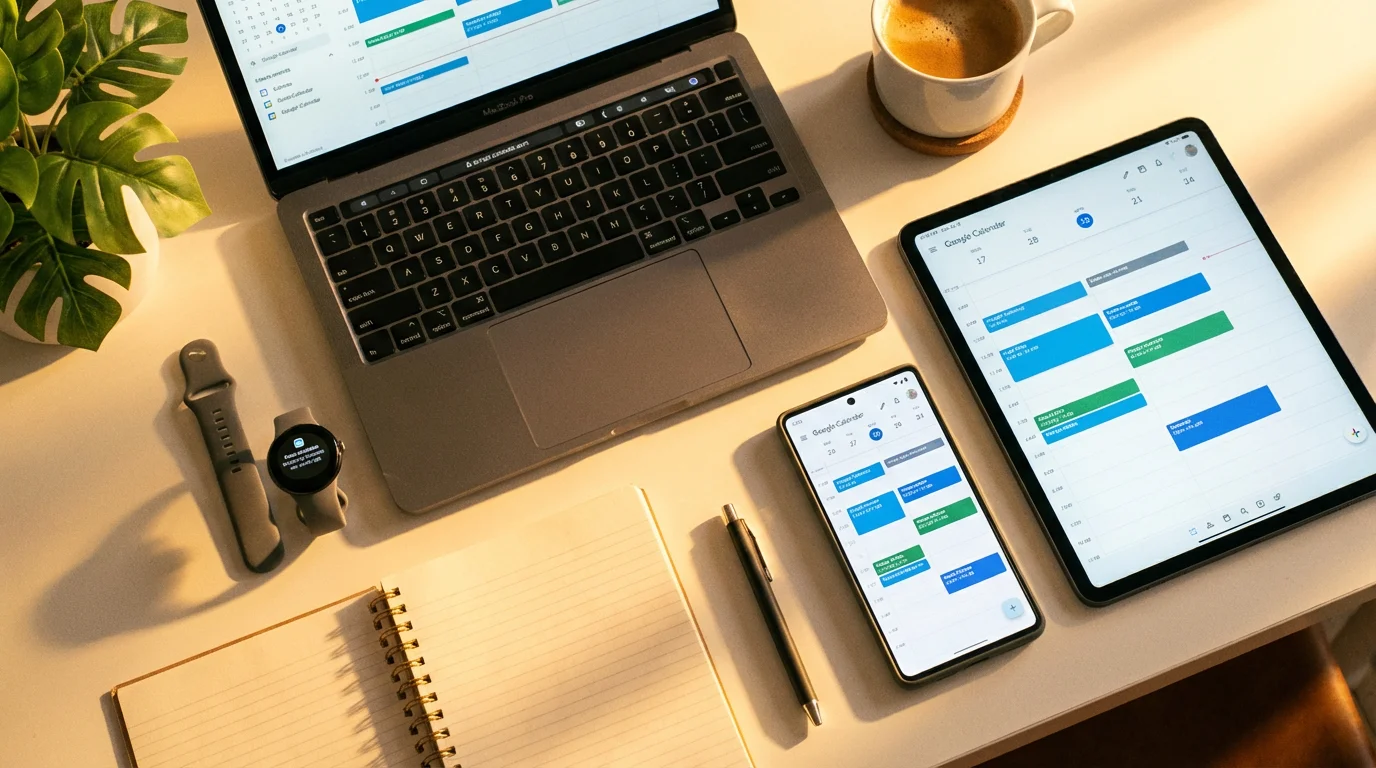
- Access Anywhere: Since it is a digital calendar, you access it from your phone, tablet, or computer. Your schedule is always up-to-date and available.
- Recurring Events: Set up events that happen regularly, such as a weekly bridge game or an annual check-up, to repeat automatically. You only enter them once.
Many people find digital calendars initially intimidating. Remember, Google Calendar is designed to simplify your life, not complicate it. We will take each step slowly, building your confidence as you go. You are learning a valuable skill that will reduce stress and keep you on track.
Getting Google Calendar on Your Devices
Google Calendar comes built into many Android devices. For other devices, you download and install the app, meaning you get the program from an app store and set it up so it is ready to use. This process is straightforward.

For Apple iPhone or iPad (iOS Devices):
1. Find the App Store: Look for an icon on your home screen that looks like a blue square with a white “A” in the middle. Tap it. This is the App Store, where you find all your apps.
2. Search for Google Calendar:
- At the bottom of the App Store screen, you will see several options. Tap the “Search” icon, which often looks like a magnifying glass.
- A search bar appears at the top. Tap into it and type “Google Calendar.”
- Press the “Search” button on your keyboard.
3. Select and Download:
- You will see a list of results. Look for “Google Calendar” by “Google LLC.” It usually has a distinct icon with the number “31” or a calendar grid on it.
- Next to the app’s name, you will see a button that says “GET” or a cloud icon with an arrow pointing down. Tap this button.
- Your device might ask you to confirm with your Apple ID password, Face ID, or Touch ID. Provide the requested information.
4. Open the App: Once the download finishes, the “GET” button changes to “OPEN.” Tap “OPEN” to launch Google Calendar. You will also find the new Google Calendar icon on your home screen.
For Android Phones or Tablets (Google Play Store):
1. Find the Google Play Store: Look for an icon on your home screen that looks like a colorful triangle. Tap it. This is the Google Play Store.
2. Search for Google Calendar:
- At the top of the Google Play Store screen, you will see a search bar that says “Search for apps & games.” Tap into it.
- Type “Google Calendar” and then tap the magnifying glass icon or “Search” button on your keyboard.
3. Select and Install:
- Find “Google Calendar” by “Google LLC” in the search results.
- Tap on the app listing.
- You will see a green “Install” button. Tap it.
4. Open the App: Once the download and installation complete, the “Install” button changes to “Open.” Tap “Open” to launch Google Calendar. The app icon also appears on your home screen.

For Your Computer (Web Browser):
You do not need to download or install anything on your computer. Google Calendar works directly in your web browser. Follow these steps:
1. Open Your Web Browser: Launch your preferred internet browser, such as Chrome, Firefox, Safari, or Edge.
2. Go to the Google Calendar Website: In the address bar at the top of the browser window (where you usually type website names), type calendar.google.com and press Enter.
3. Sign In: If you are not already signed into a Google account, the page will prompt you to do so. We will cover this next.

Creating or Signing Into Your Google Account
To use Google Calendar, you need a Google account. This is your personal login with a username and password that connects you to all Google services, including Gmail, YouTube, and Calendar. If you already have a Gmail address, you already have a Google account.

If You Already Have a Google Account (e.g., a Gmail address):
1. Open Google Calendar: Launch the Google Calendar app on your phone/tablet or go to calendar.google.com on your computer.
2. Sign In:
- The app or website will ask you to sign in. Enter your Gmail address (your Google account username). Tap “Next.”
- Enter your password. Tap “Next.”
- If prompted, you might need to verify your identity, for example, by tapping “Yes” on another device you have signed into or entering a code sent to your phone.
Once you sign in, Google Calendar should automatically load, showing you a blank calendar or any existing events.

If You Need to Create a New Google Account:
1. Start Account Creation:
- Open the Google Calendar app or go to calendar.google.com.
- When prompted to sign in, look for an option like “Create account” or “Use another account” and then “Create account.”
- Choose “For my personal use” when asked.
2. Enter Your Information:
- Follow the on-screen prompts to enter your first name, last name, and birth date.
- Choose a username (this will be your new Gmail address, for example, johnsmith123@gmail.com). Google will suggest options if your chosen one is unavailable.
- Create a strong password. This password needs to be something you remember but difficult for others to guess. Use a mix of uppercase and lowercase letters, numbers, and symbols. Write it down in a secure place if you need to.
3. Add Recovery Information (Highly Recommended):
- Google will ask for a phone number or an existing email address for account recovery. This helps you get back into your account if you forget your password. Providing this information is crucial for your account’s security.
- Review the privacy and terms agreements. Read them carefully, then tap “I agree.”
Google will then create your account and sign you into Google Calendar. Remember your new Gmail address and password, as you will use them for all Google services.
Creating Your First Event and Setting Reminders
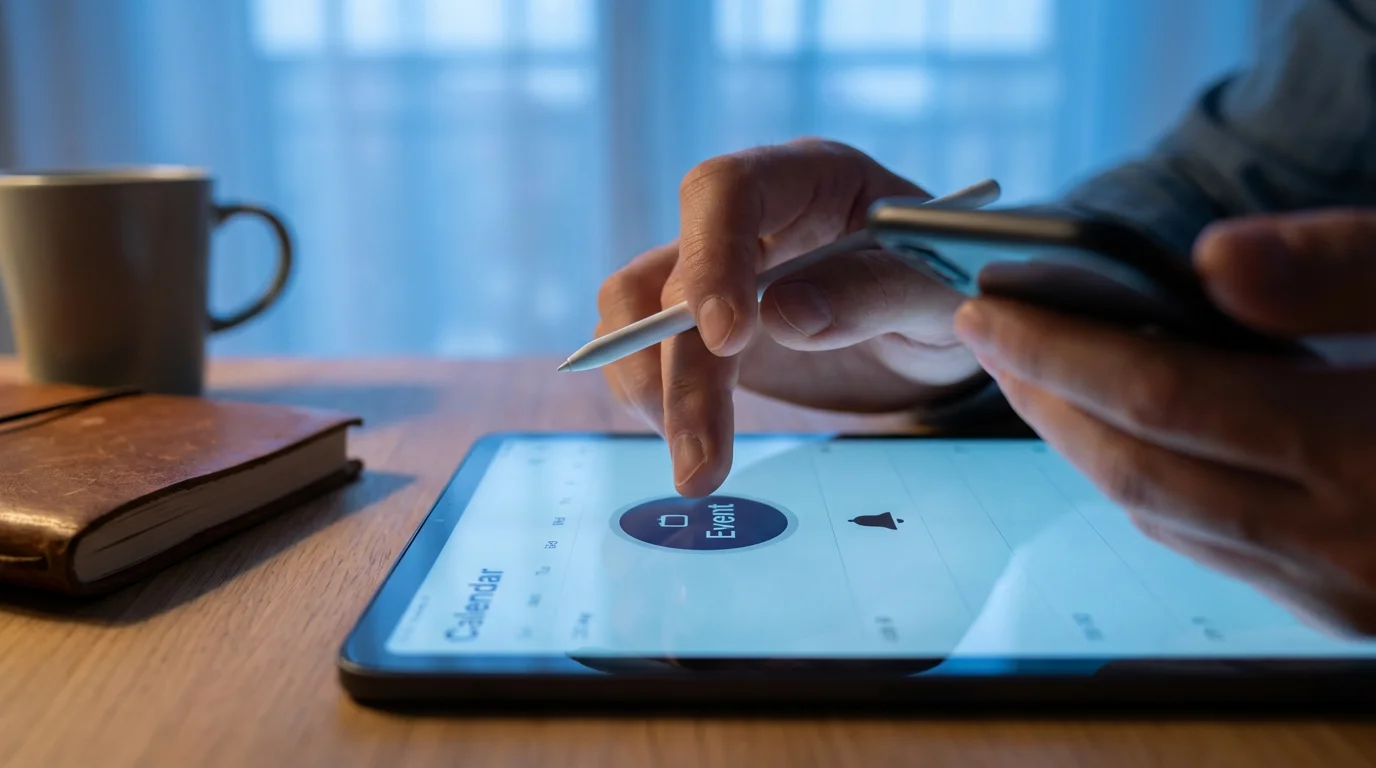
Now that you have Google Calendar ready, let’s add your first important date. You create an event for anything on your schedule: an appointment, a birthday, a bill due date, or a personal goal. This is where the magic of remembering begins with your digital calendar guide.
It is helpful to know how to add contacts to your phone so you can easily invite friends and family to your new events.
Creating an Event on Phone/Tablet:
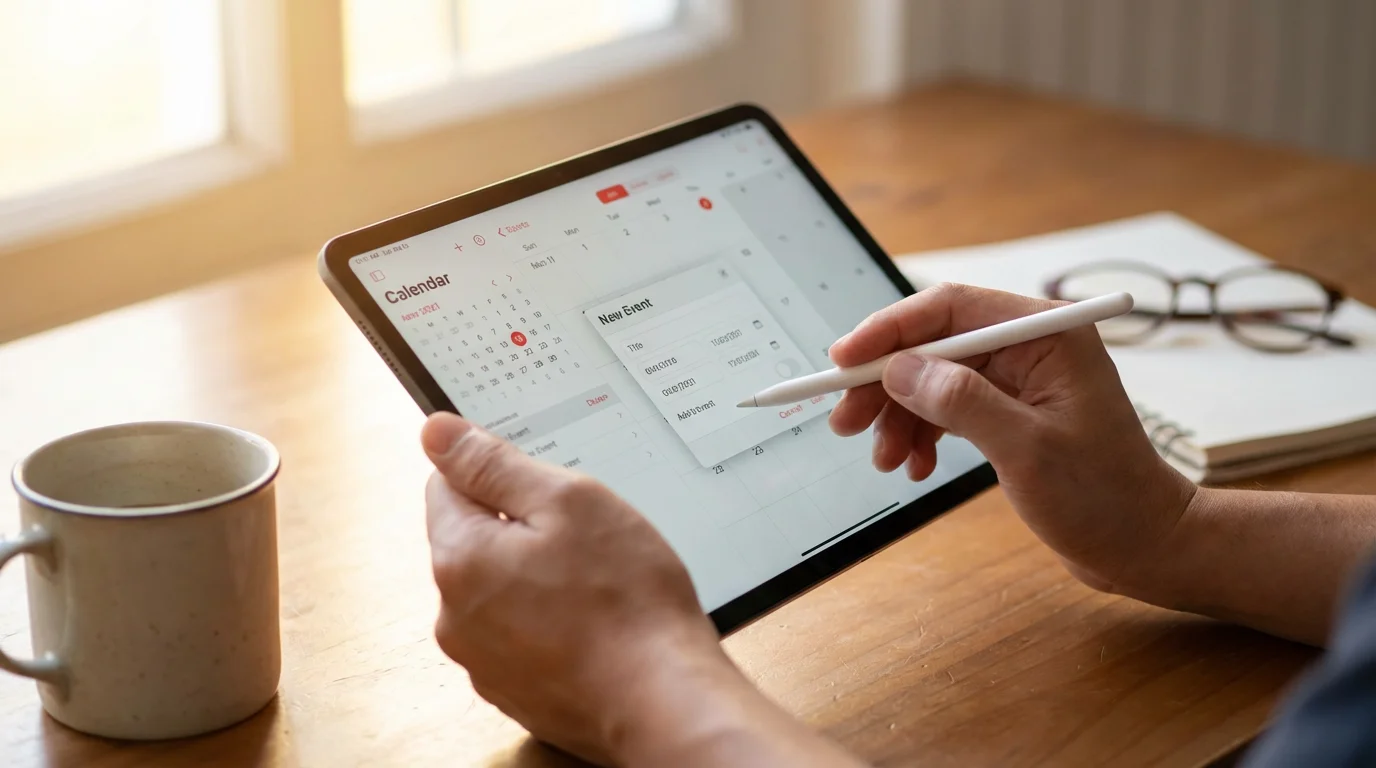
1. Tap the “+” Button: Open the Google Calendar app. Look for a colorful plus sign (“+”) button, usually in the bottom-right corner of the screen. Tap it.
2. Choose “Event”: A menu appears. Tap “Event.”
3. Enter Event Details:
- Title: Tap “Add title” and type a clear name for your event. For example, “Dentist Appointment,” “Mom’s Birthday,” or “Pay Electric Bill.”
- Date and Time:
- Tap the date and time shown (e.g., “Today, 9 AM – 10 AM”).
- Select the correct start date and time. Then select the end date and time. Tap “Done” or “OK.”
- For an all-day event (like a birthday), toggle the “All-day” switch to “On.” This removes specific times.
- Add Location: Tap “Add location” if the event has a physical place, like a doctor’s office address or a restaurant. You can type in the address, and Google Calendar can help with directions later.
- Add Description: Tap “Add description” to add any notes, such as “Bring insurance card,” “Gift ideas,” or “Account number.”
4. Set Reminders: This is a key step for reminders.
- Scroll down and tap “Add notification.”
- By default, it often suggests a 30-minute reminder. Tap on this to change it.
- You can choose how far in advance you want the reminder: 5 minutes, 15 minutes, 1 hour, 1 day, etc.
- You can add multiple reminders. For instance, set one for “1 day before” and another for “1 hour before.” Tap “Add notification” again to add another.
- You can also change the reminder type to “Email” if you prefer an email alert.
5. Save Your Event: Tap the “Save” button, usually found in the top-right corner of the screen. Your event now appears on your calendar.

Creating an Event on Computer (Web Browser):
1. Click “Create”: Go to calendar.google.com. Look for a colorful “Create” button on the left side of the screen. Click it.
2. Choose “Event”: A small window or panel appears. Ensure “Event” is selected.
3. Enter Event Details:
- Add title: Type the name of your event.
- Date and Time:
- Click on the date and time fields. A calendar and time selector will appear.
- Choose your start date and time, then your end date and time.
- Check the “All day” box if it is an all-day event.
- Add guests: You can invite others to your event by typing their email addresses. They will receive an invitation and can add it to their own Google Calendar.
- Add location: Type in the address or name of the place.
- Add description: Add any relevant notes.
4. Set Reminders:
- Look for the “Add notification” section, usually under the date and time.
- The default often sets a 30-minute reminder. Click on “30 minutes before” to change the timing (e.g., 1 day, 1 hour, 15 minutes).
- You can add another reminder by clicking “Add notification” again.
- You can also change the reminder type from “Notification” (a pop-up on your device) to “Email.”
5. Save Your Event: Click the blue “Save” button at the bottom of the event creation window. Your event is now on your calendar.
Managing Your Schedule and Different Views
Once you start adding events, you will want to view your schedule in different ways and make changes. Google Calendar offers flexible ways to see your dates.
In addition to organizing your time, learning how to create and manage folders on your computer helps keep your digital documents as tidy as your calendar.

Viewing Your Calendar:
Both on your phone/tablet and computer, you can switch between different views:
- Day View: Shows only one day’s schedule, hour by hour. Useful for busy days.
- Week View: Displays your entire week, showing appointments across seven days. This helps you plan your week.
- Month View: Shows the full month, highlighting days with events. Excellent for an overview and spotting upcoming birthdays or holidays.
- Schedule/Agenda View: Lists all your upcoming events one after another, like a simple list. This view is very popular for quickly seeing what’s next.
To Change Your View (Phone/Tablet):
1. Open the Google Calendar app.
2. Tap the three horizontal lines (menu icon) in the top-left corner.
3. A sidebar appears with view options like “Day,” “Week,” “Month,” and “Schedule.” Tap the one you prefer.
To Change Your View (Computer):
1. Go to calendar.google.com.
2. In the top-right corner, you will see a dropdown menu that says “Month” (or another view). Click it.
3. Select your preferred view from the options: “Day,” “Week,” “Month,” “Year,” “Schedule,” or “4 days.”
Editing or Deleting an Event:
Sometimes plans change, and you need to adjust an event. This is easy to do.
On Phone/Tablet:
1. Tap the event you want to change on your calendar.
2. Tap the pencil icon (edit) in the top-right corner.
3. Make your changes (e.g., adjust time, date, add notes, change reminders).
4. Tap “Save” in the top-right corner.
5. To delete an event, tap the event, then tap the three dots (menu) in the top-right corner, and select “Delete.” Confirm your choice.
On Computer:
1. Click the event you want to change on your calendar.
2. A small window with event details appears. Click the pencil icon (edit event) at the top of this window.
3. Make your changes in the event details panel.
4. Click the “Save” button.
5. To delete an event, click the event, then click the trash can icon (delete event) at the top of the event details window. Confirm your choice.
Advanced Tips to Master Your Digital Calendar
Once you are comfortable with the basics, explore these features to make your Google Calendar even more powerful for remembering important dates.
Color-Coding Your Events:
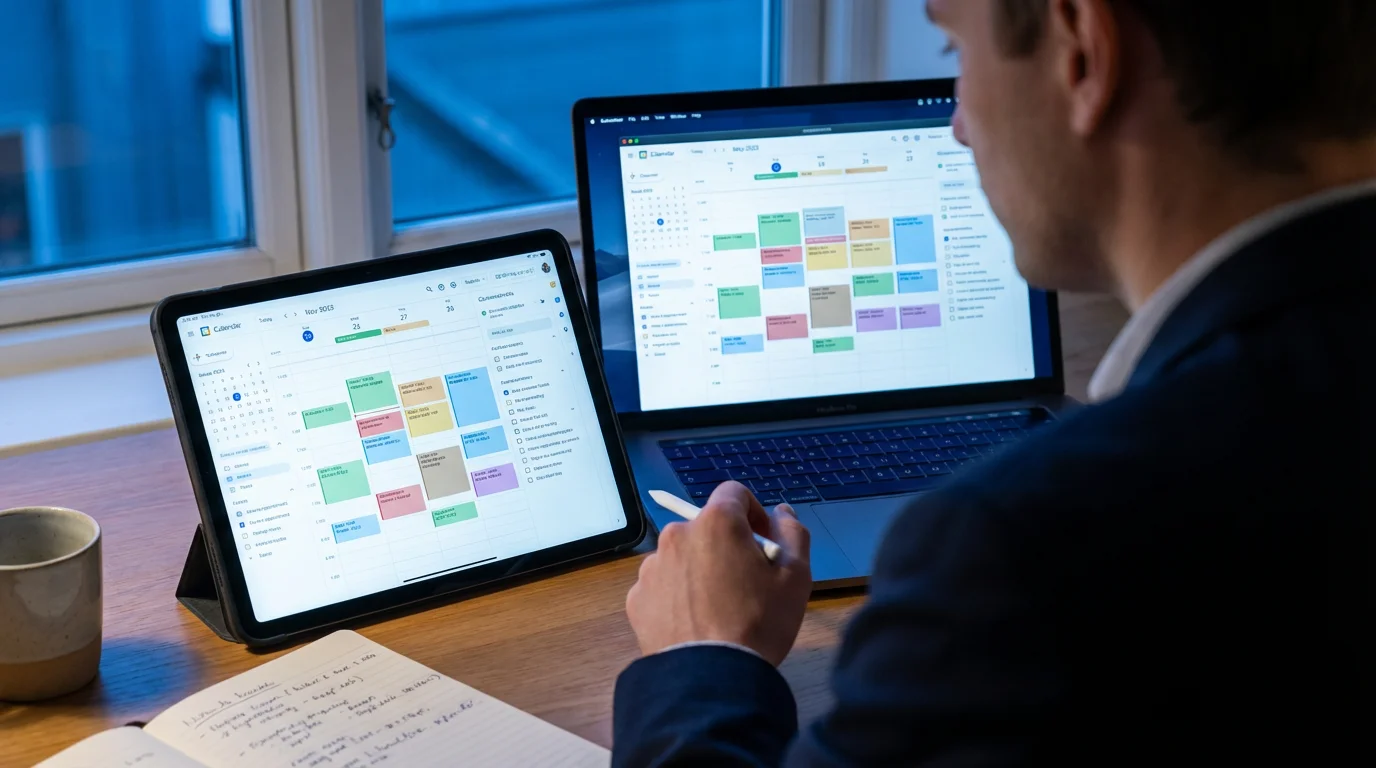
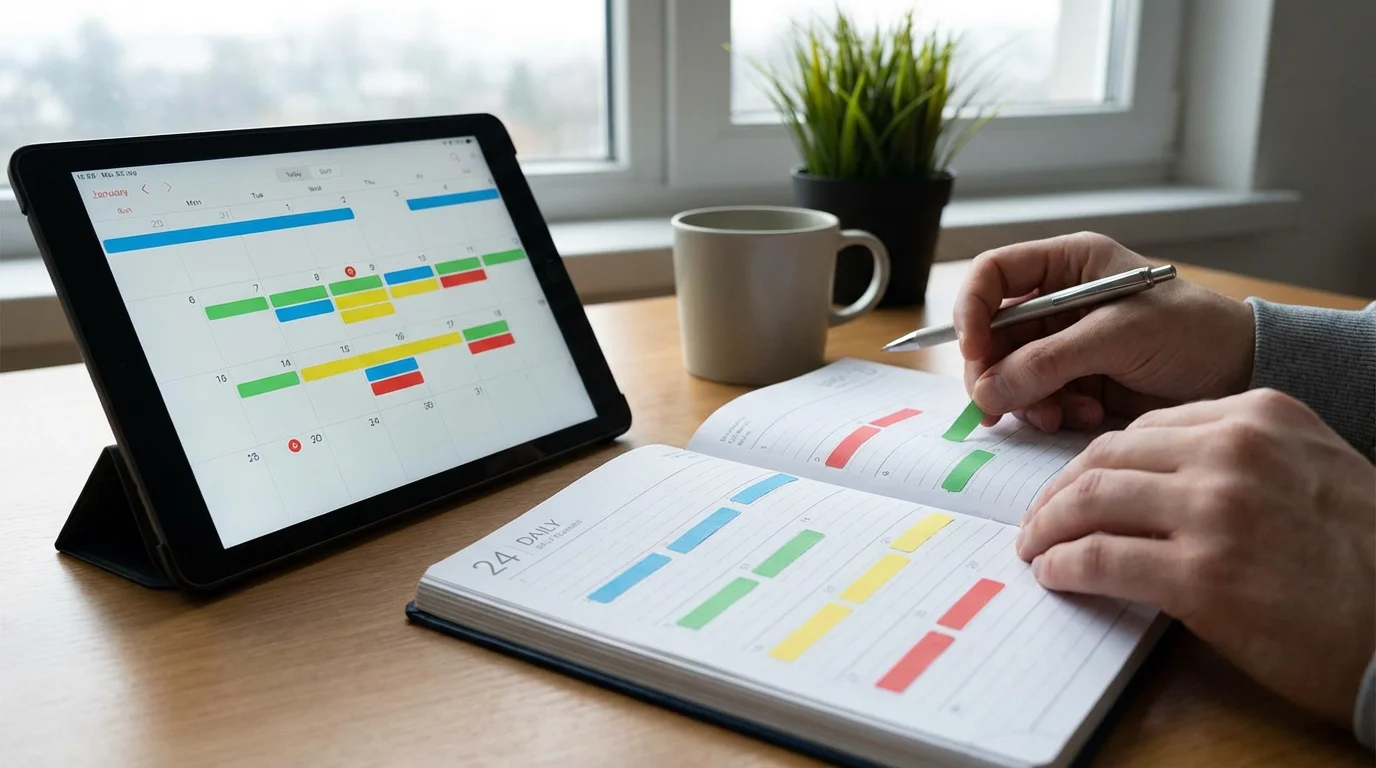
Visual organization makes your calendar easier to scan. Assign different colors to different types of events.
How to do it:
- When creating or editing an event, look for a color circle or “Default color” option.
- Tap or click on it to choose from a palette of colors.
Example: Use blue for medical appointments, green for social events, red for birthdays, and yellow for bill due dates. This helps you instantly understand your schedule just by glancing at the colors.

Setting Up Recurring Events:
Many events happen on a regular basis. You do not need to enter them individually every time.
How to do it:
- When creating or editing an event, look for an option like “Does not repeat” or “More options.”
- Tap or click on it and choose how often the event repeats: “Daily,” “Weekly,” “Monthly,” “Annually,” or “Custom.”
- For a birthday, choose “Annually.” For a weekly phone call with family, choose “Weekly” and select the day of the week.
Google Calendar will automatically add these events to your schedule far into the future.
Adding Guests and Sharing Calendars:
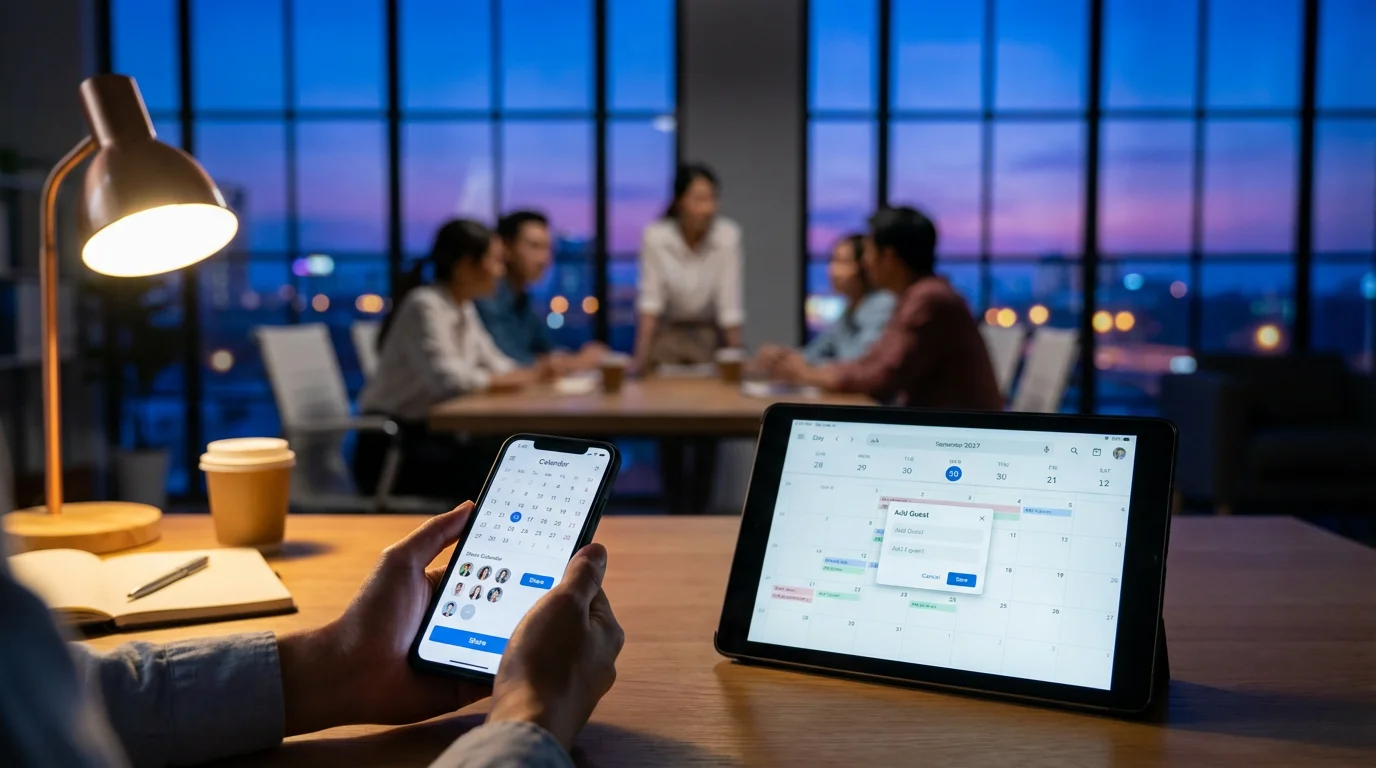
You can invite others to specific events or even share entire calendars with them.
How to do it for an event:
- When creating or editing an event, look for “Add guests.”
- Type the email addresses of the people you want to invite. They will receive an email invitation.
How to share an entire calendar (Computer only):
- On your computer, in the left sidebar, find “My calendars.” Hover over the calendar you want to share (e.g., your main calendar), click the three vertical dots, and choose “Settings and sharing.”
- Scroll down to “Share with specific people” and click “Add people.” Enter their email addresses and choose their permission level (e.g., “See all event details” or “Make changes to events”).
This is invaluable for caregivers, family members coordinating schedules, or planning group activities. For example, if you manage appointments for a loved one, they can see your shared calendar and know what is coming up.
Syncing Across Devices and Staying Organized
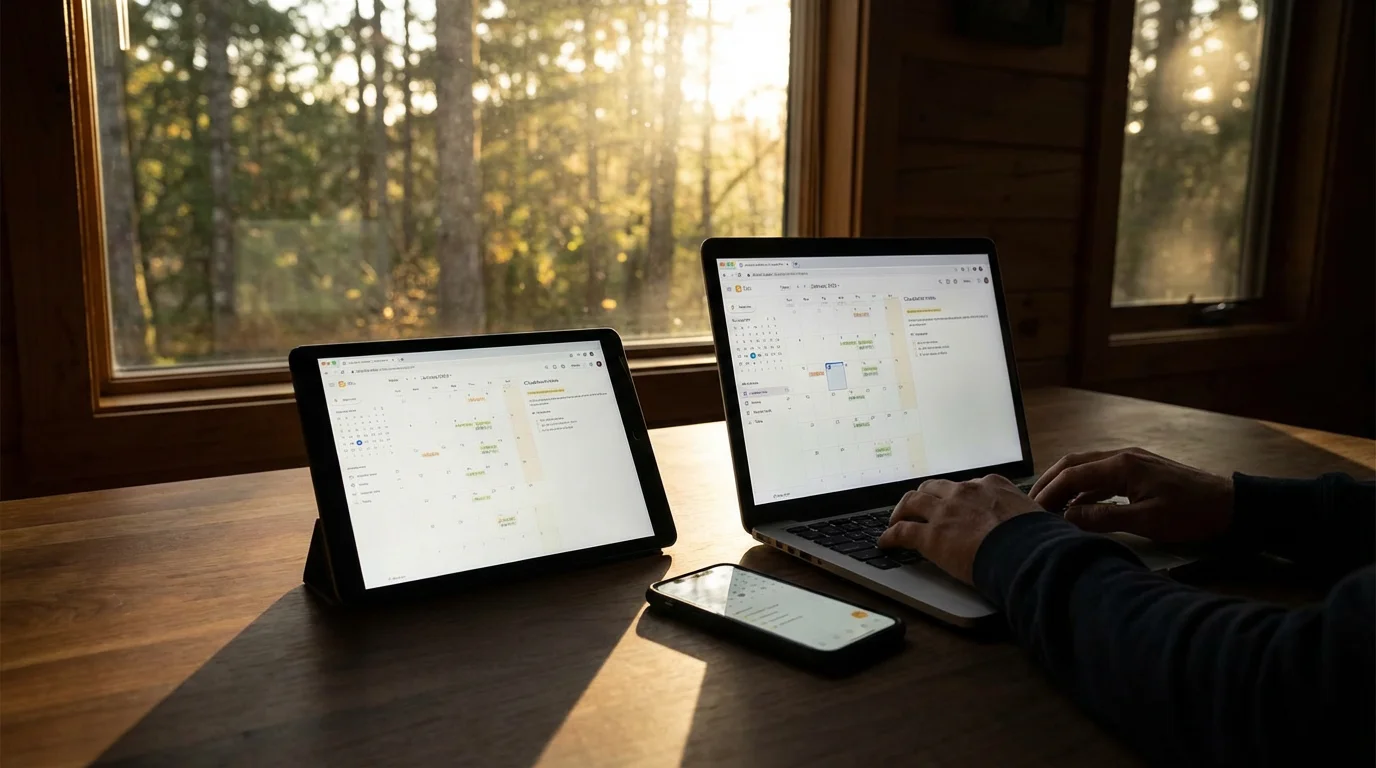
One of the biggest advantages of Google Calendar is its ability to sync across all your devices. This means when you add an event on your phone, it automatically appears on your tablet and computer, and vice versa. “Sync” means that information on different devices matches automatically.

How Syncing Works:
Because Google Calendar is cloud-based, meaning it lives on Google’s powerful internet servers, all your devices connect to the same central calendar. As long as your devices have an internet connection and you are signed into the same Google account on all of them, your calendar stays perfectly up-to-date everywhere.
- No Manual Transfers: You do not need to copy anything from one device to another.
- Always Current: If a doctor’s office calls to reschedule an appointment and you update it on your phone, your computer calendar immediately reflects that change.
- Backup: Your calendar information is stored safely by Google, so if you lose a device, your schedule remains intact and accessible on a new device.
Tips for Keeping Your Google Calendar Organized:
- Be Specific with Titles: Instead of “Doctor,” write “Dr. Smith – Annual Check-up.” This clarifies the event at a glance.
- Use Descriptions: Add all necessary details to the event description. For instance, “Bring new patient forms and insurance card” for an appointment, or “Gift from Amazon” for a birthday.
- Set Multiple Reminders: For very important events, set two reminders: one a day or two in advance and another a few hours before. This creates a safety net for your memory.
- Regularly Review Your Calendar: Take a few minutes each evening or morning to look at the next day or week. This helps you mentally prepare and ensures you have not overlooked anything.
- Do Not Over-Schedule: While Google Calendar helps you remember, it cannot create more time. Be realistic about your commitments to avoid burnout.
- Utilize Tasks (Optional): Google Calendar integrates with Google Tasks. You can add simple to-do items directly to your calendar, such as “Pick up dry cleaning” or “Call accountant.” Look for the “Task” option when you click the “+” or “Create” button.
Frequently Asked Questions
Is Google Calendar safe to use?
Yes, Google Calendar is very safe to use. Google employs robust security measures, including encryption and two-factor authentication, to protect your personal information and calendar data. Always ensure you download the app from official sources (Apple App Store or Google Play Store) and keep your Google account password strong and private.
Do I have to pay to use Google Calendar?
No, Google Calendar is completely free for personal use. You do not pay anything to download, install, or use its core features. Some advanced features for businesses might have a cost as part of a larger Google Workspace subscription, but these are not necessary for personal scheduling.
Can I use Google Calendar without a Google (Gmail) account?
No, you need a Google account to use Google Calendar. Your Google account (which often comes with a Gmail address) serves as your login and connects all your Google services. If you do not have one, it is free and easy to create, as we covered earlier.
What happens if I lose my phone or tablet? Will I lose my calendar?
No, you will not lose your calendar. Because Google Calendar stores your information in the cloud, it is not tied to a single device. If you lose your phone or tablet, simply sign into your Google account on a new device or computer, and all your calendar events will reappear, fully synced and intact.
How do I get reminders on my computer as well as my phone?
When you set an event, Google Calendar provides notifications across all devices where you are signed into the same Google account. Ensure you have allowed notifications for your web browser (check browser settings) and for the Google Calendar app on your phone. You can set specific reminder types, like email reminders, which will go to your Gmail account on any device.
Troubleshooting Common Google Calendar Issues
Even with clear instructions, you might encounter small hurdles. Here are solutions to common problems:

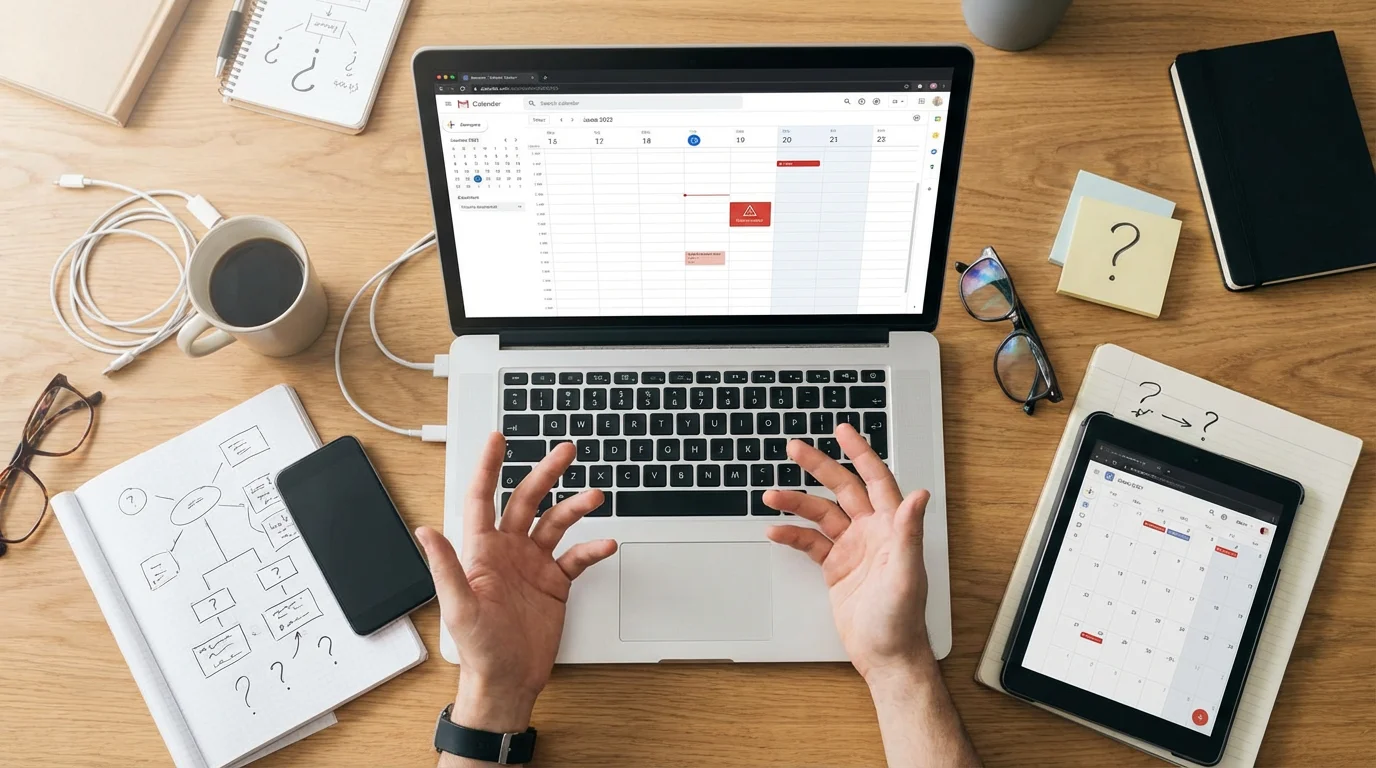
“My reminders are not popping up!”
- Check Notification Settings: On your phone or tablet, go to your device’s main “Settings” app. Find “Apps,” then “Google Calendar,” and ensure “Notifications” are turned “On.” On a computer, check your web browser’s notification settings to allow alerts from calendar.google.com.
- Silence Modes: Ensure your phone or tablet is not in “Do Not Disturb” or silent mode, as this will prevent notifications.
- Battery Optimization: Some phones have battery optimization settings that might restrict apps. Check your phone’s battery settings and ensure Google Calendar is not being restricted.
- Event Reminders Set: Double-check that you actually set reminders for the event. Edit the event and confirm the “Add notification” settings.
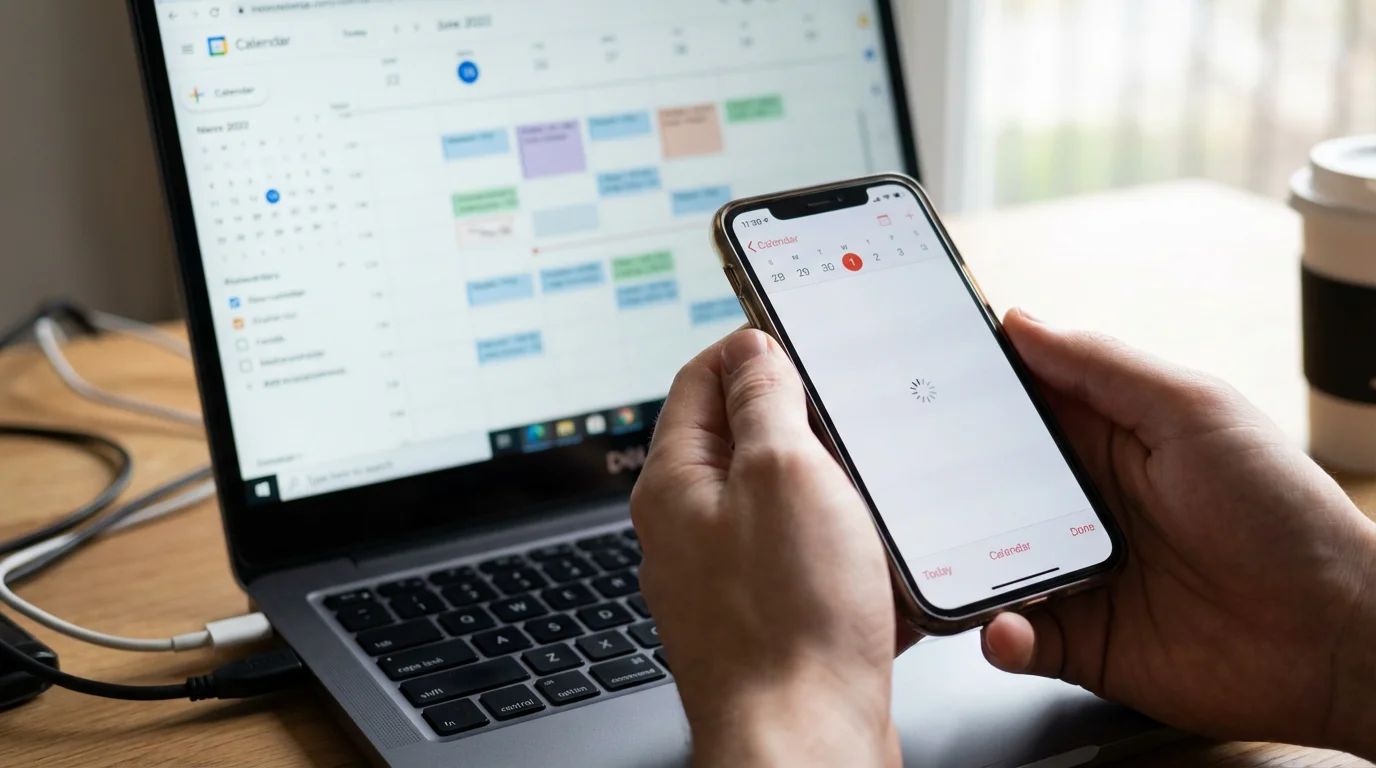
“My calendar is not syncing across my devices.”
- Internet Connection: Ensure all your devices have a stable internet connection. Google Calendar needs the internet to sync.
- Same Google Account: Verify you are signed into the exact same Google account on every device. A common mistake involves signing in with slightly different email addresses.
- Force Sync (Android): On an Android phone, go to “Settings” > “Accounts” > “Google.” Tap your Google account, then ensure “Calendar” is toggled on and tap “Sync now.”
- Restart Devices: Sometimes a simple restart of your phone, tablet, or computer resolves minor syncing glitches.

“I accidentally deleted an event.”
Do not worry, Google Calendar has a trash feature.
- On Computer: Go to calendar.google.com. Click the gear icon (Settings) in the top-right, then select “Trash.” You can find and restore deleted events there for up to 30 days.
- On Phone/Tablet: Open the app. Tap the three horizontal lines (menu) in the top-left, scroll down, and tap “Trash.” You can restore events from there.

“I see multiple calendars, and I only want one.”
You might have multiple calendars by default (like birthdays or holidays). You can hide calendars you do not need.
- On Phone/Tablet: Tap the three horizontal lines (menu) in the top-left. Scroll down, and you will see a list of calendars under “My calendars.” Uncheck the box next to any calendar you do not wish to see.
- On Computer: In the left sidebar, under “My calendars,” uncheck the box next to any calendar name to hide it.
For more detailed assistance, you can always visit Google Support or explore helpful resources like Senior Planet from AARP, which offers technology tips for older adults.
Mastering Google Calendar takes a little practice, but its benefits are immense. It transforms your ability to remember important dates, giving you peace of mind and more time to focus on what truly matters. Take these steps at your own pace. You are gaining a powerful skill that will simplify your daily life and keep you connected.
Disclaimer: This article is for informational purposes only. App interfaces change frequently with updates, so screens may look slightly different from what’s described. Always download apps from official app stores (Apple App Store or Google Play Store) to ensure safety.




Leave a Reply