

Keeping your mind sharp is just as important as maintaining your physical fitness. As you age, your brain remains remarkably adaptable—a concept scientists call neuroplasticity. This means your brain can continue to form new connections and strengthen existing ones through regular stimulation. Using your smartphone, tablet, or computer to play games and solve puzzles isn’t just a way to pass the time; it is a proactive way to support your cognitive health.
You might feel a bit hesitant about navigating app stores or setting up new accounts. This is a common feeling, but modern technology is designed with you in mind. Many brain training programs offer simple, clean interfaces that guide you through every step. Whether you want to remember names more easily, improve your focus during conversations, or simply enjoy a daily challenge, there is an app tailored to your needs.
In this guide, you will discover the most effective apps for memory improvement and cognitive health. We will walk through how to find, download, and use these tools on both mobile devices and desktop computers. By the end of this article, you will have a personalized toolkit to help keep your mind active and engaged.
Table of Contents
- Why Brain Training and Cognitive Health Matter
- Lumosity: The Classic Choice for Daily Exercise
- Elevate: Focusing on Real-World Skills
- CogniFit: A Science-Based Approach
- NYT Games and Wordle: Fun and Social Connection
- How to Download and Install Apps: A Step-by-Step Guide
- Tips for Getting the Most Out of Your Training
- Safety, Privacy, and Subscriptions
- Frequently Asked Questions

Why Brain Training and Cognitive Health Matter
Your brain thrives on novelty and challenge. When you perform the same routines every day, your mind can drift into “autopilot” mode. Brain training apps disrupt this routine by presenting you with tasks that require focus, logic, and rapid processing. These programs typically target five core areas: memory, attention, speed, flexibility, and problem-solving.
Research suggests that consistent mental engagement can help build “cognitive reserve.” Think of this as a savings account for your brain; the more you “deposit” through learning and puzzles, the better equipped your mind is to handle the natural changes that come with aging. According to data from various cognitive studies, even 15 minutes of daily mental exercise can lead to noticeable improvements in how you handle everyday tasks—like remembering where you put your keys or following a complex recipe.
“The goal isn’t to become a master at a specific digital game. Instead, the goal is to use these games as a ‘gym’ for your mind so that you stay sharp in the real world.”
Before we dive into specific recommendations, let’s define a few terms you will see throughout this guide:
- App: Short for “application,” this is simply a program you download to your device to perform a specific task, like playing a game or checking the weather.
- Download: This is the process of getting the app from the internet and saving it onto your phone or computer.
- Install: This happens automatically after a download; it sets up the app so you can open and use it.
- Account: Your personal profile within an app, usually created with your email address and a password. It saves your progress so you don’t have to start over every time.

Lumosity: The Classic Choice for Daily Exercise
Lumosity is one of the most well-known names in the world of brain training. It was designed by neuroscientists to transform laboratory tasks into fun, colorful games. When you first start, the app asks what skills you want to work on—such as remembering names or avoiding distractions—and creates a “workout” just for you.
What This App Does
Lumosity offers a suite of over 40 games that adapt to your skill level. If you find a game too easy, it gets harder; if you struggle, it adjusts to keep you from feeling frustrated. It tracks your “LPI” (Lumosity Performance Index), which allows you to see how you improve over months and years.
How to Download Lumosity
On an iPhone or iPad: Open the “App Store” (the blue icon with a white ‘A’). Tap the magnifying glass icon at the bottom right that says “Search.” Type “Lumosity” into the bar at the top and tap the blue “Search” button on your keyboard. Find Lumosity in the results and tap “Get” or the cloud icon with an arrow.
On an Android Phone or Tablet: Open the “Play Store” (the icon that looks like a colorful triangle). Tap the search bar at the top and type “Lumosity.” Tap the app in the results and then tap the green “Install” button.
On a Computer: You do not need to download anything. Simply open your web browser (like Google Chrome, Safari, or Microsoft Edge) and go to www.lumosity.com to play on your large monitor.
Setting Up Your Account
- Open the app on your device.
- Tap “Get Started.”
- The app will ask a few questions about your goals. Tap the answers that best fit you.
- When prompted to create an account, enter your email address and create a password you can remember.
- You can use the “Free” version, which gives you three games per day, or pay for a “Premium” subscription for unlimited access.
How to Use the Main Feature
Once you are logged in, tap “Play Today’s Workout.” The app will present three games in a row. Follow the on-screen instructions for each game—usually, you will tap or swipe the screen. When you finish, Lumosity shows you your score and how it compares to your past performance.
Elevate: Focusing on Real-World Skills
While some apps feel like “games,” Elevate feels like a personal tutor. It focuses specifically on cognitive skills that translate directly to your daily life, such as calculating a tip in your head, improving your vocabulary, or refining your writing clarity.
What This App Does
Elevate provides a personalized training program that emphasizes math, reading, writing, speaking, and listening. It is particularly helpful if you want to feel more confident in your communication skills or stay sharp with numbers. The design is clean, using professional graphics and clear text that is easy to read.
How to Download Elevate
Apple Devices: Go to the App Store, search for “Elevate,” and tap “Get.” You may need to double-click your side button or enter your Apple ID password to confirm.
Android Devices: Go to the Google Play Store, search for “Elevate – Brain Training,” and tap “Install.”
Setting Up Your Account
When you open Elevate for the first time, it will put you through a “Placement Test.” Do not worry; this isn’t a school exam. It simply helps the app understand your current level. After the test, you will enter your email to save your results. Elevate offers a 7-day free trial, but you can also use a limited version for free indefinitely by tapping the “X” in the corner when asked to subscribe.
How to Use the Main Feature
Each day, you will see a “Daily Workout” button. Tap it to start your three to five games for the day. For example, in a game called “Agility,” you might see a sentence with an extra word, and you must tap the extra word as quickly as possible. This helps your brain process written information faster.

CogniFit: A Science-Based Approach
If you prefer a more clinical or scientific feel, CogniFit is an excellent choice. It is widely used by researchers and healthcare professionals to assess cognitive function. It feels a bit more “serious” than Lumosity, which some users find very reassuring.
What This App Does
CogniFit begins with a comprehensive assessment of your cognitive health. It measures 23 different brain functions, including short-term memory, planning, and hand-eye coordination. Based on these results, it builds a specific regimen to target your weakest areas while maintaining your strengths.
How to Download and Use CogniFit
Search for “CogniFit” in the App Store or Google Play Store. You can also use it on a computer at www.cognifit.com.
When you first log in, expect to spend about 15-20 minutes on your initial assessment. This is longer than other apps, but it provides a very detailed “map” of your brain’s performance. Once the assessment is complete, you can choose “Training” to start your daily exercises or “Games” to play specific puzzles you enjoy.
Tips for CogniFit
- Use a tablet or computer if possible; some games require precise tapping that is easier on a larger screen.
- Take the assessment when you are well-rested and in a quiet room.
- Check the “Progress” tab often to see how your “Cognitive Score” changes over time.

NYT Games and Wordle: Fun and Social Connection
Not all memory improvement tools require a “brain training” label. Sometimes, the most effective exercises are the ones that connect you with others. The New York Times (NYT) Games app, which includes the sensation Wordle, has become a daily ritual for millions of seniors.
What This App Does
This app hosts several puzzles, including the famous daily Crossword, the Mini Crossword, Spelling Bee (a word-finding game), and Wordle. Wordle gives you six tries to guess a five-letter word. It is a fantastic way to practice logic and vocabulary.
Why It is Great for Seniors
Wordle allows you to “share” your results with friends or family without giving away the answer. This creates a wonderful social bridge. You can text your daughter or your neighbor and say, “I got today’s Wordle in three tries!” It encourages daily mental activity and social interaction, both of which are vital for cognitive health.
How to Access NYT Games
You can download the “NYT Games” app from the App Store or Play Store. Alternatively, you can play Wordle for free in any computer browser by searching for “Wordle” on Google. You do not need a paid subscription to play Wordle or the Mini Crossword, though the full daily crossword does require a fee.
How to Download and Install Apps: A Step-by-Step Guide
If you have never downloaded an app before, the process might feel intimidating. Follow these universal steps to get any of the apps mentioned above onto your smartphone or tablet.
Step 1: Open the Store
Look for the app store icon on your home screen. On an Apple iPhone or iPad, it is a blue square with a white ‘A’. On an Android phone (like a Samsung or Google Pixel), it is a white square with a colorful “play” triangle. Tap it once to open it.
Step 2: Search for the App
Look for the “Search” tab. It usually has a magnifying glass icon. Tap the search bar and type the name of the app (for example, “Lumosity”). Tap the “Search” or “Go” button on your on-screen keyboard.
Step 3: Choose the Correct App
You will see a list of results. Look for the app name and icon that matches our descriptions. Be careful of “Ads” that might appear at the very top—these are often different apps trying to get your attention. Look for the one with the most reviews and the correct name.
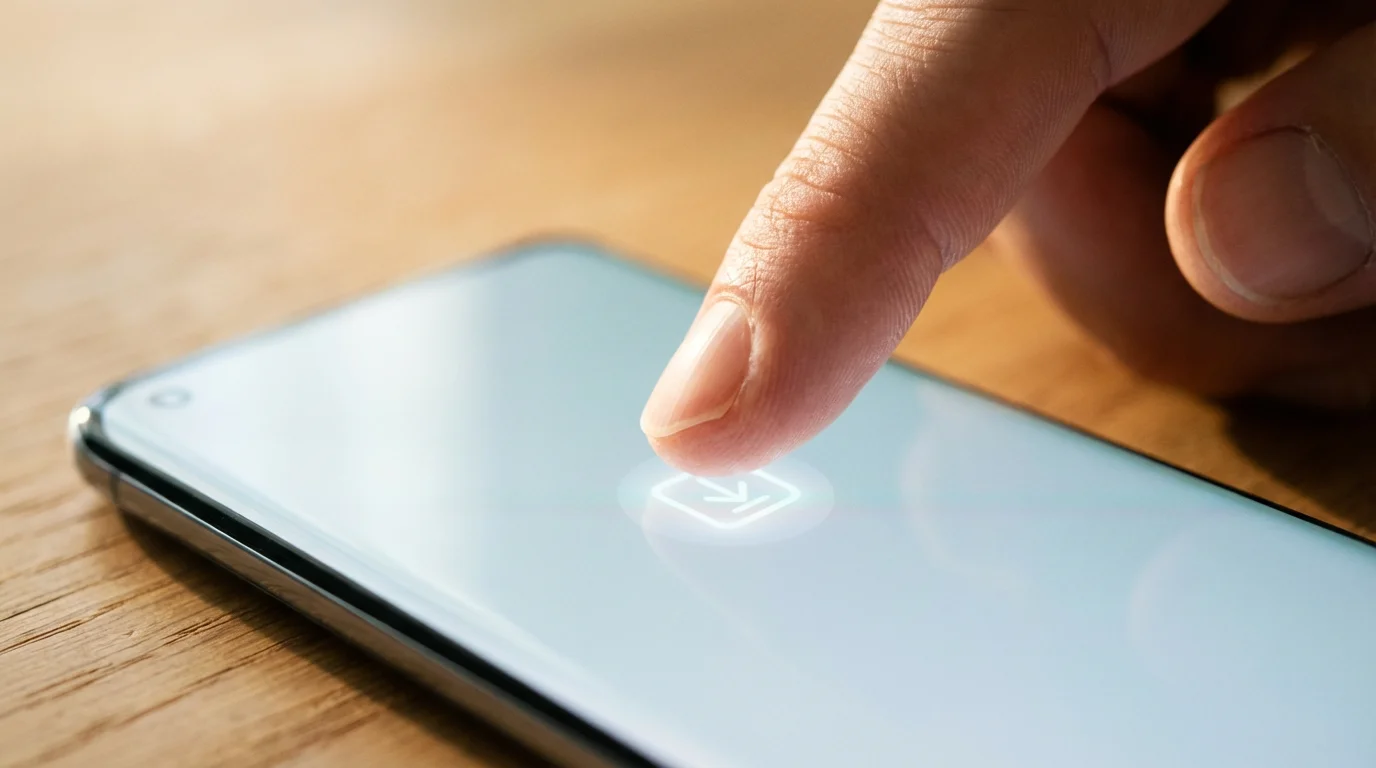
Step 4: Download and Install
Tap the button next to the app name. On Apple, it says “Get.” On Android, it says “Install.” You may be asked to confirm your identity. This is a security feature. You might need to:
- Enter your Apple ID or Google password.
- Rest your finger on the “Home” button (Touch ID).
- Look at the front camera (Face ID).
- Double-click the button on the side of your phone.
Step 5: Open the App
Once the circle fills up or the button changes to “Open,” tap it. The app is now on your phone! You can find it later by swiping through your home screens until you see its icon.

Tips for Getting the Most Out of Your Training
Just like going to the gym, consistency is the key to seeing results with apps for the brain. You will benefit more from 15 minutes of play every day than from two hours once a week. Here is how to make brain training a successful habit:
Set a Routine: Pair your brain training with an existing habit. Perhaps you play your games while drinking your morning coffee or right after you finish lunch. This “habit stacking” makes it much easier to remember.
Turn on Notifications: When you install an app, it may ask, “Would you like to send you notifications?” If you tap “Allow,” the app will send you a gentle reminder (a “notification”) on your screen if you forget to do your workout for the day.
Don’t Chase Perfection: Some days you will be fast and focused; other days you might feel a bit “foggy.” This is normal. The apps are designed to challenge you, and “failing” a level is actually good for your brain—it means you are working at the edge of your ability, which is where growth happens.
Use a Stylus if Needed: If you find it difficult to tap small buttons on your phone screen, consider buying a stylus. This is a pen-like tool with a soft rubber tip that works on touchscreens. It can provide much better precision and reduce frustration.

Safety, Privacy, and Subscriptions
When you use apps, you are often sharing a small amount of information. It is important to stay safe and understand what you are signing up for.
Is the App Free? Most brain training apps use a “Freemium” model. This means the app is free to download and offers a limited number of games for free every day. If you want “Premium” features (like more games or detailed tracking), they will ask you to pay a subscription fee. These fees are usually billed monthly or annually. Always look for the “X” in the corner of a payment screen if you want to continue using the free version.
Protect Your Password: When you create an “account,” use a unique password. Do not use the same password you use for your bank account. Write it down in a secure notebook or use a password manager to keep track of it.
Data Privacy: These apps track how you play to give you scores. They do not need access to your contacts, your photos, or your precise location. If an app asks for permission to access your “Contacts,” you can safely tap “Don’t Allow.”
For more information on how to stay safe online, you can visit the Federal Trade Commission — Consumer Information website, which offers excellent tips for seniors.
Frequently Asked Questions
Are these apps actually effective for memory improvement?
Yes, though they are not a “cure.” Think of them as tools to help maintain and sharpen your current skills. Consistency is the most important factor. Engaging your brain in new ways helps maintain the neural pathways that support daily memory and focus.
Do I have to pay to use these apps?
Most of the apps listed—Lumosity, Elevate, and CogniFit—offer a free version. You will typically get 3 games per day for free. If you want unlimited access, you can choose to pay for a subscription. NYT Wordle and the Mini Crossword are currently free to play on their website.
Are these apps safe for my device?
As long as you download them from the official Apple App Store or Google Play Store, they are safe. These stores screen apps for “malware” (bad software) before allowing them to be listed. Avoid downloading “brain games” from random websites or advertisements.
What if I find the games too hard?
That is actually a sign the app is working! The goal of these programs is to challenge your brain. However, if a specific app feels overwhelming, try another one. Lumosity is generally considered the most “user-friendly” for beginners, while Wordle is great for those who prefer words over patterns and shapes.
Exploring the world of brain training apps is a wonderful step toward maintaining your independence and mental vitality. Whether you enjoy the scientific depth of CogniFit or the social fun of Wordle, the most important thing is that you are challenging yourself. Start small—choose just one app today and try it for ten minutes. You might find that these “games” quickly become the most rewarding part of your daily routine. For more help with technology, you can explore resources like Senior Planet from AARP, which offers classes specifically designed for older adults.
Disclaimer: This article is for informational purposes only. App interfaces change frequently with updates, so screens may look slightly different from what’s described. Always download apps from official app stores (Apple App Store or Google Play Store) to ensure safety.
Keywords: brain training, memory improvement, cognitive health, apps for seniors, mental exercise apps
Meta Description: Discover the best apps for brain training and memory improvement. Our guide helps seniors download and use apps like Lumosity and Wordle to stay sharp.







Leave a Reply