

Managing several medications can feel like a full-time job. Between different dosages, specific times of day, and requirements like taking a pill with food, the mental load is heavy. Research from the Centers for Disease Control and Prevention (CDC) suggests that nearly half of all Americans take at least one prescription drug, and for those over 60, that number often climbs to three or more. When you miss a dose or take one at the wrong time, it affects your health and your peace of mind.
You might currently use a paper calendar on the fridge or a plastic pillbox. While these tools are helpful, they cannot tap you on the shoulder to remind you it is 4:00 PM. That is where a calendar app comes in. An app is simply a program you can download and use on your phone, tablet, or computer. By using the calendar already built into your device, you turn your phone into a dedicated health assistant that alerts you exactly when it is time for your next dose.
Building a new habit with technology takes patience, but the reward is a life with fewer worries. You have the skills to master this, and this guide will walk you through every single tap of the screen.
Table of Contents
- What a Calendar App Does for Your Health
- Finding and Downloading Your Calendar App
- Setting Up Your Account and Getting Started
- Step-by-Step: Adding Your First Medication Reminder
- Automating Your Schedule with Recurring Reminders
- Notifications: Making the Reminders Work for You
- Using Your Computer to Manage Your Schedule
- Sharing Your Calendar with Caregivers
- Tips for Success and Accuracy
- Frequently Asked Questions
What a Calendar App Does for Your Health
A calendar app does more than just list dates. It acts as a living document that lives in your pocket. Unlike a paper calendar, a digital calendar can send you a notification—an alert or message from an app—that plays a sound and displays a message on your screen. This means you do not have to remember to look at the calendar; the calendar looks for you.
When you use a calendar for medication reminders, you create a digital log. You can look back at last Tuesday to confirm you took your evening pill. You can also include specific notes, such as “Take with a full glass of water” or “Avoid grapefruit with this dose.” These apps also offer sync capabilities. To sync means to make sure the information on your phone matches the information on your tablet and computer automatically. If you add a medication on your iPad, it appears on your iPhone instantly.

Finding and Downloading Your Calendar App
To begin, you need to find the app on your device. Most smartphones come with a calendar already installed (set up and ready to use). On an iPhone or iPad, it is simply called “Calendar.” On an Android phone, like a Samsung or Google Pixel, it is usually “Google Calendar.”
If you do not see the app on your home screen, you may need to download it. To download means to get the app from the official digital store and put it on your device.
For iPhone and iPad Users:
- Locate the App Store icon. It is blue with a white letter “A.”
- Tap the Search magnifying glass at the bottom right of the screen.
- Type “Google Calendar” or “Apple Calendar” into the bar at the top.
- Tap the Get button next to the app name. You may need to enter your Apple ID password or use your fingerprint/face to confirm.
- Once the circle fills up, the button will say Open. Tap it.
For Android Users:
- Locate the Play Store icon. It looks like a multicolored triangle.
- Tap the search bar at the top and type “Google Calendar.”
- Tap the green Install button.
- Wait for the progress bar to finish. Then, tap Open.
Setting Up Your Account and Getting Started
An account is your personal login that keeps your information private. When you first open your calendar app, it will likely ask you to sign in. If you use an iPhone, you probably already have an iCloud account. If you use Android, you have a Google (Gmail) account. Using these existing accounts is the easiest way to start because it allows your reminders to follow you if you get a new phone in the future.
If the app asks for permission to “Access your Contacts” or “Send you Notifications,” tap Allow. If you do not allow notifications, the app cannot ring or buzz to remind you to take your medicine, which defeats the purpose of the setup.
Once you are in, you will see a grid or a list. Do not worry if it looks empty right now. You are about to fill it with the information that keeps you healthy. For more help with basic phone navigation, GCFGlobal offers excellent free tutorials on using smartphones and tablets.
Step-by-Step: Adding Your First Medication Reminder
Let’s add a single medication. Imagine you need to take a blood pressure pill every morning at 8:00 AM. We will use Google Calendar as our primary example, but Apple’s Calendar works very similarly.
- Open the app: Look for the calendar icon on your screen and tap it.
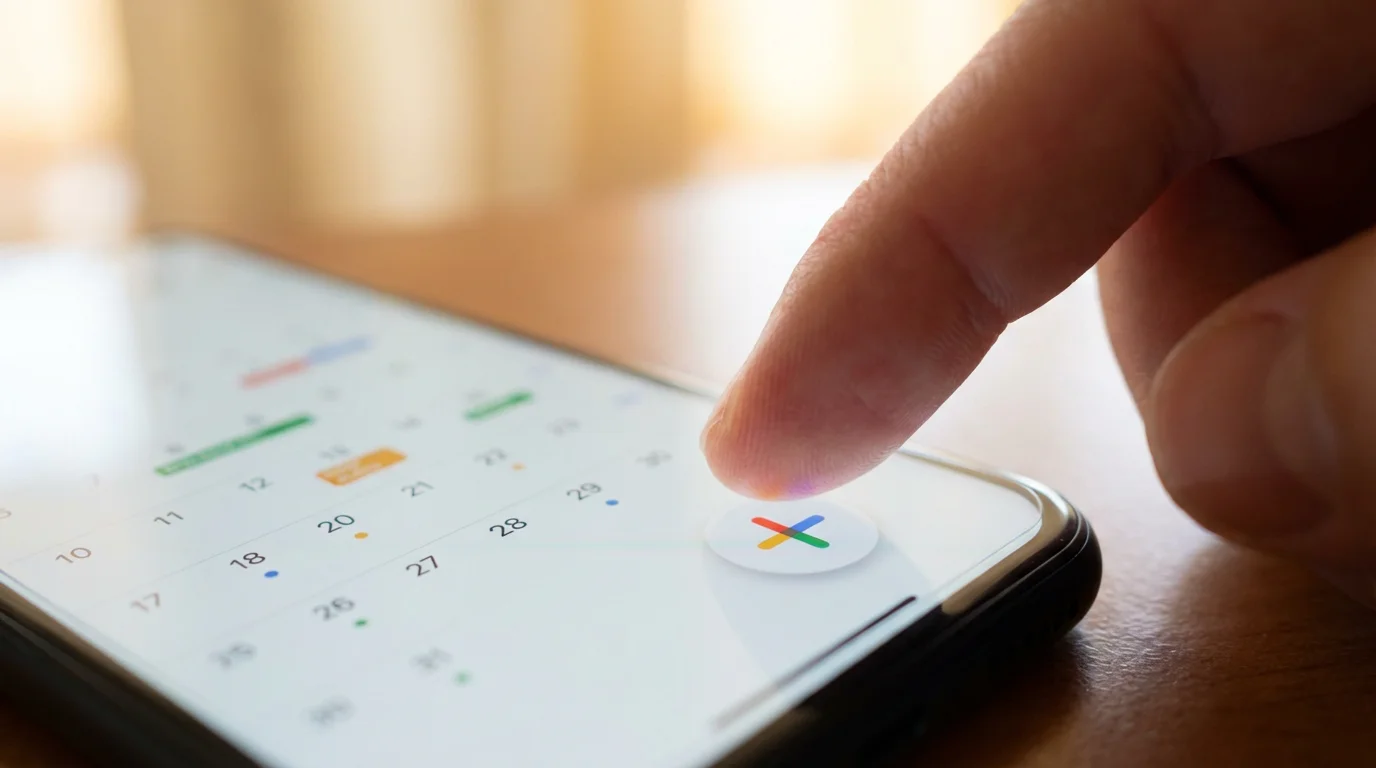
- Find the Plus (+) sign: Most apps use a colorful plus sign or a button that says “Create.” Tap this.
- Choose “Event”: You might see options for “Task” or “Reminder.” For medication, “Event” is often best because it allows for more detail.
- Add a Title: Type the name of the medication. For example: “Lisinopril – 10mg.” Using the dosage helps prevent confusion if you have multiple pills.
- Set the Time: Look for the date and time section. Tap the start time. A clock or a list of numbers will appear. Move the dial or scroll to 8:00 AM and tap OK or Done.
- Add a Description: Scroll down to find “Add description” or “Notes.” Type something helpful here, like “Take with breakfast” or “Check bottle for blue label.”
- Save: Tap the Save button at the top right.
You have now created your first digital reminder. You will see it appear as a block of color on your calendar for today.
Automating Your Schedule with Recurring Reminders
You likely do not want to type in your medication every single day. This is where the power of the calendar truly shines. You can set a “recurring” event, which means it repeats automatically.
How to set a repeat on a new or existing event:
- Tap the medication event you just created.
- Tap the Edit icon (it usually looks like a pencil).
- Look for the phrase “Does not repeat” or “More options.” Tap it.
- You will see several choices:
- Daily: Use this for pills you take every single day.
- Weekly: Use this if you only take a pill on a specific day, like “Every Monday.”
- Custom: This is great for “Every other day” or “Every 3 days.”
- Select Daily.
- Tap Save. If a box pops up asking if you want to change “This event” or “All events,” choose All events.
Now, if you look at tomorrow, next week, or even next year on your calendar, that 8:00 AM reminder will be there waiting for you. This automation ensures you never forget to set a reminder for the next day.
Notifications: Making the Reminders Work for You
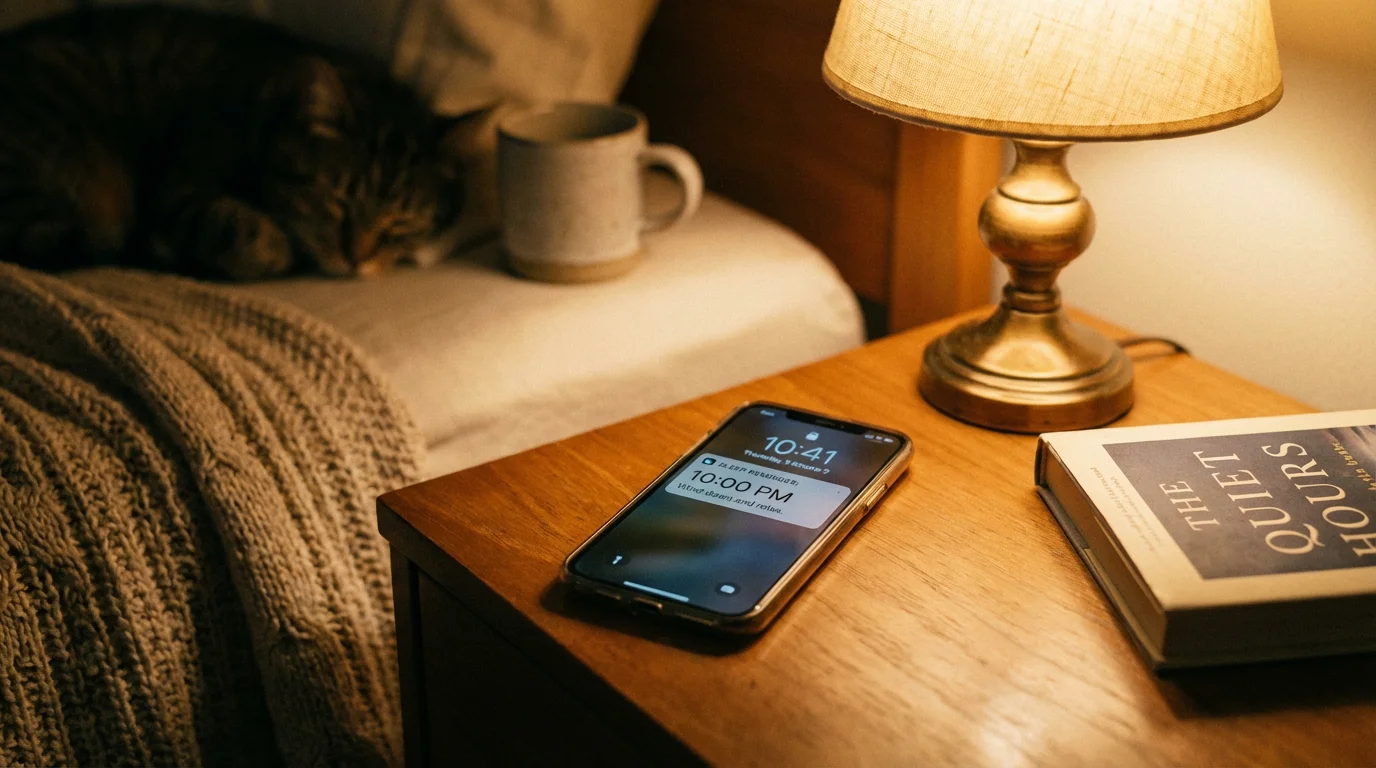
A reminder is only useful if you actually hear it. Sometimes, the default sound is too short or too quiet. You can change these settings to make the alert more prominent.
To change the alert time:
- Tap your medication event and tap the Pencil (Edit) icon.
- Look for “Add notification” or “Alert.”
- You can choose to be notified “At time of event,” but it is often better to set it for “5 minutes before” so you have time to get a glass of water and reach for the pill bottle.
- You can even add a second notification. Perhaps one at 8:00 AM and another at 8:15 AM just in case you got distracted by a phone call during the first one.
To change the sound (iPhone):
- Go to your phone’s main Settings app (the gray icon with gears).
- Tap Sounds & Haptics.
- Tap Calendar Alerts.
- Choose a sound that is loud and clear to you. “Classic” sounds often have sharper tones that are easier to hear.
To change the sound (Android):
- Go to Settings.
- Tap Apps, then find Calendar.
- Tap Notifications.
- Tap Calendar Alerts and then Sound to pick a new tone.

Using Your Computer to Manage Your Schedule
Many people find it easier to type on a computer keyboard rather than a small phone screen. Because of “syncing,” you can set up your entire medication schedule on your desktop or laptop, and it will appear on your phone automatically.
On a PC or Mac:
- Open your web browser (like Google Chrome, Safari, or Microsoft Edge).
- If you use Google Calendar, go to calendar.google.com. If you use Apple, go to icloud.com and click on Calendar.
- Sign in with the same email and password you used on your phone.
- Use your mouse to click on a time slot. A box will pop up, just like on your phone.
- Type in your medication details, set the repeat to “Daily,” and click Save.
Wait about a minute, then open the app on your phone. You will see the new entries have appeared. This is a great way to handle the initial setup if you have a long list of medications to enter. For more technology support, Senior Planet from AARP offers fantastic workshops on using these types of web services.

Sharing Your Calendar with Caregivers
One of the safest things you can do is share your medication calendar with a trusted family member or friend. If they can see your schedule, they can check in with you to make sure everything is going smoothly.
How to share your Google Calendar:
- On your computer, open calendar.google.com.
- On the left side, find the section called “My calendars.”
- Hover your mouse over your calendar name and click the three dots that appear.
- Click Settings and sharing.
- Scroll down to “Share with specific people” and click Add people.
- Type in your daughter’s, son’s, or friend’s email address.
- Click Send.
They will receive an email inviting them to view your calendar. They cannot change your doctor’s appointments unless you give them permission, but they can see exactly when you are supposed to take your medicine. This adds an extra layer of safety to your routine.
Tips for Success and Accuracy
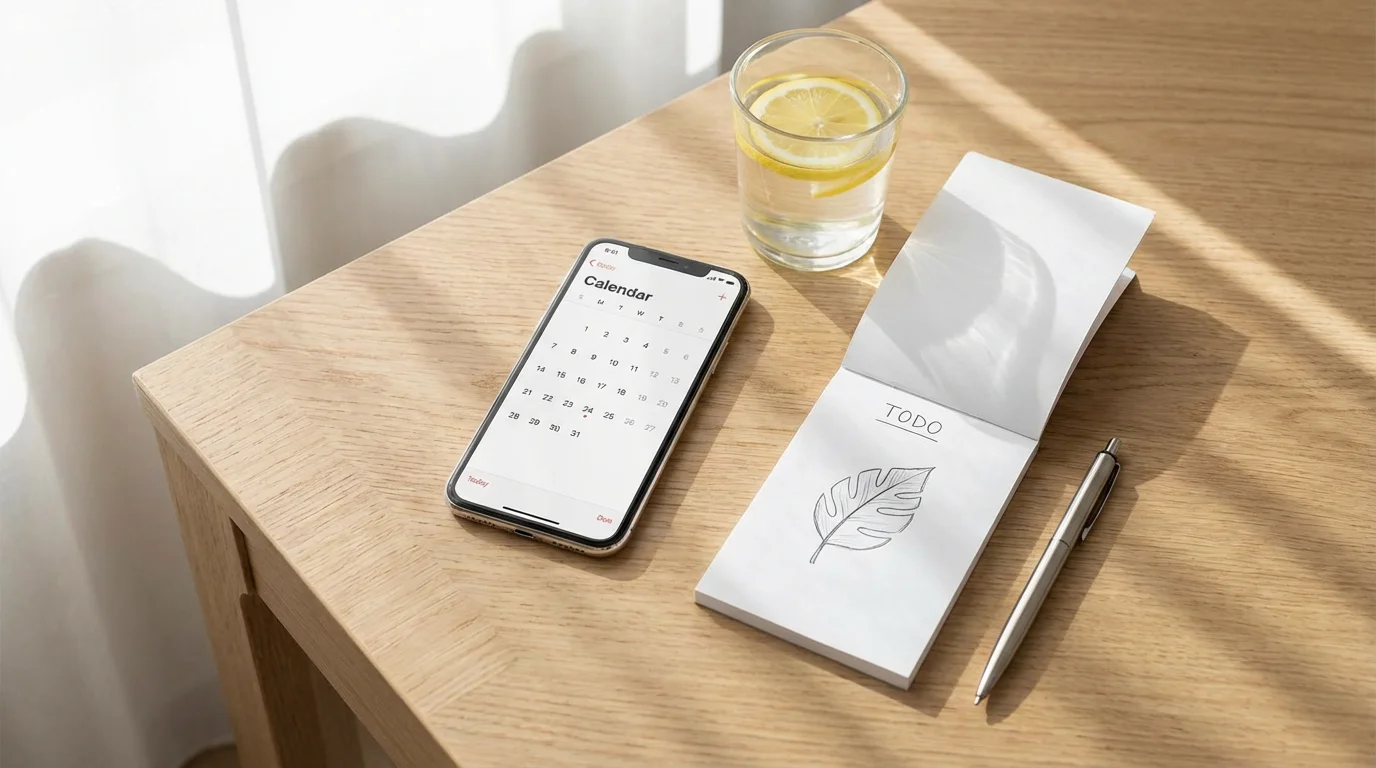
Using technology is a supplement to your doctor’s advice, not a replacement. Use these tips to ensure your digital system stays accurate and helpful:
- The “Update” Rule: Whenever you get a new prescription or a change in dosage, update your calendar immediately. To update means to get the newest version of an app, but in this case, it also means refreshing your information. If you wait until later, you might forget the specific instructions.
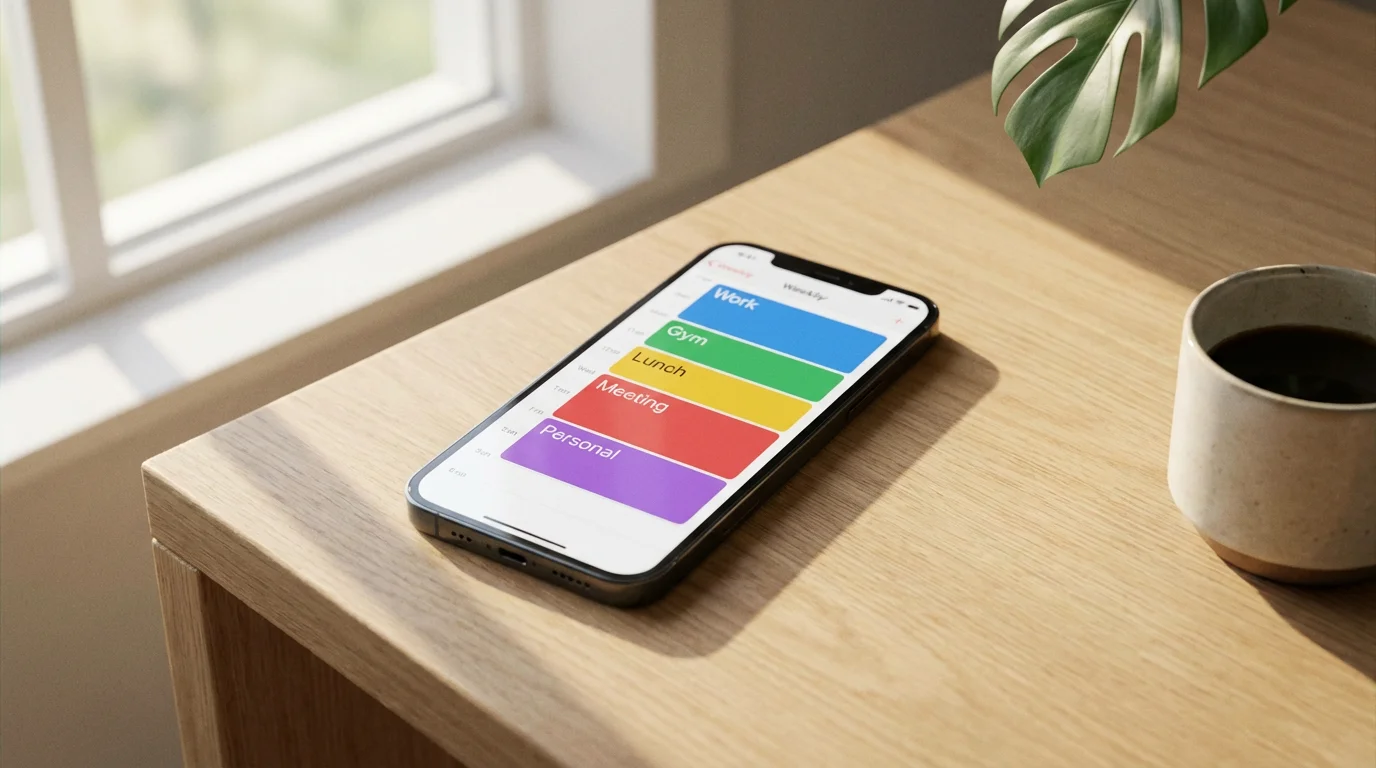
- Color Coding: You can change the color of medication events. You might make “Morning Meds” blue and “Evening Meds” red. This helps you identify what is due at a quick glance.
- Battery Check: Since you are relying on your phone for reminders, make sure you charge it in the same place every night. If the phone dies, the reminder will not sound.
- The “Done” Habit: When the reminder goes off, do not dismiss it until the pill is actually in your mouth. If you dismiss the alert thinking “I’ll do it in a minute,” you may get distracted.
- Keep a Paper Backup: It is always wise to keep a written list of your medications in your wallet for emergencies, just in case your phone is unavailable.
Remember, every expert was once a beginner. If you make a mistake or a reminder doesn’t go off the way you expected, don’t be discouraged. Just go back into the settings and try again.
Frequently Asked Questions
Is this app safe?
Yes. Google and Apple calendars are very secure. Your information is kept private within your account. However, always be careful not to share your account password with anyone you do not trust completely.
Do I have to pay?
No. The standard calendar apps from Apple and Google are free to use. You do not need to buy a subscription or pay a monthly fee to use these reminder features.
Will this work if I don’t have internet?
If you are away from Wi-Fi, your phone will still play the reminder sound as long as the phone is turned on. However, you need internet or “cellular data” to sync changes between your phone and your computer.
What if I change my phone?
As long as you sign in with the same account (your email and password) on your new phone, all your medication reminders will appear automatically. You won’t have to type them in again.
Managing your health requires diligence, but technology makes it much more manageable. By turning your smartphone into a medication assistant, you reduce the risk of missed doses and give yourself the freedom to focus on the things you enjoy. Take it one pill at a time, and soon, your digital calendar will be your most trusted tool.
Disclaimer: This article is for informational purposes only. App interfaces change frequently with updates, so screens may look slightly different from what’s described. Always download apps from official app stores (Apple App Store or Google Play Store) to ensure safety. Consult with your healthcare provider before making significant changes to how you track your medical treatment.




Leave a Reply