You may have noticed your monthly bank statement looks a bit longer than it used to. In the modern digital world, almost everything has shifted to a subscription model.
From the morning newspaper and your favorite television shows to health tracking tools and even grocery delivery services, companies prefer to bill you a small amount every month rather than a one-time fee.
While these services are convenient, they often lead to “subscription creep”—a situation where you are paying for five or six different programs you rarely use.
Reviewing online privacy and what websites know about you can help you understand how companies use your browsing data to market these recurring services to you.
Beyond app costs, you can also look into saving money on internet bills to keep your overall monthly household expenses in check.
Many people also use their devices to watch videos on YouTube, which often offers its own paid ‘Premium’ service.
Managing these accounts can feel overwhelming, especially when every company hides their “cancel” button in a different place.
You are not alone in this frustration; research shows that the average American spends over $200 a month on subscriptions, and many are completely unaware of how much they are actually paying.
This guide will walk you through the process of reclaiming your budget by identifying, locating, and canceling those unwanted digital payments on your phone, tablet, and computer.
In this guide8 sections
- Understanding Your Digital Subscriptions
- How to Find Your Hidden Subscriptions
- Canceling Subscriptions on Your iPhone or iPad
- Canceling Subscriptions on Your Android Device
- Canceling Subscriptions on Your Computer (Mac or PC)
- Handling Amazon, PayPal, and “Hidden” Traps
- Tips for Managing Your Accounts Safely
- Frequently Asked Questions
Understanding Your Digital Subscriptions
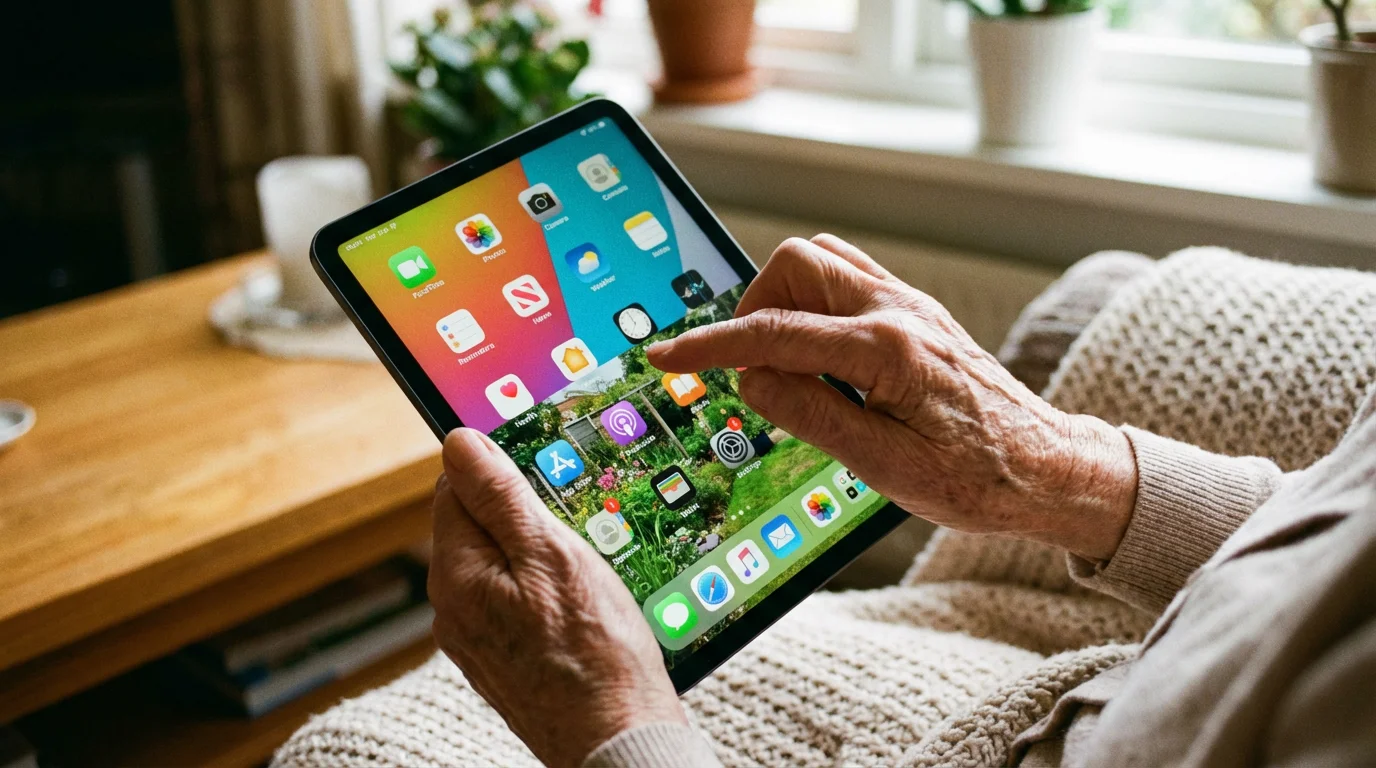
Before we dive into the “how,” let us clarify what we are looking for. An app is a program you download and use on your phone, tablet, or computer.
Many of these apps are free to download, but they require an account—your personal login with a username and password—to function. Often, these accounts come with a recurring fee.
Subscriptions usually fall into three categories:
- App Store Subscriptions: These are purchased through the Apple App Store or Google Play Store. They are the easiest to cancel because they are all listed in one central location on your device.
- Direct-to-Consumer Subscriptions: These are services like Netflix, your local newspaper, or a gym membership where you gave your credit card directly to the company via their website.
- Third-Party Processors: These are payments handled by a middleman like PayPal or Amazon.
“Do not feel discouraged if you find several subscriptions you forgot about. These systems are designed to be ‘set it and forget it.’
Taking the time to review them today is a wonderful way to protect your financial health.”

How to Find Your Hidden Subscriptions
The first step in managing accounts is identifying what you are actually paying for. It is easy to lose track of a $9.99 charge when it is buried among grocery receipts and utility bills.
Here is how to perform a digital audit of your online payments.
Check Your Bank and Credit Card Statements
Sit down with your most recent bank or credit card statement—either the paper version or by logging into your bank’s website. Look for recurring amounts that appear on the same date each month.
Look for keywords like “STRP,” “PAYPAL,” “APPLE.COM/BILL,” or “GOOGLE *SRVCS.” If you see a name you do not recognize, do not panic; sometimes the billing name is different from the app name.
You can search for the specific billing name on a search engine like Google to see which company it belongs to.
Search Your Email Inbox
Every time you sign up for a subscription, the company sends a confirmation email. They also send monthly receipts.
Open your email app (like Gmail, Outlook, or Yahoo) and use the search bar at the top. Type in words like “subscription,” “receipt,” “membership,” or “order confirmation.”
This will bring up a list of services you have interacted with. This is a great way to find accounts you may have started years ago and forgotten to update or cancel.
Canceling Subscriptions on Your iPhone or iPad
If you use an iPhone or an iPad, Apple makes it relatively simple to see what you are paying for—as long as you bought the subscription through their store.
When you download an app and pay for a “Pro” or “Premium” version, Apple usually handles the billing.
Step-by-Step Instructions:
- Locate the Settings app on your home screen. It looks like a gray gear icon.
- Tap on your Name at the very top of the Settings menu. This is where your Apple ID and account information live.
- Tap the button labeled Subscriptions. It is usually the fourth option down.
- You will now see a list of “Active” subscriptions. These are the ones you are currently paying for.
- Tap on the specific subscription you want to end.
- Tap Cancel Subscription (or Cancel Free Trial).
- A confirmation box will appear. Tap Confirm.
You will often notice that the subscription stays “active” until the end of the current billing cycle. For example, if you paid for a month on the 1st and cancel on the 10th, you can still use the app until the 30th.
This is normal and ensures you get what you paid for without being billed again.

Canceling Subscriptions on Your Android Device
Android phones and tablets (like those made by Samsung, Google, or Motorola) use the Google Play Store to manage apps. If you install an app and sign up for a service through that app, Google is likely the one processing your online payments.
Step-by-Step Instructions:
- Open the Google Play Store app. The icon looks like a multicolored “play” triangle.
- Tap your Profile Icon in the top-right corner of the screen. This usually has your initial or a photo.
- Tap on Payments & subscriptions.
- Tap Subscriptions.
- Browse the list for the service you wish to stop. Tap on it.
- Tap Cancel subscription at the bottom of the screen.
- Google may ask why you are canceling. You can choose an answer or select “Decline to answer,” then tap Continue.
- Tap Cancel subscription one last time to finalize it.
By syncing your Google account across devices, you can perform these steps on an Android tablet or an Android phone, and the change will apply to both.

Canceling Subscriptions on Your Computer (Mac or PC)
Sometimes, you might have signed up for a service directly on a website using your computer’s web browser (like Safari, Chrome, or Microsoft Edge). These subscriptions will not show up in your iPhone or Android settings.
You must go directly to the source.
How to Cancel on a Website:
- Open your web browser and go to the website of the service (e.g., www.netflix.com or www.nytimes.com).
- Look for a Sign In or Log In button in the top-right corner. Enter your email and password.
- Once logged in, look for a link that says Account, My Profile, or Settings. This is often hidden under a small icon of a person or your name.
- Look for a section titled Billing, Subscription, or Membership.
- Find the Cancel link. Note that companies often make this button small or use light gray text to make it harder to find.
- Follow the prompts until you see a screen that says “Your subscription has been canceled” or receive a confirmation email.
If you cannot remember your password, look for the “Forgot Password?” link on the sign-in page. They will send a link to your email to help you update your login credentials so you can get back into the account to cancel it.

Handling Amazon, PayPal, and “Hidden” Traps
Some subscriptions are “hidden” inside other accounts. The two most common culprits are Amazon Prime and PayPal.
Understanding how to shop online safely can help you prevent accidental subscriptions during the checkout process.
Amazon Prime Channels
Many people have Amazon Prime for shipping, but they accidentally subscribe to “Channels” like Paramount+, HBO, or Discovery+ through the Amazon interface. These do not show up on your bank statement as individual names; they just show up as “Amazon.”
To cancel these, go to Amazon.com, click on Account & Lists, then select Memberships & Subscriptions. From there, you can see every individual “channel” you are paying for and turn them off one by one.
PayPal Automatic Payments
If you use PayPal to pay for things, you might have set up an “Automatic Payment.” This gives a company permission to take money from your PayPal account every month without asking.
Even if you delete the app from your phone, the PayPal payment will keep going.
To stop this, log into your PayPal account on a computer. Go to Settings (the gear icon), click the Payments tab, and select Manage Automatic Payments.
You can then select any active merchant and click Cancel.

Tips for Managing Your Accounts Safely
Now that you have cleared out the clutter, you want to stay organized. Managing accounts is much easier when you have a system in place.
Here are a few expert tips to keep your digital life tidy:
This digital record is much more useful when you know how to save and find files on your computer quickly.
For example, avid readers might enjoy learning how to find and download free e-books instead of paying for a monthly digital library.
Beyond financial management, it is also helpful to know how to protect your personal information online from unwanted data collection.
- Use a “Free Trial” Calendar: If you sign up for a 7-day free trial, immediately put an alert on your physical calendar or your phone’s calendar for day 6. This gives you a notification to cancel before the first charge hits your card.
- Keep a Digital Notebook: Use a simple notebook or an app like “Notes” to list your active subscriptions, the monthly cost, and the date they renew. Do not write down passwords here—just the names of the services.
- Review Quarterly: Set a date every three months to look at your bank statement. If you see a charge for a service you haven’t used in 30 days, cancel the subscription immediately. You can always sign up again later if you miss it.
- Avoid “Free” Apps That Ask for Credit Cards: If an app claims to be free but requires your credit card information before you can even see the main screen, be cautious. This is often a sign of a “subscription trap.”
Frequently Asked Questions
Is it safe to give my credit card to these apps?
It is generally safe if you are using the official Apple App Store or Google Play Store. These companies act as a protective barrier between your credit card and the app developer.
However, you should be very careful when entering your card details directly into a website you found through an advertisement. Stick to well-known companies and always look for the small padlock icon in your browser’s address bar, which indicates a secure connection.
If I delete the app from my phone, does it cancel the subscription?
No. This is a very common mistake. Deleting the icon from your phone’s home screen does not stop the monthly billing.
You must go into your device settings (as described in the steps above) to officially cancel subscriptions. Think of it like a magazine subscription; throwing the magazine in the trash doesn’t stop the publisher from sending you a bill for the next month.
Can I get a refund for a subscription I forgot to cancel?
It depends. Apple and Google have formal refund request processes, but they usually only honor them if the charge happened within the last 48 hours.
If you are dealing with a direct company like Netflix or a newspaper, your best bet is to call their customer service line.
Be polite and explain that you haven’t used the service in months; sometimes, as a gesture of goodwill, they will refund the most recent charge.
What happens to my data after I cancel?
Usually, your account remains in their system, but it reverts to a “Free” or “Basic” status. Your photos, movies, or documents are often saved for a period of time, but you may lose access to “Premium” features.
If you ever decide to download the app again and sign back in, your information is often still there, waiting for you.
Taking control of your online payments is a powerful way to reduce stress and keep more of your hard-earned money. Whether you are using an iPhone, an Android, or a computer, the steps are straightforward once you know where to look.
For more help with technology, you can explore resources from Apple Support, Google Support, or the Federal Trade Commission to learn more about protecting your consumer rights.
Disclaimer: This article is for informational purposes only. App interfaces change frequently with updates, so screens may look slightly different from what’s described.
Always download apps from official app stores (Apple App Store or Google Play Store) to ensure safety.
Keywords: cancel subscriptions, online payments, managing accounts, how to stop recurring charges, unsubscribe from apps
Meta Description: Learn how to find and cancel unwanted online subscriptions on your iPhone, Android, and computer with our easy, step-by-step guide for seniors.