

You sit down to check your email or look at photos of your grandchildren, and you notice something frustrating. The computer takes forever to turn on. When you click on a program, the little circle just spins and spins. You might feel like you did something wrong, or perhaps you worry that your machine is simply too old to keep up. Take a deep breath and know that you are not alone. Even the most expensive computers can become sluggish over time as they handle more tasks and store more information.
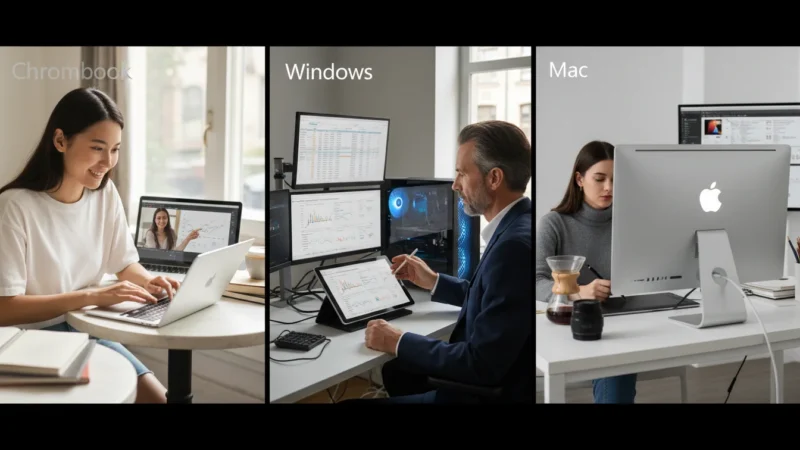
Think of your computer like a kitchen counter. When you first start cooking, the counter is clean and you have plenty of space to work. Over time, you might leave out the toaster, a stack of mail, and a few coffee mugs. Suddenly, you have very little room to chop vegetables. A slow computer is often just a “cluttered” computer. This guide will walk you through simple, safe steps to clear that clutter and improve your computer performance. Whether you use a Windows PC, a Mac, or a Chromebook, you can follow these instructions to make your digital life move a little faster.
Before we begin, let us clarify a few terms we will use. When we say click, we mean you should press the left mouse button once. A double-click means you press that same left mouse button twice quickly. A right-click means you press the right mouse button once, which usually opens a list of options called a menu. When you need to move something, you will drag it, which means holding down the left mouse button while moving the mouse. Your desktop is the main screen you see when you first turn on the computer, and the folder is where you keep your files, like documents or photos.
Table of Contents
- The Power of Restarting Your Computer
- Managing Programs That Start Automatically
- Cleaning Up Your Files and Folders
- Speeding Up Your Web Browsing
- Checking for Software Updates
- Knowing When It Is a Hardware Issue
- Common Problems and Quick Solutions
- Frequently Asked Questions

The Power of Restarting Your Computer
It sounds too simple to be true, but the most effective way to speed up computer performance is a simple restart. Over days or weeks of use, your computer runs hundreds of tiny background tasks. Some of these tasks do not close properly, even after you finish using a program. They sit in the computer’s memory, quietly taking up space and slowing everything down.
When you restart, you give the computer a “fresh start.” It clears out all those lingering background tasks and resets the system. Many people simply close the lid of their laptop or put the computer to “Sleep.” While this is convenient, it does not actually reset the system. You should aim to fully restart your computer at least once a week.
Restarting is like getting a good night’s sleep. It helps your computer clear its head and start the next day with full energy.
On a Windows 10 or 11 PC: Click the Start button (the icon that looks like four small squares) on the taskbar, which is the bar at the bottom of your screen. Click the Power icon, then click Restart. Note: Do not just click “Shut Down.” In modern Windows versions, “Shut Down” saves some of your current state to help the computer start faster next time, but “Restart” is what actually performs the deep cleaning.
On a Mac: Click the Apple icon in the very top-left corner of your screen. Click Restart from the menu that appears. A small box will ask if you want to reopen windows when logging back in; uncheck that box for the best performance boost, then click Restart again.
On a Chromebook: Click the time in the bottom-right corner of the screen. Click the Power icon to shut it down, then press the physical power button on your keyboard or the side of the device to turn it back on.

Managing Programs That Start Automatically
One common reason for a slow computer is that too many programs try to start at the exact same moment you turn the machine on. Imagine fifty people all trying to walk through a single door at the same time; everyone gets stuck. Programs like Spotify, Zoom, or printer software often set themselves to “Launch at Startup” without asking you.
For Windows 10 and 11:
Right-click on the taskbar (the empty space at the bottom of the screen) and click on Task Manager. If the window that opens is very small, click “More details” at the bottom. Click the tab at the top that says Startup. Here, you will see a list of programs. Look at the column labeled “Startup impact.” If a program says “High” and you do not need it to open every time you turn on the computer, right-click that program and click Disable. This does not delete the program; it just tells it to wait until you click on it to open.
For macOS (Apple):
Click the Apple icon in the top-left corner and click System Settings (or System Preferences on older Macs). Click on General on the left side, then click Login Items. Look at the list under “Open at Login.” If you see programs you do not need immediately, click the program and then click the minus (-) sign below the list to remove it. You can also look at the “Allow in the Background” section and switch off programs you do not recognize or need.
What You Will See On Screen:
You might see names like “Edge,” “OneDrive,” or “Adobe Updater.” If you do not use these every single day, it is perfectly safe to disable them from starting automatically. You can always find them in your main list of programs later if you need them.

Cleaning Up Your Files and Folders
Every computer has a storage limit. Whether you have a hard drive or a solid-state drive (SSD), your computer needs at least 10% to 15% of its space empty just to “breathe.” When the storage is almost full, the computer struggles to move files around, leading to a slow computer experience. You can find excellent advice on organizing your digital life at GCFGlobal — Technology Tutorials.
Start by looking at your Downloads folder. This is often the most cluttered part of any computer. Every time you open a PDF from an email or save a picture from the web, it goes here. Most of these files are items you only needed once.
How to delete files:
In Windows, open the File Explorer (the yellow folder icon on your taskbar). On a Mac, open the Finder (the blue smiling face icon on your dock, which is the bar of icons at the bottom of your screen). Click on Downloads. To delete an item, right-click on it and click Delete (Windows) or Move to Trash (Mac). Once you have finished, do not forget to empty your Recycle Bin or Trash. On Windows, right-click the Recycle Bin icon on your desktop and click “Empty Recycle Bin.” On a Mac, right-click the Trash icon in your dock and click “Empty Trash.”
Another great tool for Windows users is “Disk Cleanup.” Type “Disk Cleanup” into the search bar at the bottom of your screen and click on the result. It will calculate how much space you can save by removing temporary files. Check the boxes for “Temporary Files” and “Recycle Bin,” then click OK. This is a very safe way to remove digital “dust” from your system.
Speeding Up Your Web Browsing
Sometimes your computer is fast, but the internet feels slow. If you use Google Chrome, Microsoft Edge, or Safari, you might have too many “tabs” open. Each tab is a separate website you are viewing. If you have twenty tabs open at once, your computer has to work twenty times harder to keep them all updated in the background.
Manage your tabs:
Look at the very top of your web browser. Each little rectangle is a tab. If you are finished with a page, click the small “X” on that tab to close it. If you want to save a page for later without keeping it open, use “Bookmarks.” Click the star icon in the address bar (where you type website names) to save it. You can learn more about safe browsing habits from AARP Technology Resources.
Clear your browser cache:
As you visit websites, your browser saves pieces of them to make them load faster next time. Eventually, this collection of pieces becomes so large that it actually slows the browser down.
- In Chrome or Edge: Press the three dots in the top-right corner. Click Settings, then Privacy and Security. Click “Clear browsing data.” Select “All time” and click “Clear data.”
- In Safari (Mac): Click “Safari” in the top menu bar, then click “Clear History.” Choose “All History” and click the button to confirm.
Checking for Software Updates
Software companies like Microsoft and Apple constantly release updates. Some people avoid these because they are afraid the update will change how things look. While that happens occasionally, updates are vital because they often contain “performance patches.” These are instructions that tell your computer how to run more efficiently or fix a bug that was causing a slow computer.
Windows 11: Click Start, then click the Settings icon (it looks like a gear). Click on Windows Update at the bottom-left. Click the button that says “Check for updates.” If it finds any, allow it to download and install them. You may need to restart your computer afterward.
macOS: Click the Apple icon, then System Settings, then General, then Software Update. If an update is available, click “Update Now.”
Chromebook: These usually update themselves, but you can check by clicking the time in the bottom-right, clicking the gear icon for Settings, then clicking “About ChromeOS.” Click “Check for updates” to be sure you have the latest version.

Knowing When It Is a Hardware Issue
Sometimes, no matter how much cleaning you do, the computer stays slow because the physical parts inside are aging. Most computers built before 2018 used a “Hard Disk Drive” (HDD). These have a spinning platter inside, like a record player. They are naturally slow and wear out over time.
Modern computers use “Solid State Drives” (SSD). These have no moving parts and are significantly faster—often ten times faster than an old HDD. If you have an older desktop or laptop that you otherwise love, a local computer repair shop can often “clone” your old drive onto a new SSD. This is one of the most cost-effective ways to speed up computer performance without buying a brand-new machine.
Another factor is RAM (Random Access Memory). Think of RAM as the size of your “desk.” The bigger the desk, the more projects you can have open at once. If your computer has only 4 gigabytes (GB) of RAM, it will struggle with modern websites and programs. For a smooth experience today, 8GB or 16GB of RAM is the standard. If you are unsure what you have, you can check your system settings or ask a tech-savvy family member to look at the “About” section of your computer settings.

Common Problems and Quick Solutions
Even with the best maintenance, specific issues can pop up. Here is a quick reference table for common frustrations.
| What is happening? | What might be the cause? | The simple fix |
|---|---|---|
| The mouse cursor is “frozen” and won’t move. | The computer is overwhelmed or a program crashed. | Wait 60 seconds. If it doesn’t move, hold down the physical power button on your computer for 10 seconds until it turns off, then turn it back on. |
| The computer is making a loud whirring noise. | The cooling fans are working hard because the computer is hot. | Make sure the computer is on a flat, hard surface (not a pillow or blanket). Dust out the vents with a can of compressed air. |
| Websites take forever to load, but the computer itself seems fine. | Your internet connection (Wi-Fi) is weak or slow. | Unplug your internet router from the wall, wait 30 seconds, and plug it back in. This is a “restart” for your internet. |
| A single program is stuck or “Not Responding.” | The program has encountered an error. | On Windows, press Ctrl+Alt+Delete and choose Task Manager to end the task. On Mac, press Command+Option+Escape to “Force Quit.” |
Frequently Asked Questions
1. Will deleting photos speed up my computer?
Only if your storage drive is almost completely full (less than 10% space remaining). Photos do not slow down a computer just by being there; they only cause issues if they take up all the “breathing room” on your hard drive. If you have thousands of photos, consider moving them to an external thumb drive or a cloud service like Google Photos or iCloud.
2. Do I need to buy “PC Cleaner” software to fix a slow computer?
Usually, no. Be very careful with advertisements for “Speed Up Your PC” programs. Many of these are unnecessary, and some are actually “malware” (bad software) that can make your computer even slower or show you annoying ads. The tools built into Windows and Mac, like Disk Cleanup and software updates, are safer and more effective.
3. Is my computer slow because of a virus?
It is possible, but less common than it used to be. Most modern slow-downs are caused by too many programs running or an old hard drive. However, if you see strange pop-up windows or your homepage has changed to a website you don’t recognize, you should run a security scan. Windows computers have “Windows Security” built-in, and Macs have their own internal protections. You can read more about staying safe online at Consumer Reports — Electronics.
4. How old is “too old” for a computer?
Generally, a computer lasts about 5 to 7 years. After that point, the physical parts start to fail, and the new software becomes too demanding for the old hardware. If your computer is more than 8 years old and feels very slow, it might be time to look for a replacement. Chromebooks are often a wonderful, affordable, and fast option for seniors who mainly use the internet and email.
When to Ask for Professional Help
If you have tried restarting, cleaning up your files, and running updates, but your computer still feels like it is moving through molasses, do not hesitate to ask for help. Technology is complicated, and there is no shame in reaching out. You might visit a local library—many offer “tech help” days for seniors—or a reputable local computer repair shop. If you have a family member who is good with computers, show them this guide and ask if they can help you check your RAM or your startup items.
You can also find community support through organizations like Senior Planet from AARP, which offers classes and a technology hotline specifically for older adults. They understand the unique challenges you face and provide patient, clear guidance to help you stay connected.
Managing a computer is a skill, and like any skill, it takes practice. By following these simple steps, you take control of your machine instead of letting it frustrate you. A few minutes of maintenance each week can keep your “digital kitchen” clean and ready for whatever you want to do next.
Disclaimer: This article is for informational purposes only. Your computer’s screens may look slightly different depending on your operating system version and settings. When in doubt, consult official support resources or ask someone you trust for help.
Keywords: slow computer, speed up computer, computer performance, how to fix a slow laptop for seniors, simple steps to speed up Windows and Mac
Meta Description: Learn simple, jargon-free steps to speed up your slow computer, clear digital clutter, and improve performance on Windows, Mac, and Chromebooks.




Leave a Reply