

You rely on your computer for email, browsing the internet, organizing photos, and managing important documents. When it starts to slow down, it can feel incredibly frustrating. A computer that drags its feet impacts your productivity and enjoyment. You might find yourself waiting for programs to open, web pages to load, or even simple tasks to complete. This guide helps you identify common reasons your computer might be running slowly and offers practical, easy-to-follow steps to make it faster.
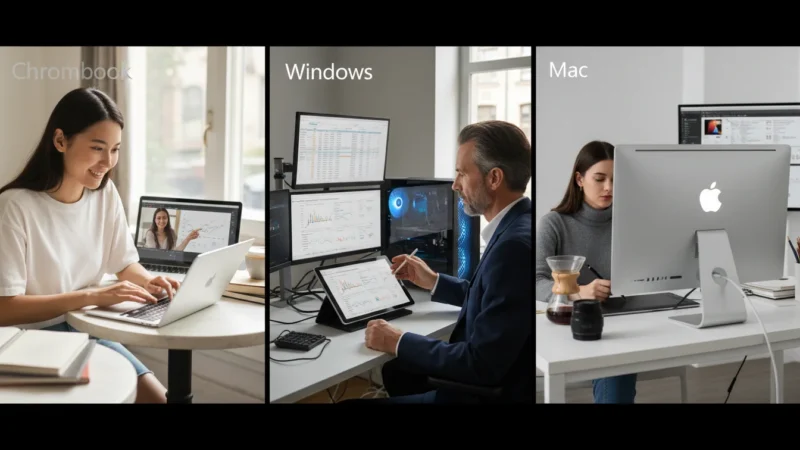
You do not need to be a technology expert to improve your computer’s performance. This article provides clear, actionable advice for Windows PCs, Macs, and Chromebooks, guiding you through each step. You can make a real difference in how your computer runs by following these suggestions. Let’s get your computer running smoothly again.
Table of Contents
- Why Your Computer Might Feel Sluggish
- Restart Your Computer Regularly
- Close Unused Programs and Browser Tabs
- Manage Your Startup Programs
- Clear Up Disk Space
- Update Your Operating System and Software
- Check for Malware and Viruses
- Review Your Web Browser
- When to Consider Professional Help or an Upgrade
- Frequently Asked Questions

Why Your Computer Might Feel Sluggish
Many factors contribute to a slow computer, and understanding these helps you choose the right solutions. Your computer acts like a busy office, and sometimes that office gets overwhelmed. Here are the most common culprits:
- Too Many Programs Running: Every program you open, even if minimized, uses your computer’s resources. When you have many programs open at once, your computer works harder, slowing everything down. Think of it like trying to read several books at once; your brain processes information slower.
- Full Storage Drive: Your computer stores all its files and programs on a storage drive (often called a hard drive or SSD). If this drive fills up, your computer struggles to find space for temporary files it needs to operate, leading to slower performance.
- Outdated Software: Operating system updates and software updates often include performance improvements and bug fixes. Running old versions means you miss out on these enhancements.
- Malware or Viruses: Malicious software (malware) can run in the background, consuming resources, tracking your activity, or even damaging your files. This significantly impacts your computer performance.
- Too Many Browser Tabs and Extensions: Your internet browser, especially with many tabs open or numerous add-ons (extensions), can consume a surprising amount of your computer’s memory and processing power.
- Old Hardware: Computers, like cars, age. Older components simply cannot keep up with the demands of modern software and internet speeds. If your computer is several years old, its hardware might be the primary bottleneck.
Don’t worry if these terms sound unfamiliar. You do not need to understand every technical detail. Focus on the actionable steps in this guide, and you will improve your computer’s speed.
Restart Your Computer Regularly
Restarting your computer is the simplest and often most effective first step for a slow computer. Think of it as giving your computer a fresh start. When you restart, your computer clears out its temporary memory (RAM) and stops all running programs, resolving many minor slowdowns. You should restart your computer at least once a week, or whenever you notice it acting sluggish.

For Windows 10 or Windows 11 PCs:
- Look for the Start button in the bottom left corner of your screen. This button looks like four small squares. Press it.
- A menu opens. Look for the Power icon, which appears like a circle with a vertical line at the top. Click this icon.
- A small menu appears with options such as “Sleep,” “Shut down,” and “Restart.” Click on Restart.
- Your computer will turn off and then turn back on automatically. This process might take a few minutes.
What You’ll See On Screen: The screen might go black, then you see the Windows logo, and eventually your login screen or desktop. The desktop is the main screen you see when you turn on your computer.
For Apple Macs (macOS):
- Look for the Apple menu in the very top left corner of your screen. It appears as a small apple logo. Click it.
- A drop-down menu appears. Click on Restart….
- A small window might pop up asking if you want to reopen windows when you log back in. If you want a truly fresh start, uncheck this box.
- Click Restart to confirm.
- Your Mac will turn off and then turn back on.
What You’ll See On Screen: The screen goes dark, then you see the Apple logo, followed by your login screen or desktop. The dock is the bar of icons at the bottom of the screen.
For Chromebooks (Chrome OS):
Chromebooks are generally very fast and handle restarts differently. If your Chromebook feels slow, a simple restart can help.
- Look at the bottom right corner of your screen where you see the time and battery icon. Click on this area.
- A menu appears. Look for the Power icon, which appears like a circle with a vertical line at the top. Click it.
- Your Chromebook will shut down. Wait a few seconds, then press the power button to turn it back on.
What You’ll See On Screen: The screen goes dark, then you see the Chrome OS logo, and your login screen. The bar at the bottom with icons is called the shelf.
Close Unused Programs and Browser Tabs
Every open program or web browser tab uses your computer’s internal memory and processing power. Closing things you do not actively use frees up these resources, helping your computer run faster. Think of it like decluttering your workspace; with fewer things open, your computer works more efficiently.
For Windows 10 or Windows 11 PCs:
- Look at the bottom of your screen for the taskbar. This is the horizontal bar at the bottom. You will see icons for all the programs currently running.
- Identify any programs you are not using.
- Right-click (press the right mouse button once) on the program’s icon in the taskbar.
- A menu appears. Click on Close window or Quit.
- To close browser tabs: In your internet browser (like Edge, Chrome, or Firefox), look for an “X” on each tab at the top of the browser window. Click the “X” on any tab you no longer need.
What You’ll See On Screen: The program window disappears, and its icon on the taskbar might no longer show an underline or highlight, indicating it is closed.
For Apple Macs (macOS):
- Look at the bottom of your screen for the dock. This is the bar of icons at the bottom. You will see a small dot or indicator beneath the icons of programs that are currently running.
- Identify any programs you are not using.
- Right-click (press the right mouse button once) on the program’s icon in the dock.
- A menu appears. Click on Quit. If Quit is grayed out or does not appear, the program is not actively running.
- To close browser tabs: In your internet browser (Safari, Chrome, or Firefox), look for an “X” on each tab at the top of the browser window. Click the “X” on any tab you no longer need.
What You’ll See On Screen: The program window disappears, and the small dot beneath its icon in the dock goes away.
For Chromebooks (Chrome OS):
- Chromebooks manage resources well, but too many browser tabs can still slow things down.
- In your Chrome browser, look for an “X” on each tab at the top of the browser window. Click the “X” on any tab you no longer need.
- You might also see icons for open apps on the shelf at the bottom. If an app is running, you can right-click its icon and choose Close.
What You’ll See On Screen: The tab or app window disappears.

Manage Your Startup Programs
Many programs automatically start when you turn on your computer. While some are necessary, others are not and contribute to a slow computer startup and ongoing sluggishness. Disabling unnecessary startup programs means your computer has fewer tasks to handle right from the beginning.
For Windows 10 or Windows 11 PCs:
You use a tool called Task Manager to control startup programs.
- Right-click (press the right mouse button once) on an empty area of the taskbar at the bottom of your screen.
- A menu appears. Click on Task Manager.
- What You’ll See On Screen: The Task Manager window opens. It might appear small; if so, click More details in the bottom left corner.
- Click on the Startup tab at the top of the Task Manager window.
- You will see a list of programs. Look at the “Status” column. If it says “Enabled,” that program starts automatically. The “Startup impact” column helps you identify programs that use significant resources.
- Click on any program you do not need to start automatically (examples include Spotify, Skype, Adobe Reader, or printer software that you do not use daily).
- Click the Disable button in the bottom right corner of the Task Manager window.
- Close the Task Manager window by clicking the “X” in the top right corner.
Recommendation: Only disable programs you recognize and are confident you do not need running all the time. If you are unsure, it is safer to leave it enabled. Never disable essential system processes or antivirus software.
For Apple Macs (macOS):
On a Mac, these are called Login Items.
- Click the Apple menu in the top left corner of your screen.
- Click on System Settings… (on older macOS versions, this is “System Preferences…”).
- What You’ll See On Screen: The System Settings window opens.
- In the sidebar on the left, scroll down and click on General.
- On the right side, click on Login Items.
- You will see a list of applications that open automatically.
- Click on any application you do not want to start automatically.
- Click the minus sign (“-“) button at the bottom of the list to remove it.
- Close the System Settings window by clicking the red “X” in the top left corner.
Recommendation: Similar to Windows, only remove items you are sure about. Removing antivirus software or critical system tools is not advisable.
For Chromebooks (Chrome OS):
Chromebooks handle startup items very efficiently. There is no specific “startup programs” menu like on Windows or Mac. Most applications do not run in the background. If you notice a slowdown related to startup, it is more likely due to browser extensions or too many tabs opening automatically. We cover browser extensions in a later section.
Clear Up Disk Space
A full storage drive significantly slows down your computer. Your computer needs free space to operate smoothly, create temporary files, and perform updates. Removing unnecessary files and programs frees up this crucial space, which helps your computer run faster.
For Windows 10 or Windows 11 PCs:
Windows offers built-in tools to help you manage storage.
- Use Disk Cleanup:
- Press the Start button (the Windows logo) in the bottom left corner.
- Type “Disk Cleanup” into the search bar that appears and press the Enter key on your keyboard.
- What You’ll See On Screen: The Disk Cleanup window opens, asking which drive to clean. Usually, “C:” is selected, which is correct. Click OK.
- The tool scans your computer. Once it finishes, it shows a list of file types you can delete, like “Temporary Internet Files,” “Recycle Bin,” and “Temporary files.”
- Check the boxes next to the types of files you want to remove. You can often safely check most of these.
- Click OK, then click Delete files to confirm.
- Uninstall Unused Programs:
- Press the Start button.
- Click on the Settings icon, which looks like a gear.
- In the Settings window, click on Apps, then Apps & features (or just Installed apps in Windows 11).
- You see a list of all installed programs. Scroll through this list. If you find a program you no longer use, click on its name, then click Uninstall. Follow any on-screen prompts.
- Manage Large Files and Downloads:
- Open File Explorer by clicking its icon on the taskbar (it looks like a manila folder).
- Click on Downloads in the left sidebar. This is a common place where large files accumulate. Delete any downloaded installation files, old documents, or videos you no longer need by right-clicking them and selecting Delete.
- Remember to empty your Recycle Bin afterward: Go to your desktop, find the Recycle Bin icon, right-click it, and select Empty Recycle Bin.
Deleting files can feel daunting. If you are unsure about deleting a specific file or program, consider moving it to an external USB drive first, or asking for help from a trusted family member. You want to avoid deleting important system files.
For Apple Macs (macOS):
Macs have a helpful “Optimize Storage” feature.
- Click the Apple menu in the top left corner of your screen.
- Click on About This Mac.
- What You’ll See On Screen: A window appears showing information about your Mac. Click on the Storage tab at the top.
- You will see a bar indicating how much storage you are using and what categories (Apps, Documents, Photos) consume space. Click the Manage… button.
- A new window opens with several recommendations:
- Store in iCloud: You can move photos and files to Apple’s iCloud service to save space on your Mac.
- Optimize Storage: This can automatically remove watched Apple TV movies and shows.
- Empty Trash Automatically: This setting automatically empties your Trash after 30 days. You should turn this on.
- Reduce Clutter: This option helps you find large files and documents you might want to delete. Click Review Files to explore.
- To remove applications:
- Close the Storage Management window.
- Open Finder (the smiling face icon in your dock).
- In the sidebar, click on Applications.
- Find an application you no longer use. Drag (hold down the mouse button while moving the mouse) its icon to the Trash icon in your dock.
- Remember to empty your Trash afterward by right-clicking the Trash icon and selecting Empty Trash.
For Chromebooks (Chrome OS):
Chromebooks mostly store files online in Google Drive, so local storage is less of a concern. However, your Downloads folder (like a manila folder that holds your files) can fill up.
- Open the Files app by clicking its icon on the shelf (it looks like a folder).
- In the left sidebar, click on Downloads.
- Review the files here. Many are likely temporary downloads.
- To delete a file (a document, photo, or other item saved on your computer): Right-click on it and select Delete.
- Files deleted from Downloads are permanently removed, they do not go to a Recycle Bin.

Update Your Operating System and Software
Software developers constantly improve their products. Operating system updates and application updates often include performance enhancements, security fixes, and new features. Running outdated software can lead to slower performance and expose you to security risks. Keeping your system up to date helps ensure your computer runs efficiently and securely.
For Windows 10 or Windows 11 PCs:
Windows Update manages your system updates.
- Press the Start button.
- Click on the Settings icon (the gear).
- In the Settings window, click on Windows Update (in Windows 11, it is directly in the left sidebar; in Windows 10, click “Update & Security” first).
- What You’ll See On Screen: You will see a status message, such as “You’re up to date” or “Updates available.”
- If updates are available, click Download and install or Check for updates.
- Your computer might need to restart to complete the installation. Make sure you save any open work before allowing a restart.
Common Problems and Solutions: If updates fail repeatedly, ensure you have enough disk space. You can also visit Microsoft Support for specific troubleshooting guides.
For Apple Macs (macOS):
Mac updates are managed through Software Update.
- Click the Apple menu in the top left corner.
- Click on System Settings… (or “System Preferences…” on older macOS).
- In the sidebar, click on General.
- On the right, click on Software Update.
- What You’ll See On Screen: Your Mac checks for new updates. You will see a message like “macOS is up to date” or an option to download and install a new version.
- If an update is available, click Update Now or Upgrade Now.
- Your Mac will likely need to restart to complete the update.
Common Problems and Solutions: An update might require significant time and a good internet connection. If you experience issues, check Apple Support for guidance.
For Chromebooks (Chrome OS):
Chromebooks update automatically in the background, making it very easy for you.
- Most of the time, your Chromebook handles updates without you noticing.
- If an update is pending, you might see a small arrow icon in the bottom right corner of your screen, near the time.
- Click on this area, and you might see an option to Restart to update. Clicking this allows your Chromebook to install the update and restart.
What You’ll See On Screen: Your Chromebook restarts and you will see the Chrome OS logo during the process. You usually do not lose any open work if the update prompts a restart.
Check for Malware and Viruses
Malicious software, or malware, secretly runs on your computer, consuming resources and potentially stealing information. This significantly slows down your computer and compromises your security. Regularly checking for and removing malware is crucial for both performance and safety.
For Windows 10 or Windows 11 PCs:
Windows includes a powerful, free tool called Windows Security (or Windows Defender).
- Press the Start button.
- Type “Windows Security” into the search bar and press Enter.
- What You’ll See On Screen: The Windows Security app opens. You see a dashboard with different security areas.
- Click on Virus & threat protection.
- Click on Quick scan. This performs a fast check for common threats.
- For a more thorough check, click Scan options and select Full scan, then click Scan now. This scan takes much longer but is more comprehensive.
- If Windows Security finds anything, it guides you through removing or quarantining the threat.
Recommendation: Consider running a full scan monthly. You can also use reputable third-party antivirus software like Norton, McAfee, or Avast, but do not run more than one antivirus program at a time, as they can conflict.
For Apple Macs (macOS):
Macs have strong built-in security features, but they are not immune to all threats. You should still be vigilant, especially about what you download.
- While macOS has Gatekeeper and XProtect that prevent most malware from running, you can consider a reputable third-party antivirus program if you frequently download files from unknown sources or visit suspicious websites.
- Some popular options include Malwarebytes for Mac or Avast Security for Mac. Download these only from their official websites or the App Store.
- Follow the program’s instructions to perform a scan and remove any detected threats.
Prevention: Always download software from trusted sources (the App Store or official developer websites). Be cautious about clicking on suspicious links in emails or on websites.
For Chromebooks (Chrome OS):
Chromebooks are incredibly secure against viruses and malware. Their design, which largely relies on web-based applications and automatic updates, makes them very difficult to infect. You typically do not need to install antivirus software on a Chromebook.
Primary Concern: The main risk for Chromebook users comes from malicious browser extensions. You address these in the next section.

Review Your Web Browser
Your internet browser is often the most used program on your computer. Over time, it collects temporary files (cache and cookies) and you might install extensions that consume resources and slow things down. Cleaning up your browser improves browsing speed and overall computer performance.
Clear Cache and Cookies (All Operating Systems – Windows, Mac, Chromebooks):
Cache consists of temporary files (images, web pages) your browser stores to load frequently visited sites faster. Cookies are small data files websites store to remember your preferences. While helpful, too many can slow you down or cause issues.
The steps are similar for most popular browsers:
For Google Chrome:
- Open Chrome.
- Click the three dots icon in the top right corner of the browser window.
- Hover your mouse over More tools, then click Clear browsing data….
- What You’ll See On Screen: A new tab or window appears.
- For “Time range,” select All time.
- Check the boxes for Cookies and other site data and Cached images and files. You can uncheck “Browsing history” if you wish to keep it.
- Click Clear data.
For Microsoft Edge:
- Open Edge.
- Click the three dots icon in the top right corner.
- Click on Settings.
- In the left sidebar, click on Privacy, search, and services.
- Under “Clear browsing data,” click Choose what to clear.
- For “Time range,” select All time.
- Check the boxes for Cookies and other site data and Cached images and files.
- Click Clear now.
For Apple Safari (Mac only):
- Open Safari.
- Click Safari in the top left menu bar.
- Click on Settings… (or “Preferences…” on older macOS).
- What You’ll See On Screen: A settings window opens.
- Click on the Privacy tab.
- Click Manage Website Data…, then Remove All, and finally Remove Now.
- Close the settings window.

Disable or Remove Unused Extensions (Windows, Mac, Chromebooks):
Browser extensions are small programs that add features to your browser. Many can slow down your browsing or even track your activity. Remove any you do not use or recognize.
For Google Chrome (and similar steps for Edge):
- Open Chrome.
- Click the three dots icon in the top right corner.
- Hover your mouse over Extensions, then click Manage Extensions.
- What You’ll See On Screen: A new tab shows a list of your installed extensions.
- For any extension you do not recognize or no longer use, click the Remove button.
- If you want to temporarily disable an extension without removing it, toggle the switch next to it to the “off” position.
For Apple Safari (Mac only):
- Open Safari.
- Click Safari in the top left menu bar.
- Click on Settings… (or “Preferences…” on older macOS).
- Click on the Extensions tab.
- Uncheck the box next to any extension you want to disable, or select it and click Uninstall to remove it.

When to Consider Professional Help or an Upgrade
You have tried these steps and your computer still feels incredibly slow, or you encounter problems beyond your comfort level. Do not feel discouraged. Sometimes, the issue requires more advanced solutions, or your computer might simply be too old to keep up with today’s software. Knowing when to seek help or consider an upgrade saves you time and frustration.
When to Ask for Help:
- Persistent Slowdown: You have followed many of the steps above, restarted regularly, and cleaned your system, but your computer remains sluggish.
- Unusual Behavior: Your computer freezes frequently, shows strange messages, makes loud noises, or restarts unexpectedly. These can indicate hardware problems or serious software issues.
- Complex Problems: You suspect a deep-seated virus, or you need to open your computer case (which is generally not recommended for most users) to check components.
- Uncertainty: You feel overwhelmed by the troubleshooting process or fear making a mistake that could damage your computer.
Who to Ask for Help:
- Tech-Savvy Family or Friends: If you have a trusted family member or friend who is knowledgeable about computers, ask them to take a look. They can often diagnose issues quickly.
- Local Computer Repair Shop: A reputable local shop can provide a professional diagnosis. Ask about their diagnostic fees upfront. You might find a shop recommended by others in your community or check reviews online.
- Manufacturer Support: If your computer is still under warranty, contact Microsoft Support for Windows PCs or Apple Support for Macs. They can offer remote assistance or guide you through warranty repair options.

When to Consider a New Computer:
If your computer is more than 5-7 years old, especially if it cost less initially, it might struggle with modern demands. Consider these signs that it might be time for an upgrade:
- It is too slow even after troubleshooting: If it simply cannot keep up with basic tasks like browsing and email.
- Lack of updates: Your operating system no longer receives security or feature updates.
- Frequent hardware failures: Components like the battery, hard drive, or display start to fail.
- Incompatible software: New programs you want to use require a more powerful computer.
A new computer represents an investment, but it provides a smoother, more secure, and less frustrating experience. You can find excellent resources on choosing a new computer from organizations like AARP Technology Resources or Consumer Reports Electronics.
Frequently Asked Questions
Q: Will factory resetting my computer make it faster?
A: Yes, a factory reset typically makes your computer much faster by erasing everything and reinstalling the operating system from scratch. This removes all programs, files, and potential malware. However, it also means you lose all your personal data, so you must back up important files before attempting a factory reset. This is an advanced step, often a last resort.
Q: How often should I restart my computer?
A: You should restart your computer at least once a week. This clears temporary memory, resolves minor software glitches, and applies updates. If you notice your computer slowing down before the week is out, feel free to restart it sooner.
Q: Is it safe to disable startup programs?
A: Yes, it is generally safe to disable startup programs for applications you do not need running constantly, such as music players or messaging apps. However, never disable essential system processes or your antivirus software. If you are unsure about a specific program, it is best to leave it enabled or research it online first.
Q: What is the best way to prevent my computer from slowing down in the future?
A: The best prevention involves a few habits: regularly restarting your computer, keeping your operating system and software updated, being mindful of how many browser tabs and programs you have open, periodically checking for malware, and uninstalling programs you no longer use. These consistent actions keep your computer running smoothly.
Disclaimer: This article is for informational purposes only. Your computer’s screens may look slightly different depending on your operating system version and settings. When in doubt, consult official support resources or ask someone you trust for help.








Leave a Reply