

Staying connected and managing your life online means juggling many different websites and apps. Each one asks you to create a unique username and, crucially, a strong password. Remembering all these complex passwords can feel overwhelming, leading many people to reuse simple ones or write them down on sticky notes. Unfortunately, these common habits put your personal information at risk.
To further protect your digital footprint, you should also know how to delete your browsing history periodically.
Imagine having a secure, digital keyring that holds all your unique keys, ready to open any door instantly. That is exactly what a password manager does for your online life. This guide will walk you through understanding, choosing, installing, and using a password manager, helping you feel more confident and secure every time you go online.
Table of Contents
- What is a Password Manager and Why Do You Need One?
- How Password Managers Work: Your Digital Keyring
- Choosing the Right Password Manager for You
- Getting Started: Downloading and Installing a Password Manager
- Setting Up Your Password Manager Account
- Adding Your Passwords to the Manager
- Using Your Password Manager Day-to-Day
- Advanced Features for Enhanced Security
- Tips for Getting the Most Out of Your Password Manager
- Frequently Asked Questions

What is a Password Manager and Why Do You Need One?
A password manager is a program you can download and use on your phone, tablet, or computer. It acts like a secure, encrypted vault for all your usernames and passwords. Instead of remembering dozens of complicated codes, you only need to remember one strong master password to unlock your vault. The password manager then fills in your login details automatically when you visit a website or use an app, saving you time and hassle.
Managing your passwords is a vital step toward understanding online privacy and controlling what information you share with the world.
In addition to securing your login credentials, it is also important to learn how to spot scams on social media to keep your profiles private.
The primary reason you need a password manager is to improve your online security significantly. Many people use easy-to-guess passwords or reuse the same password across multiple accounts. This practice creates a huge security risk. If cybercriminals steal one of your simple or reused passwords from a less secure website, they can then use that same information to try and access your banking, email, or social media accounts. In fact, a study by Verizon found that 80% of hacking-related breaches involved stolen or weak credentials. Using a password manager helps you combat this risk directly.
Think of your master password as the single key to a very strong safe. Inside that safe, you keep all the unique, complex keys to your other online accounts. This system ensures that even if someone finds one of your “inside” keys, they cannot get into your other accounts because each one has a different, unique key.
Key Benefits of Using a Password Manager:
- Enhanced Security: It creates and stores unique, strong, and complex passwords for every account. You never need to remember these complex passwords yourself, eliminating the temptation to use weak ones.
- Convenience: It automatically fills in your login details on websites and apps, saving you time and typing errors. No more fumbling to recall logins or resetting forgotten passwords.
- Organization: It helps you organize passwords safely and efficiently. You can store other sensitive information too, like credit card numbers or secure notes, all protected by your master password.
- Protection Against Phishing: Many password managers detect when you are on a fraudulent website that looks legitimate. They will not autofill your credentials if the website address does not match what they have stored, preventing you from accidentally giving your password to scammers.
- Sync Across Devices: Most password managers allow you to sync your passwords across all your devices, whether you are using your desktop computer, your tablet, or your smartphone. This means you have access to all your logins no matter which device you use.
How Password Managers Work: Your Digital Keyring
Understanding how a password manager protects your information helps build confidence in using this essential tool. At its core, a password manager uses advanced encryption to protect your data. Encryption scrambles your information into an unreadable code, making it useless to anyone who tries to access it without the correct key.
To ensure your passwords sync correctly across all your devices, make sure you know how to connect your smartphone to Wi-Fi at home or while traveling.
When accessing your password vault while traveling, make sure you know how to safely use public Wi-Fi to prevent others from snooping on your connection.
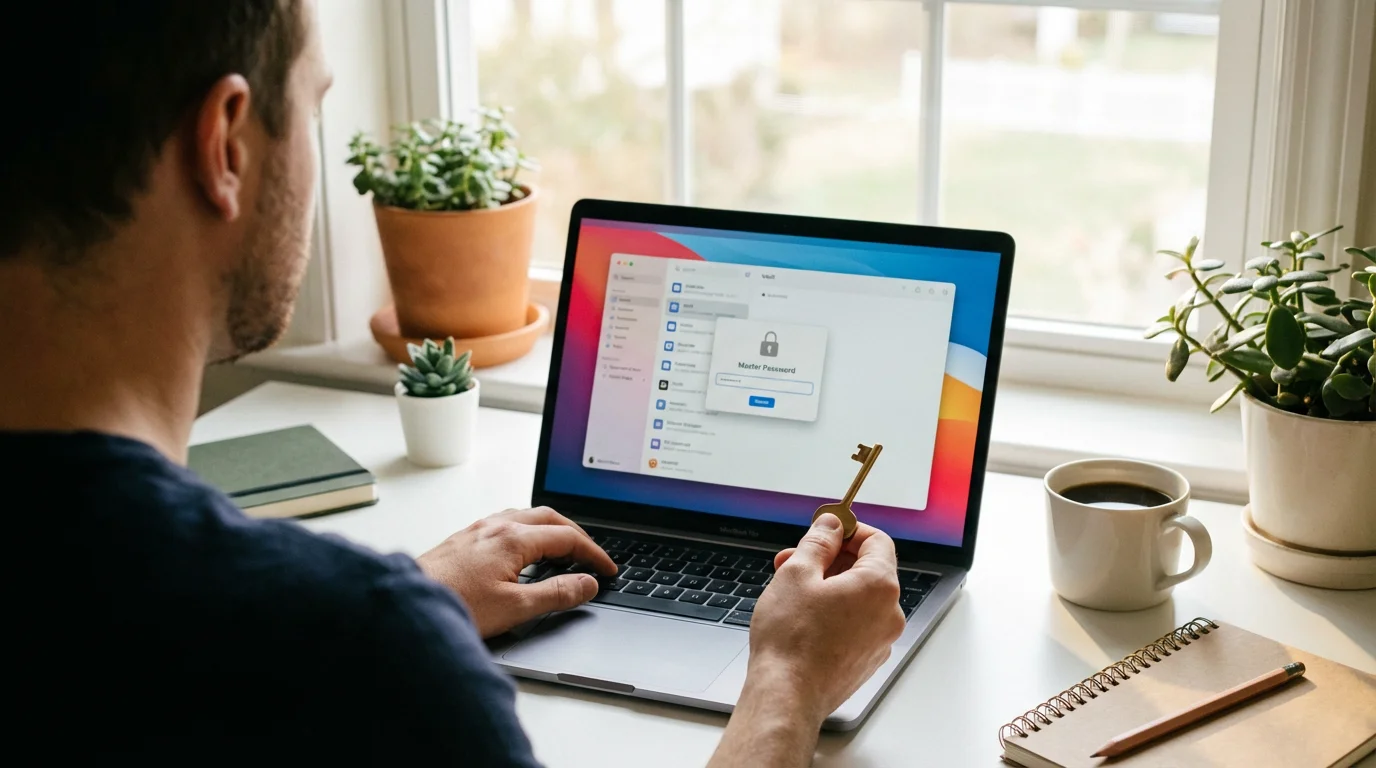
The Master Password: Your Single Key
The entire system revolves around your master password. This is the one password you must remember. Choose a strong, unique master password that you have never used before and never share it with anyone. Most password managers recommend a passphrase, which is a longer phrase or sentence, instead of a single word, to make it even stronger. For example, “MyGrandkidsLoveHikingInTheMountains2024!” is much stronger than “hiking123”.
Encryption and Storage
When you add a username and password to your manager, the app takes that information and immediately encrypts it. It then stores this encrypted data in a secure, digital vault. This vault can reside on your device, in the cloud (on the internet), or both, depending on the service you choose. Even if someone were to gain access to the vault file itself, they could not read your passwords without your master password to decrypt them.
Automatic Filling and Password Generation
When you visit a website or open an app that requires a login, your password manager recognizes the site or app. It then prompts you to fill in your username and password. With your permission, it automatically enters these details for you. Many managers also offer a built-in password generator. This tool creates incredibly strong, random, and unique passwords for new accounts, like “y8Q!#Bz$eG7@pL9”. You never need to type or remember these complex strings, as the manager stores them for you.

Synchronization
When information on different devices matches automatically, we call this “syncing.” Most password managers offer cloud syncing. This means your encrypted vault is stored on their secure servers and updated across all your devices. If you add a new password on your phone, it automatically appears on your computer and tablet. This convenience ensures you always have access to your latest logins, no matter which device you are using.
Choosing the Right Password Manager for You
Many reliable password managers are available, each with slightly different features and pricing models. Popular choices include LastPass, 1Password, Bitwarden, and Dashlane. When selecting one, consider these factors:
When setting up your security, stay alert for tech support scams that might try to trick you into revealing your master password.
Having a manager is especially helpful when you shop online safely, as it can store your payment card details securely for faster checkout.
- Ease of Use: Look for an intuitive interface. Some managers prioritize simplicity, which can be ideal for new users. Reading reviews often highlights user-friendliness.
- Features: Do you need basic password storage, or do you want advanced features like secure note storage, credit card autofill, or two-factor authentication (2FA) options?
- Cost: Many reputable password managers offer a free version with core features. Paid versions typically provide unlimited password storage, syncing across more devices, family plans, and advanced security options. For example, LastPass offers a robust free plan, but their Premium plan (around $36/year) adds dark web monitoring and emergency access.
- Compatibility: Ensure the password manager works on all your devices. Check if it has apps for your iPhone or Android phone, your iPad or other tablet, and extensions for your web browser on your Windows or Mac computer.
- Security Audit: Reputable password managers regularly undergo independent security audits to verify their protection measures. Researching these audits can provide peace of mind.
We often mention LastPass as an example because it is a widely used and well-regarded option, offering both free and paid plans. However, remember that many excellent choices exist. Take time to explore a few options and read reviews to find the best fit for your specific needs.

Getting Started: Downloading and Installing a Password Manager
The process of getting a password manager onto your devices is similar to installing any other app. An “app” is a program you can download and use on your phone, tablet, or computer. “Download” means getting the app from the app store and putting it on your device, and “install” means setting up the app so it is ready to use.
Once you have the app installed, it is important to manage app permissions to ensure your data stays secure and private.
While a password manager protects your accounts, you should also ensure you know how to keep your computer safe from viruses to maintain overall digital health.

For Your Smartphone or Tablet (iPhone, iPad, Android Phone, Android Tablet):
- Find Your App Store:
- On an iPhone or iPad: Look for the blue icon with a white ‘A’ in a circle. This is the Apple App Store.
- On an Android Phone or Tablet: Look for the colorful triangular icon. This is the Google Play Store.
- Open the App Store: Tap the icon to open it.
- Search for the Password Manager:
- Most app stores have a “Search” button or a magnifying glass icon, usually at the bottom or top of the screen. Tap this.
- Type the name of the password manager you chose (e.g., “LastPass”, “1Password”, “Bitwarden”) into the search bar.
- Tap the “Search” or “Go” button on your keyboard.
- Select the Correct App: You will see a list of results. Look for the official app. Check the developer’s name to ensure it matches the password manager company (e.g., “LastPass by LogMeIn”).
- Download and Install:
- Tap the “Get” or “Install” button next to the app. It might show a cloud icon with an arrow pointing down if you have downloaded it before.
- Your device may ask you to confirm your identity using Face ID, Touch ID (fingerprint), or your device passcode. This is a security step to ensure you authorize the download.
- The app will then download and install automatically. Once finished, you will see an “Open” button, and the app’s icon will appear on your home screen or in your app library.

For Your Computer (Windows PC or Mac):
Most password managers work best as a desktop app and a browser extension. A desktop app is a program that runs directly on your computer, while a browser extension adds features directly into your web browser (like Chrome, Firefox, Edge, or Safari).
- Open Your Web Browser: Launch your preferred internet browser.
- Visit the Official Website: Go to the official website of the password manager you chose (e.g., lastpass.com, 1password.com, bitwarden.com). Always ensure you are on the legitimate site.
- Find the Download Section: Look for a “Download,” “Products,” or “Get Started” section on their website.
- Download the Desktop Application:
- Locate the download link for your operating system (Windows or macOS).
- Click the download button. The installer file will download to your computer, usually into your “Downloads” folder.
- Install the Desktop Application:
- Once the download finishes, find the installer file (it often ends in “.exe” for Windows or “.dmg” for Mac) and double-click it.
- Follow the on-screen instructions. This usually involves clicking “Next,” agreeing to terms, and choosing an installation location. This process sets up the password manager as a standalone program on your computer.
- You might need to grant administrative permissions during installation.
- Install Browser Extensions:
- After installing the desktop app, the website or the app itself will often prompt you to install a browser extension.
- If not, go to your browser’s extension store (e.g., Chrome Web Store, Firefox Add-ons, Microsoft Edge Add-ons) and search for the password manager’s extension.
- Click “Add to [Browser Name]” or “Install.” This extension allows the password manager to automatically fill in passwords on websites and offers a quick way to save new logins.
- You might see a small icon for the password manager appear in your browser’s toolbar (often near the top right corner).
Setting Up Your Password Manager Account
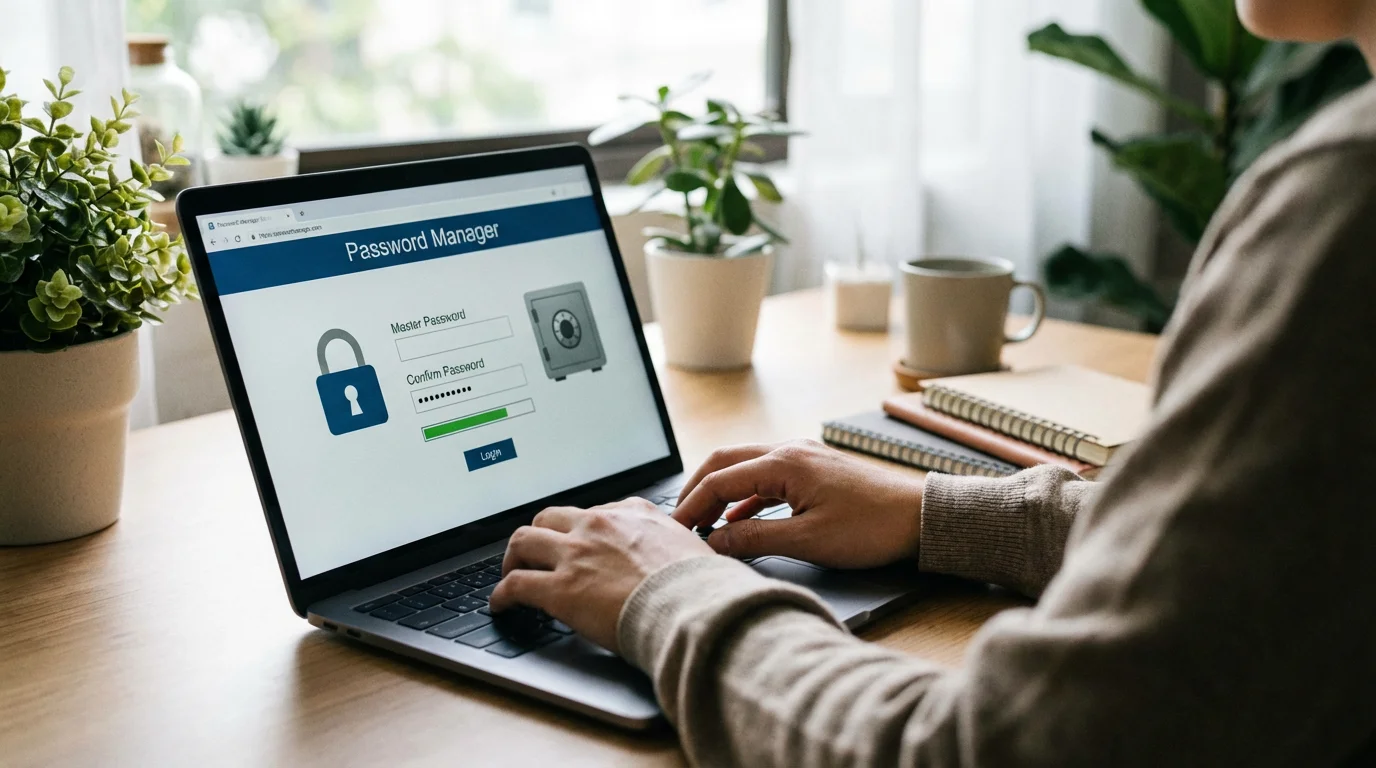
Once you have installed the app on your devices, the next crucial step is creating your account and, most importantly, setting your master password. This is the single key that unlocks all your stored credentials, so choose it wisely and guard it carefully.
- Open the Password Manager App: Launch the app on your phone, tablet, or computer.
- Create a New Account: Look for an option like “Create Account,” “Sign Up,” or “New User.”
- Enter Your Email Address: Provide an active email address. This email often serves as your username and allows for account recovery if necessary.
- Create Your Master Password: This is the most critical step.
- The app will ask you to create a strong master password. It should be long (at least 12-16 characters), complex (mixing uppercase and lowercase letters, numbers, and special symbols like !, @, #), and unique (never used anywhere else).
- Consider a passphrase: a memorable sentence or string of unrelated words. For example, “GreenElephantsDanceOnRainbows7!” is strong and easier to recall than a random string.
- Write it down initially on a piece of paper and keep it in a safe, private place, not near your computer or devices. Memorize it as soon as possible, then destroy the paper.
- You will usually need to type your master password twice to confirm it.
- Set Up a Hint (Optional but Recommended): Some password managers offer a master password hint. Do not make it too obvious. Instead of “My dog’s name,” use “Starts with first pet, ends with favorite number.”
- Generate a Recovery Key or Phrase (Crucial): Many password managers provide a “recovery key” or a “recovery phrase.” This is a unique string of characters or words that can help you regain access to your vault if you ever forget your master password.
- Crucially, save this recovery key in a very secure, offline location. Print it out and store it in a locked drawer or safe. Do not store it on your computer or in the cloud. If you lose your master password and your recovery key, you may lose access to all your stored passwords forever.
- Complete Initial Setup: The app may guide you through a quick tour or ask you to confirm some basic settings. Take a moment to familiarize yourself with the interface.
Adding Your Passwords to the Manager
With your account set up, the next step is populating your vault with all your existing usernames and passwords. You can do this in two main ways: importing them or adding them manually as you log into sites.

Method 1: Importing Passwords (If Applicable)
If you have previously saved passwords in your web browser (like Chrome, Firefox, Edge, or Safari) or from another password manager, many new password managers offer a tool to import them. This saves significant time.
- Check for an Import Option: In your new password manager’s desktop app or web interface, look for “Import,” “Settings,” or “Tools.”
- Choose Your Source: Select where you want to import passwords from (e.g., “Google Chrome,” “Firefox,” “CSV file”).
- Follow On-Screen Instructions: The manager will guide you through the specific steps, which often involve exporting your passwords from your browser first, then importing that file into the manager.
- Review Imported Passwords: After importing, review the list. Delete any old or incorrect entries. Ensure sensitive accounts like banking or email are correctly listed.

Method 2: Adding Passwords Manually (Best for New Logins and Verification)
This is the most common way to build your password vault, especially for new accounts or to verify existing ones.
- Log into a Website or App: Go to a website or app where you have an existing account.
- Enter Your Username and Password: Type in your current login details as you normally would.
- Prompt to Save: Your password manager (via its browser extension or app) will detect that you just logged in. It will usually pop up a small notification asking, “Would you like to save this password?”
- Confirm and Save: Click “Save” or “Add.” The manager will then store the website address, your username, and your password securely in your vault.
- Consider Updating Weak Passwords: If the password manager flags the password as weak or reused, now is an excellent time to update it. Most password managers offer a “Generate Password” option right from this prompt. Use it to create a strong, unique password, then navigate to the website’s “Change Password” section to update it. The manager will automatically offer to save the new strong password.
Be patient with this process. It takes some time to add all your accounts, but you only do it once. Each password you add strengthens your online safety and reduces future stress.

Using Your Password Manager Day-to-Day
Once you have populated your password manager, using it becomes second nature. It significantly streamlines your online experience while keeping you secure.
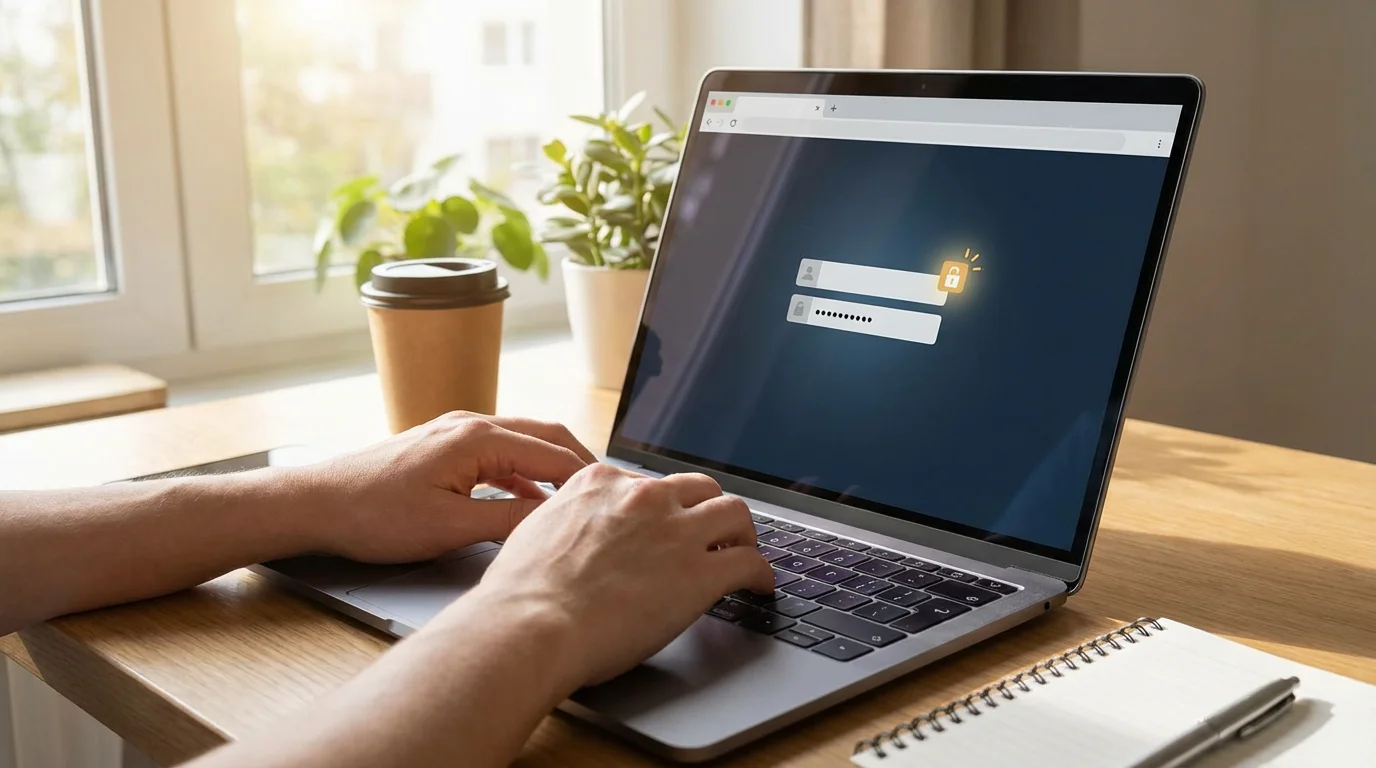
Automatic Filling of Logins
This is the primary benefit you will experience daily.
- Navigate to a Login Page: Open a website or app that requires you to log in.
- Observe the Autofill: Your password manager’s icon will usually appear in the username or password field. Sometimes, it automatically fills in your credentials without you doing anything.
- Select Login (If Multiple Accounts): If you have multiple accounts for the same website (e.g., a personal and a work email), the manager might show a small dropdown list. Select the correct username you wish to use.
- Click Login: After the fields populate, simply click the “Login” or “Sign In” button.
Generating Strong, Secure Passwords for New Accounts
Whenever you sign up for a new online service or app, let your password manager create the password for you.
- Create a New Account: Go to the signup page.
- Locate Password Field: When you reach the “Create Password” field, look for the password manager’s icon.
- Generate Password: Click the icon or right-click in the field and select “Generate Password.” The manager will instantly create a long, random, and unique password.
- Save and Confirm: The manager will then prompt you to save this new password to your vault. Confirm it. This ensures you never have to remember this complex password, and it is unique to this new account.
Accessing Your Vault Directly
Sometimes you need to look up a password, perhaps to share it securely with a trusted family member or to use it on a device where you do not have the extension installed.
- Open the Password Manager App: Launch the desktop app or the mobile app.
- Enter Master Password: Provide your master password to unlock your vault.
- Search for Entry: Use the search bar or browse the list to find the specific login you need.
- View/Copy Password: You can typically view the password by clicking an “eye” icon or copy it to your clipboard (a temporary storage area on your device) to paste elsewhere. Be mindful that anything copied to the clipboard remains there until overwritten, so paste it quickly and avoid leaving it exposed.

Advanced Features for Enhanced Security
Beyond basic password storage, many password managers offer additional features that further boost your online safety and convenience. Using these tools gives you even greater protection.
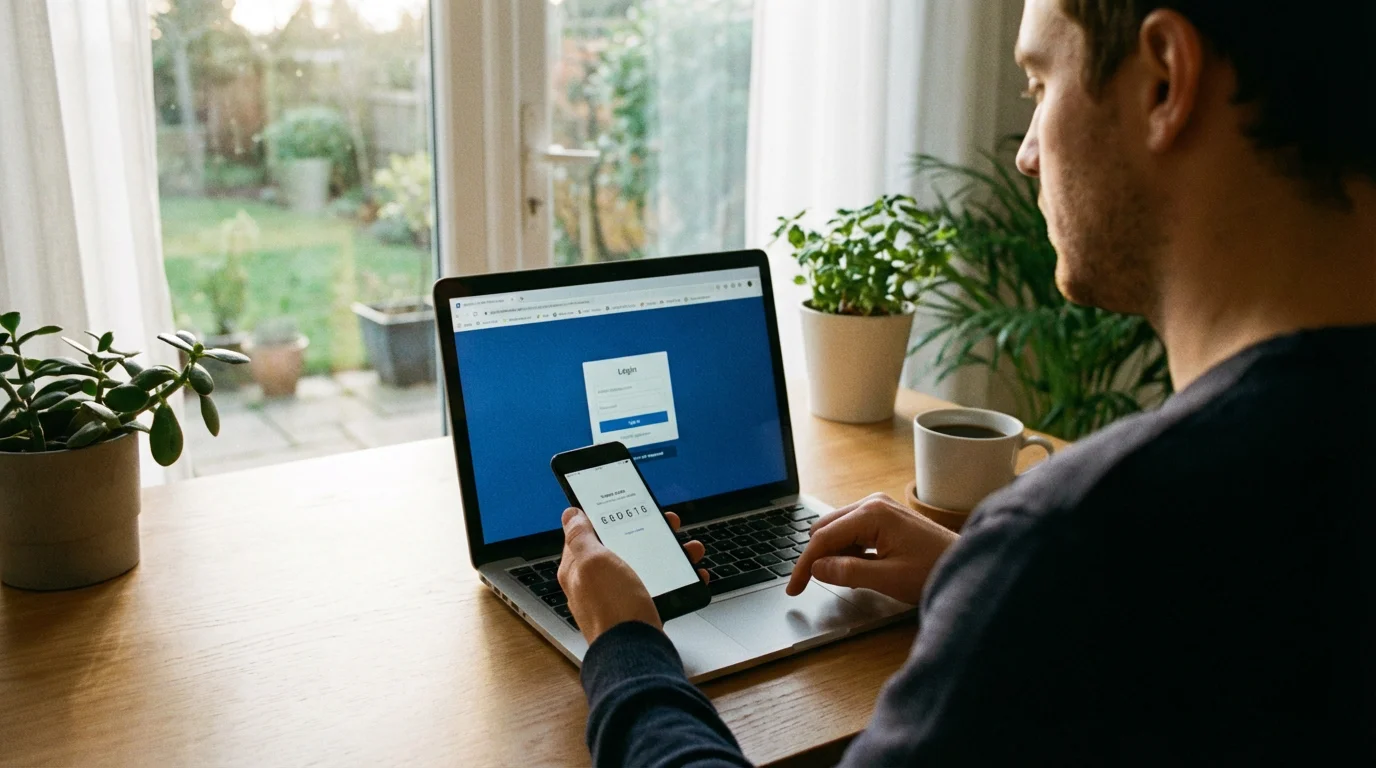
Two-Factor Authentication (2FA)
Two-factor authentication adds an extra layer of security beyond just your password. It means that to log in, you need two pieces of evidence: something you know (your password) and something you have (like your phone or a specific code). Many password managers integrate 2FA, either by storing 2FA codes themselves or by making it easier to set up.
- How it works: When you enable 2FA on a website, after you enter your username and password, the website asks for a second code. This code typically comes from a special app on your phone (an authenticator app) or is sent via text message.
- Password Manager Integration: Some password managers, like LastPass Authenticator or Google Authenticator (which Bitwarden can integrate with), can generate these codes directly within the manager. This means your password and the 2FA code are both easily accessible through your secure vault, but still require a separate device or action.

Secure Notes
Most password managers allow you to create secure notes. These are encrypted text entries where you can store sensitive information that is not a login, such as:
- Software license keys
- Wi-Fi passwords for your home network
- Passport numbers or national ID details
- Private financial information (but always exercise caution)
These notes receive the same strong encryption as your passwords, protecting them from unauthorized access.
Identity Wallets and Credit Card Storage
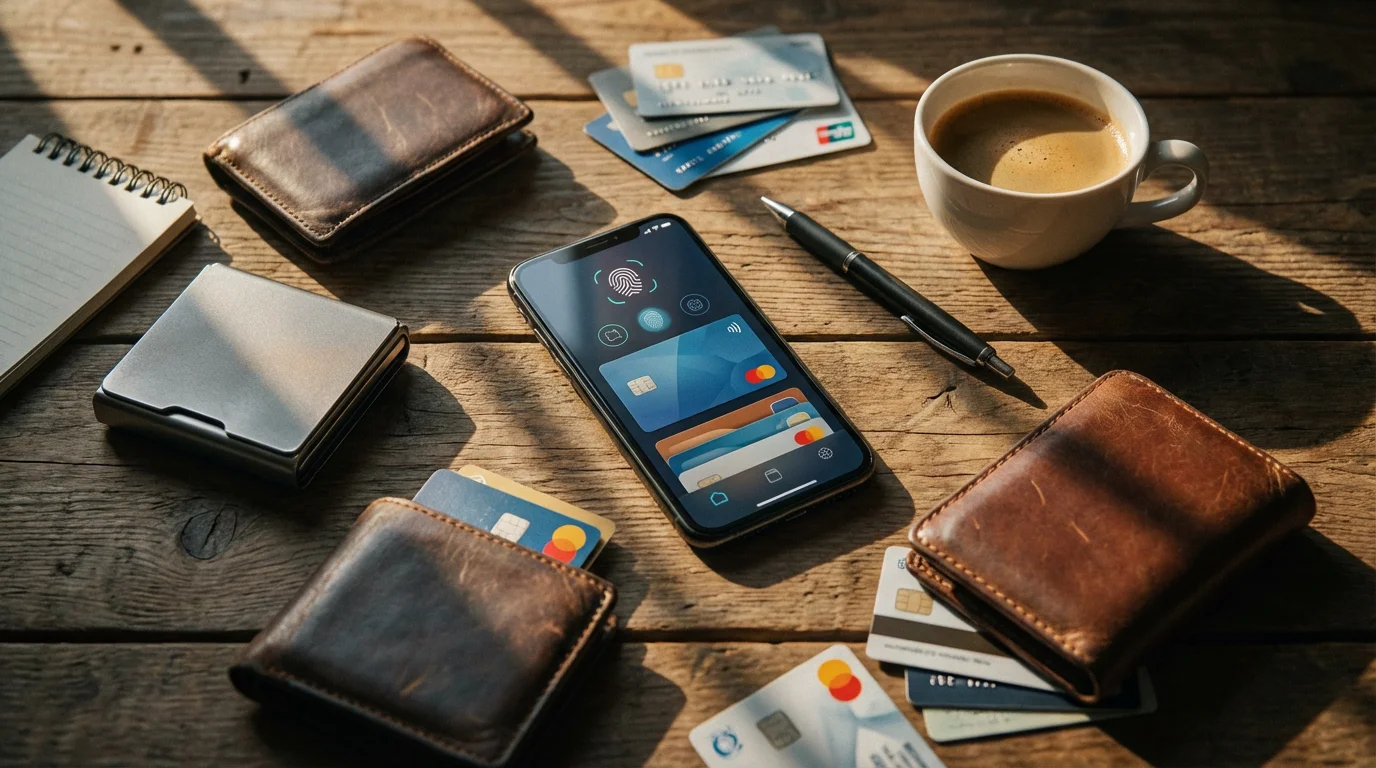
Similar to secure notes, many password managers offer an “Identity Wallet” or secure credit card storage. You can store your credit card details, addresses, and other personal information. When you shop online, the manager can securely autofill these details into payment forms, speeding up checkout and reducing typing errors.
- Data Point: Autofilling credit card details from a password manager is generally more secure than typing them in manually each time, as it reduces the risk of keyloggers (malware that records your keystrokes) capturing your information.

Password Auditing and Security Dashboards
Many password managers include tools to analyze the strength and security of your stored passwords. These “security dashboards” or “password audit” features can:
- Identify Weak Passwords: Point out passwords that are too short, too simple, or easily guessable.
- Find Reused Passwords: Alert you if you have used the same password for multiple accounts, which is a significant security risk.
- Check for Breached Passwords: Compare your passwords against databases of known compromised passwords from data breaches, notifying you if any of your accounts have potentially been exposed.
Regularly reviewing these audit reports helps you proactively improve your overall online security. If the manager flags a password, change it immediately to a new, strong, and unique one generated by the manager.
Tips for Getting the Most Out of Your Password Manager
To maximize the benefits of your password manager and maintain a high level of online security, incorporate these practices into your routine.
- Memorize Your Master Password: This is the one password you absolutely must remember. Practice typing it regularly without looking. If you struggle, consider a longer, memorable passphrase.
- Enable Two-Factor Authentication (2FA) for Your Password Manager: For the ultimate protection of your vault, enable 2FA on the password manager itself. This means even if someone guesses or steals your master password, they still need a second code (from your phone, for example) to access your vault.
- Regularly Update the App: An “update” means getting the newest version of an app, usually for free. Updates often include security patches and new features. Set your apps to update automatically, or check for updates manually on your phone’s app store or your computer’s app settings.
- Review Your Password Vault Periodically: Take some time every few months to review your stored passwords. Delete old accounts you no longer use, update any weak or reused passwords, and ensure all critical accounts have unique, strong passwords.
- Back Up Your Data (If Your Manager Allows): Some password managers offer local backup options. While cloud syncing is convenient, having an encrypted local backup provides an extra safety net in rare cases of service outages or account issues. Always store these backups securely.
- Be Wary of Public Wi-Fi: While password managers protect your logins, exercise caution when accessing sensitive accounts on public Wi-Fi networks. These networks are often less secure. If you must use them, consider using a Virtual Private Network (VPN) for added protection. The Federal Trade Commission offers excellent advice on protecting your privacy online.
- Use the Browser Extension: The browser extension makes the password manager incredibly convenient. Make sure it is installed and active in all your web browsers.
- Teach Others (If You Feel Comfortable): Share the benefits of password managers with friends and family. Helping others improve their online security contributes to a safer digital environment for everyone.
Frequently Asked Questions
Here are answers to common questions about password managers.
Q: Is a password manager safe?
A: Yes, reputable password managers are very safe. They use strong encryption to protect your data, making it virtually impossible for unauthorized individuals to access your passwords without your master password. The biggest risk comes from a weak master password or failing to enable two-factor authentication on the manager itself. Choose a strong master password and enable 2FA for maximum safety.
Q: Do I have to pay for a password manager?
A: Not necessarily. Many excellent password managers, like Bitwarden and LastPass, offer robust free versions that provide essential features like unlimited password storage and autofill. Paid versions typically add advanced features such as family sharing, dark web monitoring, or secure cloud storage for documents. You can start with a free version and upgrade later if you need more features.
Q: What happens if I forget my master password?
A: Forgetting your master password can be a significant issue, as it is the key to your entire vault. Many password managers offer recovery options, such as a recovery key or a master password hint. This is why saving your recovery key in a secure, offline location when you set up your account is crucial. Without a recovery option, you might lose access to your passwords permanently, so treat your master password and recovery key with extreme care.
Q: Can I use a password manager on all my devices?
A: Yes, most modern password managers are designed for cross-device compatibility. They offer dedicated apps for smartphones (iPhone, Android), tablets (iPad, Android), and desktop computers (Windows, Mac, Linux), along with browser extensions for popular web browsers (Chrome, Firefox, Edge, Safari). Your encrypted password vault syncs across all these devices, ensuring you have access to your logins wherever you are.
Q: What if the password manager company gets hacked? Will my passwords be stolen?
A: While no system is 100% immune to hacking, password managers use strong encryption before storing your data. If a password manager company experienced a data breach, hackers would likely only gain access to encrypted, unreadable versions of your passwords. Without your unique master password, they cannot decrypt your specific data. This is a key reason why your master password must be extremely strong and unique to your password manager.
Final Thoughts: Embracing Digital Safety
Adopting a password manager is one of the most impactful steps you can take to enhance your online security and simplify your digital life. It removes the burden of remembering countless complex passwords, replacing it with the simple task of recalling one strong master password. This shift not only protects your personal information from cyber threats but also offers peace of mind and greater convenience every time you log in.
Start today by choosing a reputable password manager, downloading it to your devices, and carefully setting up your master password. As you begin to populate your vault, you will quickly appreciate the power of having all your passwords organized safely and securely. Embracing this essential tool empowers you to navigate the internet with greater confidence, knowing you have taken a crucial step towards digital safety.
Disclaimer: This article is for informational purposes only. App interfaces change frequently with updates, so screens may look slightly different from what’s described. Always download apps from official app stores (Apple App Store or Google Play Store) to ensure safety.









Leave a Reply