

Think back to thirty years ago. You likely had a single physical key for your front door, a key for your car, and perhaps a small, leather-bound address book in a kitchen drawer to keep track of your friends’ phone numbers. Life was relatively straightforward. Today, that small address book has transformed into a digital universe. You likely have dozens, if not hundreds, of digital “doors” that require keys. We call these keys passwords.
You need a password for your bank account, your email, your social media accounts, and even for the website where you order your favorite coffee. Remembering all these combinations of letters, numbers, and symbols is an impossible task for the human brain. Most of us cope by using the same password for everything or writing them down on a sticky note tucked under the keyboard. Unfortunately, these habits make you a prime target for scammers—people trying to trick you out of your money or personal information.
This is where a password manager comes in. Think of it as a secure, digital vault that lives on your computer or phone. It remembers all your passwords for you, so you only have to remember one. More importantly, it helps you create “strong” passwords that are nearly impossible for a computer to guess. Using one of these tools is the single most effective step you can take to protect your privacy and enjoy the internet with peace of mind.
Table of Contents
- What Exactly is a Password Manager?
- The Hidden Risks of Reusing Passwords
- How Password Managers Block Scammers
- The Magic of the Master Password
- Choosing the Right Tool for You
- A Step-by-Step Guide to Getting Started
- What Happens if You Forget Your Master Password?
- Frequently Asked Questions
What Exactly is a Password Manager?
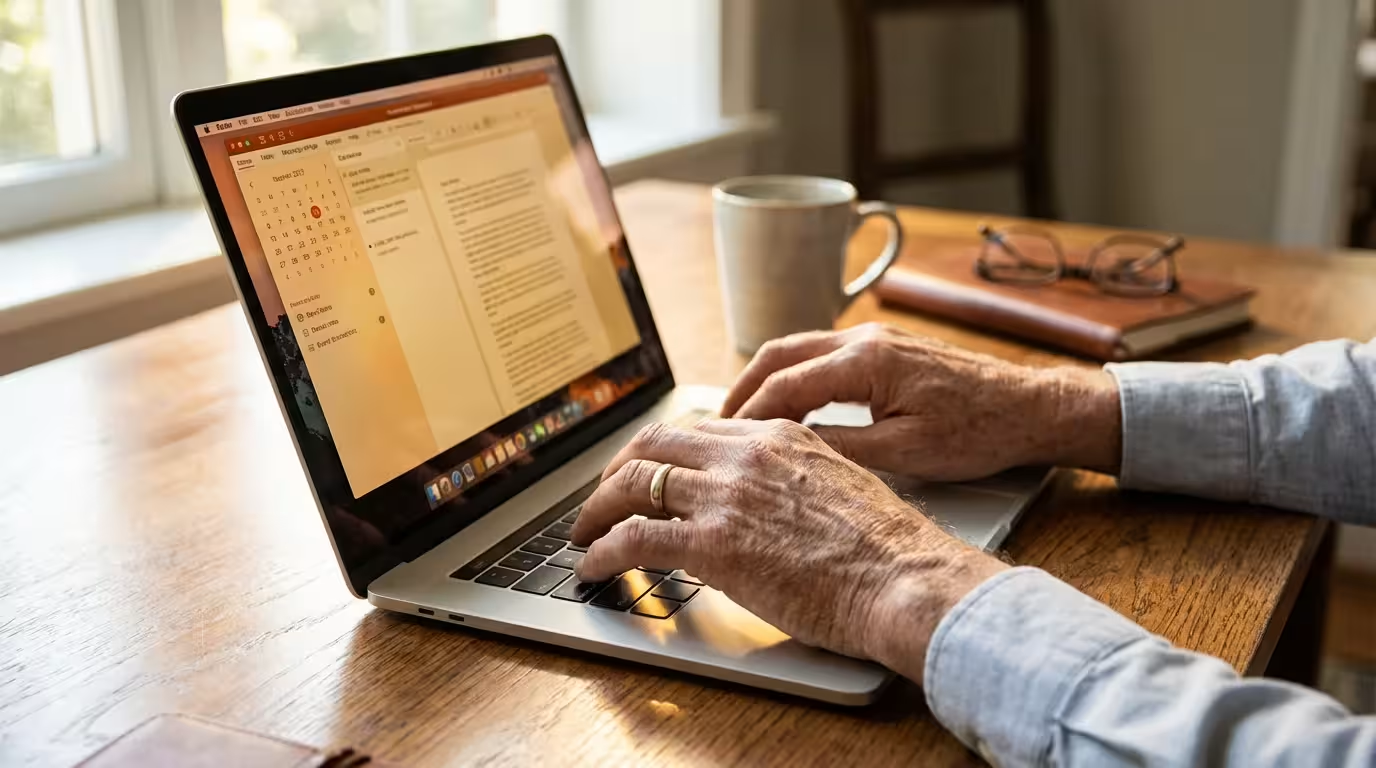
A password manager is a secure app that acts like a digital personal assistant for your security. Instead of you having to remember that your bank password is “Springtime2024!” and your email is “GrandkidsRock!”, the app stores these for you in an encrypted “vault.” Encryption is a fancy word for “scrambling.” It means that even if someone stole the files from the app, they would see only a mess of random characters that make no sense without your secret key.
When you want to log into a website, the password manager recognizes where you are and offers to “autofill” your username and password. You don’t have to type a single thing. It’s like having a butler who knows exactly which key fits which lock and hands it to you the moment you reach the door.
These tools work across all your devices. If you save a password on your desktop computer, it will be waiting for you on your smartphone or tablet. This seamless connection ensures you are never locked out of an account, regardless of which device you are using. For many seniors, this removes the frustration of “forgotten password” loops that can ruin an afternoon.
Protecting your digital life doesn’t mean you have to be a computer expert. It just means you need the right tools to do the heavy lifting for you. A password manager is the most powerful tool in your kit.

The Hidden Risks of Reusing Passwords
It is tempting to use one familiar password for every website you visit. It’s easy to remember, and it feels safe because you know it by heart. However, this is the digital equivalent of having one physical key that opens your house, your car, your safe deposit box, and your office. If a thief steals that one key, they have access to your entire life.
Scammers use a technique called “credential stuffing.” Here is how it works: Imagine a small, unimportant website where you once bought a pair of gardening gloves gets hacked. The hackers steal a list of every user’s email and password. Because they know people tend to reuse passwords, they use a computer program to try that same email and password combination on thousands of other sites, including major banks and email providers.
Data from the Cybersecurity & Infrastructure Security Agency (CISA) shows that billions of passwords are leaked in data breaches every year. If you use the same password for your “gardening club” as you do for your “retirement account,” a breach at the club puts your life savings at risk. A password manager solves this by helping you create a unique, complex password for every single site. If one site gets hacked, your other accounts remains perfectly safe.

How Password Managers Block Scammers
One of the most common threats seniors face is phishing. This occurs when you receive a fake email or text message that looks like it is from your bank, the Social Security Administration, or a company like Amazon. These messages often say there is a “problem with your account” and ask you to click a link to log in and fix it.
When you click that link, it takes you to a website that looks exactly like the real thing, but it is actually a trap run by a scammer. If you type your password into that fake site, the scammer now has it. This is where a password manager becomes your bodyguard. Because the app is computer-based, it cannot be fooled by visual tricks. It looks at the underlying web address (the URL). If the address is even one letter off—such as “BancOfAmerica.com” instead of “BankOfAmerica.com”—the password manager will refuse to autofill your information. It effectively says, “I don’t recognize this place, so I’m not handing over your keys.”
This feature alone prevents the vast majority of identity theft cases. While a human eye might miss a small typo in a website address, the password manager never does. It acts as a silent sentry, protecting you from your own curiosity or the urgency created by a deceptive email.
The Magic of the Master Password
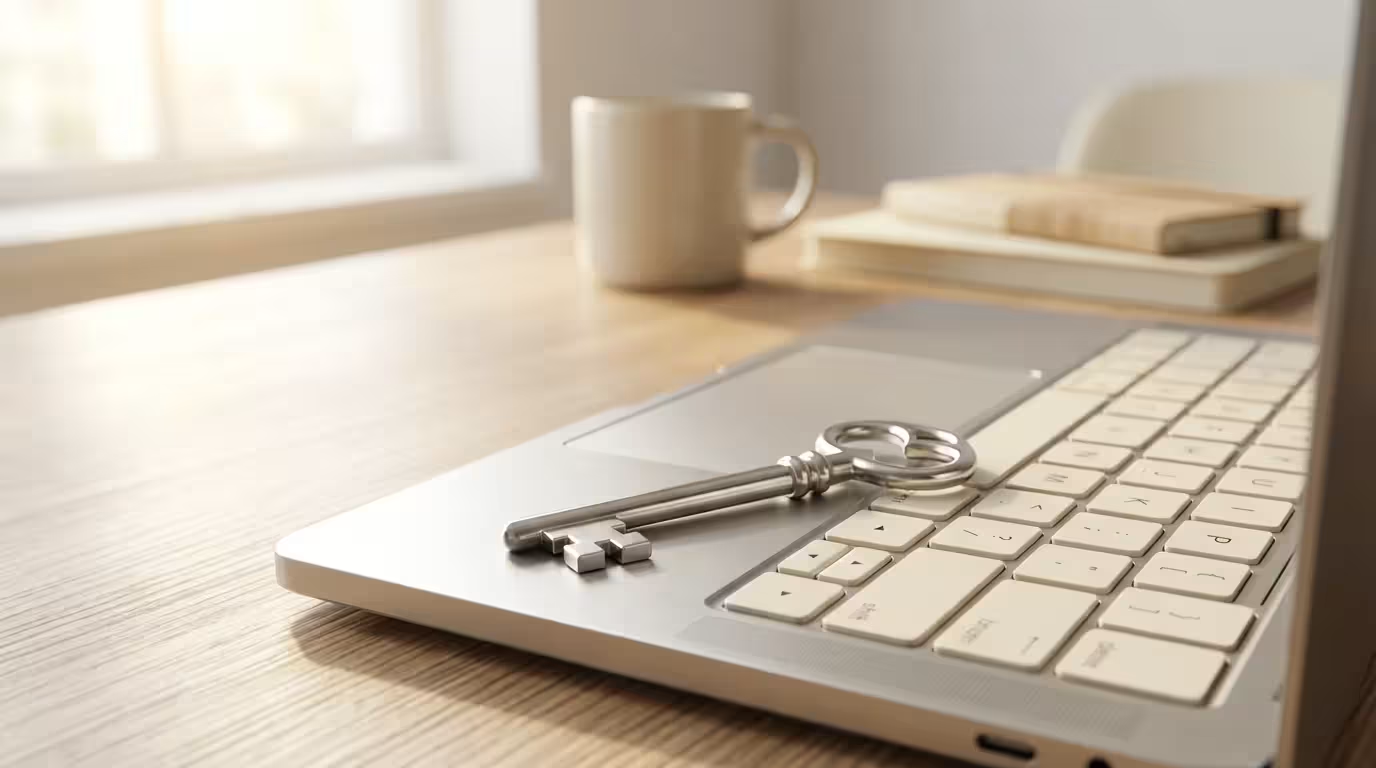
The most common concern people have is: “What if I forget the password to the password manager?” This is a valid question. The password manager requires one “Master Password” to unlock the vault. This is the only password you will ever need to remember again.
A good Master Password isn’t just a word; it’s a “passphrase.” Think of a short sentence or a combination of words that means something to you but would be impossible for someone else to guess. For example, “TheBlueJaySatOnTheFence!” is much stronger than “Bluejay123.” It is long, easy for you to visualize, and extremely difficult for a scammer’s computer to “brute force” (a term for when a computer tries millions of combinations per second to guess a password).
By focusing your memory on just one strong passphrase, you free up mental energy. You no longer have to worry about the “reset password” buttons or the “incorrect password” red text that causes so much stress. You master one key, and that key manages the rest of your digital kingdom.

Choosing the Right Tool for You
There are many reputable password managers available today. You do not need to be a tech wizard to use them; most are designed with simplicity in mind. Here are a few types to consider:
| Type | Examples | Pros | Cons |
|---|---|---|---|
| Browser-Based | Google Chrome, Apple iCloud Keychain | Free and already built into your computer or phone. | Only works within that specific browser or brand of device. |
| Dedicated Apps | Bitwarden, 1Password, Dashlane | Extremely secure, works on all devices (PC, Mac, iPhone, Android). | Often requires a small monthly or yearly subscription for full features. |
For most people, a dedicated app like Bitwarden or 1Password is the best choice. They offer features specifically designed for safety, such as alerting you if one of your passwords has been leaked in a data breach. They also allow you to store more than just passwords—you can save secure notes, credit card numbers, and digital copies of important documents like your insurance cards.
If you find the idea of an app too complex to start, using the built-in password manager in your Apple iPhone or Google Chrome browser is a great “first step.” It is much better than using a notebook or reusing passwords, and you can always move your passwords to a more robust app later.

A Step-by-Step Guide to Getting Started
Setting up a password manager takes about 30 minutes of focused time, but it will save you hours of frustration in the future. Follow these steps to get started safely:
- Pick your service: Choose a reputable provider. 1Password and Bitwarden are highly recommended by security experts at AARP Technology Resources for their ease of use and high security standards.
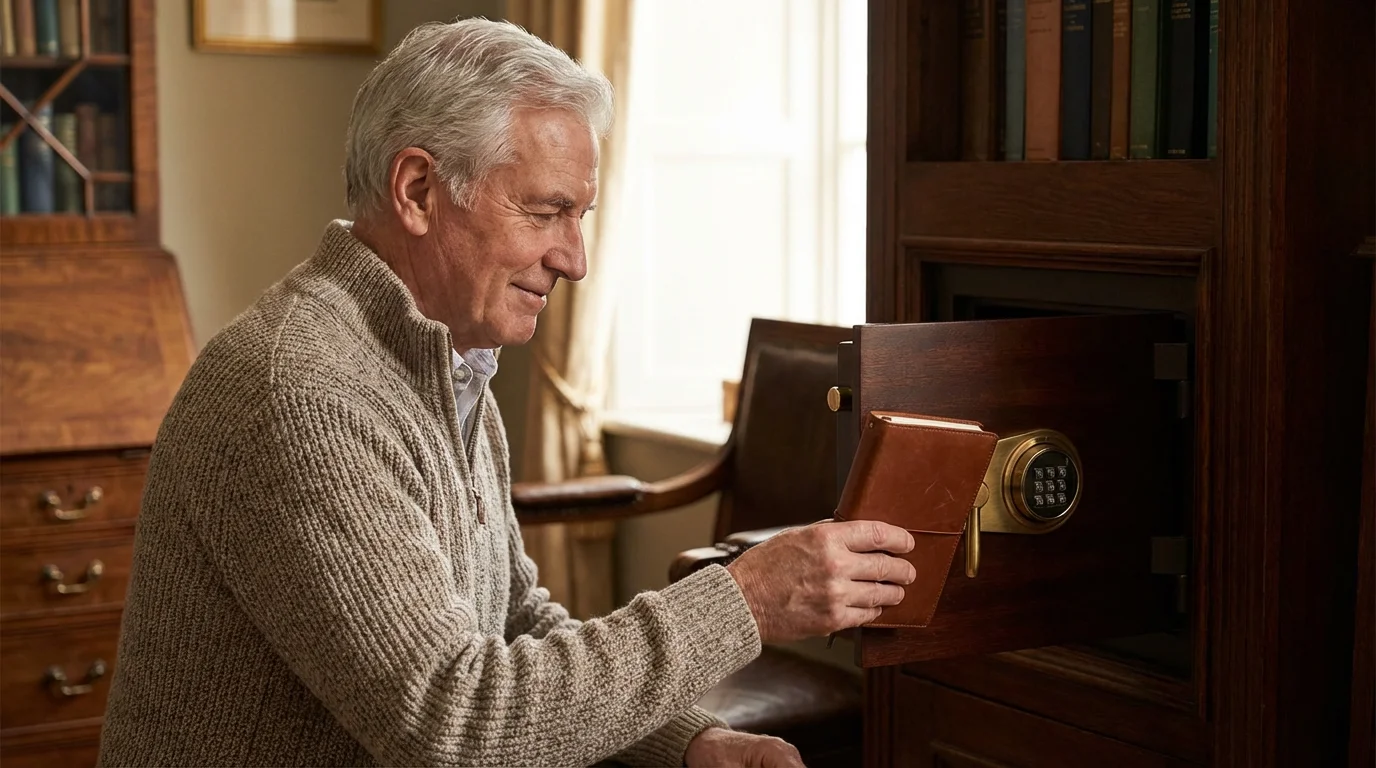
- Create your Master Password: Choose a long passphrase. Write it down on a piece of paper and put that paper in a physically secure place, like a home safe or a locked drawer. Do not keep it on a sticky note near your computer.
- Install the “Extension”: If you use a computer, the app will ask you to install a small tool in your web browser (like Safari, Chrome, or Edge). This is what allows the app to automatically fill in your passwords.
- Install the App on your Phone: Download the mobile version so you have your passwords while you are on the go.
- Start “Capturing” Passwords: You don’t have to enter every password at once. As you visit your favorite sites and log in normally, the password manager will pop up and ask, “Would you like me to save this?” Click “Yes.” Over a week or two, your vault will fill up naturally.
- Change the “Weak” Ones: Once your passwords are saved, the app will show you which ones are old or weak. You can then use the app’s “Password Generator” to replace them with strong, random ones like “kH8!nZp2#qL.” You don’t need to remember them; the app will do that for you.
What Happens if You Forget Your Master Password?
This is the “emergency” scenario that worries many people. Because these apps are so secure, the company providing the service usually cannot see your passwords. This means they cannot “reset” your Master Password for you if you lose it. This is a security feature—it prevents hackers from calling the company and pretending to be you.
However, modern password managers have safety nets. Most will provide you with an “Emergency Kit” or a “Recovery Key” during setup. This is a long string of random letters. You should print this out and store it with your birth certificate or other important physical documents. If you ever forget your Master Password, this key is your one-way back into your vault.
Additionally, many apps allow you to set up “Emergency Access.” You can choose a trusted family member (like a spouse or an adult child) who can request access to your vault if something happens to you. You can set a “waiting period,” so if they request access, you have several days to deny it if you are perfectly fine. This is an excellent way to ensure your digital legacy and important accounts are accessible to your loved ones when the time comes.
Frequently Asked Questions
Is it safe to put all my eggs in one basket?
Yes, provided that “basket” is built with military-grade encryption. It is much safer to have one highly secure vault protected by a strong passphrase than to have dozens of weak, easily guessable “keys” scattered across the internet. Password manager companies spend millions of dollars every year to ensure their vaults are impenetrable.
What if the password manager company gets hacked?
Even if a company like 1Password or Bitwarden were hacked, the scammers would only get “encrypted” (scrambled) data. Without your unique Master Password—which the company does not store on their servers—the data is useless. It would take a supercomputer millions of years to crack a single vault.
How do I know if a call or email is really from my bank?
Scammers are very good at “spoofing,” which means making a call look like it’s coming from a local number or your bank’s official line. A bank will never ask you for your password over the phone. If you receive a suspicious call, hang up. Open your password manager, find the official website for your bank, and use the contact number listed there to call them back directly. This ensures you are speaking to a real employee.
What if I already clicked a link or shared my information?
Do not feel foolish; scammers are professionals who spend all day refining their tricks. If you think you’ve shared a password, immediately go to that website and change the password. If it was a bank or financial site, call them right away. They have “fraud departments” specifically trained to help you secure your account. You should also report the incident to the Federal Trade Commission (FTC).
Embracing a password manager is about taking control. It moves you from a place of worry—wondering if “12345” is enough to protect your life savings—to a place of confidence. You deserve to use the internet to connect with family, shop for your needs, and manage your finances without the constant shadow of anxiety. By letting a password manager handle the technical details of security, you can get back to what really matters.
If you ever feel stuck, remember that you can take it one step at a time. Start by downloading an app and just saving one password. As you see how easy and helpful it is, your confidence will grow. You are perfectly capable of mastering this tool, and your future, more secure self will thank you for it.
Disclaimer: This article provides general information about online safety and is not a substitute for professional advice. If you believe you’ve been a victim of fraud, contact your bank immediately and report the incident to the FTC at ReportFraud.ftc.gov or call 1-877-382-4357. If you’ve lost money, also file a report with your local police.







Leave a Reply