
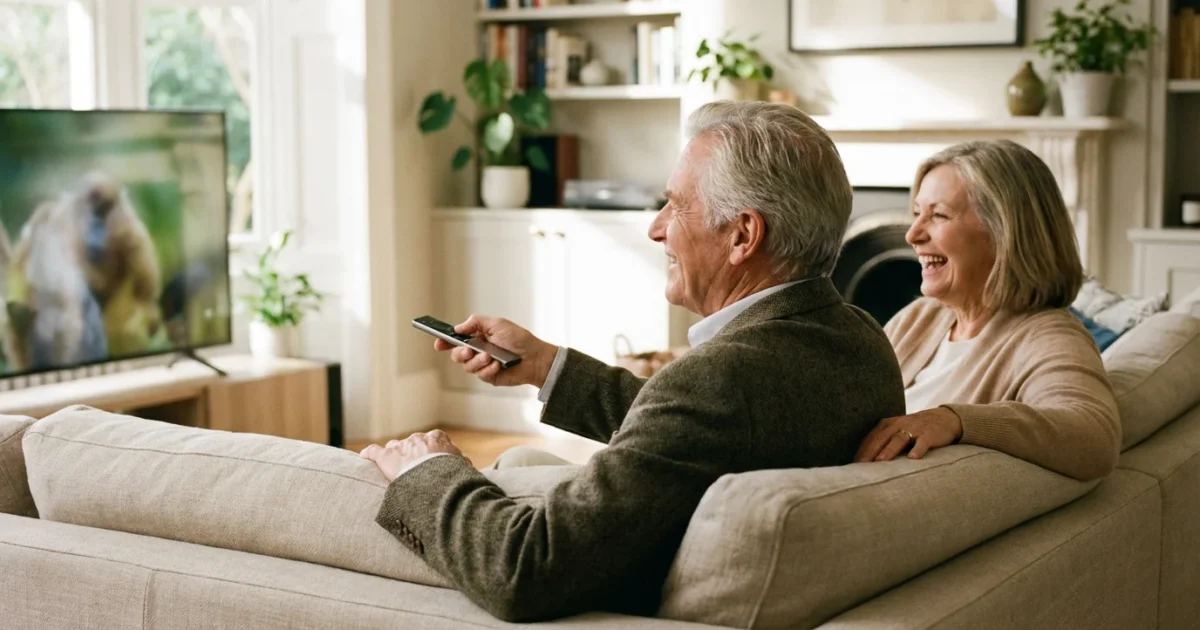
If you recently replaced an older television, you probably noticed something startling when you unboxed the new one: the remote control looks completely different. For decades, television remotes were long, rectangular wands covered in fifty or sixty tiny buttons. You had number pads, color-coded keys, and complex labels like “MTS,” “PIP,” or “Component.” Today, most smart TV remotes are small, sleek, and feature fewer than a dozen buttons.
This shift in design reflects how we watch television now. We no longer just “surf” through numbered channels; we navigate menus, search for specific movies, and interact with apps. While this minimalism makes the remote look more modern, it can also make it feel intimidating. You might wonder where the numbers went or how you are supposed to find your favorite evening news program without a channel-up button. This guide simplifies the transition—stripping away the tech-speak to help you master your smart TV remote with confidence.
Using a smart TV remote is less about memorizing every button and more about understanding a few core concepts. Once you grasp how the “Home” button and the directional pad work together, you can navigate almost any streaming service or device on the market. Whether you use a Samsung, LG, Roku, or Fire TV, the logic remains remarkably similar.
Table of Contents
- What Is a Smart TV Remote and How Is It Different?
- Essential Buttons Every User Needs to Know
- Navigating the Screen: The “Directional Pad” Logic
- Using Voice Commands: Talking to Your Television
- Is This Right for You? Choosing Between Modern and Traditional
- Troubleshooting Common Problems and Glitches
- Privacy and Security: Is the Remote Listening?
- Frequently Asked Questions
What Is a Smart TV Remote and How Is It Different?
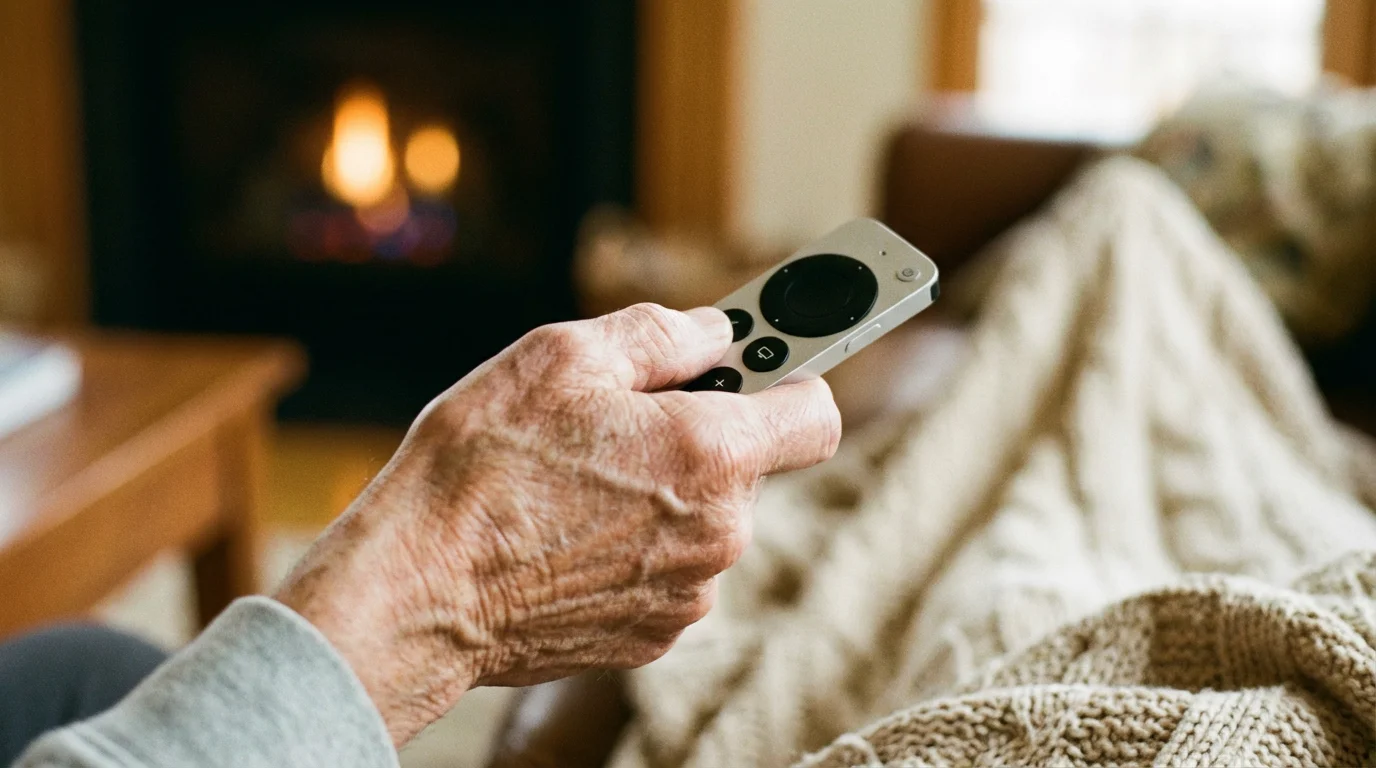
A smart TV remote is the bridge between you and your “smart” television—a TV that connects to the internet to play movies and shows through apps. In the past, remotes used Infrared (IR) technology. This required you to point the remote directly at the TV sensor, much like a flashlight. If a coffee table or a stray pillow blocked the line of sight, the TV wouldn’t respond.
Because your smart TV requires the internet to stream content, you should ensure it is properly connected to your home Wi-Fi network.
Modern smart remotes often use Bluetooth. This is a wireless connection that allows the remote to talk to the TV even if you are pointing it at the ceiling or hiding it under a blanket. This technology also allows the remote to send more complex data—like your voice—to the television. This change explains why many remotes no longer require a direct “line of sight” to work.
The biggest difference you will notice is the lack of a number pad. In the world of streaming (watching shows over the internet instead of through a cable box), we rarely type in “Channel 42.” Instead, we click on an icon for an app like Netflix or Amazon Prime. Because of this, manufacturers removed the numbers to make the remote fit more comfortably in your hand. While this feels like a loss at first, it actually reduces the “clutter” of buttons you never use anyway.
Practical Wisdom: If you truly miss your number pad, don’t worry. Most smart TVs allow you to bring up an “on-screen” number pad using the remote’s directional buttons, or you can often use a universal remote if you prefer the old-fashioned style.
Essential Buttons Every User Needs to Know
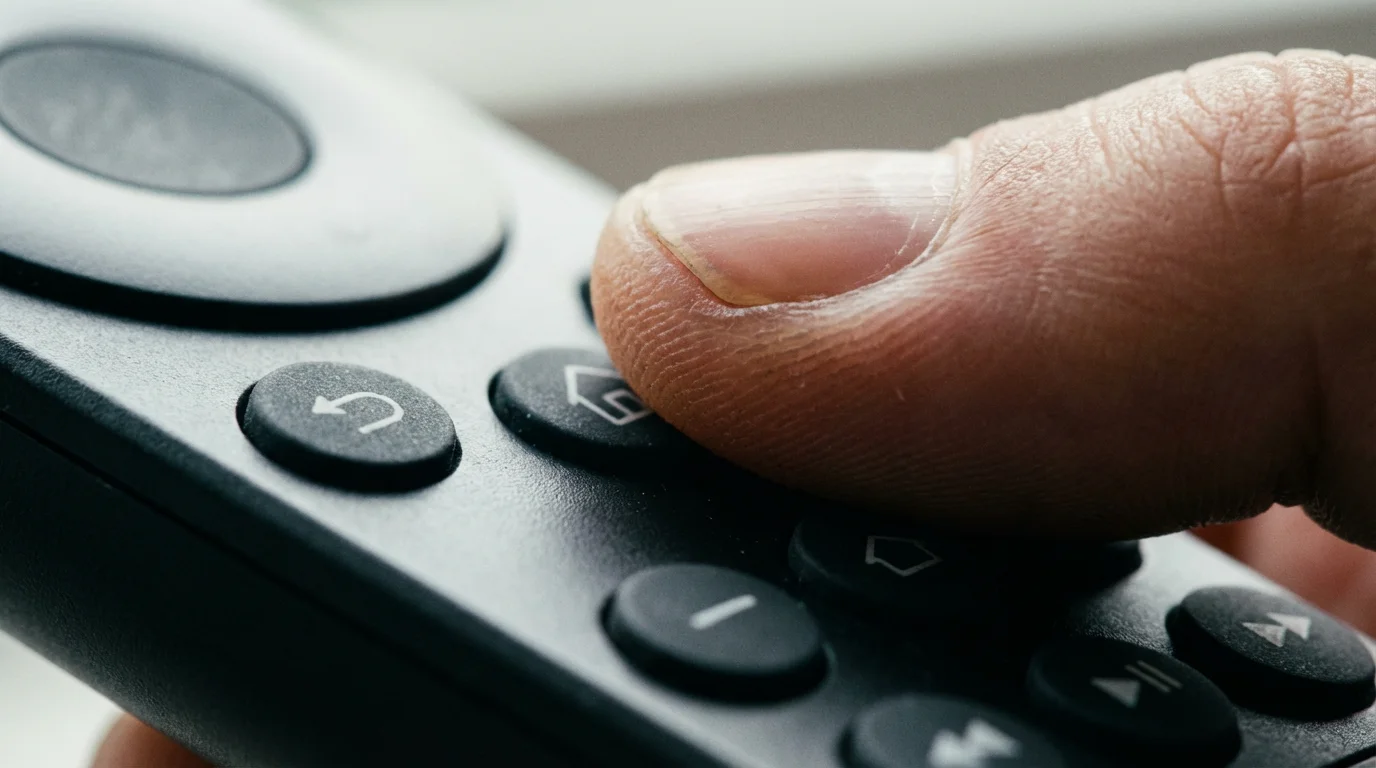
Despite the different brands, almost every smart remote shares a standard set of core buttons. Understanding these six buttons will give you 90% of the control you need over your television.
Just as understanding your Android phone’s home screen helps you find apps quickly, mastering the TV’s home button simplifies your viewing experience.
- The Power Button: Usually located at the very top, often red or marked with a circle and a vertical line. This turns the screen on and off. Note that many smart TVs don’t actually “turn off” fully—they go into a low-power sleep mode so they can wake up quickly.
- The Home Button: This is arguably the most important button. It often looks like a small house. Pressing this will always take you back to the main screen where your apps are located. If you ever feel “lost” in a menu, press Home to start over.
- The Back Button: Usually represented by a curved arrow pointing to the left. This takes you one step backward. If you click on a movie by mistake, the Back button returns you to the list of movies.
- The Directional Pad (D-Pad): This is the large circle or “plus” sign in the center. You press the top, bottom, left, or right edges to move the highlight on your screen. The center of the circle is the “OK” or “Select” button.
- Volume and Mute: These are usually long toggles or side-by-side buttons. On some sleek remotes, like the Samsung OneRemote, the volume button is a silver switch you push up or pull down rather than a button you press in.
- Voice/Microphone Button: Look for a button with a small microphone icon or a colored dot (blue for Alexa, multicolored for Google). Holding this down allows you to speak commands to the TV.
Navigating the Screen: The “Directional Pad” Logic
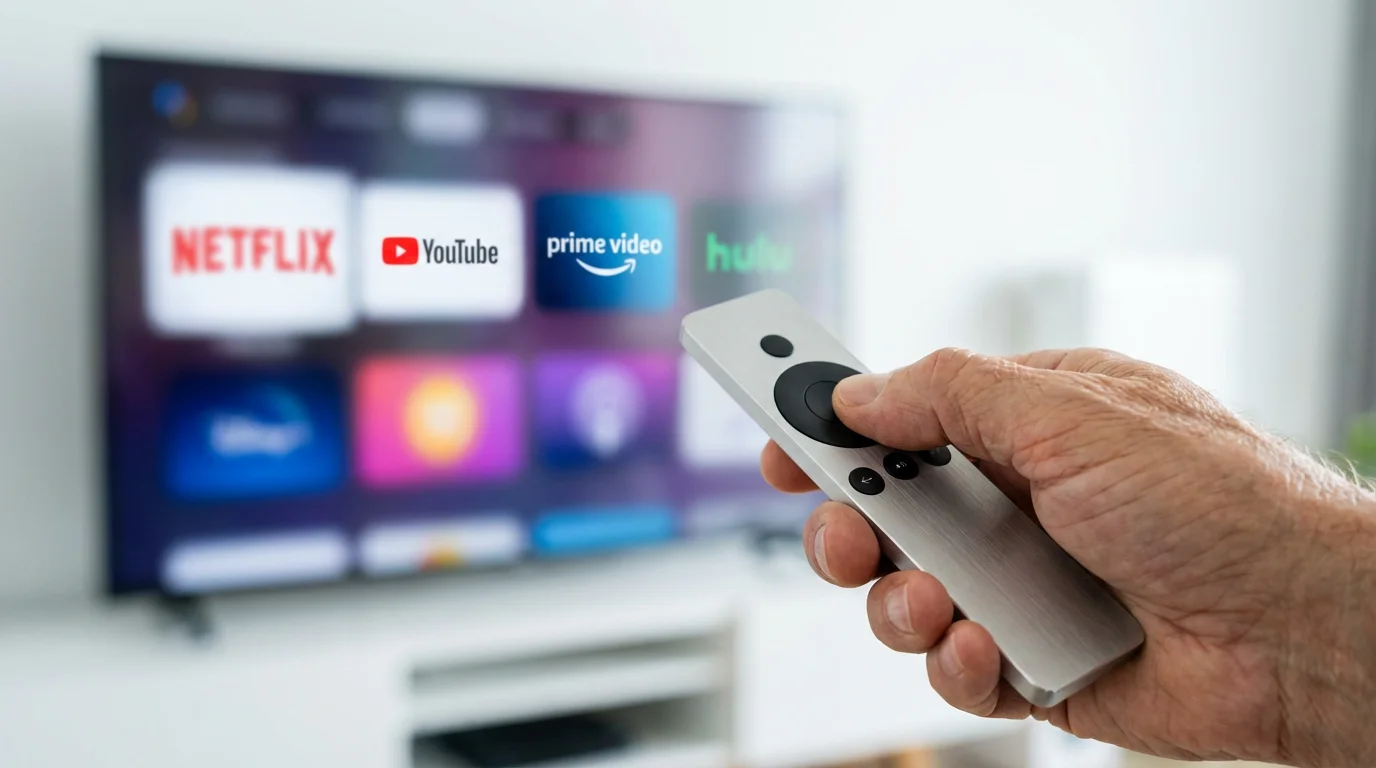
Navigating a smart TV is very similar to using a computer mouse, but instead of sliding a pointer around, you move a “highlight.” When you look at your TV screen, you will see one app or movie title that looks brighter, larger, or has a border around it. This is your active selection.
To move that highlight, you use the directional pad on your remote. Press the right side of the circle to move the highlight to the right. Press the bottom to move down. Once the item you want—for example, the Netflix icon—is highlighted, press the center “OK” button. This “clicks” the item, just like a mouse click.
A common point of frustration for beginners is the speed of the highlight. If you hold the button down, the highlight might zip across the screen too fast. It is better to use individual, firm clicks until you get used to the rhythm of your specific TV. If you ever find yourself deep inside an app like YouTube and you can’t figure out how to get out, simply press the Home button. It acts as an “emergency exit” that always brings you back to familiar territory.

Using Voice Commands: Talking to Your Television
Voice control is one of the most useful features for seniors, yet it is often the most overlooked. Typing out movie titles using an on-screen alphabet and a directional pad is tedious and slow. Voice commands bypass that entirely. According to data from various tech reviews, voice search can reduce the time spent finding a show by over 70% compared to manual typing.
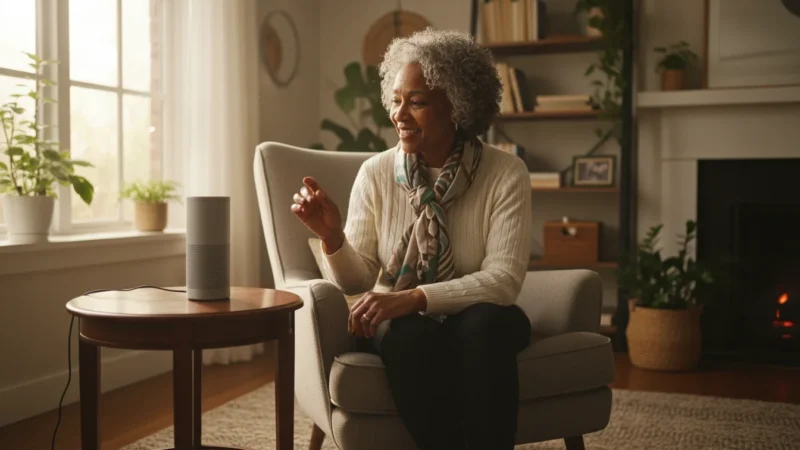
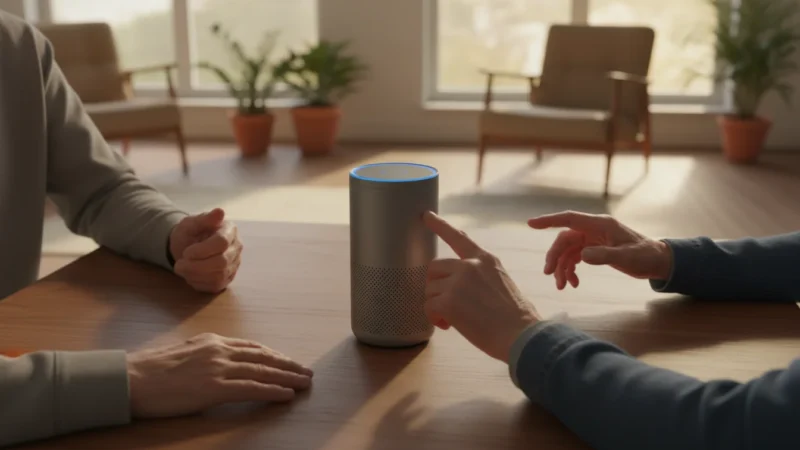
To use voice control, you usually need to hold down the microphone button while you speak. Think of it like a walkie-talkie—the TV only listens while the button is depressed. Release the button when you finish speaking. You do not need to speak “computerese”; you can use natural language.
Try these practical commands:
- “Open Netflix.”
- “Search for movies starring Judy Garland.”
- “What is the weather in Phoenix?”
- “Find the 6 o’clock news.”
- “Increase volume to 20.”
This feature is particularly helpful if you have arthritis or limited dexterity in your hands, as it minimizes the need to click small buttons repeatedly. Most modern smart TVs use a voice assistant like Alexa or Google Assistant to process these requests, making them quite accurate at understanding different accents and speech patterns.
Is This Right for You? Choosing Between Modern and Traditional
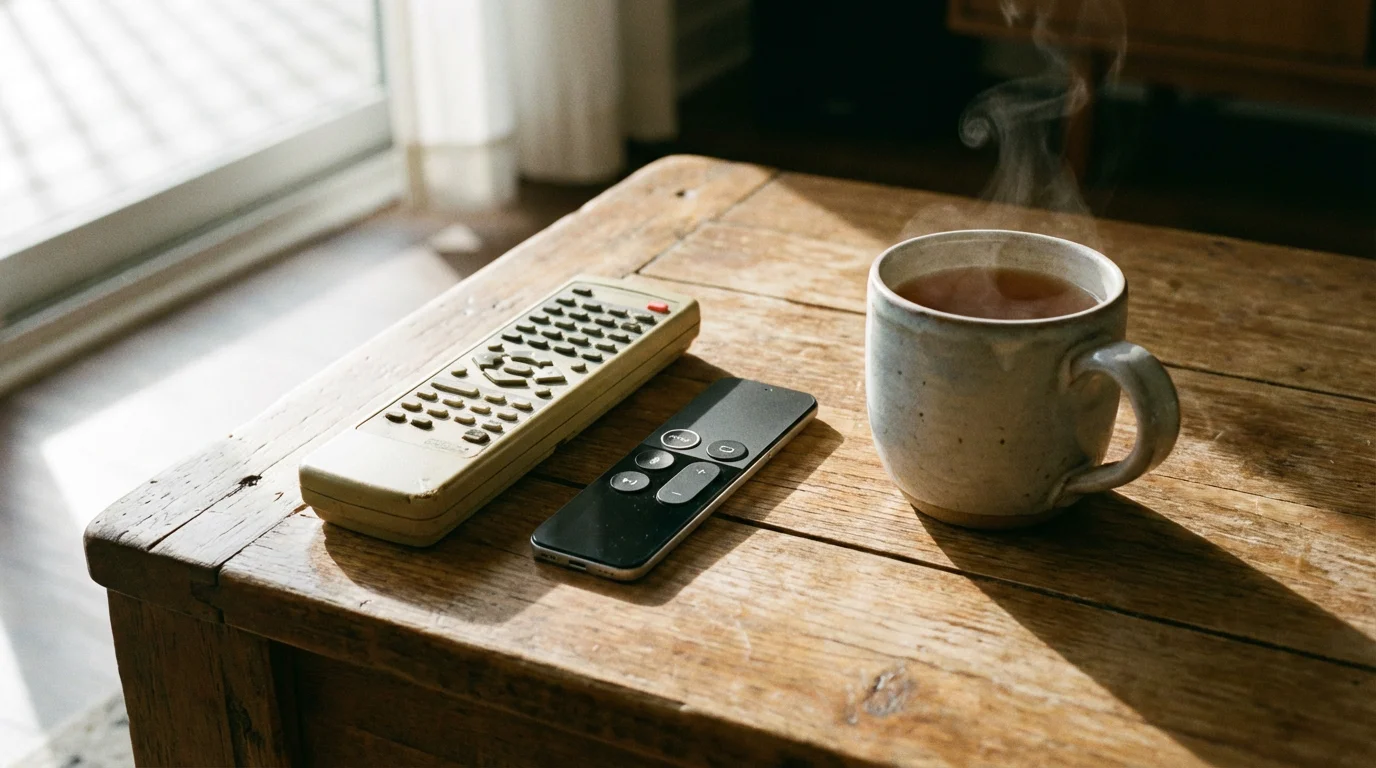
While modern remotes are standard with new TVs, they aren’t the only option. You should evaluate if the sleek, minimalist remote included in the box actually meets your needs. For some, the small size is a drawback because it is easy to lose in couch cushions. For others, the lack of tactile “clicky” buttons makes it hard to know if a command was sent.
If you find the small remote frustrating, you might consider a universal remote designed for seniors. These often feature large, high-contrast buttons and a traditional layout, including the number pad. They can be programmed to work with almost any smart TV. You can find excellent recommendations for these through resources like Wirecutter, which tests remotes for ease of use and durability.
However, before you buy a new one, give the smart remote a one-week trial. Most users find that once they stop looking for the number pad and start using the “Home” and “Voice” buttons, they actually prefer the simplicity. The key is to stop thinking of the TV as a series of channels and start thinking of it as a library of apps.
Troubleshooting Common Problems and Glitches
Technology isn’t perfect, and occasionally your remote will stop responding. Before you call a technician or assume the TV is broken, try these simple fixes. Most remote issues are related to power or the wireless connection.
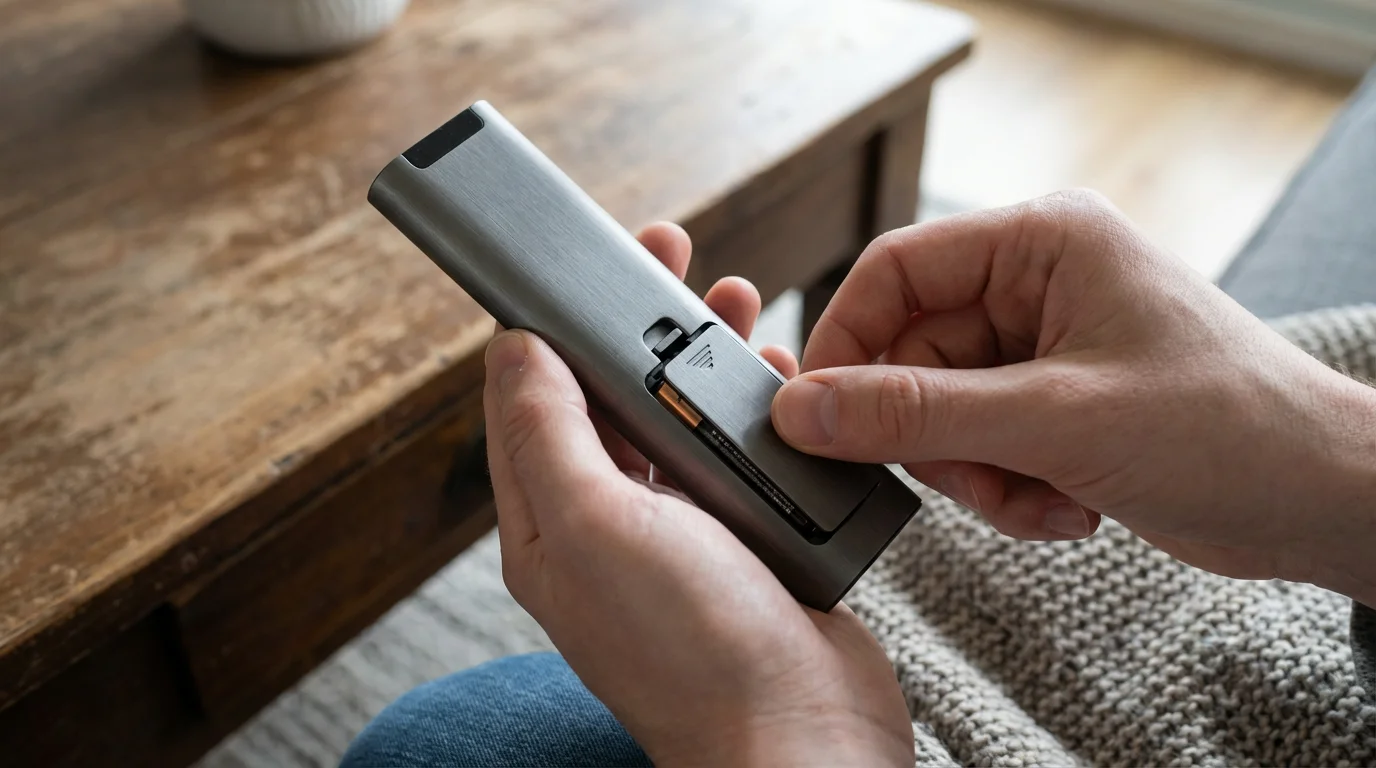
1. Check the Batteries: This sounds obvious, but smart remotes use more power than old-fashioned ones because of the Bluetooth and microphone features. If the remote feels “sluggish” or the voice control stops working, replace the batteries with fresh alkalines. Avoid mixing old and new batteries, as this can cause inconsistent voltage.
2. Re-pair the Remote: Sometimes the Bluetooth connection between the remote and the TV “drops.” This is like a phone call getting disconnected. Most TVs have a specific button combination (often holding “Back” and “Home” simultaneously) to re-establish this link. Check your TV’s manual or the manufacturer’s support page, such as Google Support for Android-based TVs, to find the specific pairing sequence for your model.
3. Power Cycle the TV: If the remote is fine but the TV isn’t responding, the TV’s internal software might have frozen. Unplug the television from the wall outlet, wait 60 seconds, and plug it back in. This “reboots” the TV’s computer and often restores the connection to the remote.
4. Clean the Sensors: Even though many use Bluetooth, some remotes still use Infrared for the power button. Ensure there isn’t a soundbar or decorative item blocking the bottom edge of your TV, where the sensor is usually located.

Privacy and Security: Is the Remote Listening?
A common concern for many adults is whether a smart TV is “always listening” to private conversations. This is a valid question. Most smart remotes are designed to only activate the microphone when you physically press the microphone button. When you aren’t pressing that button, the microphone is “dead.”
However, some high-end TVs have a “Hands-Free” mode where the TV listens for a “wake word” (like “Hey Google”). If this makes you uncomfortable, you can always turn this feature off in the TV’s Settings menu under “Privacy” or “Voice.” Once disabled, the TV will only listen when you tell it to by pressing the button.
Regarding your data, smart TVs do track what you watch to provide “recommendations.” If you prefer not to be tracked, you can look for a setting called “Limit Ad Tracking” or “Reset Advertising ID” in the menus. Being informed about these settings allows you to enjoy the convenience of a smart TV without feeling like your privacy is being invaded. For more detailed advice on protecting your privacy with smart devices, the AARP Technology Resources page offers excellent, senior-specific guides.
Frequently Asked Questions
Do I need to pay a monthly fee to use my smart TV remote?
No. The remote control itself does not require a subscription. However, to watch shows on apps like Netflix, Hulu, or Disney+, you will need a separate paid subscription for those specific services. Using the remote to navigate free apps like YouTube or the basic TV settings is completely free.
Can I use my smartphone as a remote?
Yes! Almost every major brand (Roku, Samsung, LG, Sony) has an app you can download to your smartphone or tablet. This allows you to use your phone’s touchscreen as a remote. This is incredibly helpful if you lose your physical remote or if you find it easier to type movie titles on a phone keyboard.
Is the remote always listening to me?
Generally, no. For the vast majority of smart remotes, the microphone is only active while you are physically holding down the voice command button. For televisions with “hands-free” voice control, you can disable the “always-on” microphone in the system settings if you have privacy concerns.
What if I lose my remote? Can I still use the TV?
Most smart TVs have a single physical button located underneath the frame or on the back. Pressing this button usually brings up a basic menu on the screen that allows you to change the volume, input, or power. However, for full functionality, you should use a smartphone app or purchase a replacement remote.
The Final Word on Smart Remotes
Transitioning to a smart TV remote marks a change in how you interact with your home entertainment. It moves you away from the era of “what’s on channel 5” and into an era where you can simply ask for what you want to see. While the lack of buttons might feel like a hurdle today, within a week of use, most people find the streamlined design far more intuitive than the cluttered remotes of the past.
Take your time, keep the “Home” button in mind as your safety net, and don’t be afraid to experiment with voice commands. The technology is designed to serve you—not the other way around. By mastering these few simple controls, you unlock a world of entertainment that is easier to access than ever before.
Disclaimer: This article is for informational purposes only. Product features and prices change frequently. Always check current specifications and reviews before purchasing. We recommend buying from authorized retailers with good return policies.
Keywords: remote control, smart TV, streaming, how to use smart TV remote, smart home technology for seniors
Meta Description: Learn how to master your smart TV remote with this simple guide for seniors. Understand essential buttons, voice commands, and troubleshooting tips.
Leave a Reply