
You have an Android phone or tablet, and now you want to make it truly yours by adding new programs, called apps. Whether you received your device as a gift or switched from a flip phone, learning to download apps opens up a world of possibilities. Apps help you connect with family, play games, check the weather, read the news, and explore your hobbies.
If you find the words on your screen difficult to read, you can also learn how to make text bigger on your Android phone to make following this guide even easier.
If you also use an Apple device, you may find our guide on how to download apps on an iPhone helpful as well.
This guide will walk you through every step of using the Google Play Store, the main place to find and download apps for Android devices. We will move slowly, explaining each tap and screen. By the end, you will feel confident finding, installing, and managing your favorite Android apps.
Think of your phone as a powerful tool, and apps as the specialized tools that make it even more useful. Let’s get started!
Table of Contents
- What You Will Need Before You Start
- Finding and Navigating the Google Play Store
- Searching For, Understanding, and Installing Apps
- Opening, Using, and Managing Your Apps
- Troubleshooting Common App Download Issues
- Frequently Asked Questions
- Your Quick Reference Checklist for Downloading Apps

What You Will Need Before You Start
Before we dive into the Google Play Store, let’s make sure your Android phone or tablet is ready. Taking a moment to check these items now will prevent frustrations later.
It is also a good idea to check how to update your Android phone to ensure your device has the latest security features before you begin.
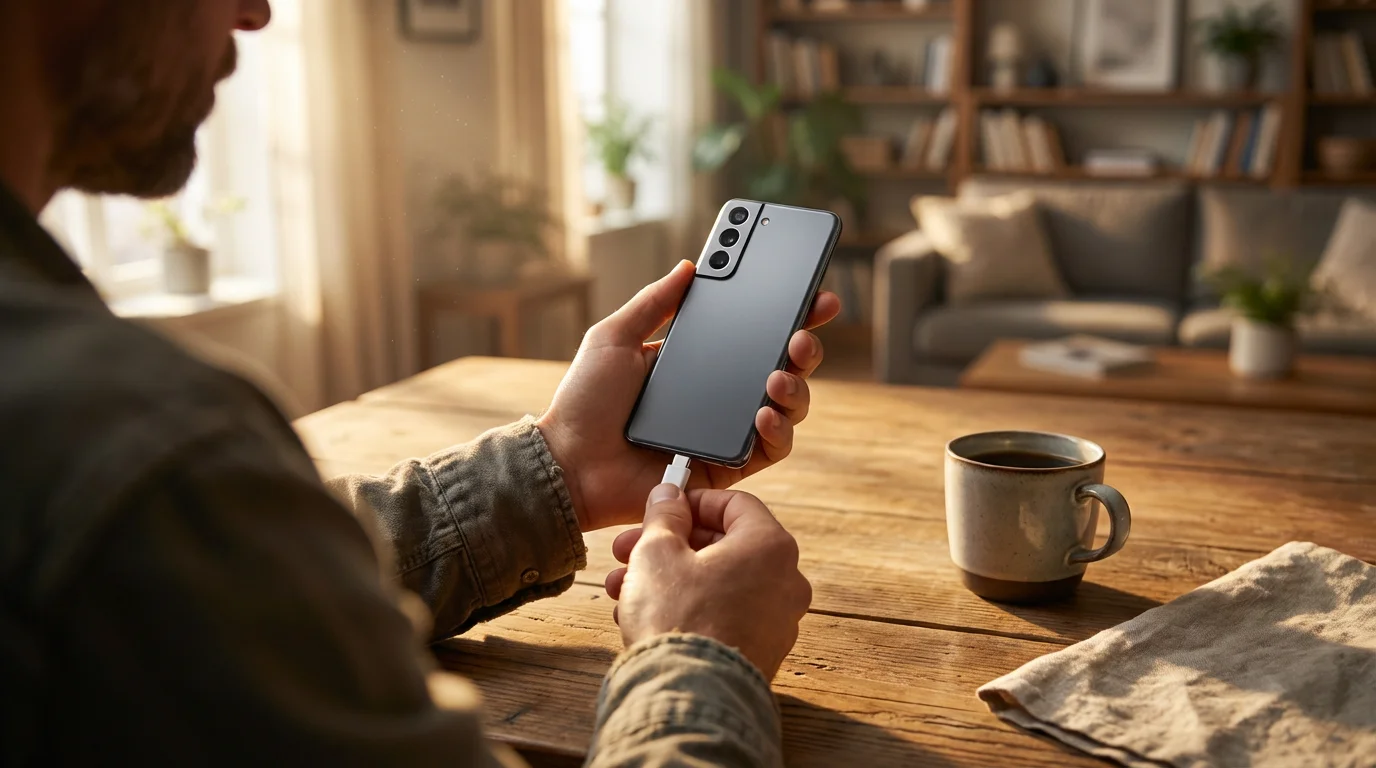
1. Your Android Phone or Tablet is Charged
Downloading apps uses your device’s battery. Ensure your phone or tablet has at least 50% battery life, or even better, plug it into its charger. This prevents your device from shutting down mid-download.
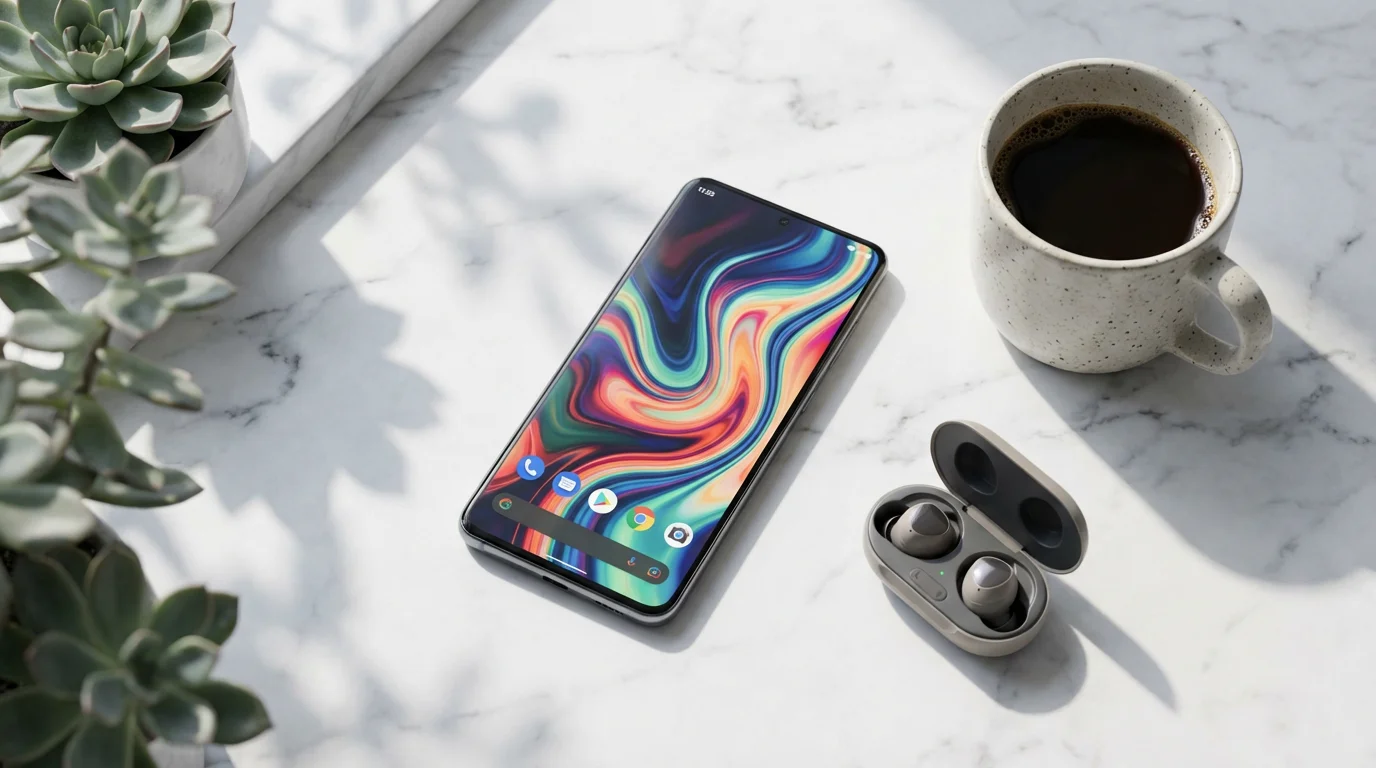
2. A Stable Wi-Fi Connection
Downloading apps, especially larger ones, can use a lot of mobile data. To avoid extra charges on your phone bill, connect your device to a Wi-Fi network. You will see a small symbol that looks like a fan or radiating waves, usually at the top of your screen, indicating you are connected to Wi-Fi.
- How to check your Wi-Fi:
- On Android: Swipe your finger down from the very top of your screen to open the Quick Settings panel. Look for the Wi-Fi icon. If it is blue or lit up, you are connected. If it is gray or has a line through it, tap on it to turn it on, then select your home Wi-Fi network. You might need to enter your Wi-Fi password.
Remember, a strong Wi-Fi connection makes the whole process smoother and faster. Take your time to get this step right.
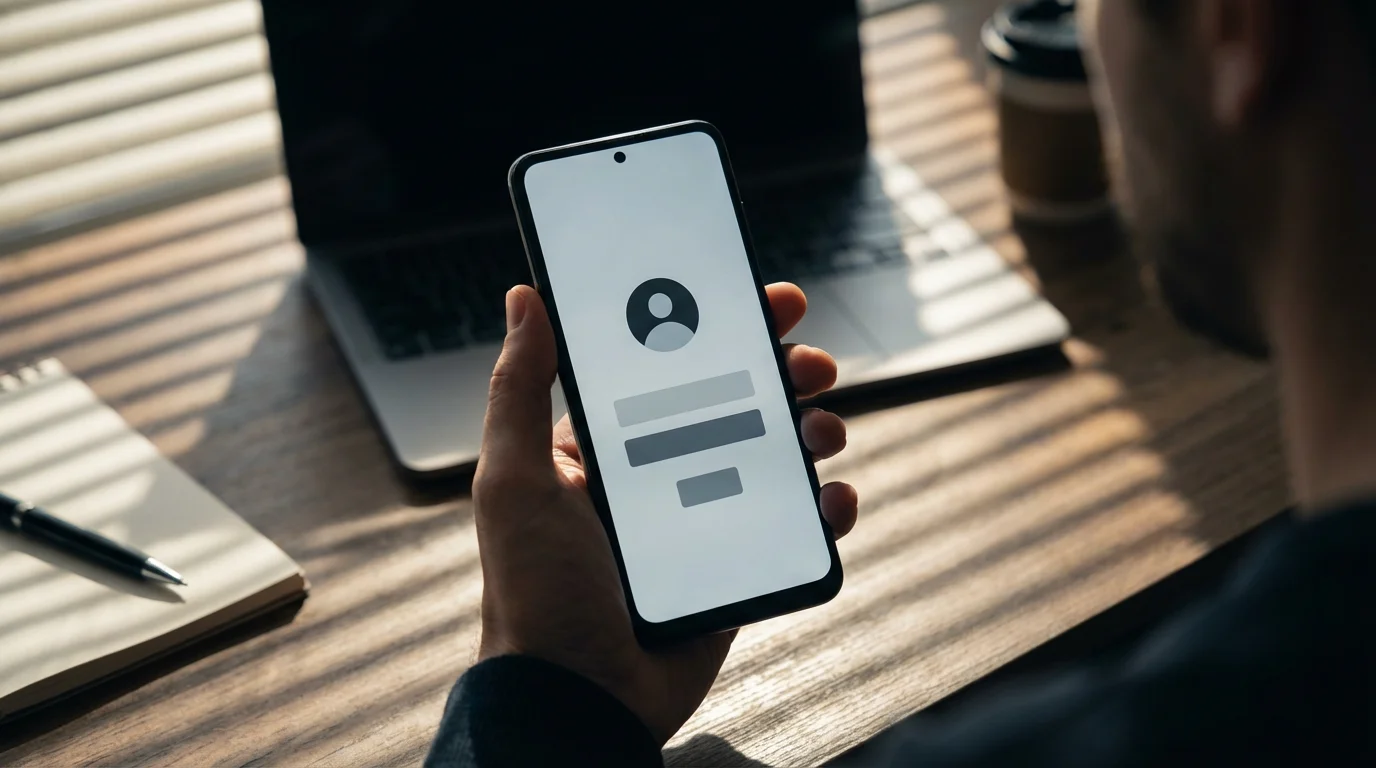
3. A Google Account
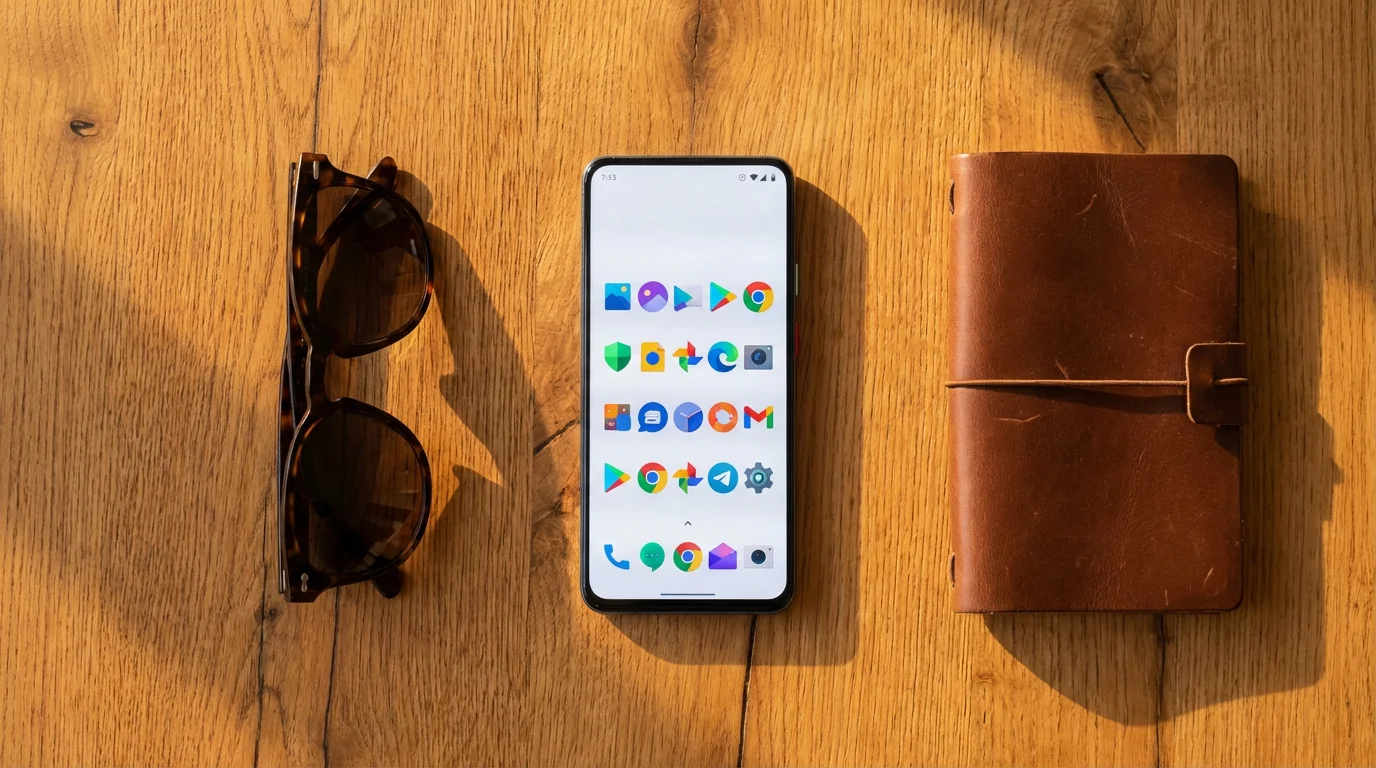
The Google Play Store requires a Google Account to download apps. If you have an Android device, you likely already have a Google Account set up, as it is necessary for many basic functions. This account usually ends in “@gmail.com”. If you do not have one, or are unsure, your phone will prompt you to create one when you first try to download an app.
- How to check if you are signed in to a Google Account:
- On Android: Find the “Settings” app icon, which looks like a small gear or cog wheel. Tap it to open. Then, scroll down and tap on “Accounts,” “Accounts & Backup,” or “Google.” You should see your Google Account email address listed there. If not, look for an option to “Add account” and follow the prompts for Google.
Finding and Navigating the Google Play Store
Now that your device is ready, let’s locate the Google Play Store and get familiar with its layout.
As you start downloading more items, you might want to learn how to organize apps into folders on your phone to keep your screen tidy.
A great first choice is learning how to use a weather app to stay prepared for the day ahead.
1. Locating the Google Play Store App
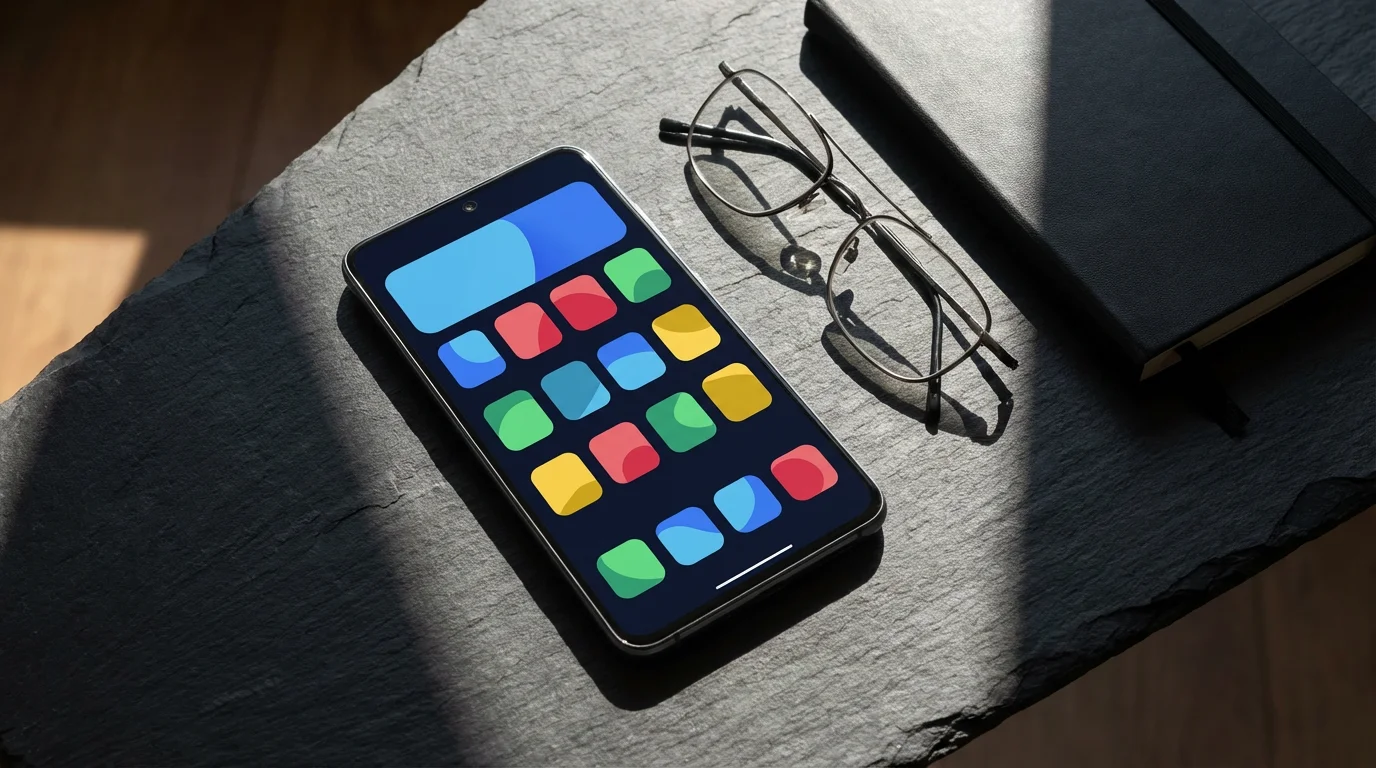
The Google Play Store is an app like any other on your phone. It has a distinctive icon.
- On Android: Look for an icon that resembles a colorful sideways triangle or a shopping bag with a colorful triangle. The colors are typically blue, green, yellow, and red. It is usually found on your home screen or in your App Drawer (which you can access by swiping up from the bottom of your home screen).
2. Opening the Google Play Store
- On Android: Gently touch, or “tap,” the Google Play Store icon once with your finger.
You should see a screen that opens to the Play Store’s “Home” page. It features different sections such as “For you,” “Top charts,” “Categories,” and sometimes highlights new or popular apps. At the very top, you will see a search bar that says “Search for apps & games.”
3. Exploring Categories
If you do not have a specific app in mind, browsing categories is a great way to discover new ones. Think about what you want your phone to help you do.
- On Android: On the Play Store home screen, you might see “Categories” listed directly or you might need to tap the menu icon (three horizontal lines) usually found in the top left corner, then select “Categories.”
Here you will find sections like “Games,” “Social,” “Tools,” “Health & Fitness,” and “News & Magazines.” Tapping on a category will show you all the apps related to that topic.

Searching For, Understanding, and Installing Apps
Most of the time, you will know the name of an app you want to download. This section guides you through finding it and understanding what you see before you download.
1. Searching for a Specific App
If you know the app’s name, the search bar is your quickest path.
- On Android: Tap on the “Search for apps & games” bar at the top of the Play Store screen. A keyboard will appear.
- Type the name of the app you are looking for. For example, type “Facebook” or “Weather.”
- As you type, suggestions might appear below the search bar. If you see the app you want, you can tap it. Otherwise, tap the “Search” button on your keyboard (often looks like a magnifying glass or “Enter”).
The search results will show a list of apps. Look for the app you intend to download. Often, the official app will be at the top of the list.
2. Understanding an App’s Page
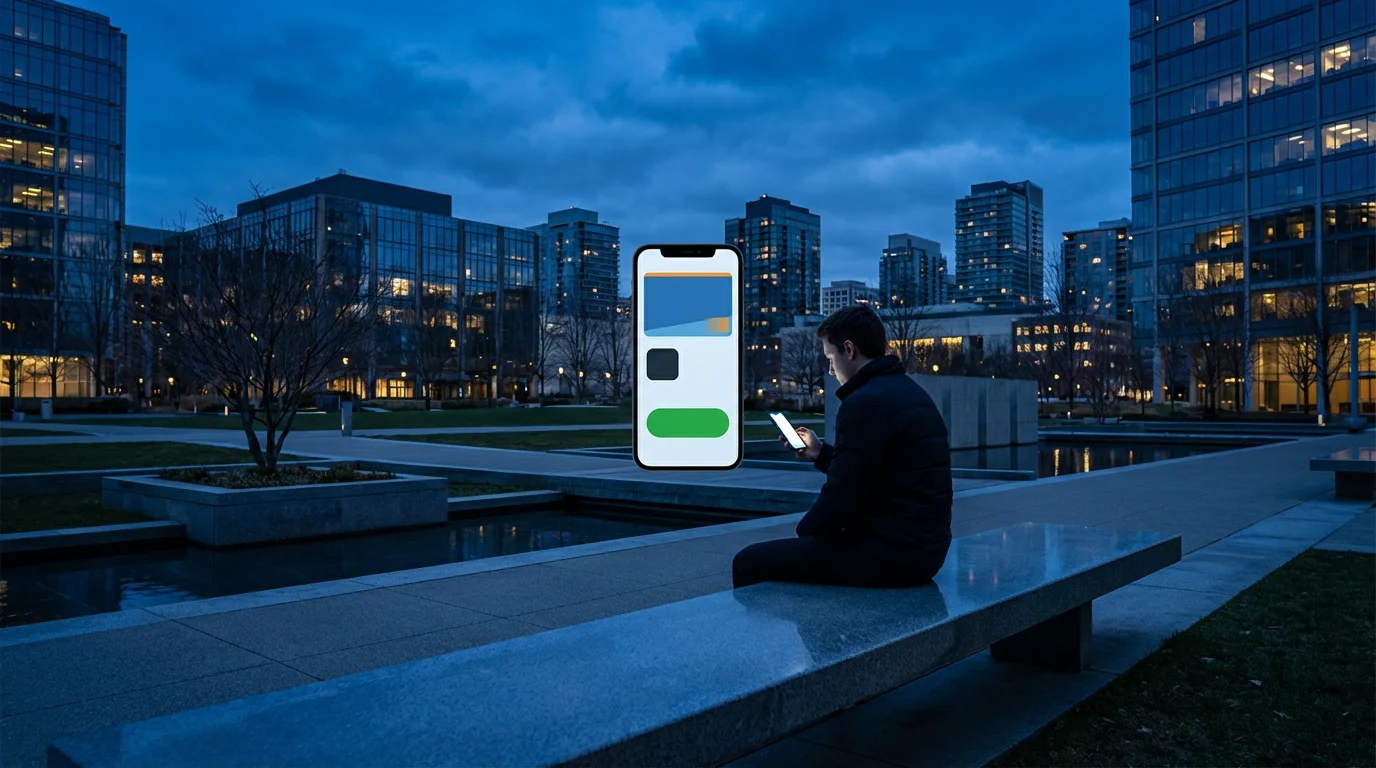
Once you tap on an app from the search results, you will land on its “App Page.” This page contains important information about the app.
- App Name and Icon: At the top, you will see the app’s name and its distinctive icon, confirming you are on the right page.
- Developer Name: Below the name, you will see the name of the company or person who made the app. For popular apps, make sure this matches the official developer. For instance, “Facebook” is developed by “Meta Platforms, Inc.”
- Install Button: This is a large button, usually green, that says “Install.” You will tap this when you are ready to download.
- Ratings and Reviews: You will see a star rating (out of 5) and the number of reviews. This gives you an idea of what other users think. You can tap on the rating to read specific reviews.
- Screenshots: Scroll down a bit, and you will see images or short videos showing what the app looks like in action. These are very helpful for deciding if an app is right for you.
- About this app: Further down, you will find a description of the app’s features and what it does. Read this to understand its purpose.
Always review the app page before installing. Check the developer, read a few reviews, and look at the screenshots. This helps you choose safe and useful apps.

3. How to Download and Install an App
Once you are on the app’s page and feel confident it is the app you want, installing it is straightforward.
- On Android: Tap the large “Install” button.
The button will change, showing a progress bar as the app downloads. This might take a few seconds or a few minutes, depending on the app’s size and your internet speed. Once the download finishes, the button will change again, first to “Installing,” and then to “Open.”
Congratulations! You have successfully downloaded an app.
Opening, Using, and Managing Your Apps
Now that your app is installed, let’s learn how to open it, keep it updated, and remove it if you no longer need it.
As your collection grows, you may want to organize your apps into folders to keep your home screen tidy.
If you find the app descriptions difficult to read, you can make the text larger on your Android phone for better visibility.

1. Opening Your New App
You have a couple of ways to open your newly installed app.
- From the Play Store: After the app finishes installing, the “Install” button on the app’s page will change to an “Open” button. Tap “Open” to launch the app immediately.
- From your Home Screen or App Drawer: The app’s icon will now appear on one of your home screens or in your App Drawer (swipe up from the bottom of the screen to find it). Look for the app’s distinct icon and tap it to open the app whenever you wish. You can drag and drop icons on your home screen to organize them, which can make them easier to find later.

2. Keeping Your Apps Updated
App developers regularly release updates to fix issues, add new features, or improve security. It is a good practice to keep your apps updated.
- On Android: Open the Google Play Store app.
- Tap on your profile picture or initial in the top right corner of the screen.
- Tap on “Manage apps & device.”
- You will see a section that says “Updates available.” Tap on “See details” or “Update all” to update your apps. You can also tap on individual apps and choose to update them.
Many phones have automatic updates enabled by default, so you might not need to do this often. However, it is good to know where to find it.
3. Uninstalling an App You No Longer Need
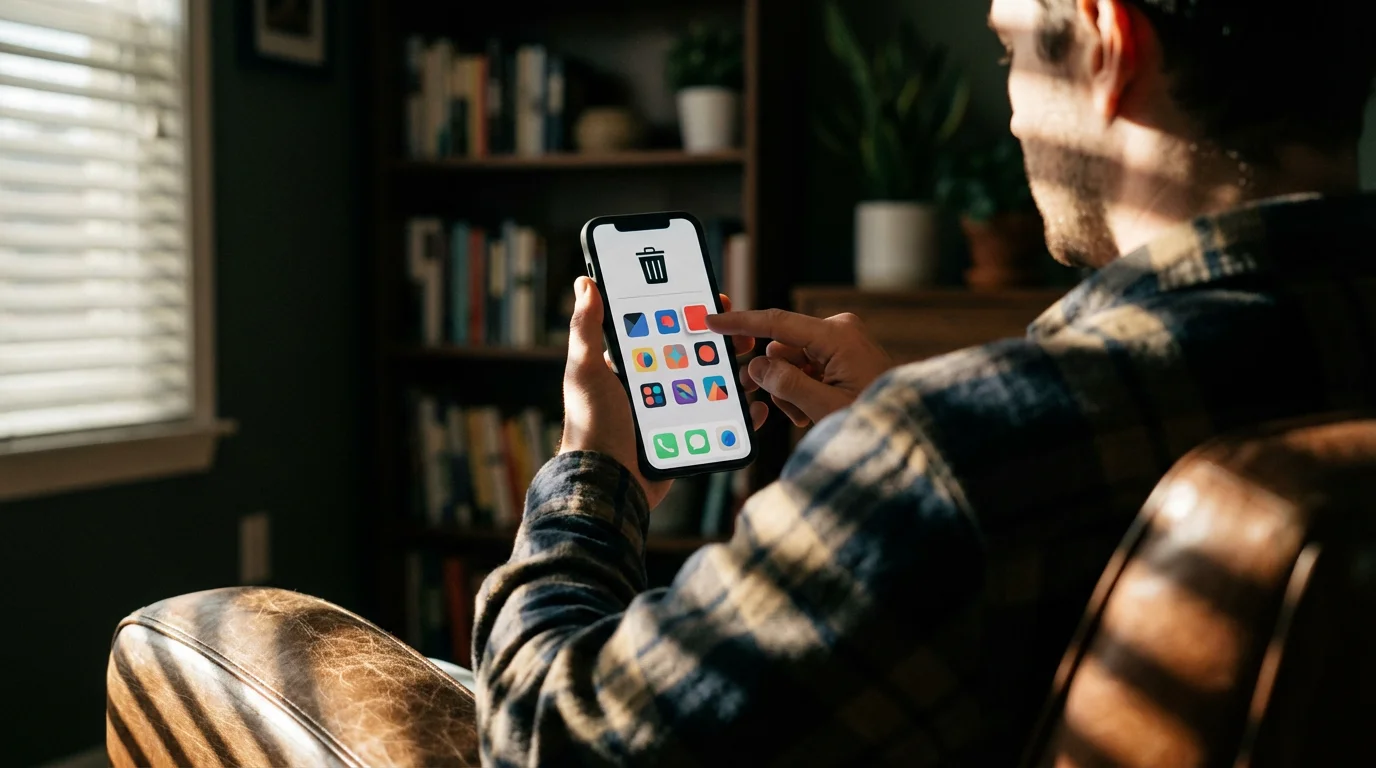
Sometimes you download an app, try it, and realize it is not for you, or you simply do not use it anymore. Removing unused apps frees up storage space on your device.
- Method 1: From the Home Screen or App Drawer (easiest for many):
- On Android: Find the app icon on your home screen or in your App Drawer.
- Press and hold your finger on the app icon until a small menu or a “Remove” / “Uninstall” option appears.
- Tap “Uninstall” or drag the icon to the “Uninstall” option, which often appears at the top of the screen. Confirm your choice when prompted.
- Method 2: Through the Google Play Store:
- On Android: Open the Google Play Store app.
- Search for the app you want to uninstall (or find it through “Manage apps & device” as described above).
- On the app’s page, where you usually see “Open,” you will now see an “Uninstall” button next to it. Tap “Uninstall” and confirm.
Troubleshooting Common App Download Issues
Even with careful steps, sometimes things do not go as planned. Here are solutions for common problems you might encounter while downloading apps.
If an app fails to install, you might need to free up storage space to make room for new downloads.
1. “Pending” or “Waiting for Download” Message
If an app gets stuck saying “Pending” or “Waiting for download,” it usually means your device is waiting for a better connection or another app is updating.
- Check your Wi-Fi: Ensure your Wi-Fi connection is strong and stable. Sometimes briefly turning Wi-Fi off and on again helps.
- Restart the Play Store: Close the Google Play Store app completely (you might need to swipe it away from your recent apps list), then reopen it and try again.
- Restart your phone: A simple restart often clears up temporary glitches. Press and hold your power button, then tap “Restart.”

2. “Insufficient Storage” Error
This message means your phone or tablet does not have enough free space to download the app.
- Uninstall unused apps: Go through your apps and remove any you no longer use. See the “Uninstalling an App” section above.
- Delete old photos or videos: Large media files take up a lot of space. Consider backing them up to a cloud service like Google Photos and then deleting them from your device.
- Clear app cache: Some apps store temporary data that can build up. Go to “Settings” > “Apps” > select an app > “Storage” > “Clear cache.” Do this for several apps, especially social media apps.

3. Apps Not Updating
If your apps are not updating, even when you try manually, check these points.
- Check Wi-Fi and Storage: Updates also require a good connection and sufficient space.
- Check Play Store settings: Open the Play Store, tap your profile picture, go to “Settings” > “Network preferences” > “Auto-update apps.” Ensure it is set to “Over Wi-Fi only” or “Over any network” if you are comfortable using mobile data.
- Clear Play Store cache: Go to “Settings” > “Apps” > find “Google Play Store” > “Storage” > “Clear cache.” Then try updating again.

4. App Keeps Crashing After Installation
If an app downloads but immediately crashes when you try to open it, this might indicate a compatibility issue or a minor glitch.
- Restart your device: Always a good first step.
- Reinstall the app: Uninstall the app completely, then go back to the Play Store and download it again.
- Check for system updates: Ensure your phone’s operating system is up to date. Go to “Settings” > “System” > “System update” or “Software update.”
If these steps do not resolve your issue, it is a good idea to reach out for additional help. You can visit your phone carrier’s store, consult a trusted family member, or visit Google Support online at https://support.google.com for specific guidance related to your Android device model.
Frequently Asked Questions
Q1: Is it safe to download any app from the Google Play Store?
A1: The Google Play Store generally provides a safe environment for downloading apps because Google scans apps for malicious software. However, exercising caution remains wise. Always check the developer’s name, read reviews, and look at the app’s star rating. Avoid apps with very few downloads, poor reviews, or those that ask for excessive permissions during installation that do not seem relevant to the app’s function. Stick to well-known apps and developers when possible.
Q2: Do I have to pay for apps? How do I know if an app costs money?
A2: Many apps on the Google Play Store are completely free to download and use. If an app costs money, you will see the price clearly listed on the “Install” button instead of “Install” or “Get.” For instance, it might say “$2.99” instead. When you tap a paid app’s price, the Play Store will guide you through adding a payment method, such as a credit card or gift card, before completing the purchase. Free apps might offer in-app purchases, but these are optional and will not charge you simply for downloading the app.
Q3: What if I download an app and do not like it? Can I get my money back for a paid app?
A3: Yes, you can uninstall any app you do not like, whether it was free or paid. For paid apps, Google offers a refund policy. If you uninstall a paid app within a short period (usually two hours), you can often get an automatic refund. For issues after this window, you can typically request a refund directly through the Google Play Store or by contacting Google Support. Always check Google’s current refund policy for details.
Q4: How do I know if an app is compatible with my specific Android phone or tablet?
A4: The Google Play Store handles compatibility automatically. When you view an app’s page, if your device is not compatible, you will usually see a message stating this, or the “Install” button will be grayed out and unavailable. Generally, newer apps require more recent versions of Android, but the Play Store ensures you only see compatible options as ready for download. You do not need to manually check specifications.

Your Quick Reference Checklist for Downloading Apps
Here is a quick summary of the steps to download an app from the Google Play Store.
To ensure your new apps continue to run smoothly, it is also important to keep your Android phone updated with the latest software.
- Preparation:
- Charge your Android device.
- Connect to a strong Wi-Fi network.
- Ensure you are signed in to your Google Account.
- Find the Play Store:
- Locate and tap the colorful sideways triangle or shopping bag icon.
- Search or Browse:
- Tap the “Search for apps & games” bar at the top, then type the app name, or explore categories.
- Review the App:
- Tap on an app from the search results.
- Check the developer, star rating, reviews, and screenshots.
- Install:
- Tap the green “Install” button.
- Wait for the app to download and install.
- Open and Use:
- Tap “Open” from the Play Store, or find the new app’s icon on your home screen or in the App Drawer.
- Manage Apps:
- Update apps through your profile picture in the Play Store, then “Manage apps & device.”
- Uninstall apps by pressing and holding their icon on your home screen, then tapping “Uninstall.”
You have now mastered the essential skill of downloading apps on your Android device! Experiment with different apps to discover what works best for you. Your phone is a powerful device, and with these skills, you can customize it to fit your life perfectly. Do not hesitate to explore. The more you use it, the more comfortable and confident you will become.
For more detailed guides and tech tips, visit our website. You can also find additional helpful resources from Senior Planet by AARP at https://seniorplanet.org or GCFGlobal’s technology tutorials at https://edu.gcfglobal.org/en/topics/technology/.
Disclaimer: This article is for informational purposes only. Screens and menus may look slightly different depending on your device model and software version. When in doubt, visit your device’s official support website or ask a trusted family member for help.
![[FEATURED]](https://cleartechguide.com/wp-content/uploads/2026/01/how-to-use-google-maps-on-your-phone-or-computer-featured-16x9-1-800x450.webp)



Leave a Reply