

Learning to use your smartphone with confidence opens up a world of connection and convenience. One of the most important habits you can develop to keep your device running smoothly and securely is knowing how to update its software. Think of software updates like regular check-ups or tune-ups for your car, but for your phone. They improve performance, add new features, and critically, protect your phone from digital threats.
If you also use an Apple device, it is helpful to consult our guide on how to update your iPhone to the latest version.
Just as you keep your mobile device healthy, it is equally important to keep your computer running smoothly with regular maintenance.
Many people receive their Android devices as gifts or make the switch from simpler flip phones, and the idea of updating can feel a bit daunting. Do not worry. This guide walks you through each step of the process. We explain exactly what to do and why it matters. By the time you finish, you will know how to keep your Android phone current and safe. Let us begin.
Table of Contents
- Why Keeping Your Android Phone Updated Matters
- What You Need Before You Update Your Android Phone
- Step-by-Step Guide: Finding and Installing Your Android Update
- Understanding Different Types of Android Updates
- What to Do If Something Goes Wrong During Your Android Update
- Keeping Android Current: Tips for a Smooth Experience
- Frequently Asked Questions
- Quick Reference: Your Android Update Checklist
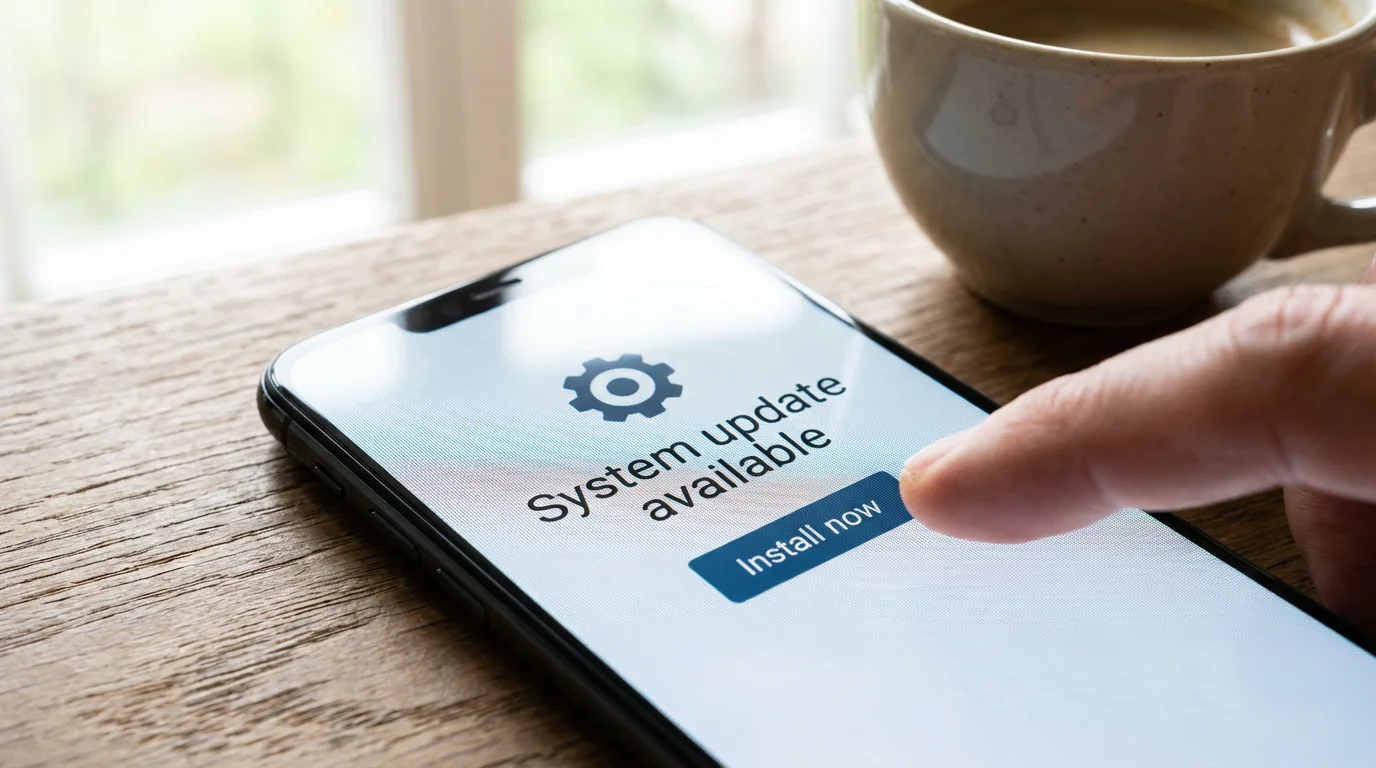
Why Keeping Your Android Phone Updated Matters
Keeping your Android phone’s software up to date is not merely a suggestion. It is a crucial practice for protecting your device and personal information. You gain several important benefits when you regularly install phone updates.
While keeping the system current is vital, you should also learn how to download and update apps through the official store to ensure your individual programs stay secure.
Enhanced Security: Your Digital Shield
This is the most critical reason to update your phone. Software updates often include security patches. These patches fix vulnerabilities or weaknesses that malicious software, often called malware, could exploit to access your private data. Imagine your phone as a house. A software update is like adding a stronger lock to your door or repairing a broken window. Without these updates, your phone becomes an easier target for cybercriminals who want to steal your passwords, bank details, or personal photos. A recent report by Google indicates that devices running older Android versions face a higher risk of security breaches compared to devices with the latest security patches. Keeping your Android current actively shields your digital life.
Improved Performance and Stability
Have you ever noticed your phone feeling a bit sluggish, or an app crashing unexpectedly? Updates often include bug fixes. These address small errors in the software that can cause apps to freeze, the phone to slow down, or other frustrating glitches. Developers constantly work to optimize the operating system, making it run more efficiently on your device. Updating your Android phone ensures you experience smoother performance, faster app loading times, and a more stable user experience overall. It makes everyday tasks, like checking email or browsing the web, much more enjoyable.
Access to New Features and Enhancements
Beyond security and stability, updates also bring exciting new features and improvements. Manufacturers listen to user feedback and innovate new ways to make your phone more helpful and enjoyable. These could be subtle changes, such as new ways to organize your photos, or more noticeable additions, like improved battery management or enhanced accessibility options. For example, recent Android updates introduced better notification controls and privacy dashboards, giving you more power over your phone. Staying updated means you do not miss out on these valuable additions that can truly improve how you use your phone every day.
Think of an update as giving your phone a fresh start and a protective shield all at once. It takes a little time, but the benefits for your phone’s health and your peace of mind are immense. You are taking a proactive step to keep yourself safe and connected.
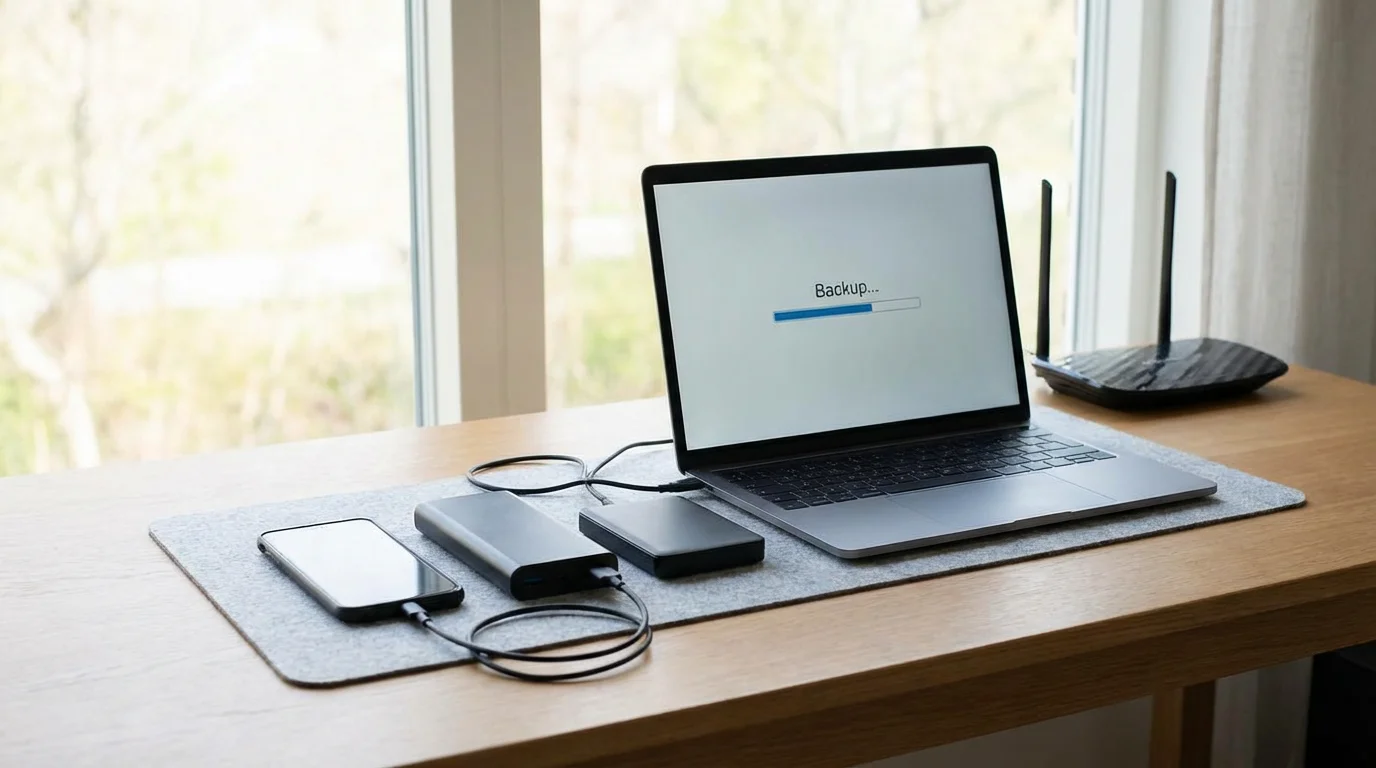
What You Need Before You Update Your Android Phone
Before you begin the update process, a little preparation goes a long way. These steps ensure your update goes smoothly and without interruption. Taking a few moments now saves you potential headaches later.
Since updates require a lot of power, you might wonder if charging your phone overnight is a safe way to keep it ready for installation.
1. Charge Your Phone (At Least 50%, Ideally 100%)
Software updates can take a significant amount of time, sometimes 30 minutes or even longer, depending on the size of the update and your internet speed. Your phone will restart multiple times during the process. If your phone runs out of battery mid-update, it could cause serious issues, potentially leaving your phone unable to turn on. To avoid this, plug your phone into its charger and ensure it has at least 50% battery life, though a full charge provides the most reassurance. You want to make sure your device has plenty of power to complete the entire installation.
2. Connect to a Reliable Wi-Fi Network
Updates are often large files. Downloading them over your mobile data plan can quickly use up your monthly data allowance. Wi-Fi connections are typically faster and more stable than mobile data, reducing the download time and the chance of interruption.
To connect to Wi-Fi:
- Tap the Settings app icon. It looks like a gray gear or cogwheel.
- Tap Connections or Network & internet.
- Tap Wi-Fi.
- Toggle the switch to the On position if it is off.
- Select your home Wi-Fi network from the list. If prompted, type in your Wi-Fi password.
Once connected, you will see a small Wi-Fi symbol at the top of your screen, often next to the battery indicator.
3. Check for Available Storage Space
Your phone needs enough free space to download and install the update files. If you do not have enough room, the update will not proceed.
To check your storage:
- Tap the Settings app icon (the gear).
- Scroll down and tap Storage or Device care, then Storage.
- You will see a breakdown of how your storage is being used and how much free space remains. Aim for at least 3-5 GB of free space for major updates, but even 1-2 GB is usually sufficient for smaller security patches.
If your storage is nearly full, consider deleting old photos, videos, or unused apps to free up space. You can also move files to cloud storage like Google Drive if you use it.
4. (Optional but Recommended) Back Up Your Phone
While rare, there is always a small chance that an issue during an update could lead to data loss. Backing up your phone creates a copy of your important information, like photos, contacts, and messages, so you can restore them if anything goes wrong.
Most Android phones automatically back up to your Google account when connected to Wi-Fi and power. You can check this:
- Tap the Settings app icon.
- Scroll down and tap Google.
- Tap Backup.
- Ensure Back up to Google Drive is turned on. You can also tap Back up now to perform a fresh backup before updating.
This proactive step provides peace of mind.
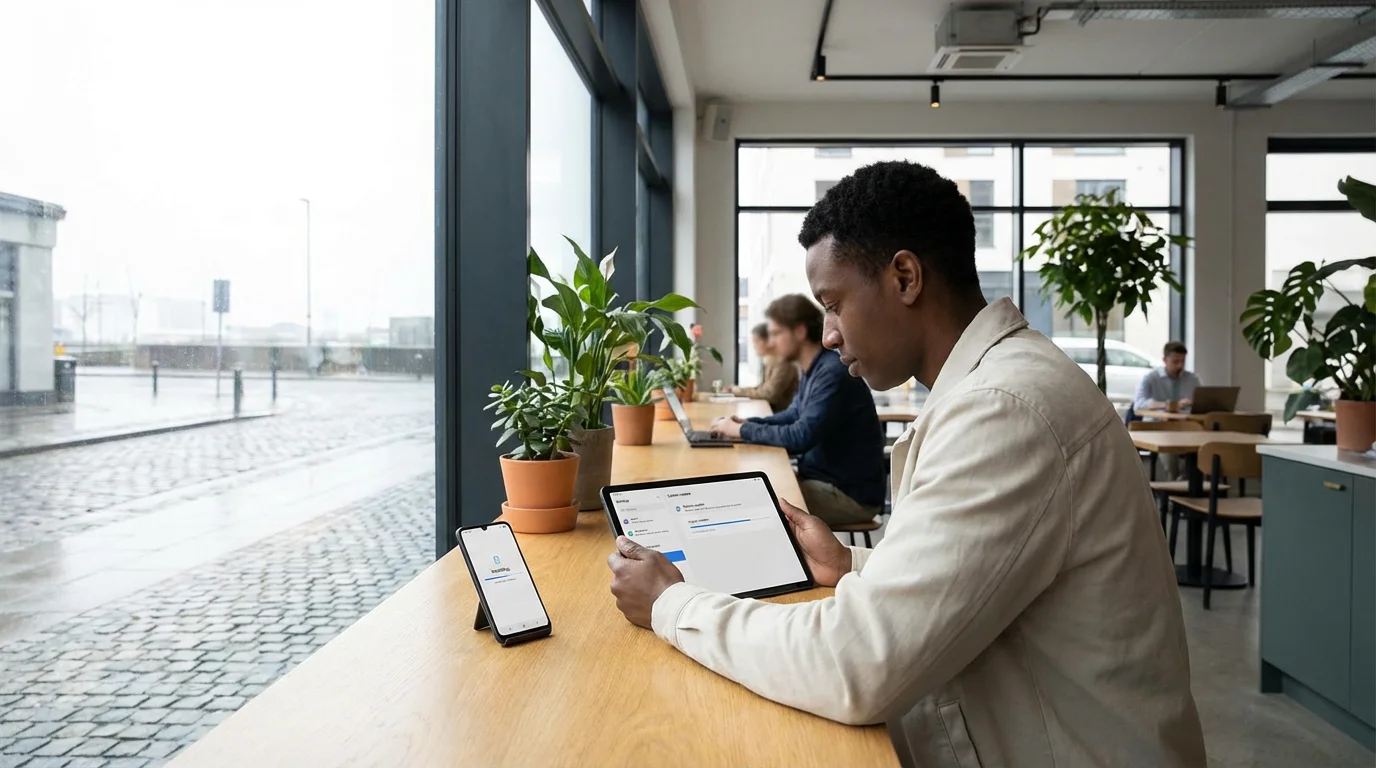
Step-by-Step Guide: Finding and Installing Your Android Update
Now that your phone is prepared, you are ready to check for and install the update. This process is straightforward, but the exact wording of menu options can vary slightly depending on your phone manufacturer (like Samsung, LG, Google Pixel, Motorola) and your current Android version. We will guide you through the most common paths.
Once your phone is updated, it is a great time to check other safety features, such as setting up Emergency SOS for your peace of mind.
Step 1: Open Your Phone’s Settings
First, you need to access your phone’s main control center.
- On your phone’s home screen, look for the Settings app icon. It typically looks like a gray or colored gear, cogwheel, or wrench.
- Tap this Settings icon gently with your finger.
You will see a list of various options for controlling your phone.
Step 2: Navigate to the Software Update Section
Once in Settings, you need to find the specific section dedicated to software updates. This often involves scrolling down the list.
- Use your finger to gently slide up on the screen to scroll down the list of settings options.
- Look for options such as:
- Software update
- System update
- About phone (and then you might tap Software information or System update within that menu)
- System (and then tap Software update or System update)
- Tap the option that matches what you see. For example, if you see “Software update,” tap it. If you see “About phone,” tap it, then look for “Software information” or “System update” inside.
Step 3: Check for Updates
After navigating to the correct section, you need to tell your phone to look for new software.
- On the screen, you should see an option like:
- Download and install
- Check for updates
- System updates
- Tap this option. Your phone will now connect to the internet and check with the manufacturer’s servers to see if any new updates are available for your specific device model.
This check usually takes only a few seconds.
Step 4: Download the Update (If Available)
If an update is found, your phone will display information about it, including its size and sometimes a description of what it includes.
- You will see a button that says Download or Install now (if it is a small update already downloaded).
- Tap the Download button.
- Your phone will now begin downloading the update files. This process can take some time, depending on the size of the update and the speed of your Wi-Fi connection. You can usually see a progress bar indicating how much of the download is complete.
During the download, you can typically continue using your phone for other tasks, but keep it connected to Wi-Fi and power.
Step 5: Install the Update and Restart Your Phone
Once the download is complete, your phone needs to install the update. This step usually requires your phone to restart.
- After the download finishes, you will often see a notification or a button asking you to Install now or Restart and install.
- Tap this button.
- Your phone will now restart. During the installation process, you might see a progress bar, your phone manufacturer’s logo, or even a message like “Installing system update.”
Important: Do not turn off your phone or try to use it during this installation phase. Let it complete the process undisturbed. Your phone may restart more than once. This entire installation usually takes between 5 and 20 minutes, sometimes longer for very large updates.
Step 6: Confirm Update Completion
Once your phone finishes restarting, it should be running the new software.
- You might see a notification saying “Android updated successfully” or “Software update complete.”
- You can go back to Settings > (e.g., System or About phone) > Software information to confirm the new Android version number or security patch level.
Congratulations, you have successfully updated your Android phone!
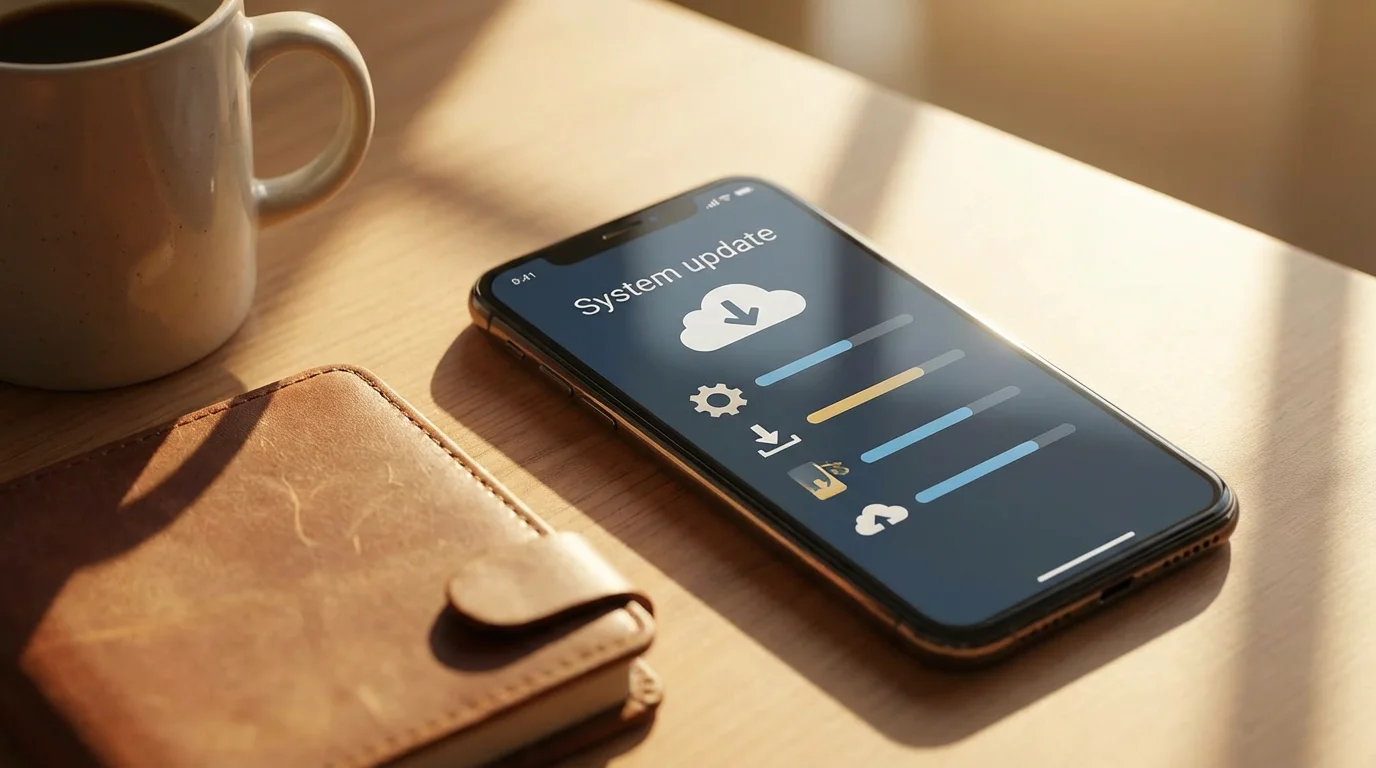
Understanding Different Types of Android Updates
Not all updates are the same. Your Android phone receives a few different types, each serving a specific purpose. Knowing the difference helps you understand what to expect.
Many system updates also improve the responsiveness of helpful tools like Google Assistant, which can help you perform tasks by voice.
Android Operating System (OS) Updates
These are the biggest updates, typically released once a year by Google. They bring a brand-new version of Android, like going from Android 13 to Android 14. These updates often include significant changes to the look and feel of your phone, new features, and major performance improvements. Because they are so extensive, they usually take longer to download and install. Your phone manufacturer then adapts these updates for their specific devices, which means you might receive them a bit later than Google Pixel phone users. These are the updates that truly transform your phone’s capabilities.
Security Updates (Patches)
These updates are smaller and much more frequent. Google releases monthly security patches to address newly discovered vulnerabilities and threats. Your phone manufacturer then distributes these to your device. These patches are critical for keeping your phone safe from the latest malware and security exploits. They do not typically introduce new features or change the phone’s appearance, but they are absolutely essential for your digital safety. Many phones are set to receive these security updates automatically, which is highly recommended.
Manufacturer or Carrier Updates
Sometimes, your phone’s manufacturer (like Samsung or LG) or your mobile carrier (like Verizon or AT&T) will release their own specific updates. These might add features unique to their brand, improve compatibility with their networks, or optimize specific hardware components. These updates are also important for maintaining your phone’s optimal performance and functionality with its specific hardware and network.
App Updates
It is important to remember that these system updates are separate from app updates. Apps on your phone, such as Facebook, Gmail, or your banking app, also receive regular updates through the Google Play Store. These updates typically improve the app’s performance, fix bugs within the app, or add new features specific to that application. While important, they are managed differently than your phone’s main operating system updates. You can usually set apps to update automatically through the Google Play Store.
What to Do If Something Goes Wrong During Your Android Update
While the update process is generally smooth, occasionally you might encounter a hiccup. Do not panic. Most issues have simple solutions. We help you navigate common problems.
1. Update Fails to Download or Get Stuck
If your update will not start or stops downloading:
- Check Wi-Fi connection: Ensure your phone is still connected to a strong Wi-Fi signal. Sometimes, a weak connection can cause downloads to stall. Try temporarily turning Wi-Fi off and on again in your Settings.
- Verify storage space: Double-check that you have enough free storage. If not, delete some unnecessary files or apps as described earlier.
- Restart your phone: A simple restart often resolves temporary software glitches. Hold down the Power button (usually on the right side of your phone) until you see options like “Restart” or “Power off.” Tap “Restart.” If you see “Power off,” tap it, then wait about 30 seconds before pressing the Power button again to turn your phone back on.
- Wait and try again: Sometimes, update servers can be busy, especially right after a new update is released. Give it an hour or two and try checking for the update again.
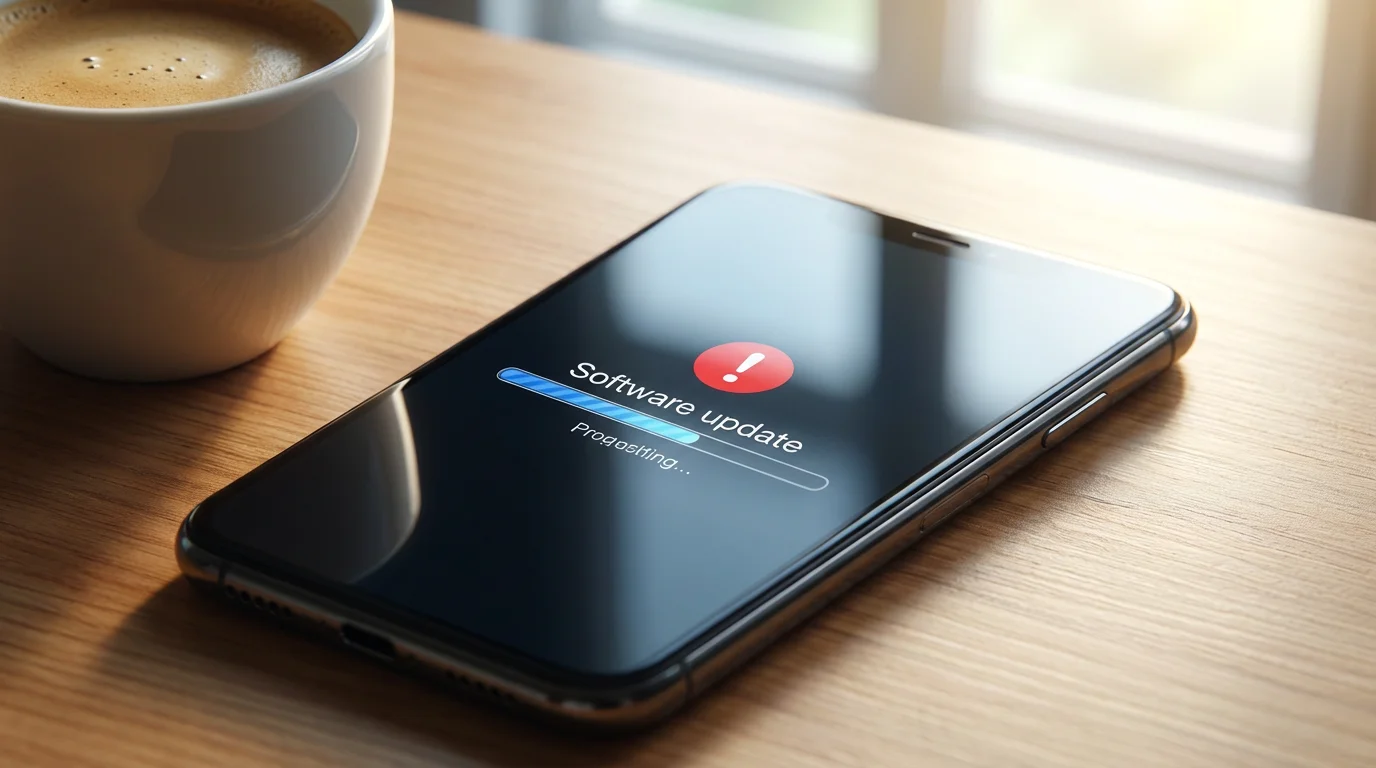
2. Phone Gets Stuck During Installation (e.g., on a logo or progress bar)
This is one of the more concerning issues, but often fixable.
- Force Restart: If your phone is completely unresponsive and stuck on a screen (like a company logo, the Android robot, or a frozen progress bar), you might need to perform a force restart.
- Press and hold the Power button and the Volume Down button simultaneously for about 10-20 seconds.
- Keep holding until the phone screen turns black and then displays the manufacturer’s logo again. This should force your phone to restart.
Once restarted, your phone might either complete the update or revert to its previous software version. You can then try the update again.
3. Update Causes Issues (e.g., Battery drain, App crashes)
Occasionally, a new update might introduce unforeseen problems.
- Restart your phone: Many post-update glitches resolve with a simple restart.
- Check for app updates: Sometimes, apps need to be updated to be compatible with the new Android version. Go to the Google Play Store app, tap your profile picture (top right), then tap Manage apps & device, and then Update all or update specific apps.
- Clear app cache: If a specific app acts up, you can clear its cache. Go to Settings > Apps > select the problematic app > Storage > Clear cache. This does not delete your personal app data.
- Give it a few days: Sometimes, phones need a day or two to settle in after a major update, as background processes optimize themselves. Battery life might initially seem worse as this happens.
When to Seek Additional Help
If you have tried these steps and your phone still experiences significant problems, or if you feel completely stuck, do not hesitate to reach out for support:
- Contact your phone manufacturer’s support: Check the box your phone came in or their website (e.g., Google Support for Pixel phones, Samsung’s support site for Samsung phones). They offer specific guidance for your device model.
- Visit your carrier store: Your mobile carrier (like Verizon, AT&T, T-Mobile) often has technicians who can assist with software issues.
- Ask a trusted family member or friend: They might have experience with similar issues or can help you navigate support resources.
- Consider a professional: If all else fails, a reputable local phone repair shop might offer diagnostic services.
Remember, asking for help is a smart step when you encounter persistent technical difficulties.
Keeping Android Current: Tips for a Smooth Experience
Now that you know how to update your Android phone, let us explore some ways to make this process easier and ensure your phone consistently stays protected and performs its best. Building good habits around updates is key.
Enable Automatic Updates (When Available and Preferred)
Many Android phones offer an option to automatically download and sometimes even install updates.
- To check this, go back to Settings > (e.g., System or About phone) > Software update.
- Look for a toggle or option like “Auto download over Wi-Fi” or “Automatic system updates.”
- If you prefer convenience, you can turn this on. Your phone will then download updates in the background when connected to Wi-Fi. It will still usually ask you for permission to install and restart, giving you control over when the installation happens. This ensures you do not miss critical security patches.
Set a Reminder to Check for Updates Regularly
If you prefer manual control or your phone does not have robust automatic update options, create a routine.
- Mark a specific day each month on your calendar or set a recurring reminder on your phone (using the “Clock” app or “Reminders” app) to “Check for Android update.”
- Doing this once a month ensures you stay on top of new security patches and feature releases.
This proactive approach helps you maintain a secure and well-performing device.
Maintain Good Phone Hygiene
A well-maintained phone is less likely to encounter issues during updates.
- Clear out old photos and videos: Regularly back up your precious memories to cloud storage (like Google Photos or Google Drive) or transfer them to a computer, then delete them from your phone to free up space.
- Delete unused apps: If you have apps you no longer use, uninstall them. They take up space and can sometimes run in the background, consuming resources. Hold down on an app icon, then drag it to “Uninstall” or tap “Remove” or “App info” for uninstall options.
- Clear app caches: Over time, apps accumulate temporary data called “cache.” Clearing this can free up space and resolve minor app issues. Go to Settings > Apps > select an app > Storage > Clear cache.
These practices ensure your phone always has enough room for updates and runs smoothly in general.
Understand Your Device’s Support Lifespan
Every Android phone has a limited period during which its manufacturer guarantees software and security updates. This period varies by brand and model, typically ranging from 2 to 5 years.
- Once your phone no longer receives updates, it becomes more vulnerable to security threats. This is a good sign that it might be time to consider upgrading to a newer device to ensure your continued protection.
- You can often find information about your phone’s update policy on the manufacturer’s website or by contacting their support.
Keeping these tips in mind ensures your Android update experience remains hassle-free and your phone stays in top shape for as long as possible.
Frequently Asked Questions
Q1: How long does an Android update take?
An Android update can vary significantly in length. Downloading the update typically takes 5 to 30 minutes, depending on the file size and your Wi-Fi speed. The installation process, which includes your phone restarting, usually takes another 5 to 20 minutes, sometimes longer for major operating system updates. Plan for at least 30 minutes to an hour from start to finish to be safe.
Q2: Will an update delete my photos or contacts?
No, a standard software update will not delete your personal data such as photos, contacts, messages, or apps. The update only replaces system files, not your personal files. However, it is always a good practice to back up your phone before any major update, just in case an unforeseen issue occurs. This provides peace of mind.
Q3: Can I use my phone during an update?
You can generally use your phone while the update files are downloading in the background. However, once the download is complete and the installation begins, your phone will need to restart and will be unusable for the duration of the installation process. It is best to avoid using your phone when the installation is actively happening to prevent any interruptions.
Q4: What if I don’t update my Android phone?
If you do not update your Android phone, you expose yourself to several risks. Most importantly, your phone becomes more vulnerable to security threats and malware, as it will lack the latest security patches. You also miss out on performance improvements, bug fixes, and new features that enhance your phone’s usability and speed. Over time, apps may also stop working correctly on very old software versions.
Q5: Why do updates appear at different times for different phones?
Android updates are released by Google, but phone manufacturers (like Samsung, LG, Motorola) then customize and optimize these updates for their specific devices. Mobile carriers (like AT&T, Verizon) might also add their own optimizations. This entire process takes time, meaning a Google Pixel phone might receive an update sooner than a Samsung phone or a Motorola phone, even if they are both Android devices. Different models and regions also affect the timing.
Quick Reference: Your Android Update Checklist
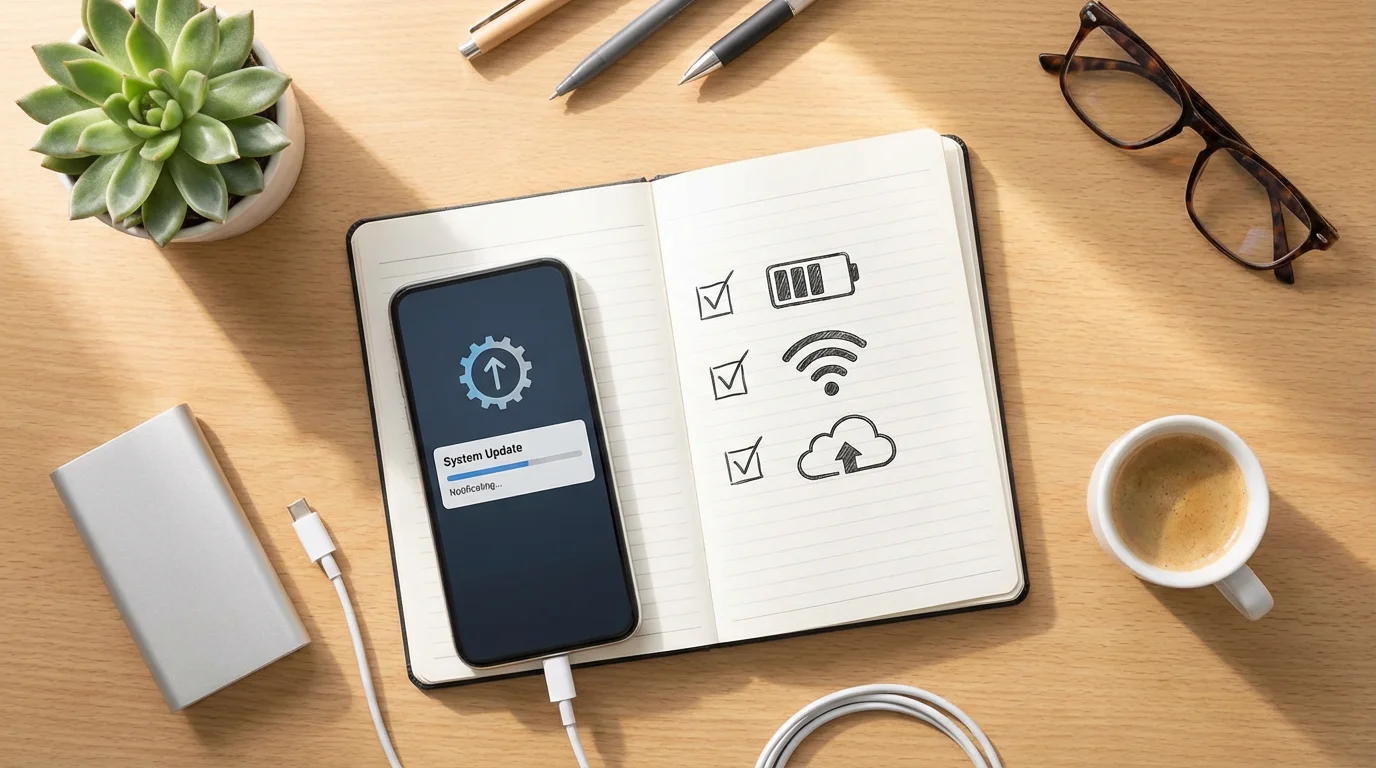
You now have all the knowledge to confidently update your Android phone. Here is a quick checklist to remind you of the key steps.
- Prepare Your Phone:
- Charge your phone to at least 50% (preferably 100%).
- Connect to a strong and reliable Wi-Fi network.
- Ensure you have enough free storage space (at least 1-2 GB, more for major updates).
- Consider backing up your phone to Google Drive for extra peace of mind.
- Find the Update:
- Tap the Settings app icon (the gear).
- Scroll and tap Software update, System update, or About phone > System update.
- Tap Check for updates or Download and install.
- Install the Update:
- Tap Download if an update is available.
- Once downloaded, tap Install now or Restart and install.
- Allow your phone to restart and complete the installation without interruption.
- Post-Update Tips:
- Restart your phone once more if you notice any minor glitches.
- Update your apps via the Google Play Store.
- Enjoy the enhanced security, performance, and new features!
Regularly updating your Android phone is a vital step in maintaining its security and performance. You have taken a valuable step in mastering your device and protecting your digital world. Keep practicing, and your confidence will continue to grow.
Disclaimer: This article is for informational purposes only. Screens and menus may look slightly different depending on your device model and software version. When in doubt, visit your device’s official support website or ask a trusted family member for help.






Leave a Reply