

You carry a flip phone for many reasons—perhaps you appreciate the tactile buttons, the long-lasting battery, or the simple “clamshell” design that protects the screen in your pocket. Above all, most people choose a flip phone for the peace of mind it provides during an emergency. Whether you need to report a fender bender or call for medical assistance, knowing exactly how your device handles these critical moments is essential. You do not want to fumble with menus when every second counts.
Modern flip phones have evolved. While they look like the devices from twenty years ago, many now run on sophisticated software that includes advanced safety features like GPS tracking and dedicated SOS buttons. This guide walks you through every step of using these features, from the basic 911 call to setting up “In Case of Emergency” (ICE) contacts. You can master these tools today so that you feel confident and secure every time you leave the house.
Table of Contents
- What You Will Need Before Getting Started
- The Basics: Making a Standard 911 Call
- Using Dedicated SOS or Emergency Buttons
- How to Call for Help When the Phone is Locked
- Setting Up ICE (In Case of Emergency) Contacts
- How GPS and Location Tracking Work During a Call
- What to Do If Something Goes Wrong
- Quick Reference Checklist
- Frequently Asked Questions
What You Will Need Before Getting Started
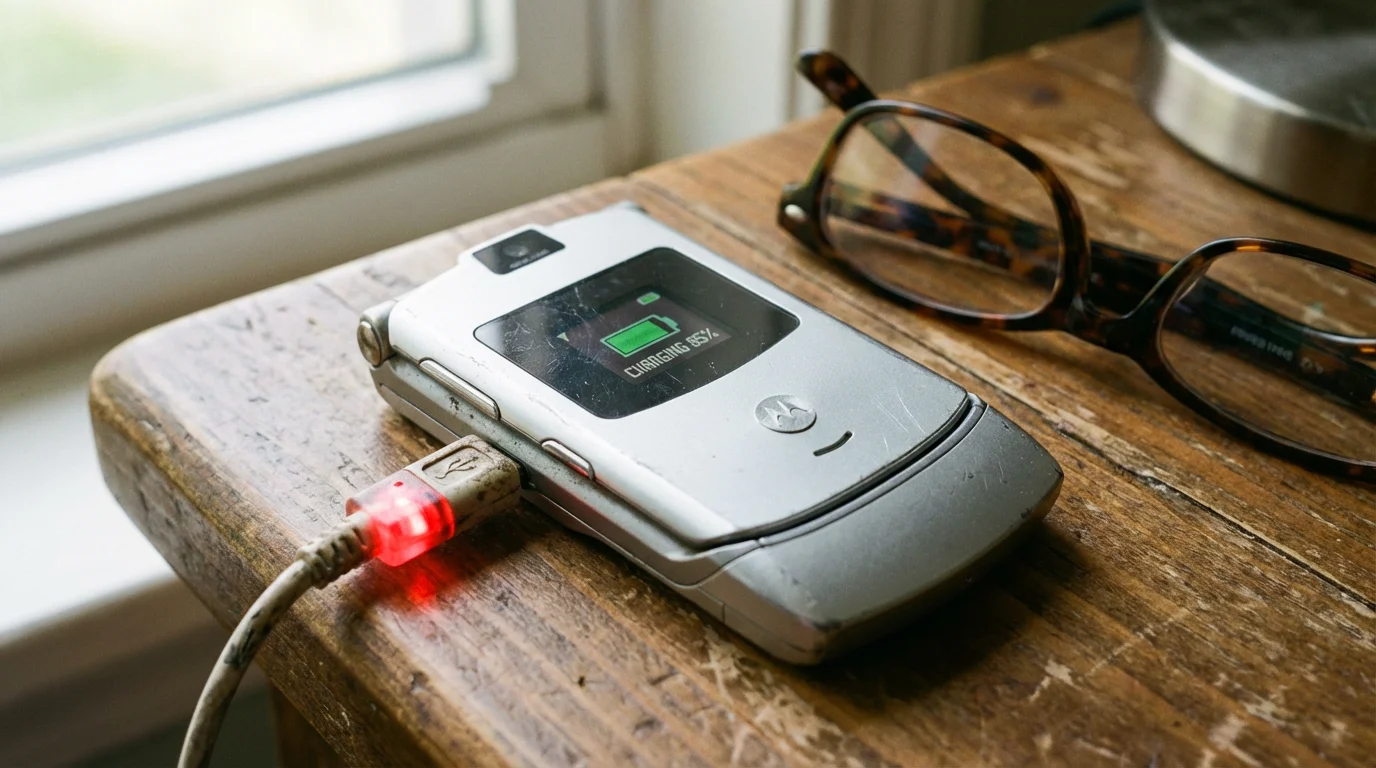
Before you practice using your phone’s safety features, you must ensure the hardware is ready to support you. A phone is only helpful in an emergency if it has power and a connection to a cellular network. Follow these steps to prepare your device:
- Charge your battery: Keep your phone’s battery level above 50% whenever possible. While flip phones have excellent standby time, making a call—especially an emergency call that uses GPS—drains power quickly.
- Check your signal: Look at the top of your internal screen. You should see a series of vertical bars. More bars mean a stronger connection. If you see “No Service” or a small “x” over the bars, you are in a dead zone, and a call may not go through.
- Verify your service plan: Ensure your prepaid or monthly plan is active. However, by law in the United States, any mobile phone can call 911 as long as it can reach a tower, even if you do not have an active service plan.
- Identify your buttons: Open your phone and look at the keypad. Locate the green “Talk” or “Send” button and the red “End” or “Power” button. Familiarize yourself with the “OK” button in the center of the directional pad (the big circle or square button).
If you are using a senior-specific phone like the Lively Flip (formerly Jitterbug) or a Consumer Cellular model, look for a large red or orange button on the keypad or the back of the device. This is your dedicated emergency key.
The Basics: Making a Standard 911 Call
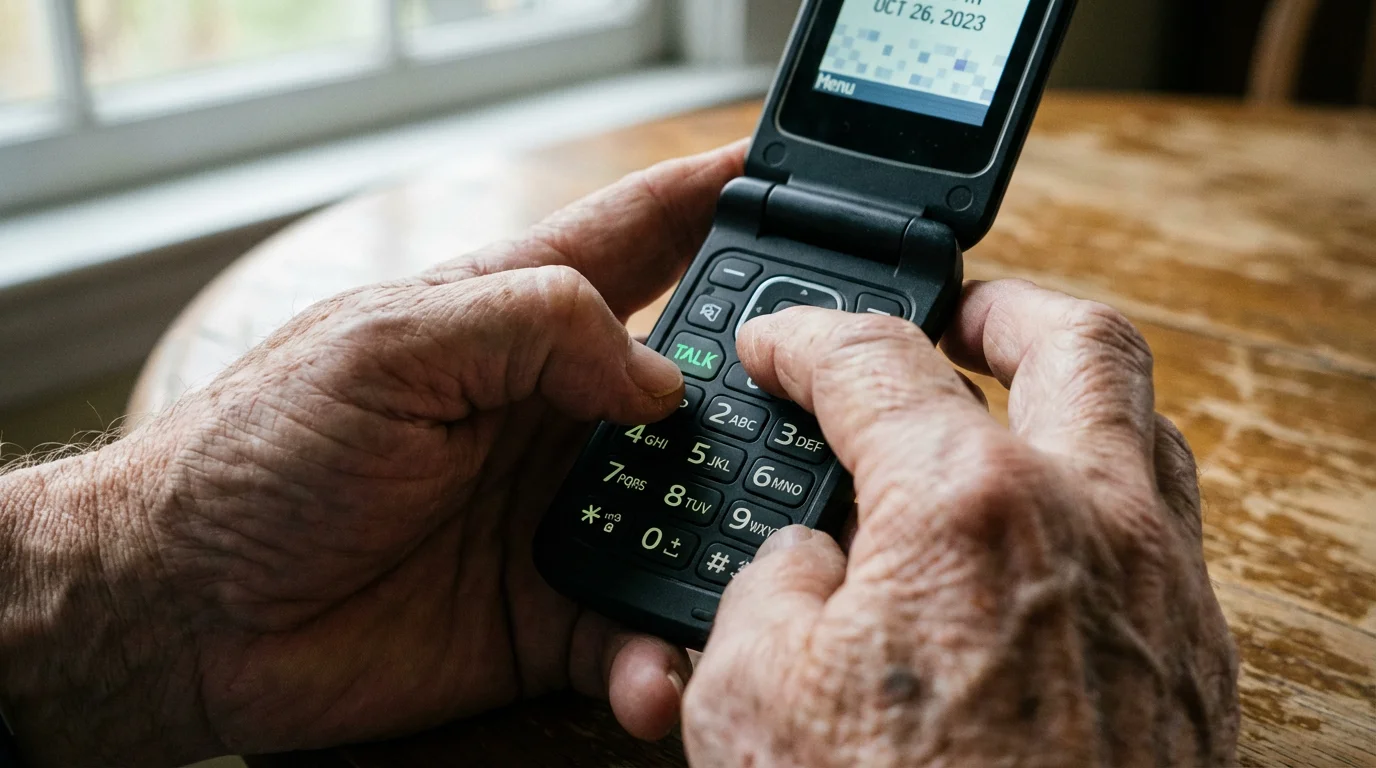
The most direct way to get help is to dial the emergency services number manually. This process is nearly identical on every flip phone, regardless of the brand. You do not need to unlock the phone or navigate complex menus to do this.
- Open the flip: Flip the phone open to reveal the keypad and the screen.
- Dial the numbers: Press the 9 key once, then the 1 key twice.
- Press the “Talk” button: Find the green button, usually located on the left side of the keypad near the top. Press it once to start the call.
- Wait for the operator: You might hear a few moments of silence or a different ringing tone. Stay on the line.
- Speak clearly: Once the operator answers, state your name, your location, and the nature of the emergency.
“Remember: Even if you cannot speak, stay on the line. Modern emergency systems use ‘Enhanced 911’ (E911) to help dispatchers find your approximate location based on cellular towers and the GPS chip inside your flip phone.”
If you accidentally dial 911, do not hang up. Wait for the operator to answer and simply explain that it was a mistake. If you hang up immediately, emergency services may dispatch an officer to your location to check on your safety, which ties up valuable resources.
Using Dedicated SOS or Emergency Buttons
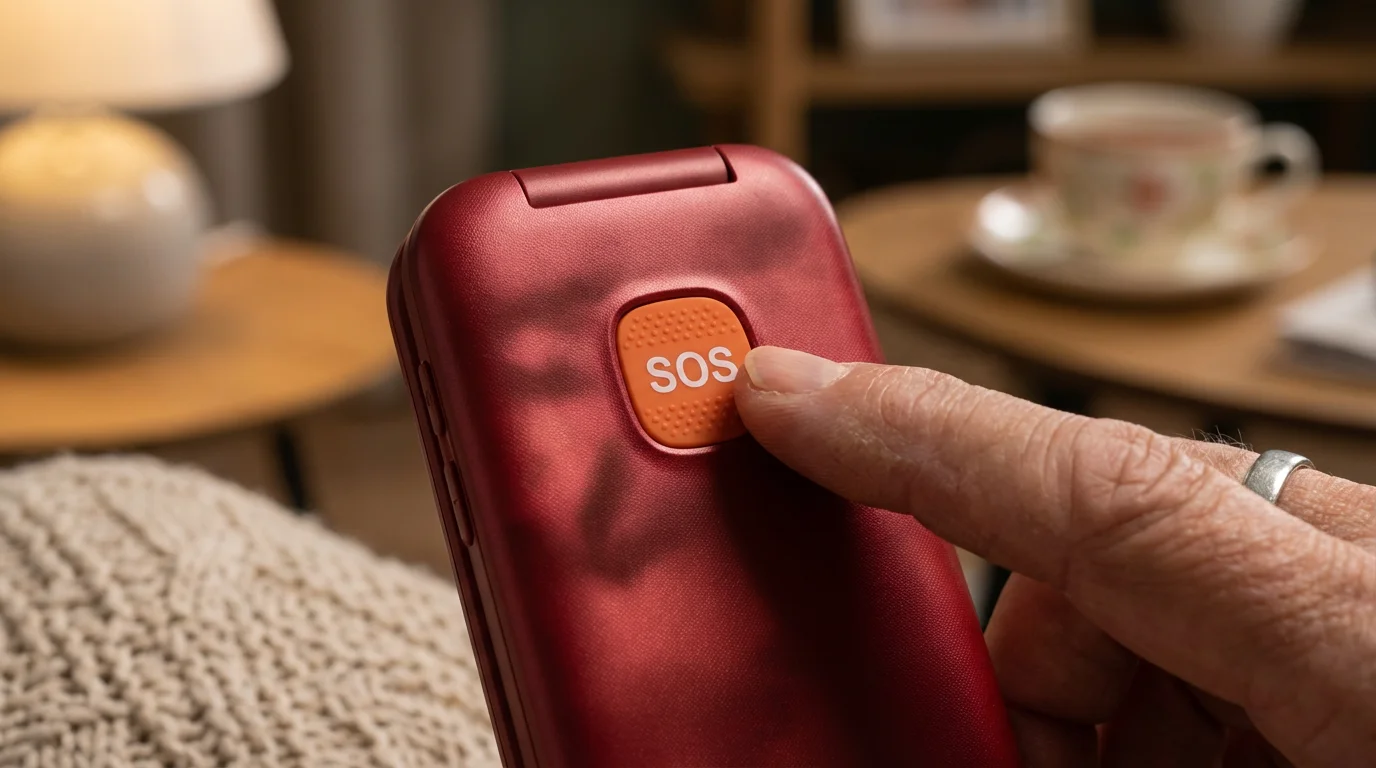
Many flip phones designed specifically for seniors, such as those from Senior Planet partners or specialized carriers, include a “one-touch” emergency button. This is often called an SOS button or a 5Star button. This feature is faster than dialing 911 and is designed to be used when you are under stress.
On a Lively Flip (Jitterbug):
- Locate the button: Find the red button at the bottom of the keypad labeled “Urgent Response.”
- Press and hold: Press the button and hold it down for about three seconds. You will hear a loud beep or a voice prompt indicating the call is being placed.
- Talk to the agent: You will be connected to a certified Urgent Response agent who can track your location and contact family members or emergency services for you.
On a Standard Flip Phone (Alcatel, Kyocera, or Schok):
Some standard flip phones allow you to program a specific key (like the “2” or “5” key) to act as an emergency speed dial. You can also check if your phone has a “Panic” or “SOS” mode in the settings.
- Press the “OK” button: This opens your main menu.
- Find “Settings”: Use the directional pad to highlight the gear icon (it looks like a small wheel) and press “OK.”
- Select “Phone Settings” or “Security”: Scroll down until you see an option for “SOS” or “Emergency Mode.”
- Enable the feature: Follow the on-screen prompts to turn this on. You may be asked to enter a phone number to call when the feature is activated.
How to Call for Help When the Phone is Locked
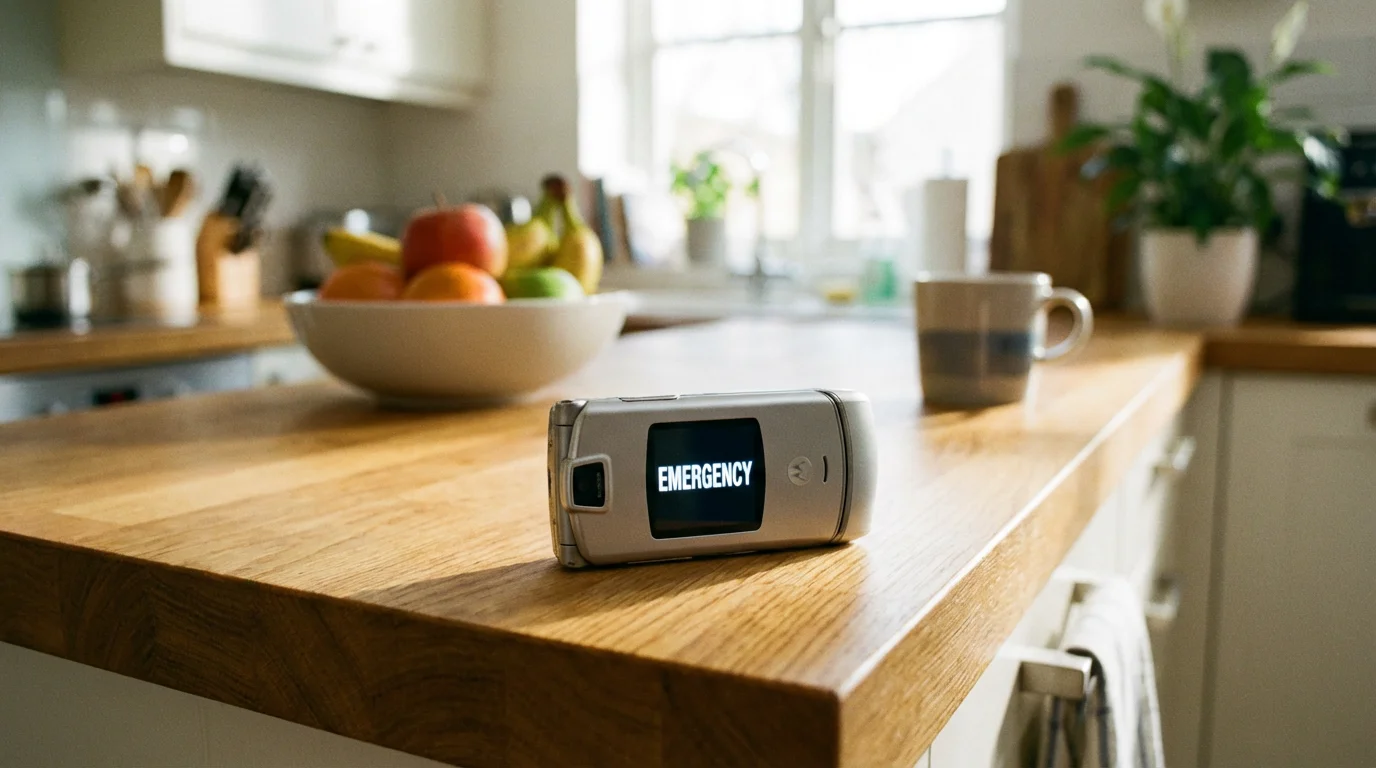
You might use a password or a PIN code to keep your phone private. While this is great for security, you might worry that it will slow you down during an emergency. Federal regulations require all mobile phones to allow emergency calls even when the device is locked.
When you flip open your phone and see a screen asking for a password, look at the bottom of the screen. You should see a word that says “Emergency” or “SOS.”
- Press the “Soft Key”: Most flip phones have two buttons just below the screen. These are “soft keys” because their function changes depending on what the screen says.
- Select “Emergency”: Press the button directly below the word “Emergency” on the screen.
- Dial 911: The phone will open a special dialing screen that only allows emergency numbers. Type 9-1-1 and press the green “Talk” button.
This bypasses your password completely. It ensures that even a stranger who finds you in distress can call for help on your behalf without needing your private code.

Setting Up ICE (In Case of Emergency) Contacts
When emergency responders arrive, they often look for your phone to see who they should notify. An “ICE” contact is a person in your address book labeled specifically as your emergency contact. Setting this up is a vital step in your personal safety plan.
How to add an ICE contact:
- Open your “Contacts” or “Address Book”: Use the directional pad to find the icon that looks like a person’s silhouette. Press “OK.”
- Select “Add New Contact”: Press the button for “Options” or “New.”
- Enter the Name: Type “ICE” followed by the person’s name (for example, “ICE – Daughter Sarah”). This ensures the contact appears at the top of your list or is easily searchable.
- Enter the Number: Type in their mobile or home phone number.
- Save the contact: Press the “OK” button or the soft key labeled “Save.”
Some flip phones have a dedicated “Medical ID” or “Emergency Info” section in the settings. If yours does, you can enter information about your allergies or medications there. Paramedics are trained to check for this information on mobile devices.
How GPS and Location Tracking Work During a Call
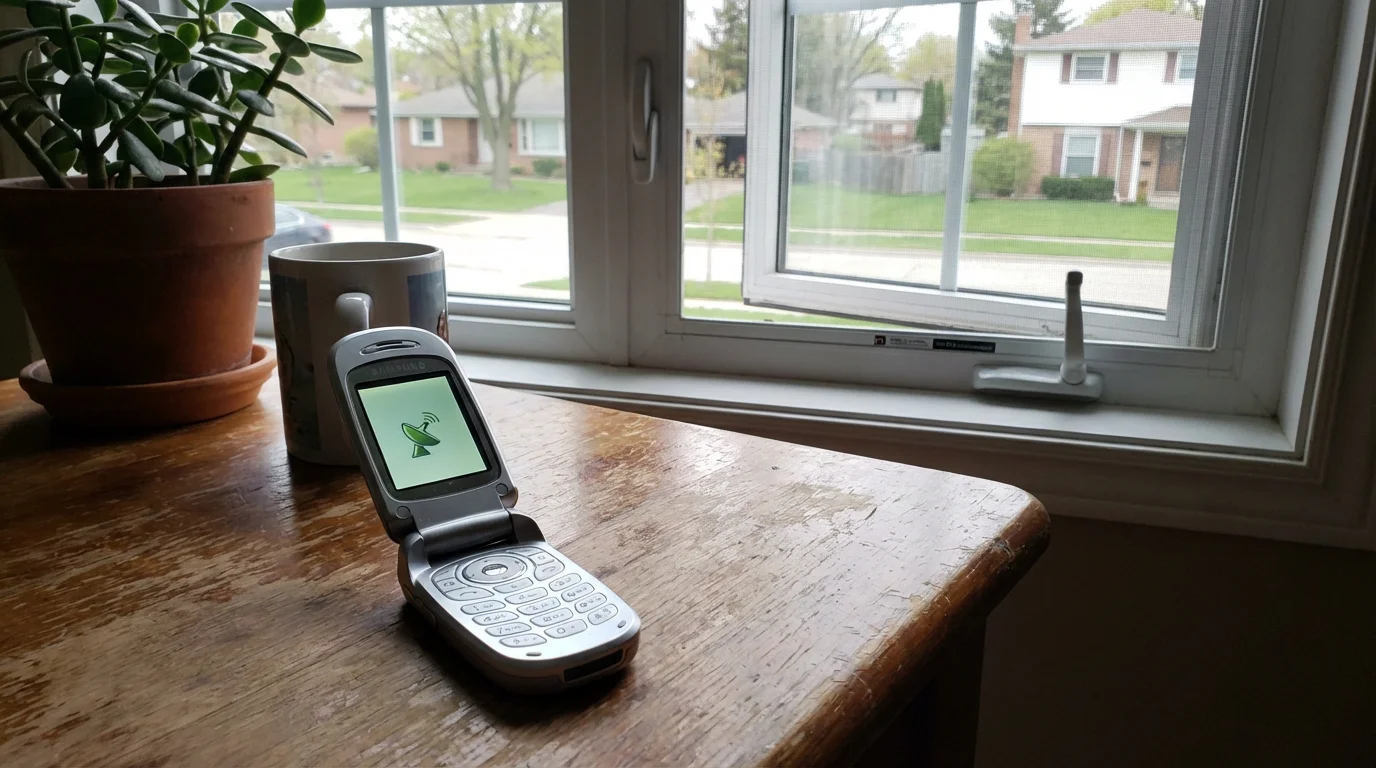
You may wonder how an operator finds you if you are in a park or a large parking lot. According to Google Support and other tech providers, modern mobile operating systems utilize “Emergency Location Service” (ELS). When you dial 911, your flip phone automatically turns on its GPS (Global Positioning System) chip.
The phone then calculates your coordinates using a combination of nearby cell towers, Wi-Fi signals (if your phone has Wi-Fi), and satellites. This data is sent directly to the emergency dispatcher. You do not need to do anything to activate this; it happens in the background the moment the call connects.
However, GPS can struggle inside large concrete buildings or deep underground. If you are able to speak, always try to provide a physical landmark, such as “I am at the north corner of the mall by the fountain.” This human detail helps responders find you even faster than the technology alone.
What to Do If Something Goes Wrong
Technology is incredibly helpful, but it is not perfect. You might encounter a situation where your phone doesn’t behave as expected. Here is how to handle the most common issues:
The call won’t go through:
If you see “Searching for Service” or “Emergency Calls Only,” your phone is struggling to find a tower. Try moving near a window or going outside. Even if your specific carrier (like Verizon or AT&T) has no signal, your phone will try to “piggyback” on any other available carrier’s tower to complete a 911 call.
The screen is frozen:
If you press buttons and nothing happens, your phone may have “crashed.” For most flip phones, the solution is a “battery pull.” Gently remove the back cover of the phone, take the battery out for five seconds, put it back in, and hold the red “Power” button to restart. Once the phone is back on, try the call again.
You can’t hear the operator:
Ensure your hand is not covering the speaker or the microphone. On a flip phone, the microphone is usually a tiny hole near the bottom of the keypad, and the speaker is at the top of the internal screen. If you have trouble hearing, look for the “Speaker” option on the screen and press the corresponding button to turn on the loud speakerphone.
Quick Reference Checklist
Use this checklist to ensure you are prepared for an emergency. You might even want to print this section and keep it near your charging station.
- [ ] I know exactly where my green “Talk” and red “End” buttons are.
- [ ] I have at least one contact labeled “ICE” in my phone book.
- [ ] I have practiced opening the phone and finding the “Emergency” button on the lock screen.
- [ ] I keep my phone on the charger every night so it is ready for the next day.
- [ ] I know how to turn on the speakerphone during a call.
- [ ] I understand that 911 works even if my phone plan has expired.
Frequently Asked Questions
Q: Can I call 911 if I don’t have a SIM card in my flip phone?
A: Yes. In the United States, cellular providers are required by the FCC to transmit 911 calls from any mobile phone that can reach their signal, regardless of whether the phone has a SIM card or an active subscription.
Q: Will 911 be able to find me if I’m in a different state?
A: Yes. Your phone connects to the nearest available cell tower. That tower routes your call to the local Public Safety Answering Point (PSAP) for that specific area. The dispatcher will be local to where you are physically standing, not where your phone number is registered.
Q: Does my flip phone have a “Silent” mode that will stop 911 from ringing?
A: No. When you dial 911, the phone’s software overrides your volume settings. You will be able to hear the operator, and they will be able to hear you, even if your phone was previously set to “Silent” or “Vibrate.”
Q: Can I text 911 on a flip phone?
A: It depends on your local emergency department. Many areas in the USA now support “Text-to-911.” However, calling is always the preferred method because it is faster and provides better location data. Only text if you are in a situation where it is unsafe to speak aloud.
You have taken a major step toward your safety by learning these features. Technology can feel intimidating, but remember that these devices were built to serve you. If you ever feel unsure about your phone’s specific layout, consider visiting a local carrier store or a library with technology classes for seniors. Organizations like AARP Technology Resources offer wonderful guides to help you stay connected and protected.
Keep your phone charged, keep your ICE contacts updated, and carry your device with confidence. You are now prepared to handle an emergency with the simple press of a button.
Disclaimer: This article is for informational purposes only. Screens and menus may look slightly different depending on your device model and software version. When in doubt, visit your device’s official support website or ask a trusted family member for help.
Leave a Reply