
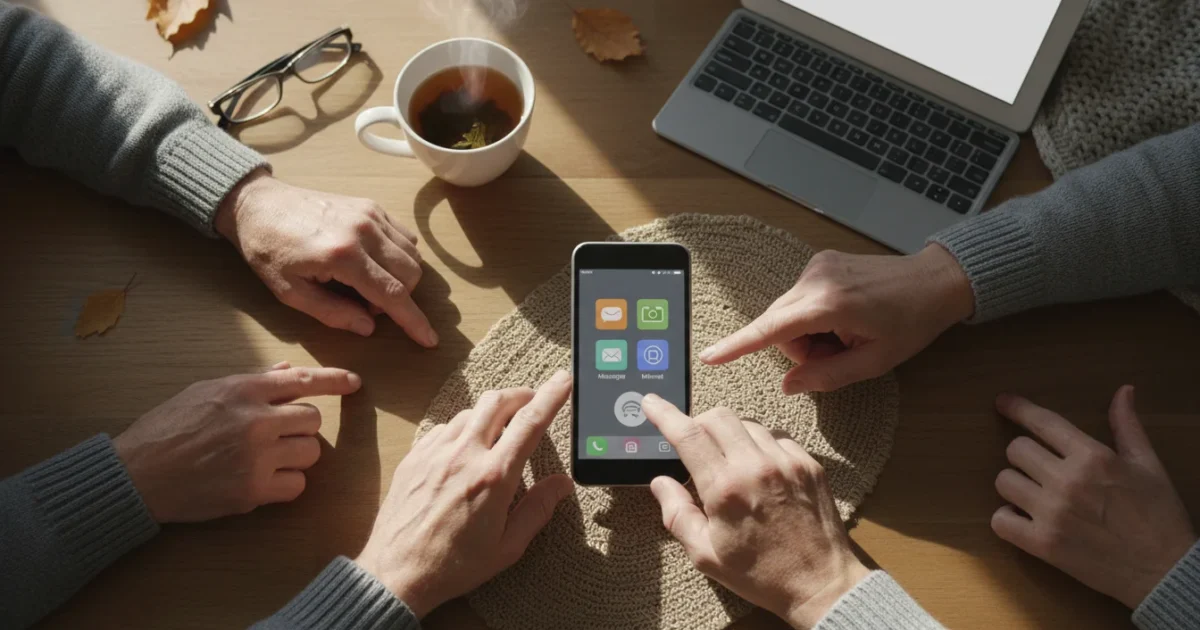
Imagine you are sitting in a park with your tablet, wanting to send an email to a grandchild, or perhaps you are at home and your main internet connection suddenly stops working due to a storm. In moments like these, your smartphone can save the day. It has a hidden superpower called a “mobile hotspot.”
Learning to use a hotspot is a great way to stay prepared, much like knowing how to set up Emergency SOS for your personal safety.
A mobile hotspot allows your phone to share its cellular internet connection with other devices, like a laptop, a tablet, or even a friend’s phone. Think of your smartphone as a garden hose carrying water (the internet). Turning on the hotspot is like attaching a sprinkler to that hose—it spreads the water (internet signal) so others nearby can use it.
You do not need to be a computer expert to use this feature. In fact, you likely already have everything you need in your pocket. This guide will walk you through the entire process, step by step, for both iPhone and Android devices. We will cover how to turn it on, how to connect other devices to it, and how to make sure you do not run out of data.
Take a deep breath, grab your phone, and let’s get you connected.
Table of Contents
- What Is a Mobile Hotspot and Why Use It?
- What You Need Before Starting
- How to Set Up a Personal Hotspot on iPhone
- How to Set Up a Mobile Hotspot on Android
- How to Connect Your Tablet or Laptop
- Managing Your Battery and Data
- Safety First: Passwords and Security
- Troubleshooting: What to Do If It Doesn’t Work
- Frequently Asked Questions
What Is a Mobile Hotspot and Why Use It?
A mobile hotspot turns your phone into a portable Wi-Fi router. When you are at home, you connect to a box (modem) that your cable company provided. When you leave the house, you lose that connection. However, your smartphone stays connected to the internet using cellular towers—the same technology that lets you make calls from the car.
This is especially helpful if you are using Google Maps on your phone and want to see the directions on a larger tablet screen.
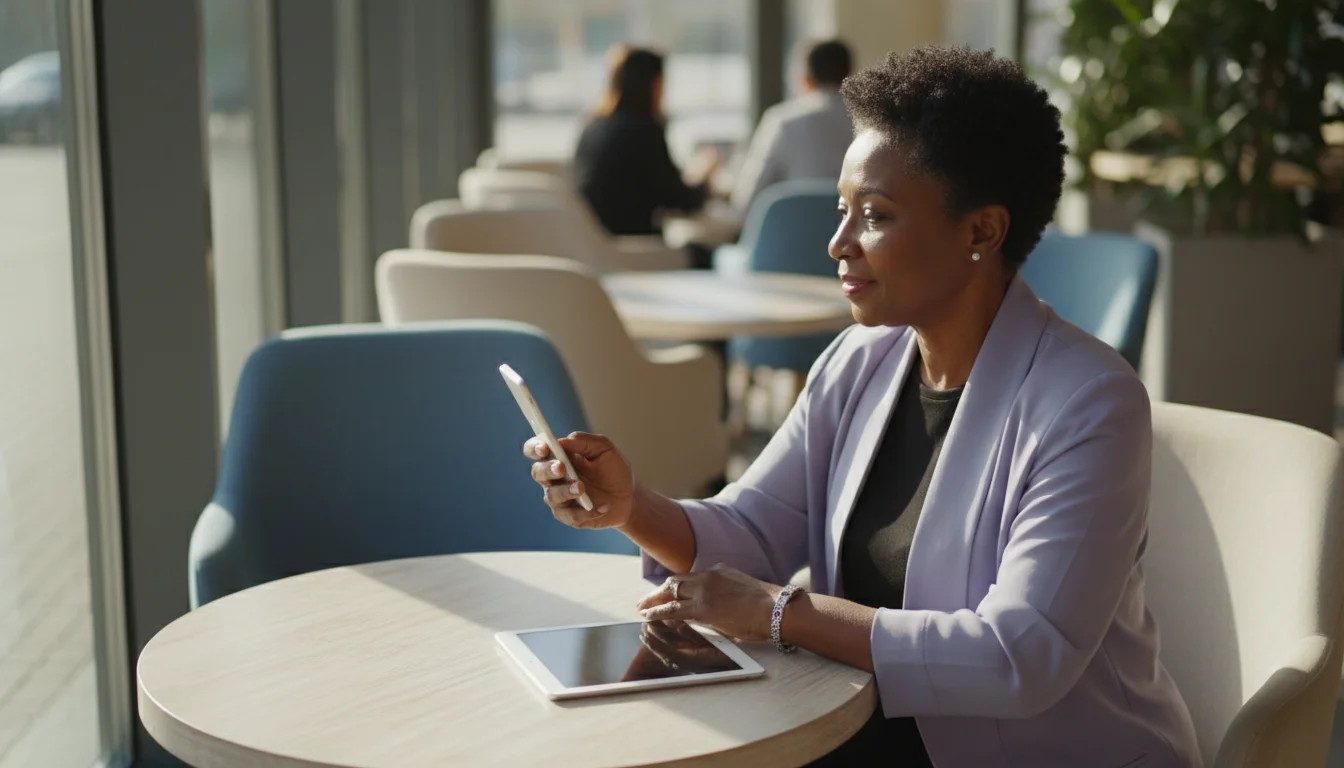
When you activate the hotspot feature, your phone takes that cellular signal and broadcasts it as a private Wi-Fi network. You can then connect your iPad, Kindle, or laptop to that network just as you would connect to the Wi-Fi at a coffee shop.
A Note on Safety: Using your own hotspot is actually safer than using public Wi-Fi at a library or cafe. Because you control the password, it is much harder for strangers to snoop on your activity.
Common Uses for a Hotspot
- During Power Outages: If your home electricity goes out, your home Wi-Fi usually goes out too. Your phone, running on battery and cell towers, can get your laptop back online.
- Traveling: If you are in a hotel that charges expensive fees for Wi-Fi, you can use your phone instead.
- Secure Transactions: If you need to check your bank balance while at a coffee shop, using your hotspot is more secure than the shop’s open network.
What You Need Before Starting
Before we press any buttons, let’s make sure your device is ready. While most modern plans include hotspot capabilities, it is worth doing a quick mental check of three things:
- A Strong Signal: Look at the top corner of your phone screen. Do you see the vertical bars indicating signal strength? If you only have one bar, your hotspot will be very slow. It is best to have at least two or three bars.
- Battery Life: Broadcasting a Wi-Fi signal takes a lot of energy. If your battery is below 30%, plug your phone into a charger before starting. If you are out and about, keep an eye on your battery percentage.
- Your Data Plan: This is the most important check. Most cellular plans (from Verizon, T-Mobile, AT&T, etc.) allow hotspots, but they may have a limit on how much data you can use. If you have an “Unlimited” plan, you are usually safe, but check with your carrier if you are unsure.
How to Set Up a Personal Hotspot on iPhone
If you have an Apple iPhone, setting up a hotspot is straightforward. These instructions apply to almost all iPhone models from the last few years.
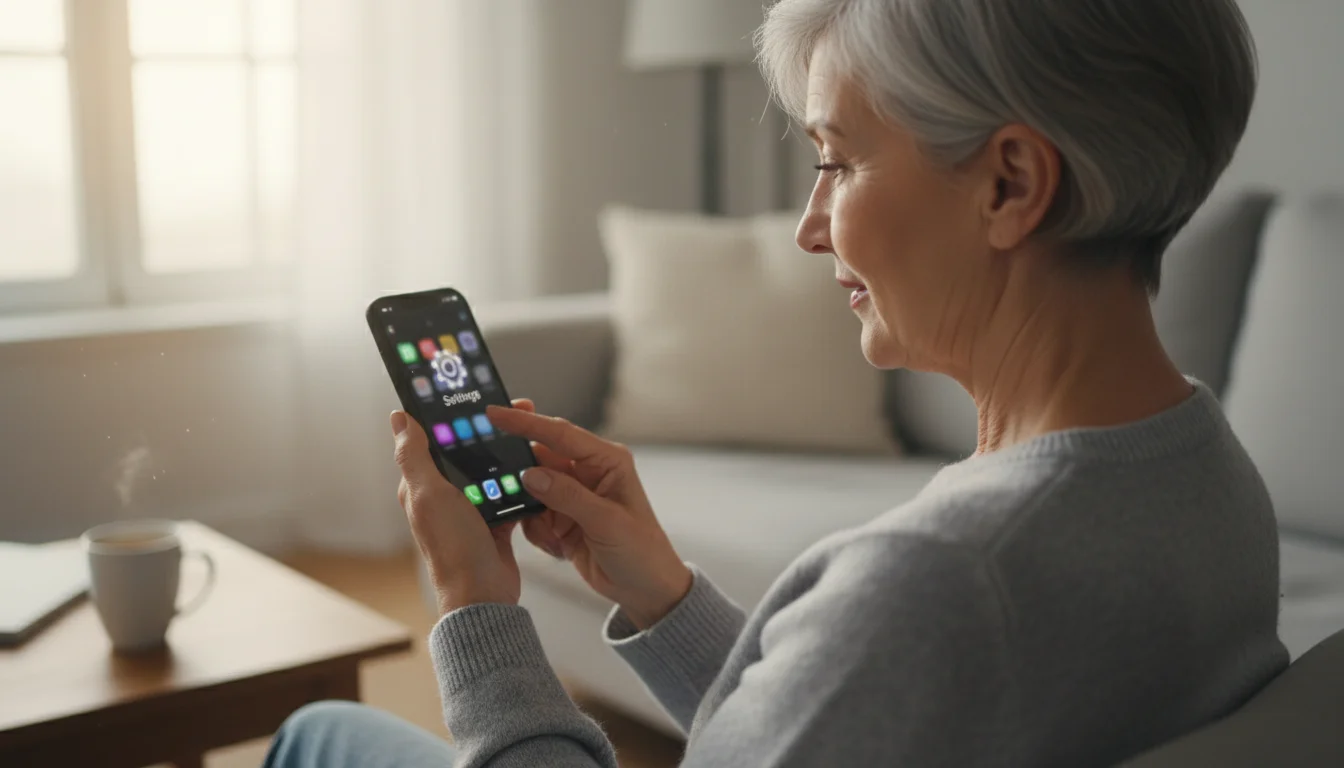
Step 1: Find Your Settings
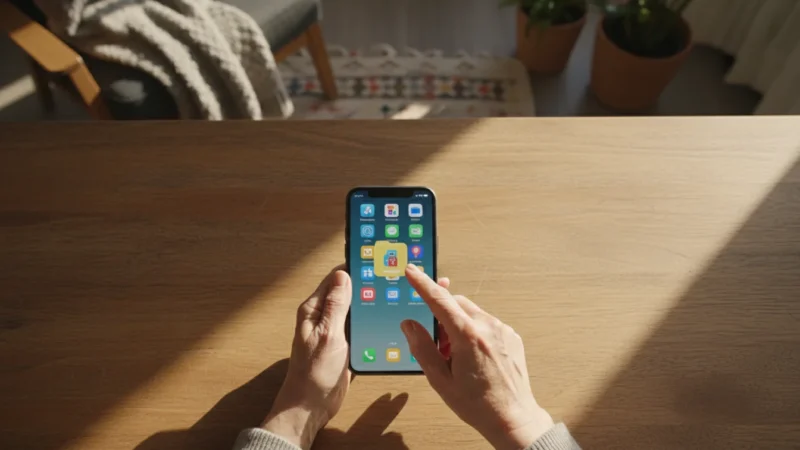
Unlock your iPhone. Look for the icon that looks like a grey gear. It is labeled Settings. Tap it once to open it.
Step 2: Locate Personal Hotspot
In the main Settings menu, look near the top. You will see a block of options including Airplane Mode, Wi-Fi, and Bluetooth. Just below “Cellular,” you should see a green icon labeled Personal Hotspot.
Note: If you do not see “Personal Hotspot” on the main screen, tap on Cellular first. You should see “Personal Hotspot” listed there.
Step 3: Turn It On
Tap Personal Hotspot. You will see a switch next to the words “Allow Others to Join.” Tap this switch so it turns green. Green means “Go”—the feature is now active.
Step 4: Set Your Password
On the same screen, you will see a field labeled Wi-Fi Password. Apple automatically creates a password for you, but it is often a confusing string of random letters and numbers.
To change it to something easier:
- Tap the text where the current password is shown.
- Press the “x” button on the keyboard to erase the current password.
- Type in a new password that is easy for you to remember but hard for strangers to guess (at least 8 characters).
- Tap Done in the top corner.
Your iPhone is now broadcasting a signal! You can leave this screen, but keep your phone unlocked while you connect your other device for the first time.
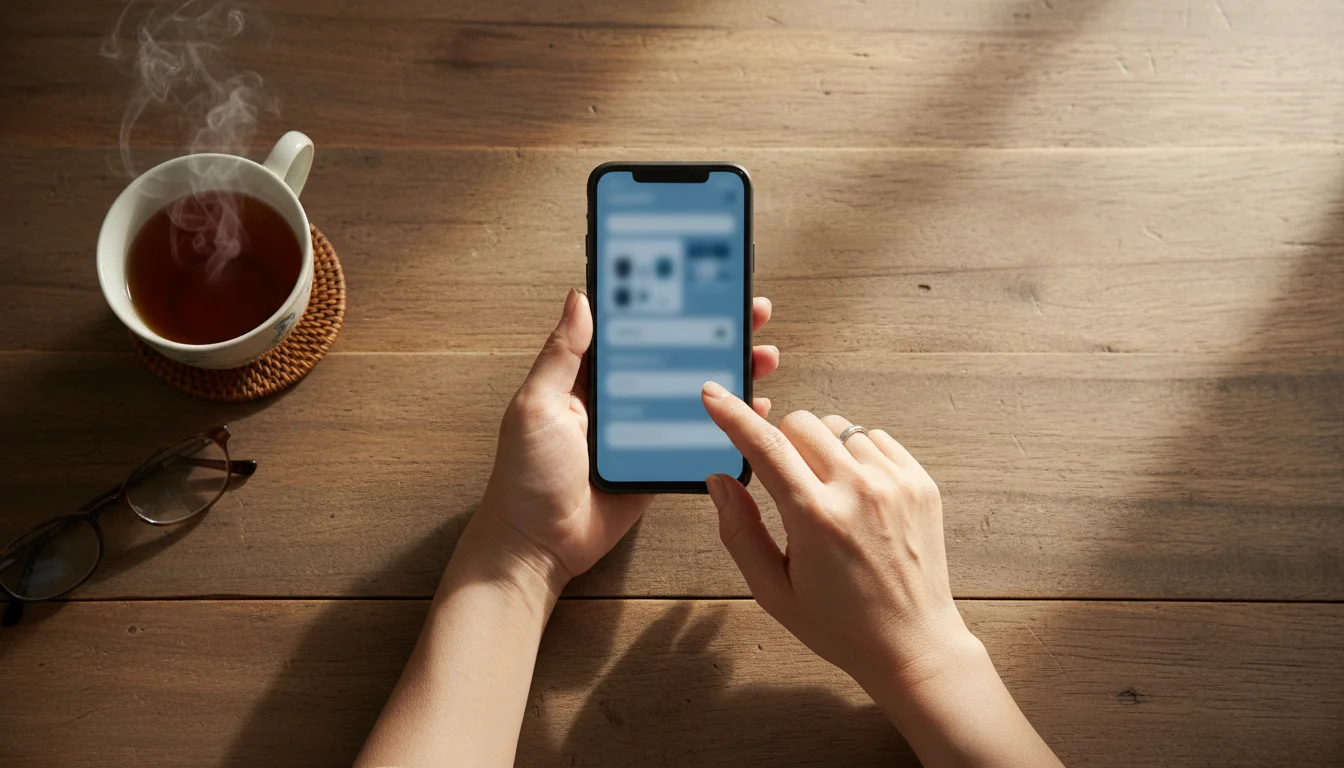
How to Set Up a Mobile Hotspot on Android
Android phones (like Samsung Galaxy, Google Pixel, or Motorola) can vary slightly in how their menus look. However, the logic is always the same. We will cover the most common path to find these settings.
If your menus look different, you might need to check how to update your Android phone to ensure you have the latest features.
For more specific details on different Android models, you can always refer to Google Support.
Step 1: Open Settings
Unlock your phone. You are looking for the Settings app. It usually looks like a gear or a cogwheel. You can often find it by swiping down from the very top of your screen and tapping the small gear icon in the corner.
Step 2: Find Network Connections
Depending on your phone model, the next menu option will be named slightly differently. Look for one of these terms:
- Connections (common on Samsung phones)
- Network & Internet (common on Google Pixel and Motorola)
Tap that option.
Step 3: Locate Hotspot & Tethering
Scan down the list for an option that says Mobile Hotspot and Tethering or simply Hotspot & Tethering. Tap it.
Step 4: Configure and Activate
You will see an option labeled Mobile Hotspot. Before you turn it on, tap the words “Mobile Hotspot” (not the switch) to open the settings menu.
Here you can see the Network Name (usually your phone’s model name) and the Password. If you want to change the password to something easier to type:
- Tap on Password.
- Delete the random characters.
- Type your new password (at least 8 characters).
- Tap Save or OK.
Now, go back and tap the toggle switch next to “Mobile Hotspot” to turn it on. The switch will usually turn color (often blue) to indicate it is active.
How to Connect Your Tablet or Laptop
Now that your phone is broadcasting a signal, you need to connect your other device (the “receiver”) to it. Let’s assume you are trying to connect an iPad or a Laptop to your phone’s new hotspot.
Step 1: Open Wi-Fi Settings on the Receiver
Go to the device you want to get online (your iPad or laptop). You need to find the list of available Wi-Fi networks.
- On an iPad/Tablet: Tap the Settings app (gear icon), then tap Wi-Fi.
- On a Laptop (Windows): Look at the bottom right corner of your screen. Click the icon that looks like sound waves or a globe.
- On a Laptop (Mac): Look at the top right corner of your screen for the Wi-Fi fan icon.
Step 2: Find Your Phone’s Name
Look through the list of available networks. You are looking for the name of your phone.
- If you have an iPhone, it will usually say “John’s iPhone” (or whatever your name is).
- If you have an Android, it might say “Galaxy S21” or “Pixel 6,” unless you renamed it.
Click or tap on that name.
Step 3: Enter the Password
Your tablet or laptop will ask for a password. Type in the password exactly as it appears on your phone screen (the one we set up in the previous section). Remember that passwords are case-sensitive, meaning a capital “A” is different from a lowercase “a”.
Step 4: Success!
After a few seconds, the device should connect. You can now open your web browser or email app to test it out.
Tip: On an iPhone, when a device is connected to your hotspot, you will see a green bubble or a blue pill shape around the time in the top left corner of your screen. This is a handy reminder that your hotspot is running.
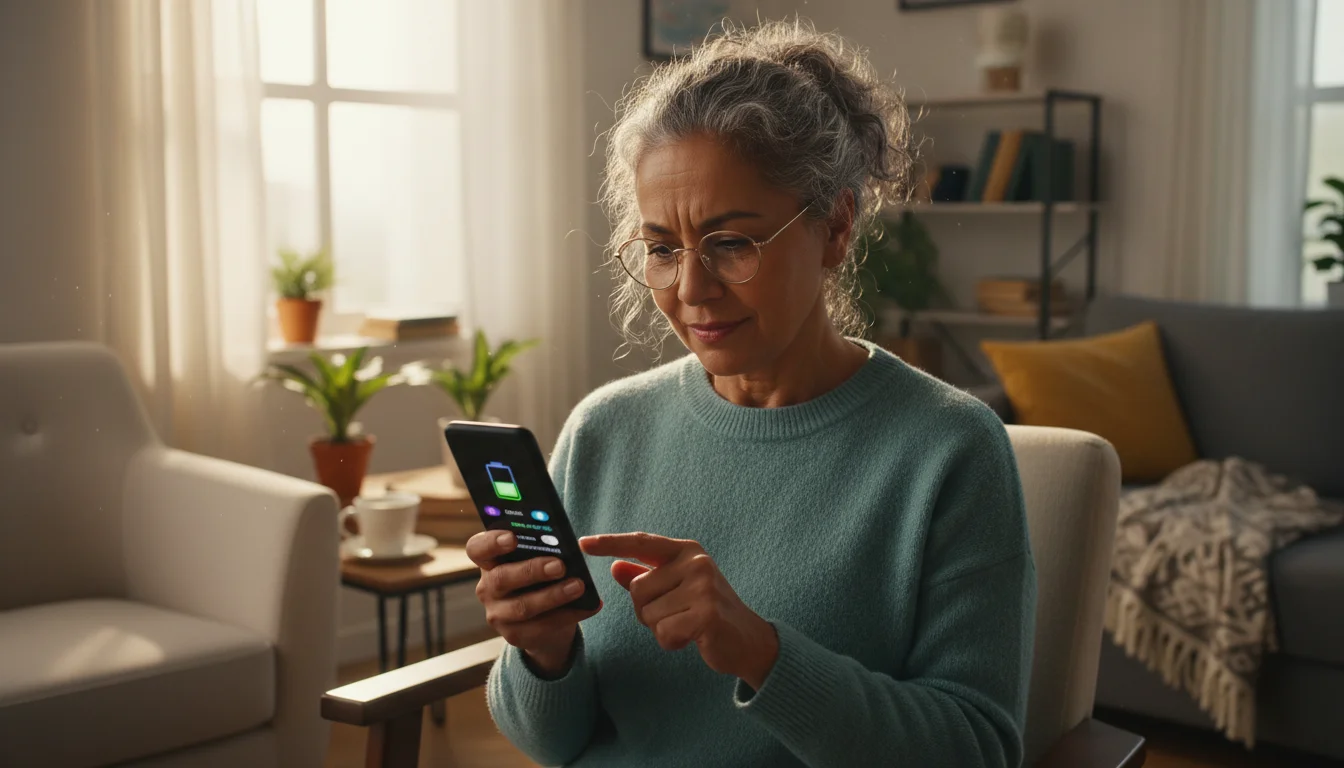
Managing Your Battery and Data
Using a hotspot is incredibly convenient, but it comes with two “costs”: battery power and data usage. Understanding these will prevent surprise bills or a dead phone.
In addition to managing data, it is a good idea to periodically free up storage space on your smartphone to keep it running smoothly.
Battery Drain
Broadcasting a Wi-Fi signal is hard work for your phone. You might notice your phone gets slightly warm—this is normal. However, your battery will drain much faster than usual.
- The Fix: If you plan to use the hotspot for more than 30 minutes, plug your phone into a wall charger or a portable battery pack.
- Turn it Off: As soon as you are done using the internet on your laptop or tablet, remember to go back into your phone settings and turn the Hotspot switch Off. This saves your battery.
Data Usage
When your laptop uses your phone’s internet, it consumes your cellular data plan. Laptops often use more data than phones because they load the “desktop” versions of websites, which are larger.
Here is a general guide to how much data different activities use:
| Activity | Data Usage (Approximate) | Impact |
|---|---|---|
| Sending Text Emails | Very Low | Safe for hours |
| Browsing News Websites | Low to Medium | Safe for general use |
| Facebook / Social Media | Medium | Okay for short periods |
| Video Calls (Zoom/FaceTime) | High (1 GB per hour) | Watch carefully |
| Streaming Movies (Netflix) | Very High (3 GB+ per hour) | Avoid on limited plans |
If you have a limited data plan (e.g., 5GB per month), stick to checking emails and reading news. Avoid watching movies while connected to your hotspot.
Safety First: Passwords and Security
You might wonder, “Can anyone connect to my phone and use my internet?”
The answer is no, as long as you have a password set. This is why we recommended changing the password to something unique in the setup steps. If you leave your hotspot “open” (no password), anyone nearby could connect, use your data, and potentially see what you are doing.
Always use WPA2 or WPA3 security (this is the default standard on almost all modern phones, so you usually do not need to change any settings). Just ensure your password is not easy to guess, like “12345678.”
Troubleshooting: What to Do If It Doesn’t Work
Sometimes technology acts up. If you cannot get your laptop or tablet to connect to your phone, try these simple fixes. You do not need to panic; usually, one of these steps solves the problem.
1. “I can’t see my phone on the list of networks.”
If your laptop can’t find your phone’s signal:
- Stay on the Screen: On an iPhone, you must stay on the “Personal Hotspot” settings screen with the screen lit up for new devices to find it. Once connected, you can lock the phone.
- Toggle It: Turn the Hotspot switch OFF, count to five, and turn it back ON.
- Move Closer: Make sure your phone and the device you are connecting are within a few feet of each other.
2. “It says ‘Incorrect Password’.”
This is the most common error.
- Check Caps Lock: Ensure you aren’t accidentally typing in all capital letters.
- Show Password: On your phone, look at the password again carefully. Is that an uppercase “I” or a lowercase “l”? Is it a zero “0” or the letter “O”?
- Change It: If it is too confusing, just change the password on your phone to something simple like “BlueSky2024” and try again.
3. “The internet is very slow.”
If you are connected but pages won’t load:
- Check Signal: Does your phone have good cellular reception? If you only have one bar, the internet will be slow for your laptop too. Try moving near a window.
- Too Many Devices: Are you sharing your hotspot with three other people? Disconnect them. The more devices connected, the slower it gets.
For more in-depth help with connectivity issues, Wirecutter often publishes excellent guides on networking gear and troubleshooting.
Frequently Asked Questions
It is perfectly normal to have questions about using your phone in a new way. Here are some of the most common questions we hear from our readers.
Does using a hotspot cost extra money?
In the past, cell phone carriers charged an extra fee for this. Today, most major plans include hotspot usage for free. However, the data you use counts against your monthly limit. If you are on a prepaid plan or an older plan, it is a good idea to call your carrier (like Verizon or AT&T) or check your bill to confirm.
Can I make phone calls while using the hotspot?
Yes! On most modern 4G and 5G smartphones, you can talk on the phone and use the hotspot at the same time. You do not need to hang up to let your iPad check email.
How far away does the signal reach?
A phone’s hotspot is not as strong as a home Wi-Fi router. It typically reaches about 30 feet. For the best connection, keep your phone in the same room as the device you are connecting.
Will this work for my Smart TV?
Technically, yes, you can connect a Smart TV to your phone’s hotspot to watch Netflix. However, streaming video on a TV consumes a massive amount of data very quickly. Unless you have an unlimited data plan with high-speed hotspot allowance, we recommend avoiding this.

Staying Connected
Mastering the mobile hotspot is a significant step in becoming confident with your technology. It gives you independence. You no longer have to worry about finding Wi-Fi when you travel, and you have a reliable backup plan if your house internet fails.
Remember, technology is there to serve you, not to frustrate you. Take your time setting it up, double-check your password, and enjoy the freedom of having the internet wherever you go. If you ever get stuck, you can always visit your local carrier store—they are usually happy to help you find that settings button.
Disclaimer: This article is for informational purposes only. Screens and menus may look slightly different depending on your device model and software version. When in doubt, visit your device’s official support website or ask a trusted family member for help.

Leave a Reply