
Technology often feels like it was designed for people with perfect eyesight and tiny fingers. If you find yourself squinting at your screen or holding your phone at arm’s length just to read a text message, you are not alone. Your smartphone possesses a wonderful “hidden” talent called text-to-speech. This accessibility feature allows your device to read words aloud to you, turning any digital article, email, or text message into your own personal audiobook.
You might find this helpful if your eyes feel tired at the end of the day or if you want to listen to a long news article while you prepare breakfast. This guide walks you through how to set up and use these features on both iPhone and Android devices. You do not need to be a “tech whiz” to master this; you simply need a little patience and this guide by your side. Take a deep breath, grab your phone, and let us explore how your device can start talking to you.
Table of Contents
- What You Will Need to Get Started
- What Exactly is Text-to-Speech?
- How to Use Text-to-Speech on an iPhone
- How to Use Text-to-Speech on an Android Phone
- Making the Voice Sound Just Right
- Practical Ways to Use This Every Day
- What to Do If Something Goes Wrong
- Frequently Asked Questions
- Quick Reference Checklist
What You Will Need to Get Started
Before you begin adjusting settings, make sure your device is ready for the task. You do not need any fancy equipment, but a few basic things will make the process much smoother.
- A Charged Battery: Ensure your phone has at least 20% battery life, or keep it plugged into its charger. Adjusting settings and playing audio can use a bit of extra power.
- A Quiet Room: When you first test these features, you will want to hear the phone clearly without background noise like a television or a vacuum cleaner.
- Internet Connection: While many text-to-speech features work offline, you might need Wi-Fi (a wireless internet connection) to download higher-quality, more natural-sounding voices.
- Your Apple ID or Google Account: You likely already have this set up, but have your password handy just in case your phone asks you to confirm your identity before changing deep system settings.
If you feel nervous about changing settings, remember that you cannot “break” the phone by turning these features on. You can always turn them back off if you decide you do not like them.

What Exactly is Text-to-Speech?
Text-to-speech—often shortened to “TTS” by tech experts—is a type of accessibility feature. Accessibility refers to tools built into your phone to help people with different physical needs use their devices more easily. Specifically, text-to-speech takes the digital text on your screen and converts it into spoken words using a computerized voice.
Before we dive into the steps, let’s define a few terms we will use throughout this guide:
- Tap: Gently touch the screen once with the tip of your finger, then lift it off. Think of this like a single click on a computer mouse.
- Swipe: Place your finger on the screen and slide it in a specific direction (up, down, left, or right) before lifting it off.
- App: Short for “application.” This is a program on your phone, like your “Messages” app or your “Email” app. You usually open these by tapping a small picture on your home screen.
- Icon: A small picture on your screen that represents an app or a setting. For example, the “Settings” icon usually looks like a silver gear or a cogwheel.
Text-to-speech is like having a helpful assistant standing over your shoulder, reading your mail to you whenever you ask. It is a tool designed to serve you, making your digital life more comfortable.

How to Use Text-to-Speech on an iPhone
Apple includes a robust set of “Spoken Content” features on every iPhone. We will focus on two main functions: Speak Selection (reading a specific paragraph you choose) and Speak Screen (reading everything currently visible on the screen).
Step 1: Open Your Settings
Find the Settings icon on your home screen. It looks like a gray square with gears on it. Tap it once to open the menu.
Step 2: Find Accessibility
Scroll down through the list of options until you see Accessibility. It is often grouped with “General” and “Display & Brightness.” The icon is a blue circle with a white stick figure inside. Tap it.
Step 3: Tap Spoken Content
In the Accessibility menu, look for the “Vision” section. Tap on the option that says Spoken Content.
Step 4: Turn on Speak Selection and Speak Screen
You will see several toggle switches (small ovals that look like light switches). Tap the switch next to Speak Selection so it turns green. Then, tap the switch next to Speak Screen so it also turns green.
Step 5: How to Use “Speak Selection”
Now that the feature is on, let’s try it. Open a text message or a website. Press your finger down on a word and hold it there for a second. Two little blue handles will appear. You can drag these handles to highlight a sentence or paragraph. Once highlighted, a small black menu will pop up near the text. Tap the Speak option (you might have to tap a small arrow on the right side of the menu to see it). Your iPhone will read that specific text aloud.
Step 6: How to Use “Speak Screen”
If you want the phone to read the entire screen (like a whole email), use two fingers to swipe down from the very top edge of the screen. A small control panel will appear, and a voice will begin reading everything from the top of the page to the bottom. You can use the buttons on this panel to pause, play, or speed up the voice.
For more detailed support on these features, you can always visit the official Apple Support website.

How to Use Text-to-Speech on an Android Phone
Android phones (made by companies like Samsung, Google, or Motorola) have a feature called Select to Speak. This is generally the best tool for seniors because it stays out of the way until you specifically need it.
Step 1: Open Your Settings
Swipe down from the top of your screen to see your notifications. Look for a small gear icon (the Settings icon) and tap it. Alternatively, find the Settings app on your home screen or in your app list.
Step 2: Find Accessibility
Scroll down the list until you find Accessibility. Tap it. On some phones, you might need to tap “System” or “General Management” first, but “Accessibility” is usually on the main list.
Step 3: Choose Select to Speak
Look for an option called Select to Speak. Tap on it. You will see a switch to turn it on. Tap that switch.
Step 4: Grant Permissions
A message will pop up asking for permission to control your screen. This is normal. Tap Allow or OK. You might also see a message explaining how to start the feature. Read it and tap OK.
Step 5: Locate the Shortcut
Once turned on, a small icon will appear on your screen. On many Android phones, it looks like a small person with their arms outstretched, located in the bottom right corner near your navigation buttons. On some newer phones, it might be a floating button you can move around.
Step 6: Start Listening
To use it, tap that person icon once. Then, tap a specific paragraph on your screen, or drag your finger across several paragraphs. Your Android phone will highlight the text in a box and begin reading it aloud. You will see a “Play” and “Pause” button appear at the bottom of the screen to control the reading.
If you need further assistance with your specific model, Google Support offers extensive guides for Android users.
Making the Voice Sound Just Right
Many people find the default computerized voice a bit jarring or too fast. You have the power to change how the voice sounds to make it more pleasant for your ears.
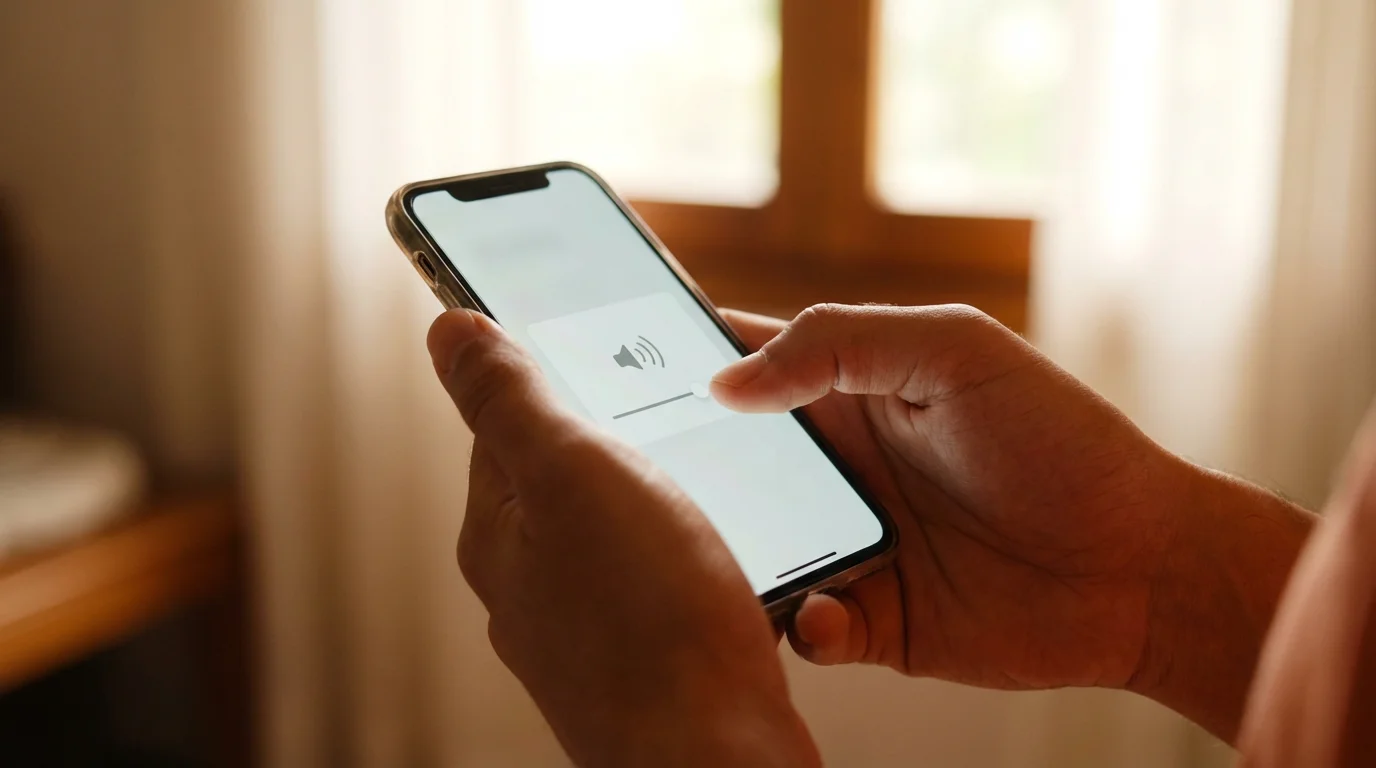
Adjusting Speaking Rate
If the voice sounds like it is in a race, you can slow it down.
- On iPhone: Go back to Settings > Accessibility > Spoken Content. Look for the Speaking Rate slider. Moving it toward the tortoise icon slows it down; moving it toward the hare (rabbit) icon speeds it up.
- On Android: Go to Settings > Accessibility > Text-to-speech output. You will see a slider for Speech rate. Slide it to the left to make it slower.
Changing the “Personality” of the Voice
You do not have to settle for the standard voice. You can choose different accents or even different genders.
- On iPhone: In the Spoken Content menu, tap Voices. You can choose “English” and then see options like “Siri,” “Daniel,” or “Karen.” Some voices marked as “Enhanced” sound much more like a real human being. You may need to tap a small cloud icon next to a voice to download it first.
- On Android: In the Text-to-speech output menu, tap Install voice data (under the “Preferred engine” gear icon). Here you can choose different sets of voices.

Practical Ways to Use This Every Day
Now that you know how to turn it on, let’s talk about when you might actually want to use it. Text-to-speech is not just for people with vision loss; it is a convenience for everyone.
Reading the Morning News: Many news apps have long articles. Instead of straining your eyes, use the “Speak Screen” (iPhone) or “Select to Speak” (Android) to listen to the news while you enjoy your coffee.
Following Recipes: If you are cooking, your hands might be messy. Having your phone read the ingredients and steps aloud allows you to keep your eyes on the stove rather than the small screen.
Proofreading Your Own Texts: Before you hit “send” on a long text message or email to your family, use text-to-speech to listen to what you wrote. Hearing it aloud is the best way to catch “autocorrect” mistakes or missing words.
Reviewing Emails: If you receive a long update from a friend or a complicated email from your doctor’s office, listening to it can help you process the information more clearly than reading it on a small, backlit display.

What to Do If Something Goes Wrong
Technology can be fickle. If things aren’t working as expected, do not get discouraged. Try these simple fixes.
| Problem | Potential Solution |
|---|---|
| I can’t hear anything. | Check your volume buttons on the side of the phone. Make sure the “Mute” switch (on the left side of iPhones) isn’t showing orange. |
| The voice is too fast. | Go back to your Accessibility settings and move the “Speaking Rate” slider toward the turtle or to the left. |
| The person icon disappeared (Android). | Go back to the “Select to Speak” settings. Sometimes an update turns the shortcut off. Simply toggle it back on. |
| It won’t stop reading! | On iPhone, tap the small controller on the screen and hit the square “Stop” button. On Android, tap the “X” on the Select to Speak controller. |
If you still feel stuck, remember that organizations like Senior Planet from AARP offer technology hotlines and classes specifically for older adults. You can also visit your local Apple Store or your cellular carrier’s store (like Verizon or AT&T); the staff there are usually very happy to help you toggle these settings.
Frequently Asked Questions
Q: Will using text-to-speech use up my data plan?
A: Once the voices are downloaded to your phone, using the feature does not require data. It works just like your phone’s internal speaker. However, downloading new “enhanced” voices should be done while you are connected to Wi-Fi to avoid using your cellular data.
Q: Can I use this in any app?
A: Generally, yes. It works in most apps like Mail, Messages, Safari, and Chrome. However, some apps that are mostly pictures (like Instagram) or apps with very strict security might not allow the phone to “read” the text on the screen.
Q: Is TalkBack or VoiceOver the same thing?
A: Not quite. VoiceOver (iPhone) and TalkBack (Android) are “screen readers” designed for people who are completely blind. They change how the whole phone works—for example, you have to double-tap everything to open it. We recommend sticking to Speak Selection or Select to Speak unless you have significant vision loss, as they are much easier to learn.
Q: Can I change the voice from a woman to a man?
A: Yes! In the settings where you choose “Voices,” you will see a variety of names. Usually, names like “Daniel” or “Tom” are male voices, while “Siri” or “Samantha” are female voices. You can listen to a sample of each before you choose.
Quick Reference Checklist
Use this checklist to ensure you have everything set up correctly and are ready to enjoy your phone’s reading features.
- Step 1: Identify your device (iPhone or Android).
- Step 2: Go to the Settings menu.
- Step 3: Tap Accessibility.
- Step 4: Enable “Spoken Content” (iPhone) or “Select to Speak” (Android).
- Step 5: Adjust the Speaking Rate so it is comfortable for you.
- Step 6: Test it by opening a text message from a friend and asking the phone to read it.
- Step 7: If you have trouble hearing, check your volume buttons on the side of the device.
Learning something new takes time. If you do not get it on the first try, put the phone down, have a cup of tea, and try again tomorrow. Your phone is a tool designed to make your life easier, and you are doing a great job learning how to use it to its full potential.
Disclaimer: This article is for informational purposes only. Screens and menus may look slightly different depending on your device model and software version. When in doubt, visit your device’s official support website or ask a trusted family member for help.

![[FEATURED]](https://cleartechguide.com/wp-content/uploads/2026/01/how-to-use-google-maps-on-your-phone-or-computer-featured-16x9-1-800x450.webp)

Leave a Reply