

Misplacing your smartphone often triggers a wave of panic. You might wonder if you left it on the kitchen counter, dropped it in the supermarket parking lot, or if it slipped between the sofa cushions. Fortunately, modern technology provides a built-in safety net designed specifically for these moments. This feature—known as Find My on iPhones and Find My Device on Android phones—acts like a digital homing beacon. It allows you to locate your device on a map, make it ring even if it is on silent, and protect your personal information if the phone is truly gone.
Setting up this tool takes only a few minutes, but it offers immense peace of mind. You do not need to be a technology expert to master this; you simply need to follow a few straightforward steps. This guide will walk you through the entire process, from initial setup to the moment you actually need to find a missing device. Grab your phone, find a comfortable place to sit, and let us ensure your digital life stays right where it belongs—with you.
What You Will Need to Get Started
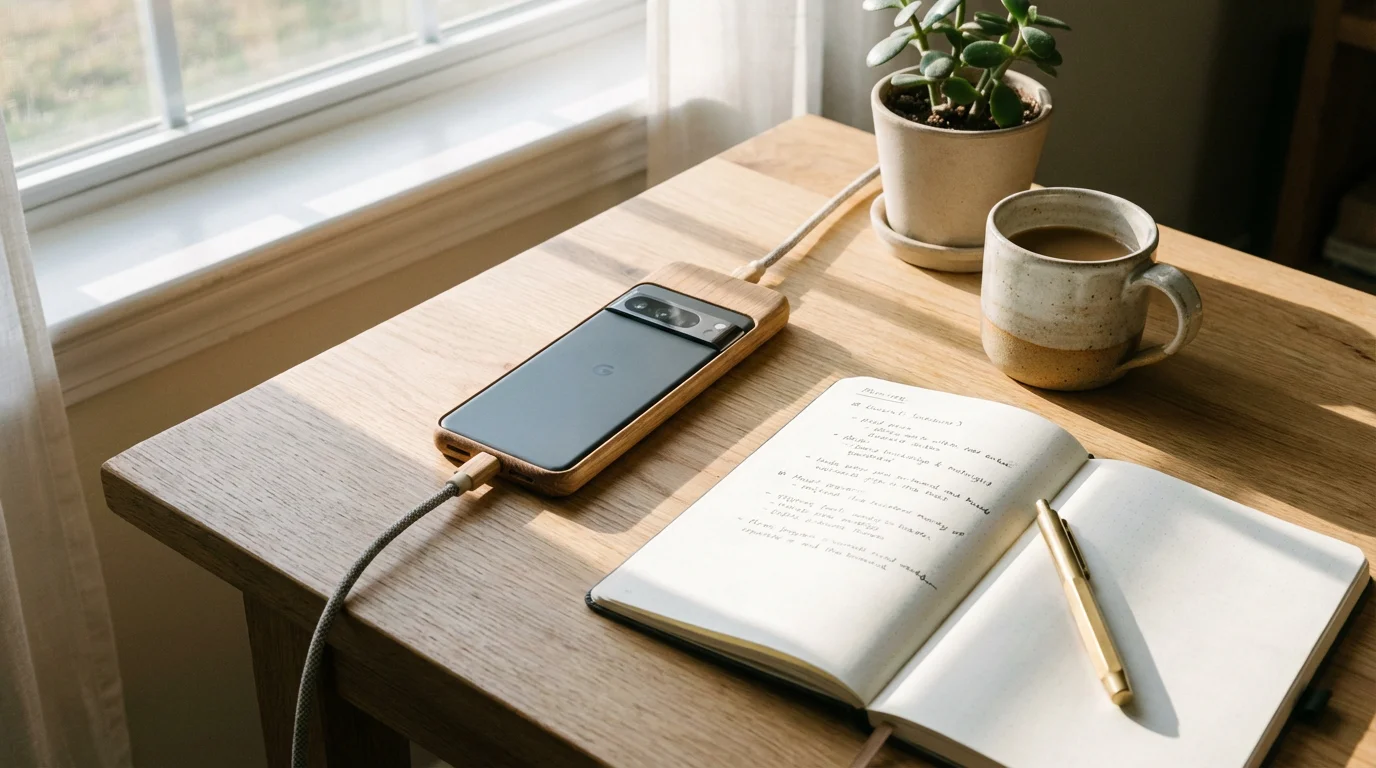
Before you dive into the settings, you must have a few basic items ready. Think of these as the keys to your digital house. Without them, the tracking features cannot function properly. You will need your device to be charged—or at least have had some battery life recently—and a stable connection to the internet via Wi-Fi or cellular data.
Crucially, you need an account with the company that made your phone’s software. For iPhone users, this is your Apple ID. For Android users, this is your Google Account. You likely created these when you first turned on your phone. If you do not remember your password, write it down in a secure location once you reset it; you will need this password to log in from a different computer or tablet to find your phone later.
Finally, ensure your location services are active. This is the feature that allows your phone to use GPS (Global Positioning System) to pinpoint where it is on Earth. If this is turned off, your phone remains “invisible” to the tracking software. We will cover how to check this in the specific sections for each phone type below.
How Phone Tracking Actually Works
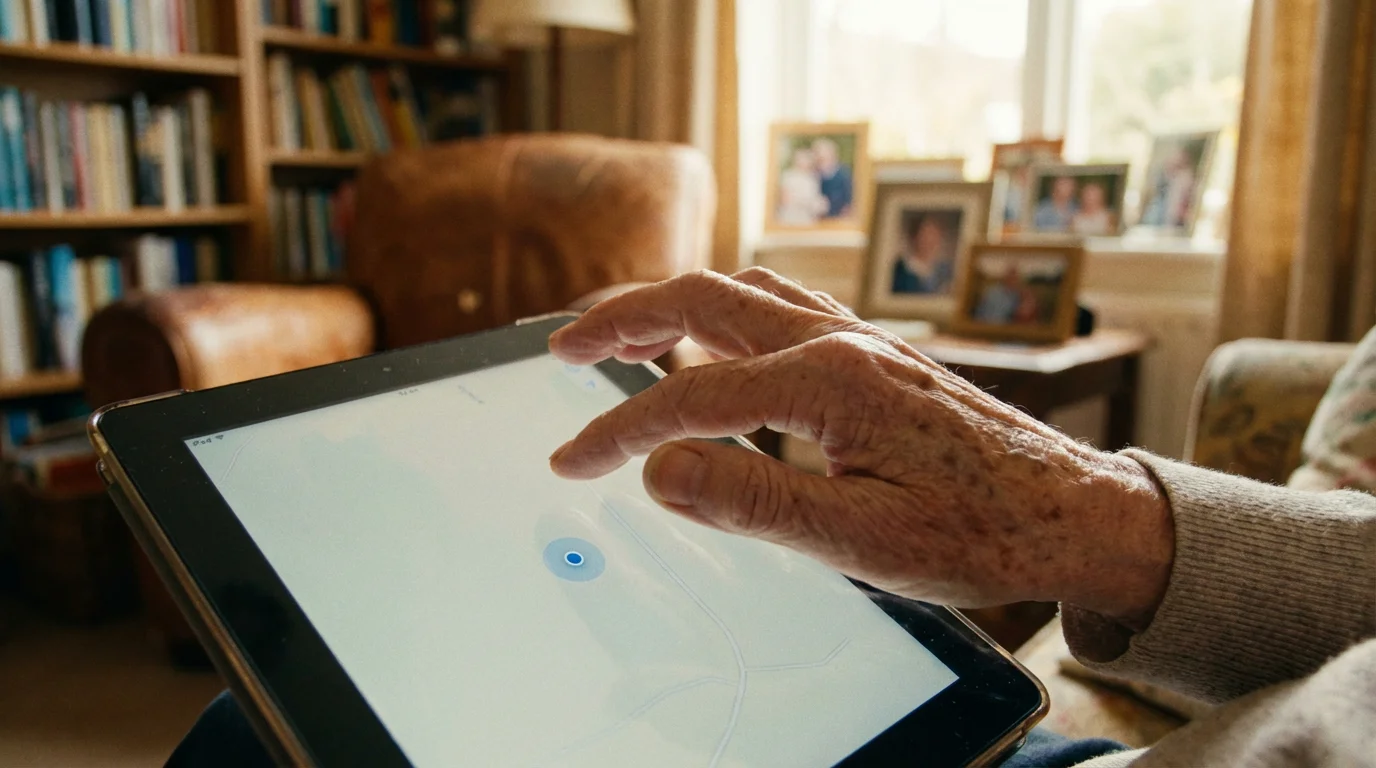
The term “phone tracking” might sound like something out of a spy movie, but the reality is much more practical. Your phone constantly communicates with cellular towers and satellites to provide you with directions or local weather updates. The Find My feature simply uses that same information to report the device’s location to a secure website that only you can access.
When you “find” your phone, you are essentially asking the manufacturer’s server (a large, secure computer far away) to send a signal to your phone. Your phone then replies, “I am right here!” and sends its coordinates back to the map on your screen. This happens in real-time, meaning you can often watch a little blue dot move across a map if someone is carrying your phone or if it is in a moving vehicle.
There is also a “crowdsourced” element to modern tracking. For example, Apple’s Find My network can use other nearby iPhones to detect your lost device’s signal, even if your phone is not connected to Wi-Fi. This is done anonymously and securely; no one else sees your location, and you do not see theirs. It is a community effort to help everyone keep their devices safe.

Setting Up Find My on Your iPhone
Apple integrates the Find My feature directly into your iCloud settings. This single tool helps you find your iPhone, iPad, Apple Watch, and even your Mac computer. Follow these steps to ensure it is active.
- Open the Settings App: Look for the icon on your home screen that looks like a silver or gray set of gears. Tap it once with your finger.
- Tap Your Name: At the very top of the Settings menu, you will see your name and perhaps a circular photo. Tap this to enter your Apple ID settings.
- Find the Find My Option: Scroll down slightly until you see an icon that looks like a green radar or a bullseye. It will say “Find My.” Tap it.
- Enable Find My iPhone: Tap the top row that says “Find My iPhone.” On the next screen, tap the switch next to “Find My iPhone” so it turns green.
- Enable the Find My Network: Below that, you will see a switch for “Find My Network.” Turn this on. This allows you to find your phone even if it is offline or powered off (on newer models).
- Send Last Location: Turn on the switch for “Send Last Location.” This is incredibly helpful; if your battery dies, the phone will automatically tell Apple where it was right before the power ran out.
“Setting this up now is the best gift you can give your future self. It turns a potential disaster into a minor inconvenience that you can solve in minutes.”
If you would like to see these steps in more detail or watch a video, Apple Support offers excellent visual walkthroughs. Once these switches are green, your iPhone is protected. You can exit the settings by swiping up from the bottom of the screen or pressing the circular Home button if your phone has one.

Setting Up Find My Device on Your Android Phone
Android phones, such as those made by Samsung, Google, or Motorola, use a service called Find My Device. This is linked to your Google Account (the same one you use for Gmail). The process is very similar to the iPhone, though the menus look a bit different.
- Open Your Settings: Swipe down from the top of your screen twice to see the full quick-settings menu. Look for the small gear icon—usually in the bottom right or top right of that pull-down menu—and tap it.
- Find the Security Section: Scroll down through the list until you find a section labeled “Security,” “Security & Privacy,” or “Biometrics and Security.” Tap it.
- Tap Find My Device: Look for “Find My Device” in the list. Tap it to open its specific menu.
- Toggle the Feature On: Tap the switch at the top of the screen so it says “On” or turns a bright color (usually blue or green).
- Check Location Settings: Go back to the main Settings menu and look for “Location.” Ensure the main switch for Location is turned on. Without this, the phone cannot tell Google where it is.
- Verify Google Play Visibility: To be extra safe, you must ensure your phone is “visible” on Google Play. You can check this by visiting Google Support or checking the “Devices” section of your Google account on a computer.
Most modern Android phones enable this by default when you sign in with your Google account, but it is always wise to double-check. Knowing that the feature is active allows you to use your phone with confidence, whether you are at home or traveling across the country.

How to Find Your Phone When It Is Missing
If you realize your phone is missing, the most important thing is to stay calm. You can find your device using any other computer, tablet, or even a friend’s phone. You do not need your specific device to start the search.
On an iPhone:
Go to a computer and visit iCloud.com/find. Log in with your Apple ID and password. Once you are logged in, you will see a map. Tap “All Devices” at the top and select your iPhone. You will see three main options:
- Play Sound: Even if your phone is on silent or vibrate, it will play a loud, piercing chime. This is perfect for finding a phone stuck in a couch or left in a coat pocket.
- Lost Mode: This locks your screen with a passcode and allows you to display a custom message on the screen, such as “Lost phone, please call 555-0123.”
- Erase iPhone: Use this only as a last resort (explained in the next section).
On an Android:
Go to google.com/android/find on any web browser. Sign in with your Google Account. You will see a map showing your phone’s location. On the left side of the screen (or bottom on mobile), you have three choices:
- Play Sound: Your phone will ring at full volume for five minutes, even if it is set to silent.
- Secure Device: This locks the phone and signs you out of your Google account. You can also display a message or a backup phone number on the lock screen for a Good Samaritan to see.
- Erase Device: This deletes everything on the phone to keep your data safe.
According to data from security experts, the “Play Sound” feature is the most frequently used tool, as most “lost” phones are simply misplaced within the home. If you see your phone is miles away at a location you don’t recognize, do not go there yourself. Instead, use the “Secure Device” or “Lost Mode” feature and contact local authorities.

Locking or Erasing Your Phone from Afar
Sometimes, a phone isn’t just misplaced—it might be stolen or lost in a public place where you cannot retrieve it. In these cases, your priority shifts from “finding the phone” to “protecting your information.” Your phone contains emails, photos of grandchildren, and perhaps even banking information. Keeping this data out of the wrong hands is vital.
Locking the Device: When you activate “Lost Mode” (iPhone) or “Secure Device” (Android), you are essentially putting a digital padlock on the phone. No one can swipe through your photos or read your messages without your secret passcode. This is your first line of defense. It also disables Apple Pay or Google Pay, so no one can make unauthorized purchases using your phone.
Erasing the Device: This is a powerful, permanent step. When you choose to erase your device, you are sending a command that tells the phone to delete every single piece of data on its internal memory. This returns the phone to its “factory settings,” just like it was when it first came out of the box. Warning: Once you erase the phone, you can no longer track it on the map. Only do this if you are certain you will not get the phone back and you want to ensure your privacy is 100% protected.
If you have your photos and files backed up to the “cloud” (a secure storage service like iCloud or Google Photos), you won’t lose your memories. You can simply sign into your next phone and your photos will reappear. For more information on how to back up your data so you’re ready for this situation, visit Senior Planet from AARP, which offers great tutorials on digital safety.

Addressing Your Privacy and Security Concerns
It is perfectly natural to feel a bit uneasy about “tracking.” You might worry that the government or a large corporation is watching your every move. However, these features are built with strict privacy protections. The location information is encrypted, which means it is scrambled into a code that only you (via your account password) can unscramble.
Apple and Google do not sit and watch where you go for lunch. The location is only “called upon” when you specifically log in to find the device. Furthermore, you can see whenever location services are being used. On most phones, a small arrow icon appears at the top of the screen when an app or service is checking your location.
Think of this feature like a spare key to your house held by a trusted neighbor. You don’t use it every day, and you don’t want the neighbor coming in uninvited, but in an emergency, you are very glad that key exists. You are in control. You can turn these features off at any time in the settings menus we discussed earlier, though we strongly recommend keeping them on for your safety.

What to Do If Something Goes Wrong
Technology is not always perfect. You might log in to find your phone only to see a message saying “Location Unavailable” or “Offline.” This can happen for several reasons, and understanding them can help reduce your frustration.
The most common reason for an “Offline” status is a dead battery. If the phone has no power, it cannot talk to the satellites or cellular towers. This is why the “Send Last Location” feature (on iPhone) is so important; it tells you where the phone was right before it turned off. Another reason might be a lack of internet connection. If your phone is in a metal basement or a remote rural area with no signal, it may not be able to report its location.
If you are certain the phone is on and has a signal but it still won’t show up, try these steps:
- Restart your computer or the device you are using to search.
- Ensure you are signed into the correct Google or Apple account. Many people have more than one email address; make sure you are using the one tied to the phone.
- Check if your phone’s software needs an update. Sometimes, old software can cause glitches with tracking.
“If you feel overwhelmed, remember that help is available. Most cellular carrier stores (like Verizon, AT&T, or T-Mobile) have staff who can help you verify if your tracking is set up correctly. Don’t be afraid to ask for a five-minute check-up.”
Frequently Asked Questions
Does Find My Device work if my phone is turned off?
For most older Android phones, the device must be on. However, newer iPhones (iPhone 11 and later) and the newest Android phones have a special “reserve” power mode that allows them to be found for several hours or even days after the battery “dies” or the phone is turned off.
Will I be charged money to use this service?
No. Find My and Find My Device are free services provided by Apple and Google. You do not need a subscription to use the basic location and locking features.
Can I find my phone if I didn’t set this up before I lost it?
It is very difficult. On Android, if you have a Google account, it might be on by default. On iPhone, if you didn’t enable “Find My” in settings, Apple cannot turn it on for you remotely. This is why setting it up today is so vital.
What if someone steals my phone and takes out the SIM card?
The SIM card provides your cellular connection. If it is removed, the phone will need to connect to a Wi-Fi network to update its location. However, on iPhones, the “Find My Network” can still use other nearby Apple devices to find the phone even without a SIM card or Wi-Fi.
Can my family see where I am if I turn this on?
Only if you specifically set up “Family Sharing” and give them permission. Otherwise, the location is only visible to someone who has your private account password. You are in total control of who sees your location.
Quick Reference Checklist
To ensure your phone is truly protected, use this checklist. If you can check every box, you can rest easy knowing your phone is findable.
| Action Item | Status | Where to find it |
|---|---|---|
| Apple ID / Google Password | Known and Written Down | Your personal secure notebook |
| Location Services | Turned ON | Settings > Privacy/Location |
| Find My Feature | Turned ON | Settings > Your Name (Apple) or Security (Android) |
| Offline Finding / Network | Enabled | Inside the Find My menu |
| Battery | Charged above 20% | Top right corner of your screen |
Learning to use your smartphone can feel like learning a second language, but features like “Find My Device” are designed to be your ally. By taking these steps today, you ensure that a simple mistake—like leaving your phone at a restaurant—doesn’t turn into a permanent loss. You have the tools, you have the knowledge, and now you have the protection you deserve.
Disclaimer: This article is for informational purposes only. Screens and menus may look slightly different depending on your device model and software version. When in doubt, visit your device’s official support website or ask a trusted family member for help.







Leave a Reply