
Stepping into the world of smartphones, especially with an Android device, can feel like learning a whole new language. Perhaps you received your phone as a thoughtful gift, or you are simply ready to upgrade from an older flip phone. No matter your reason, you hold a powerful tool in your hands, and mastering its basics is the first step toward confidence.
If you are using an Apple device instead, you may find our guide on understanding your iPhone’s home screen more useful.
Think of your Android phone’s home screen as your digital desk. Just like you arrange important papers, pens, and photos on your physical desk, your phone’s home screen is where you organize your most used applications, see important information at a glance, and quickly access your phone’s core functions. It is your starting point for almost everything you do.
This guide will walk you through every important part of your Android home screen, explaining each element clearly and patiently. We will cover what everything is, how to interact with it, and how to make it work best for you. By the end, you will understand your Android interface, navigate with ease, and feel much more comfortable with your new device.
Table of Contents
- What You’ll Need to Get Started
- Your Android Home Screen: A Familiar Workspace
- Understanding What You See: Icons, Widgets, and the Dock
- Navigating Your Home Screen: Taps, Swipes, and the Navigation Bar
- Finding All Your Apps: The App Drawer
- Notifications and Quick Settings: Your Control Center
- Making It Yours: Personalizing Your Android Home Screen
- When Things Don’t Go As Planned: Troubleshooting Tips
- Frequently Asked Questions
- Quick Reference Guide
What You’ll Need to Get Started
Before we dive in, let us make sure your phone is ready. Having these basics covered will ensure a smooth learning experience.
If you find the icons or words on your screen difficult to read, you can increase the text size on your Android phone for better visibility.
- Your Android Phone: Make sure it is charged or connected to its charger. A full battery prevents interruptions.
- A Comfortable Spot: Find a quiet place where you can focus without distractions.
- Good Lighting: Ensure you can clearly see your phone’s screen.
- Your Fingers Ready: You will be using your fingers to touch and slide across the screen. Remember:
- Tap: Gently touch the screen once with your finger, just like clicking a mouse.
- Swipe: Slide your finger across the screen in a continuous motion.
- Pinch: Use two fingers to zoom in or out, moving them closer together or further apart.
- App: Short for “application,” this is a program or tool on your phone.
- Icon: A small picture you tap to open an app or a specific feature.
- Wi-Fi Connection (Recommended): While not strictly necessary for understanding the home screen, having an internet connection will allow you to explore fully later on. Most phones automatically connect to your home Wi-Fi once set up.
- Google Account (Optional for this guide, but crucial for your phone): Your Android phone works best with a Google Account. If you have not set one up yet, your phone will prompt you to do so when you try to download new apps or access certain services. Think of it like a key to unlock many of your phone’s features.
Remember, this is about learning at your own pace. There is no rush, and every step you take builds your confidence. Take breaks if you need to, and come back whenever you are ready.
Your Android Home Screen: A Familiar Workspace
Your Android phone’s home screen is the first thing you see when you unlock your phone. It is designed to give you immediate access to your most important apps and information. Unlike a flip phone which had a simpler menu, your Android home screen offers a dynamic and personal space.
Imagine your desk at home. On it, you might have a calendar, a clock, a notepad, and photos of loved ones. You arrange these items so they are easy to see and grab. Your Android home screen functions in a very similar way. You can place your favorite apps, special information displays called “widgets,” and even shortcuts to contacts right where you want them.
Many people find that their Android home screen guide for beginners starts with a few pre-set apps and perhaps a search bar. Over time, you will learn to customize this space to reflect your daily needs. The beauty of the Android interface is its flexibility. You can have multiple home screens, swiping left or right to move between them, each dedicated to different tasks or interests.
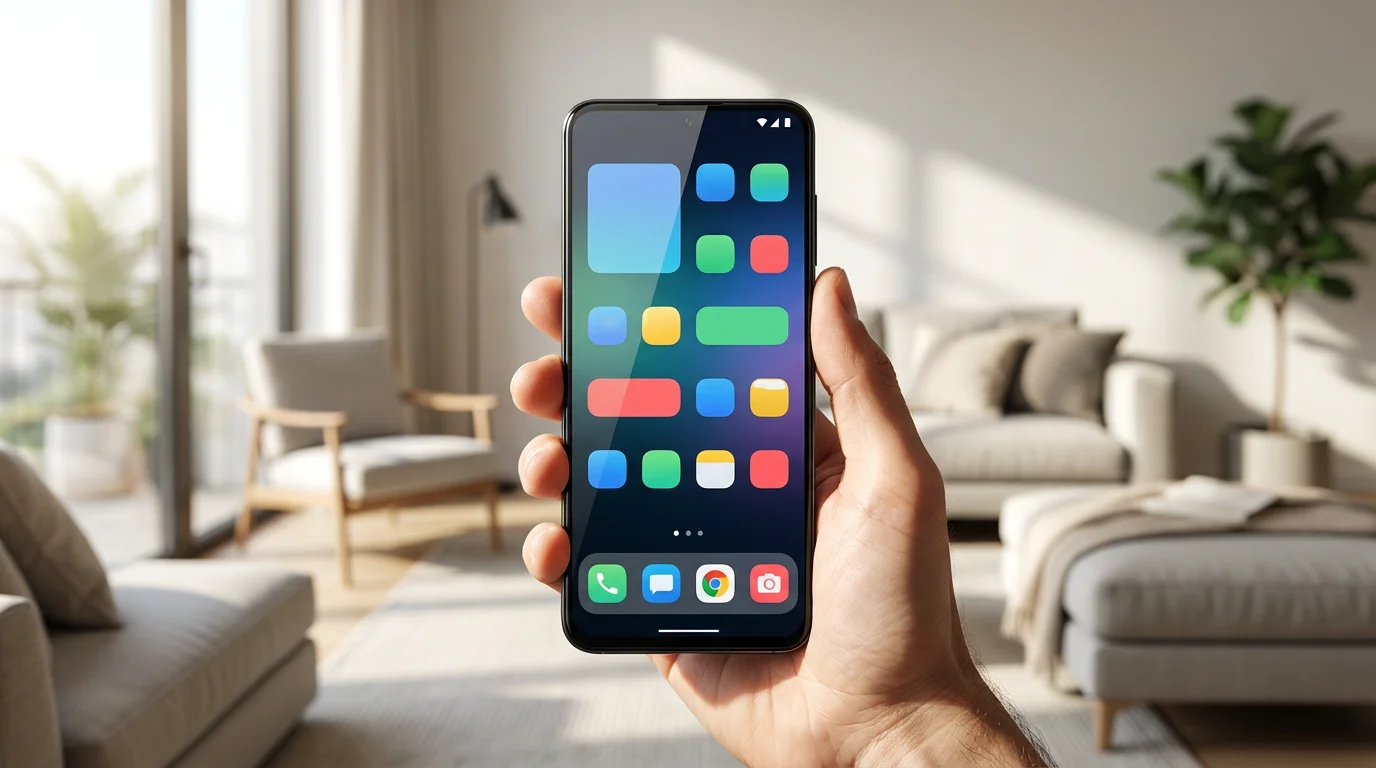
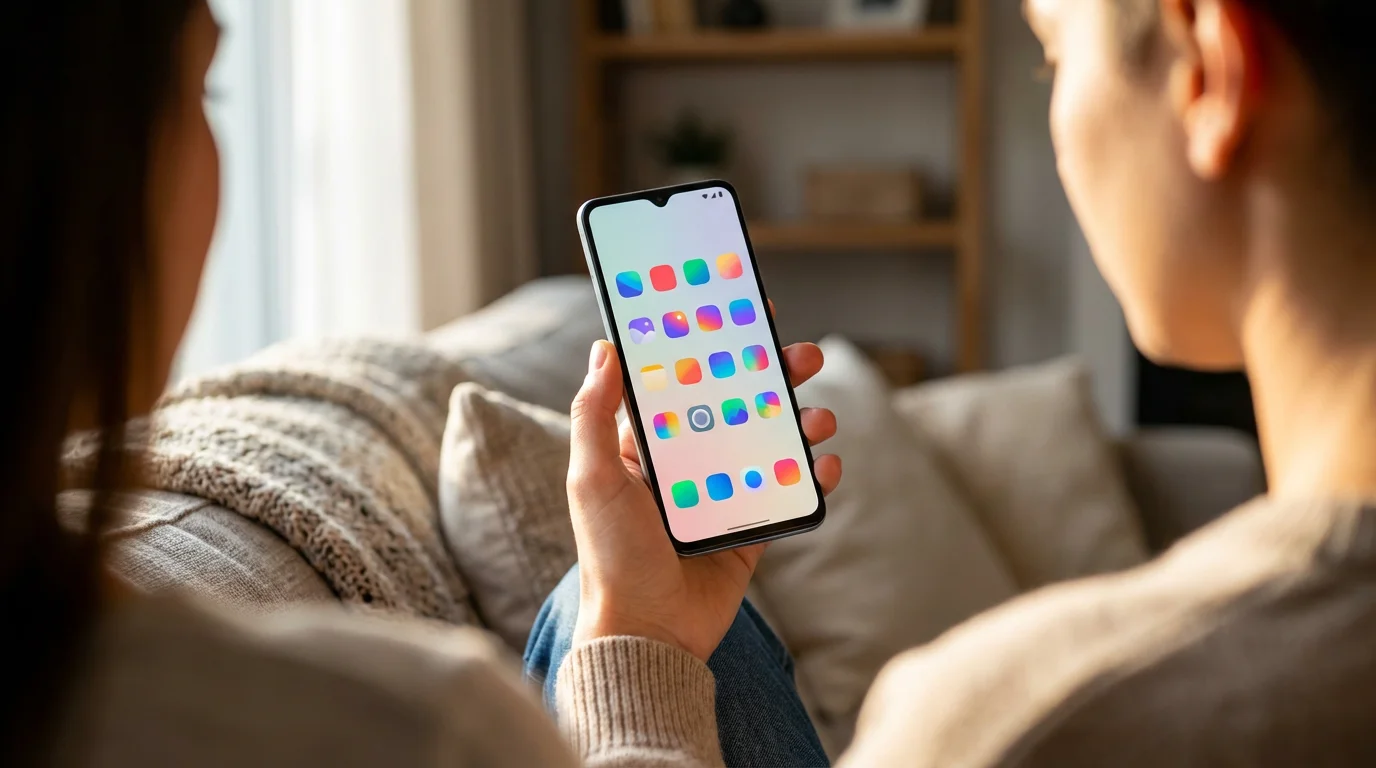
When you unlock your phone, the screen you see is your primary home screen. It typically features a wallpaper, various app icons, and often a search bar. Understanding Android home screen components is key to confidently using your device.
Understanding What You See: Icons, Widgets, and the Dock
Let us break down the different elements you will see on your Android home screen. Look at your phone as we describe each part.
Beyond typing in the search bar, you can also set up Google Assistant to find information using just your voice.
As you add more favorites, you might want to learn how to organize apps into folders to keep your screen tidy.
1. The Status Bar (Top of the Screen):
Look at the very top edge of your phone screen. This narrow strip is called the Status Bar. It provides quick glances at essential information about your phone’s current state. You will typically see:
- Time: Usually on the left or right.
- Wi-Fi Icon: Shows if you are connected to the internet via Wi-Fi (it often looks like a series of curved lines).
- Signal Strength: A series of bars that show how strong your cellular connection is. More bars mean a stronger signal.
- Battery Icon: Shows how much battery life you have left. Sometimes it includes a percentage number.
- Other Icons: You might see a little airplane (Airplane Mode), a crescent moon (Do Not Disturb), or other small symbols indicating active features or notifications.
2. The Search Bar (Often at the Top or Middle):
Many Android phones feature a Google search bar directly on the home screen. It often looks like a white or transparent rectangle with the word “Google” or a “G” icon. This is a very handy tool.
- How to use it: Tap gently on the search bar. Your phone’s keyboard will appear. Type what you want to search for, like “weather forecast” or “news,” and then tap the search or magnifying glass icon on the keyboard.
- Finding apps: This bar can also help you quickly find apps on your phone. Just type the name of an app, and your phone will suggest it.
3. App Icons: Your Direct Launch Buttons
These are the small pictures scattered across your home screen. Each icon represents an app on your phone. For example, a phone icon opens your calling app, a camera icon opens your camera, and an envelope icon might open your email.
- Opening an app: To open an app, simply tap its icon once. The app will launch and take over your screen.
- Recognizing apps: Over time, you will learn to recognize the icons for your most used apps. Many apps use common symbols, such as a white paper plane for messages, a blue phone receiver for calls, or a colorful pinwheel for photos.
4. Widgets: Information at a Glance
Widgets are like mini-apps that display information directly on your home screen without needing to open the full app. Think of them as sticky notes or small picture frames on your desk.
- Common widgets: You might see a clock displaying the current time, a weather forecast showing today’s temperature, or a calendar showing your upcoming appointments.
- Interaction: Some widgets are interactive. For instance, tapping on a weather widget might open the full weather app for more details.
5. The Dock (Bottom of the Screen):
At the very bottom of your home screen, you will typically find a row of app icons that stay put, even if you swipe to a different home screen page. This is called the “dock” or “favorites tray.” It is like the prime real estate on your desk for the items you use constantly.
- Typical apps in the dock: You will often find your Phone (for calling), Messages (for texting), Internet Browser, and Camera apps here because they are frequently accessed.
- Customization: You can usually change which apps appear in your dock, ensuring your absolute favorites are always within easy reach.
6. The Navigation Bar (Very Bottom of the Screen, or Gestures)
At the absolute bottom of your screen, you will see either three distinct buttons or you will use specific swipe gestures. This is your Navigation Bar, and it is how you move around your phone.
- Three-Button Navigation:
- Back Button (often a triangle or arrow pointing left): Tap this to go back to the previous screen you were on. It is like hitting the “back” button in your web browser.
- Home Button (often a circle or square): Tap this once to immediately return to your primary home screen from anywhere in your phone.
- Recent Apps Button (often a square or three vertical lines): Tap this to see a list of all the apps you have recently opened. You can then tap on an app to switch back to it, or swipe it away to close it.
- Gesture Navigation (If your phone uses gestures instead of buttons): Newer Android phones sometimes use gestures instead of buttons. For example, swiping up from the very bottom of the screen might take you home, swiping from the left or right edge might act as “back,” and swiping up and holding might show your recent apps. We will focus on buttons first, as they are more common for beginners, but know that gestures are an option as you get more comfortable.

Navigating Your Home Screen: Taps, Swipes, and the Navigation Bar
Now that you know what each part is, let us practice moving around your Android home screen. This understanding Android interface basic navigation will be crucial for everything else you do.
1. Swiping Between Home Screens:
Most Android phones have more than one home screen. Think of these as different pages in a notebook. You can arrange different apps and widgets on each page.
- Action: Gently place your finger on an empty part of your home screen, or on an app icon, and slide your finger across the screen to the left or right.
- Result: You will see a new home screen page appear. Keep swiping to see if you have more. One of these screens might show a number of dots near the bottom, indicating how many home screens you have and which one you are currently on.
2. Opening Apps with a Tap:
This is the most fundamental action you will perform.
- Action: Find an app icon you recognize, like the Phone app (a blue or green phone receiver) or the Messages app (a white paper plane or speech bubble). Gently tap the icon once with your finger.
- Result: The app will open and fill your screen. You are now inside that app.
3. Using the Home Button to Return:
No matter where you are on your phone, the Home button is your trusty way back to your main starting point.
- Action: If you are currently in an app, or on a different home screen page, look for the Home button in the Navigation Bar at the very bottom of your screen. It often looks like a circle or a square. Tap it once.
- Result: Your phone will instantly take you back to your primary home screen.
4. Using the Back Button:
The Back button is incredibly useful for retracing your steps.
- Action: If you are inside an app, or if you have opened a menu within an app, find the Back button in the Navigation Bar (often a triangle or arrow pointing left). Tap it once.
- Result: Your phone will take you back to the previous screen or menu you were on. If you keep tapping it, you will eventually return to your home screen.
5. Using the Recent Apps Button:
This button helps you switch between apps you have used recently.
- Action: Tap the Recent Apps button in the Navigation Bar (often a square or three vertical lines).
- Result: You will see a stack or carousel of all the apps you have recently opened. You can swipe left or right (or up and down, depending on your phone) through them. Tap on an app to open it again. To close an app completely, swipe it upwards or to the side, off the screen. This is a good habit for apps you are finished with, especially if your phone feels a little slow.
Taking a moment to practice these basic taps and swipes on your Android home screen will build muscle memory and confidence. Do not be afraid to experiment, as you cannot break anything by simply tapping and swiping.
Finding All Your Apps: The App Drawer
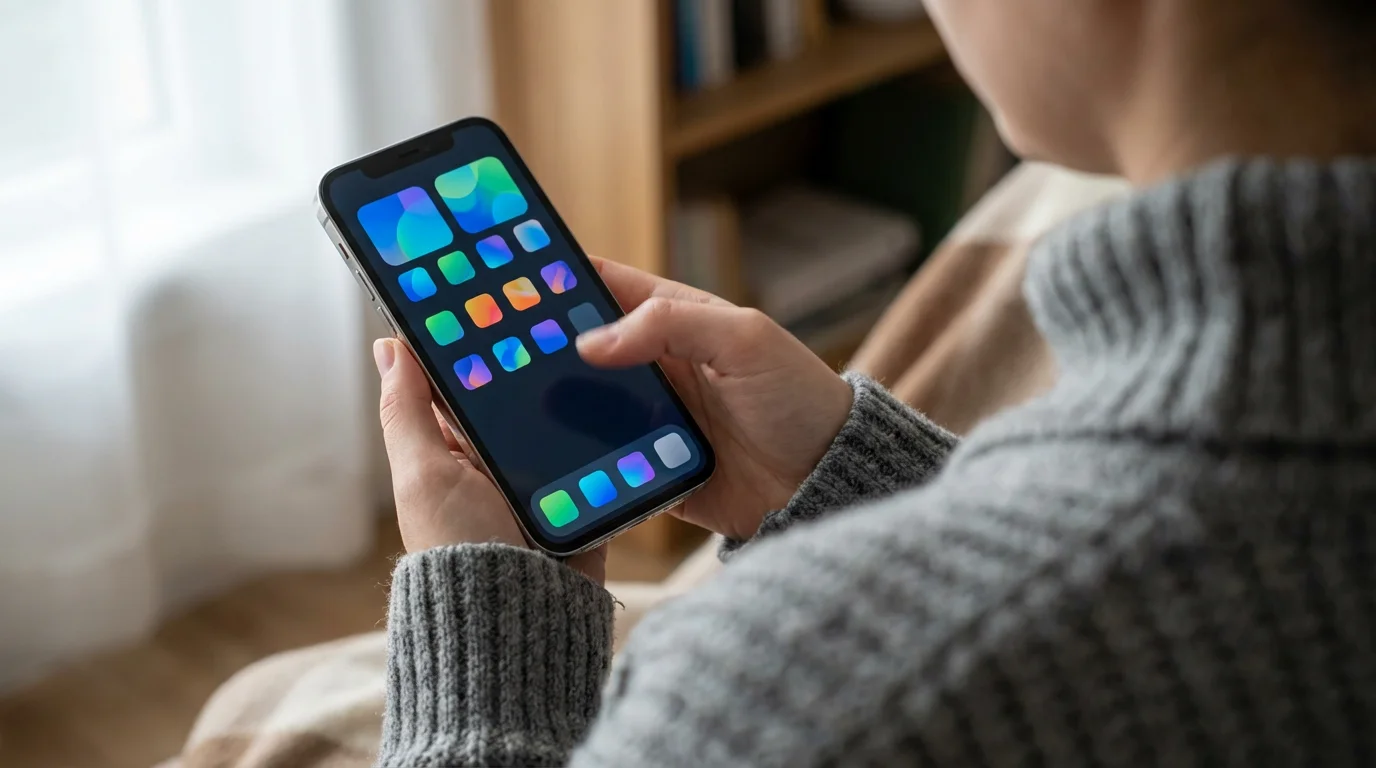
You might wonder, “Where are all my other apps?” While your home screen holds your favorites, every single app installed on your phone lives in a special place called the App Drawer. Think of it as a comprehensive filing cabinet for all your tools.
The App Drawer is crucial for understanding Android interface fully. It prevents your home screens from becoming too cluttered and provides an organized list of everything installed.
How to Open Your App Drawer:
There are a few common ways to access the App Drawer, depending on your Android phone’s model and software version.
- Swipe Up from the Dock: This is the most common method on newer Android phones.
- Action: Place your finger on an empty space just above the dock (the row of favorite apps at the bottom) and swipe your finger upwards, toward the top of the screen.
- Result: Your screen will smoothly transition to a new view that shows a list of all your installed apps, usually arranged alphabetically.
- Tap an App Drawer Icon: On some older Android phones, or certain manufacturer designs, you might see a dedicated icon for the App Drawer in your dock. It often looks like a grid of dots (3×3 or 4×4) or a circle with six dots inside.
- Action: Locate this grid or circle icon in your dock and tap it once.
- Result: The App Drawer will open, showing all your apps.
Navigating the App Drawer:
Once you are in the App Drawer, you will notice a few things:
- Alphabetical Order: Apps are almost always listed alphabetically, making it easier to find what you are looking for.
- Scroll to Find: You can swipe your finger up and down the screen to scroll through your entire list of apps.
- Search Bar: At the top of the App Drawer, you will usually find another search bar. This is incredibly useful for finding an app quickly if you know its name but cannot spot its icon right away. Tap the search bar, type the app’s name, and it will appear.
Putting Apps from the App Drawer onto Your Home Screen:
If you find an app in your App Drawer that you use frequently, you can place a shortcut to it on one of your home screens for faster access.
- Action: Open your App Drawer and find the app you want to add to your home screen. Press and hold your finger down on that app’s icon for a few seconds. Do not tap it, press and hold.
- Result: The app icon will “lift” from the screen. Without lifting your finger, drag the icon to the top of the screen, and it will take you back to your home screen. Now, simply drag the icon to where you want it to be on your home screen and lift your finger to “drop” it.
This is a fundamental aspect of Android home screen guide for beginners. Knowing where all your apps are and how to access them gives you complete control over your device.
Notifications and Quick Settings: Your Control Center
Your Android phone constantly keeps you informed and allows you to quickly adjust important settings. This happens through the Notification Panel and Quick Settings, both accessed from the top of your screen.
Understanding Notifications:
Notifications are alerts from your apps. They can be new text messages, missed calls, updates from the weather app, reminders from your calendar, or alerts from your email.
- Where they appear: When a new notification arrives, you might see a small icon briefly appear in the Status Bar at the very top of your screen, or you might hear a sound or feel a vibration. Sometimes, a small bubble (called a “badge”) with a number will appear on the app’s icon on your home screen, indicating how many new notifications you have.
Accessing the Notification Panel:
This is where you can see all your recent notifications in one place.
- Action: Place your finger on the very top edge of your screen (in the Status Bar area) and swipe your finger downwards, pulling the “shade” down over your screen.
- Result: The Notification Panel will appear. You will see a list of recent messages, alerts, and other information.
Interacting with Notifications:
- Opening a notification: Tap on a notification (e.g., a new message) to open the corresponding app and view the full content.
- Dismissing a notification: To remove a notification you have seen, gently swipe it to the left or right, off the screen. Some notifications also have a small ‘X’ or ‘Clear’ button you can tap.
- Clearing all notifications: At the bottom of the Notification Panel, you will often see a button that says “Clear all” or “Dismiss all.” Tap this to remove every notification at once.
Understanding Quick Settings:
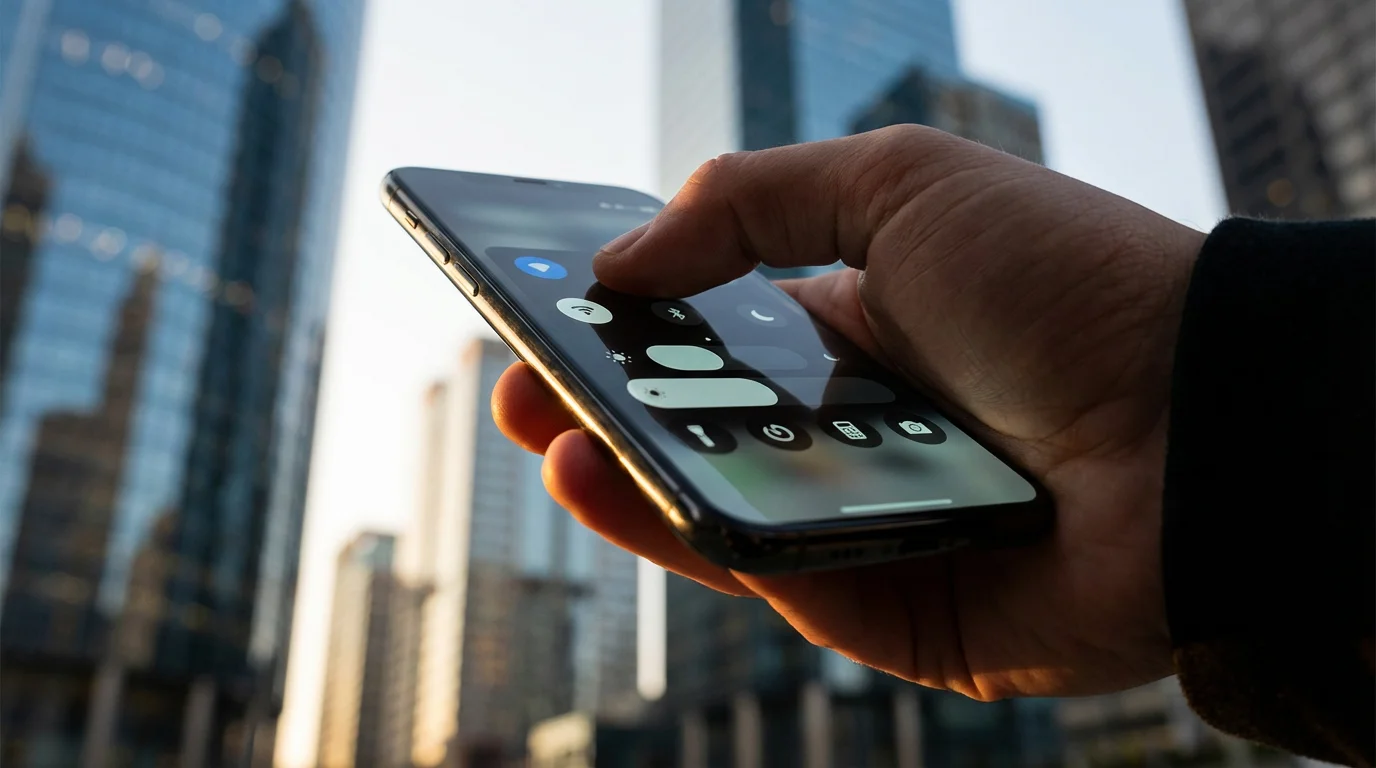
The Quick Settings panel allows you to turn common features on or off without digging into your phone’s main Settings menu. It is like having frequently used switches easily accessible.
- Accessing Quick Settings:
- Action 1: Swipe down once from the very top of your screen to open the Notification Panel. You will see a few Quick Settings icons at the very top of this panel.
- Action 2 (Full Quick Settings): To see the full array of Quick Settings, swipe down a second time from the top of the screen, or sometimes, swipe down on the Notification Panel itself.
- Result: A grid of icons will appear. These are your Quick Settings.
Common Quick Settings you might see:
- Wi-Fi: Tap to turn Wi-Fi on or off. This is useful if you are trying to troubleshoot internet connection issues.
- Bluetooth: Tap to connect your phone to wireless headphones or other accessories.
- Flashlight: Tap to turn your phone’s camera flash into a handy flashlight.
- Do Not Disturb: Tap to silence all notifications and calls. Great for quiet time.
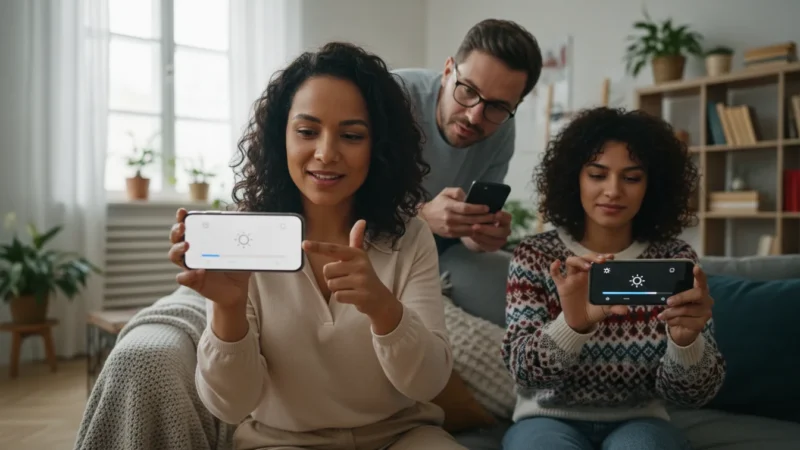
- Brightness Slider: You will often see a slider that lets you adjust how bright your screen is. Slide your finger left for dimmer, right for brighter.
Customizing Quick Settings:
You can usually rearrange or add/remove Quick Settings icons. Look for a small gear icon (for settings) or an “Edit” button at the bottom of the Quick Settings panel. Tapping it lets you personalize which toggles are most accessible to you.
Mastering these panels is key to understanding your Android phone. They are your central command for information and quick adjustments.
Making It Yours: Personalizing Your Android Home Screen
One of the great advantages of an Android phone is the ability to truly make it your own. Personalizing your Android home screen helps you organize it efficiently and makes it feel more comfortable and familiar. This also contributes to a deeper understanding Android interface principles.
1. Changing Your Wallpaper:
The wallpaper is the background picture on your home screen. You can choose from built-in images, your own photos, or even animated wallpapers.
- Action: Find an empty space on your home screen (not on an app icon or widget). Press and hold your finger down on that empty space for a few seconds.
- Result: A small menu will pop up, often with options like “Wallpaper & Style” or “Wallpapers.” Tap on it.
- Next Steps: You will then be taken to a screen where you can choose a new wallpaper. You can select from “My photos” to use a picture you have taken, or “Device wallpapers” to use one that came with your phone. Follow the on-screen prompts to choose and set your new background.
2. Moving and Arranging App Icons:
Just like arranging items on your desk, you can move app icons to any position on your home screens, or even to different home screens.
- Action: Press and hold your finger down on an app icon you want to move.
- Result: The icon will “lift up.” Without lifting your finger, drag the icon to a new spot. If you drag it to the very edge of the screen, your phone will likely switch to the next home screen page, allowing you to place it there. Lift your finger to drop the icon.
3. Creating and Managing Folders:
Folders help you group similar apps together, keeping your home screen tidy and organized. For example, you might create a “Social” folder for Facebook and WhatsApp, or a “Finance” folder for banking apps.
- Creating a folder:
- Action: Press and hold an app icon.
- Action: Without lifting your finger, drag that icon directly on top of another app icon.
- Result: A folder will automatically be created, containing both apps. You can usually tap on the folder to open it and then tap on its name to rename it (e.g., “Utilities,” “Games”).
- Adding apps to a folder: Press and hold a new app icon, then drag it into an existing folder.
- Removing apps from a folder: Open the folder, press and hold an app icon inside it, and drag it out onto an empty spot on your home screen.
- Deleting a folder: If a folder only contains one app, dragging that app out will usually delete the folder. If it contains multiple, you might need to press and hold the folder itself and look for a “Remove” or “Delete” option.
4. Adding and Removing Widgets:
Widgets provide live information without opening an app. Adding and managing them is a key part of your Android home screen guide for beginners.
- Adding a widget:
- Action: Press and hold your finger down on an empty space on your home screen.
- Result: A menu will pop up. Tap “Widgets.”
- Next Steps: You will see a list of available widgets. Swipe through them to find one you like (e.g., a clock, weather, calendar). Press and hold the widget you want, then drag it onto your home screen and release your finger.
- Resizing a widget: After placing a widget, you might see small dots or lines appear around its edges. Press and drag these dots or lines to make the widget larger or smaller.
- Removing a widget: Press and hold the widget you want to remove. A small menu will appear, or an “X” or “Remove” option will show. Drag it to the “Remove” option or tap “Remove from Home screen.”
By personalizing your Android home screen with widgets, app organization, and a wallpaper that makes you happy, you are truly making your phone your own. This makes the understanding Android interface journey much more enjoyable.
When Things Don’t Go As Planned: Troubleshooting Tips
Sometimes, technology does not behave exactly as we expect. It is completely normal for apps to freeze or for something to seem “stuck.” Here are some simple troubleshooting steps you can try for common issues related to your Android home screen or apps.
One of the best ways to keep your phone running smoothly is to regularly update your Android software.
1. An App Is Frozen or Not Responding:
If an app stops responding to your taps or seems stuck, you can force it to close.
- Action: Tap the Recent Apps button (the square or three lines at the bottom of your screen) to see all your open apps.
- Action: Find the frozen app in the list. Swipe it upwards or to the side, off the screen, to close it completely.
- Action: Now, tap the Home button to go back to your home screen.
- Action: Wait a few seconds, then try opening the app again by tapping its icon.
This often resolves the issue by giving the app a fresh start.
2. My Phone Is Slow or Unresponsive:
If your entire phone seems sluggish, a simple restart can often work wonders.
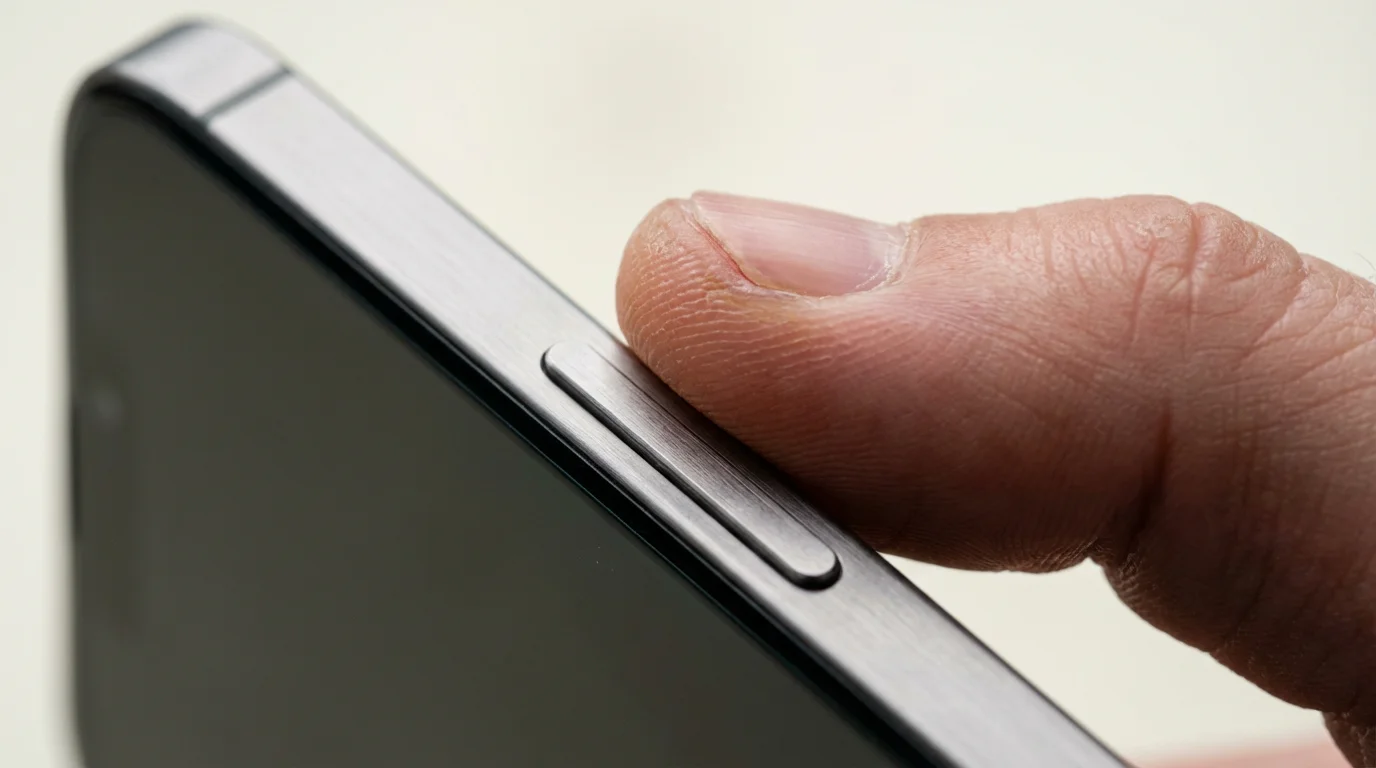
- Action: Press and hold the Power button on the side of your phone for about 5-10 seconds.
- Result: A menu will appear with options like “Power off” or “Restart.” Tap “Restart.”
- Next Steps: Your phone will shut down and then turn back on automatically. This process can take a few minutes. Once it restarts, unlock it and see if the performance has improved.
3. I Can’t Find an App:
If an app seems to have disappeared from your home screen, it is likely still on your phone.
- Action: Open your App Drawer (swipe up from the dock, or tap the grid icon).
- Action: Use the search bar at the top of the App Drawer. Tap the search bar and type the name of the app you are looking for.
- Result: The app should appear in the search results. If it does, you can open it from there or press and hold it to drag it back to your home screen.
If you cannot find it even with search, it might have been uninstalled. You can usually reinstall apps from the Google Play Store.
4. My Screen Looks Different from This Guide:
Android phones come from many different manufacturers (Samsung, Google, LG, Motorola, etc.), and each might have slight variations in their home screen appearance or menu names. Software updates can also change how things look.
- Reassurance: Do not worry if your screen does not look exactly like the descriptions. The core functions (icons, widgets, navigation bar, app drawer) are generally the same.
- Recommendation: Focus on the underlying action (e.g., “tap the Phone icon” instead of “tap the green Phone icon”).
5. When to Ask for Help:
Sometimes, you need a little extra help, and that is perfectly okay. Do not hesitate to reach out to:
- A Trusted Family Member or Friend: They often know your specific phone model and can provide hands-on assistance.
- Your Phone Carrier Store: If you bought your phone from a store like Verizon, AT&T, or T-Mobile, their staff can often help with basic questions.
- Official Support Websites: Websites like Google Support or your phone manufacturer’s website (e.g., Samsung Support) offer extensive guides and troubleshooting articles.
- Organizations for Seniors: Resources like AARP Technology Resources or Senior Planet from AARP provide valuable information and support for tech users.
Frequently Asked Questions
It is natural to have questions when learning something new. Here are some common concerns from seniors learning about their Android home screen.
Q1: My phone looks different from the pictures or what my friend’s phone looks like. Is that okay?
Yes, absolutely! Android phones are made by many different companies like Samsung, Google, LG, and Motorola. Each company might add its own unique touches to how the home screen looks, the shape of the icons, or even the names of some settings. Software updates can also change the appearance. The core functions we have discussed (app icons, widgets, the App Drawer, navigation bar) are present on almost all Android phones, even if their appearance varies slightly. Focus on understanding the general concept and function rather than an exact visual match.
Q2: I feel overwhelmed sometimes. Can I go back to my old flip phone?
Feeling overwhelmed is a completely valid and common experience when learning new technology. You are not alone. While you certainly could go back to a flip phone, remember that your smartphone opens up a world of convenience, from easy video calls with family to finding directions, taking great photos, and staying informed. Think of this learning process as an investment in new skills that will make your daily life easier and more connected. Start with small steps, practice regularly, and celebrate your progress. Many resources are available to help you, including trusted family members or community workshops.
Q3: What if I accidentally delete an app from my home screen? Will it be gone forever?
No, usually not! When you “delete” an app from your home screen, you are typically only removing the shortcut. The app itself usually remains installed on your phone. You can find it again in your App Drawer (remember to swipe up from the bottom of your screen or look for the grid icon) and then add it back to your home screen if you wish. If you accidentally uninstalled an app completely (which requires more steps than just removing it from the home screen), you can usually reinstall it for free from the Google Play Store, which is your phone’s app marketplace.
Q4: How do I make the text or app icons bigger on my home screen?
Making things bigger for easier viewing is a very common and important customization. Most Android phones offer accessibility settings for this. To adjust text and icon size:
- Swipe down from the top of your screen twice to open the Quick Settings, then tap the gear icon (Settings).
- Scroll down and tap “Display” or “Accessibility.”
- Look for options like “Font size,” “Display size,” or “Screen zoom.” You will often find sliders you can adjust to make text and on-screen elements larger. Experiment to find what is most comfortable for you.
Q5: Why do I have so many app icons I do not recognize or use?
Your Android phone often comes with many pre-installed apps from the phone manufacturer, your cellular carrier, and Google. These are sometimes called “bloatware” by tech enthusiasts, but many are useful. You do not have to use all of them. You can move the ones you do not use to less prominent home screens or into folders to keep your main screen tidy. For apps you truly never use, you might be able to “disable” them (which hides them and prevents them from running) or even “uninstall” them, though some pre-installed apps cannot be fully removed.
Quick Reference Guide
Keep this checklist handy as you continue to explore your Android phone’s home screen:
- Tap: Touch gently once to open an app or select an item.
- Swipe: Slide your finger across the screen to move between home screens, scroll through lists, or dismiss notifications.
- Press and Hold: Place your finger and keep it there for a few seconds to move icons, create folders, or access menus.
- Home Button (Circle/Square): Takes you instantly back to your main home screen.
- Back Button (Triangle/Arrow): Takes you to the previous screen or step.
- Recent Apps Button (Square/Lines): Shows all open apps; swipe them away to close.
- App Drawer: Swipe up from the bottom of the screen (or tap the grid icon) to see all your installed apps.
- Notification Panel: Swipe down from the very top of the screen to see alerts.
- Quick Settings: Swipe down twice from the top of the screen (or once and then expand) to access quick toggles like Wi-Fi and Flashlight.
Your Android phone’s home screen is your personal command center, designed to be flexible and intuitive. With a little practice, you will navigate it with confidence, customizing it to perfectly suit your needs. Remember, every time you learn a new function, you are building your digital independence. Keep exploring, and do not hesitate to ask for help when you need it.
Disclaimer: This article is for informational purposes only. Screens and menus may look slightly different depending on your device model and software version. When in doubt, visit your device’s official support website or ask a trusted family member for help.


Leave a Reply