
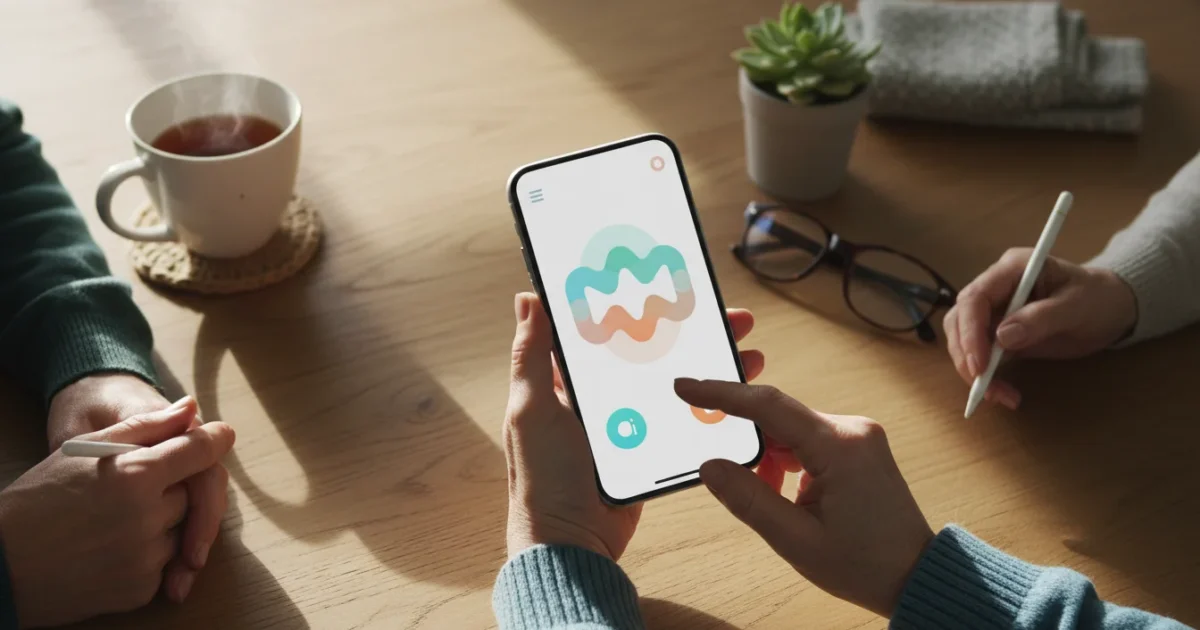
Have you ever had a brilliant idea while washing the dishes, only to forget it by the time you dried your hands? Or perhaps you parked your car in a large lot and worried you wouldn’t find it later. We have all been there. Trying to scramble for a pen and a scrap of paper is frustrating, and typing on a small glass screen can feel slow when you are in a hurry.
While voice recordings are great for sudden thoughts, you can also learn how to use Google Calendar to remember important dates for your long-term appointments.
Fortunately, your smartphone has a solution built right in. It is called a Voice Memo (or sometimes a Voice Recorder). Think of it as a modern, digital version of those handheld tape recorders people used to carry—except this one never runs out of tape, and you already have it in your pocket.
Using voice memos allows you to capture thoughts, grocery lists, doctor’s instructions, or even the sound of your grandchild’s laughter instantly. This guide will walk you through exactly how to find, use, and organize voice recordings on both iPhone and Android devices. By the end of this article, you will feel confident speaking to your phone to save your future self time and worry.
Table of Contents
- What Is a Voice Memo and Why Use It?
- Finding the App on Your Phone
- How to Record on an iPhone
- How to Record on an Android Phone
- Listening to and Sharing Your Recordings
- Organizing Your Thoughts: Naming Files
- Using Siri or Google to Start Recording
- What to Do If Something Goes Wrong
- Frequently Asked Questions

What Is a Voice Memo and Why Use It?
A voice memo is simply an audio file stored on your phone. Instead of typing text, you speak into your phone’s microphone, and the device saves what you say. It is fast, easy, and captures more than just words—it captures tone and emotion.
For things like parking spots, taking and sharing photos with your phone can provide a helpful visual backup to your voice recording.
Here are just a few practical ways you can use this feature in your daily life:
- The “Parking Lot” Reminder: As you walk away from your car, record a quick memo: “I am parked on Level 3, Row G, near the elevators.”
- Medical Appointments: With your doctor’s permission, record their instructions on medication or care so you can listen to them again later in a quiet environment.
- Shopping Lists: Before you leave the house, open the fridge and dictate what you need as you see it, rather than walking back and forth to a notepad.
- Creative Ideas: If you enjoy writing, knitting, or woodworking, record your sudden bursts of inspiration before they fade.
- Family Memories: Record your spouse telling a favorite story or your grandchild singing a song. These audio memories become priceless treasures.
Expert Tip: Don’t worry about sounding professional. These recordings are for you. It is perfectly fine to pause, stumble over a word, or correct yourself while recording.

Finding the App on Your Phone
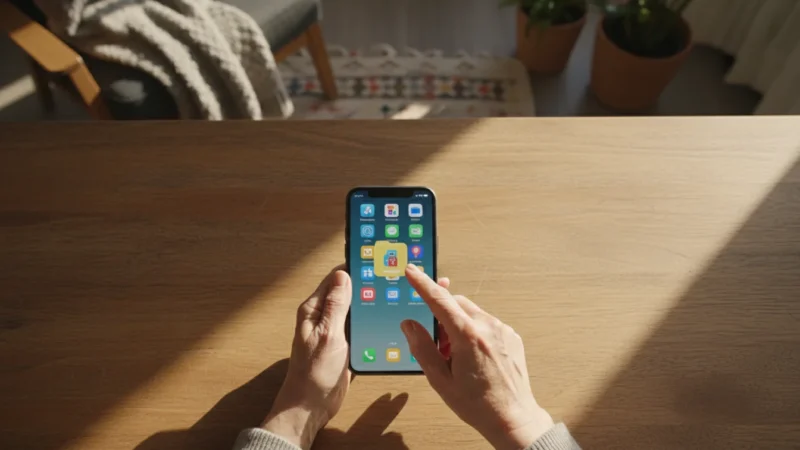
The first step is locating the application (app) on your screen. The icon—the small picture you tap to open the program—looks different depending on your phone.
If you have trouble finding these icons, understanding your Android phone’s home screen layout can make locating any app much faster.
On iPhone
You are looking for an app called Voice Memos. The icon usually looks like a sound wave (a squiggly white line) on a black background.
- Unlock your iPhone so you see your home screen.
- Look for a folder labeled Utilities or Extras. Apple often places the Voice Memos app inside this folder by default.
- If you cannot find it, place your finger in the middle of your screen and swipe (slide) down. This opens a search bar at the top.
- Type “Voice Memos” into the search bar. Tap the app when it appears in the list.
On Android (Samsung, Google Pixel, Motorola)
Android phones vary slightly by manufacturer, but the app is almost always pre-installed.
- Unlock your phone.
- Swipe up from the bottom of the screen to open your App Drawer (where all your apps live).
- Look for an app named Recorder, Voice Recorder, or Sound Recorder.
- On Samsung phones, look inside the “Samsung” folder for Voice Recorder. On Google Pixel phones, look for Recorder.
- The icon often looks like a microphone or a red dot.
How to Record on an iPhone
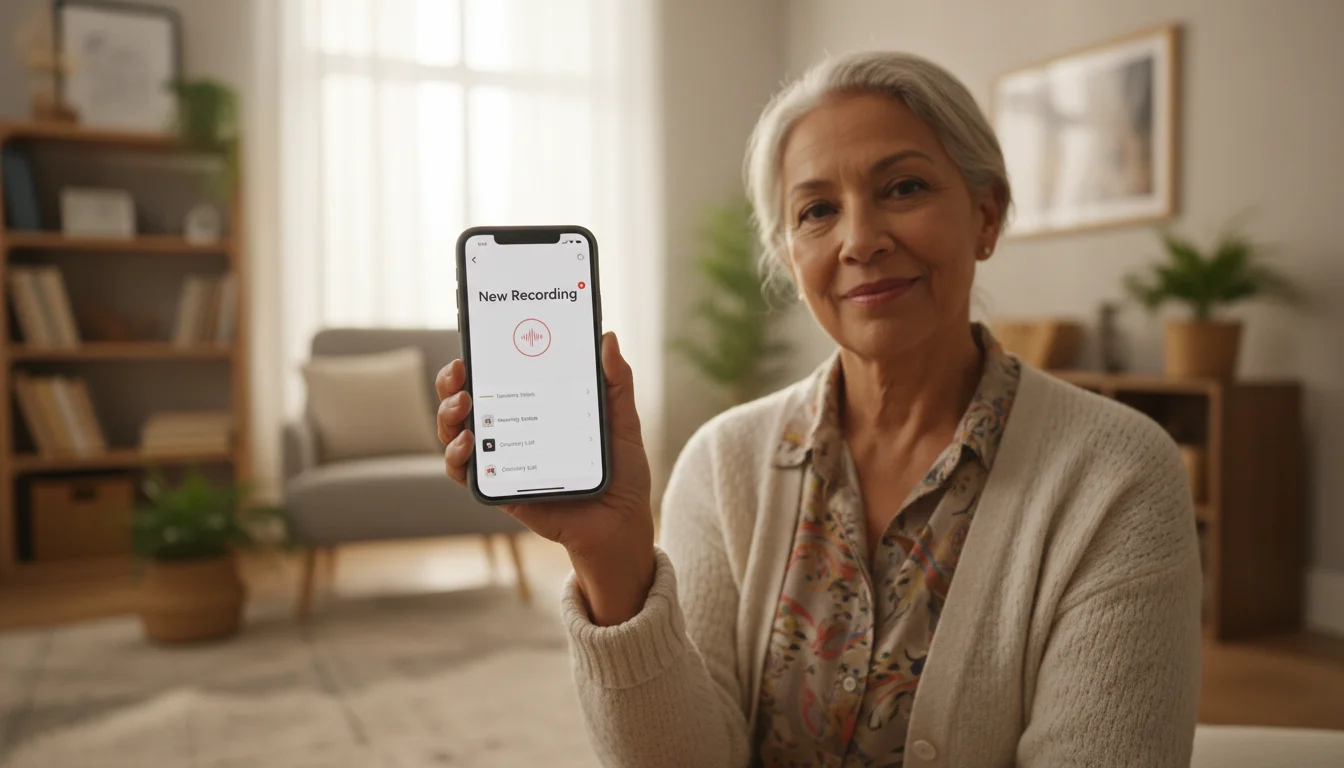
Using the Voice Memos app on an iPhone is straightforward. The design is clean and uncluttered. If you are using an iPad, these instructions apply to you as well.
If you enjoy using your voice to interact with your device, you might also want to learn how to use voice control on your iPhone to navigate without tapping.
Step-by-Step Instructions
- Open the App: Tap the Voice Memos icon.
- Start Recording: Look at the bottom of the screen. You will see a large red circle. This is the Record button. Tap it once.
- Speak: You will see a line moving across the screen as you talk. This confirms the phone is hearing you. Hold the bottom of the phone (where the microphone is) about 6 inches from your mouth for the best sound.
- Finish Recording: When you are done speaking, tap the red square button at the bottom center. This stops the recording.
Your new recording will automatically appear at the top of the list on your screen. It will usually be named “New Recording” followed by a number, or it might be named after your current location (like “Main Street”).
For more detailed help with iPhone features, you can always check Apple Support.
How to Record on an Android Phone
While Android phones have different brands (like Samsung, LG, or Google), the basic symbols are universal. We will use the standard Recorder symbols found on most devices.
Step-by-Step Instructions
- Open the App: Tap your Voice Recorder or Recorder app.
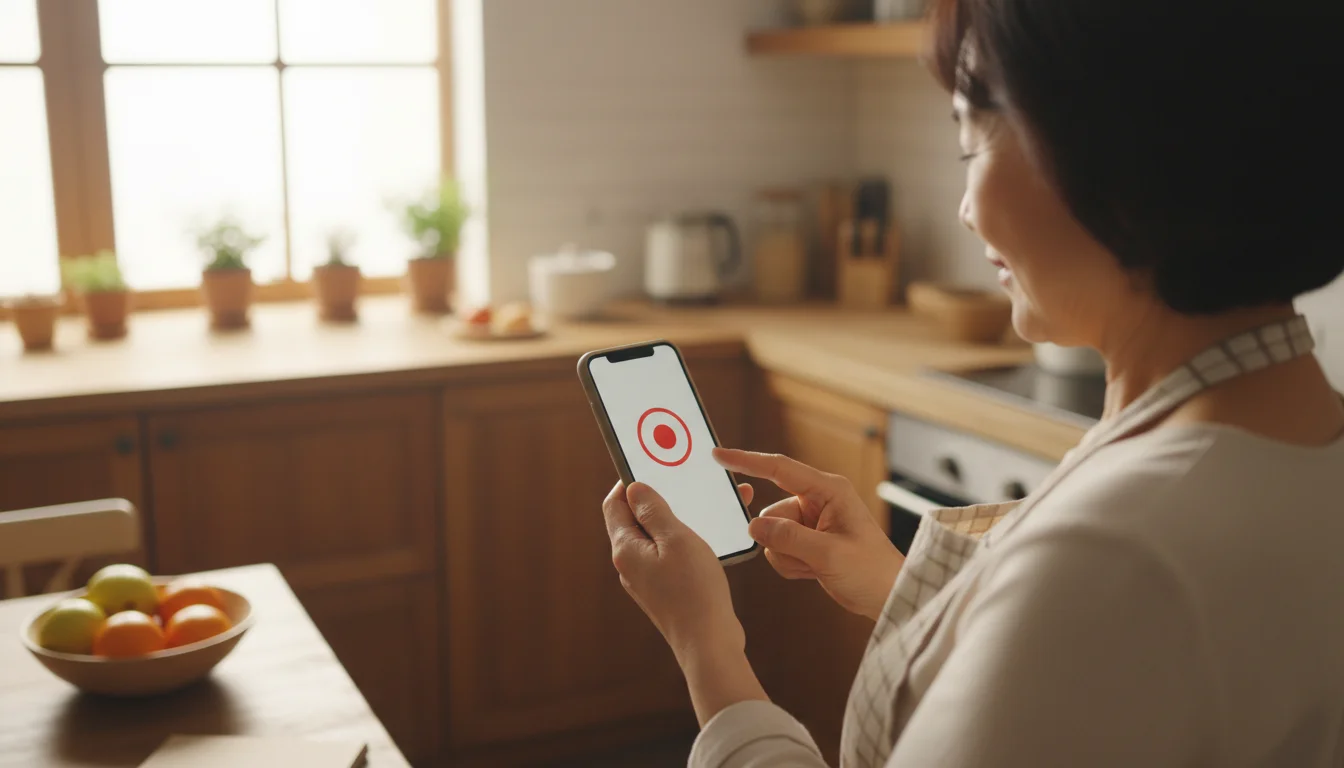
- Start Recording: Look for a large red circle or a microphone icon, usually near the bottom of the screen. Tap it to begin.
- Speak: Speak clearly. You should see sound waves or a timer counting up (0:01, 0:02, etc.) on the screen. This tells you it is working.
- Pause (Optional): If you need to sneeze or collect your thoughts, look for the Pause button (two vertical parallel lines: ||). Tap it to pause, and tap the red circle again to resume.
- Stop and Save: Tap the Stop button. This is usually a square symbol.
- Save the File: Some Android phones will ask you to name the file immediately after you press stop. Type a name (like “Grocery List”) and tap Save.
If you have a Google Pixel phone, the Recorder app is exceptionally smart—it can even type out the words you say in real-time (transcription). Visit Google Support to learn more about specific features for your model.
Listening to and Sharing Your Recordings
You have successfully recorded your memo. Now, how do you use it?
Listening Playback
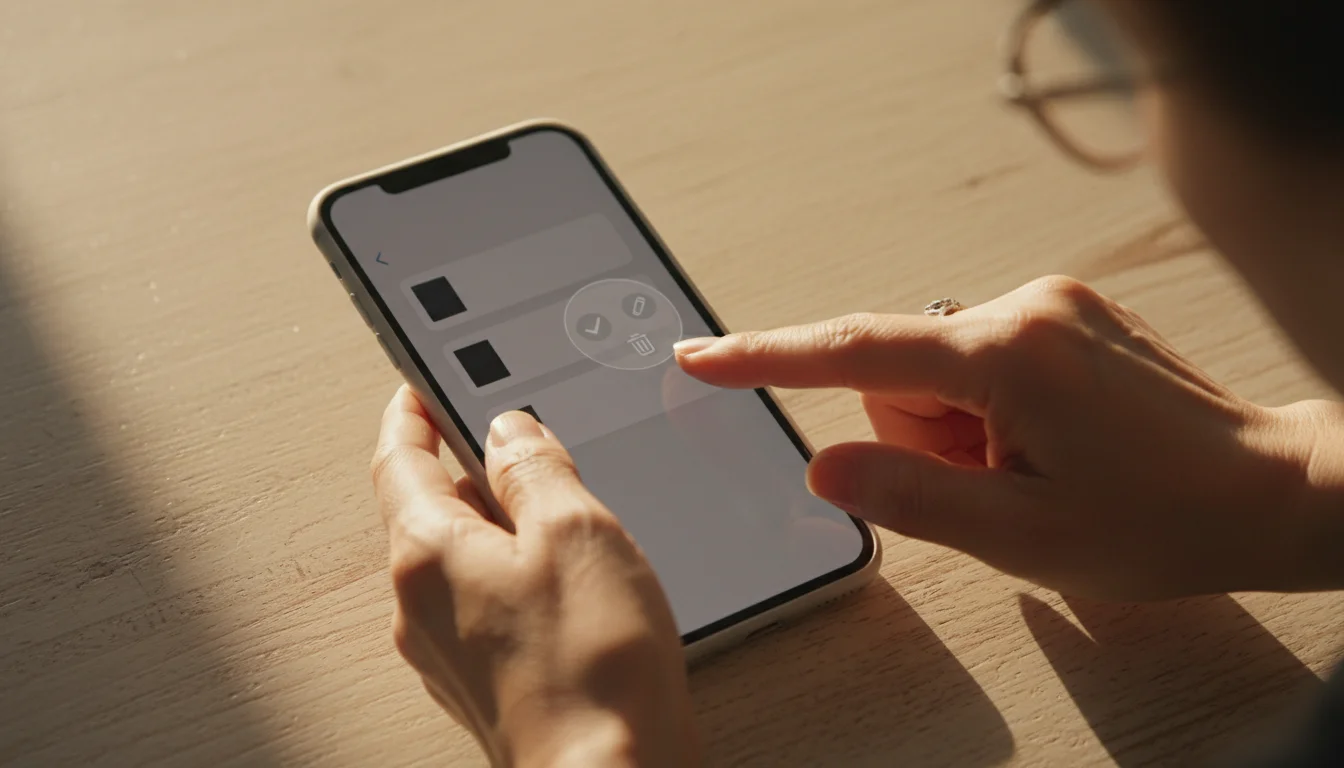
To listen to a recording, tap the title of the recording in your list. A menu will expand.
- Play: Tap the Triangle icon. This is the universal symbol for “Play.”
- Rewind/Forward: You will see a circular arrow with a number (like 15) inside it. Tapping this skips backward or forward by 15 seconds—perfect if you missed a detail.
- Volume: Use the physical volume buttons on the side of your phone to make the voice louder or softer.
Sharing with Others
Voice memos are wonderful for sending personalized messages. Instead of texting “Happy Birthday,” you can sing it!
- Tap the recording you want to share.
- Look for the Share icon.
- On iPhone: It looks like a square with an arrow pointing upward out of it.
- On Android: It looks like three dots connected by lines (forming a < symbol).
- Tap the icon. A menu will appear asking how you want to share it.
- Tap Messages (to send via text) or Mail (to send via email).
- Type the name of the recipient and hit Send. They will receive an audio file they can play instantly.

Organizing Your Thoughts: Naming Files
If you use voice memos often, a list of files named “New Recording 1,” “New Recording 2,” and “New Recording 3” becomes very confusing. Renaming them immediately helps you stay organized.
Because audio files can eventually take up room, it is wise to know how to free up storage space on your smartphone to keep it running smoothly.
Keeping your digital items organized is important, much like knowing how to save and find files on your computer so they don’t get lost.
On iPhone
- Tap on the name of the recording (e.g., “New Recording 1”) in your list.
- Tap the text of the name again. The keyboard should pop up.
- Type a new name, such as “Holiday Cookie Recipe.”
- Tap Return or tap anywhere else on the screen to save it.
On Android
- Find the recording in your list.
- You may need to press and hold your finger on the recording name until a menu appears, or look for a pencil icon (which means “Edit”).
- Select Rename.
- Type the new name and tap OK or Save.

Using Siri or Google to Start Recording
If your hands are full—perhaps you are cooking or gardening—you can ask your phone to do the work for you. This is one of the most accessible ways to use technology.
Using Siri (iPhone)
Say: “Hey Siri, create a voice memo.”
Siri will open the app and immediately start recording. When you are done speaking, you will still need to tap the screen to stop the recording, but it saves you the trouble of finding the app.
Using Google Assistant (Android)
Say: “Hey Google, record a voice memo.”
Google Assistant will open your recorder app. Depending on your settings, it may start recording immediately, or you may need to tap the red button once the app opens.
For more tips on using voice commands effectively, Senior Planet offers excellent resources for mastering these accessibility features.
What to Do If Something Goes Wrong
Technology isn’t perfect. Here are common issues you might encounter and how to fix them easily.
“I can’t hear my recording.”
First, check your volume buttons on the side of the phone. Ensure the volume is up. Second, check if your phone is connected to a Bluetooth device (like a hearing aid or car speaker). The sound might be playing there instead of through the phone’s speaker. Turn off Bluetooth temporarily to check.
“The app won’t let me record.”
When you first use the app, your phone might ask for permission to use the microphone. You might see a pop-up box that says “Allow Voice Memos to access the microphone?” You must tap Allow or While using the app. If you accidentally hit “Deny,” go to your phone’s Settings, find the app in the list, and turn the microphone switch to On (green).
“I accidentally deleted a recording.”
On an iPhone, there is a safety net! Go to the main Voice Memos screen and look for a folder called Recently Deleted. Your recording stays there for 30 days before it is gone forever. Tap it and select “Recover” to bring it back. On Android, check the app’s menu (often three dots in the corner) for a “Trash” or “Bin” folder.
Frequently Asked Questions
Here are answers to some common questions beginners have about voice recording.
Does recording voice memos use up my data plan?
No. Recording a voice memo only uses your phone’s internal storage (memory), not your cellular data. You only use data or Wi-Fi if you decide to email or text that recording to someone else.
How long can I record for?
You can record for a very long time—hours, in fact! The only limit is the amount of empty space left on your phone. A typical 5-minute grocery list or story takes up a very small amount of space compared to photos or videos.
Can I record a phone call I am having?
Generally, the standard Voice Memo apps strictly record the sounds in the room, not the audio from a phone call. If you try to open the recorder while on a call, it will usually fail or warn you that the microphone is in use. There are specialized apps for recording calls, but laws vary by state regarding recording conversations, so proceed with caution.
Will these recordings disappear?
They will stay on your phone until you delete them. However, if you lose your phone or it breaks, you could lose them. It is a good idea to ensure your phone is backed up to iCloud (for iPhone) or Google Drive (for Android) so your memories are safe.

Making Voice Memos a Habit
Like any new tool, voice memos become more useful the more you use them. Start small. The next time you need to remember a movie recommendation from a friend, or you want to capture the sound of rain on your porch, pull out your phone.
You have a powerful tool in your pocket that can act as your second brain. By offloading the small details into a recording, you free up your mind to enjoy the present moment. Give it a try today—record a simple note to yourself just to say you did it!
Disclaimer: This article is for informational purposes only. Screens and menus may look slightly different depending on your device model and software version. When in doubt, visit your device’s official support website or ask a trusted family member for help.




Leave a Reply