
Do you remember flipping through channels to find something interesting to watch, or maybe searching for a documentary at the library? Today, a world of video content is available right at your fingertips, thanks to an amazing free service called YouTube. Whether you want to learn a new hobby, revisit classic moments, or simply enjoy entertaining videos, YouTube offers an incredible library of content for everyone.
In addition to YouTube, many people enjoy streaming movies and shows on Netflix for a cinematic experience at home.
Many people, especially those new to technology, feel overwhelmed by the sheer number of options or unsure how to get started. You are not alone in this feeling. This guide simplifies YouTube, helping you understand how to navigate it, find what you love, and enjoy endless hours of videos. We break down every step, from getting the app or visiting the website, to watching your first video and discovering new interests. Let’s explore this exciting platform together.
Table of Contents
- What YouTube Does
- How to Get YouTube on Your Phone or Tablet
- How to Access YouTube on Your Computer
- Creating or Signing In to Your Google Account for YouTube
- Understanding the YouTube Interface
- Finding Videos and Channels on YouTube
- Watching Videos and Using Playback Controls
- Subscribing to Channels and Creating Playlists
- Tips for a Better YouTube Experience
- Frequently Asked Questions

What YouTube Does
YouTube is a vast online video library where people share and watch videos on almost any topic imaginable. Think of it like a giant, ever-growing television network, except instead of scheduled programs, you choose exactly what you want to watch, whenever you want. You can find videos created by individuals, news organizations, educational institutions, businesses, and more. It is primarily a free service, supported by advertisements that play before or during some videos.
Benefits of using YouTube:
- Endless Entertainment: Watch music videos, movie trailers, comedy clips, sports highlights, and much more. There is always something new and engaging to discover.
- Learning Opportunities: Learn a new recipe, understand how to fix something around the house, pick up a new language, or explore historical events. YouTube offers countless tutorials and educational content, making it an incredible resource for lifelong learning.
- Stay Connected: Watch interviews with your favorite celebrities, follow news channels, or enjoy vlogs from people sharing their daily lives or specialized interests.
- Revisit Favorites: Find old TV show clips, classic movie scenes, or forgotten songs from your youth. Many channels specialize in nostalgia, bringing back cherished memories.
You can truly make YouTube your own personal entertainment and learning hub. Do not worry about knowing everything at once, simply enjoy the process of discovery.
How to Get YouTube on Your Phone or Tablet
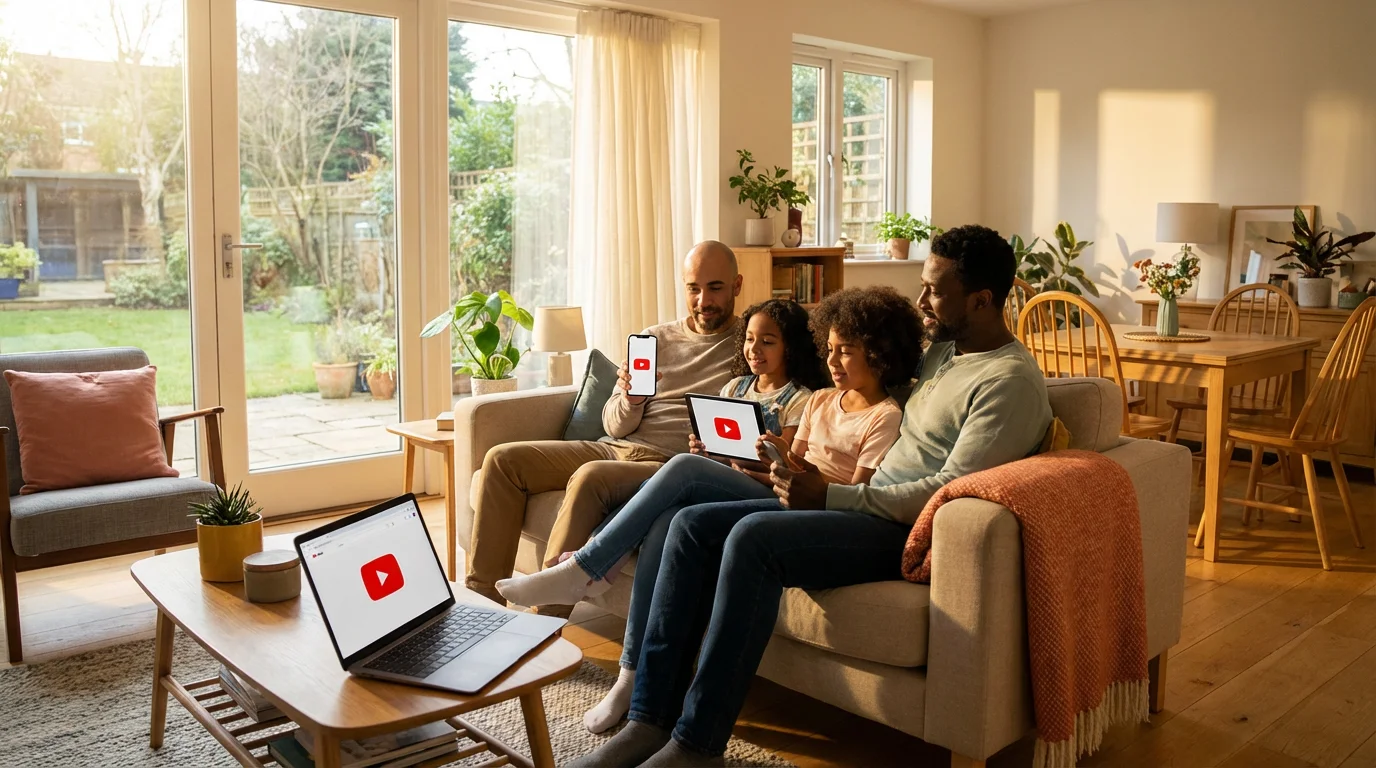
YouTube is available as an app, which is a program you can download and use on your phone or tablet. Most phones and tablets come with the YouTube app already installed, meaning it’s set up and ready to use. If you do not see it, downloading it is a simple process.
Finding the YouTube App Icon
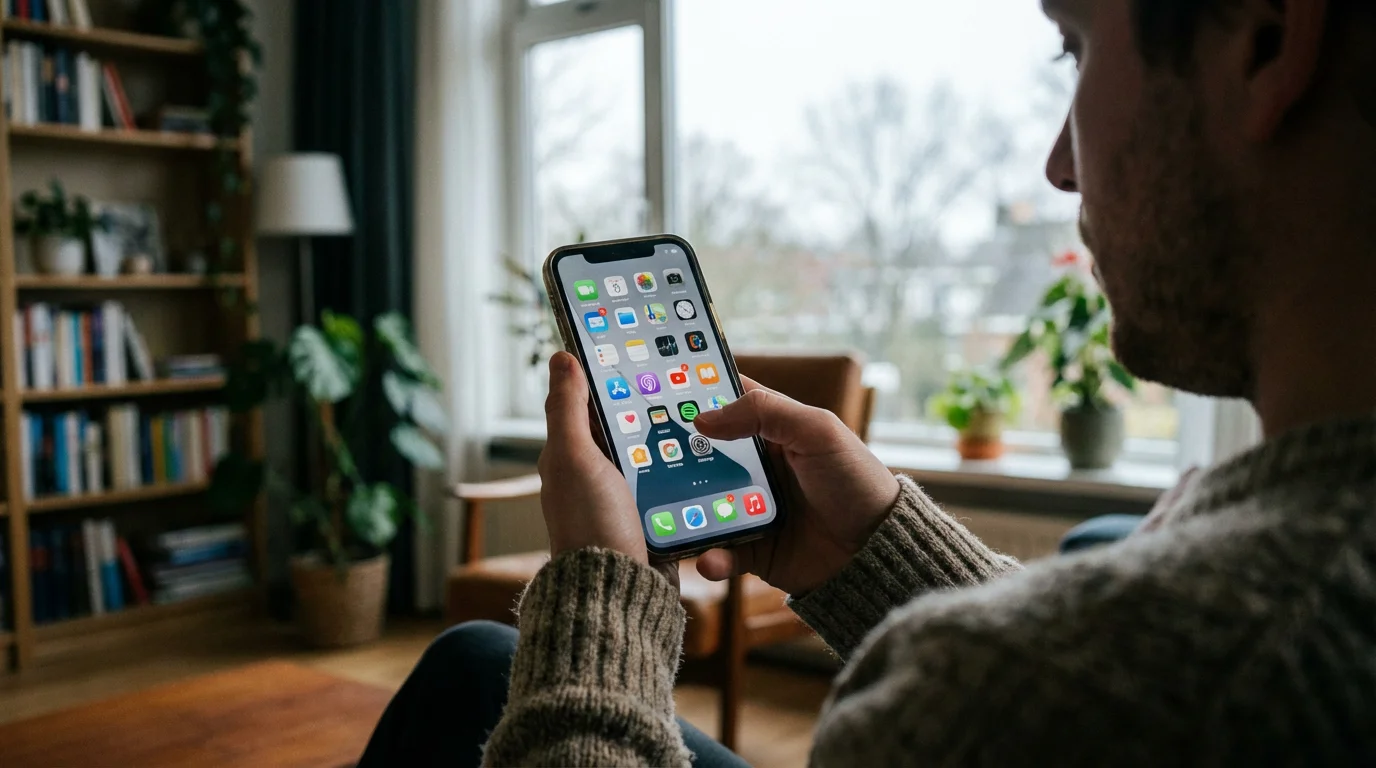
Look for a red rectangular icon with a white play button triangle in the middle. This is the YouTube app icon. It often lives on your home screen or in an “Extras” or “Google” folder.
If You Need to Download the App:
You download apps from an “app store,” which is like an online shop for software. For Apple devices (iPhones, iPads), this is the “App Store.” For Android devices (Samsung, Google Pixel, LG, etc.), this is the “Google Play Store.”
For Apple iPhones and iPads (App Store):
- Find the App Store: On your home screen, look for an icon that looks like a blue square with a white “A” inside. Tap on it.
- Use the Search Bar: At the bottom of the App Store screen, you will see a magnifying glass icon labeled “Search.” Tap this icon.
- Type “YouTube”: A search bar will appear at the top. Tap into it and type “YouTube.” Then tap the “Search” button on your keyboard.
- Find the App: You will see a list of results. Look for the official “YouTube” app, usually listed as “YouTube: Watch, Listen, Stream” by “Google LLC.”
- Download the App: Next to the app’s name, you will see a button. If you have never downloaded it before, it might say “GET” or have a cloud icon with a downward arrow. Tap this button.
- Confirm Download: Your device might ask you to confirm your download using your fingerprint, face ID, or by entering your password. Follow the on-screen instructions.
- Open the App: Once the download is complete, the button will change to “OPEN.” You can tap “OPEN” here, or return to your home screen and find the new YouTube icon.
For Android Phones and Tablets (Google Play Store):
- Find the Google Play Store: On your home screen or in your app drawer, look for an icon that looks like a colorful sideways triangle (often green, blue, yellow, and red). Tap on it.
- Use the Search Bar: At the top of the Google Play Store screen, you will see a search bar that says “Search for apps & games.” Tap into this bar.
- Type “YouTube”: Type “YouTube” into the search bar and then tap the magnifying glass icon or the “Search” button on your keyboard.
- Find the App: Look for the official “YouTube” app, usually listed as “YouTube” by “Google LLC.”
- Download the App: Tap the green “Install” button next to the app’s name.
- Open the App: Once the download and installation are complete, the button will change to “Open.” You can tap “Open” here, or return to your home screen and find the new YouTube icon.
How to Access YouTube on Your Computer
You do not need to download an app to use YouTube on a computer. Instead, you access it directly through your web browser, which is the program you use to surf the internet (like Google Chrome, Mozilla Firefox, Microsoft Edge, or Apple Safari).
- Open Your Web Browser: Click on the icon for your preferred web browser on your computer’s desktop, taskbar, or in your applications folder.
- Go to the YouTube Website: In the address bar at the very top of the browser window (where you usually see website addresses like “www.google.com”), type
www.youtube.comand then press the “Enter” key on your keyboard. - Explore YouTube: The YouTube website will load, showing you trending videos, recommendations, and a search bar at the top. You are now ready to start watching!
Creating or Signing In to Your Google Account for YouTube
You can watch many videos on YouTube without an account, but creating one (or signing in with an existing Google account) gives you more benefits. With an account, you can subscribe to channels, save videos to watch later, create playlists, and receive personalized recommendations. If you have a Gmail email address, you already have a Google account, and you can use that to sign in.
Benefits of a Google/YouTube Account:
- Personalized Recommendations: YouTube learns what you like and suggests similar videos.
- Subscribe to Channels: Follow creators you enjoy and get notifications when they upload new videos.
- Save Videos: Create “Watch Later” lists or custom playlists.
- Comment and Interact: Share your thoughts on videos (if you choose to).
- Watch History: Easily find videos you watched before.
How to Sign In or Create an Account:
On Phone or Tablet (App):
- Open the YouTube App: Tap the red YouTube icon.
- Find the Profile Icon: In the top right corner of the screen, you will see a small circle. If you are not signed in, this might be a generic silhouette icon or your initial. Tap it.
- Tap “Sign in”: A menu will appear. Tap “Sign in.”
- Choose an Account or Add One:
- If you already have a Google account on your device (e.g., for Gmail), you will see it listed. Tap on it.
- If you need to add a new account, tap “Add account.”
- Enter Your Google Account Details: Follow the on-screen prompts to enter your Gmail address (or Google account username) and password. If you do not have one, you will see an option to “Create account.” Follow those steps, which typically involve providing your name, a new email address, and creating a strong password.
- Confirm: Once you enter your details, you will be signed into YouTube. Your profile icon in the top right corner will now show your initial or a picture you have chosen.
On Your Computer (Website):
- Go to YouTube.com: Open your web browser and go to
www.youtube.com. - Click “Sign in”: In the top right corner of the YouTube website, you will see a “Sign in” button. Click it.
- Enter Your Google Account Details: You will be redirected to a Google sign-in page. Enter your Gmail address (or Google account username) and click “Next.” Then, enter your password and click “Next.”
- Create an Account (if needed): If you do not have a Google account, you will see an option to “Create account.” Click this and follow the steps to provide your information and create a new account.
- Confirm: After signing in, you will be redirected back to YouTube. The “Sign in” button in the top right will now be replaced by your profile icon (your initial or chosen picture).
Understanding the YouTube Interface
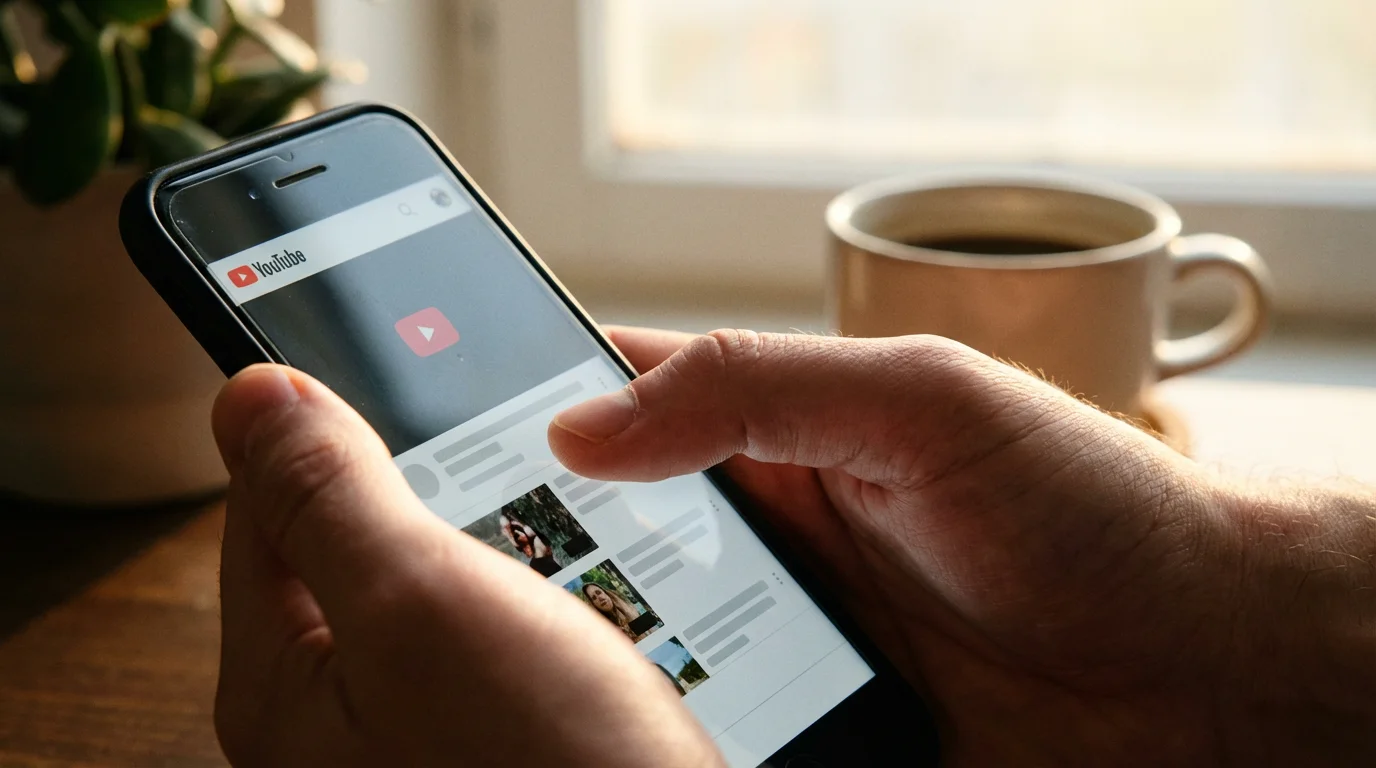
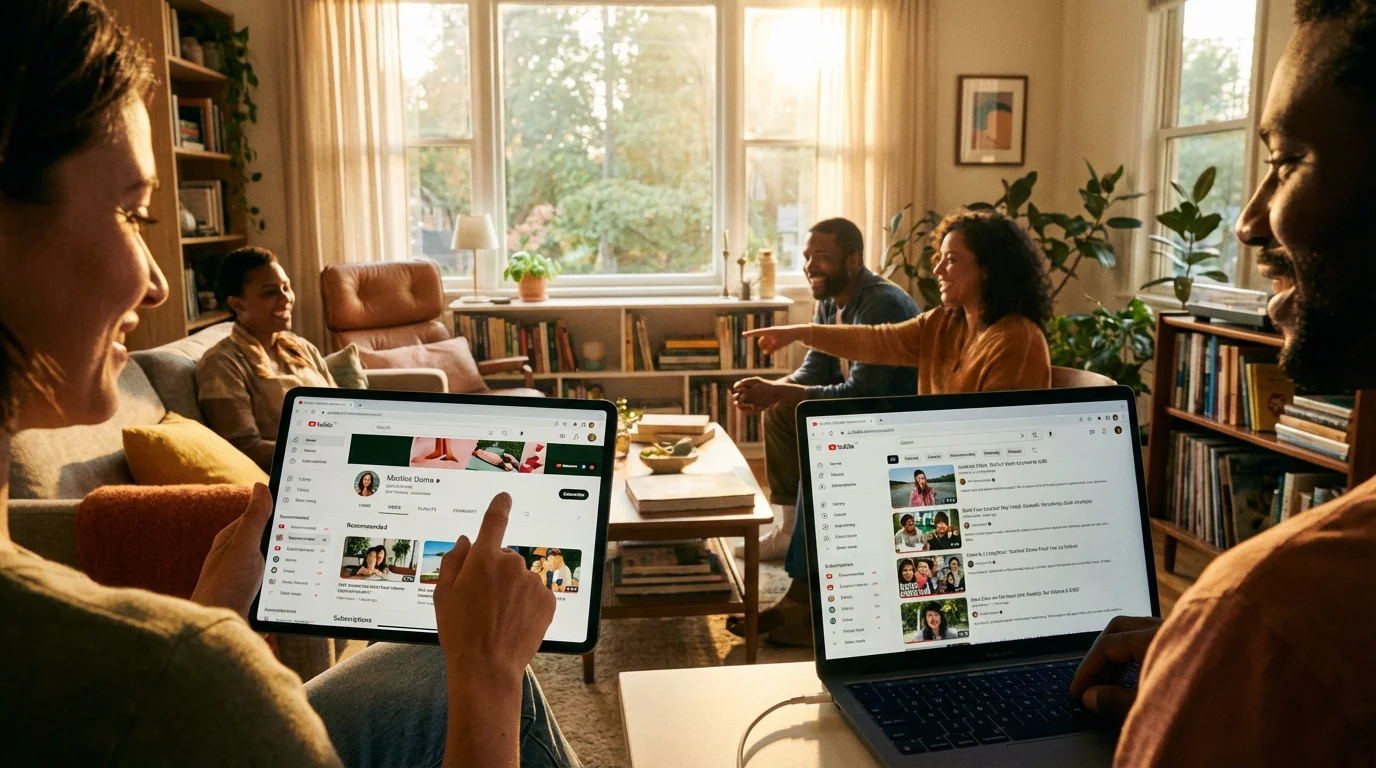
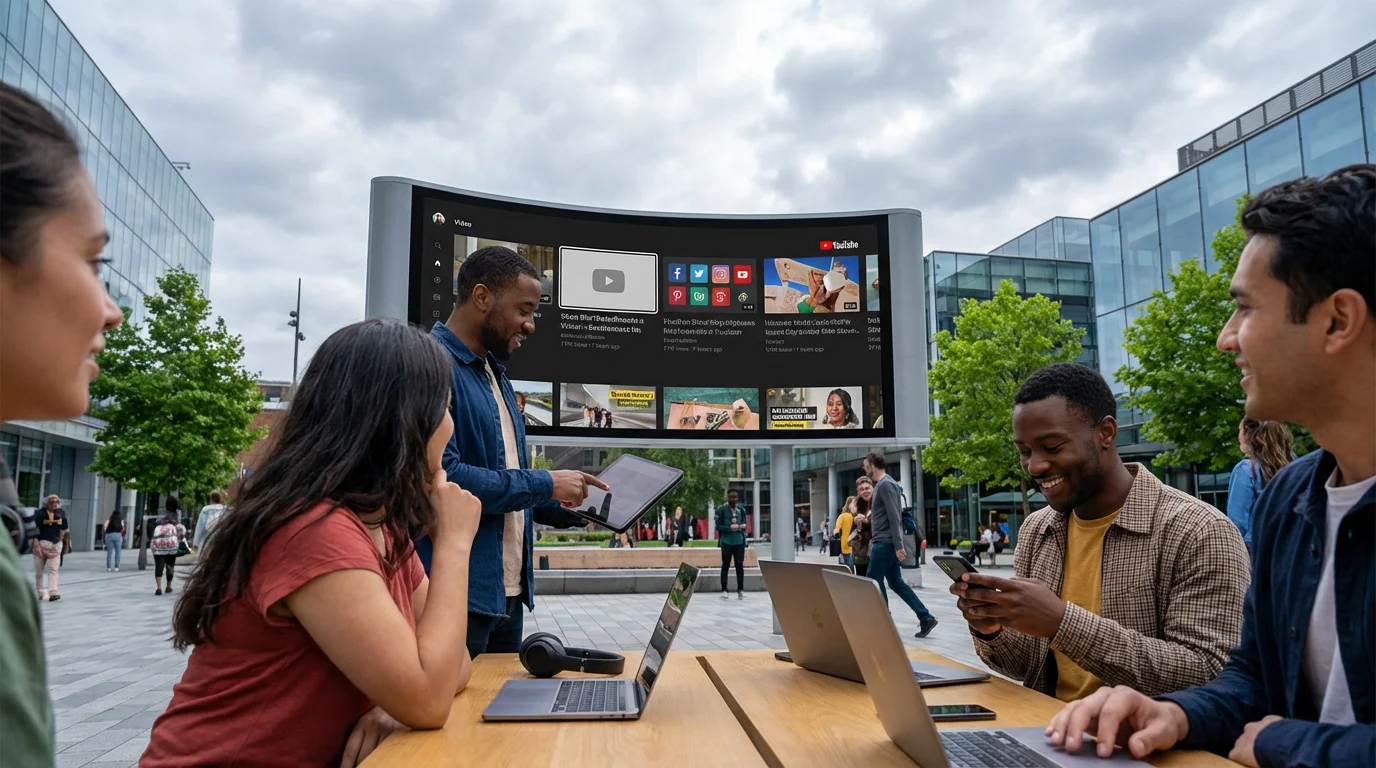
Whether you use YouTube on a phone, tablet, or computer, the main parts of the screen are designed to help you find and watch videos easily. The layout might shift slightly depending on your device, but the core elements remain the same.
Common elements you will see:
- Search Bar: This is almost always at the top of the screen and looks like a text box with a magnifying glass icon. This is your primary tool for finding specific videos or topics.
- Home Feed: This is your main browsing area. It shows a constantly updated stream of recommended videos based on your viewing history and popular content. You usually get to it by clicking a “Home” icon (often a house symbol).
- Video Thumbnails: These are the small preview images for each video. They usually show a still image from the video, the video’s title, and the name of the channel that uploaded it. Tapping or clicking a thumbnail starts the video.
- Bottom Navigation Bar (on phones/tablets): At the bottom of the screen, you will typically find icons for Home, Shorts (short, vertical videos), Subscriptions, and Library. These help you quickly jump to different sections of the app.
- Side Menu (on computers): On the left side of the computer screen, you might see a menu with options like Home, Explore, Subscriptions, Library, and History. You can click these to navigate.
- Profile Icon: Located in the top right corner, this icon represents your Google account. Click or tap it to access settings, switch accounts, or sign out.
Finding Videos and Channels on YouTube
The easiest way to find exactly what you want to watch is by using the search bar. Think of it like searching for information on Google, but specifically for videos.
Using the Search Bar (Phone, Tablet, or Computer):
- Locate the Search Bar: On phones and tablets, tap the magnifying glass icon, usually at the top right of the screen. On a computer, the search bar is usually a prominent text box at the very top center or left.
- Type Your Search Term: Tap or click into the search bar. Use your device’s keyboard to type what you are looking for.
- Be Specific: Instead of “cooking,” try “easy pasta recipes for beginners.”
- Use Keywords: If you are looking for a specific song, type the song title and artist. For a tutorial, type “how to” followed by the task, like “how to knit a scarf.”
- Explore Interests: Try “gardening tips,” “history documentaries,” “classic movie scenes,” or “funny animal videos.”
- Initiate Search: After typing, tap the “Search” button (magnifying glass icon) on your keyboard (for phones/tablets) or press the “Enter” key on your computer.
- Review Results: YouTube will display a list of videos matching your search. Each result shows a small preview image (thumbnail), the video title, the channel name, and sometimes how long the video is and how long ago it was uploaded.
- Click or Tap to Watch: Browse through the results. When you find a video that looks interesting, simply tap its thumbnail on your phone/tablet or click it with your mouse on your computer to start watching.

Browsing the Home Feed:
If you are not looking for anything specific, the Home feed offers a great way to discover new videos. YouTube’s system recommends videos based on what is popular, what you have watched before, and what channels you are subscribed to.
- Navigate to Home: On a phone or tablet, tap the “Home” (house) icon in the bottom navigation. On a computer, click “Home” in the left-hand menu.
- Scroll and Discover: Simply scroll down the page, and YouTube will continuously load more recommended videos. If something catches your eye, tap or click its thumbnail to play it.
Watching Videos and Using Playback Controls
Once you click or tap on a video, it will start playing. You have several controls to manage your viewing experience.
Basic Playback Controls:
When a video is playing, if you tap the screen (on mobile) or move your mouse over the video (on computer), you will see several controls appear, usually at the bottom of the video player.
- Play/Pause Button: This often looks like a triangle (play) or two vertical lines (pause). Click or tap it to start or stop the video.
- Progress Bar: This thin line shows how much of the video has played and how much is left. The red part indicates what you have watched. You can drag the small circle on the progress bar forward or backward to jump to different parts of the video.
- Volume Control: This typically looks like a speaker icon. Click or tap it to mute or unmute the video, or drag a slider to adjust the volume.
- Full Screen Button: This looks like a square with arrows pointing outwards. Tapping or clicking it expands the video to fill your entire screen, which is great for seeing details. To exit full screen, tap/click it again (it might now look like a square with arrows pointing inwards) or press the “Esc” key on your computer keyboard.
- Skip Forward/Backward: On mobile, you can often double-tap the left or right side of the screen to quickly skip backward or forward by 10 seconds. On computers, you might see arrow icons or use the left/right arrow keys on your keyboard.

Settings and Quality (Optional):
You might see a gear icon (⚙️) on the video player. This “Settings” button lets you adjust things like:
- Playback Speed: Watch videos slower or faster. This is helpful if someone talks too quickly, or if you want to quickly review something.
- Quality: Adjust the video resolution. Higher quality (like 1080p) looks sharper but uses more internet data. Lower quality (like 360p or 480p) uses less data but might look blurrier. If your internet is slow, choosing a lower quality can help the video play more smoothly without interruptions.
- Captions/Subtitles (CC): This often looks like a square with “CC” inside. Click or tap it to turn on written captions, which are useful if you are hard of hearing or prefer to read along.
Subscribing to Channels and Creating Playlists
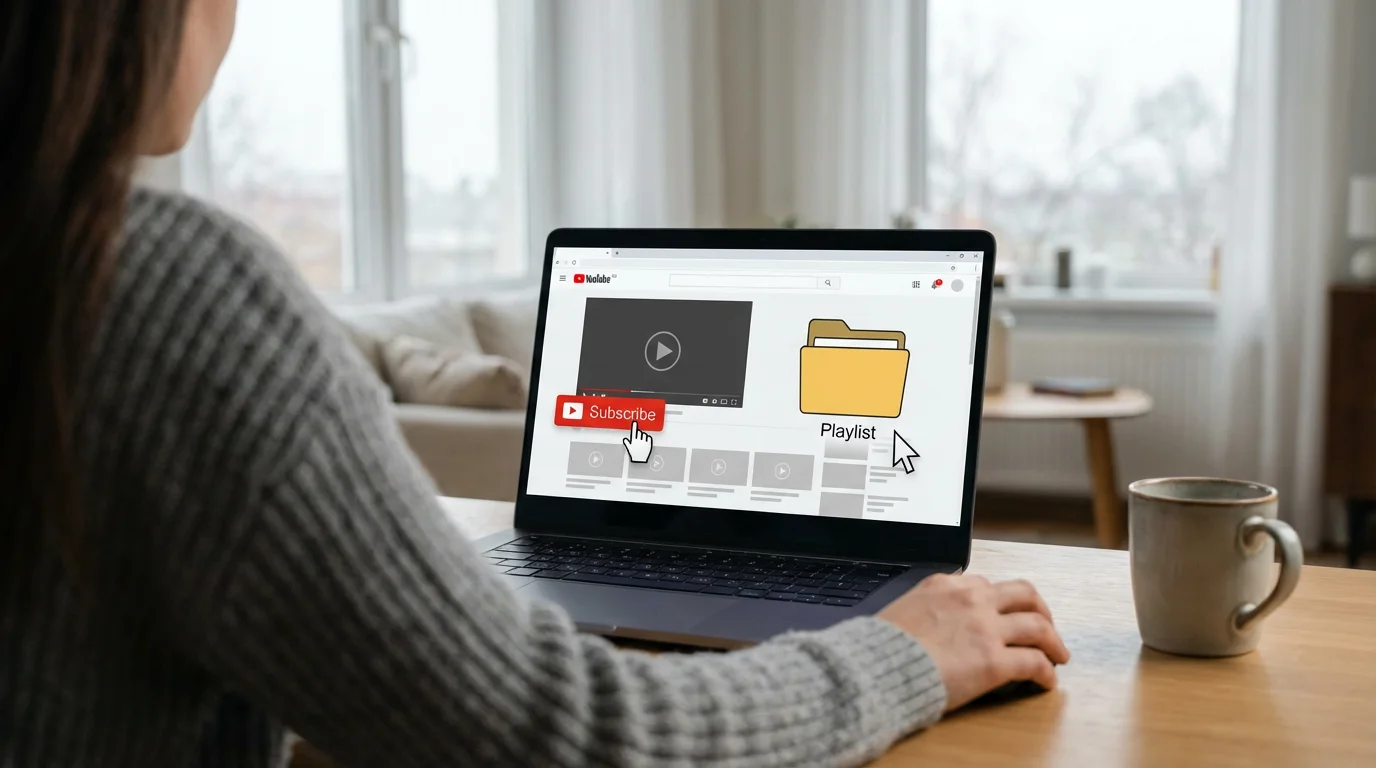
Once you find channels you enjoy, subscribing to them helps you keep track of their new videos. Playlists allow you to organize videos you like.
Subscribing to a Channel:
When you watch a video from a channel you like, you can easily subscribe to it.
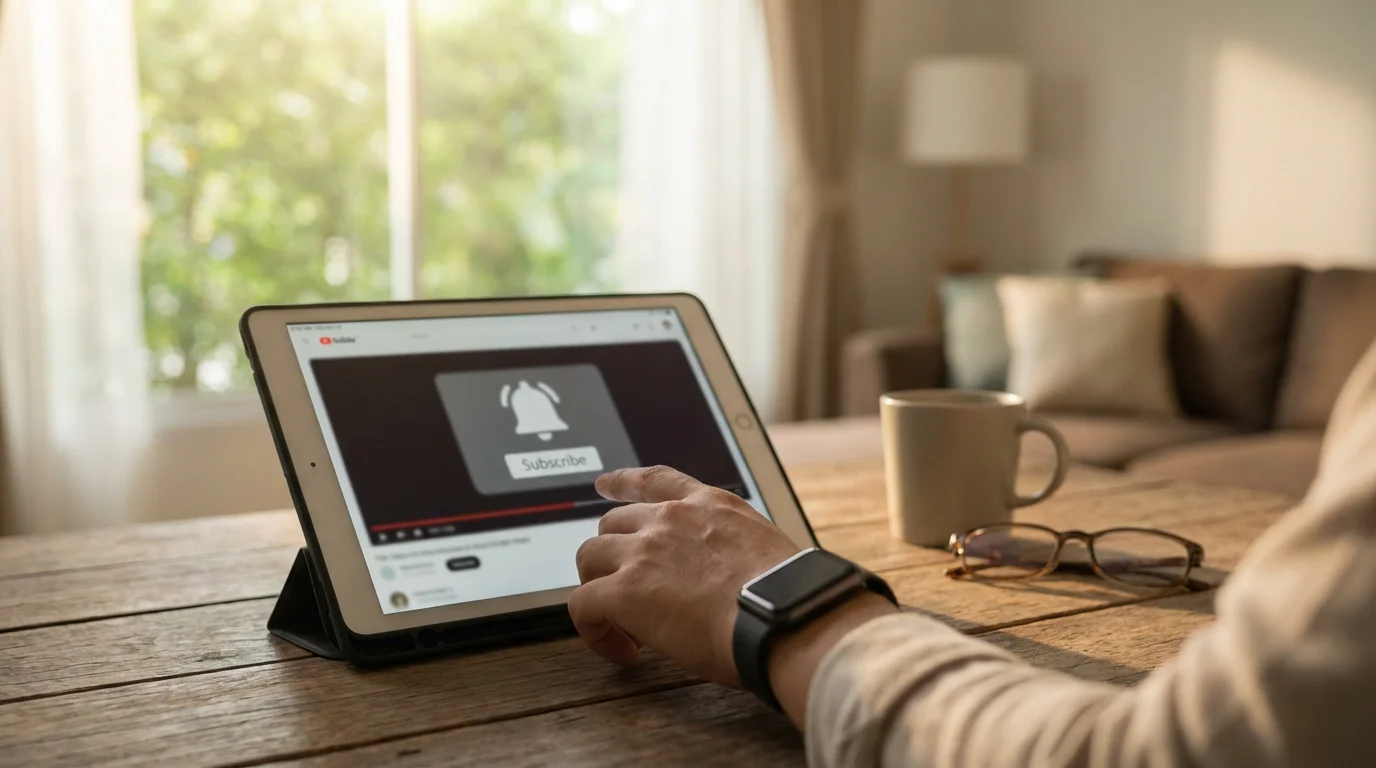
- Find the Subscribe Button: Below the video player, you will see the channel’s name and a prominent “Subscribe” button (usually red or grey).
- Click/Tap “Subscribe”: Click or tap this button. It will change color and might say “Subscribed.”
- Turn on Notifications (Optional): After subscribing, a bell icon may appear next to the “Subscribed” button. If you click or tap this bell, you can choose to receive notifications (alerts or messages) whenever that channel uploads a new video. You can choose “All,” “Personalized,” or “None.”
- Access Subscriptions: You can then easily find new videos from all the channels you subscribe to by going to the “Subscriptions” section in your YouTube app (bottom navigation) or on the website (left-hand menu).
Creating a Playlist or Saving Videos:
Playlists help you organize videos into custom groups, like “Cooking Recipes,” “Workout Routines,” or “Favorite Songs.”
- Find the “Save” Button: Below a video, look for a button that says “Save” or an icon that looks like a plus sign (+) within a rectangle or three horizontal lines.
- Click/Tap “Save”: A small menu will appear.
- Add to “Watch Later”: You can quickly add the video to your “Watch Later” playlist, which YouTube creates automatically for you.
- Create a New Playlist: Or, you can choose “Create new playlist” (or similar phrasing). You will then be prompted to give your playlist a name (e.g., “My Favorite Documentaries”) and choose if it should be public (anyone can find it), unlisted (only people with the link can find it), or private (only you can see it). For most personal use, “Private” or “Unlisted” is fine.
- Access Playlists: You can find all your saved videos and custom playlists in the “Library” section of the YouTube app (bottom navigation) or on the website (left-hand menu).
Tips for a Better YouTube Experience
Use these tips to enhance your time on YouTube, making it safer and more enjoyable.
- Use Clear Search Terms: The more specific you are in the search bar, the better your results. For example, “learn piano chords for beginners” is better than “piano lessons.”
- Explore Related Videos: After watching a video, scroll down. YouTube often suggests “Up Next” or “Related Videos” that might interest you, leading you to new discoveries.
- Watch in Full Screen: For a more immersive experience, especially on smaller screens, always use the full-screen option.
- Adjust Video Quality for Your Internet: If videos are constantly pausing or buffering, try lowering the video quality (via the gear icon). This can significantly improve playback on slower internet connections. Conversely, if you have fast internet, set it to a higher quality for a clearer picture.
- Be Mindful of Comments: YouTube allows viewers to comment on videos. While many comments are helpful or positive, some can be unkind or off-topic. You do not need to read the comments section. If you see something upsetting, simply scroll past it.
- Report Inappropriate Content: If you ever come across a video that is clearly offensive, hateful, or inappropriate, you can report it to YouTube. Look for a three-dot menu next to the video title or below the video player, and there is usually a “Report” option. This helps YouTube keep the platform safe for everyone.
- Consider YouTube Premium (Optional): YouTube is free, but it does show advertisements. If you find ads disruptive, YouTube offers a paid subscription called YouTube Premium. This removes ads, allows videos to play in the background (even if you leave the app), and lets you download videos to watch offline. You do not need this to enjoy YouTube, but it is an option if ads bother you. AARP has additional resources on managing online content and digital subscriptions, available on AARP Technology Resources.
- Keep Your App Updated: Periodically, YouTube will release an update, which means a newer version of the app. Updates often fix bugs, improve performance, or add new features. Your phone might automatically update apps, but if not, you can manually update YouTube through your device’s App Store or Google Play Store. Simply search for YouTube and if an update is available, you will see an “Update” button instead of “Open.”
Frequently Asked Questions
Is YouTube safe to use?
Yes, YouTube is generally safe to use for watching videos. Google, which owns YouTube, invests heavily in security measures. However, like any online platform, you might occasionally encounter content that is not suitable for everyone. YouTube has strict community guidelines, and you can report inappropriate videos. Additionally, be cautious about clicking on suspicious links in video descriptions or comments. Stick to official channels and well-known content creators for reliable information.
Do I have to pay to watch videos on YouTube?
No, watching the vast majority of videos on YouTube is completely free. YouTube supports itself by playing advertisements before or during videos. You have the option to subscribe to YouTube Premium, a paid service that removes ads and offers extra features, but this is entirely optional. You can enjoy countless hours of content without ever paying a cent.
How do I find specific videos or topics?
Use the search bar, which is usually at the top of the YouTube app or website. Type in keywords related to what you are looking for, such as “how to bake sourdough bread,” “classic rock music videos,” or “documentaries on ancient Egypt.” The more specific your search, the better your results will be. You can also explore the “Home” feed for personalized recommendations.
What if I accidentally click on a video I do not want to watch?
Do not worry, this happens to everyone. If you accidentally tap or click on a video you do not want, simply tap the “back” arrow on your phone/tablet (usually at the top left of the screen or a physical button) or use your browser’s “back” button on your computer. This will take you back to the previous screen, allowing you to choose a different video.
Can I watch YouTube on my TV?
Absolutely! Most modern smart TVs, streaming devices (like Roku, Apple TV, Fire TV Stick), and even gaming consoles have a YouTube app. You can usually find and install the YouTube app through your TV’s app store. Once installed, you can sign in with your Google account to access your subscriptions and playlists. This allows for a comfortable, big-screen viewing experience.
You now have the knowledge and confidence to explore YouTube. Start with a simple search for something you love, whether it’s a nostalgic song, a cooking demonstration, or a fascinating documentary. The more you use YouTube, the more it will learn your preferences, offering even better recommendations. Embrace this wonderful tool for entertainment and lifelong learning.
Disclaimer: This article is for informational purposes only. App interfaces change frequently with updates, so screens may look slightly different from what’s described. Always download apps from official app stores (Apple App Store or Google Play Store) to ensure safety.

Leave a Reply