

The internet offers a world of connection, information, and convenience. From video calls with grandchildren to managing your finances, your computer is a powerful tool. However, you have likely heard stories about online dangers like scams or computers getting “viruses.” These concerns are valid, and it is smart to be cautious. Your worry about keeping your computer safe from viruses and other digital threats is a sign of good judgment, not a lack of tech savvy.
Many people, regardless of age, feel a bit overwhelmed by the idea of computer security. The good news is that protecting your computer is simpler than you might think. This guide will walk you through clear, actionable steps to ensure your digital life remains private and secure. You will learn how to identify potential threats, how to get powerful antivirus protection, and how to create habits that keep your computer running smoothly and safely. We will empower you with the knowledge to navigate the internet with confidence, so you can enjoy all it has to offer without unnecessary stress.
Table of Contents
- Understanding Digital Threats: Viruses, Malware, and More
- Your First Line of Defense: Antivirus and Anti-Malware Software
- Smart Browsing and Downloading for Safety
- Power Up Your Passwords and Account Security
- The Importance of Keeping Everything Updated
- Backing Up Your Precious Memories and Files
- What to Do If You Suspect a Virus
- Frequently Asked Questions

Understanding Digital Threats: Viruses, Malware, and More
When people talk about their computer getting “a virus,” they are often referring to a broader category of unwanted, harmful software. The proper term for this type of software is malware. Malware is short for “malicious software,” and it includes many different kinds of programs designed to harm your computer or steal your information.
Because threats like ransomware can lock your data, it is a good idea to back up your computer files to an external source regularly.
Think of it like this: A virus is just one type of cold, but many different germs can make you sick. Similarly, a computer virus is a specific type of malware. A computer virus is a piece of code that attaches itself to legitimate programs or documents and spreads from one computer to another, usually without your knowledge. It often damages your data, slows down your computer, or even crashes your system.
Other common types of malware include:
- Spyware: This software secretly monitors your online activities, collecting your personal information like passwords or browsing history, often without you knowing.
- Ransomware: This particularly nasty type of malware locks you out of your own computer or encrypts your files, demanding money (a ransom) to restore access.
- Adware: While often less harmful, adware barrages you with unwanted advertisements, slowing down your computer and making it frustrating to use.
- Phishing: Although not malware itself, phishing is a common trick used to deliver malware. Phishing involves fake emails, text messages, or websites that pretend to be from legitimate companies or people you know. The goal is to trick you into clicking a bad link, downloading a malicious file, or giving away sensitive information like your bank account details or passwords. If you fall for a phishing attempt, you might accidentally download malware.
Understanding these threats empowers you to recognize them and take protective measures. Scammers are clever, constantly finding new ways to trick people, so falling for a trick does not make you foolish. It means you encountered a sophisticated deception.
Your First Line of Defense: Antivirus and Anti-Malware Software
The most important tool in your arsenal for computer security is good antivirus and malware protection software. Think of it as your computer’s immune system, constantly scanning for and neutralizing threats.
While your antivirus handles threats, you can help by learning how to save and find files in specific, known folders to avoid confusion.
Every computer, whether it runs Windows or macOS, comes with built-in protection. Windows computers have “Windows Security” (which includes “Windows Defender Antivirus”), and Apple Mac computers have strong built-in defenses. These are a good start, but often, adding an extra layer of protection from a reputable third-party provider can significantly boost your security.
Here is what good antivirus software does for you:
- Real-time Scanning: It constantly monitors your computer for suspicious activity, blocking malware before it can even get a foothold.
- Virus Detection and Removal: It identifies known viruses and other malware, then quarantines or removes them from your system.
- Automatic Updates: It regularly updates its “definition files,” which are like a list of known malware signatures, to protect you against the newest threats.
- Safe Browsing: Many antivirus programs include features that warn you about dangerous websites or suspicious download links.

Choosing and Using Antivirus Software
- Start with Built-in Protection: Make sure your computer’s existing protection is active and up-to-date.
- For Windows: Type “Windows Security” into the search bar. Open it and check “Virus & threat protection.” Ensure it shows “No action needed.”
- For Mac: Macs have strong built-in security, but you should always keep your macOS updated, which we will cover later. You might consider a third-party antivirus for extra peace of mind, especially if you download a lot of files or interact with Windows computers.
- Consider a Reputable Third-Party Option: Many trusted companies offer excellent antivirus software. Look for well-known names. These often offer more comprehensive features than the built-in options. Make sure to choose only one primary antivirus program, as running multiple can cause conflicts and slow your computer down.
- Keep It Updated: Set your antivirus software to update automatically. This ensures it can recognize the very latest threats.
- Run Regular Scans: Schedule a full scan of your computer at least once a week. This catches anything the real-time scanner might have missed.
Remember: Good antivirus software is your always-on bodyguard. It works quietly in the background, giving you peace of mind while you enjoy your time online.
Smart Browsing and Downloading for Safety
Even with excellent antivirus software, your best defense is often your own careful habits. The internet is full of opportunities, but also potential traps. Learning to recognize the signs of a suspicious website or file will significantly reduce your risk of encountering malware.
Learning how to shop online safely is an essential skill to ensure your payment details remain private while you browse.
If you use your laptop at a coffee shop or library, it is also essential to know how to safely use public Wi-Fi to keep your connection private.

Website Warning Signs:
- Look for “HTTPS”: When you visit a website, especially one where you enter personal information (like banking or shopping sites), look at the web address at the top of your browser. It should start with “https://” (the “s” stands for secure) and often show a padlock icon. If it just says “http://” or shows a broken padlock, it is not secure, and you should avoid sharing sensitive information.
- Beware of Typos and Odd Spellings: Scammers often create fake websites that look very similar to real ones. They might use a slightly misspelled name, like “Amaz0n.com” instead of “Amazon.com.” Always double-check the address.
- Too Good to Be True Offers: If a website offers a deal that seems unbelievably good, it probably is. These often lead to scam sites designed to steal your money or install malware.
- Lots of Pop-up Ads: While some legitimate sites have ads, a barrage of unexpected pop-up windows is a red flag. These can indicate a malicious site or adware trying to get onto your computer.
Safe Downloading Practices:
Downloading files, programs, or apps is a common way malware gets onto computers. Use caution with everything you download.
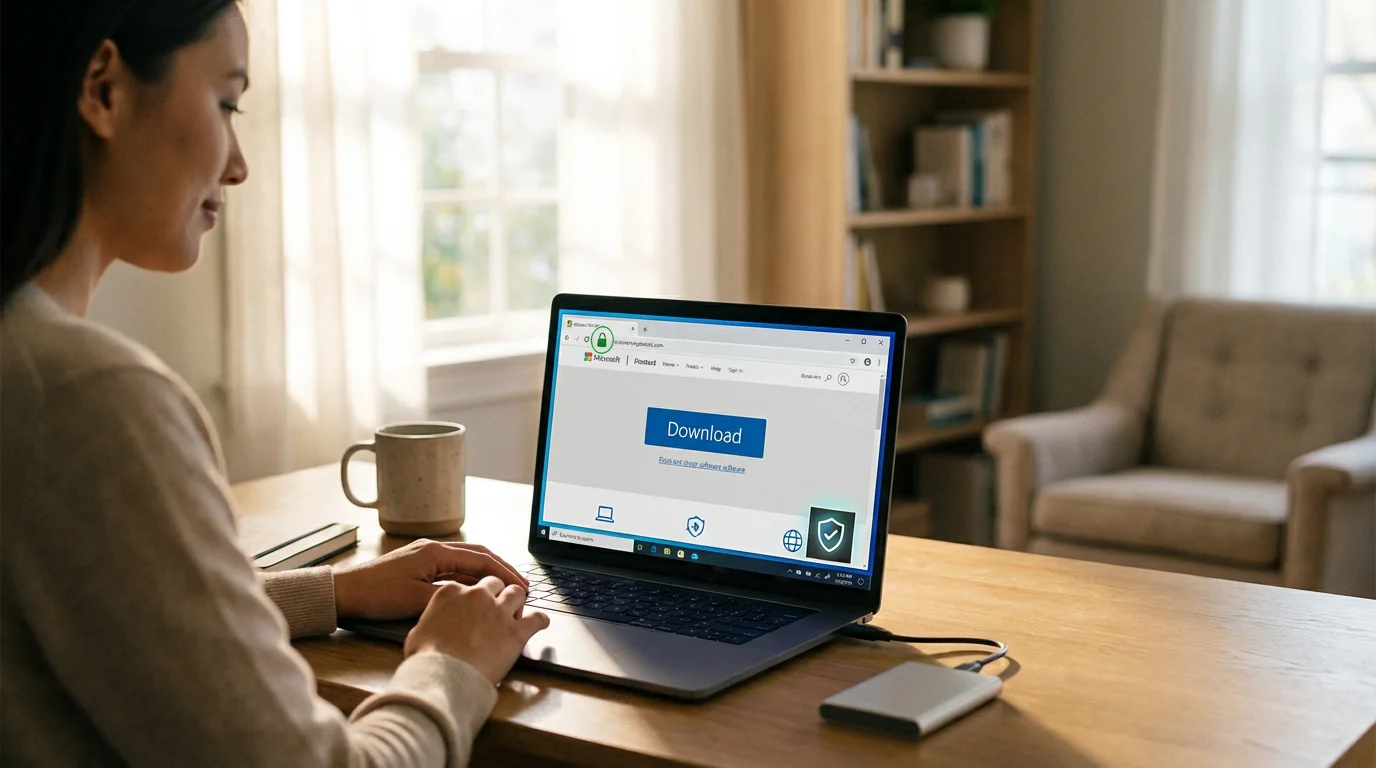
- Download from Official Sources: Always download software, apps, and files directly from the official website of the company that makes them, or from trusted app stores (like the Microsoft Store or Apple App Store). Avoid third-party download sites, as they often bundle legitimate software with unwanted adware or malware.
- Read Reviews: Before downloading any new software, especially if it is unfamiliar, do a quick online search for reviews. See what other users say about it.
- Be Wary of Free Software: While many free programs are perfectly safe, some “free” software comes bundled with hidden malware. If you choose free software, verify its reputation carefully.
- Scan Downloads: Your antivirus software should automatically scan anything you download. Pay attention to any warnings it gives you.
Power Up Your Passwords and Account Security
Your passwords are the keys to your digital life. Weak or reused passwords make it easy for scammers to gain access to your accounts, even if your computer itself is free of viruses. Strengthening your passwords is one of the most effective computer security steps you can take.
In addition to better security, you can use keyboard shortcuts to manage your logins and browser tabs more quickly.
Using a password manager is one of the easiest ways to handle unique, complex passwords for every site you use.
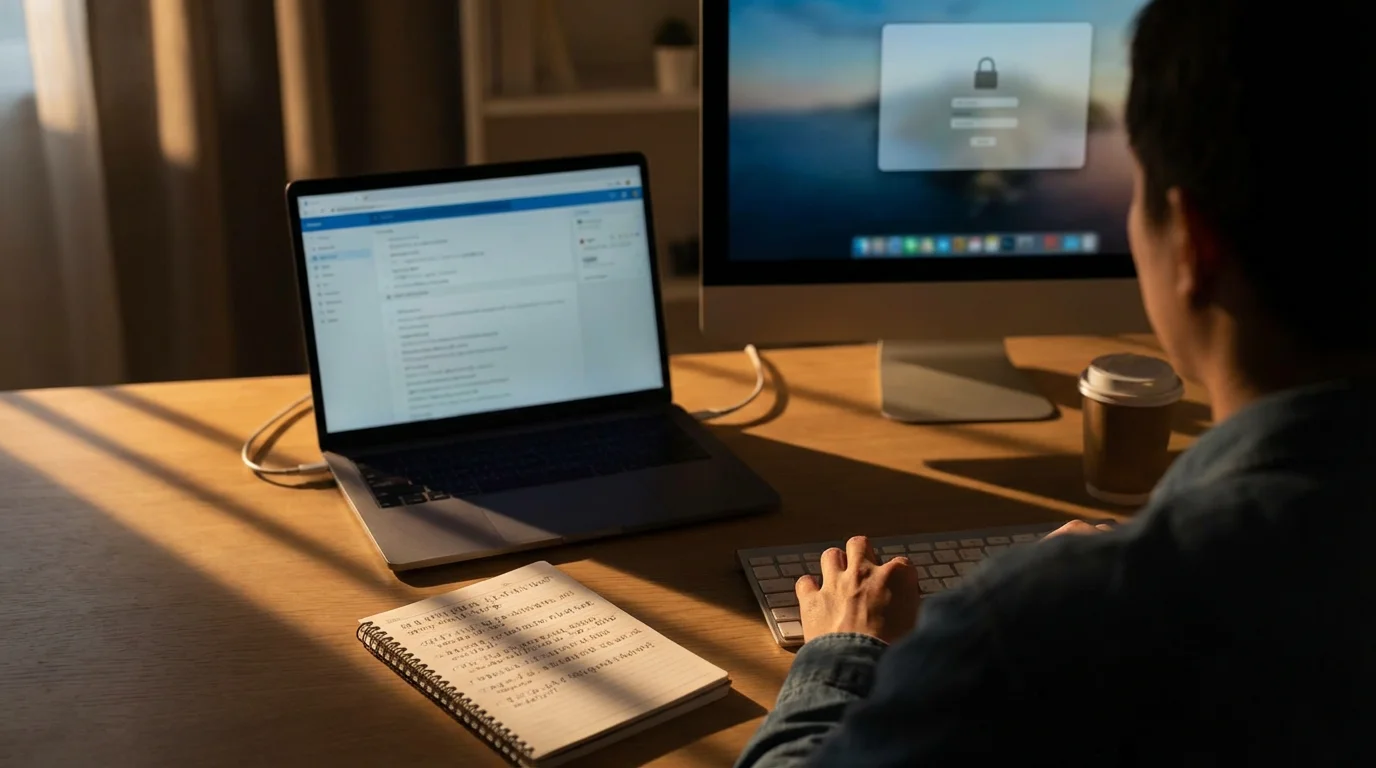
Create Strong, Unique Passwords:
- Length is Key: Aim for passwords that are at least 12 characters long, but longer is better.
- Mix It Up: Combine uppercase and lowercase letters, numbers, and special symbols (like !, @, #, $).
- Avoid Personal Information: Never use your name, birthdate, address, or simple dictionary words. These are easy for scammers to guess or crack.
- Use Phrases: A memorable phrase, like “MyDogLovesLongWalks!77”, is often easier to remember and much harder to guess than a complex but short password.
- Unique for Each Account: This is crucial. If you use the same password for multiple accounts, and one account is compromised, scammers can access all your other accounts.

Consider a Password Manager:
Trying to remember dozens of complex, unique passwords can feel impossible. This is where a password manager comes in. A password manager is a secure app that remembers all your passwords for you. You only need to remember one strong master password to unlock the manager, and it fills in your other passwords automatically. Many reputable options are available, and they significantly improve your online security.

Enable Two-Factor Authentication (2FA):
This is an incredibly powerful security feature. Two-factor authentication (often called 2FA or multi-factor authentication) adds an extra step to logging into your accounts. After entering your password, you get a code texted to your phone, sent to an email address, or generated by an app. You must enter this code to log in. Even if a scammer gets your password, they cannot access your account without this second piece of information. Enable 2FA on your email, banking, social media, and any other important accounts.
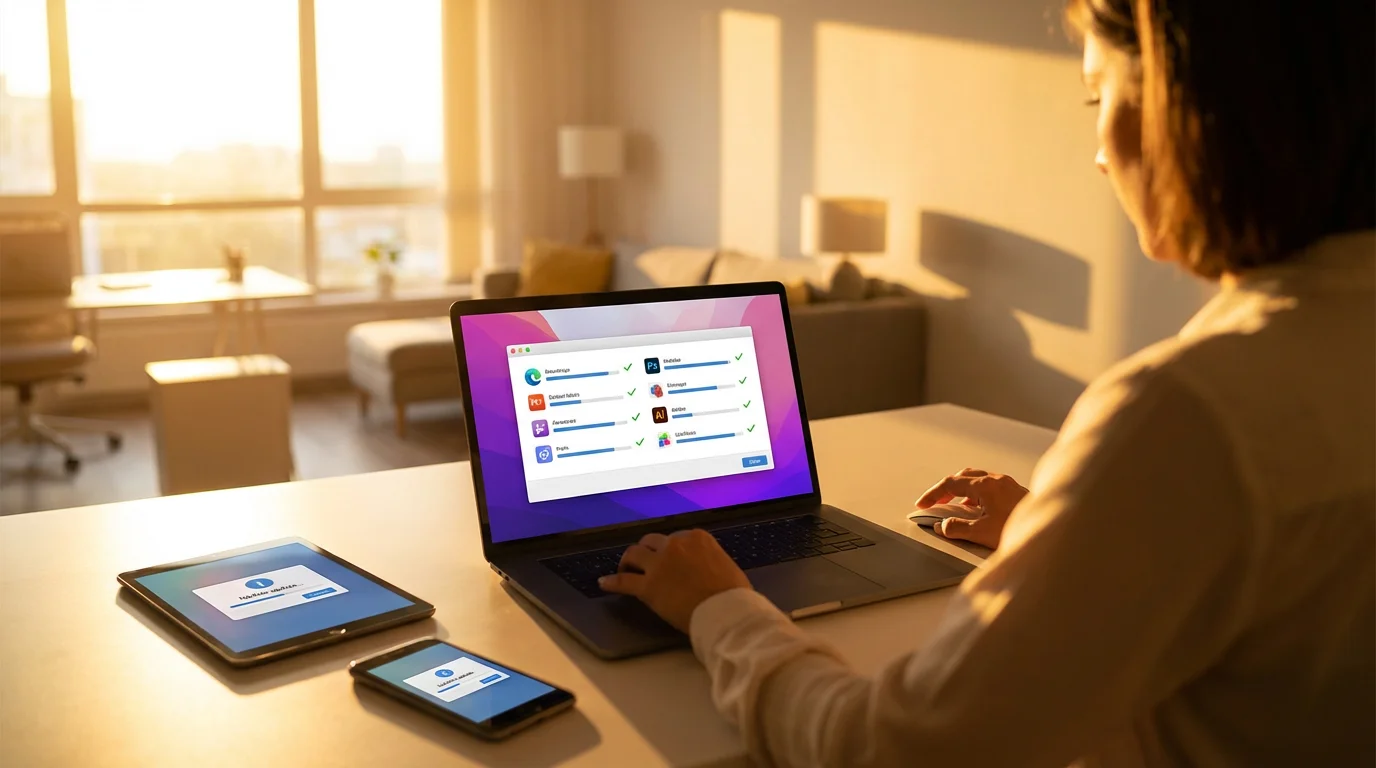
The Importance of Keeping Everything Updated
Software updates are not just about new features. They are vital for your computer security. Companies regularly release updates for their software to fix security weaknesses (called “vulnerabilities”) that scammers could exploit. Delaying these updates leaves your computer vulnerable to new threats.
Keeping your operating system current is a major part of basic computer maintenance that prevents both security risks and performance issues.

Key Areas to Keep Updated:
- Your Operating System (Windows or macOS): This is the foundation of your computer.
- For Windows: Go to “Settings” > “Update & Security” > “Windows Update.” Make sure automatic updates are turned on.
- For Mac: Go to the Apple menu > “System Settings” (or “System Preferences”) > “General” > “Software Update.” Ensure your Mac is set to install updates automatically.
- Your Web Browser (Chrome, Firefox, Edge, Safari): Your browser is your gateway to the internet. Keep it updated to protect against web-based threats. Most modern browsers update themselves automatically.
- Your Antivirus Software: As mentioned, regular updates ensure your antivirus knows about the latest malware.
- All Other Software and Apps: From photo editing software to video conferencing apps, keep everything updated. Set apps to update automatically when possible, or check for updates regularly.
It can sometimes feel inconvenient to restart your computer for an update, but doing so promptly is one of the easiest and most effective ways to maintain robust virus prevention and overall computer security.

Backing Up Your Precious Memories and Files
Even with the best computer security measures, unforeseen problems can occur. Your computer could fail, a virus could slip through, or you could accidentally delete an important file. This is why regularly backing up your important files is an absolute necessity.
In addition to online storage, learning how to back up your computer files to an external drive provides a physical copy that you can keep in a safe place.
A backup is simply a copy of your files stored in a separate, safe place. If something goes wrong with your computer, you can restore your files from the backup, preventing the heartbreaking loss of photos, documents, and other irreplaceable data.

Easy Ways to Back Up Your Files:
- External Hard Drive: This is a physical device you connect to your computer. It is relatively inexpensive and easy to use. Simply plug it in and copy your important files and folders. Many operating systems also offer built-in backup tools that can automatically back up your computer to an external drive (e.g., Windows Backup and Restore, Apple’s Time Machine). Store the drive separately from your computer when not in use.
- Cloud Storage Services: These services store your files online, on remote servers. Popular options include Google Drive, OneDrive, and Dropbox.
- Pros: Files are accessible from any device with an internet connection. Many services offer a free amount of storage, and additional storage is often inexpensive. Your files are protected even if your physical computer is lost or damaged.
- Cons: Requires an internet connection to access. You rely on the security of the cloud provider.

Best Practices for Backups:
- Back Up Regularly: How often depends on how frequently you create new important files. For most people, a weekly or even daily backup of crucial documents and photos is a good idea.
- Test Your Backups: Occasionally, try restoring a file from your backup to ensure it is working correctly.
- Use the “3-2-1 Rule”: Keep at least three copies of your data, store them on two different types of media (e.g., your computer’s hard drive and an external hard drive), and keep one copy offsite (e.g., in cloud storage or at a different physical location).

What to Do If You Suspect a Virus
Even with all these precautions, sometimes problems arise. If you notice strange behavior on your computer, like unexpected pop-ups, slow performance, programs crashing frequently, or your homepage changing without your permission, you might have a virus or other malware. Do not panic; take these steps:
- Disconnect from the Internet: Immediately unplug your computer’s Ethernet cable or turn off your Wi-Fi. This stops the malware from spreading further or sending your information out.
- Run a Full Antivirus Scan: Open your antivirus software and initiate a full, deep scan of your entire computer. Follow its instructions to remove or quarantine any detected threats. You might need to restart your computer afterwards.
- Update Your Antivirus Software (if possible): If you are still connected to the internet, make sure your antivirus definitions are completely up-to-date before running the scan. If you cannot update, proceed with the scan using the current definitions.
- Change Important Passwords: Once you believe your computer is clean, change the passwords for all your critical accounts: email, banking, social media. Do this from a different, known-clean device if possible, or after you are very confident your computer is secure.
- Restore from Backup (if necessary): If the malware has caused significant damage to your files, you might need to restore your computer or specific files from a recent backup.
- Seek Expert Help: If you are unsure or uncomfortable performing these steps yourself, or if the problem persists, do not hesitate to seek help from a trusted computer technician. Avoid calling numbers on pop-up warnings, as these are often scam calls. Instead, find a local, reputable computer repair shop through personal recommendations or by searching online on another trusted device.
Reporting cybercrime and scams helps authorities track down criminals and protect others. If you have been targeted by a scam or lost money, report it to the Federal Trade Commission (FTC) at ReportFraud.ftc.gov. You can also file a complaint with the FBI’s Internet Crime Complaint Center (IC3).
Frequently Asked Questions
Here are answers to some common questions about computer security and virus prevention:
What if I already clicked a suspicious link or shared some information?
First, do not feel foolish; scammers design these traps to be convincing. If you clicked a suspicious link, immediately close the tab or browser window. If you entered personal information, change that password on any affected accounts immediately, and also for any other accounts where you use the same password. If you provided financial details, contact your bank or credit card company right away to explain what happened. Then, run a full antivirus scan on your computer and enable two-factor authentication on all your important accounts.
How do I know if a call is really from my bank or a legitimate company?
Legitimate organizations like your bank, the IRS, or Medicare will almost never call you unexpectedly and ask for sensitive information like your password, Social Security number, or bank account details over the phone, especially not with demands for immediate action or payment. If you receive a suspicious call, hang up. Then, find the official phone number for the organization (on their official website or a statement you received) and call them back directly to verify the request. Do not use a number provided by the caller.
Are free antivirus programs good enough?
Many free antivirus programs offer a good basic level of protection, often including real-time scanning and virus removal. Built-in options like Windows Security are also quite capable. However, paid versions often provide more advanced features, such as enhanced web browsing protection, firewalls, and parental controls. For most users who practice good online habits, a reputable free option or built-in software can be sufficient for malware protection, but a paid subscription can offer extra peace of mind and features. Always ensure whatever software you use is from a trusted provider.
Will my computer security ever be 100% foolproof?
Unfortunately, no system is ever 100% foolproof. New threats emerge constantly, and security is an ongoing process. However, by consistently applying the practices outlined in this guide – using strong antivirus, updating your software, being cautious online, and securing your accounts with strong passwords and 2FA – you significantly reduce your risk. You make your computer a much harder target, protecting yourself against the vast majority of threats.
Disclaimer: This article provides general information about online safety and is not a substitute for professional advice. If you believe you’ve been a victim of fraud, contact your bank immediately and report the incident to the FTC at ReportFraud.ftc.gov or call 1-877-382-4357. If you’ve lost money, also file a report with your local police.








Leave a Reply