

Turning your computer on and off seems like a simple task. While it might feel straightforward, doing it correctly protects your important files and keeps your computer running smoothly for years to come. Many people learned on older systems, and modern computers sometimes have different steps or appear to behave differently. This guide walks you through the proper way to start your Windows PC, Mac, or Chromebook and shut it down safely, ensuring you avoid common pitfalls and maintain your device’s health.
You use your computer for email, browsing, looking at photos, and creating documents. Knowing how to properly start and stop it is a foundational skill that boosts your confidence. You can master these simple steps, and we are here to help you every step of the way.
Table of Contents
- Understanding Your Computer’s Power Button
- How to Turn On Your Computer
- What Happens When You Start Up Your Computer
- Getting to Your Desktop: Logging In
- The Importance of a Safe Shutdown
- How to Shut Down Your Computer Safely
- Restarting and Sleeping Your Computer
- Common Problems and Solutions
- When to Ask For Help
- Frequently Asked Questions
Understanding Your Computer’s Power Button
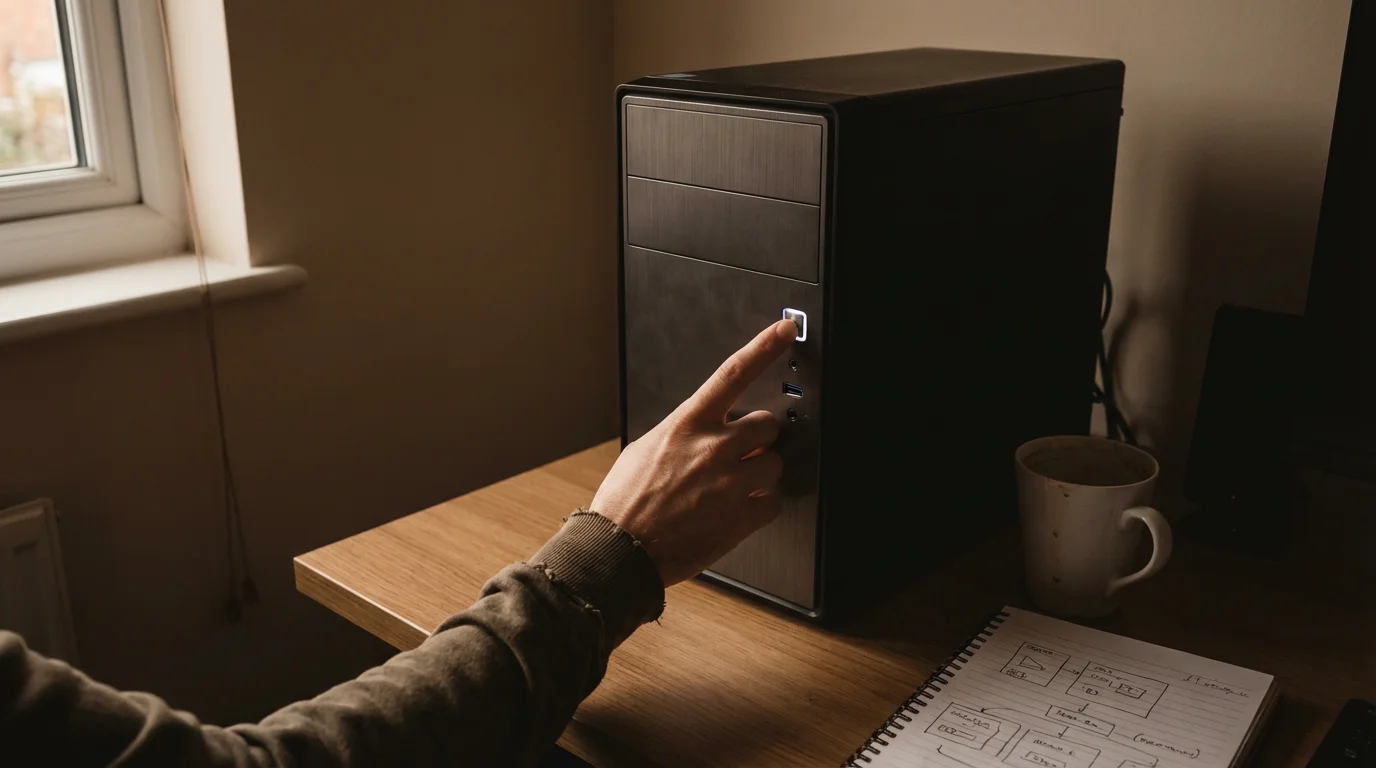
Every computer has a power button. Its location varies depending on whether you have a desktop computer or a laptop and what brand it is. This button is your primary tool for turning your computer on and, in some emergency situations, forcing it off. Identifying its location is the first step in safely managing your computer’s power.

On a Desktop Computer
If you use a desktop computer, you usually have two main parts: a monitor (the screen) and a tower (the main box). The power button for the computer itself is almost always on the tower. Look for a round button, often with a universal power symbol (a circle with a vertical line through it), usually on the front of the tower. Sometimes, it is on the top. Your monitor also has its own power button, typically on the bottom edge or back, which turns only the screen on or off. Make sure you are pressing the button on the computer tower, not just the monitor.

On a Laptop Computer
For laptops, the power button is generally part of the keyboard area or on the side of the laptop’s body. Often, it is a dedicated button above the keyboard. On some newer laptops, especially Macs, the power button is integrated into the keyboard itself, sometimes doubling as a fingerprint reader or located in the upper right corner of the keyboard. Look for the power symbol. You press this button to turn your laptop on.

On a Chromebook
Chromebooks are a type of laptop designed for simplicity. Their power button is usually on the upper right side of the keyboard, or occasionally on the right side of the device itself. Like other laptops, it often has the standard power symbol. You press this to start your Chromebook.
Remember, the power button does more than just turn your computer on. A quick press often puts your computer to “sleep,” while a longer press (holding it down for several seconds) forces your computer to shut down. Only use the long press in emergencies, as it can sometimes cause issues. We will discuss proper shutdown methods soon.

How to Turn On Your Computer
Turning on your computer is usually a straightforward process. You simply press the power button once. Your computer then begins its “startup” process. This is often called “booting up.”
For Windows PCs (Desktops and Laptops)
- Ensure Power: First, check that your computer is plugged into a working power outlet. For laptops, confirm the charger is connected, or that the battery has sufficient charge. For desktops, ensure both the tower and the monitor are plugged in.
- Locate the Power Button: Find the power button on your desktop tower or laptop.
- Press the Button: Press the power button firmly but gently, and then release it. You only need to press it once.
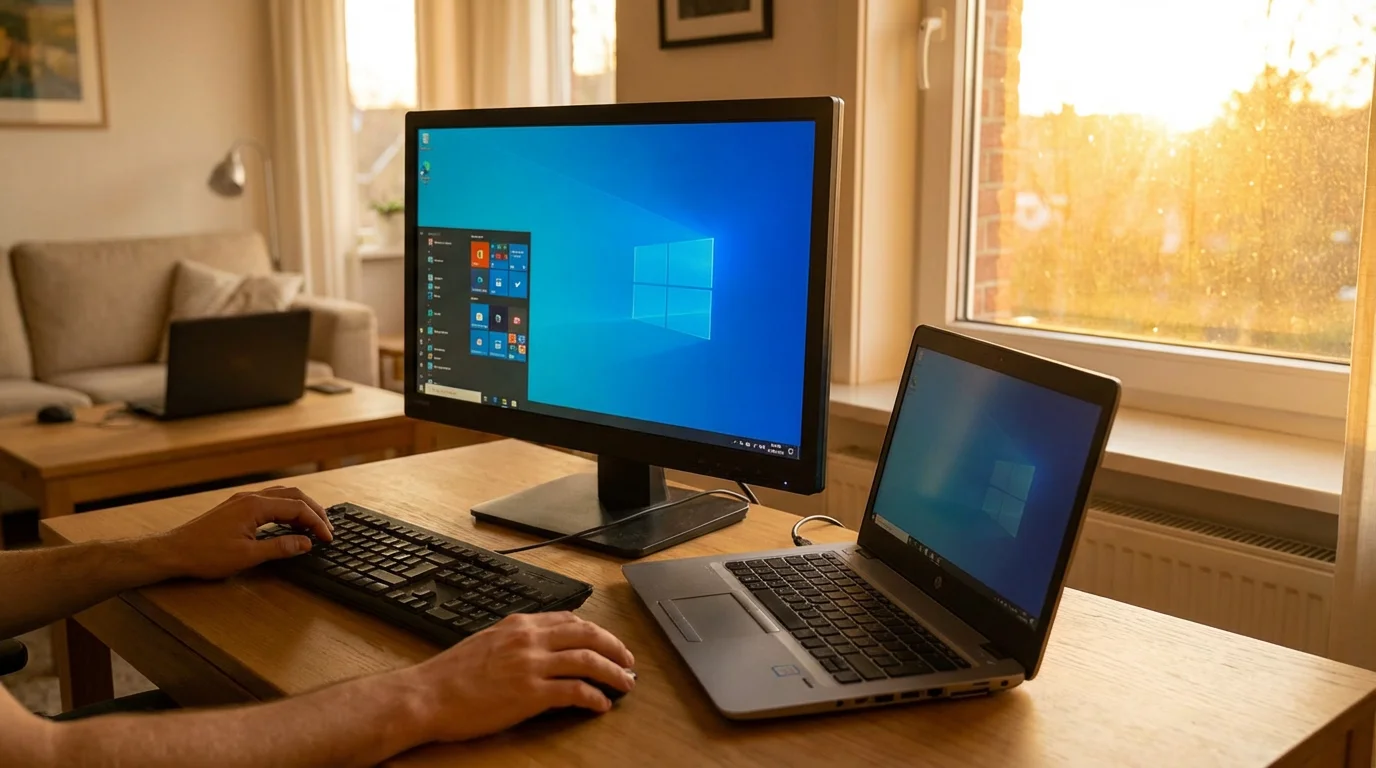
- What You’ll See On Screen: The computer typically responds by lighting up, and you might hear a soft fan noise. After a few moments, the screen will light up. You might see the computer brand logo (like Dell, HP, Lenovo) or the Windows logo (a four-pane window) appear as it starts up. This indicates your computer is beginning to load its operating system.

For Macs (iMacs, MacBooks, Mac Minis)
- Ensure Power: Make sure your Mac is plugged into a power source, or that your MacBook has battery power. For iMacs, confirm the power cable is secure.
- Locate the Power Button: On iMacs, the power button is typically on the lower left-hand side of the back of the screen. On MacBooks, it is often in the top right corner of the keyboard, sometimes labeled with the power symbol or integrated into the Touch ID sensor. Mac Minis have their power button on the back of the device.
- Press the Button: Press the power button once and release it.
- What You’ll See On Screen: You will usually hear a startup chime (on older Macs) or see the Apple logo (a bitten apple) appear on your screen. A loading bar or spinning gear might appear underneath the logo, indicating that macOS is starting up.

For Chromebooks
- Ensure Power: Verify your Chromebook is plugged in or has enough battery charge.
- Locate the Power Button: Find the power button, usually on the upper right of the keyboard or on the side of the device.
- Press the Button: Press the power button once and release it.
- What You’ll See On Screen: The screen will light up, and you will see the Chrome OS logo (a colorful circle) appear. A loading screen might follow, preparing your Chromebook for use.

What Happens When You Start Up Your Computer
When you press the power button, your computer performs a series of important internal checks and loads its operating system. This process is called “booting up.” Think of it like your car starting up: it checks the engine, lights, and other systems before it is ready to drive.
Once your system is fully loaded, it is a good habit to back up your computer files regularly to keep your memories and documents safe.
During this time, your computer:
- Performs a Self-Test: It quickly checks its own components, like the memory and processor, to ensure they are working correctly.
- Loads the Operating System: This is the most visible part. Your computer loads its operating system, whether it is Windows 10/11, macOS, or Chrome OS. The operating system is the main software that controls everything on your computer, allowing you to run programs and manage your files. This is why you see logos and loading screens.
- Prepares Your User Environment: It gets ready for you by loading essential background programs and preparing your personal settings.
This entire process can take anywhere from a few seconds on a very fast, modern computer to a few minutes on an older one. Patience is key during startup. Avoid pressing buttons or trying to open programs until you see your login screen or your desktop.

Getting to Your Desktop: Logging In
After your computer finishes loading its operating system, it often presents you with a login screen. This step secures your computer, protecting your personal information from unauthorized access. You need to enter a password, PIN, or use a fingerprint to prove it is you.
If you have trouble remembering your login details, you might find it helpful to use a password manager to keep your credentials organized.

For Windows 10/11
- The Lock Screen: You first see a “lock screen,” which often displays a background image, the time, and some notifications.
- Dismiss the Lock Screen: To move past this, you can press any key on your keyboard, click the left mouse button once, or swipe up on a touchscreen.
- The Login Screen: Now you see the “login screen.” This screen shows your user name and a box for your password or PIN.
- Enter Your Credentials: Click the left mouse button once inside the password or PIN box, then type your password or PIN using the keyboard. Make sure you type carefully. If you have forgotten it, look for options like “Forgot PIN” or “Forgot password” for recovery.
- Press Enter or Click Sign In: After typing, press the Enter key on your keyboard or click the “Sign in” button.
- What You’ll See On Screen: After successful login, you arrive at your “desktop.” This is the main screen of your computer, where you see icons, a background picture, and the “taskbar” at the bottom. The taskbar contains the Start button (a Windows logo), icons for open programs, and other system information.

For macOS
- The Login Screen: Your Mac displays a login screen with your user account picture and name.
- Enter Your Password: Click the left mouse button once in the password field, then type your account password. Mac passwords are case-sensitive, meaning “Password” is different from “password.”
- Press Enter or Click Arrow: Press the Return key (which is the same as Enter on a Windows keyboard) or click the arrow next to the password field.
- What You’ll See On Screen: Upon successful login, you see your “desktop.” This is your main workspace, featuring a background image, icons for files and folders, and the “dock” at the bottom. The dock is a row of application icons that you frequently use, similar to the taskbar on Windows.

For Chrome OS
- The Login Screen: Your Chromebook shows a login screen with a list of users. If you are the only user, it might go directly to your Google account login.
- Select Your Account (if applicable): If multiple users are listed, click the left mouse button once on your user name.
- Enter Your Google Account Password: Type the password for your Google account. This is the same password you use for Gmail and other Google services.
- Press Enter or Click Sign In: Press Enter or click the “Sign in” button.
- What You’ll See On Screen: Once logged in, you see your Chromebook’s “desktop.” This includes your wallpaper, and a “shelf” at the bottom of the screen. The shelf holds icons for your favorite apps, the Chrome browser, and other system functions.
Remember your passwords! Writing them down in a secure place, not directly on your computer, is a smart practice. If you use a password manager, it helps keep track of all your logins safely. You can find more information on password security from reputable sources like AARP Technology Resources.
The Importance of a Safe Shutdown
You might be tempted to simply close your laptop lid or just press the power button to turn off your computer. While these actions might seem to work, they are not always the best way to shut down your computer properly. A safe shutdown is critical for several reasons:
- Protects Your Data: When you shut down properly, your computer saves all open files and closes programs in an orderly fashion. If you suddenly cut power, unsaved work can be lost, and files might become corrupted or damaged. Losing a cherished photo album or an important document because of an improper shutdown is frustrating, and it is entirely avoidable.
- Ensures System Stability: A proper shutdown allows the operating system to perform necessary cleanup tasks and close background processes. This prevents errors from accumulating and contributes to a more stable and reliable computer over time. Imagine trying to park a car by just turning off the engine in the middle of the road; it causes problems.
- Installs Updates: Many important security and performance updates for your operating system (Windows, macOS, Chrome OS) install during the shutdown process. If you force a shutdown, these updates might not install correctly, leaving your computer vulnerable or causing performance issues.
- Saves Energy: While sleep mode is good for short breaks, a full shutdown conserves the most energy. This is good for your electricity bill and the environment.
- Extends Computer Lifespan: Regular, proper shutdowns can contribute to the longevity of your computer’s components by giving them a chance to rest and cool down.
How to Shut Down Your Computer Safely
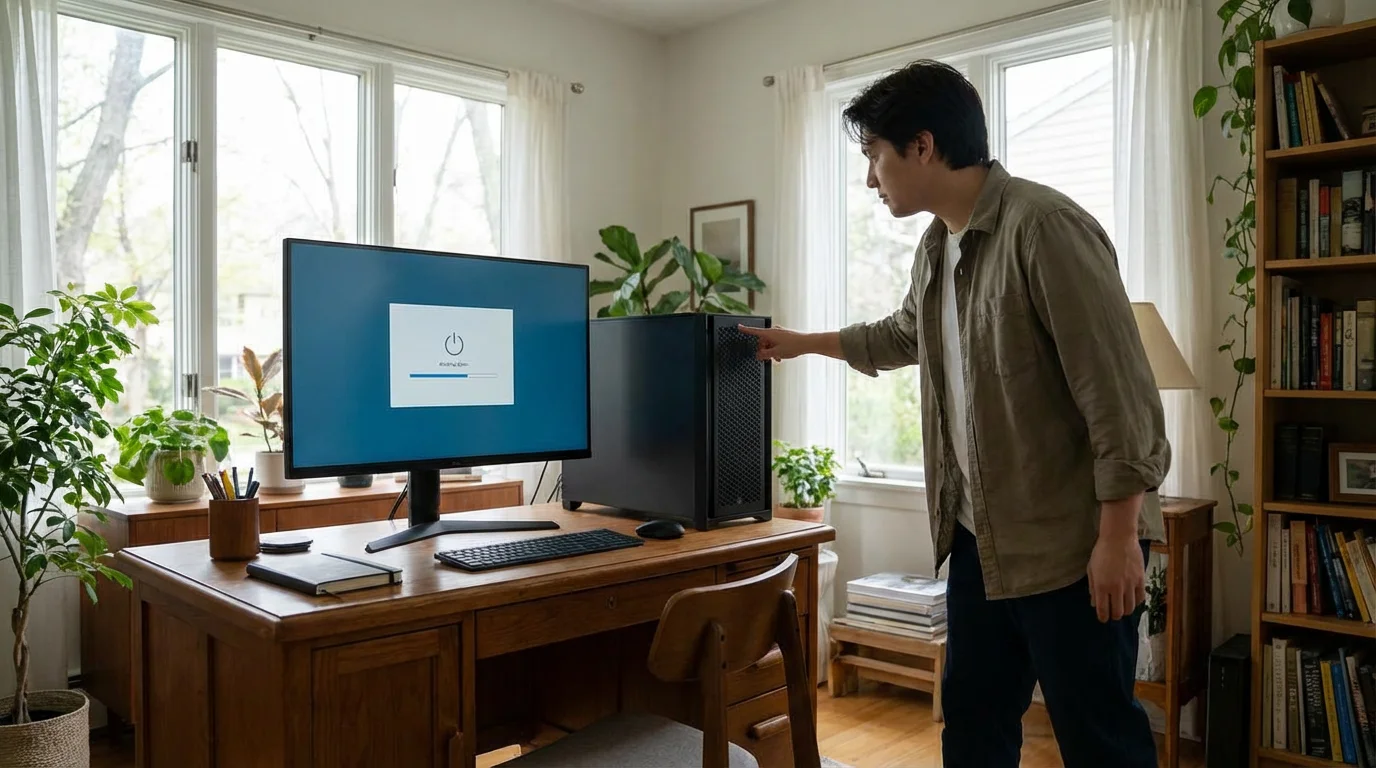
The correct way to shut down your computer involves using the operating system’s built-in shutdown command. This ensures all programs close properly and any pending updates or tasks complete before power cuts off.
For Windows 10/11
This method applies to both desktop and laptop computers running Windows 10 or Windows 11.
- Close All Programs: Before shutting down, it is a good practice to close any programs you have open. You can do this by clicking the “X” button in the top right corner of each program window. This ensures you save any unsaved work.
- Click the Start Button: Move your mouse pointer to the bottom-left corner of your screen and click the “Start button.” This is the Windows logo icon. It opens the Start Menu.
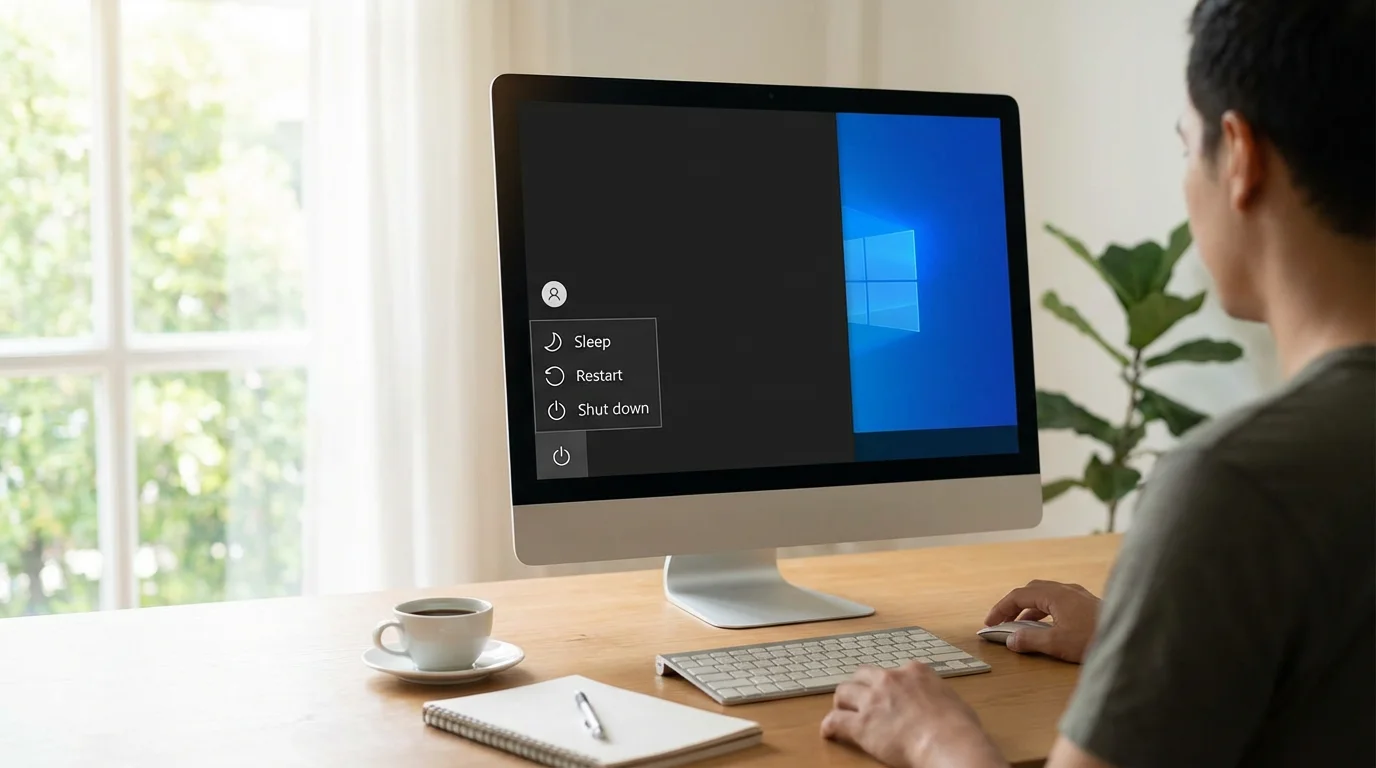
- Click the Power Icon: In the Start Menu, look for a small power icon. It often looks like a circle with a vertical line in it. Click this icon once.
- Select “Shut down”: A small menu appears with options like “Sleep,” “Shut down,” and “Restart.” Click the left mouse button once on “Shut down.”
- What You’ll See On Screen: Your screen will display “Shutting down” or “Restarting” (if updates are installing) for a few moments. Then, the screen will go black, and any lights on your computer tower or laptop will turn off. This confirms your computer has safely powered down.
For macOS
These steps work for iMacs, MacBooks, Mac Minis, and other Macs.
- Close All Programs: Before shutting down, close any open applications. You can often do this by clicking the name of the application in the menu bar at the top of the screen (e.g., “Safari”), then clicking “Quit [Application Name].”
- Click the Apple Menu: Move your mouse pointer to the very top-left corner of your screen. Click the left mouse button once on the Apple logo. This opens a drop-down menu.
- Select “Shut Down…”: From the Apple menu, click the left mouse button once on “Shut Down…”
- Confirm Shutdown: A small window appears, asking if you are sure you want to shut down. It might also offer options like “Reopen windows when logging back in” (you can uncheck this if you prefer a fresh start). Click the left mouse button once on the “Shut Down” button in this window.
- What You’ll See On Screen: Your Mac’s screen will go dark, and the computer will power off. The Apple logo might reappear briefly before the screen turns completely black.
For Chrome OS
This applies to all Chromebooks.
- Close All Programs: While Chromebooks are good at managing open tabs, closing unnecessary windows before shutdown is still a good practice.
- Click the Status Area: Move your mouse pointer to the bottom-right corner of the screen. This area shows the time, battery level, Wi-Fi status, and your profile picture. Click the left mouse button once here. This opens a quick settings panel.
- Click the Power Icon: In the quick settings panel, look for the power icon (the circle with a vertical line). Click this icon once.
- What You’ll See On Screen: Your Chromebook will immediately begin to shut down. The screen will go black, and the device will power off.
Restarting and Sleeping Your Computer
Besides shutting down, you have other power options that are useful in different situations:

Restart
Restarting your computer means it performs a full shutdown and then immediately turns itself back on. You use this option when:
- Installing Updates: Many software and operating system updates require a restart to finish installing properly.
- Solving Minor Problems: A restart can often fix temporary glitches, programs that are not responding, or slow performance. It gives your computer a fresh start. Think of it like a quick refresh button for your computer’s brain.
How to Restart: The “Restart” option is found in the same menu as “Shut down.”
- Windows 10/11: Click the Start button > Power icon > “Restart.”
- macOS: Click the Apple Menu > “Restart…” > Confirm “Restart.”
- Chrome OS: Click the Status Area > Power icon (it will restart automatically).

Sleep (or Standby)
When you put your computer to sleep, it goes into a low-power state. It keeps all your open programs and documents in its memory, so when you wake it up, you can pick up exactly where you left off almost instantly. Your screen turns off, and usually, a small light on your computer might blink or change color to indicate it is in sleep mode.
You use sleep mode when:
- Taking a Short Break: If you are stepping away from your computer for an hour or two, sleep mode is convenient.
- Saving Battery (Laptops): It saves more power than leaving the computer fully on, though less than a full shutdown.
How to Put Your Computer to Sleep:
- Windows 10/11: Click the Start button > Power icon > “Sleep.” Closing the lid on most laptops also puts them to sleep automatically.
- macOS: Click the Apple Menu > “Sleep.” Closing the lid on a MacBook puts it to sleep.
- Chrome OS: Closing the lid of your Chromebook puts it to sleep. There is typically not a dedicated “Sleep” option in the power menu like Windows or Mac.
How to Wake Your Computer from Sleep: Simply press any key on the keyboard, move your mouse, or open your laptop lid. You might need to enter your password or PIN again for security.

Common Problems and Solutions
Sometimes, your computer might not behave exactly as expected when turning on or shutting down. Here are some common issues and what you can do:

Computer Won’t Turn On
- Check Power Connection: Make sure the power cable is securely plugged into the computer and the wall outlet. For laptops, confirm the charger is working and correctly connected. Try a different outlet if unsure.
- Check Monitor Power (Desktops): If your desktop computer’s tower lights up and you hear noises, but the screen stays black, check that your monitor is turned on and properly connected to the tower with its display cable (HDMI, DisplayPort, or VGA).
- Try a Different Outlet: Sometimes, the outlet itself is the problem.

Computer is Stuck During Startup (Loading Screen)
- Be Patient: Especially after updates, computers can take longer to start. Give it plenty of time, sometimes 10-15 minutes or more.
- Force Shutdown (Last Resort): If it remains stuck on a logo or spinning circle for a very long time (over 30 minutes) and shows no progress, you might need to force a shutdown. Press and hold the power button for 5-10 seconds until the computer turns off. Then, wait a minute and try turning it on again normally. Use this sparingly, as it can occasionally lead to file corruption.

Computer Won’t Shut Down
- Close Programs: If a program is “frozen” or not responding, it can prevent shutdown. Try to manually close all open programs. On Windows, you can open Task Manager (Ctrl + Shift + Esc) to force-quit unresponsive apps. On Mac, you can use Force Quit (Command + Option + Esc).
- Wait for Updates: If your computer says “Don’t turn off your computer” or “Installing updates,” it is performing critical tasks. Allow it to finish, even if it takes a long time. Turning it off during updates can severely damage your operating system.
- Force Shutdown (Last Resort): If all else fails and your computer is completely unresponsive and will not shut down through the menu, press and hold the power button for 5-10 seconds until it turns off. Then, wait a minute and turn it back on. Run a disk check or system scan afterward if you are concerned.
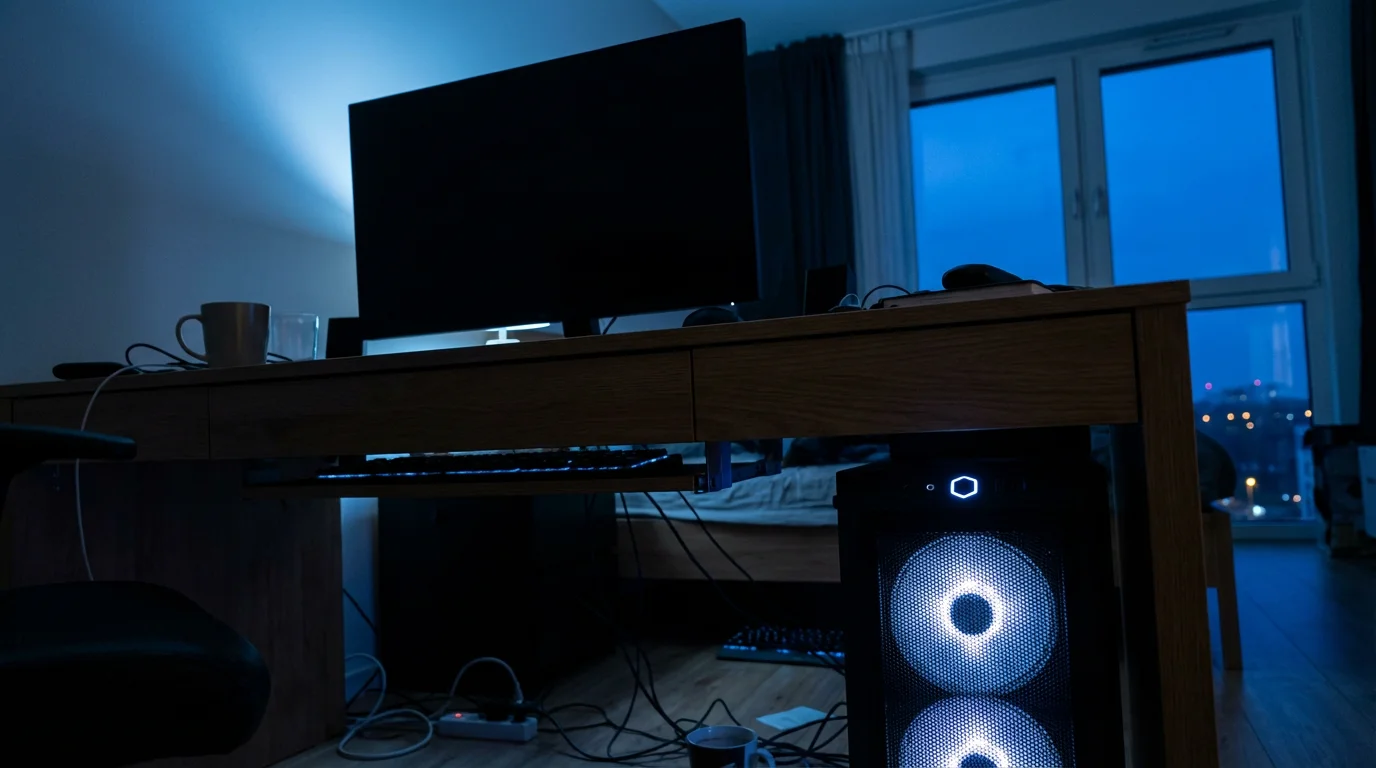
Screen Is Black, But Computer Seems On (Fan Noises, Lights)
- Check Monitor Connection: Ensure your monitor is plugged in, turned on, and securely connected to your computer. Try reseating the cables.
- Wake from Sleep: The computer might be in sleep mode. Press a key on the keyboard or move the mouse to wake it up.
- Restart: If it remains black, try a force shutdown by holding the power button, then restart the computer.

When to Ask For Help
While this guide covers many common situations, some problems require more specialized attention. Do not hesitate to ask for help if:
- You cannot identify the power button or are unsure where to plug things in.
- Your computer consistently fails to turn on or shut down properly, even after trying the troubleshooting steps. Persistent issues suggest a deeper problem.
- You see strange error messages that you do not understand.
- Your computer makes unusual noises, such as loud grinding or clicking.
- You feel overwhelmed or frustrated. Technology should simplify your life, not complicate it.
You have several options for support:
- Tech-Savvy Family or Friends: A trusted family member or friend with computer experience can often provide hands-on help.
- Computer Repair Shops: Local computer repair services specialize in diagnosing and fixing hardware and software issues. Look for reputable businesses with good reviews.
- Official Support:
- For Windows PCs: Visit Microsoft Support.
- For Macs: Visit Apple Support.
- For Chromebooks: Visit Google Support.
- Online Learning Resources: Websites like GCFGlobal — Technology Tutorials offer free, easy-to-understand guides on a wide range of computer topics.
Asking for help is a sign of good judgment. You are protecting your valuable computer and your peace of mind.
Frequently Asked Questions
Here are answers to common questions about managing your computer’s power:
Q: Is it bad to leave my computer on all the time?
A: Leaving your computer on all the time is not inherently “bad,” but it is generally better to shut it down regularly. Regular shutdowns allow your computer to install important updates, clear out temporary glitches, and conserve energy. While modern computers are designed to run for extended periods, a daily or nightly shutdown helps maintain its long-term health and performance. Think of it like taking your car for regular maintenance; it keeps everything running smoothly.
Q: What is the difference between Shut Down and Sleep?
A: When you “Shut Down” your computer, it completely turns off, closing all programs and cutting power. This is the most complete way to power down. “Sleep” mode, on the other hand, puts your computer into a low-power state. It keeps your work in memory so you can resume instantly, but it still uses a small amount of power. Use Shut Down for extended periods away or when updates are needed. Use Sleep for short breaks when you want to quickly return to your work.
Q: My computer won’t shut down, what should I do?
A: First, check if any programs are unresponsive or if your computer is trying to install updates. Close any frozen programs manually. If an “Installing updates” message appears, allow it to finish, as turning off your computer during this process can cause significant problems. If the computer is completely unresponsive and will not shut down through the menu, as a last resort, press and hold the power button for 5-10 seconds until it powers off. This is a “force shutdown” and should be used only when absolutely necessary.
Q: How often should I shut down my computer?
A: For most users, shutting down your computer at the end of each day or at least every few days is a good practice. This allows your operating system to perform critical background tasks, apply updates, and refresh its performance. If you use your computer only for short periods daily, putting it to sleep is fine, but make sure to perform a full shutdown at least a few times a week to ensure proper maintenance and update installation.
Q: Why do updates always happen when I shut down?
A: Many critical system updates require your computer to be in a specific state, usually completely offline, to install correctly without interfering with open programs or files. The shutdown or restart process provides this necessary environment. Your computer often downloads updates in the background while you work, but it waits until you initiate a shutdown or restart to install them, ensuring they are applied safely and effectively to improve security and performance.
Disclaimer: This article is for informational purposes only. Your computer’s screens may look slightly different depending on your operating system version and settings. When in doubt, consult official support resources or ask someone you trust for help.









Leave a Reply