
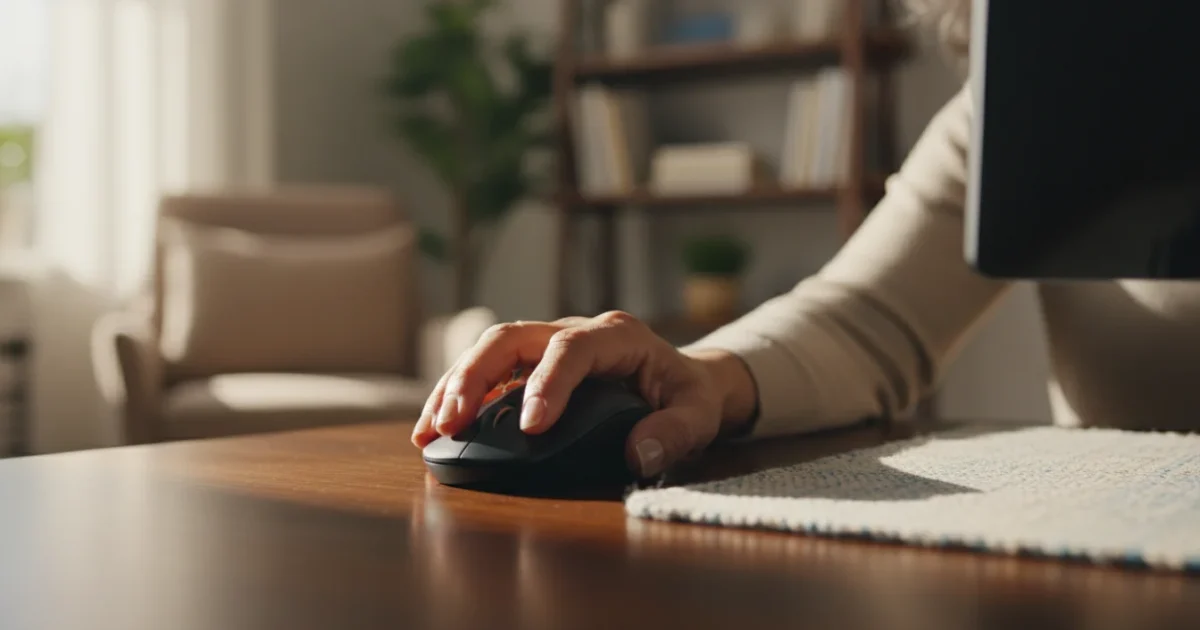
Navigating your computer effectively starts with mastering the computer mouse. For many, a mouse feels like a natural extension of their hand, but for beginners, or those accustomed to older computer systems, it can present a learning curve. This guide helps you understand how to use a computer mouse for beginners, focusing on core skills like clicking, scrolling, and dragging.
Before you begin clicking, ensure you know how to turn on and shut down your computer safely so you can start and end your sessions with confidence.
You use your computer for important tasks like sending emails to family, browsing interesting websites, viewing treasured photos, and managing documents. A computer mouse gives you precise control over what you see and do on your screen. This article provides practical, actionable insights and clear steps, helping you build confidence with this essential tool, whether you use a Windows PC, a Mac, or even a Chromebook.
Table of Contents
- Understanding Your Computer Mouse
- Proper Mouse Grip and Movement
- The Basics of Clicking
- Mastering the Scroll Wheel
- Understanding Right-Click: Context Menus
- Dragging and Dropping Files
- Mouse Settings and Customization
- Common Mouse Problems and Solutions
- Frequently Asked Questions
- When to Seek Help

Understanding Your Computer Mouse
A computer mouse is a handheld input device that controls the pointer, also called the cursor, on your computer screen. Think of the pointer as your digital finger, allowing you to point at and interact with items. Computer mice come in a few common types:
- Wired Mouse: This type connects directly to your computer with a USB cable. It draws power from your computer, so you never need to worry about batteries. They generally offer reliable performance.
- Wireless Mouse: This mouse connects to your computer without a cable, typically using a small USB receiver you plug into your computer, or through Bluetooth. Wireless mice offer greater freedom of movement and reduce cable clutter on your desk. They require batteries, which you replace periodically or recharge.
- Optical or Laser Mouse: Most modern mice use an optical sensor, which glows red or invisible infrared, or a laser sensor to detect movement. These sensors work best on non-reflective surfaces, like a mouse pad.
Regardless of the type, most mice feature the same core components:
- Left Button: This is your primary button for most actions, like selecting items or opening programs.
- Right Button: This button opens a “context menu,” which provides additional options for whatever you are pointing at.
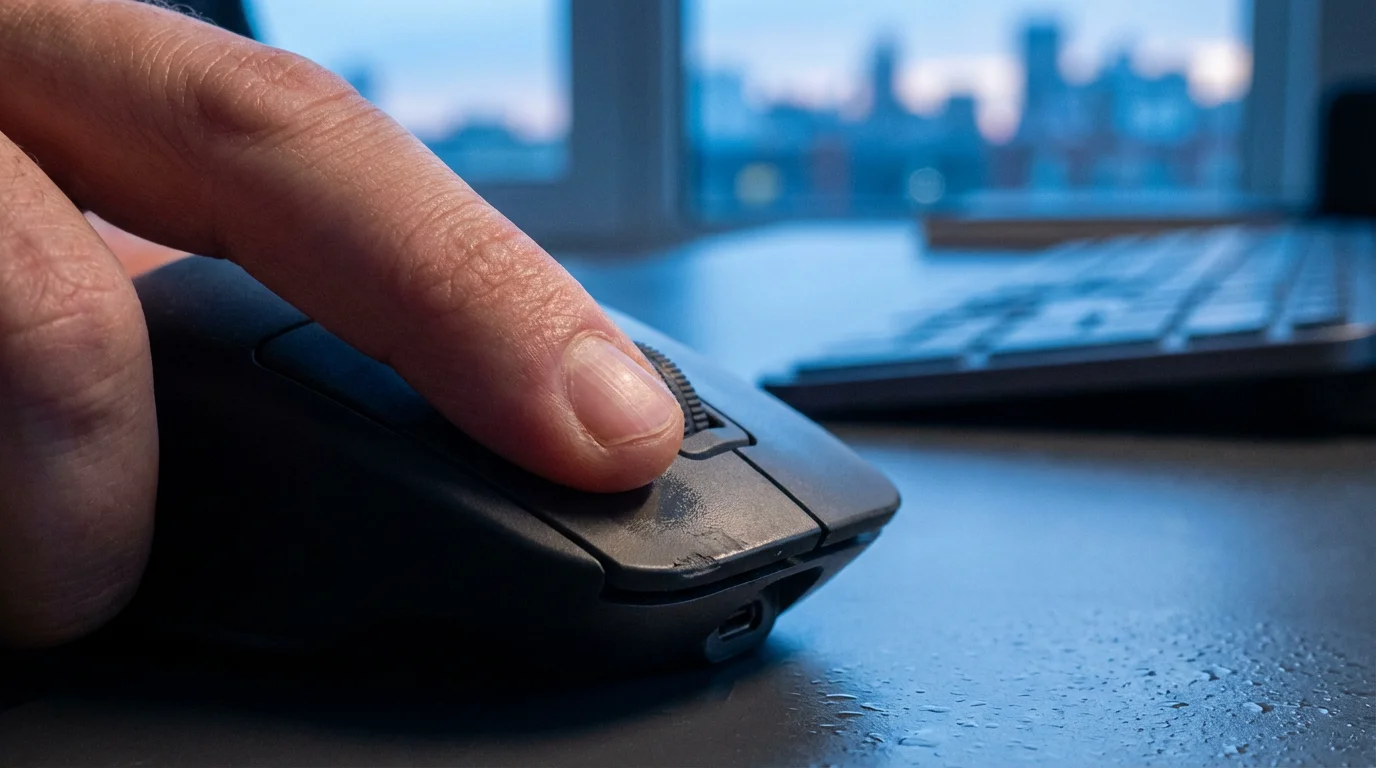
- Scroll Wheel: Located between the left and right buttons, this wheel helps you move up and down through documents and web pages quickly. You can also often press it like a third button for certain actions.
Proper Mouse Grip and Movement
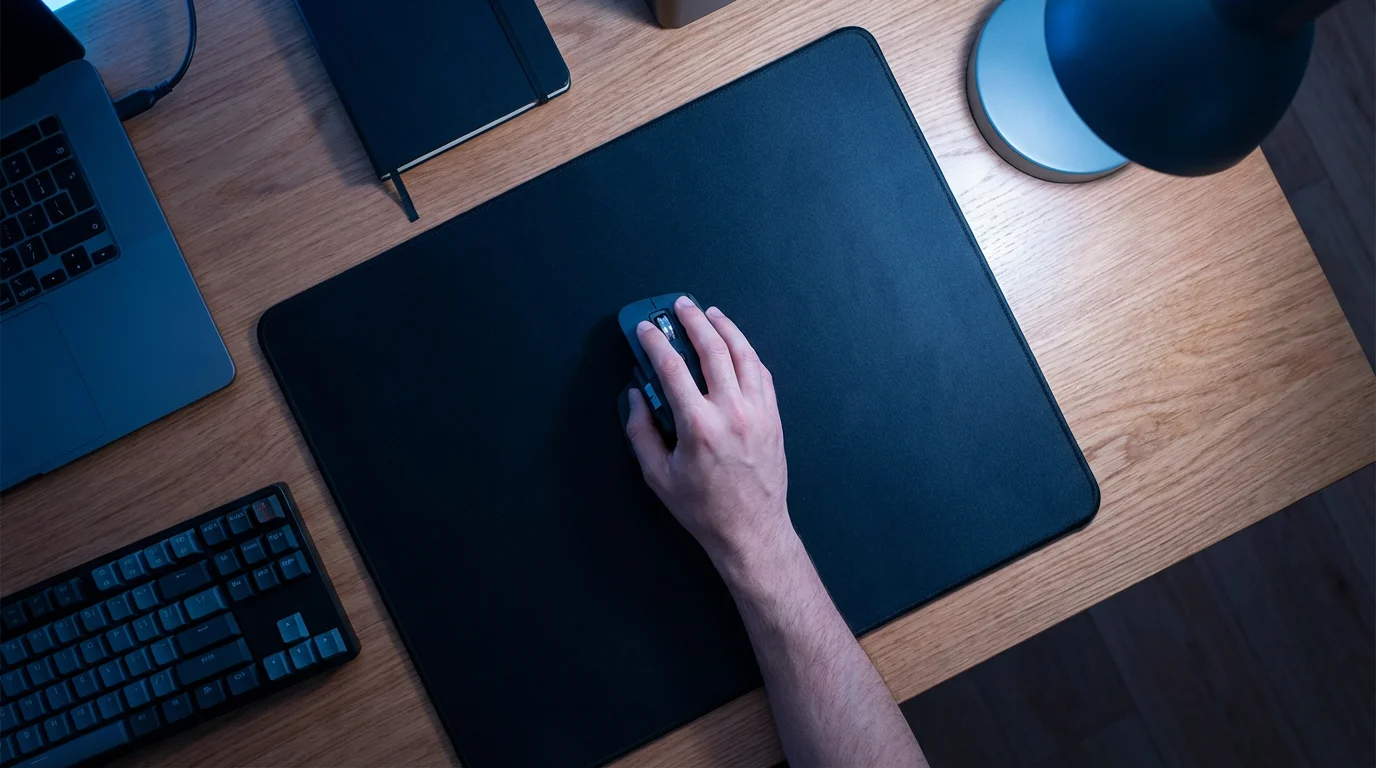
Holding your mouse correctly makes a big difference in comfort and control. Rest your entire hand gently over the mouse. Your index finger should rest on the left button, your middle finger on the right button, and your thumb should support one side of the mouse while your ring and pinky fingers support the other side. This comfortable, relaxed grip minimizes strain on your wrist and hand.
Move the mouse across your desk or a mouse pad, rather than just moving your wrist. Use your whole arm to guide the mouse smoothly. This technique helps prevent discomfort over time. Most modern mice work well on many surfaces, but a mouse pad provides a consistent, smooth area for the sensor, which can improve accuracy and protect your desk.

What You’ll See On Screen: The Mouse Pointer
As you move your physical mouse, you see a small arrow or another shape move across your computer screen. This is your mouse pointer, or cursor. It changes shape depending on what it is pointing at. For example, it might become a hand icon when hovering over a link on a website, indicating you can click it. It might turn into an I-beam shape when you are typing in a document, showing you where text will appear.

The Basics of Clicking
Clicking is the most fundamental action you perform with your mouse. You use the left mouse button for nearly all primary interactions.
Single-Click (Left Button)
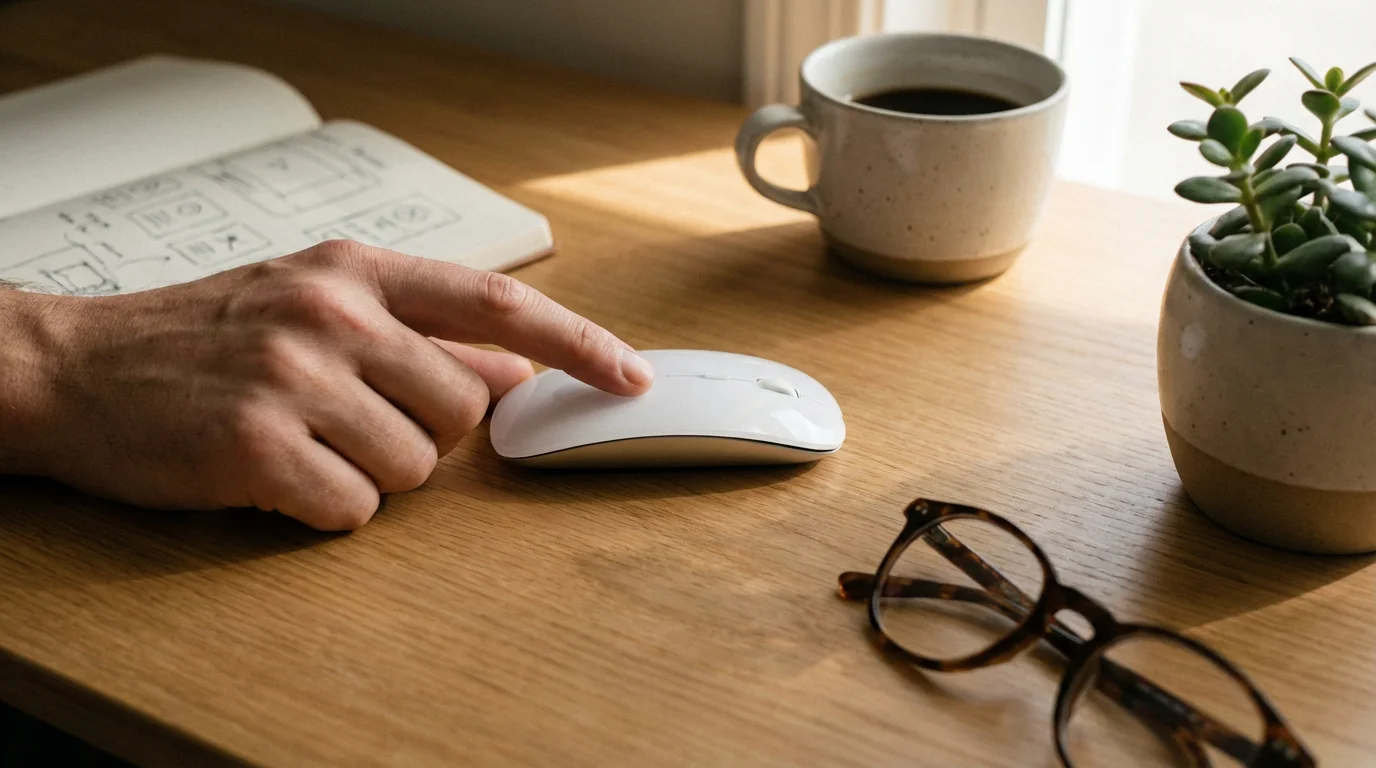
To “click” means to press the left mouse button once and then quickly release it. Use a single click to:
- Select an item: Point your mouse pointer at an icon, a folder, or a file, then click. The item highlights or changes color, showing that you have selected it.
- Activate a button or menu item: On a website or within a program, click buttons or menu options to trigger an action. For example, click “Save” to save a document or “Submit” to send an online form.
- Open a link: On a web page, click on text or an image that looks like a link, often underlined or a different color, to go to another page.

What You’ll See On Screen: Selecting and Launching
When you single-click a file on your desktop, it highlights. If you click a menu option, that option activates. For example, if you click the “Start” button in Windows, the Start Menu appears.
Double-Click (Left Button)
To “double-click” means to press the left mouse button twice quickly in a row. Double-clicking primarily serves to:
- Open programs, files, or folders: Point your mouse pointer at a program icon on your desktop, a document file, or a folder, then double-click it. The program will launch, the document will open in its associated program, or the folder will open to show its contents.
Do not worry if double-clicking feels tricky at first. Many people find it takes a little practice to get the timing right. If you click too slowly, your computer thinks you performed two single clicks instead of a double-click. You can adjust the double-click speed in your computer’s settings if you find it too fast or too slow.
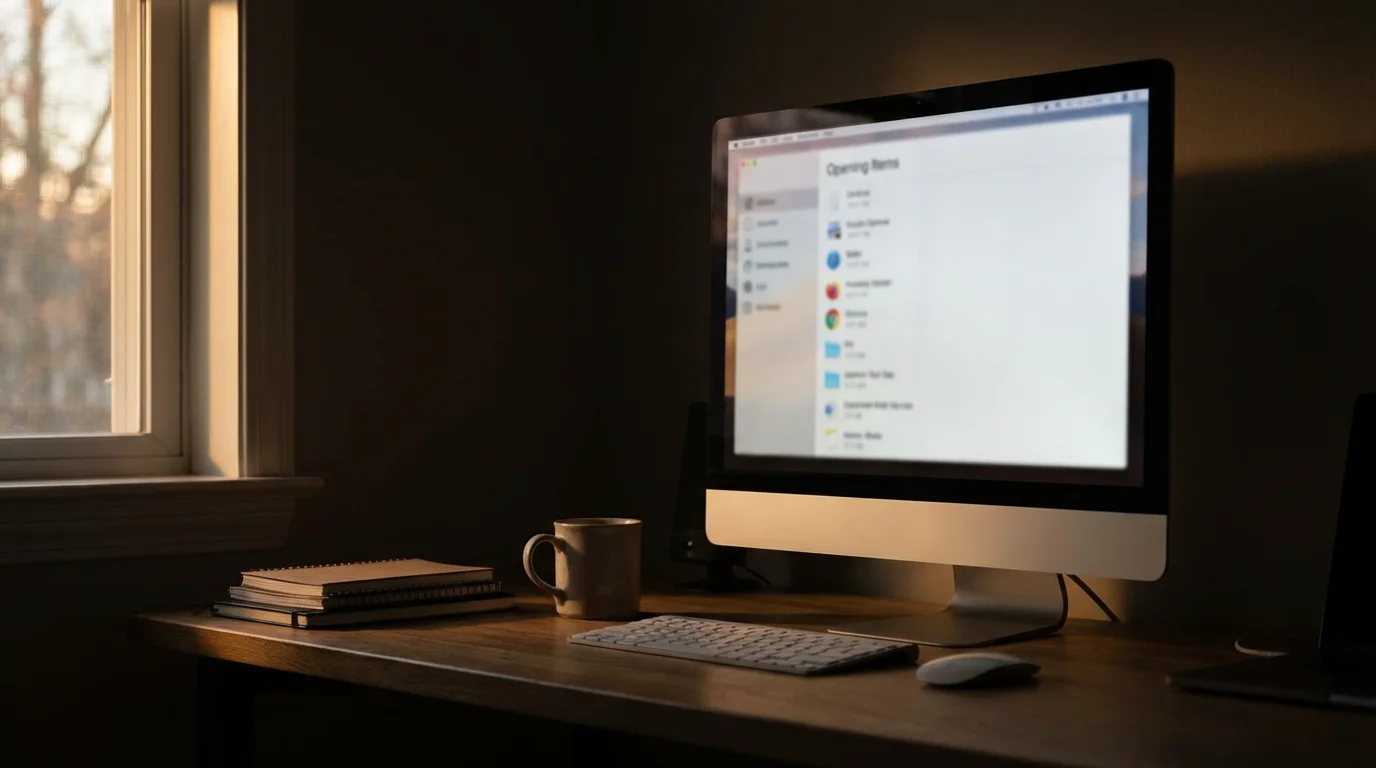
What You’ll See On Screen: Opening Items
When you double-click a program icon, you see the program window appear on your screen. When you double-click a folder, a new window opens showing the contents of that folder.
Mastering the Scroll Wheel
The scroll wheel between your left and right mouse buttons offers a quick way to move through content. This is incredibly helpful when reading long articles, browsing image galleries, or reviewing documents that extend beyond your screen’s view.
- Scroll Up: Roll the scroll wheel away from you to move the content on your screen upwards. This shows you information that was previously below your current view.
- Scroll Down: Roll the scroll wheel towards you to move the content on your screen downwards. This reveals information that was previously above your current view.
Some scroll wheels also allow you to press them like a button. This “middle-click” action often opens a link in a new tab in your web browser, which can be a convenient shortcut.

What You’ll See On Screen: Content Moving Smoothly
As you scroll, the text, images, and other elements on your web page or document move up or down smoothly. A scroll bar on the right side of the window also indicates your position within the content.
Understanding Right-Click: Context Menus
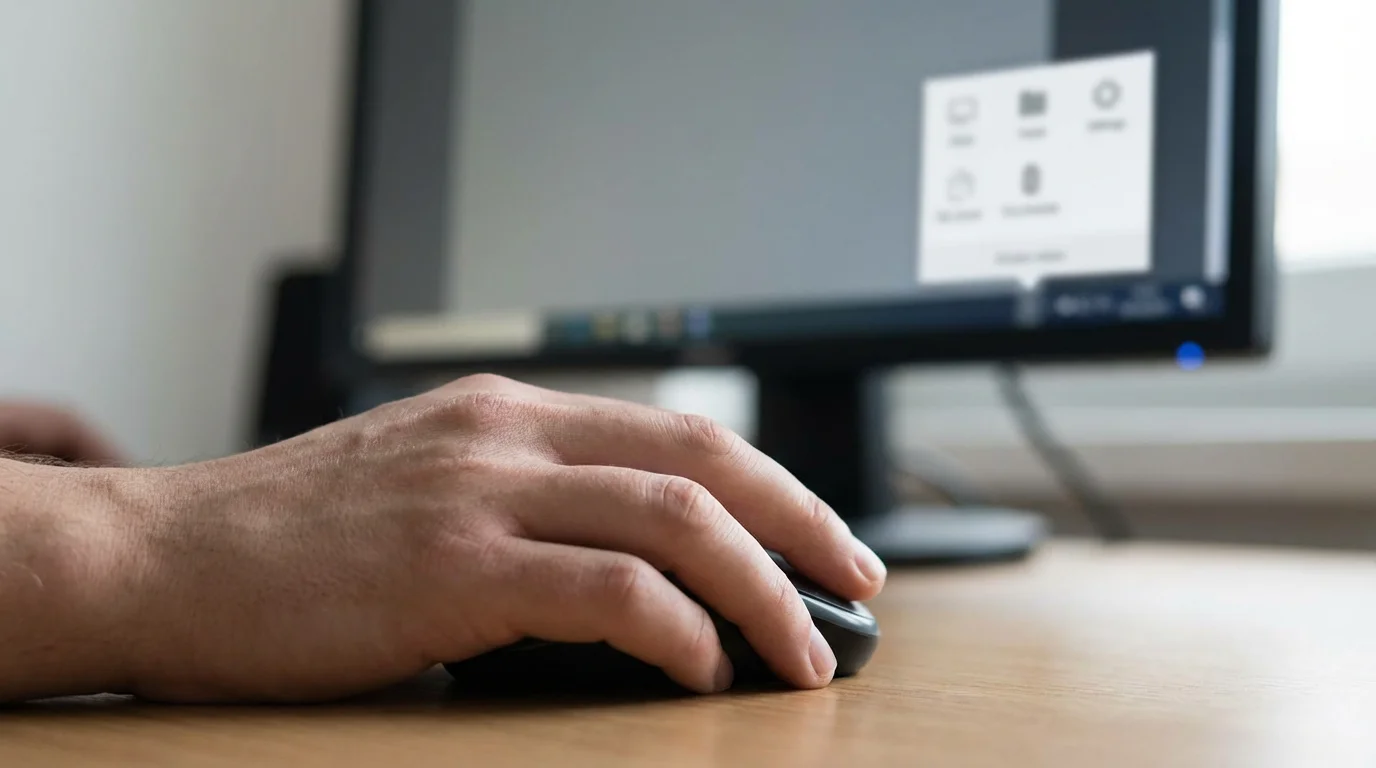
To “right-click” means to press the right mouse button once and then quickly release it. This action usually opens a special menu, known as a “context menu,” which offers options specific to the item your pointer is currently over.
For example:
- On a blank area of the desktop: Right-click to see options for arranging your icons, changing your desktop background, or adjusting display settings.
- On a file or folder: Right-click to find options like “Open,” “Cut,” “Copy,” “Paste,” “Delete,” “Rename,” or “Send To.” This menu provides quick ways to manage your files.
- On an image on a web page: Right-click to get options like “Save image as…” or “Copy image.”
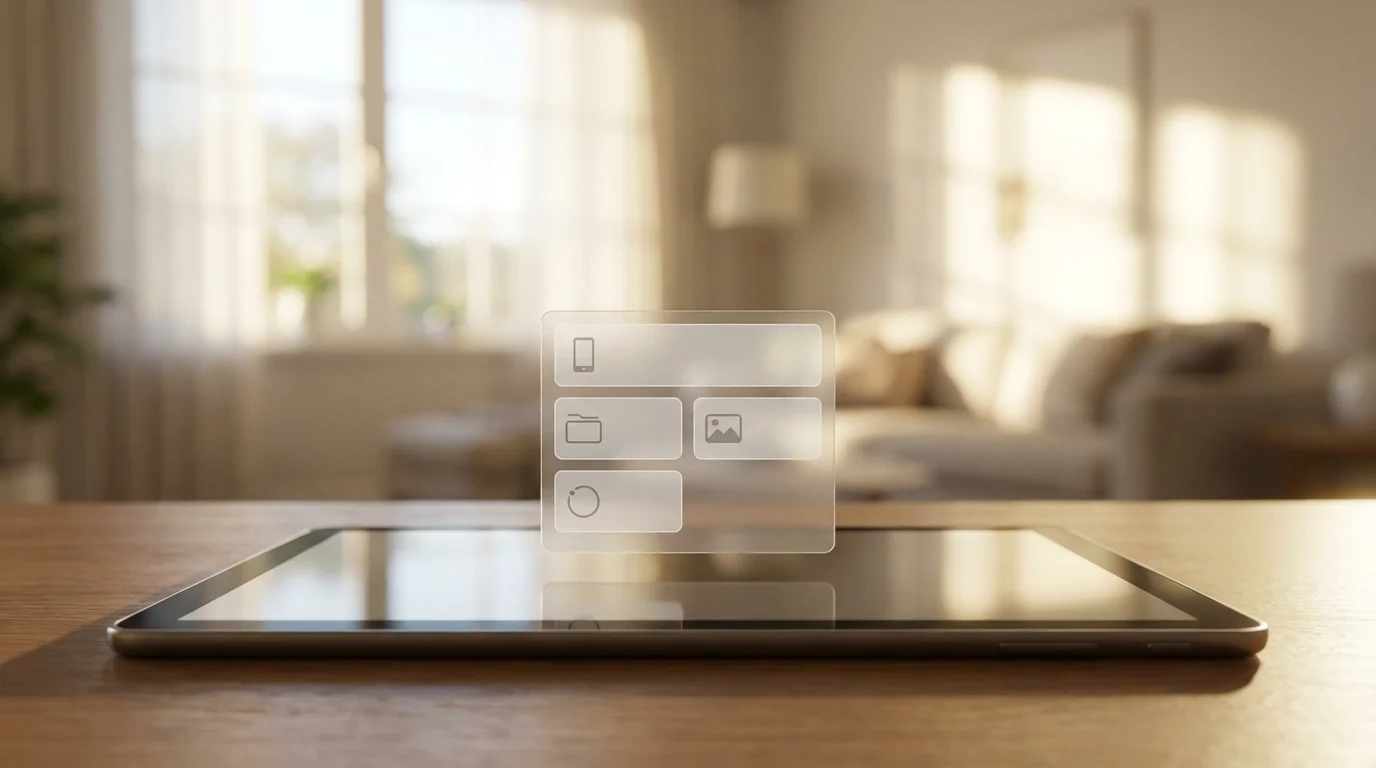
What You’ll See On Screen: A Pop-Up Menu
When you right-click, a small menu appears right next to your mouse pointer. This menu contains a list of actions you can take for the item you right-clicked. To choose an option, move your pointer to that option and single-click the left mouse button. To close the menu without selecting anything, simply click anywhere else on the screen, or press the Escape key on your keyboard.
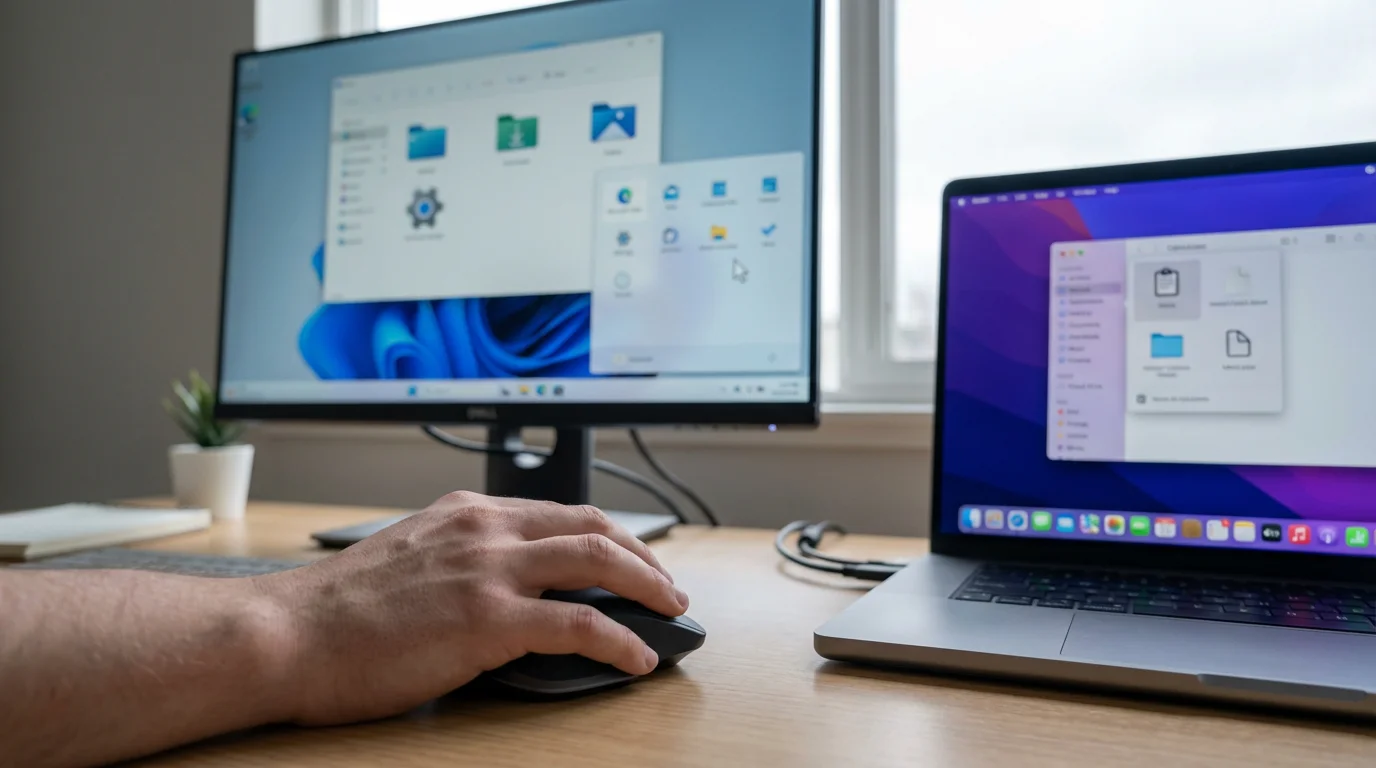
Operating System Specific Examples for Right-Click
- Windows 10/11: Right-click a blank area of the desktop, then click “Personalize” to change your background. Right-click a file in File Explorer, then click “Copy” to copy it.
- macOS: Right-click (or Control-click, holding down the Control key and clicking the left mouse button) an empty space on your desktop, then click “Change Desktop Background” to customize your display. Right-click a file in Finder, then click “Duplicate” to make a copy.
- Chrome OS: Right-click (or Alt-click, holding down the Alt key and clicking the left mouse button) on an item like a file in the Files app to see options. Right-click on your desktop to change your wallpaper or shelf position.

Dragging and Dropping Files
To “drag” an item means to hold down the left mouse button while moving the mouse. “Dropping” the item occurs when you release the mouse button. This technique allows you to move items around on your screen, organize files, or resize windows.
Here are common uses for dragging and dropping:
- Moving files and folders:
- Point your mouse pointer at a file or folder.
- Press and hold down the left mouse button.
- While still holding the button, move your mouse to drag the file or folder to a new location, such as another folder or the desktop.
- Release the left mouse button to “drop” the item in its new spot.
- Resizing windows:
- Move your mouse pointer to the edge or corner of an open window until the pointer changes into a double-headed arrow.
- Press and hold the left mouse button.
- Drag the edge or corner inwards or outwards to make the window smaller or larger.
- Release the left mouse button when the window is the size you want.
- Selecting multiple items:
- Click and hold the left mouse button on a blank area of your desktop or inside a folder window.
- Drag the mouse to draw a box around multiple files or icons.
- Release the mouse button. All items within the box become selected.

What You’ll See On Screen: Items Following Your Pointer
When you drag an item, you see its outline or a small icon of it moving along with your mouse pointer. This visual feedback shows you what you are moving and where it will land when you drop it.
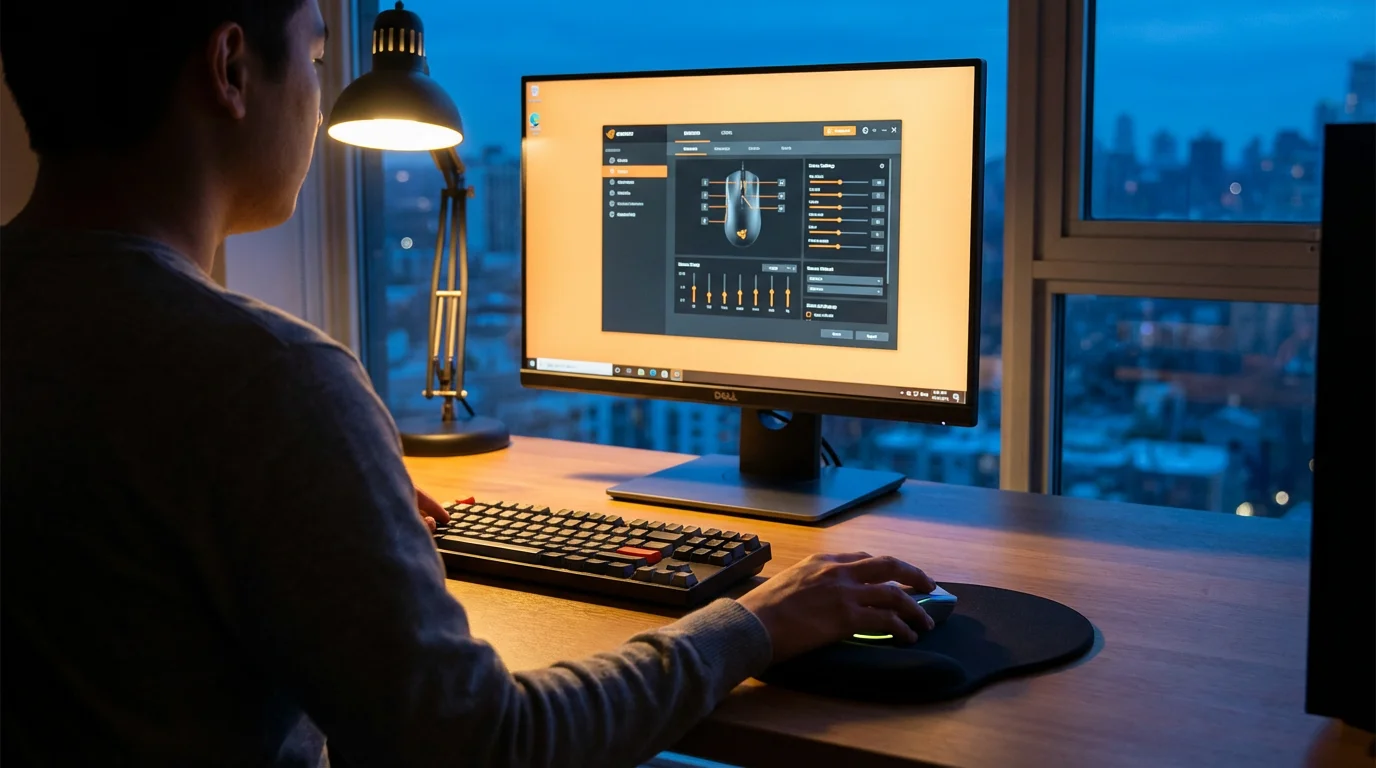
Mouse Settings and Customization
You can adjust how your mouse behaves to better suit your preferences. These settings allow you to change pointer speed, swap button functions for left-handed use, and customize other features.
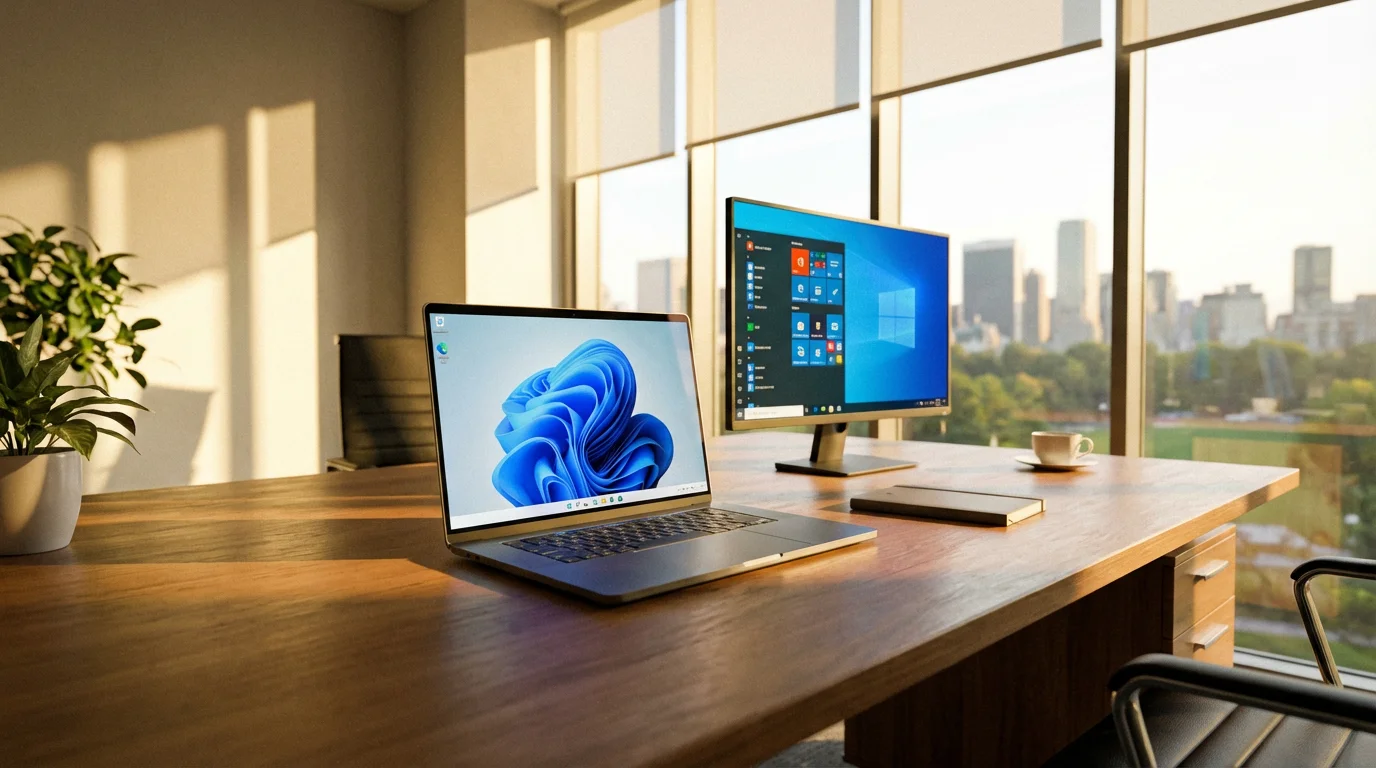
Windows 10/11
To adjust your mouse settings:
- Click the Start button (the Windows logo) on your taskbar, usually in the bottom left corner of your screen.
- Click Settings (the gear icon).
- In the Settings window, click Bluetooth & devices (Windows 11) or Devices, then Mouse (Windows 10).
- Here you find options like:
- Primary mouse button: Change this from “Left” to “Right” if you are left-handed and prefer your main click on the right button.
- Mouse pointer speed: Adjust the slider to make your pointer move faster or slower across the screen.
- Scroll wheel settings: Control how many lines scroll at a time.
You can also type “Mouse settings” into the search bar next to the Start button for quick access.
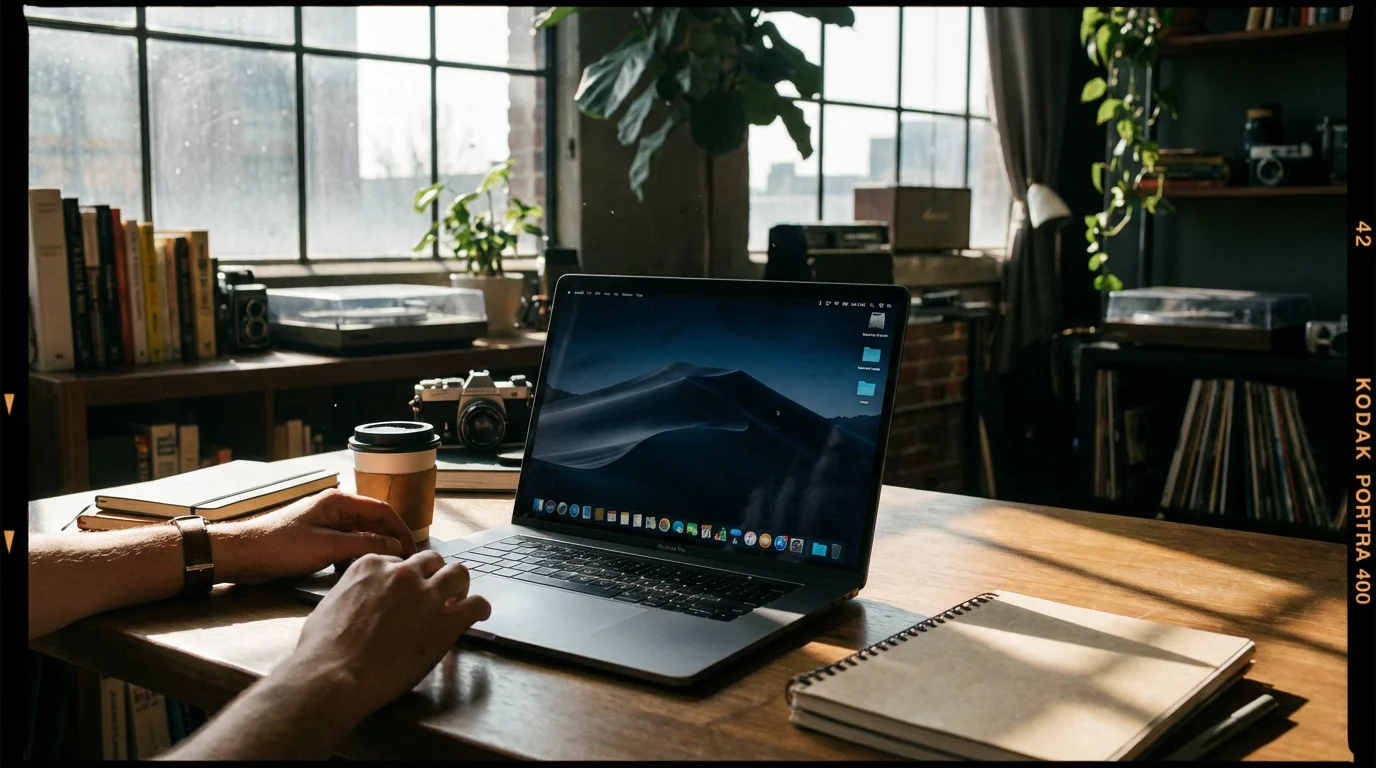
macOS
To customize your mouse settings on a Mac:
- Click the Apple menu in the top left corner of your screen.
- Click System Settings (macOS Ventura or newer) or System Preferences (older macOS versions).
- Click Mouse.
- Here you can adjust:
- Tracking speed: This controls how fast your pointer moves.
- Scrolling speed: Adjust how quickly content scrolls with the scroll wheel.
- Primary mouse button: Switch between “Left” and “Right” for your main click.
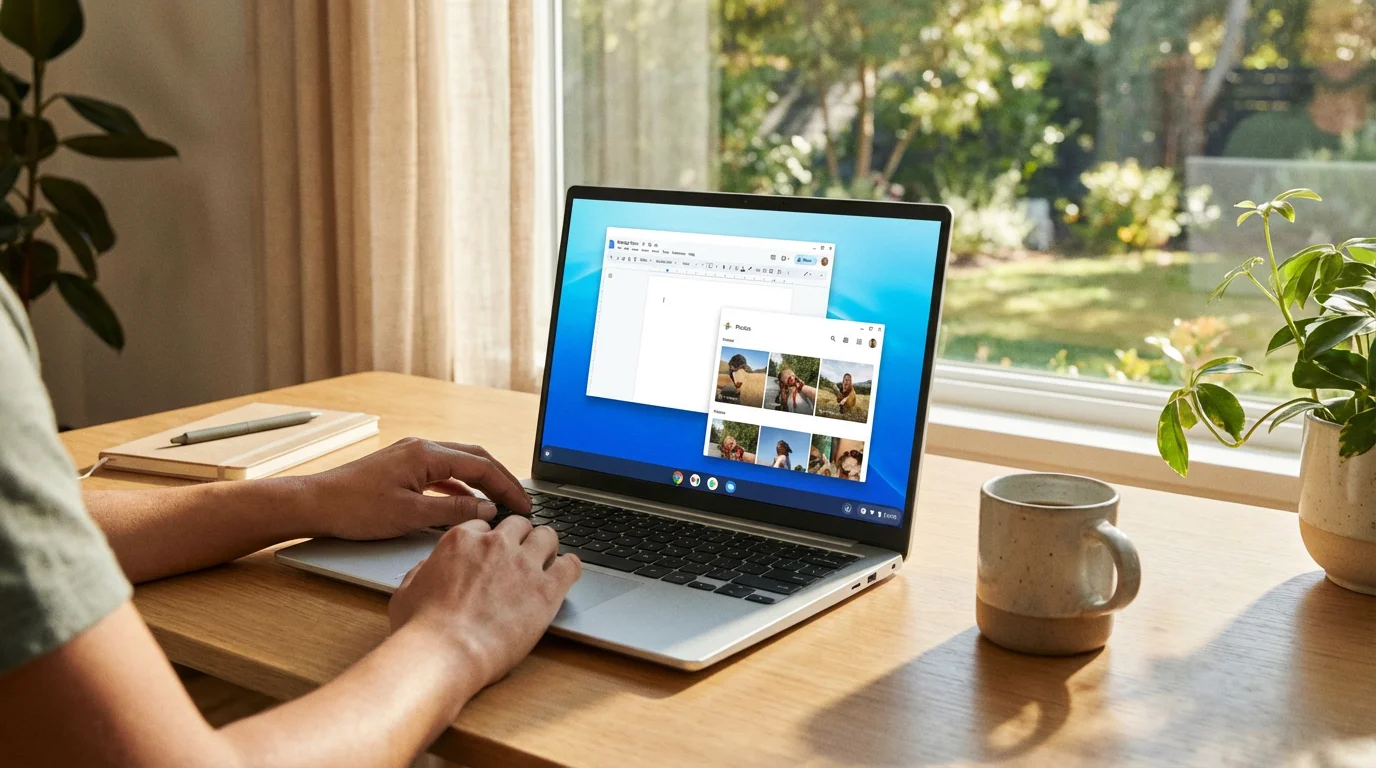
Chrome OS
Even though Chromebooks often use a trackpad, you can still connect and customize a mouse:
- Click the time in the bottom right corner of your screen to open the Quick Settings panel.
- Click the gear icon to open Settings.
- On the left side, click Device.
- Click Mouse and touchpad.
- You can adjust settings such as:
- Mouse speed: Control how quickly the pointer moves.
- Primary mouse button: Switch the function of your left and right buttons.
Common Mouse Problems and Solutions
Sometimes your mouse might not behave as expected. Do not worry, many common issues have simple fixes.
- Problem: The mouse pointer is not moving at all.
- Solution for Wired Mouse: Make sure the USB cable is securely plugged into your computer. Try plugging it into a different USB port.
- Solution for Wireless Mouse: Check the batteries. Replace them if needed. Ensure the small USB receiver (dongle) is firmly plugged into a USB port on your computer. If it uses Bluetooth, ensure Bluetooth is turned on in your computer’s settings and the mouse is paired. Try turning the mouse off and on using its power switch, often found on the bottom.
- Problem: The mouse pointer moves erratically or jumps around.
- Solution: Clean the optical sensor on the bottom of your mouse. Dust or debris can interfere with its tracking. Use a soft, dry cloth. Also, ensure you use your mouse on a clean, consistent surface, like a mouse pad, rather than a glossy table or reflective surface.
- Problem: Clicking does not work or feels unresponsive.
- Solution: Test the clicks on different parts of your screen or in different programs. If only one button is unresponsive, you might have a hardware issue, or it could be a software glitch. Restarting your computer often resolves temporary software issues.
- Problem: The scroll wheel is not working.
- Solution: Try scrolling in different applications or web browsers. If it still does not work, it might indicate a hardware problem with the scroll wheel, or the mouse might need a cleaning around the wheel mechanism.
If these basic troubleshooting steps do not resolve your issue, it might be time to consider replacing your mouse. They are generally affordable peripherals.
Frequently Asked Questions
Q: What if my mouse pointer moves too fast or too slow?
A: You can easily adjust the pointer speed in your computer’s settings. For Windows 10/11, go to Start > Settings > Bluetooth & devices > Mouse, then adjust the “Mouse pointer speed” slider. For macOS, go to Apple menu > System Settings (or System Preferences) > Mouse, and adjust the “Tracking speed.” For Chrome OS, go to Quick Settings > Settings > Device > Mouse and touchpad, then adjust “Mouse speed.”
Q: Can I use a mouse if I am left-handed?
A: Yes, absolutely! Most operating systems allow you to swap the functions of the left and right mouse buttons. This makes the right button your primary click and the left button your secondary (context menu) click. You can find this option in your computer’s mouse settings as described in the “Mouse Settings and Customization” section.
Q: My mouse isn’t working, what should I do first?
A: Start by checking the basics. If it is a wired mouse, ensure the cable is firmly plugged into a USB port. If it is wireless, check the batteries and make sure the USB receiver is plugged in or Bluetooth is connected. Sometimes, simply restarting your computer can resolve many temporary issues. Also, check for any debris on the mouse’s optical sensor.
Q: What is the difference between a wired and wireless mouse?
A: A wired mouse connects to your computer with a physical cable, draws power from the computer, and does not require batteries. A wireless mouse connects without a cable, either via a small USB receiver or Bluetooth, offering more freedom of movement but requiring batteries to operate. Performance is generally similar for most users.
Q: Do I need a special mouse pad?
A: While not always strictly necessary, a mouse pad provides a consistent, non-reflective surface that can improve the accuracy of your mouse’s optical or laser sensor. It also helps reduce wear and tear on your desk surface and can offer added wrist comfort, especially if it has a padded rest. Any clean, smooth, non-glossy surface usually works well, but a dedicated mouse pad often enhances the experience.

When to Seek Help
Learning new technology takes time, and sometimes you encounter problems that feel too complex to solve on your own. Do not hesitate to ask for assistance when you get stuck.
- Reach out to a tech-savvy family member or friend: They can often provide hands-on help and offer personalized advice.
- Consult official support resources: Websites like Microsoft Support or Apple Support offer comprehensive guides and troubleshooting for specific issues related to your operating system. For general technology help, GCFGlobal — Technology Tutorials provides many free lessons.
- Visit a local computer repair shop: For persistent hardware problems or complex software issues, a professional can diagnose and fix the problem for you.
- Explore community resources: Organizations like Senior Planet from AARP offer technology courses and support specifically tailored for older adults.
Remember, the goal is for you to feel comfortable and confident using your computer. Taking small steps and seeking help when needed keeps your learning journey positive and productive.
Disclaimer: This article is for informational purposes only. Your computer’s screens may look slightly different depending on your operating system version and settings. When in doubt, consult official support resources or ask someone you trust for help.








Leave a Reply