
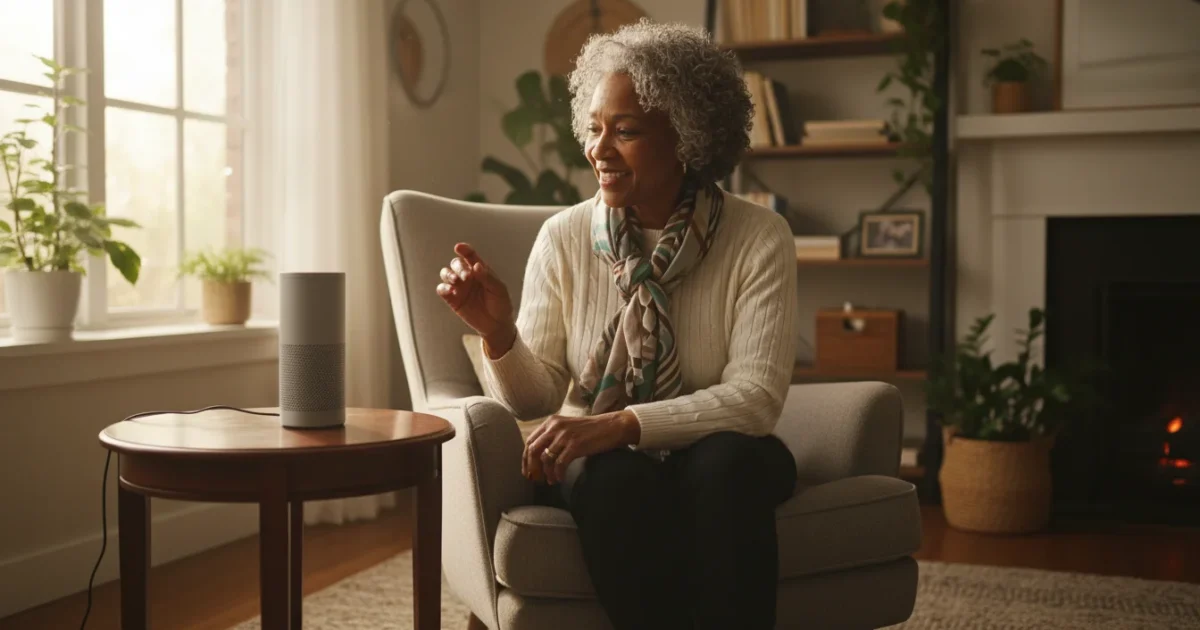
The Amazon Echo, powered by its voice assistant, Alexa, brings a new level of convenience and connection into your home. You might find yourself curious about this technology, wondering if it can genuinely simplify your daily routines or just add another gadget to the counter. This guide helps you understand what an Amazon Echo does and how to get it working in your home. We focus on real benefits, ease of use, and addressing common concerns, ensuring you make an informed decision and feel confident using your new device.
Setting up your Amazon Echo opens up a world of hands-free assistance. From checking the weather to calling family members or even controlling your lights, Alexa offers practical help. This article walks you through the entire process, from unboxing to exploring useful commands, all while keeping your needs and comfort in mind.
Table of Contents
- What Is an Amazon Echo and What Can It Do?
- Is an Amazon Echo Right for You?
- What You’ll Need to Get Started with Your Amazon Echo
- Step-by-Step Amazon Echo Setup Guide
- Useful Things to Try with Your Amazon Echo (Alexa for Beginners)
- Understanding Privacy and Security with Alexa
- Common Problems and Simple Solutions
- Frequently Asked Questions
- Making the Most of Your Amazon Echo
What Is an Amazon Echo and What Can It Do?
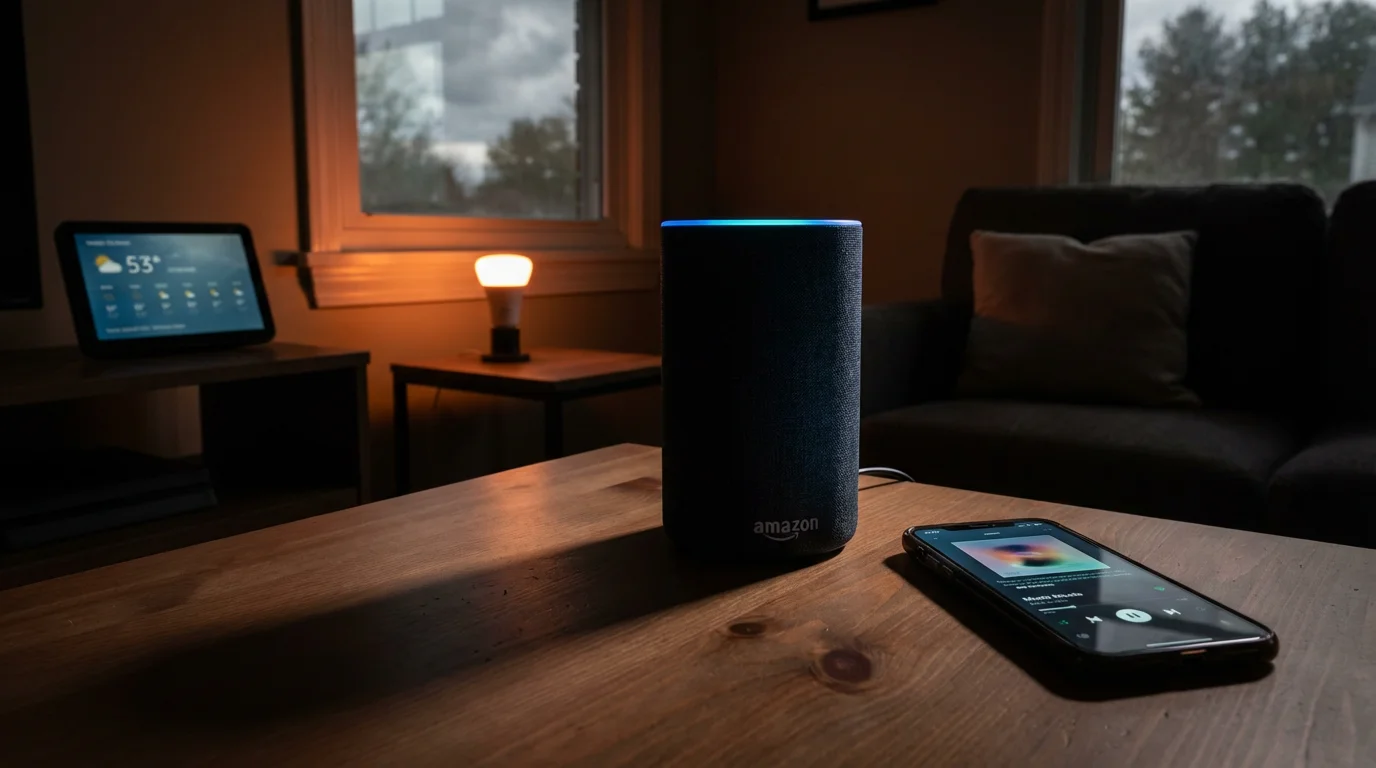
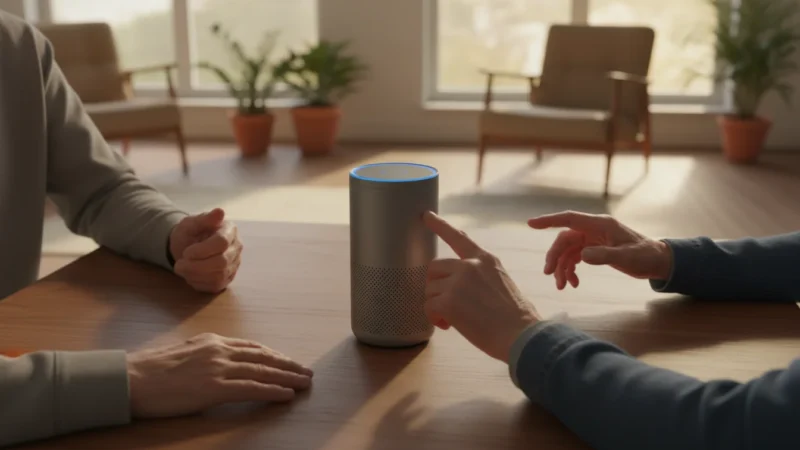
An Amazon Echo is a smart speaker, meaning it is a speaker you can talk to that responds to your voice. Alexa is the voice assistant, the software that listens and responds to your commands. You activate Alexa by saying “Alexa” followed by your request. Amazon offers various Echo models, including the compact Echo Dot, the standard Echo, and the Echo Show which includes a screen.
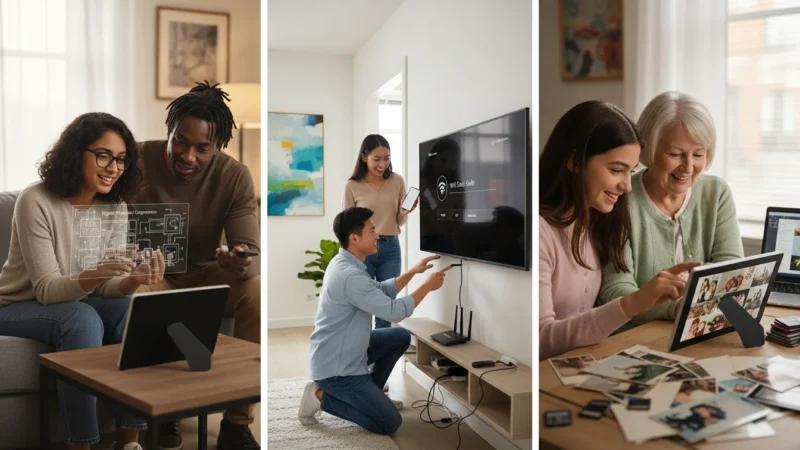
It can even act as a remote control for your television if you connect it to a streaming device like a Fire TV stick or Roku.
In addition to lighting, many seniors install a smart thermostat to control their home heating using simple voice commands.
For families who don’t use Echo devices, you might also find it helpful to set up WhatsApp for messaging and video calls on your smartphone.
Models with a screen, like the Echo Show, can also double as digital photo frames to display your favorite family pictures when not in use.
People use their Amazon Echo devices for many practical purposes, simplifying daily tasks and enhancing home life. Here are some key capabilities:
- Hands-Free Communication: You can ask Alexa to call your daughter, son, or grandchildren without touching a phone. You just say, “Alexa, call [contact name],” and it dials for you. This offers immense help if you have mobility issues or simply prefer a hands-free approach.
- Information and News: Get instant answers to questions like “Alexa, what’s the weather today?” or “Alexa, what’s happening in the news?” Alexa provides current information, keeping you informed and connected.
- Entertainment: Listen to your favorite music, audiobooks, or podcasts simply by asking. Say, “Alexa, play classical music” or “Alexa, play my audiobook.” This creates an easy way to enjoy your preferred audio content without navigating complex apps.
- Timers and Reminders: Set multiple timers for cooking, medication, or appointments. For example, “Alexa, set a timer for 20 minutes” or “Alexa, remind me to take my medication at 8 AM.” This helps you manage your schedule and tasks effectively.
- Smart Home Control: If you add compatible smart devices like smart plugs or light bulbs, you can control them with your voice. “Alexa, turn off the living room lights” gives you effortless control, particularly useful if you find reaching light switches difficult.
- Shopping and Lists: Maintain shopping lists by simply telling Alexa what you need. “Alexa, add milk to my shopping list” automatically updates your list, making grocery trips simpler.
A recent study found that 76% of older adults who own smart speakers report improved quality of life due to increased convenience and connectivity.
Is an Amazon Echo Right for You?
Deciding if an Amazon Echo fits into your life involves considering your needs and comfort level with new technology. It offers significant advantages for certain individuals, making daily routines smoother and more accessible. However, it is not a perfect fit for everyone.
For those who enjoy hands-free technology, you might also like using voice control on your iPhone to navigate your mobile device without typing.
If you plan to use Alexa for purchasing, it is important to review how to shop on Amazon safely to protect your account and personal information.
If you are still weighing your options, you may want to compare the Echo with Google Nest to see which smart speaker ecosystem feels more intuitive for you.
You will likely benefit from an Amazon Echo if you:
- Seek More Convenience: The hands-free operation truly stands out. Imagine calling a loved one, checking the time, or getting a weather update without having to locate your phone or put on your glasses. This makes many daily tasks much simpler.
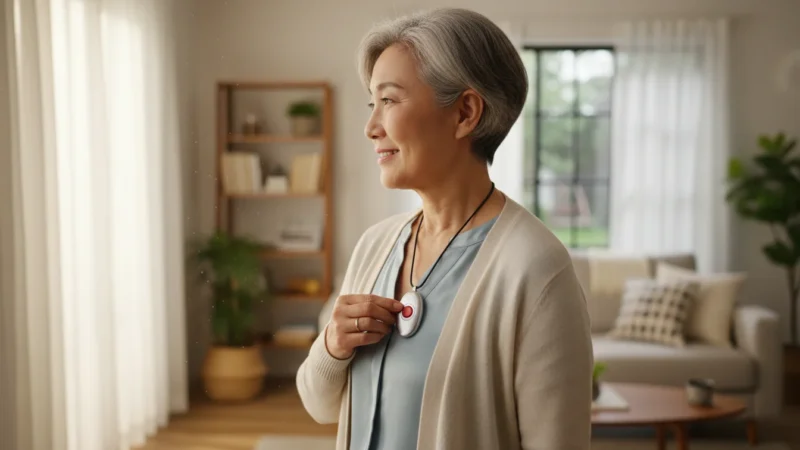
- Value Enhanced Safety and Accessibility: For those with limited mobility, an Echo can be a game-changer. You can control lights, set reminders for medication, or even make calls if you have fallen and cannot reach your phone. While not a replacement for a medical alert system, it adds a layer of reassurance.
- Enjoy Entertainment: If you love listening to music, audiobooks, or podcasts, an Echo provides an incredibly easy way to access them. You simply ask for what you want to hear.
- Want to Stay Connected: Making voice and video calls (on Echo Show models) to friends and family becomes effortless. It removes barriers for communication, especially for those living alone.
- Are Curious About Technology: Even if you consider yourself a beginner with technology, the voice-command interface is often intuitive. The learning curve is surprisingly gentle for basic commands.
An Amazon Echo might present challenges if you:
- Do Not Have Reliable Wi-Fi: The Amazon Echo requires a stable Wi-Fi connection to function. If your home internet is inconsistent or nonexistent, the device will not work properly.
- Prefer Not to Use Voice Commands: Some people simply prefer physical buttons and screens. While Echo Show models offer a visual interface, the primary interaction remains voice-based.
- Are Deeply Concerned About Privacy: While you have control over your privacy settings (which we discuss later), the idea of a device listening for a wake word can cause unease for some individuals.
The cost of an Amazon Echo varies by model. An Echo Dot, a popular entry-level option, typically costs between $30 and $60. Larger Echo speakers or Echo Show devices with screens range from $70 to $250 or more. You do not pay a monthly fee for basic Alexa functionality. You only pay extra if you subscribe to premium services like Amazon Music Unlimited or certain skill subscriptions.
What You’ll Need to Get Started with Your Amazon Echo
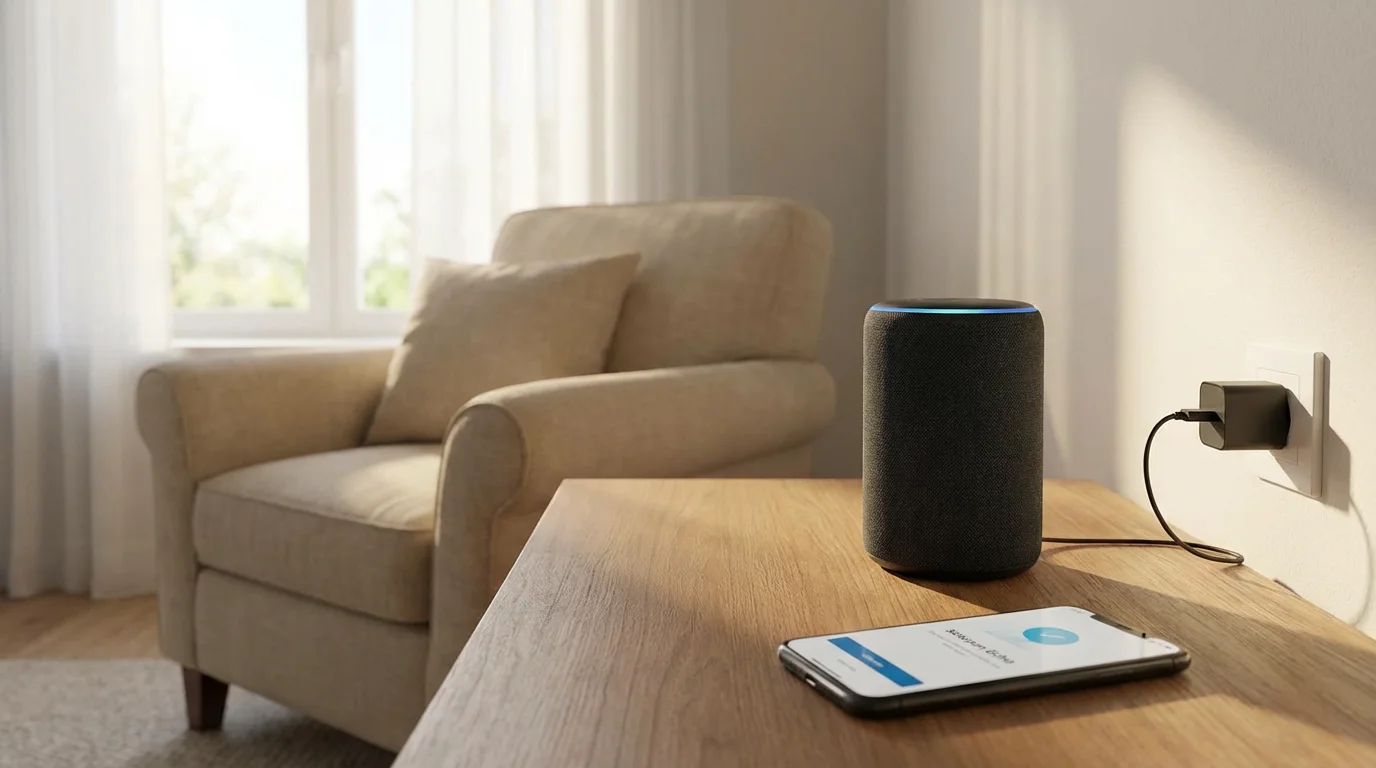
Before you unbox your new Amazon Echo, gather a few essential items. Having these ready ensures a smooth setup process.
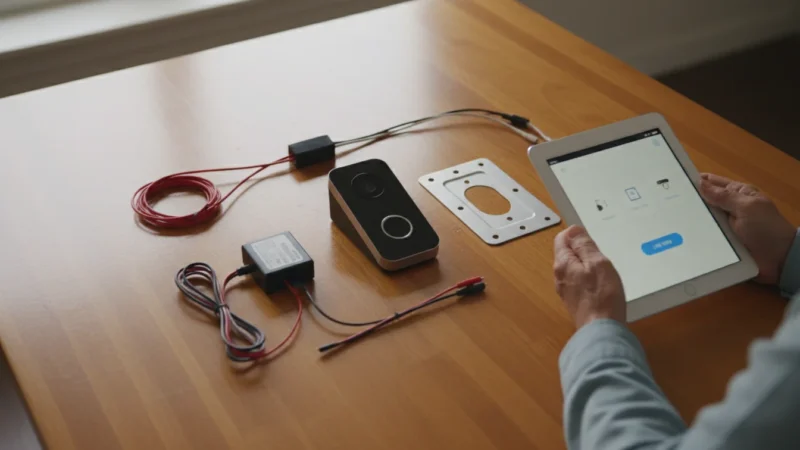
Adding other security features, such as setting up a video doorbell, can allow you to see who is at your door directly on an Echo Show screen.
- A Stable Wi-Fi Connection: Your Amazon Echo needs a wireless internet connection in your home to access information, play music, make calls, and perform all its functions. Ensure your Wi-Fi is working reliably. If you can browse the internet on your phone or computer at home, your Wi-Fi is likely ready for the Echo.
- A Smartphone or Tablet: You use a companion app, the Amazon Alexa app, to set up your Echo. This app is available for free on both Apple (iPhone/iPad) and Android (Samsung, Google Pixel, etc.) devices. You need a smartphone or tablet to download and open this app for the initial setup.
- An Amazon Account: You need a free Amazon account to register your Echo device and link it to your profile. If you already shop on Amazon, you have an account. If not, you can create one during the setup process or beforehand at amazon.com.
- A Power Outlet: An obvious but crucial point, your Echo requires continuous power. Choose a location for your Echo near an available electrical outlet.
- Your Wi-Fi Network Name and Password: You will need this information to connect your Echo to your home internet. Look for this on a sticker on your router, or consult your internet service provider’s documentation.

Step-by-Step Amazon Echo Setup Guide
Setting up your Amazon Echo is a straightforward process, primarily guided by the Alexa app on your smartphone or tablet. Follow these steps carefully to get your smart speaker up and running.
Step 1: Unbox and Power On Your Echo Device
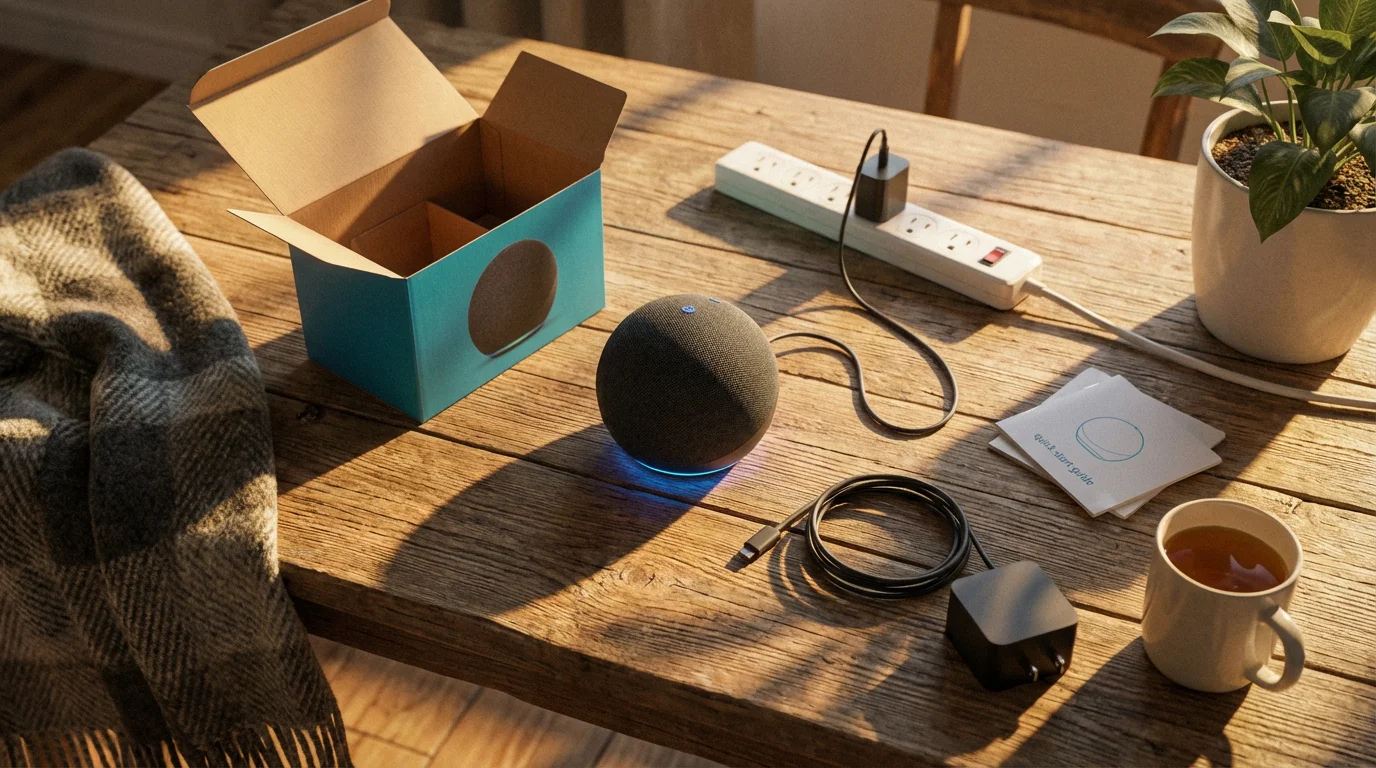
Carefully remove your Amazon Echo from its packaging. Locate the power adapter that came with your device. Plug the small end of the power adapter into the back of your Echo and the other end into a wall outlet. Your Echo will light up, often with a blue ring, and Alexa will greet you, indicating it is powered on and ready for setup. It might speak to you, saying something like, “Hello, I am ready for setup.”

Step 2: Download and Open the Alexa App
If you have an iPhone or iPad, open the “App Store.” If you have an Android phone or tablet, open the “Google Play Store.” Search for “Amazon Alexa” and download the app. It is free. Once the download completes, open the Alexa app. You will see a prompt to sign in with your Amazon account. Use your Amazon email address and password.
Step 3: Add Your New Echo Device in the App
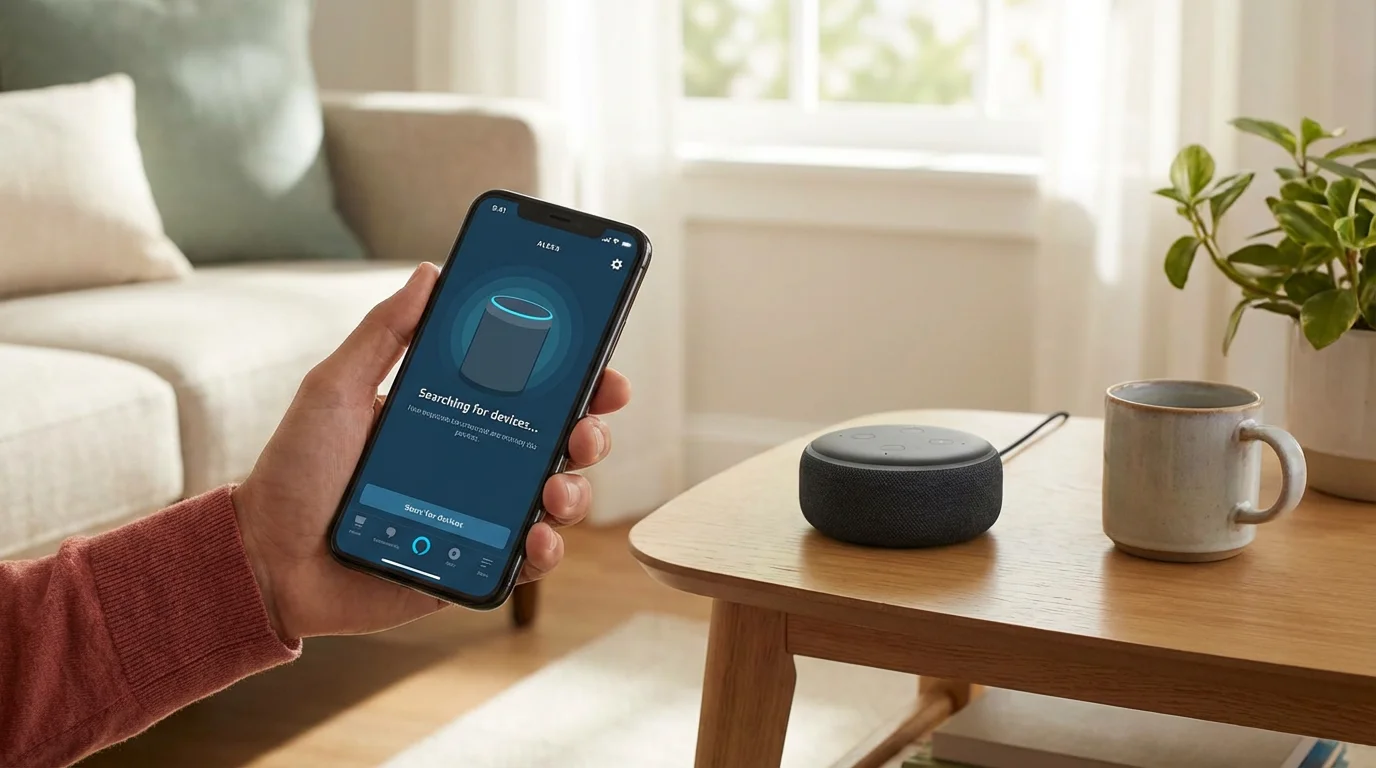
After signing into the Alexa app:
- Look for the “Devices” tab at the bottom right of the screen. Tap it.
- Tap the “+” icon (plus sign) in the top right corner.
- Select “Add Device.”
- Choose “Amazon Echo” from the list of device types.
- Select the specific Echo model you are setting up (e.g., Echo Dot, Echo, Echo Show).
Step 4: Connect Your Echo to Your Wi-Fi Network
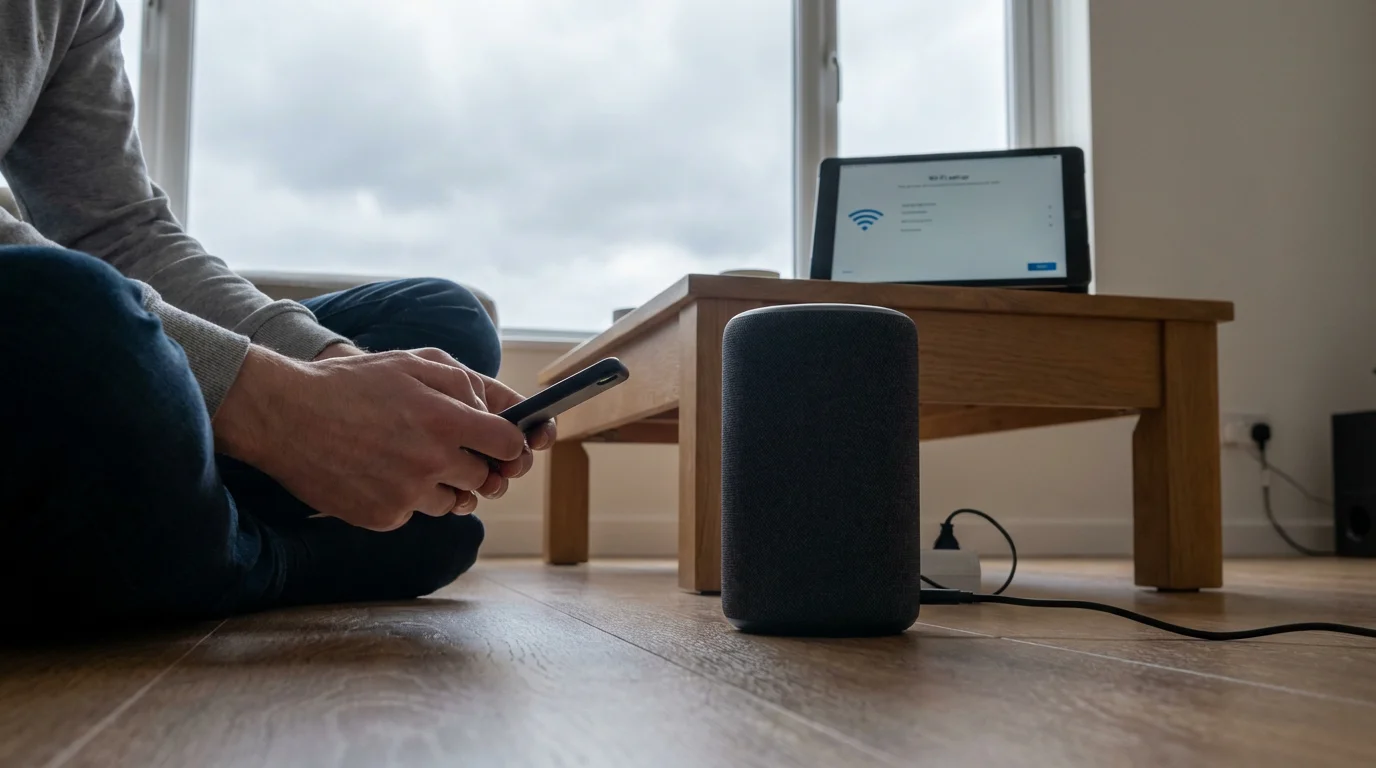
The Alexa app now guides you through connecting your Echo to your home Wi-Fi:
- The app asks you to confirm your Echo is powered on and showing an orange light (this means it is in setup mode). If the light is not orange, press and hold the action button (usually a small button on top of the device with a dot icon) for a few seconds until it turns orange.
- Your phone or tablet temporarily connects to your Echo. Follow the on-screen prompts.
- The app displays a list of available Wi-Fi networks. Select your home Wi-Fi network from the list.
- Enter your Wi-Fi password when prompted. Be careful to type it exactly as it appears.
- Tap “Connect.”
Your Echo connects to the internet. Alexa will confirm, “Your Echo is now connected to the internet.” The light ring on your Echo usually turns blue, then off, indicating it is ready to use.

Step 5: Personalize Your Echo (Optional but Recommended)
The app offers further personalization:
- Device Location: Assign your Echo to a room (e.g., “Living Room Echo,” “Kitchen Echo”). This helps if you have multiple Echo devices.
- Confirm Your Time Zone: Ensure the time is accurate.
- Name Your Device: Give your Echo a recognizable name, especially useful if you plan to get more devices later.
You have now completed the Alexa setup. Your Amazon Echo is ready for use! You can now start interacting with it using your voice.
Useful Things to Try with Your Amazon Echo (Alexa for Beginners)
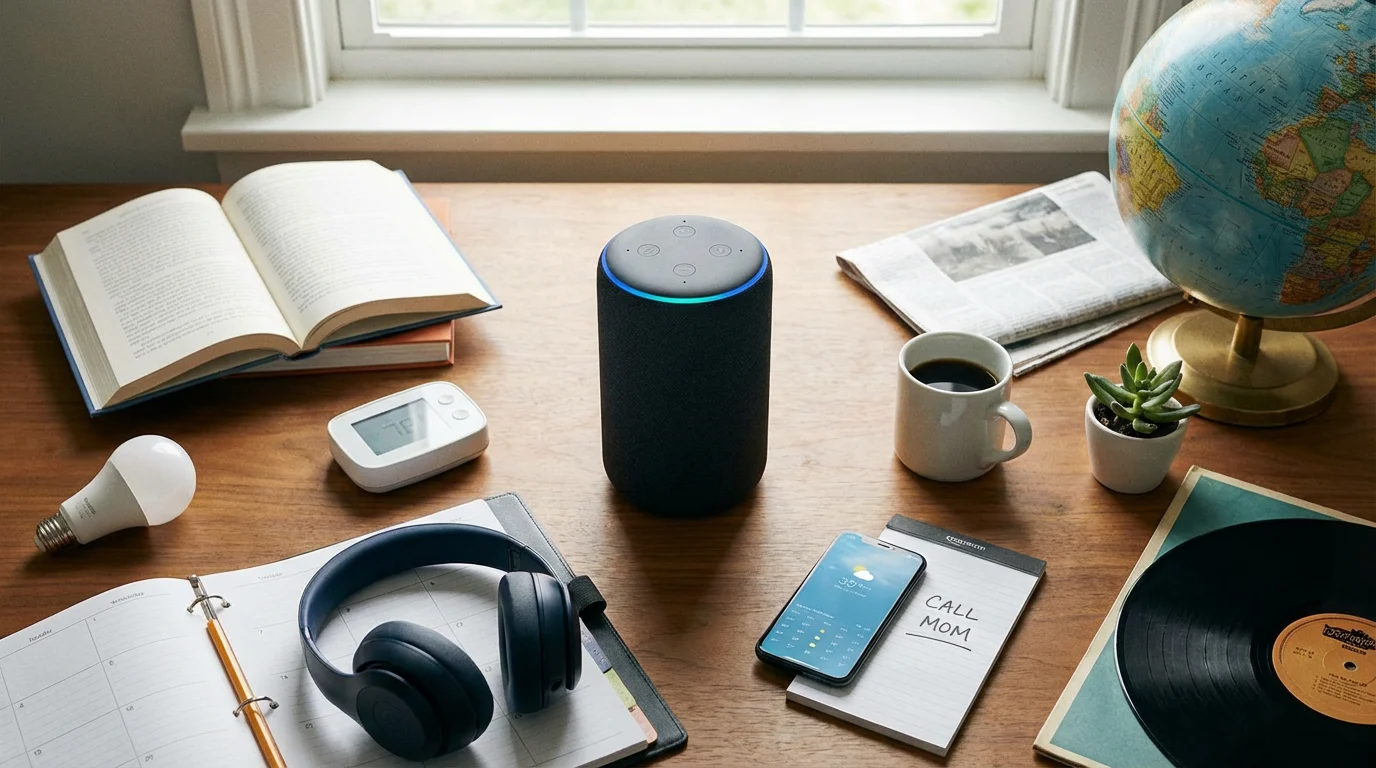
Now that you have successfully set up your Amazon Echo, you can start exploring its practical capabilities. Here are some simple, yet highly useful, commands to get you started. Remember to say “Alexa” before each command.
Everyday Essentials:
- “Alexa, what’s the weather like today?” Get the local forecast instantly.
- “Alexa, what time is it?” Perfect for a quick check.
- “Alexa, set a timer for 15 minutes.” Great for cooking, baking, or reminding yourself about tasks.
- “Alexa, set an alarm for 7 AM.” Use it as a gentle wake-up call.
- “Alexa, tell me the news.” Hear a brief summary of current events. You can often customize your preferred news sources in the Alexa app.
Communication and Connection:
- “Alexa, call Dad.” Make a hands-free call to a contact in your phone, if you have granted the Alexa app access to your contacts. You can set up specific contacts in the Alexa app under “Communicate.”
- “Alexa, announce dinner is ready.” If you have multiple Echo devices in your home, Alexa broadcasts your message to all of them.
Entertainment and Information:
- “Alexa, play some classical music.” Enjoy music from various streaming services.
- “Alexa, play [artist name].” Listen to specific artists.
- “Alexa, tell me a joke.” A lighthearted way to brighten your day.
- “Alexa, what’s the capital of France?” Ask it general knowledge questions.
- “Alexa, play the audiobook ‘The Old Man and the Sea’.” If you have an Audible account linked to your Amazon account, Alexa can play your audiobooks.
Smart Home Control (if you have compatible devices):
- “Alexa, turn on the living room lights.” Control smart light bulbs or smart plugs connected to lamps.
- “Alexa, dim the bedroom lights to 50 percent.” Adjust brightness for smart bulbs.
- “Alexa, turn on the fan.” Use with a smart plug for simple appliance control.
Experiment with different phrases. Alexa often understands variations of commands. The more you use it, the more comfortable you become with its capabilities. The Alexa app also offers a discovery section with many more ideas for commands and skills.
Understanding Privacy and Security with Alexa
Concerns about privacy and security with smart speakers are natural and important. Amazon addresses these directly, giving you control over many aspects of your data. Understanding how Alexa works helps you use your device confidently.
Is Amazon Echo always listening?
Your Amazon Echo is not constantly recording and sending your conversations to Amazon. It only “listens” for a wake word, typically “Alexa.” When it detects this word, it then starts processing your command. If you say something that sounds like “Alexa” by accident, the device might momentarily activate, but it does not transmit your entire conversation.
- Visual Cues: Your Echo device gives you a visual cue, like a blue light ring, when it is actively listening and processing your request.
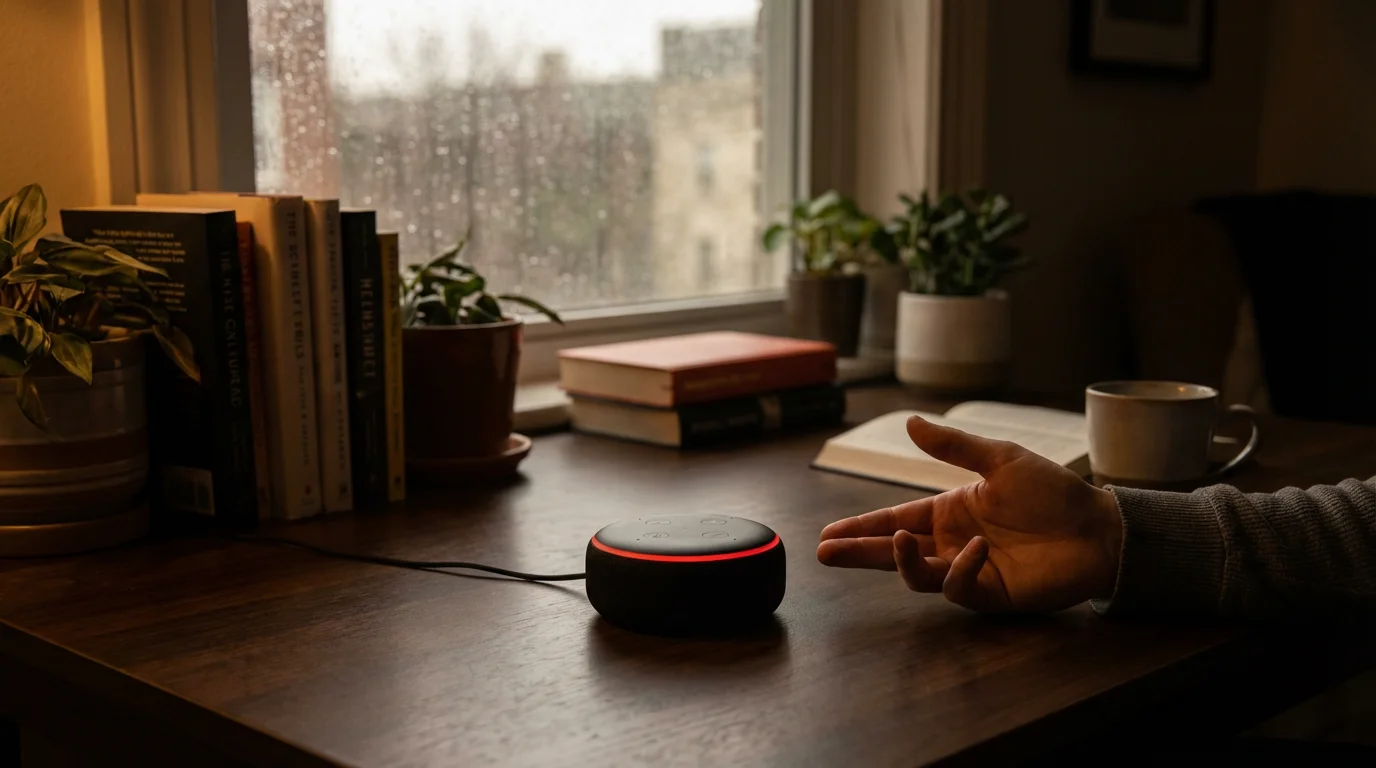
- Microphone Mute Button: Every Amazon Echo device includes a physical microphone mute button. When you press this button, the microphone turns off completely, and a red light illuminates on the device. Alexa cannot hear anything you say until you press the button again to unmute it. This provides a direct way to ensure privacy when you want it.

Managing Your Voice Recordings
Amazon stores voice recordings to improve Alexa’s understanding and your experience. You have full control over these recordings:
- View and Delete: You can review and delete your voice recordings at any time through the Alexa app or by visiting amazon.com/alexaprivacy. Go to “Settings” then “Alexa Privacy” in the app.
- Auto-Delete: You can set Alexa to automatically delete recordings older than 3 or 18 months, or even opt not to save any recordings at all.
- Opt-Out of Voice Use: You can choose to opt out of Amazon using your voice recordings to develop new features for Alexa.
Data Security
Amazon uses robust security measures to protect your data. This includes encryption for data transmitted between your device and Amazon’s servers. Regular software updates also patch potential security vulnerabilities. Keeping your device updated ensures you have the latest protections.
Ultimately, you control your privacy settings. We recommend reviewing them in the Alexa app after setup to ensure they align with your preferences. Taking a few minutes to adjust these settings provides peace of mind while enjoying the convenience Alexa offers.

Common Problems and Simple Solutions
Even with simple technology like the Amazon Echo, you might encounter an occasional hiccup. Most issues have quick and easy solutions. Here are some common problems and what to do about them.
Problem 1: Alexa Is Not Responding
- Solution: Check the Mute Button. Most often, the microphone mute button is pressed. Look for a red light on your Echo. If you see one, press the microphone button again to unmute it.
- Solution: Check Power. Ensure your Echo is plugged into a working power outlet. The device will have no lights or response if it lacks power.
- Solution: Check Wi-Fi Connection. Alexa requires an active Wi-Fi connection. If your internet is down, Alexa cannot process commands. Check other devices in your home to see if they can access the internet. If not, restart your home router by unplugging it for 30 seconds and then plugging it back in.
- Solution: Restart Your Echo. Unplug your Echo device from the power outlet, wait 10 seconds, then plug it back in. This often resolves minor software glitches.
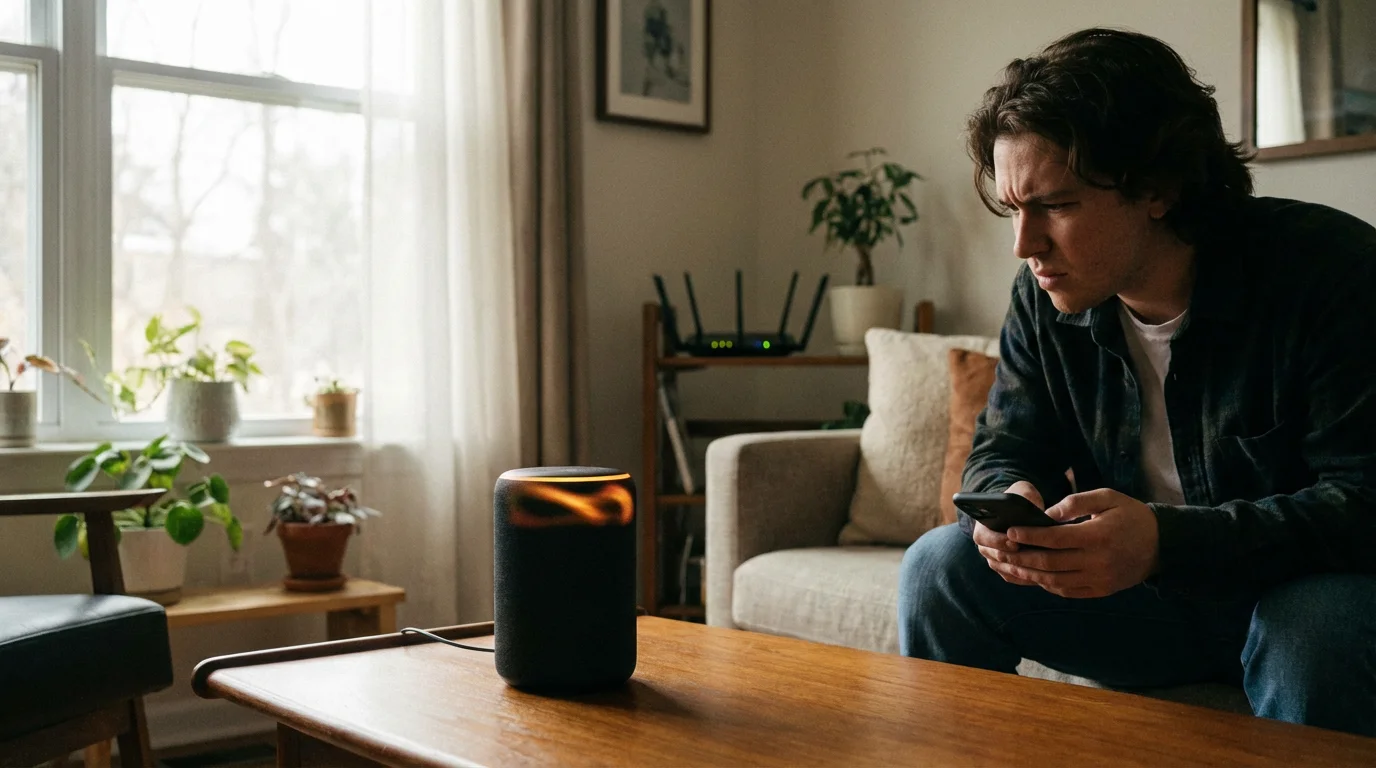
Problem 2: Alexa Says It Cannot Connect to the Internet
- Solution: Check Your Wi-Fi. Verify your home Wi-Fi is working for other devices.
- Solution: Restart Router and Echo. Unplug both your Wi-Fi router and your Echo device. Wait about 30 seconds, then plug the router back in. Once the router fully restarts (all its lights are steady), plug your Echo back in. This re-establishes the connection.
- Solution: Move Your Echo Closer to the Router. If your Echo is very far from your Wi-Fi router or if walls block the signal, it might struggle to connect. Try moving it closer to the router temporarily to see if the connection improves.
- Solution: Reconnect Wi-Fi via Alexa App. Open the Alexa app, go to “Devices,” select your Echo, and then look for “Wi-Fi Network” under “Wireless.” Follow the prompts to reconnect.
Problem 3: Alexa Misunderstands My Commands
- Solution: Speak Clearly and Naturally. Try to speak directly to your Echo in a normal tone.
- Solution: Rephrase Your Request. If Alexa does not understand one way, try asking it a different way. For example, instead of “Turn off the lights,” try “Alexa, switch off the living room lights.”
- Solution: Check Your Accent/Pronunciation. Alexa gets better at understanding different voices over time. You can train Alexa to better understand you in the Alexa app: go to “Settings,” then “Alexa Account,” and then “Recognized Voices.”
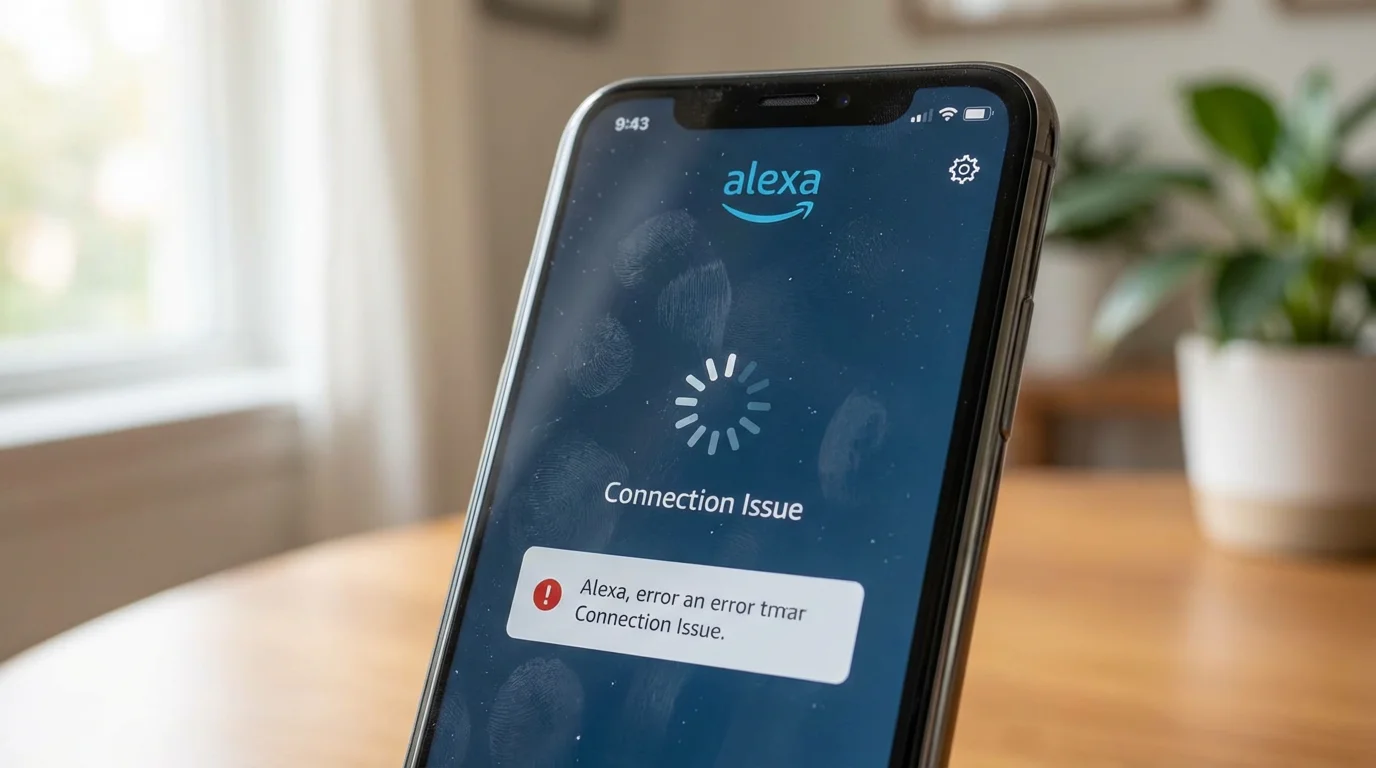
Problem 4: Issues with the Alexa App
- Solution: Update the App. Ensure you have the latest version of the Alexa app. Check your phone’s App Store or Google Play Store for updates.
- Solution: Restart Your Phone. Sometimes simply restarting your smartphone or tablet resolves app issues.
- Solution: Reinstall the App. As a last resort, you can uninstall the Alexa app and then reinstall it. You will need to sign in again.
Most problems with your Amazon Echo are simple connectivity or minor software issues. Following these basic troubleshooting steps will typically get your device working correctly again. If you continue to experience problems, you can visit the Amazon Echo support pages for more detailed guidance.
Frequently Asked Questions
Q: Is Amazon Echo always listening?
A: No, your Amazon Echo is not always listening and recording everything you say. It only actively listens for its wake word, typically “Alexa.” Once it hears the wake word, the device processes your request. You can also press the microphone mute button on your device to ensure it cannot hear anything.
Q: Do I need to pay monthly for Alexa?
A: You do not need to pay a monthly fee for basic Alexa functionality. You pay for the device itself, and then you can use most features, like setting timers, getting weather, and playing music from free services, without ongoing costs. You only pay if you subscribe to premium services like Amazon Music Unlimited or certain skill subscriptions.
Q: Can Alexa call 911 in an emergency?
A: No, Alexa cannot directly call 911. Amazon Echo devices are not designed or certified to make emergency calls. However, you can set up an Alexa-enabled calling feature to call specific contacts from your phone’s address book. Some third-party smart home systems integrate with Alexa to trigger emergency services indirectly, but the Echo itself does not have a direct 911 capability.
Q: What is the best Amazon Echo for seniors?
A: The “best” Amazon Echo depends on individual needs. The Echo Dot is a popular choice for its affordability and compact size, providing all core voice functions. For those who benefit from visual aids, the Echo Show models (which have screens) are excellent. They display weather, video calls, recipes, and more, offering a user-friendly interface that combines voice with visuals.
Q: Can I connect my medical alert device to Alexa?
A: While the Amazon Echo is not a medical alert device, some medical alert systems offer compatibility or integrations that allow you to use Alexa to initiate calls or check the status of your alert device. Always consult your medical alert provider for specific compatibility information. The Echo enhances convenience but does not replace a dedicated medical alert system.

Making the Most of Your Amazon Echo
Setting up and learning to use your Amazon Echo device opens up a world of convenient, hands-free assistance. It helps you stay connected, informed, and entertained with simple voice commands. Remember, the journey into smart home technology is about finding tools that truly enhance your daily life, not complicate it.
Take your time to explore the various commands and features Alexa offers. Start with the basics, like setting timers or asking for the weather, and gradually experiment with more advanced features, like smart home control or communication with family members. You have control over your privacy settings, and easy troubleshooting steps address most common issues.
Your Amazon Echo stands ready to simplify many aspects of your day. We encourage you to embrace this technology at your own pace, discovering how it can bring more ease and enjoyment into your home.
Disclaimer: This article is for informational purposes only. Product features and prices change frequently. Always check current specifications and reviews before purchasing. We recommend buying from authorized retailers with good return policies.


Leave a Reply