
You have likely heard the warnings from friends, family, or even news reports over the years. Some say leaving your smartphone plugged in while you sleep will ruin the battery. Others worry it poses a fire hazard. If you have ever woken up in the middle of the night and hurriedly unplugged your device out of fear, you are certainly not alone.
In addition to physical device care, using a password manager is a great way to keep your phone’s personal data protected from intruders.
Properly maintaining your battery is just as important as knowing how to connect your smartphone to Wi-Fi to keep your device functional and connected.
Technology has changed rapidly in the last decade. The old rules that applied to the nickel-cadmium batteries in cordless house phones or early flip phones simply do not apply to the modern smartphones we use today. Whether you are using a new iPhone or an Android device (like a Samsung Galaxy or Google Pixel), your technology is much smarter than it used to be.
The short answer is: Yes, it is generally safe to charge your phone overnight.
However, there are best practices you can follow to ensure your battery lasts for years and your home stays safe. This guide will walk you through exactly how your phone manages power, how to check your safety settings, and the simple habits that protect your device.
Table of Contents
- What You Will Need
- The Truth About Overcharging
- Location Matters: Where to Put Your Phone
- On iPhone: Using Optimized Battery Charging
- On Android: Adaptive Charging Features
- The Importance of Your Charger and Cable
- Troubleshooting: What to Do If Your Phone Gets Hot
- Long-Term Battery Health Tips
- Frequently Asked Questions
- Quick Reference Checklist

What You Will Need
Before we look at your settings, take a moment to gather the items you currently use to charge your phone. We will be inspecting these later in the article.
If you find it difficult to read the menus while following these steps, you can also learn how to make the text bigger on your phone first.
- Your Smartphone: Have your iPhone or Android device in your hand to follow along with the settings menu.
- Your Charging Block: This is the square or rectangular plug that goes into your wall outlet.
- Your Charging Cable: The cord that connects the block to your phone.
- Your Glasses: Some of the icons on the screen can be small, so have your reading glasses nearby if you use them.
The Truth About Overcharging
One of the biggest myths circulating today is that if you leave your phone plugged in after it hits 100%, it will continue to force electricity into the battery, causing it to swell or explode. This is known as “overcharging.”
Similarly, learning how to turn on and shut down your computer safely will help extend the life of your laptop’s battery as well.
Fortunately, modern smartphones are equipped with advanced management chips. Think of your phone like a smart faucet. When you fill a glass with water, you turn the handle off once the glass is full so it doesn’t overflow. Your smartphone does the exact same thing with electricity.
Once your battery reaches 100%, the phone’s internal software cuts off the intake of current. It stops “drinking” the electricity. The phone then sits in a standby mode. If the battery drops slightly—to 99%—the charger will briefly turn back on to top it off, then shut off again. This is often called “trickle charging.”
While this process is safe, it does keep the battery at a high state of tension for hours. While it won’t cause a fire, keeping a battery at 100% for eight hours every night can, over several years, slightly reduce how much charge the battery can hold. This brings us to the most important factor in battery safety: heat.

Location Matters: Where to Put Your Phone
If there is one takeaway you remember from this guide, let it be this: Heat is the enemy of batteries.
For extra safety and control over your electronics, many seniors find it helpful to learn how to use smart plugs for their bedside lamps or chargers.
While the charging process itself is safe, the physical environment where you leave your phone matters immensely. Charging a battery generates a small amount of warmth naturally. This heat needs to dissipate (escape) into the air. If the heat is trapped, the phone can get dangerously hot.
The “Under the Pillow” Danger
Never place your charging phone under your pillow, blanket, or your body while sleeping. If the phone is covered by thick bedding, the heat generated during charging has nowhere to go. This can cause the internal components to overheat. In extreme cases, this trapped heat is what causes fire hazards, not the charging electricity itself.
Safety Rule: Always charge your phone on a hard, flat surface. A nightstand, a side table, or even the floor is perfectly fine. Avoid soft surfaces like beds, sofas, or thick carpets that trap heat.

On iPhone: Using Optimized Battery Charging
Apple has introduced a brilliant feature called “Optimized Battery Charging” to help with overnight charging. This feature learns your daily routine. If you usually wake up at 7:00 AM, the iPhone will charge to 80% quickly, then wait. It will finish the last 20% right before you wake up. This keeps the battery healthier for longer.
To ensure you have the latest battery management features, check our guide on how to update your iPhone to the newest software version.
Here is how to check if this feature is turned on. You can follow these steps on your iPhone right now:
- Unlock your iPhone so you are looking at your home screen (where all your app icons are).
- Find the Settings app. It looks like a gray box with gears inside it. Tap it once.
- Scroll down the menu until you see Battery. It has a green icon with a white battery symbol. Tap it.
- On the next screen, tap on Battery Health & Charging.
- Look for the switch labeled Optimized Battery Charging.
- If the switch is green, it is already On. You are all set!
- If the switch is gray, tap it once to turn it green.
By enabling this, you can plug your phone in at bedtime with peace of mind. Your iPhone will manage the flow of electricity intelligently while you sleep.
On Android: Adaptive Charging Features
Android phones (like Samsung, Motorola, and Google Pixel) also have smart features to protect your battery overnight. Because different manufacturers design their menus differently, the wording might vary slightly, but the steps are generally similar.
Before adjusting your battery settings, you may want to familiarize yourself with understanding your Android phone’s home screen to find your apps more easily.
For Samsung Galaxy Phones
Samsung offers a feature called “Battery Protection” to prevent the phone from sitting at 100% all night.
- Open the Settings app (the gear icon).
- Scroll down and tap on Battery (sometimes labeled Battery and device care).
- Tap on Battery Protection.
- You may see options like “Basic,” “Adaptive,” or “Maximum.” Select Adaptive if available. This pauses charging at 80% and finishes it before you wake up, similar to the iPhone.
For Google Pixel Phones
Google uses a feature called “Adaptive Charging.”
- Open the Settings app.
- Tap on Battery.
- Tap on Adaptive Charging.
- Tap the switch to turn it On.
Note: Adaptive Charging on Pixel usually works best if you set an alarm on your phone for the morning, as the phone uses your alarm time to know when to finish charging.
The Importance of Your Charger and Cable
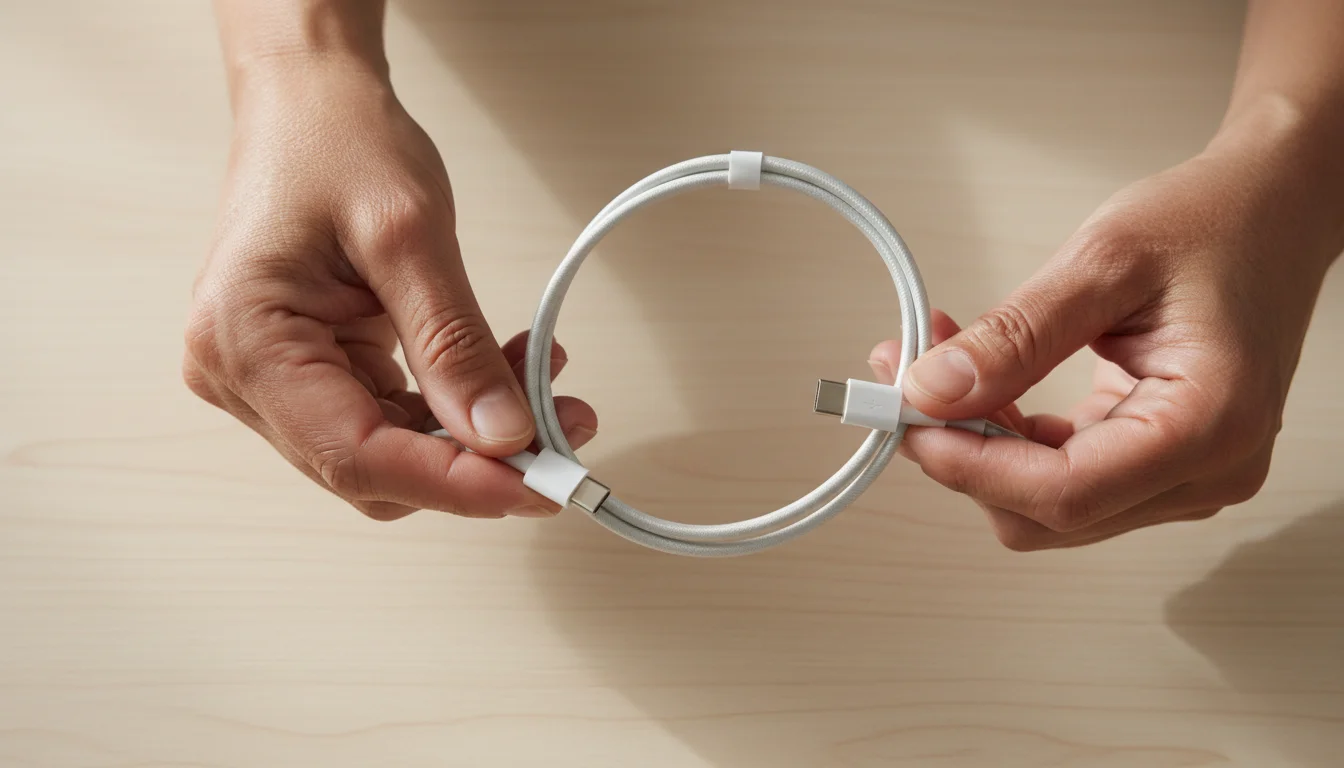
The device itself is smart, but the equipment you use to connect it to the wall must be in good condition. A damaged cable is a genuine safety risk. It can spark, overheat, or damage the delicate charging port at the bottom of your phone.
If you need to purchase a new charger, make sure you know how to shop online safely to avoid counterfeit products.
Inspect Your Gear
Take a look at your charging cable right now. Look at the ends where the plug meets the wire.
- Is the plastic coating cracked? If you can see silver or copper wires underneath the plastic casing, stop using that cable immediately.
- Is the metal connector bent? If the part that goes into your phone looks crooked or has black scorch marks, discard it.
- Is the cable turning yellow or brown? Discoloration can indicate overheating.
- Does the charging block get extremely hot? It is normal for the block to be warm, but it should never be too hot to touch.
Use Certified Accessories
It is tempting to buy cheap replacement chargers at gas stations or discount stores, but these often lack safety mechanisms. A three-dollar cable might not regulate electricity correctly.
For iPhones, look for the “MFi” logo on the packaging, which stands for “Made for iPhone.” For Androids, stick to well-known brands like Samsung, Anker, or Belkin. High-quality electronics resources, such as Consumer Reports, consistently recommend using certified equipment to prevent damage to your device.
Troubleshooting: What to Do If Your Phone Gets Hot
Sometimes, despite doing everything right, you might pick up your phone and find it feels surprisingly hot. Do not panic. Here is a simple step-by-step guide on how to handle it.
Beyond battery issues, staying safe also involves knowing how to recognize and avoid phone scams that can arrive via text or call.
Safety is a priority with any device, so it is also wise to set up Emergency SOS on your smartphone for use in urgent situations.
If your phone consistently feels warm and sluggish, you may also need to free up storage space to help the processor run more efficiently.
- Unplug it immediately. Pull the charger out of the wall first, then disconnect it from the phone.
- Remove the case. Protective cases—especially thick rubber or leather ones—can trap heat. Take the case off to let the phone “breathe.”
- Close your apps. Sometimes a “stuck” app runs in the background, working the processor hard and generating heat.
- Move it to a cool spot. Place the phone on a cool counter or table away from direct sunlight. Do not put it in the refrigerator (rapid cooling can cause condensation inside).
- Let it rest. Do not use the phone for 15 to 20 minutes until it feels cool to the touch again.
If your phone consistently gets hot every time you charge it, it may be time to visit your carrier store or an official repair center. A trusted expert can run a diagnostic test on your battery.
Long-Term Battery Health Tips
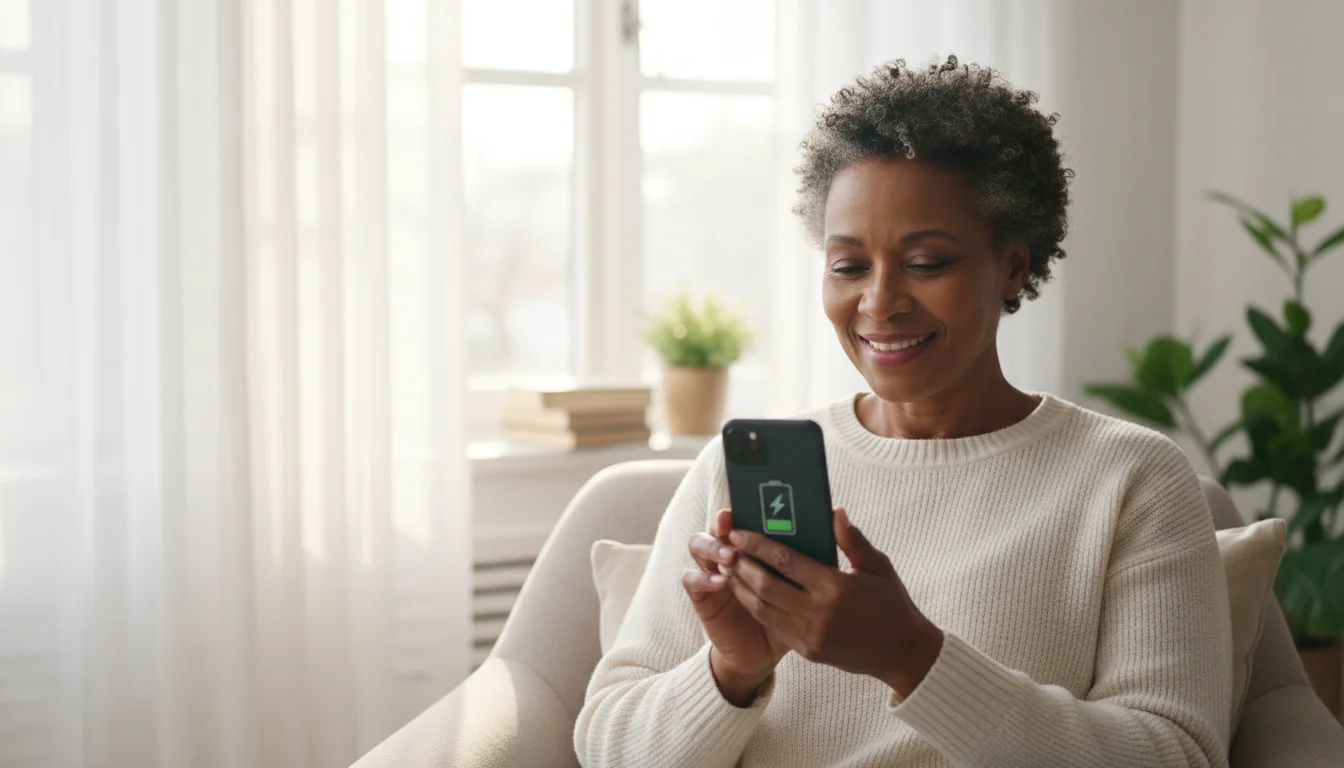
Beyond overnight charging, how you treat your battery during the day affects its lifespan. Batteries degrade chemically over time—it is a natural part of aging for electronics. However, you can slow this process down.
Learning how to adjust screen brightness is another simple way to reduce the strain on your battery throughout the day.
The 20-80% Rule
Lithium-ion batteries (the type in your phone) are happiest when they are neither completely full nor completely empty. Think of it like a rubber band; if you stretch it tight (100%) or let it go completely slack (0%), it wears out faster than if it stays in the middle.
Try to plug your phone in when it drops to around 20%. You do not need to wait for it to die completely. In fact, letting it go to 0% frequently is harder on the battery. Similarly, if you are charging during the day, you can unplug it at 80% or 90% rather than waiting for a full 100%.
Avoid Extreme Temperatures
Your phone hates extreme weather just as much as you do. Apple Support advises that temperatures above 95° F (35° C) can permanently damage battery capacity. Never leave your phone in a hot car during the summer or sitting in direct sunlight on a patio table. Cold weather is less damaging permanently, but it can make your battery drain very quickly temporarily.
Frequently Asked Questions
It is completely normal to have questions about technology that seems to change every year. Here are answers to the most common concerns regarding phone batteries.
Will leaving my phone plugged in ruin the battery?
No, not immediately. Modern phones are smart enough to stop taking power once they are full. However, over many years, keeping it at 100% constantly can slightly degrade battery capacity. Using settings like “Optimized Battery Charging” solves this issue.
Is it better to charge my phone fast or slow?
Slower charging is generally better for battery health because it generates less heat. “Fast chargers” are convenient when you are in a rush, but for overnight charging, a standard, slower charger is actually better for the long-term life of your battery.
Do I need to let my battery drain to 0% before charging?
No. This is advice from the 1990s for older battery types. Modern lithium-ion batteries prefer to be topped off. You can charge your phone whenever you like, and you should avoid letting it hit 0% if possible.
Can I use my phone while it is charging?
Yes, you can. However, using the phone (especially for video calls or watching movies) while it charges will generate more heat. If the phone starts to feel hot, set it down and let it charge for a while without using it.

Quick Reference Checklist
Here is a summary of the most critical steps to keep your device safe and ready for the next day. You might want to write these down or bookmark this page.
- Check your cable: Ensure there are no exposed wires or bent connectors.
- Hard surfaces only: Always place your phone on a nightstand or table, never on the bed.
- Remove the case: If your phone feels warm, take the case off while charging.
- Enable settings: Turn on “Optimized Battery Charging” (iPhone) or “Adaptive Charging” (Android).
- Don’t sweat the small stuff: Modern phones are designed to be used. If you forget these rules one night, your phone will be fine.
Technology should improve your life, not add stress to it. By following these simple guidelines, you can ensure your smartphone remains a safe and reliable tool for connecting with your loved ones. You are doing a great job adapting to these new tools—keep exploring and asking questions.
Disclaimer: This article is for informational purposes only. Screens and menus may look slightly different depending on your device model and software version. When in doubt, visit your device’s official support website or ask a trusted family member for help.







Leave a Reply