You are on vacation with your iPad, trying to save photos of the grandchildren, when an alert says your iCloud storage is full. You deleted a stack of pictures yesterday, yet the message keeps coming back.
This guide is for one situation: someone in their 70s or 80s with an iPad on Apple’s free 5 GB iCloud plan, often set up by family, who would rather not pay a monthly fee.
Three quick cleanups get you under the limit. One habit, copying photos to a USB flash drive, keeps you on the free plan for good.
In this guide9 sections

Why Your Free 5 GB Keeps Filling Up
The alert is about iCloud, Apple’s online storage, not the memory inside your iPad. Every Apple Account gets 5 GB free, shared by photos, device backups, messages and iCloud Mail.
Yesterday’s deleting has not helped yet because Photos keeps deleted pictures in a Recently Deleted album for 30 days. Until you empty it, they still count against your 5 GB.
Here is the judgement most cleanup guides skip. Deleting an old phone backup is a one-time rescue; iCloud Photos decides whether you stay free, because every picture you take lands in the same 5 GB.
Optimize iPad Storage does not change that. It saves room on the iPad only, keeping the full-size originals in iCloud, so your iCloud total stays where it was.
Turning iCloud Photos off does not escape the limit either. With it off, iCloud Backup includes your photo library in the iPad’s backup, so the pictures just move to another part of your 5 GB.
The cycle that works: copy photos to a flash drive, delete them from Photos, then empty Recently Deleted.

Check What Is Using Your Space First
Before deleting anything, look at your own numbers while connected to the internet.
If these screens are hard to read, follow Apple’s instructions for making text larger on iPad and iPhone first.
- Open Settings.
- Tap your name at the top of the left-hand column.
- Tap iCloud. A colored bar shows what is using your space.
- Tap Manage Storage (on some versions Manage Account Storage or just Manage) to see each item with its size in GB.
Note three figures: Backups, Photos and Messages. Checking them after each step shows what that step really freed.
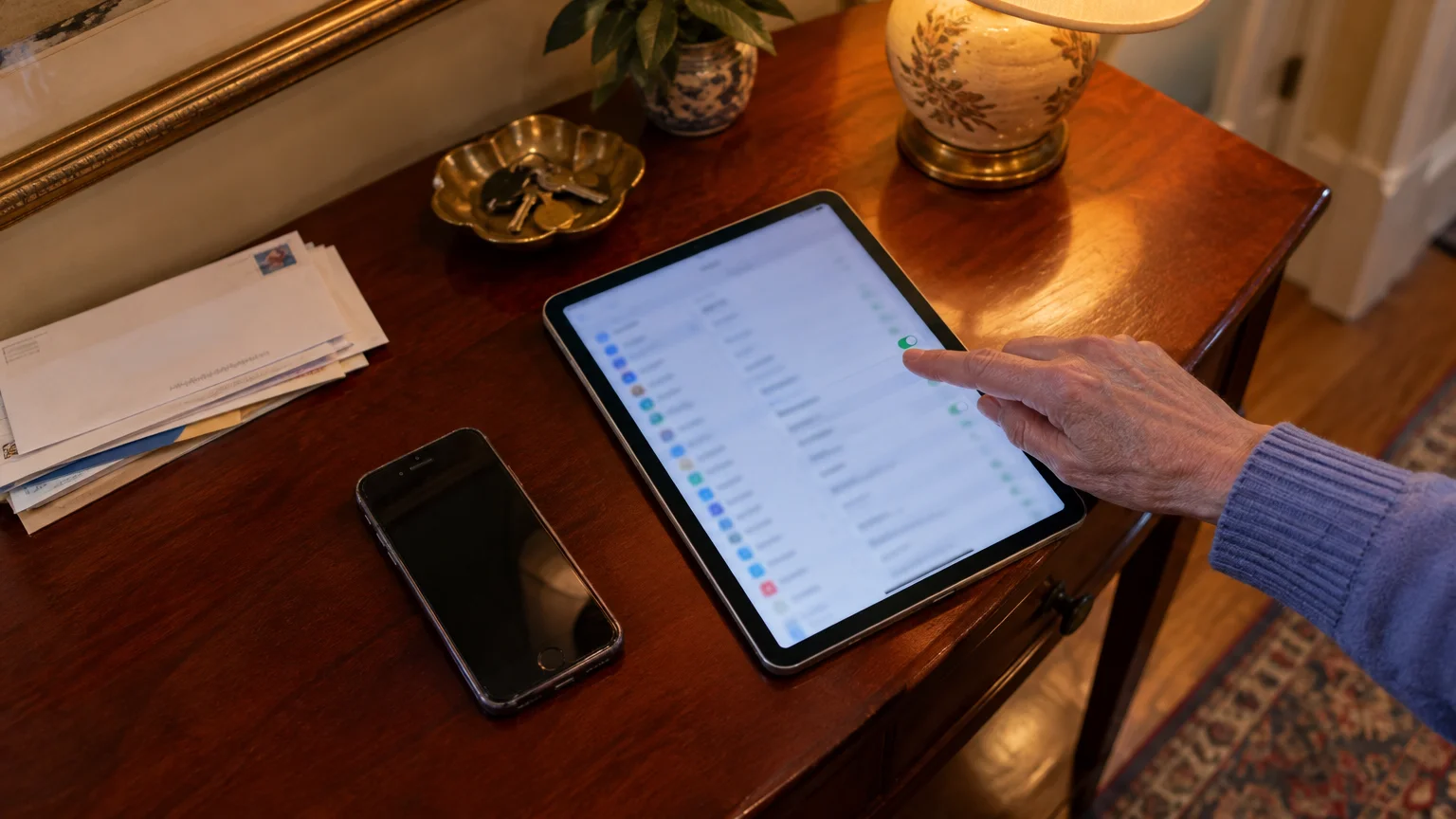
Delete the Old iPhone Backup
If you replaced a phone or an older iPad, iCloud may still hold a full backup of the retired device. It stays until you remove it.
Warning: only delete a backup that names a device you no longer use. Leave the one labeled This iPad alone; it is your safety copy.
Apple explains what a backup contains in its guide to backing up your iPhone or iPad.
- Open Settings and tap your name.
- Tap iCloud, then Manage Storage (or Manage Account Storage).
- Tap Backups.
- Tap the name of the old phone or tablet.
- Tap Delete & Turn Off Backup and confirm. The exact button wording varies slightly between versions.

Empty the Recently Deleted Album
Warning: emptying this album erases the photos for good, on your iPad and any iPhone using the same Apple Account. Scroll through it first and recover anything you want.
On iPadOS 26:
- Open the Photos app.
- Tap Collections, or open the sidebar on the left.
- Scroll to Utilities and tap Recently Deleted.
- Unlock it with Face ID, Touch ID or your passcode.
- Tap Select, then Delete All (it may sit behind the … button).
- Confirm when asked.
On iPadOS 18, scroll down the main Photos screen to Utilities instead.

Clear Large Message Attachments
Videos shared in family chats add up quickly. If Messages in iCloud is on, removing them from the iPad removes them from iCloud too; your written texts stay.
Warning: a removed attachment leaves the conversation. To keep one, touch and hold it in the chat and tap Save first.
- Open Settings and tap General.
- Tap iPad Storage and wait for the list to load.
- Tap Messages, then Review Large Attachments. The biggest files appear first.
- Tap Edit, select the clips you no longer need, and tap the trash icon.
Copy Photos to a Flash Drive Each Month
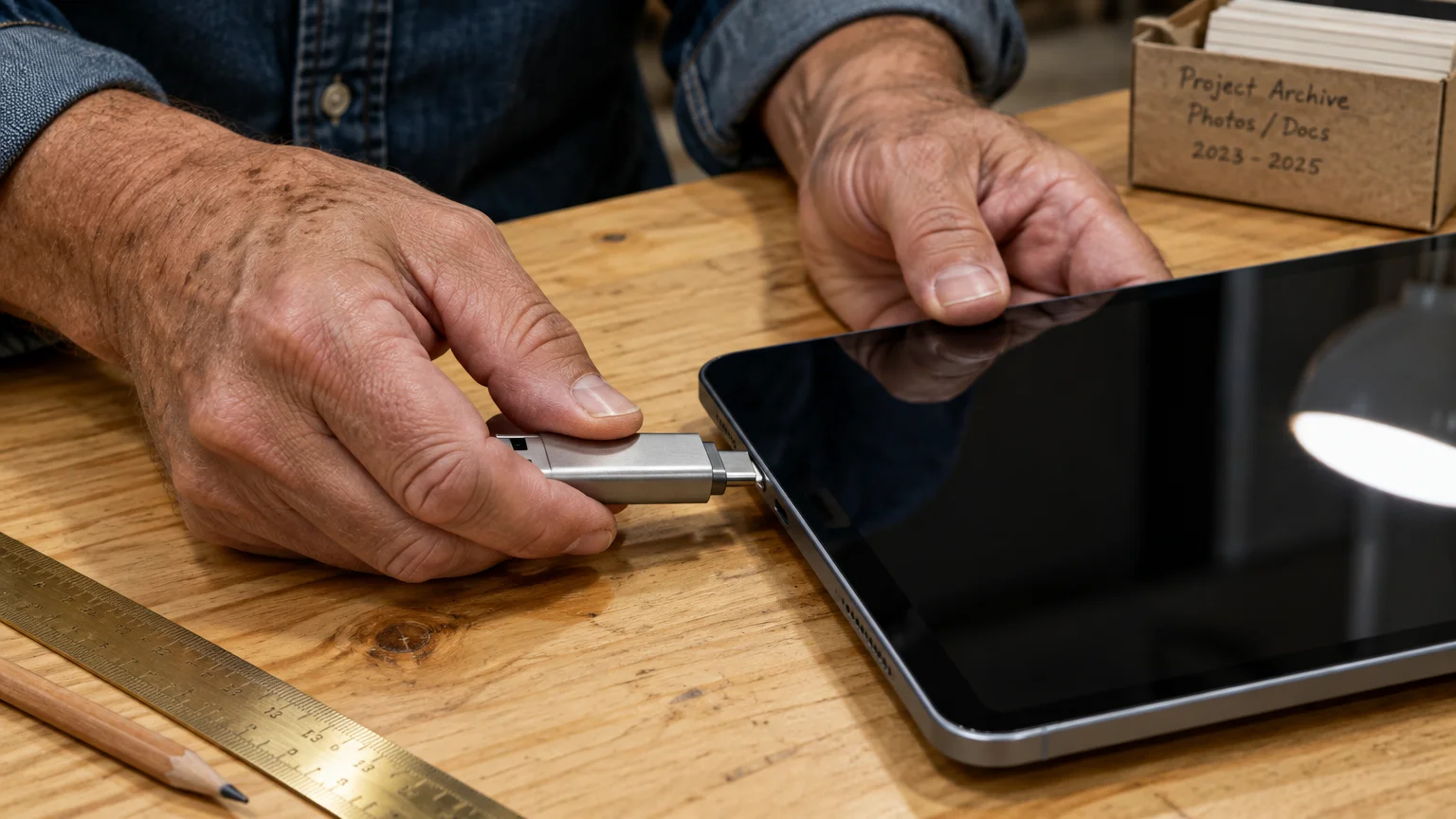
This is the step that lets you stay on 5 GB for good. Your photos leave iCloud but stay in your hands.
A USB-C iPad takes a USB-C flash drive directly. If the cable end that fits your iPad is a thin flat tab, that is Lightning, and you need Apple’s Lightning to USB Camera Adapter for an ordinary drive.
If Optimize iPad Storage is on (Settings > Apps > Photos), the iPad will download full-size originals as it copies, so do this on Wi-Fi.
- Plug in the flash drive.
- In Photos, tap Select and tap the pictures and videos from your trip.
- Tap the Share button, the square with an arrow pointing up.
- Tap Save to Files.
- Under Locations, tap your drive. Its name varies by drive.
- Tap Save and wait for it to finish.
- Open the Files app, tap Browse, tap the drive and open a few photos to be sure they copied.
Only then delete those photos in Photos and empty Recently Deleted. Skip the second part and nothing is freed for 30 days.
The drive is now your only copy, so make a second one on another drive or a family computer. Drives formatted for both Windows and Mac usually show up in Files.
For wider advice on protecting personal information, see the Consumer Reports Security Planner.

Worked Example: One iPad, One Afternoon
Here is the routine for a USB-C iPad on the free plan that still holds an old iPhone’s backup. The figures are illustrative; yours will differ.
Step one: the storage screen reads 5 GB of 5 GB used, with Backups 2.1 GB (all the old iPhone), Photos 1.9 GB and Messages 1.0 GB. Vacation photos have stopped uploading.
Step two: deleting the old iPhone backup drops the total to 2.9 GB. The alert stops and the waiting vacation photos start uploading.
Step three: emptying Recently Deleted takes yesterday’s deletions off the Photos figure now, not a month from now.
Step four: Review Large Attachments lists a few long family-chat videos. Saving the one worth keeping and removing the rest shrinks Messages.
Step five: the vacation photos go to the flash drive via Save to Files, are checked in the Files app, then deleted from Photos, with Recently Deleted emptied again.
The bar now sits well below the limit. Repeating step five after each trip, or monthly, keeps it there with no subscription.
The shortcut many people try, switching on Optimize iPad Storage, would have left the bar at 5 GB of 5 GB, because the originals never left iCloud.
Which Fix Does What
Match each fix to the figures on your own storage screen.
| Fix | Where to find it | What it frees in iCloud | How often | Needs internet? |
|---|---|---|---|---|
| Delete old device backup | Settings > your name > iCloud > Manage Storage > Backups | That device’s entire backup | Once | Yes |
| Empty Recently Deleted | Photos > Collections > Utilities > Recently Deleted | Photos you already deleted | After every deletion | Yes, to sync |
| Review Large Attachments | Settings > General > iPad Storage > Messages | Chat videos and photos, if Messages in iCloud is on | Now and then | Yes, to sync |
| Copy to flash drive, then delete | Photos > Share > Save to Files | Your photo library, once deleted and emptied | Monthly or after trips | Only if Optimize iPad Storage is on |
| Optimize iPad Storage | Settings > Apps > Photos | Nothing; saves iPad space only | Not a fix | No |
| Turn off iCloud Photos | Settings > Apps > Photos | Little; photos move into the iPad’s backup if iCloud Backup is on | Not a fix | No |
Frequently Asked Questions
Why is my iPad still saying iCloud is full after I deleted photos?
Deleted photos wait in Recently Deleted for 30 days and still count against your 5 GB. Empty that album and the space comes back.
If I delete a photo on my iPad, does it vanish from iCloud too?
Yes. With iCloud Photos on, deleting on one device deletes everywhere, so copy it to a flash drive and check it opens first.
What stops working while I am over the 5 GB limit?
New photos stop uploading, the iPad stops backing up to iCloud, and iCloud Mail can stop sending and receiving. Photos already saved stay safe.
Can Optimize iPad Storage clear the alert instead?
No. It frees space on the iPad by keeping full-size originals in iCloud, so your iCloud usage stays the same.
Note: Menus and button names change with software updates. These steps were written for iPadOS 26; if a screen looks different, Apple’s support pages linked above have the latest wording.
ClearTechGuide is independent and is not affiliated with Apple or any other company mentioned.