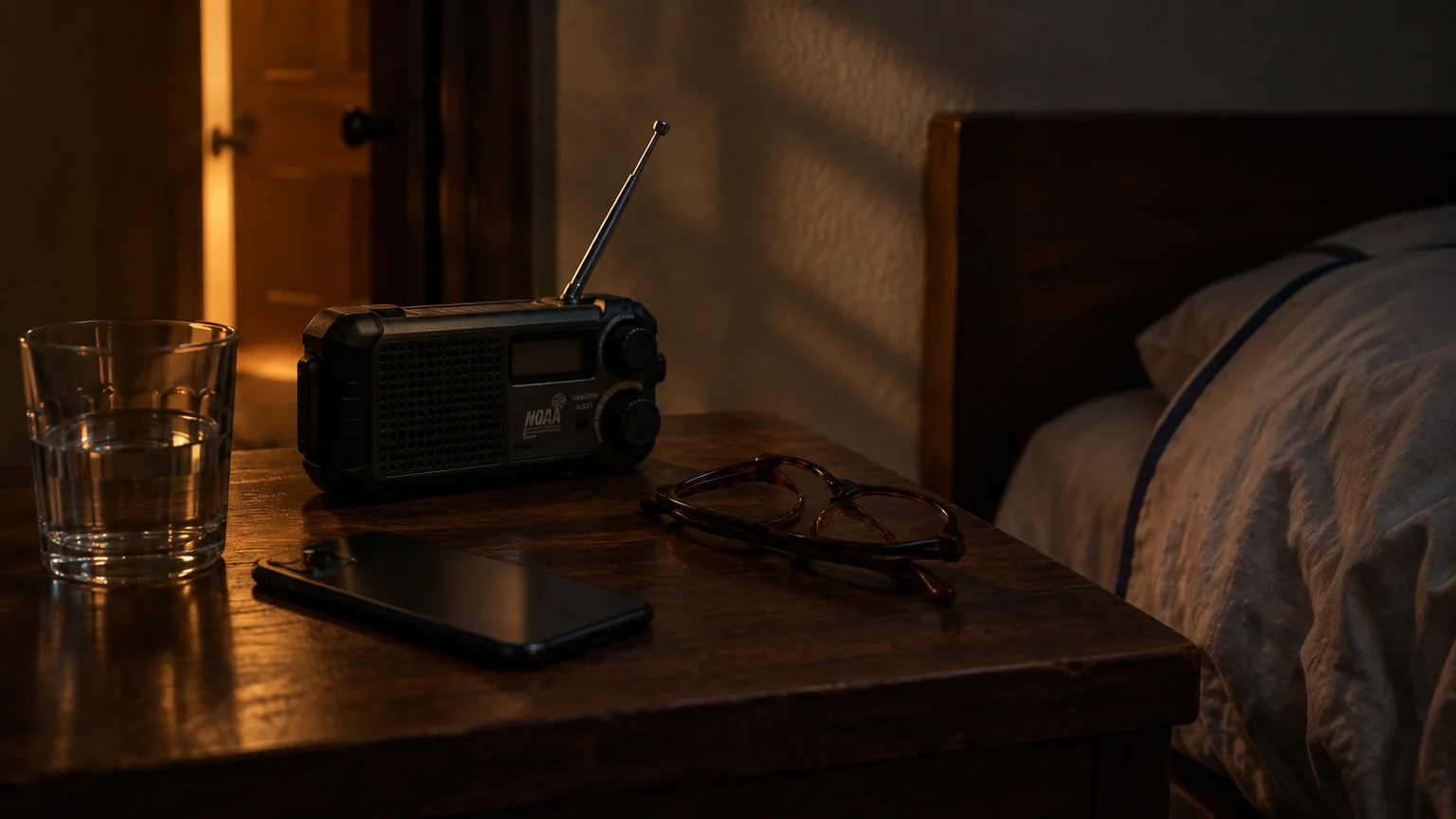
This guide is for a 74-year-old with a heart condition, an iPhone 13 on the nightstand, and a siren that went off at 3 AM for a flood 40 miles away.
The usual advice is to switch weather warnings off. That swaps a bad night for missing the warning that one day covers your own home.
Our recommendation: keep Emergency Alerts on, turn off the one setting that lets them blare through silent mode, and let a county-programmed weather radio be the only thing that wakes you.
In this guide9 sections
Why the 3 AM Siren Gets Through
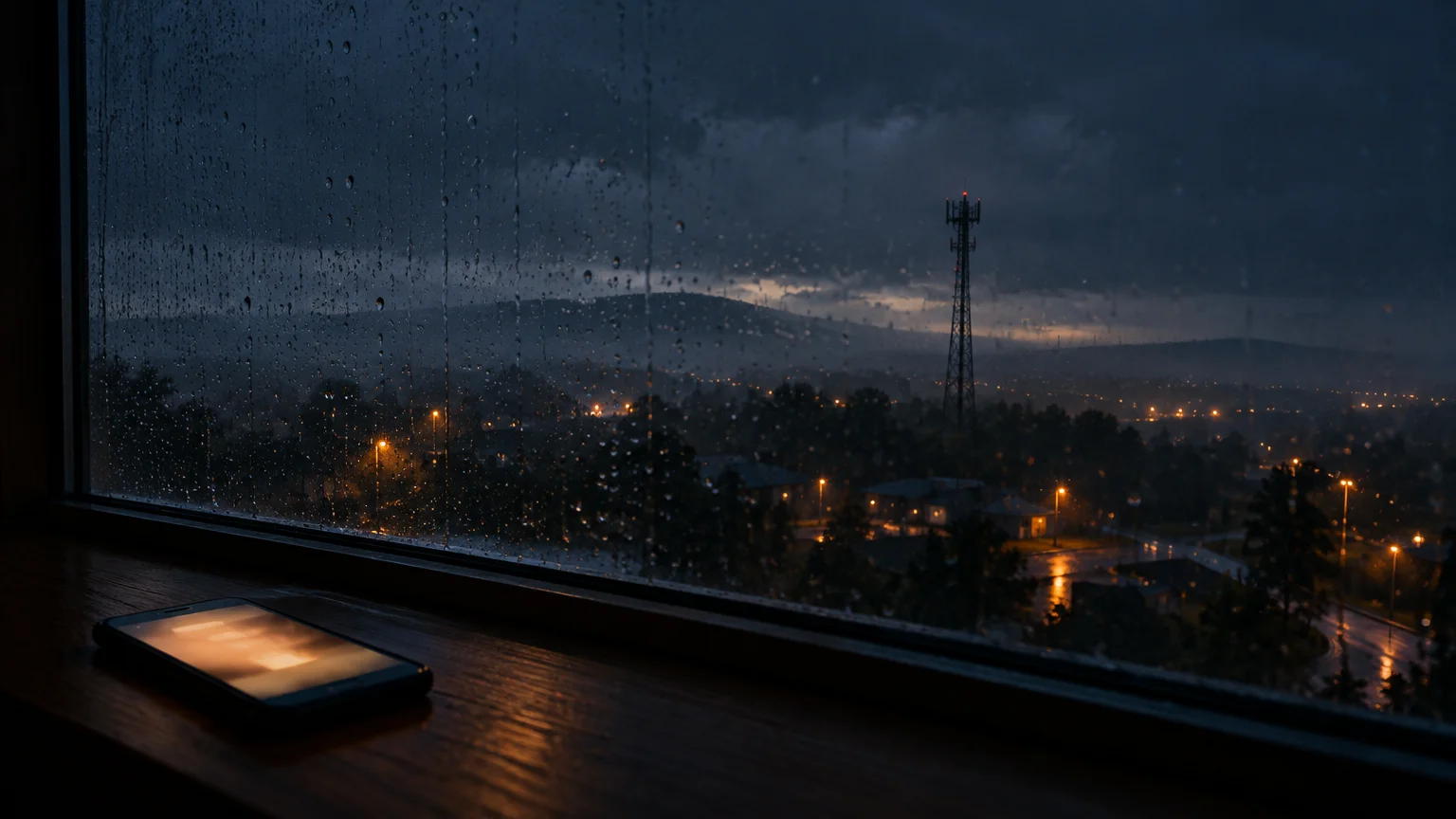
Wireless Emergency Alerts are not ordinary texts. Cell towers broadcast them to every phone in range at once, free, without touching your data plan.
The issuing agency draws the warning area, but towers near its edge can carry the alert to phones outside it. That is how a creek flood two towns over reaches your bedroom.
An iPhone setting called Always Play Sound lets these alerts sound even when the phone is silenced. If a siren woke you through silent mode, that setting is on.
If you wear hearing aids by day, the FCC hearing aid compatibility guide explains how phones work with them. At night, with aids out, the nightstand speaker is what reaches you.
What You Can Switch Off
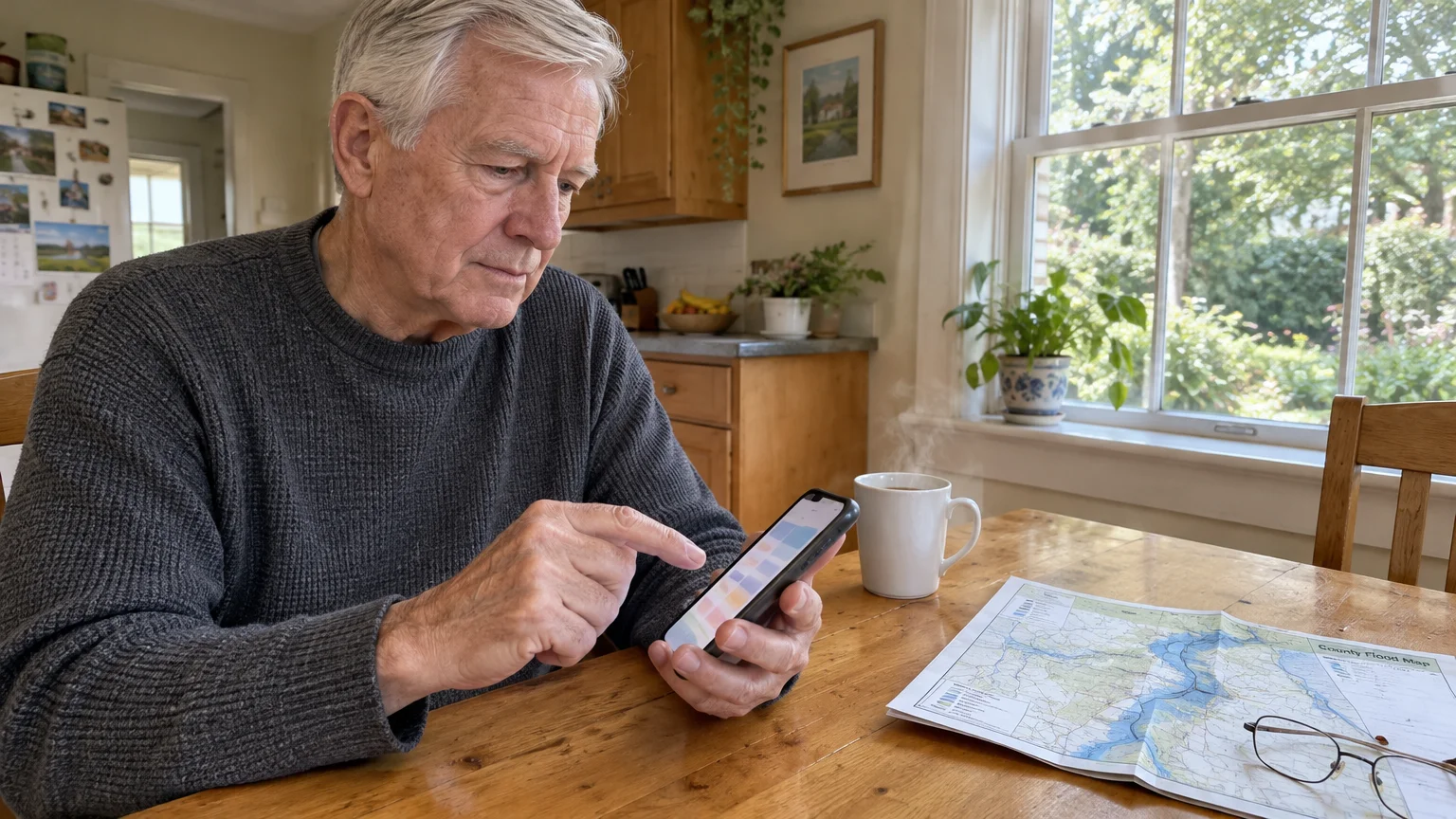
The Warning, Alert, and Response Network (WARN) Act of 2006 set up these alerts. Phones must deliver National Alerts, and no setting turns them off.
Everything else is your choice:
- AMBER Alerts: missing-child bulletins.
- Emergency Alerts (iPhone) or Extreme and Severe threats (Android): imminent dangers such as tornadoes and flash floods.
- Public Safety Alerts: local advisories.
- Test alerts: practice messages, where your phone shows them.
Here is the catch: none of these switches has a distance setting. Turning off weather warnings silences the distant creek and the tornado heading for your roof alike.
The Setting That Matters Most
For this reader, the sound setting matters more than any category switch. Categories decide whether you hear of a danger at all; the sound setting only decides whether it shouts.
If you prefer not to flip the physical mute switch every evening, you can schedule quiet hours on your phone so standard calls and notifications silence automatically at bedtime.
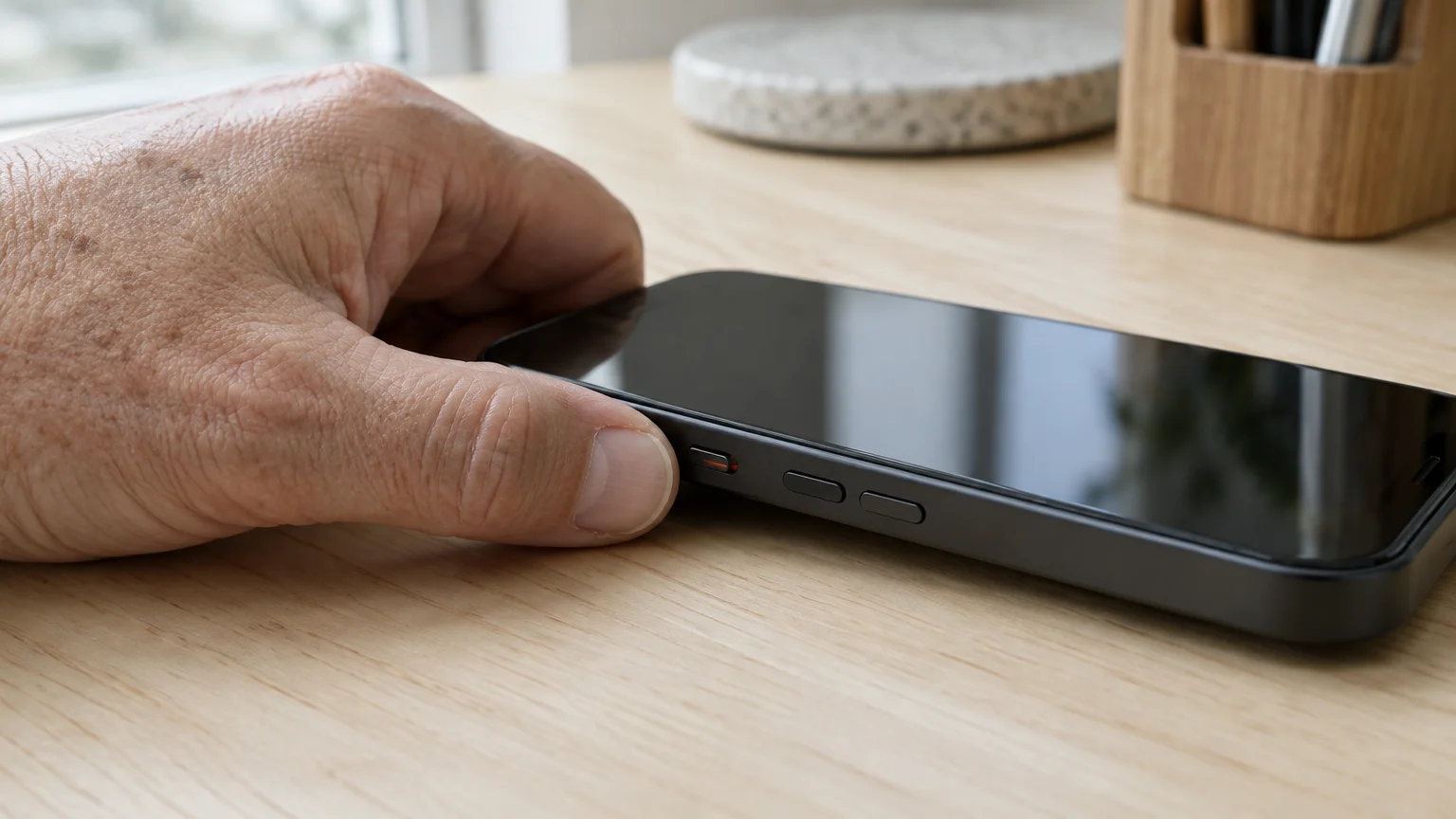
With Always Play Sound off, an Emergency Alert follows the Ring/Silent switch: quiet at night when you silence the phone, audible by day when you do not.
The warning still arrives on your screen, ready to read when you pick up the phone. You lose the 3 AM siren, not the information.
You also lose being woken for real danger, which is why the radio backup below is part of the plan, not an extra.

iPhone Steps (iOS 26)
If the menus look small, try the Apple guide to making text larger before you start.
- Open Settings.
- Tap Notifications.
- Scroll to the bottom, to the heading Government Alerts.
- Tap Emergency Alerts, then make sure the Emergency Alerts switch at the top is on.
- Turn off Always Play Sound so its switch turns gray.
- Tap back. Turn off AMBER Alerts and Public Safety Alerts too if you like; neither carries tornado or flood warnings.
- At bedtime, flip the Ring/Silent switch on the left side so orange shows.
On iPhone 15 Pro and later, use the Action button or Control Center for silent mode instead.
The official Apple iPhone User Guide describes these menus if your screen looks different.

Android Steps (Android 16)
Wording varies by model. Pixel and Motorola: Settings, then Safety & emergency.
Samsung Galaxy: Safety and emergency, or Notifications then Advanced settings.
The Google Android accessibility guide shows how to enlarge text first.
- Tap Wireless emergency alerts.
- Leave Extreme threats and Severe threats on.
- Turn off AMBER alerts, Public safety messages and State and local tests if you wish.
- Under Alert preferences, look for a switch such as Always alert at full volume, and turn it off.
If your phone has no such switch, assume a warning can still sound at night. The radio backup then matters even more.
The Google Android Help center covers screens specific to your model.
A Backup for Your Own County
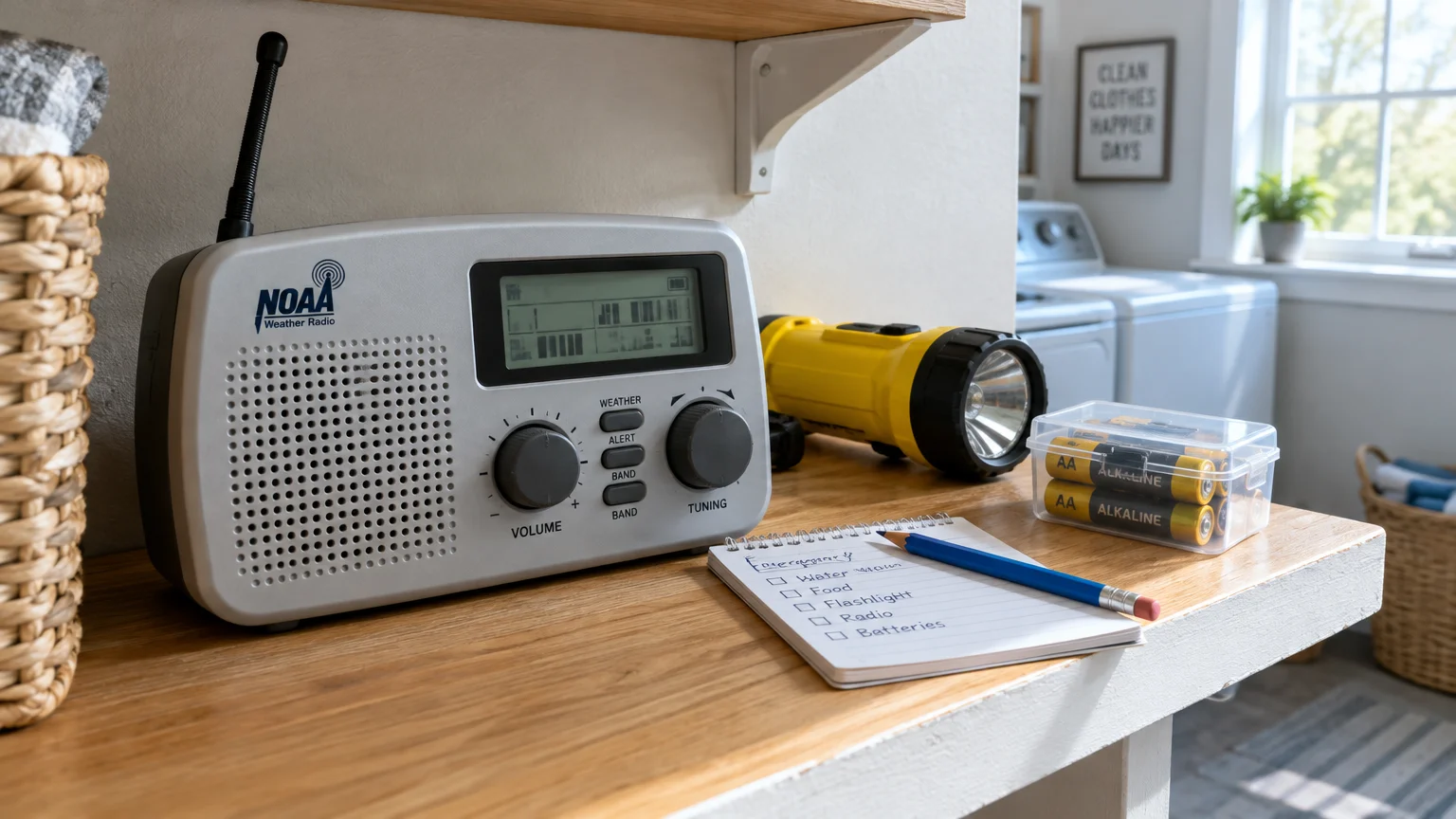
A NOAA Weather Radio with the SAME feature can be set to your county. It then sounds only for warnings issued for that county, not the next one over.
Find your county code in the radio’s manual or on the National Weather Service website, then enter it with the radio’s buttons.
Set the alert volume yourself by day, and check whether your model offers a flashing light or voice message instead of a loud tone.
A radio needs no Wi-Fi or cell signal. If it takes batteries, keep fresh ones in it for power outages.
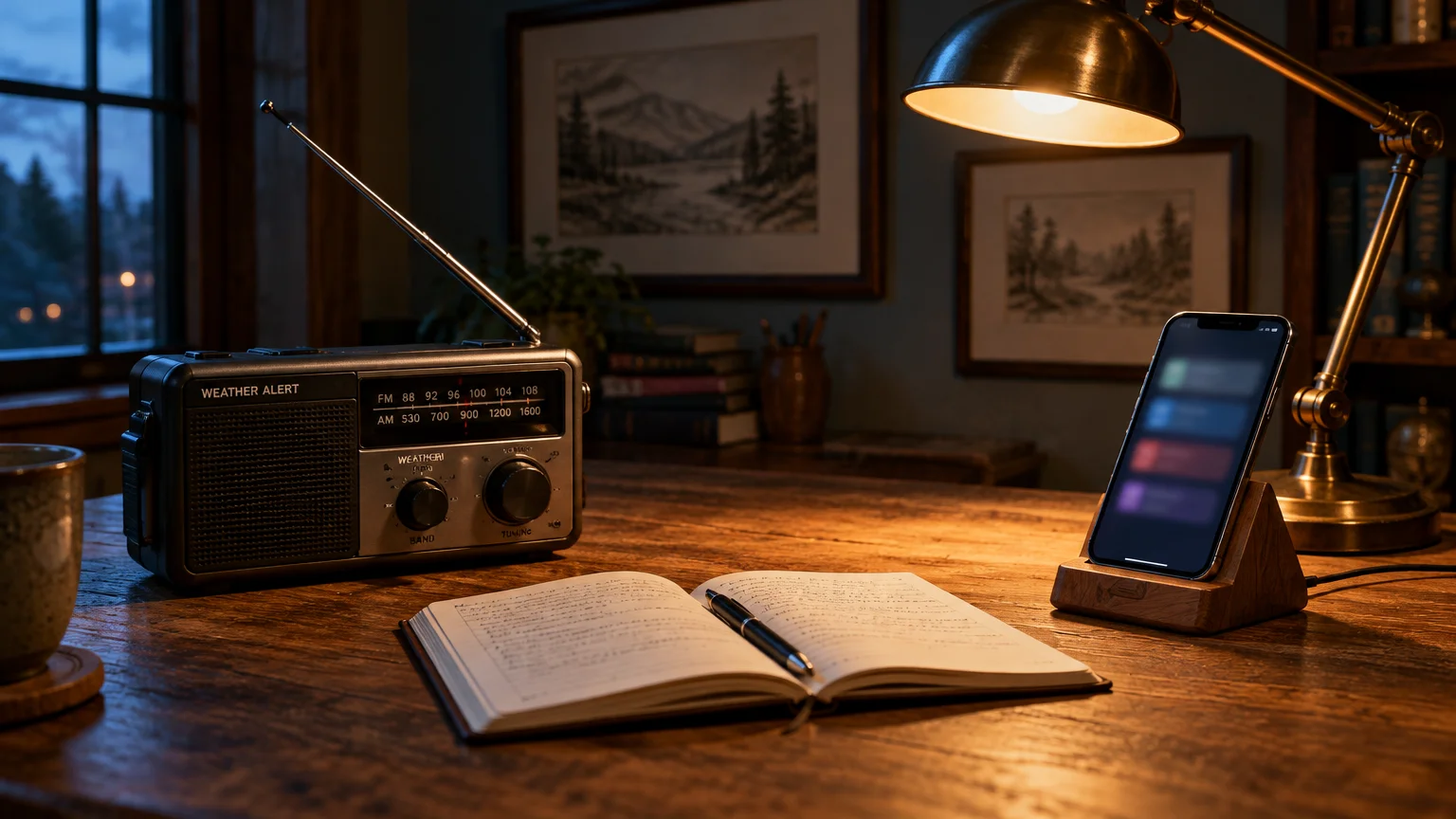
A weather app set to your home address is a second option. On iPhone, it can break through silent mode only if its settings show a Critical Alerts switch.
Apps need Wi-Fi or mobile data, so treat one as a daytime extra.

Worked Example: One Night
Here is the reader’s night, with the iPhone 13 set up as above and a county-programmed radio on the dresser.
9:30 PM: they flip the Ring/Silent switch to orange. Emergency Alerts is on; Always Play Sound is off.
3:00 AM: a flash flood warning goes out for a creek 40 miles away, in the next county.
The phone’s screen lights up silently, and the radio stays quiet because the warning is not for their county.
7:00 AM: the Clock alarm rings as usual. The flood warning is waiting on the screen, and they read it over coffee.
Now change one fact. A tornado warning is issued for their own county at 3 AM: the phone still stays quiet, but the radio sounds and wakes them.
The phone stops waking them for other people’s weather; one device they set themselves wakes them for their own.
Compare Your Options
Every column is something you can check yourself.
| Option | Where it lives | What it changes | Wakes you at night for your county? | Needs Wi-Fi or cell signal? |
|---|---|---|---|---|
| Always Play Sound off (iPhone) | Settings > Notifications > Emergency Alerts | Alerts follow the Ring/Silent switch | No; shows silently | Cell signal |
| Emergency Alerts off (iPhone) or Extreme and Severe threats off (Android) | Government Alerts / Wireless emergency alerts | No tornado or flood warnings at all | No | Not applicable |
| Always alert at full volume off (Android, where shown) | Wireless emergency alerts > Alert preferences | Alerts stop overriding your volume | Wording and effect vary by model | Cell signal |
| AMBER and Public Safety off | Same menus as above | Stops missing-child and local notices | Weather warnings unaffected | Not applicable |
| SAME weather radio | On the radio, using your county code | Sounds only for your county’s warnings | Yes | Neither |
| Weather app with home address | In the app, plus phone notification settings | Notifies for a saved place | On iPhone, only with Critical Alerts on | Wi-Fi or mobile data |
National Alerts are missing because no setting stops them on any phone.
Frequently Asked Questions
Will my morning alarm still ring after these changes?
Yes. Alarms set in the Clock app are separate from government alerts and sound even when the Ring/Silent switch is set to silent.
Is it legal to block National Alerts?
No phone offers that choice. Under the WARN Act of 2006, phones must deliver National Alerts, though you may silence every other category.
Do these alerts use my data or cost anything?
No. They arrive by one-way cell broadcast, so they are free and do not count against texts or mobile data.
Why did a flood 40 miles away set off my phone?
Towers near the edge of a warning area can pass the alert to phones just outside it, and your settings have no distance option.
Note: These steps reflect iOS 26 and Android 16; menu names can change with updates. ClearTechGuide has no commercial ties to Apple, Google, or other device makers.