You are in your late sixties, on a budget Android phone the carrier store set up, calling your pharmacy’s automated refill line. The recording says “press 1 to confirm,” you lower the phone, and the screen stays black.
You already wiped the glass, and it did not help.
Many budget and mid-range Android phones have no light sensor above the earpiece at all. They guess whether the phone is at your ear from touch and motion, so a cloth has nothing to fix.
Our advice for these phones: tap Speaker before the menu starts, and turn off the setting that lets the power button hang up. Cleaning helps mainly on phones with an infrared sensor, such as iPhones.
In this guide9 sections
Two Kinds of Proximity Sensor
Your phone darkens the screen at your ear so your cheek cannot press buttons or end the call. The part that decides is called the proximity sensor.
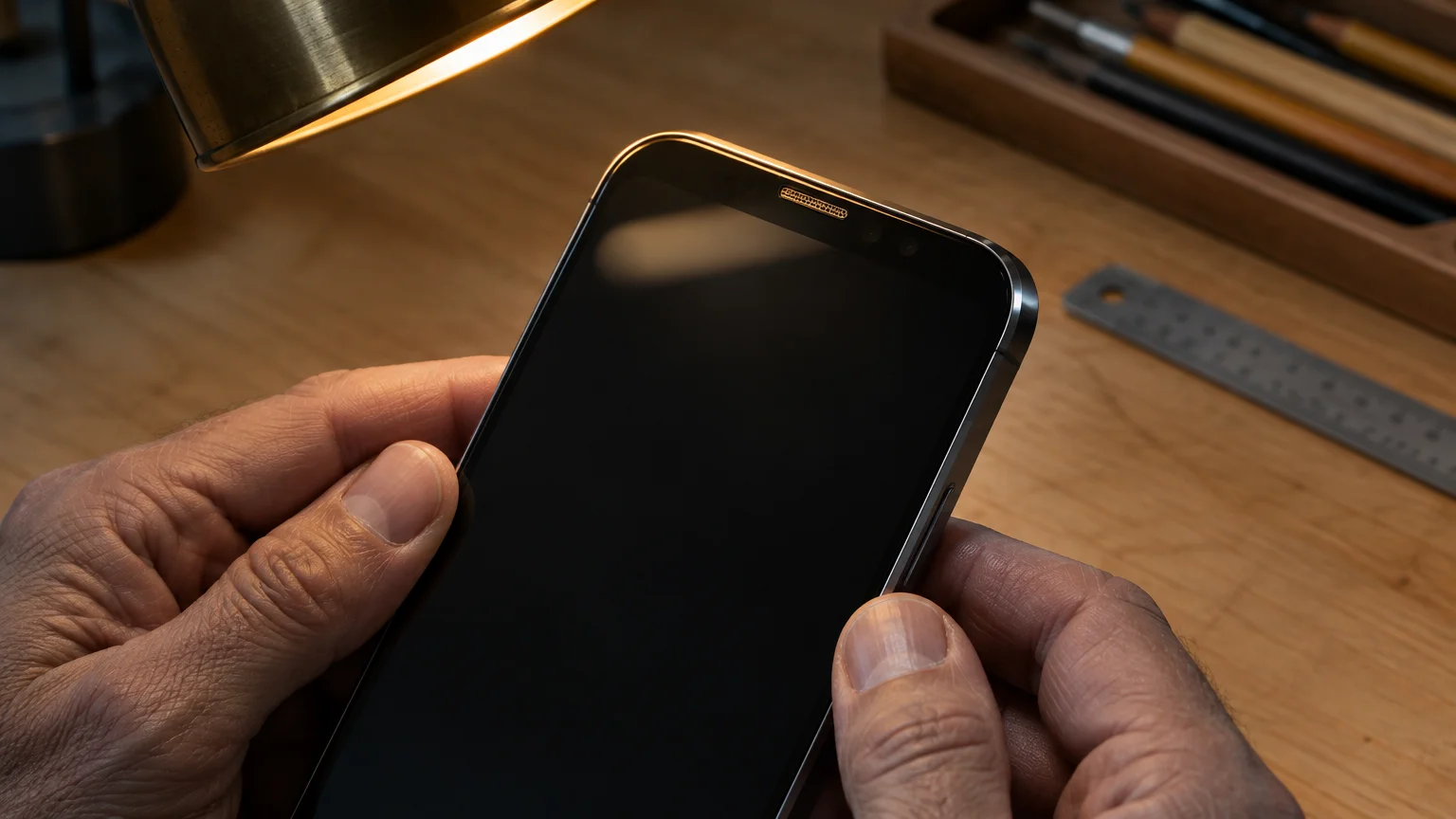
The traditional kind is infrared. A tiny emitter near the earpiece sends out invisible light, and a receiver measures how much bounces back off your face.
iPhones use this kind, built into the top of the screen. The Apple iPhone User Guide shows the front of each model.
The newer kind is often called a virtual proximity sensor. It has no light window; the phone combines the touchscreen, the motion sensors and, on some models, an inaudible tone from the earpiece.
Makers use virtual sensors to save space and parts, so they are common on budget and mid-range Android phones.
Why Cleaning Fails on Many Budget Phones
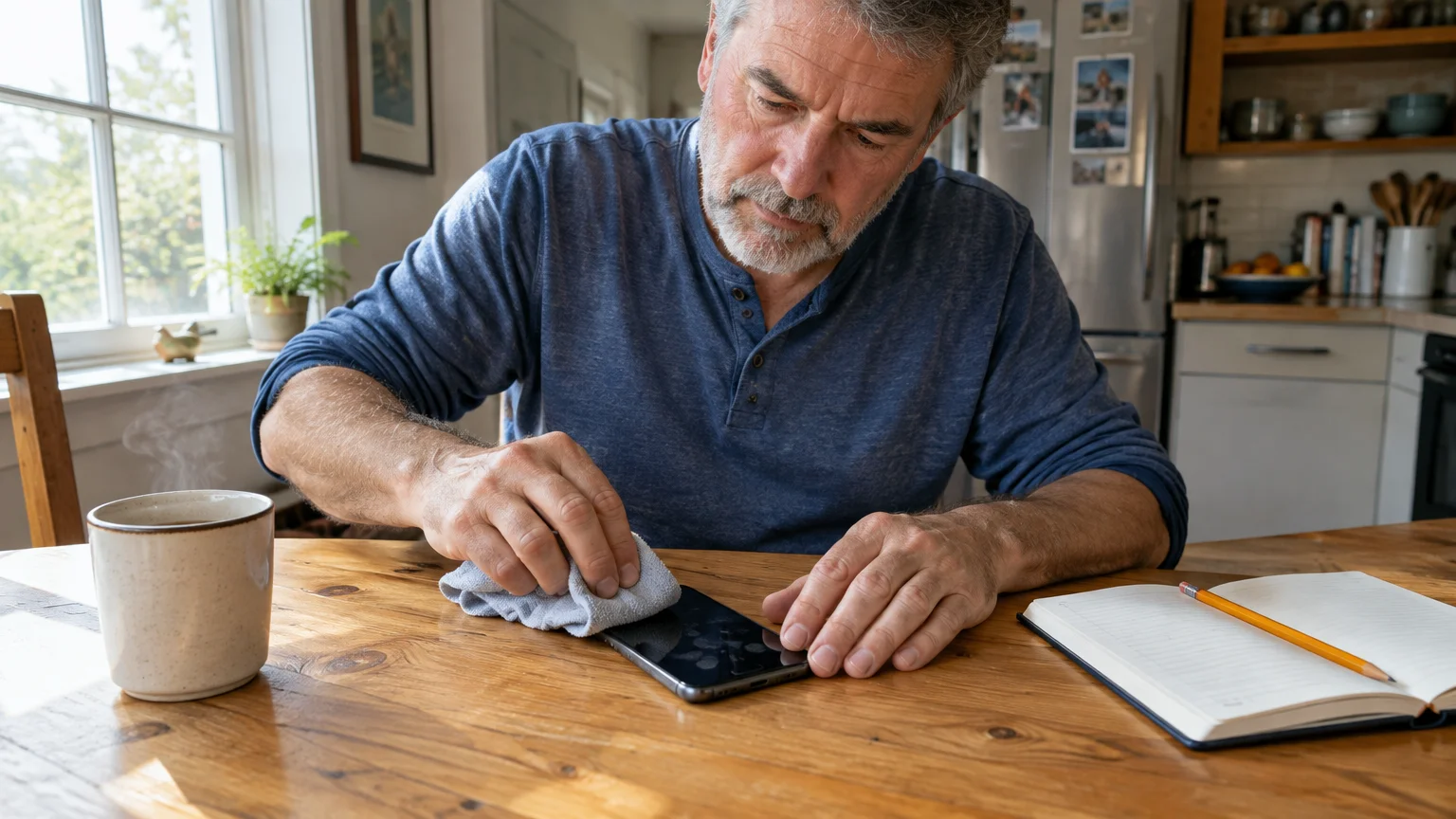
An infrared sensor fails for physical reasons. Skin oil, makeup, lint, a thick case lip, or a screen protector without a cutout can bounce the beam back and fake a face.
A virtual sensor has no beam to block. It decides “at the ear” from the soft, wide touch of a cheek on the glass plus the lift and tilt of the phone.
It decides “away from the ear” by recognizing the motion of lowering the phone. Lower it slowly, keep it tilted, or rest fingers on the glass, and the guess can stay wrong.
Ultrasonic versions listen for an echo instead. Neither approach depends on clean glass the way an infrared window does, so wiping it changes little.
Check Which Sensor You Have
You can test this yourself during an ordinary call.
- Call your own voicemail and leave speaker off.
- Hold the phone flat in front of you with the call screen showing.
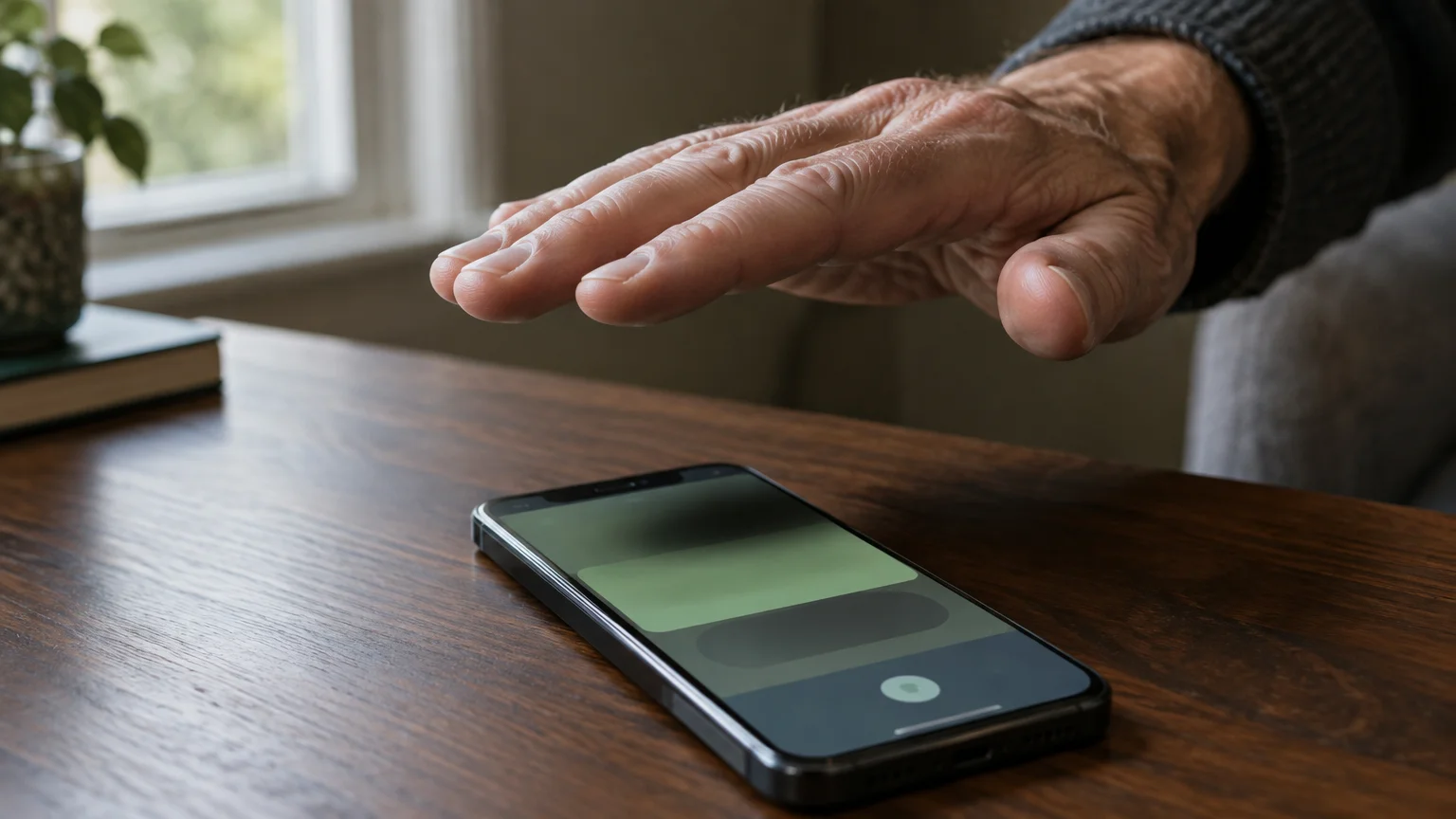
- Without touching the glass, hover your palm just above the earpiece.
- Watch the screen, then move your hand away.
If the screen darkens as your palm hovers and returns when you pull back, you likely have an infrared sensor. Cleaning and case checks are worth your time.
If nothing happens until skin actually presses the glass, your phone probably uses a virtual sensor. Go straight to the settings fixes.
Some makers’ specification pages also list the sensor type, and Google Android Help covers Android settings generally.
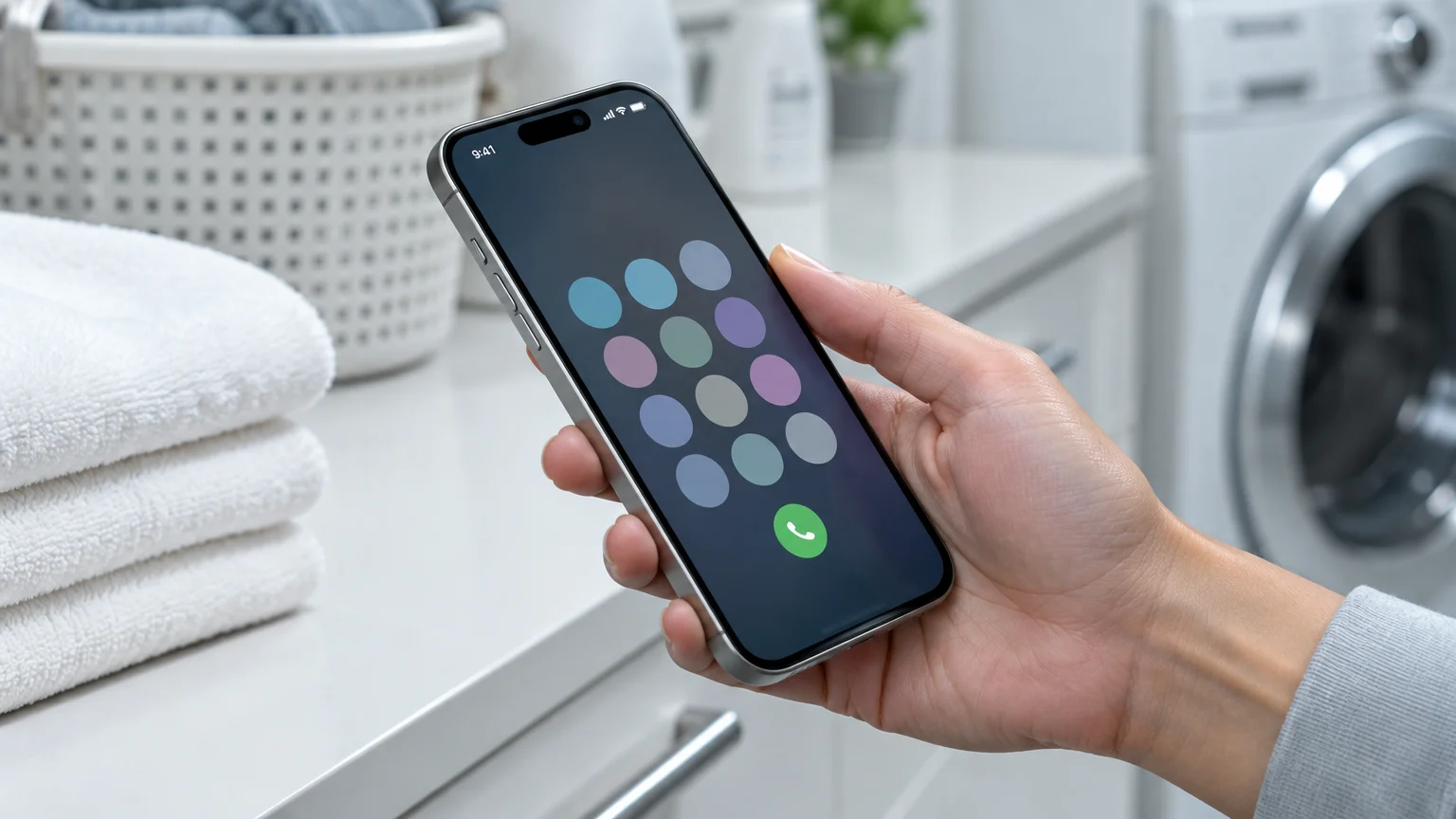
Get the Keypad Back Mid-Call
On iPhones—and on Android phones where the power-button hang-up setting is turned on—pressing the side power button during a call hangs up. Avoid it until you change the setting in the next section.
If the screen is already black:
- Hold the phone flat in your palm, screen facing the ceiling.
- Grip only the edges, keeping fingers off the front glass.
- Wait a moment, then tap the middle of the screen once.
- Tap Speaker when the call screen appears.
- Tap Keypad and press the number the recording asked for.
Holding still gives a virtual sensor the “away” pattern it wants. Once speaker is on, most phones stop checking for your face.
Better still, tap Speaker the moment the line connects. If the phone never reaches your ear, the sensor never has a chance to guess wrong.
On an iPhone you can make speaker the default: Settings > Accessibility > Touch > Call Audio Routing > Speaker.
Stop the Power Button Hanging Up
On a virtual-sensor phone, this setting matters more than any cleaning. Once the power button no longer ends calls, a press wakes a black screen on most phones, without relying on the sensor’s guess.
On a Google Pixel with Android 16:
- Open Settings.
- Tap Accessibility.
- Tap System controls.
- Turn off Power button ends call.
Motorola and other makers often use similar labels, but the wording varies by model.
On a Samsung Galaxy, open the Phone app, tap the three dots, choose Settings, then Answering and ending calls, and turn off Press Side key to end calls. Some models put it under Accessibility instead.
On an iPhone with iOS 26, go to Settings > Accessibility > Touch and turn on Prevent Lock to End Call. The Apple accessibility features guide covers related tools such as AssistiveTouch.
Larger text and magnification, explained in the Google Android accessibility overview, make Speaker and Keypad easier to hit.

Worked Example: The Refill Call
The refill line goes black at “press 1.” Wiping the glass and redialing gives the same result, so the next step is the hover test on a call to voicemail.
Hovering a palm over the earpiece changes nothing; only a cheek pressed to the glass darkens the screen. That points to a virtual sensor.
Next comes the power button setting: Settings > Accessibility > System controls, with Power button ends call switched off, or the matching option on that model.
On the next refill call, the reader taps Speaker as the line connects, then Keypad, and sets the phone flat on the table.
When the recording says “press 1,” the keypad is already showing. The reader presses 1, types the prescription number, and ends the call with the red button.
If habit puts the phone to the ear and the screen goes dark, a press of the power button brings it back without dropping the call.
Nothing was cleaned, bought or replaced. The case and screen protector stayed on, because they were never the problem.
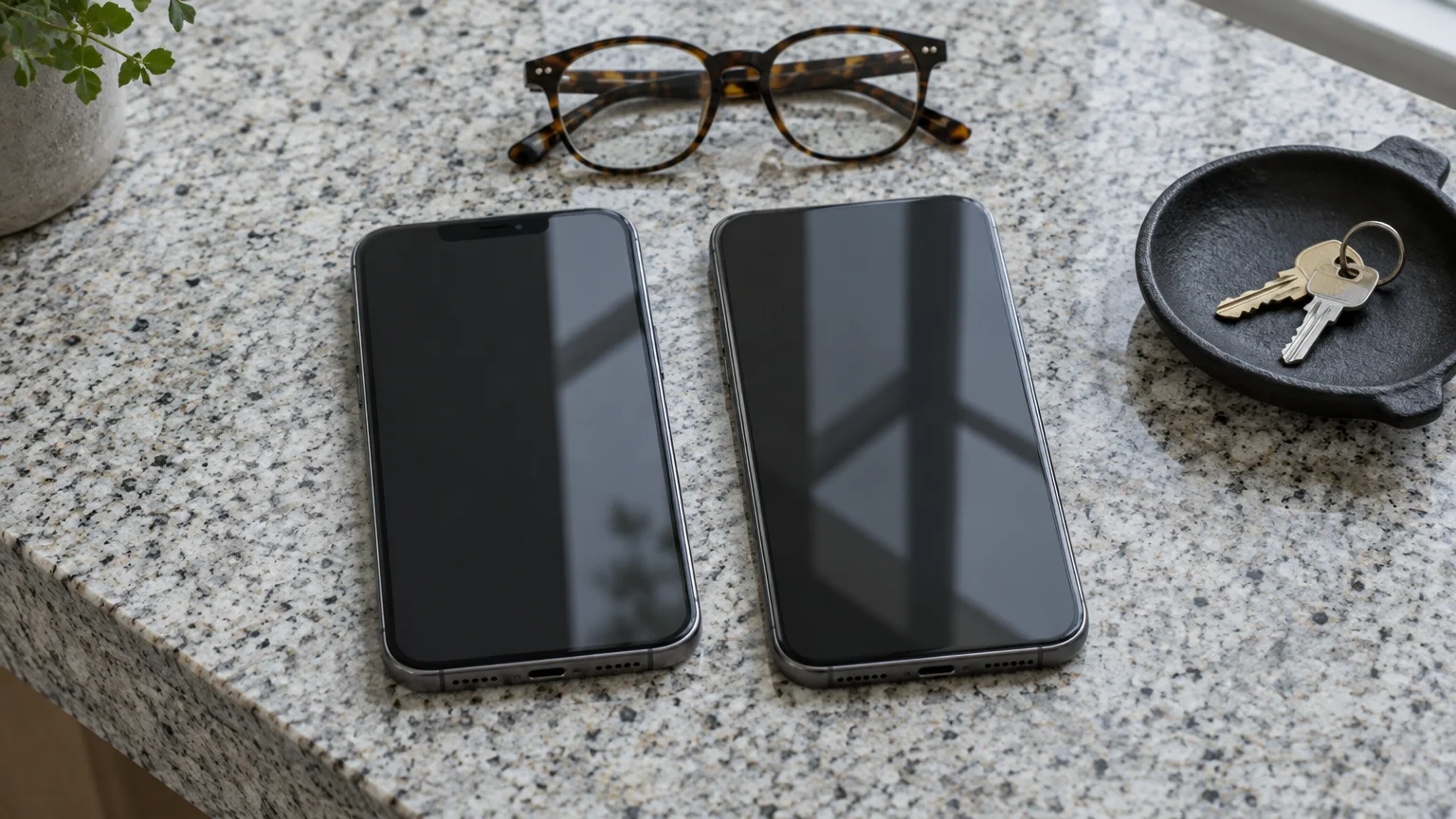
Which Fix Works for Which Sensor
Every fix below is free. Compare the last two columns with your hover test result.
| Fix | Where to find it | What it changes | Wi-Fi needed? | Infrared sensor (iPhone) | Virtual sensor (many budget Android) |
|---|---|---|---|---|---|
| Speaker before the menu | Speaker button on the call screen; iPhone: Accessibility > Touch > Call Audio Routing | Screen stays awake on most phones | No | Helps | Helps |
| Power button no longer ends calls | Pixel: Accessibility > System controls; Samsung: Phone app settings; iPhone: Accessibility > Touch | A press wakes a black screen | No | Helps | Helps |
| Bluetooth earbuds or hearing aids | iPhone: Settings > Bluetooth; Pixel: Settings > Connected devices | Sound leaves the phone, so it rarely goes to your ear | No | Helps | Helps |
| Wipe the top of the screen | Glass around the earpiece | Removes film that fakes a face | No | Helps | Little or no effect |
| Test call without case or protector | Case lip and protector edge | Shows whether an accessory covers the sensor | No | Helps | Rarely matters |
If you wear hearing aids, the FCC hearing aid compatibility guide explains how phones are rated to work with them.
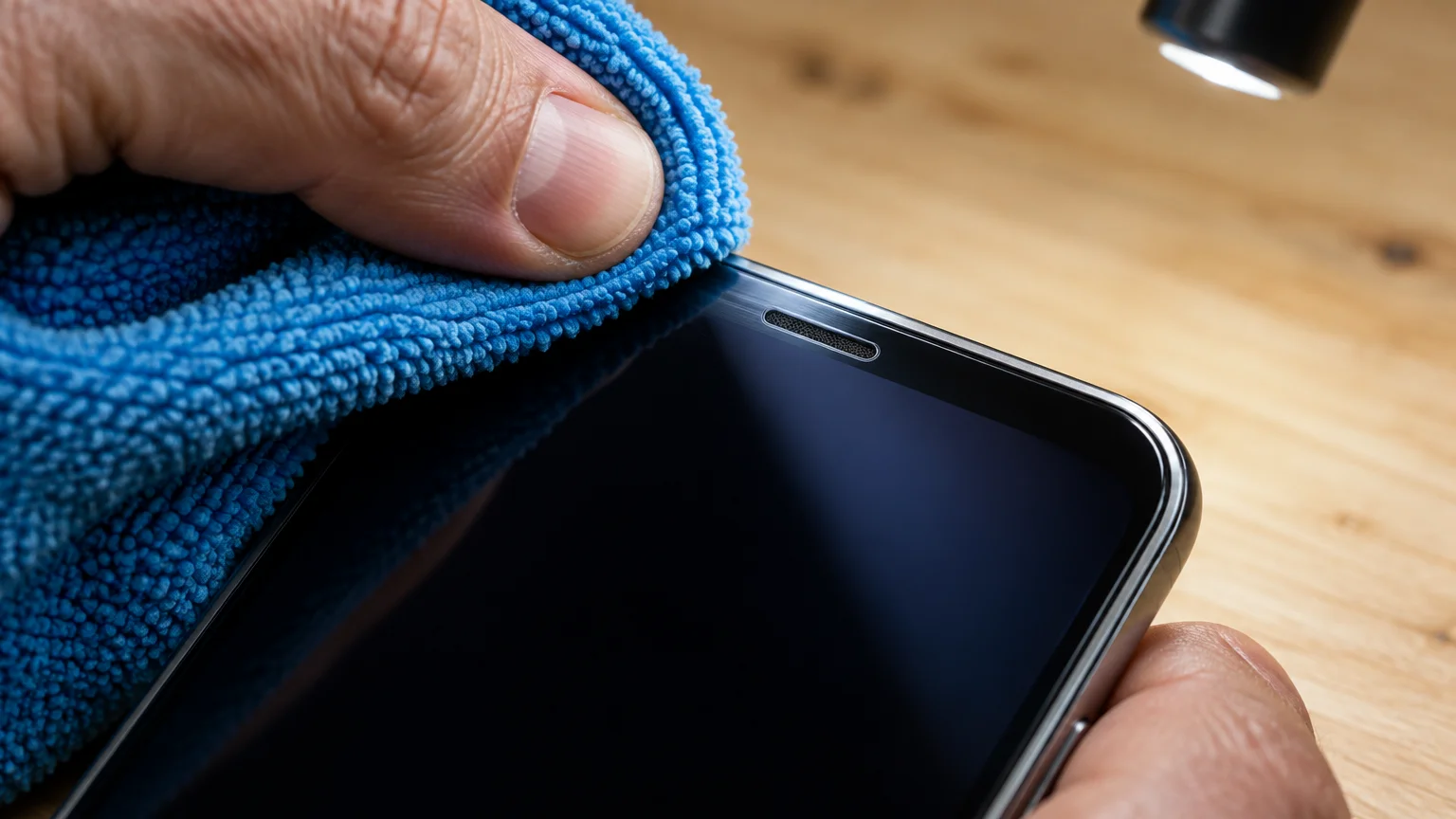
When Cleaning Is Worth It
If your hover test showed an infrared sensor, or you use an iPhone, cleaning is the right next step.
Warning: never push pins or paperclips into the earpiece slot, and never spray liquid on the phone. Both can damage the water-resistant parts inside.
Samsung’s phone cleaning guide recommends wiping the glass gently with a dry, lint-free microfiber cloth instead.
- Turn the phone off and take it out of its case.
- Under a bright lamp, look at the earpiece slot and nearby glass for lint or makeup.
- Sweep the slot sideways with a soft, dry toothbrush.
- Wipe the top of the glass with a microfiber cloth barely dampened with water.
- Turn the phone on and place a test call with the case off.
If the screen now behaves, the case lip or screen protector was covering the sensor. Choose one with an open cutout around the earpiece area.
A crack across the top of the screen can also scatter the infrared beam. That needs a repair, not a cloth.
Frequently Asked Questions
Why didn’t cleaning my screen fix the black screen?
Your phone may use a virtual proximity sensor, which judges your ear from touch and motion rather than light. Turn off power-button hang-up and use speaker instead.
How do I press numbers for an automated line if the screen won’t come on?
Hold the phone flat, tap the screen, then tap Speaker and Keypad. Next time, tap Speaker as soon as the call connects.
Is a crack near the earpiece enough to cause this?
On phones with an infrared sensor, it can be. A crack can scatter the beam so the phone reads it as your face.
Will Bluetooth earbuds keep the screen on during calls?
Usually. When call audio goes to earbuds or hearing aids, you are not holding the phone to your ear, so the screen generally stays on.
Google’s guide to connecting hearing devices explains how to pair compatible aids in Settings so calls route straight to your ears.
Note: Menus and button names change with software updates. These steps were written for current versions as of 2026; if a screen looks different on your device, the maker’s support page linked above has the latest wording.
ClearTechGuide is independent and is not affiliated with Apple, Google, Microsoft, Amazon or any other company mentioned.