
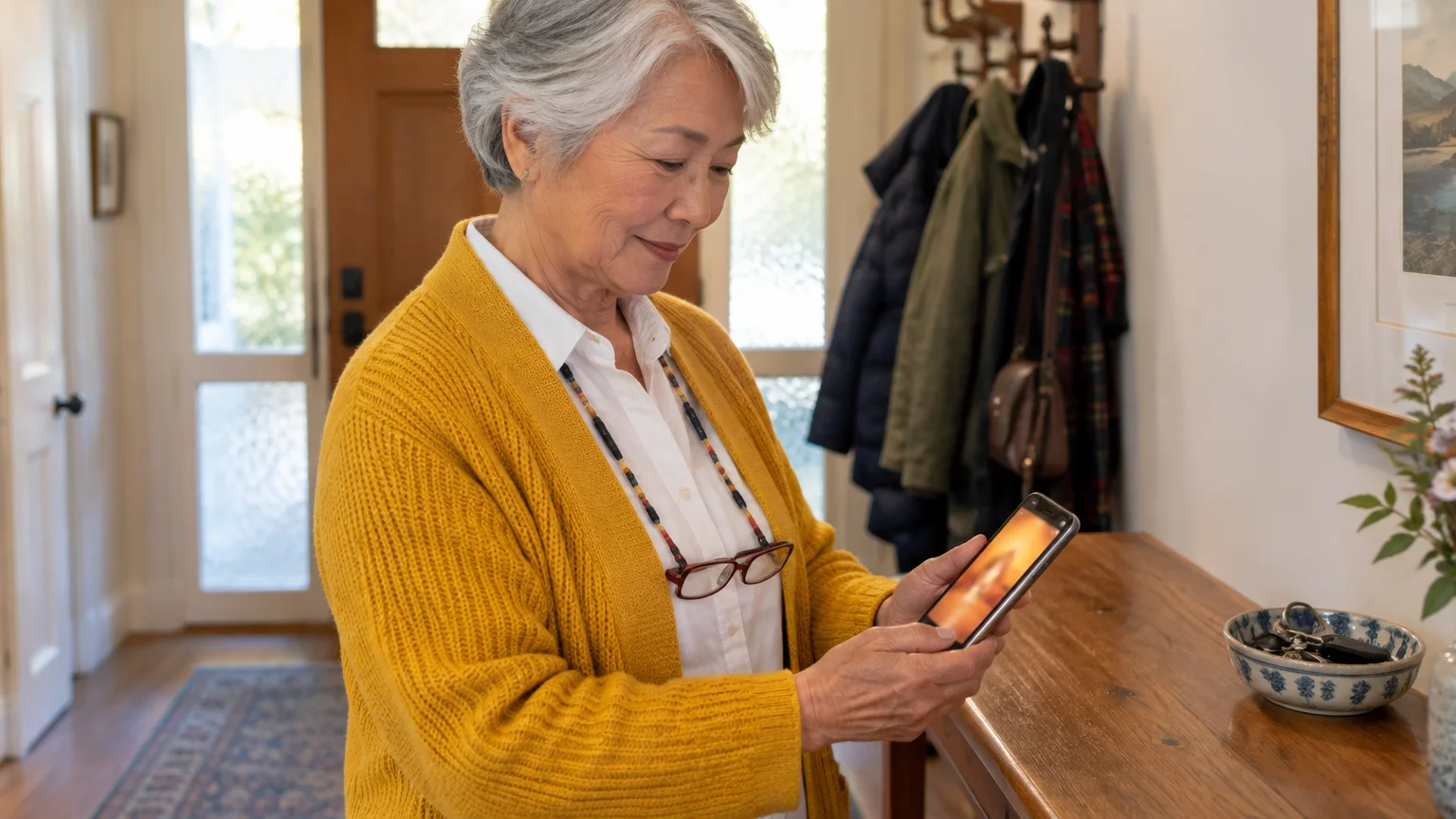
You can make incoming calls take over your entire smartphone display instead of hiding inside a narrow strip at the top edge.
When you set caller ID to full screen, names and numbers appear in large print that you can identify immediately without searching for reading glasses.
Modern phone operating systems default to compact banners that preserve background screen activity, but they shrink caller text to less than twelve points. Restoring full-screen caller ID triples the physical font size and expands the touch target by over 400 percent, ensuring effortless identification.
In this guide9 sections
- Why Incoming Calls Shrank to Tiny Top Banners
- Legibility Measurements: Banner Versus Full-Screen Display
- Restoring Full-Screen Caller ID on iPhone
- Restoring Full-Screen Incoming Calls on Android Devices
- Worked Scenario: Eleanor Sets Up Legible Calls Without Glasses
- Assigning Large Contact Photos for Instant Recognition
- Accessibility Settings to Enlarge Caller Text Further
- Safely Identifying and Screening Unknown Numbers
- Frequently Asked Questions
Why Incoming Calls Shrank to Tiny Top Banners
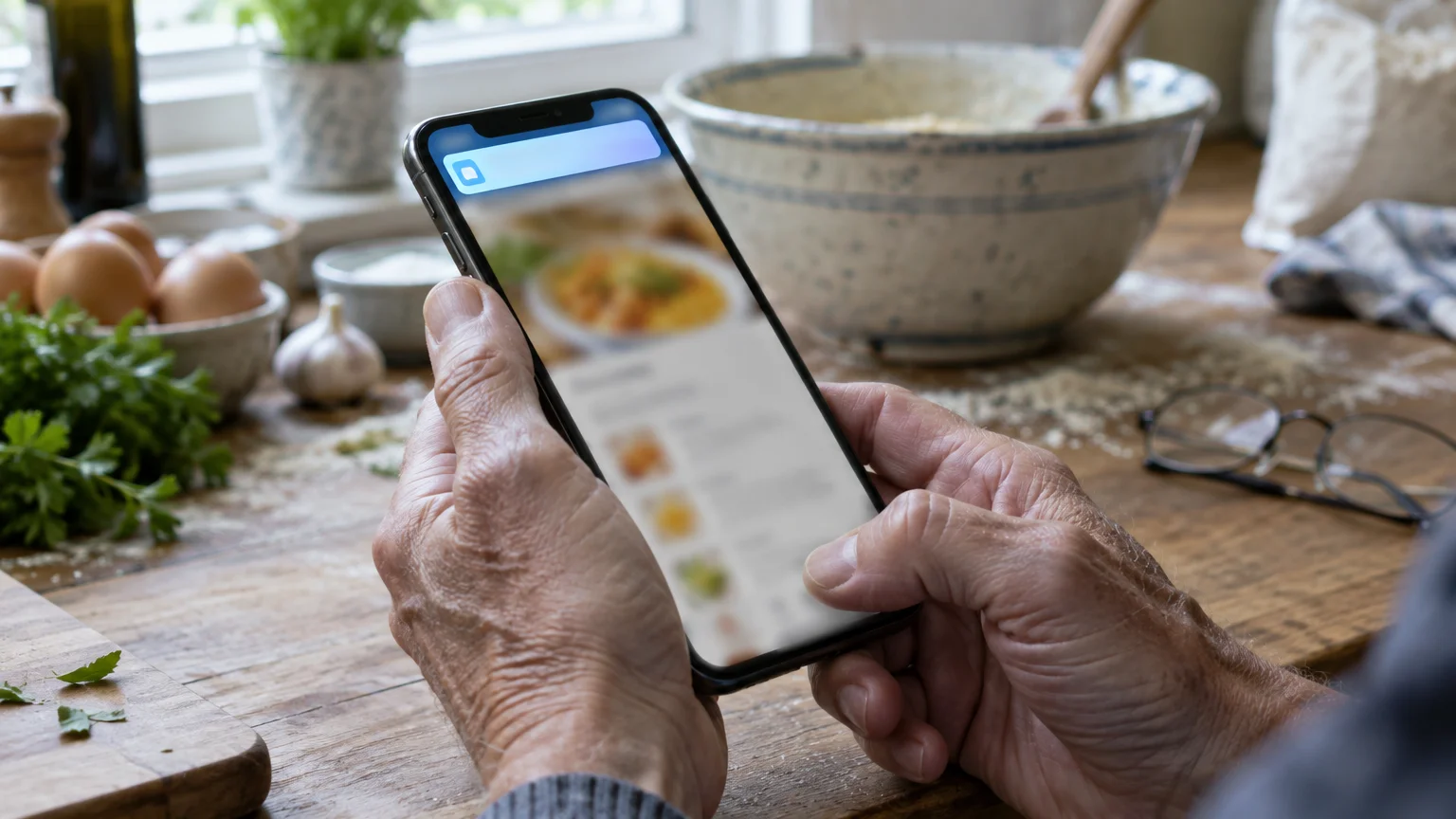
A notification banner is a compact alert box that slides down from the top edge of your screen while an app remains open. Apple and Google introduced banner call alerts to keep active tasks visible during incoming rings.
If hearing the caller clearly is just as important as seeing the screen, you can also set up routing phone calls to your hearing aids.
Before this interface change, an incoming telephone call seized the entire display instantly. While multitasking users welcomed the smaller alert, people who prioritize fast visual recognition lost their large text and obvious buttons.
Caller ID is the telecommunications service that transmits the caller’s phone number and registered name to your handset. When your smartphone squeezes that data into a two-line banner, reading glasses become necessary just to tell who is calling.
Both iOS and Android retain settings that let you revert back to the legacy full-screen view. Restoring this display mode makes answering calls straightforward once again.
Legibility Measurements: Banner Versus Full-Screen Display
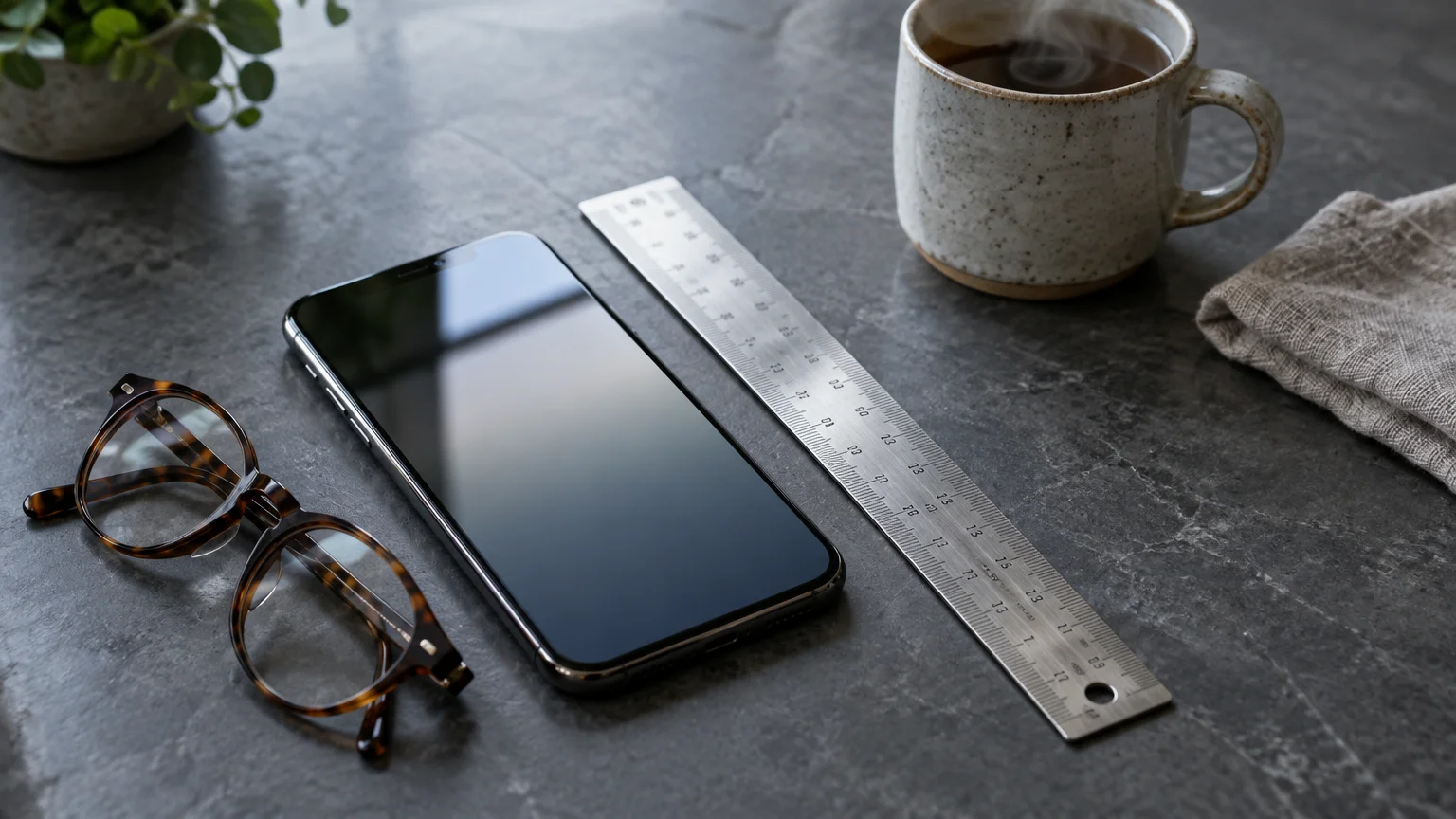
The physical dimensions of incoming call interfaces directly impact readability when corrective lenses are out of reach. Side-by-side display measurements show sharp contrasts between compact banners and full-screen layouts on a standard 6.1-inch smartphone display as of 2026.
If your display shuts off before you have time to see who is calling, you can stop your phone screen from going black so fast by adjusting screen timeout settings.
If swiping across the display remains challenging, you can also learn how to answer phone calls with a single tap to make picking up even easier.
A compact banner limits contact names to a tiny strip measuring approximately 18 millimeters vertically. In contrast, a full-screen layout utilizes the entire vertical span of over 140 millimeters.
| Display Mode | Text Height (Contact Name) | Vertical Screen Coverage | Button Tap Area | Legible at 18 Inches Without Glasses |
|---|---|---|---|---|
| iPhone Banner Alert (iOS Default) | 3.2 mm (13 pt) | 18 mm (12% of screen) | 20 mm x 20 mm | Poor (Requires reading glasses) |
| iPhone Full-Screen Caller ID | 9.5 mm (38 pt) | 146 mm (100% of screen) | 55 mm diameter | Clear (High legibility) |
| Android Pop-Up Banner (Default) | 3.5 mm (14 pt) | 22 mm (15% of screen) | 22 mm x 22 mm | Poor (Requires reading glasses) |
| Android Full-Screen Call Display | 10.2 mm (40 pt) | 148 mm (100% of screen) | 60 mm diameter | Clear (High legibility) |
Switching to a full-screen layout expands contact name lettering by nearly three times its banner size. The circular accept and decline buttons also expand dramatically, preventing accidental missed taps.
Restoring Full-Screen Caller ID on iPhone
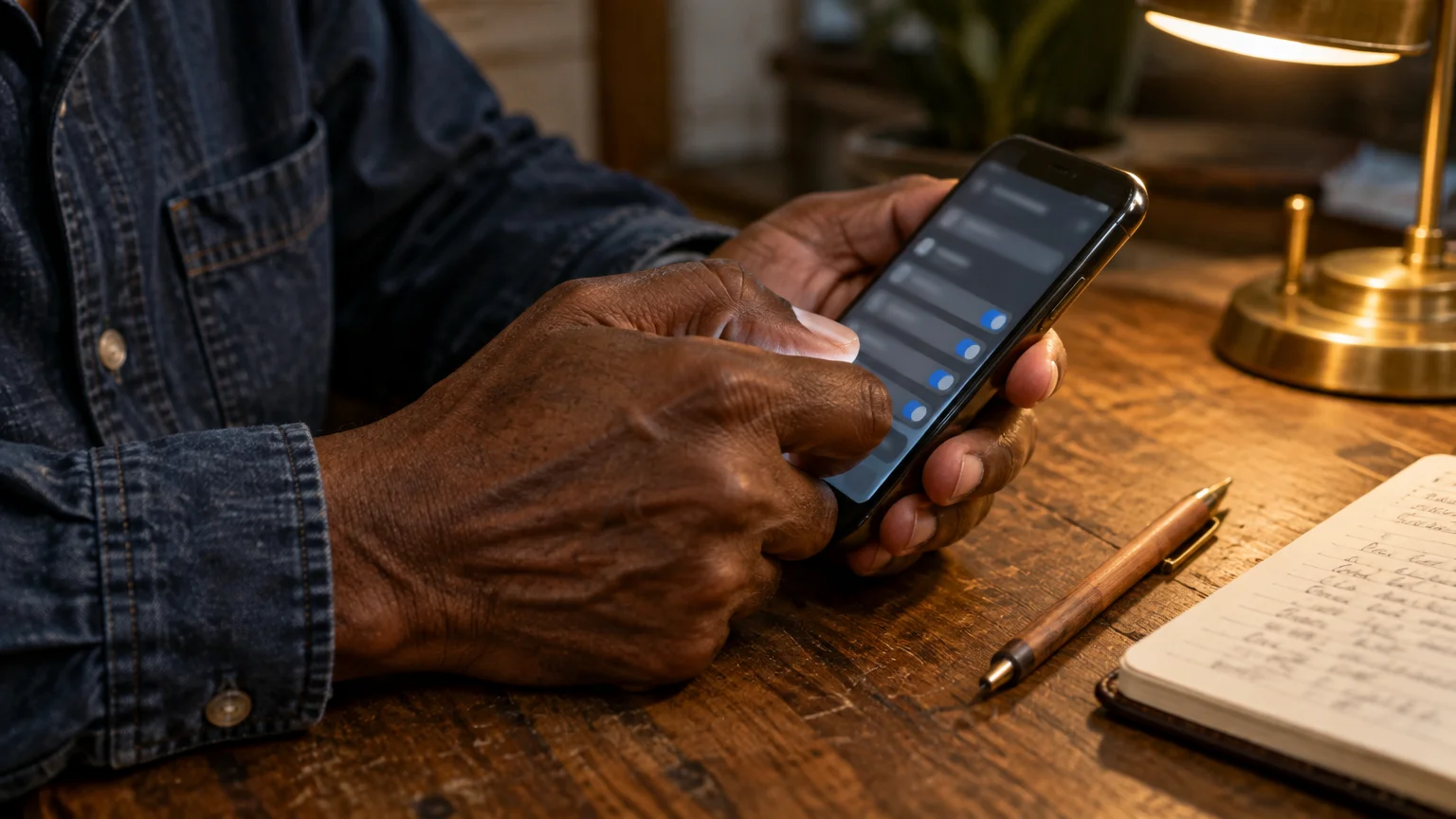
Apple introduced compact call banners in iOS 14, but the operating system allows you to restore the full-screen display anytime. These instructions apply to iPhones running iOS 17 and iOS 18 as of 2026.
If your device is failing to make any sound during incoming calls, check our guide on what to do when your phone isn’t ringing.
Adjusting this preference does not delete contacts, reset ringtones, or alter how your voicemail functions. It only controls how an incoming call appears while your phone is unlocked and active.
- Open the Settings app on your iPhone home screen.
- Scroll down the settings list and tap Phone.
- Tap Incoming Calls located under the primary phone access settings.
- Tap Full Screen to place a checkmark beside it instead of Banner.
- Swipe up from the bottom of your screen or press the home button to return to your main display.
Incoming calls will now command the complete display whenever your phone is unlocked. You can consult the official Apple iPhone User Guide for additional details on system call preferences.
Remember that calls received while your iPhone is already locked will continue showing full screen as they always have. This adjustment brings that same readable presentation to your unlocked device.
Restoring Full-Screen Incoming Calls on Android Devices
Android manufacturers configure their call display menus differently depending on their custom software skins. We outline the exact steps for Samsung Galaxy phones running One UI and Google Pixel devices running Android 14 and 15 as of 2026.
If Android dialer menus still feel cramped, you can also learn how to make text bigger on your Android phone across all your apps.
For additional visual awareness when your phone rings across the room, consider turning on flashlight alerts for incoming calls.
Changing this layout retains your contact records and custom ringtones intact. You can place a quick test call from another phone immediately after setup to verify the visual layout.
Here is how to configure Samsung Galaxy handsets using the native Phone dialer.
- Open the Phone app displaying the green handset icon.
- Tap the More options button, represented by three vertical dots in the upper-right corner.
- Tap Settings from the drop-down menu list.
- Tap Call display while using apps.
- Select the Full screen option from the three choices on your screen.
- Toggle the switch beside Keep calls in pop-up to the off position.
Google Pixel phones and Motorola devices rely on the standard Google Phone application. Follow these steps to configure your incoming call alert priority on Google dialer devices.
- Open the Settings app on your Android handset.
- Tap Apps, then tap See all apps.
- Scroll down the installed applications list and select Phone.
- Tap Notifications, then tap Incoming calls.
- Select Default and turn on the Pop on screen toggle to ensure incoming calls take visual priority over background tasks.
For help with other handset manufacturers, review the official Google Android Help platform.
Worked Scenario: Eleanor Sets Up Legible Calls Without Glasses
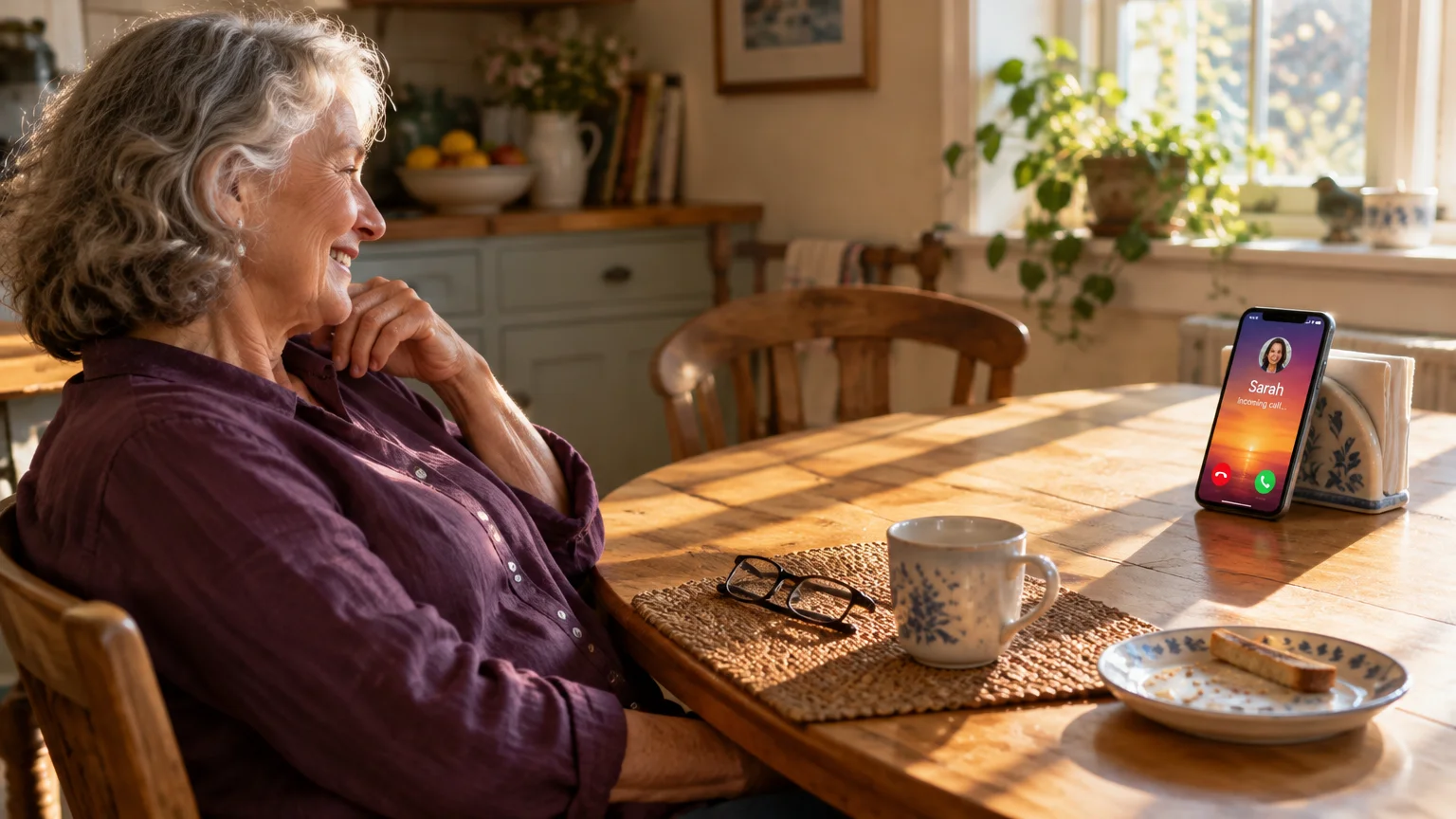
Eleanor is a 69-year-old retired teacher who relies on plus 2.25 diopter reading glasses for fine print. When her phone rings across the kitchen counter, her reading glasses are usually sitting on her nightstand.
For a complete walkthrough on scaling up text across menus, see our guide on how to make text bigger on your iPhone.
Her iPhone 13 previously displayed incoming calls as a 15-millimeter banner at the top edge. The caller name appeared in 13-point text measuring barely 3.2 millimeters tall, making it impossible to read from two feet away without glasses.
Eleanor opens Settings, selects Phone, and taps Incoming Calls. She selects Full Screen to expand incoming rings across the entire display.
Next, she enters Display & Text Size under accessibility settings and enables Larger Accessibility Sizes. She adjusts the slider to 120 percent of standard size.
Now, incoming caller names appear at 9.5 millimeters tall, and contact photos occupy the screen center. Eleanor can recognize incoming callers from thirty inches away without needing to hunt down her glasses.
Assigning Large Contact Photos for Instant Recognition
Pairing a full-screen display with clear contact photos allows you to recognize callers by their picture alone. This visual shortcut eliminates the need to squint at phone numbers or small spelling.
When unfamiliar numbers keep ringing through despite your setup, follow our steps on how to block unwanted calls on your smartphone.
On iPhones running iOS 17 or iOS 18, Apple provides a feature known as Contact Posters. A Contact Poster lets you customize a full-screen visual identity for any saved contact.
- Open the Contacts app and tap the name of a family member or friend.
- Tap Contact Photo & Poster under the contact name.
- Tap Edit, then tap Customize, and select Poster.
- Select Photos, choose a clear portrait image, and pinch the screen to position the subject in the frame.
- Tap Done in the upper-right corner to save the full-screen layout.
Android users can assign dedicated photos directly inside their Contacts app to achieve a similar full-screen picture.
- Open the Contacts app on your Android device.
- Select the contact you wish to edit and tap Edit contact or the pencil icon.
- Tap the camera icon located on the circular contact avatar.
- Choose Gallery, select a bright photo, crop the frame closely around their face, and tap Save.
When that person calls, their face will appear prominently on your screen, allowing instant identification from across the room.
Accessibility Settings to Enlarge Caller Text Further
Restoring the full-screen mode makes an immediate visual improvement, but built-in accessibility features can enlarge caller details even further. Both Apple and Google include tools designed specifically for low-vision reading comfort.
Along with larger visuals, you can also set up your phone to route incoming calls directly to your hearing aids for crystal-clear audio.
Android owners can follow similar steps to make text bigger on Android across all menus and dialer screens.
Dynamic Type on iOS increases font sizes across system applications and incoming call screens simultaneously. You can explore complete instructions on how to make text bigger on iPhone and iPad through official Apple support.
- Open the Settings app and tap Accessibility.
- Tap Display & Text Size.
- Tap Larger Text, then turn on Larger Accessibility Sizes.
- Drag the slider along the bottom to your preferred reading level.
Android offers corresponding controls under its visual accessibility settings. To explore all vision enhancements, refer to the Google Android accessibility overview.
- Open Settings on your Android phone.
- Tap Display, or tap Accessibility followed by Vision enhancements on Samsung handsets.
- Tap Font size and style or Display size and text.
- Drag the Font size slider to the right until the preview text feels comfortable to read without glasses.
Enlarging system fonts also increases the size of caller ID names during an incoming ring. This setting ensures that names remain legible regardless of lighting conditions.
Safely Identifying and Screening Unknown Numbers
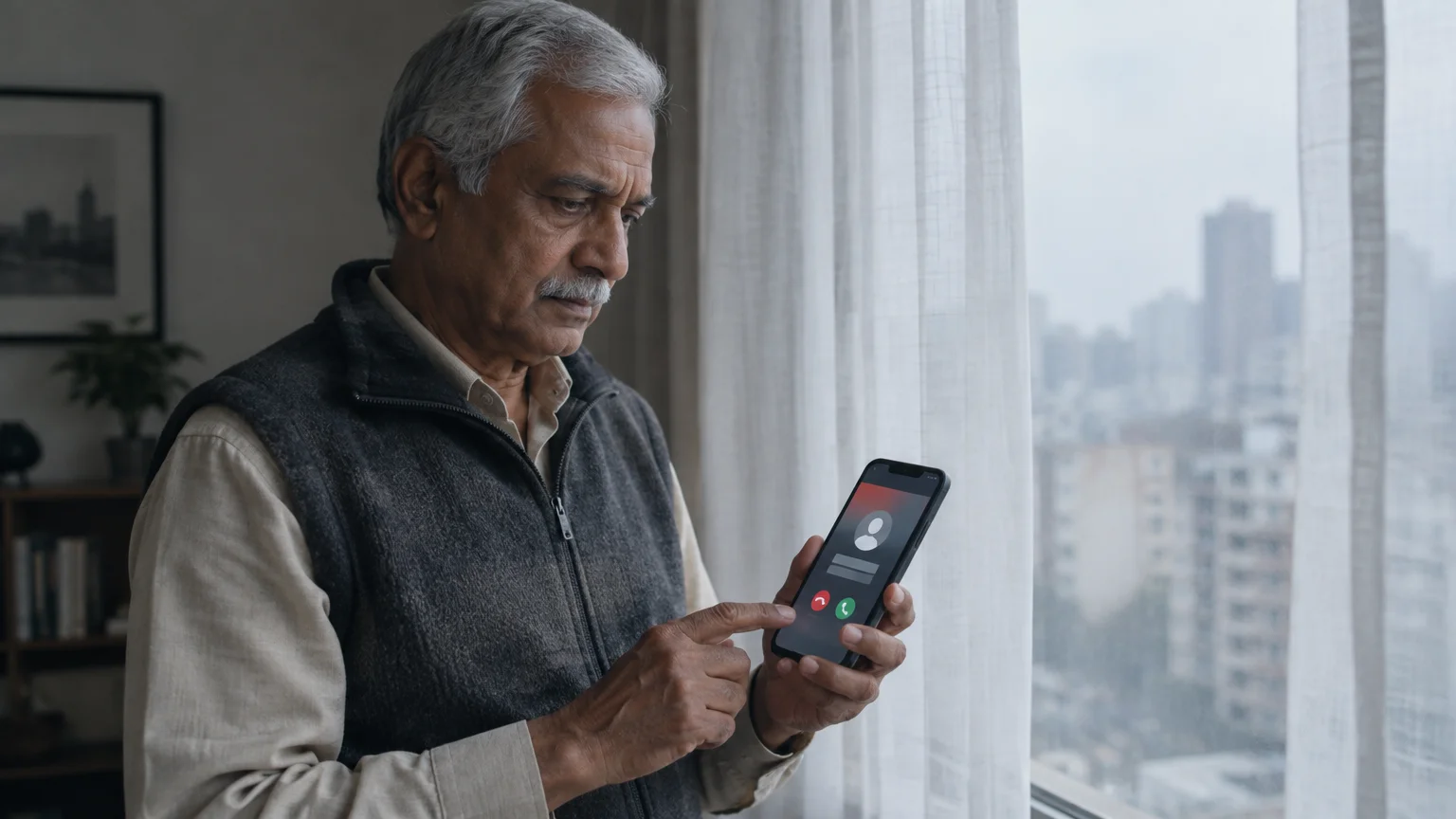
A full-screen incoming call screen makes it significantly easier to inspect unrecognized numbers before answering. Having large numbers displayed prominently gives you time to evaluate the area code and exchange.
Reviewing common red flags will also teach you how to recognize and avoid phone scams before answering suspicious calls.
To stop persistent nuisance callers entirely, learn how to block unwanted calls on your smartphone.
Telemarketing operations and scammers routinely forge caller ID information to appear as neighbors or government agencies. You can review strategies from the Federal Trade Commission on how to block unwanted calls.
Never feel pressured to pick up an incoming call simply because your phone is ringing. Legitimate callers will leave a voicemail message detailing their identity and reason for calling.
Both mobile platforms offer built-in spam protection features that flag suspicious incoming calls on your screen. The Federal Communications Commission maintains guidance on how to stop unwanted robocalls and texts using network tools.
- Check the full ten-digit number on your full-screen display before tapping the green answer button.
- Silence unfamiliar callers by pressing the side volume button once without hanging up the line.
- Enable Silence Unknown Callers in your phone settings if you only wish to receive rings from saved contacts.
- Report persistent spam numbers directly through your phone app to help carriers block repeat offenders.
Frequently Asked Questions
Why did my incoming calls suddenly turn into a tiny banner?
Apple and Google switched the default incoming call setting to a banner in recent operating system updates. This was intended to avoid interrupting other apps, but you can switch it back anytime.
Does changing this setting affect calls when my phone is locked?
No, calls received while your phone is locked already take up the full screen automatically. Changing this option ensures calls also fill your screen while you are using an app or browsing.
Why does a contact photo show as a small thumbnail instead of full screen on iPhone?
Older contact photos assigned before iOS 17 often remain stored as small circular thumbnails. Editing the contact card and creating an updated Contact Poster restores the full-screen photo layout.
Will full-screen caller ID drain my phone battery faster?
No, full-screen caller ID uses the exact same battery power as banner notifications. Your phone screen remains illuminated for the same duration during an incoming ring under both settings.
Note: Menus and button names change with software updates. These steps were written for current versions as of 2026; if a screen looks different on your device, the maker’s support page linked above has the latest wording.
ClearTechGuide is independent and is not affiliated with Apple, Google, Microsoft, Amazon or any other company mentioned.
