If you live with hand tremors, a momentary pause of your finger can make your icons vibrate across the glass. When you only meant to open an application, a prolonged touch triggers an unwanted editing screen.
Increasing your device’s touch-and-hold delay stops hand tremors from accidentally triggering home-screen editing. This small calibration provides the exact pause needed to distinguish a resting finger from an intentional command.
We will show you how to quiet jiggling icons immediately and adjust your device settings to keep them steady.
In this guide7 sections
- Why Are My Apps Shaking?
- How to Stop Icons Jiggling on Screen Right Now
- Adjusting Touch Sensitivity for Tremors on iPhone and iPad
- Adjusting Touch Sensitivity for Tremors on Android
- Comparing Touch Delay Settings Across Devices
- Additional Accessibility Settings for Steadier Taps
- Frequently Asked Questions
Why Are My Apps Shaking?
Smartphones enter home-screen edit mode when you press and hold an icon. In this mode, often called jiggle mode, the device shakes icons to show that you can move or delete them.
Unintended finger placement can also trigger other unwanted shortcuts, such as opening the camera by mistake from your lock screen.
Engineers design touchscreens around dwell time, which measures how long your skin remains on the glass before the software registers a long press.
A standard tap requires roughly 100 to 150 milliseconds of contact. If your finger lingers for 400 milliseconds, the operating system assumes you want to rearrange your icons.
When you ask, “why are my apps shaking,” the physical cause is often an involuntary tremor or stiffness. An unsteady finger rests on the display slightly longer than intended, which accidentally crosses the long-press threshold.
Modern operating systems now include specific controls to accommodate changes in motor skills.
How to Stop Icons Jiggling on Screen Right Now
Before you tap anything on a shaking screen, beware of small badge symbols. Tapping the minus sign (–) or small cross (X) on an icon will uninstall the application or remove it from your layout.
You can stop icons jiggling on screen safely without altering your current layout or losing data. Use the specific physical button or gesture designed for your device model.
To exit edit mode on an iPhone or iPad running current software (iOS 26 or iOS 27 and iPadOS 26 or iPadOS 27), perform one of these actions:
- Tap Done in the top-right corner of the screen.
- Swipe up from the bottom edge of the screen on devices without a physical Home button.
- Press the round Home button once if your iPhone or iPad features one below the screen.
For detailed hardware navigation steps, consult the official iPhone User Guide from Apple.
To exit edit mode on Android devices running current software (Android 16 or Android 17), follow these quick actions:
- Tap any empty space on your home screen wallpaper where no icon or widget sits.
- Tap the Back button at the bottom of your screen if your device uses three-button navigation.
- Swipe inward from the left or right edge of the screen if your phone uses gesture navigation.
These actions immediately freeze the icons in place and return your screen to regular functioning.

Adjusting Touch Sensitivity for Tremors on iPhone and iPad
If hand tremors make your icons shake repeatedly, adjust your touch sensitivity for tremors within Apple’s accessibility menu.
For those with severe tremors who prefer not to tap the screen at all, you can also set up and use Voice Control on your iPhone to open apps with spoken commands.
Read Apple’s mobility features overview to learn how to navigate your device completely hands-free.
Apple provides two separate features to solve this problem: Haptic Touch duration and Touch Accommodations.
Haptic Touch defines the electronic sensor reaction that triggers secondary menus when you press an item. Changing this setting from Default to Slow requires a longer press before menus appear or icons begin to shake.
Follow these steps to adjust Haptic Touch on iPhone and iPad:
- Open the Settings app on your device.
- Select Accessibility from the main settings list.
- Tap Touch under the Physical and Motor section.
- Select Haptic Touch.
- Tap Slow to require a longer press before the screen responds.
- Touch the sample image at the bottom of the screen to test the new response speed.
If brief tremors cause accidental taps, you can also configure Hold Duration inside Touch Accommodations, which ignores any touch shorter than your set time. Follow Apple’s guide to Touch Accommodations to adjust the delay before a touch is recognized.
To set a custom hold duration:
- Navigate to Settings > Accessibility > Touch.
- Tap Touch Accommodations at the top of the menu.
- Switch the toggle for Touch Accommodations to the on position.
- Switch the toggle for Hold Duration to the on position.
- Use the plus ( + ) and minus ( – ) buttons to set how long you must touch the screen before any tap registers (starting at 0.10 seconds).
Review Apple’s guide to accessibility features on iPhone for complete documentation on motor tools.

Adjusting Touch Sensitivity for Tremors on Android
Android devices include direct timing adjustments that increase how long you must hold an icon before the device registers a long press.
Menu names vary slightly depending on whether you own a Google Pixel, a Samsung Galaxy, or a Motorola phone.
On a Google Pixel running Android 16 or Android 17, follow these steps:
- Open the Settings app.
- Scroll down and tap Accessibility.
- Tap Timing controls.
- Select Touch & hold delay.
- Choose Medium (1.0 second) or Long (1.5 seconds) instead of the default Short setting.
On a Samsung Galaxy phone running One UI, use this path:
- Open the Settings app.
- Tap Accessibility.
- Select Interaction and dexterity.
- Tap Touch and hold delay.
- Select Medium (1.0 second) or tap Custom to record your own finger touch duration.
Samsung devices also feature a dedicated layout lock that protects your screen icons from moving even if you trigger a long press.
To lock your Samsung home screen:
- Open Settings.
- Tap Home screen.
- Switch on Lock Home screen layout.
You can explore more operating system controls through the official Google Android accessibility overview.
Comparing Touch Delay Settings Across Devices
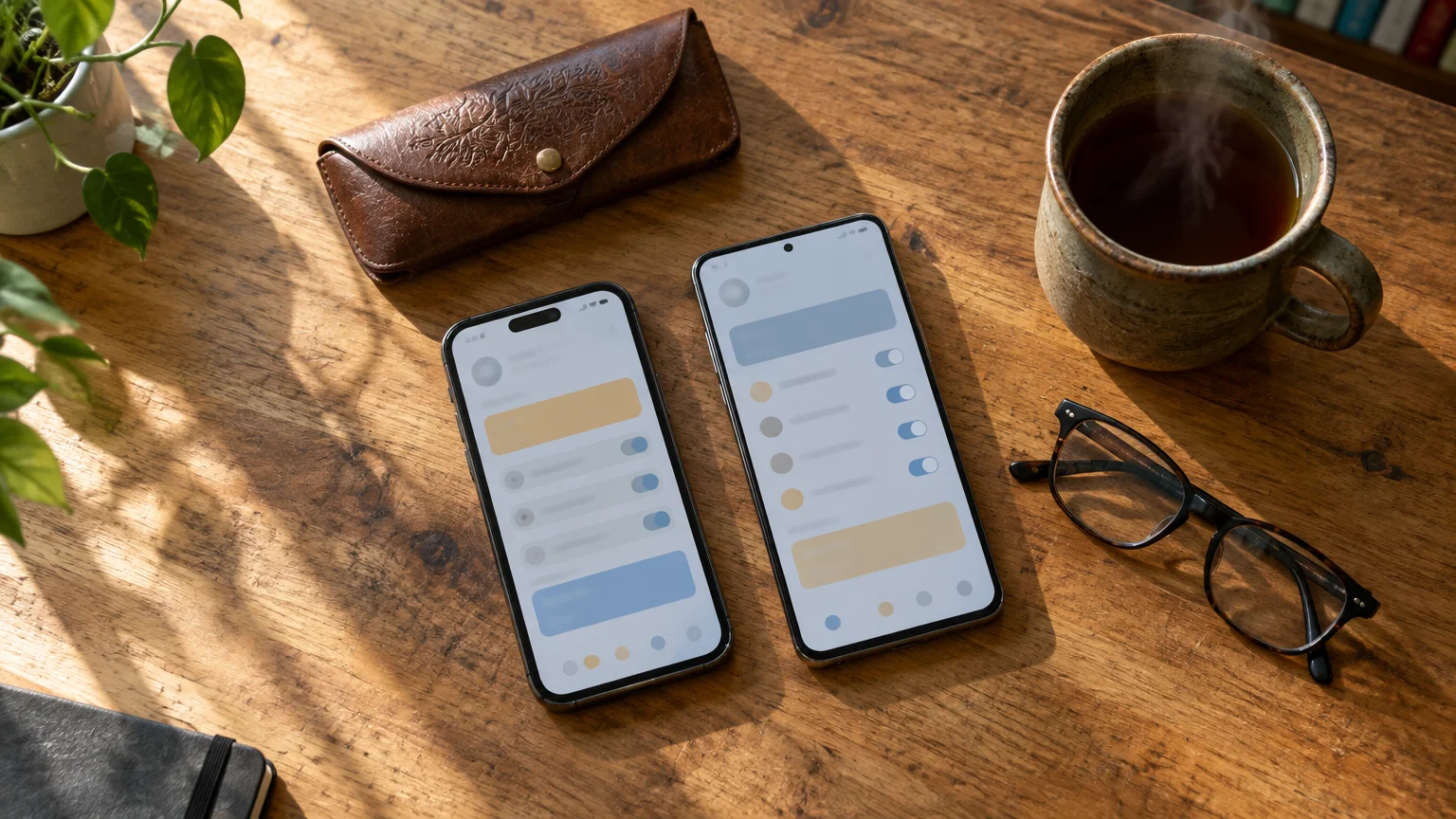
Calibrating your screen requires matching your physical hand movement to the appropriate system delay setting.
Keep in mind that setting hold delays too long can make your device feel sluggish or leave your phone not responding to your finger taps right away.
The table below summarizes standard delay durations and adjusted values across common mobile systems as of 2026.
| Device Platform | Setting Menu | Factory Default | Recommended Adjustment | Resulting Delay |
|---|---|---|---|---|
| Apple iPhone / iPad | Haptic Touch | Default (~400 ms) | Slow | Longer than default |
| Apple iPhone / iPad | Touch Accommodations | Off (0 ms) | Hold Duration Enabled | 0.10 s or higher (minimum touch time) |
| Google Pixel | Touch & hold delay | Short (default) | Medium | 1000 ms (1.0 s) |
| Samsung Galaxy | Touch and hold delay | Short (0.5 s) | Medium or Custom | 1.0 s or measured touch |
Consider a worked example of how these millisecond thresholds function during everyday use.
Suppose you experience an essential tremor that causes your index finger to rest against the screen for 480 milliseconds during a tap.
Under factory default settings of 400 milliseconds on an iPhone, that 480-millisecond contact registers as a long press. The phone responds by jiggling your icons every time you tap.
Once you change your Haptic Touch setting to Slow, a slightly longer touch falls safely below the long-press trigger point. The phone launches your application immediately instead of entering edit mode.
Additional Accessibility Settings for Steadier Taps
Beyond hold durations, mobile devices provide auxiliary accessibility features that prevent unintentional double taps caused by trembling fingers.
Unsteady fingers can also trigger sensitive communication shortcuts, so check out our guide on how to stop accidentally starting video calls.
If hand tremors also make swiping across the screen difficult when someone rings, learn how to answer phone calls with a single tap.
On Apple devices, enable Ignore Repeat inside the Touch Accommodations menu. This setting tells your screen to treat multiple touches within a set interval, such as 0.30 seconds, as a single press.
Samsung Galaxy devices provide a comparable feature called Ignore repeated touches under Settings > Accessibility > Interaction and dexterity. You can find general device guidance on Google’s Android Help center.
You can also turn on larger display text to provide larger targets for your fingers.
Larger icon spacing reduces the risk of accidentally brushing adjacent icons when tremors occur.
Frequently Asked Questions
Can shaking icons damage my phone or erase personal files?
No, jiggling icons do not damage your phone or delete your personal files automatically. The motion simply indicates that the screen is waiting for your instructions to move or organize items.
Why do small minus signs or crosses appear on the shaking icons?
Those symbols are deletion badges that allow you to uninstall apps quickly. Avoid tapping those symbols while the icons shake, or you might accidentally delete an application from your device.
How do I know if my touch delay is set too long?
Your delay is set too long if you must press an icon uncomfortably long before action menus appear. If a 1.0-second hold feels tiring, reduce your duration setting to 600 or 700 milliseconds.
Will changing touch sensitivity affect how I type text messages?
Adjusting Haptic Touch or Android hold delay will not slow down normal typing on your on-screen keyboard. Standard letter taps register instantly because typing relies on brief tap contacts rather than long-press thresholds.
Can I freeze my app layout completely so icons never move?
Samsung Galaxy devices allow you to turn on Lock Home screen layout in your home screen settings. While Apple devices lack a direct layout lock switch, setting a longer hold duration prevents accidental editing.
Note: Menus and button names change with software updates. These steps were written for current versions as of 2026; if a screen looks different on your device, the maker’s support page linked above has the latest wording.
ClearTechGuide is independent and is not affiliated with Apple, Google, Microsoft, Amazon or any other company mentioned.