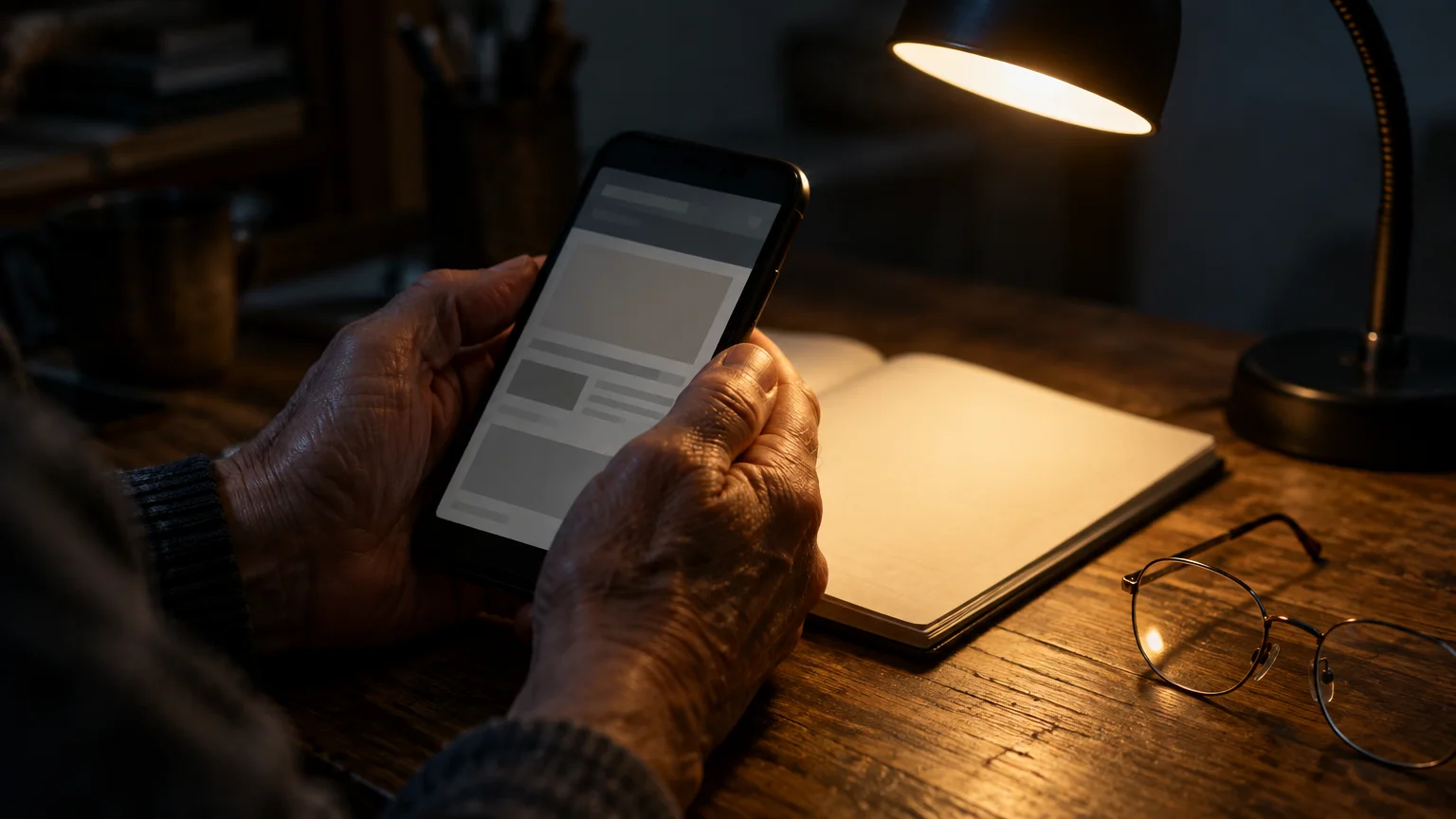
If you are 70 and live with glaucoma, a phone screen that darkens unexpectedly makes reading text nearly impossible. A reading lamp in a dim room tricks your phone into lowering screen illumination when your eyes need maximum light.
If harsh reflections also cause eye strain on your computer, you can take steps to stop laptop screen glare and flicker alongside your mobile screen adjustments.
If you only need to adjust screen brightness on your phone temporarily, you can use the quick settings slider instead of changing system defaults. Consult the Android Quick Settings guide to learn how swiping down from the top of your screen reveals this brightness slider.
Disabling adaptive brightness alone rarely keeps the display bright. Secondary battery-saver tools and manufacturer energy profiles quietly override your slider, slashing luminance back down to preserve charge.
We will show you how to disable adaptive brightness android and stop hidden battery tools from forcing your display dark. These steps lock your screen at full brightness permanently.
In this guide7 sections
- Why Ambient Light Sensors Fail in Dim Living Rooms
- Turn Off Adaptive Brightness on Google Pixel and Stock Android
- Turn Off Auto-Brightness on Samsung Galaxy Devices
- Disable Battery-Saver Overrides That Force Screen Dimming
- Display Settings and Dimming Triggers Compared
- Additional Accessibility Adjustments for Vision Support
- Frequently Asked Questions
Why Ambient Light Sensors Fail in Dim Living Rooms
An ambient light sensor is a small optical detector located near your phone’s top speaker that measures surrounding room illumination.
When you sit beside an incandescent or LED reading lamp at night, your eyes focus on the illuminated page or device. However, the upward-facing phone sensor often captures shadows from the ceiling rather than direct lamplight.
The device interprets these ceiling shadows as a dark room and cuts screen brightness to conserve power. For eyes with glaucoma or cataract changes, that sudden dimming destroys visual contrast immediately.
Consider a scenario where you read prescription labels at 8:30 PM with a single 450-lumen side lamp illuminated. The sensor measures less than 30 lux of ambient light and cuts display output from 800 nits down to 200 nits.
That 75 percent reduction forces unnecessary visual strain. To stop android screen dimming, you must sever the link between hardware optical sensors and your display panel.
Turn Off Adaptive Brightness on Google Pixel and Stock Android
Stock Android refers to the standard version of Android developed by Google without heavy custom interfaces from cellular carriers. This software runs on Google Pixel phones, Motorola devices, and many consumer Android tablets as of 2026.
Before changing these controls, note that running your screen at maximum brightness increases battery consumption throughout the day. Keep a charging cable nearby if you read for long periods.
- Open the Settings app from your home screen or application list.
- Tap Display & touch (or Display on older Android versions and some non-Pixel devices).
- Tap Adaptive brightness.
- Tap the toggle switch next to Adaptive brightness to turn it off.
- Return to the Display & touch screen, tap Brightness level, and drag the slider all the way to 100 percent.
On Apple devices, this control resides in an accessibility subfolder rather than general display settings. You open Settings, select Accessibility, tap Display & Text Size, and turn off Auto-Brightness at the bottom of that screen.
Review Apple’s guide to iPhone screen brightness to manage related features like True Tone and Night Shift.
For detailed steps on Apple hardware, review Apple’s guide to getting started with accessibility features on iPhone.
Turn Off Auto-Brightness on Samsung Galaxy Devices
Samsung Galaxy smartphones and tablets run One UI, a custom interface built on Android 14, Android 15, and Android 16 as of 2026. Samsung renames certain display controls and includes dedicated brightness boosters.
Follow these numbered steps to lock screen brightness android on Samsung devices:
- Swipe down twice from the top of your screen and tap the gear icon to open Settings.
- Tap Display & touch (or Display on older Android versions and some non-Pixel devices).
- Tap the toggle switch next to Adaptive brightness to turn it off.
- Drag the main brightness slider bar completely to the right.
- Turn on the toggle switch next to Extra brightness if your model displays that option.
The Extra brightness toggle increases panel luminance beyond standard manual limits on compatible OLED displays. This feature proves especially beneficial if your eyes require intense contrast to distinguish letters clearly.
Consult the official Google Android Help center if your specific manufacturer modified these menu locations.
Disable Battery-Saver Overrides That Force Screen Dimming
Many readers disable adaptive brightness only to watch their screen dim twenty minutes later. This happens because Android system battery managers automatically override display brightness when battery levels decline or background energy rules activate.
Manufacturer power-saving modes can automatically reduce screen brightness by 10 percent or darken the display when active. You must adjust your battery preferences to prevent these automated reductions.
- Open your device Settings app.
- Scroll down and tap Battery.
- Tap Battery Saver on Pixel devices or Power saving on Samsung Galaxy phones.
- On Pixel devices, tap Schedule and reminders and turn off Turn on based on battery level.
- On Samsung phones, tap the Power saving label and turn off the switch for Decrease brightness by 10%.
Ensuring your operating system stays current helps prevent software glitches from resetting your display preferences unexpectedly. Check the guidance from CISA on updating software regularly to maintain operating system stability.
Display Settings and Dimming Triggers Compared
Different Android services manipulate your panel illumination throughout the day. Review the table below to see how each feature alters your screen and how to neutralize it.
| Feature Name | Trigger Mechanism | Default Luminance Impact | Action to Lock at 100% |
|---|---|---|---|
| Adaptive Brightness | Low ambient light readings from the optical sensor | Lowers screen brightness based on room lighting | Toggle off in Display settings |
| Battery Saver Mode | Battery charge dropping below 20% | Decreases brightness by 10% on Samsung or enables Dark theme on Pixel | Turn off automatic battery-level scheduling and disable the brightness-decrease toggle |
| Extra Dim (Accessibility) | Manual shortcut or nighttime bedtime schedule | Cuts base luminance below standard minimum slider level | Disable Extra Dim toggle in Accessibility settings |
| Bedtime Mode / Sleep Routine | Clock schedule (e.g., 10:00 PM to 7:00 AM) | Dims screen and converts color palette to grayscale | Turn off display dimming in Modes and Routines |
Mastering these specific hardware controls ensures devices accommodate individual physical requirements rather than factory presets.
Additional Accessibility Adjustments for Vision Support
Disabling automatic dimming is the foundation for visual clarity. Pairing maximum brightness with proven accessibility tools ensures effortless reading when living with glaucoma or diminished contrast vision.
- Turn off Extra Dim: Open Settings, select Accessibility, and verify that Extra Dim is toggled off. When enabled accidentally, this feature darkens your panel even when your brightness slider shows 100 percent.
- Enable Outline or High Contrast Text: Open Settings > Accessibility > Display size and text. Toggle on Outline text (Android 16 and newer) or High contrast text (Android 15 and older) to outline characters with sharp borders.
- Increase Screen Timeout: Open Settings > Display > Screen timeout. Select 5 minutes or 10 minutes so the display does not shut off while you pause between sentences.
- Activate Magnification Shortcut: Open Settings > Accessibility > Magnification. Turn on the on-screen shortcut button to zoom in on small medication bottles or banking forms instantly.
To explore additional vision adaptations built directly into mobile operating systems, visit the official Google Android accessibility overview.
Frequently Asked Questions
Why does my screen still dim in bright sunlight after turning off adaptive brightness?
Modern smartphones generate significant heat when driving displays at maximum nits outdoors. If internal thermal sensors detect overheating, system hardware limits brightness automatically for several minutes to prevent permanent component damage.
If visual indicators are helpful for other phone functions, consider learning how to turn on flashlight alerts for ringing so you never miss an incoming call.
Will locking screen brightness at 100 percent damage my phone?
Holding full brightness will not break modern smartphone displays, but it increases battery drain and accelerates overall battery wear. On OLED panels, avoid leaving static high-contrast images on screen for hours to prevent image retention.
How do I stop my Android screen from sleeping too quickly?
Adjust your display sleep settings by opening Settings, tapping Display, and selecting Screen timeout. Set the duration to 5 or 10 minutes to give yourself ample time to read without touching the panel.
Does turning off adaptive brightness turn off Night Light?
No, Night Light is an independent feature that shifts blue screen tones toward amber. You can keep Night Light enabled to reduce glare while locking your brightness slider at 100 percent.
Note: Menus and button names change with software updates. These steps were written for current versions as of 2026; if a screen looks different on your device, the maker’s support page linked above has the latest wording.
ClearTechGuide is independent and is not affiliated with Apple, Google, Microsoft, Amazon or any other company mentioned.