

Keeping your iPhone’s software up to date is one of the most important things you can do to ensure your device runs smoothly, stays secure, and provides you with the best experience. Think of it like a regular tune-up for your phone, making sure everything works as it should.
Much like how you might perform basic maintenance to keep your computer running smoothly, your phone requires regular attention to perform its best.
If you are using an Apple tablet alongside your phone, you might also find our guide on how to use the iPad for beginners helpful for getting familiar with the interface.
Many people receive a new iPhone as a gift or decide to switch from an older phone, and the idea of updating the software can seem a bit daunting. You might wonder what an update actually does, or if it will change how your phone works. Rest assured, updating your iPhone is a straightforward process, and this guide walks you through each step with clear, patient instructions.
By the end of this article, you will understand why updates are essential, what you need to do to prepare your iPhone, and how to successfully install the latest software. We will even cover what to do if you encounter a small hiccup along the way. Your iPhone will thank you for it, and you will gain confidence in managing your device.
Table of Contents
- Understanding Why iPhone Updates Matter
- What You Need Before You Start
- Preparing Your iPhone for a Smooth Update
- Step-by-Step Guide: How to Update Your iPhone
- Understanding Automatic Updates
- What to Do If Something Goes Wrong (Troubleshooting Common Issues)
- Frequently Asked Questions
- Quick Reference Checklist for Updating Your iPhone

Understanding Why iPhone Updates Matter
You might ask yourself, “Why do I even need to bother with an iPhone update?” This is a great question, and understanding the benefits helps you recognize the value of keeping your iPhone current guide. Software updates, often referred to as iOS updates (iOS is the operating system for iPhones), offer several critical advantages.
In addition to system updates, it is equally important to stay alert by learning how to recognize tech support scams that might target your device.
- Enhanced Security: This is arguably the most important reason. Updates frequently include security patches that protect your personal information from new threats and vulnerabilities. Just as you lock your doors, software updates add stronger digital locks to your iPhone, safeguarding your photos, messages, and banking details. For instance, Apple often releases updates to address specific security flaws discovered by researchers, ensuring your data remains private.
- Improved Performance: New iOS updates can make your iPhone run faster and more efficiently. They optimize how apps work with your phone’s hardware, reducing slowdowns and glitches. An update might include tweaks that make your battery last longer or allow apps to open more quickly.
- New Features and Enhancements: Software updates often introduce exciting new features or improve existing ones. These could be anything from a redesigned look for certain apps, new ways to organize your photos, or better accessibility options to make your iPhone easier to use. You might find new tools that simplify everyday tasks like texting or taking pictures.
- Bug Fixes: Like any complex technology, software can have small errors, or “bugs.” Updates fix these issues, resolving problems that might cause an app to crash or a feature to not work correctly. This ensures a smoother, more reliable experience for you.
- Compatibility: Many new apps and services require the latest software versions to function properly. Updating your iPhone ensures compatibility, allowing you to use all your favorite apps without issues and access new ones as they become available.
Keeping your iPhone updated is a fundamental part of maintaining a healthy and secure digital life. It helps you avoid potential problems and allows you to enjoy all the innovations your device offers.
This regular maintenance is crucial for your peace of mind and the longevity of your device. It ensures you get the most out of your iPhone investment.

What You Need Before You Start
Before you begin the process of updating your iPhone, a few simple preparations help ensure everything goes smoothly. Think of these as setting the stage for a successful performance. You want to make sure your iPhone is ready for its big refresh.
Maintaining your battery is just as important as software updates, so you may want to learn more about charging your phone overnight and if it is safe for your device.
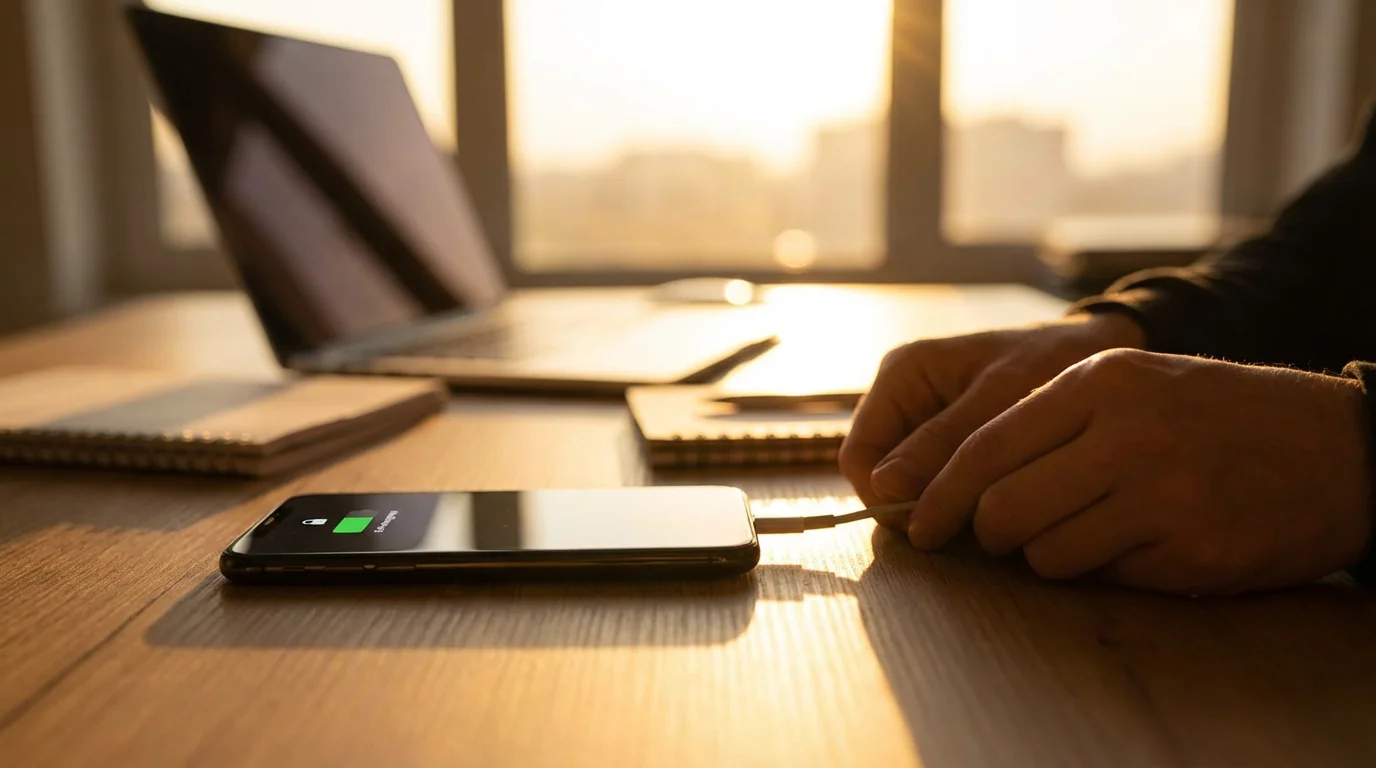
- Charge Your iPhone: Your iPhone needs at least 50% battery life to start an update, but it is best to plug your iPhone into a power outlet. An update can take a while, and you do not want your phone to run out of power halfway through. Connecting it to power guarantees a continuous supply, preventing any interruptions.
- Connect to Wi-Fi: A stable Wi-Fi connection is essential for downloading the update. Software updates can be quite large, sometimes several gigabytes in size. Downloading over Wi-Fi ensures a faster download speed and avoids using up your cellular data allowance, which could incur extra charges from your phone carrier. Make sure you are connected to your home Wi-Fi network, or another reliable private network.
- Enough Storage Space: Your iPhone needs sufficient free space to download and install the new software. If your phone is nearly full of photos and apps, it might not have enough room.
- Tap the Settings icon (it looks like a gray gear).
- Swipe down and tap General.
- Tap iPhone Storage.
- Know Your Apple ID Password: Sometimes, your iPhone asks for your Apple ID password before or after an update. Your Apple ID is the account you use for everything Apple related, like downloading apps from the App Store or using iCloud. Write it down or make sure you remember it, just in case.
How to Check Your iPhone Storage:
You will see a bar showing how much space you use and what takes up the most room. If it shows you have very little space left, you might need to clear some items. We will cover freeing up space in the next section.
Taking these small steps beforehand saves you time and prevents potential headaches during the update process. You are setting yourself up for success.
Preparing Your iPhone for a Smooth Update
While an iPhone update is generally very safe, it is always a good idea to take a couple of precautions. This section guides you through backing up your data and, if necessary, freeing up some storage space. These steps contribute significantly to how to update iPhone safely.
Back Up Your iPhone
Backing up your iPhone creates a copy of all your important data, including photos, contacts, messages, and app data. This acts as a safety net. In the extremely rare event that something goes wrong during the update, you can restore your iPhone to its previous state, preserving all your valuable information.
You have two main options for backing up your iPhone: using iCloud (Apple’s cloud storage service) or using a computer.
Option 1: Back Up to iCloud (Recommended for Simplicity)
This method backs up your iPhone directly over Wi-Fi, without needing a computer. It is very convenient.
- Ensure your iPhone is connected to Wi-Fi.
- Tap the Settings icon (the gray gear).
- At the very top of the Settings screen, tap on your name (which should be displayed prominently).
- Tap iCloud.
- Swipe down and tap iCloud Backup.
- Make sure the switch next to “iCloud Backup” is turned On (it will show green).
- Tap Back Up Now.
Your iPhone will begin backing up. This process can take several minutes or even longer, depending on how much data you have and the speed of your Wi-Fi connection. Keep your iPhone connected to Wi-Fi and power until the backup finishes. You will see the date and time of the “Last Successful Backup” update when it completes.
Option 2: Back Up to a Computer (Using a Mac or PC)
If you prefer to back up to a computer, you can use Finder on a Mac (macOS Catalina or later) or iTunes on a PC or older Mac.
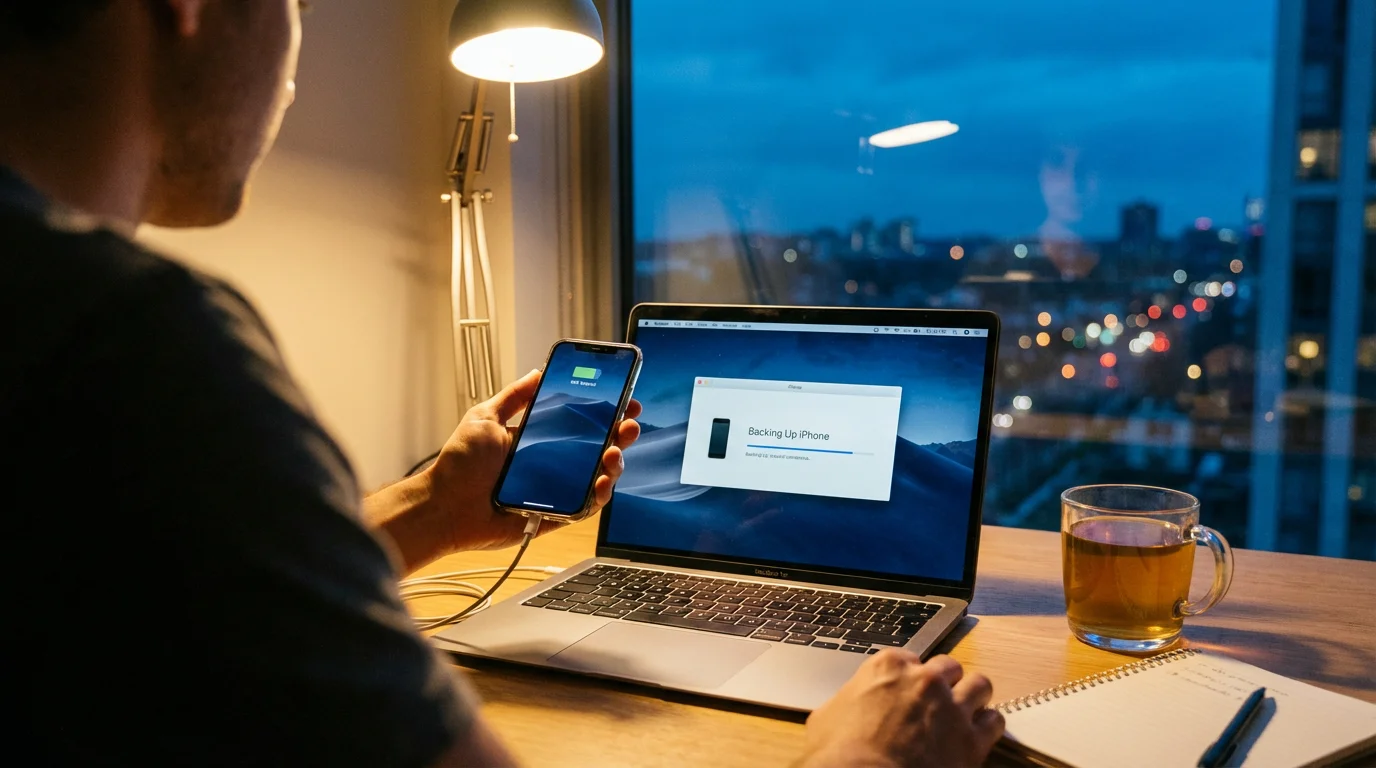
- Connect your iPhone to your computer using the charging cable.
- On a Mac (macOS Catalina or later): Open Finder. You should see your iPhone listed under “Locations” in the sidebar on the left. Click on it.
On a PC or Older Mac (with iTunes): Open iTunes. Click the small iPhone icon that appears near the top left of the iTunes window. - If prompted, tap Trust This Computer on your iPhone and enter your passcode.
- In Finder or iTunes, locate the “Backups” section. Select “Back up all of the data on your iPhone to this Mac/PC.”
- Click Back Up Now.
Again, this process can take some time. Leave your iPhone connected to the computer until the backup completes.

Clear Some Space (If Needed)
If you checked your iPhone storage earlier and found you have very little space, you might need to free some up. This often happens if you have many photos, videos, or unused apps.
- Delete Unused Apps: Look through your apps. Do you have any you downloaded but rarely use? To delete an app, gently touch and hold its icon on your Home Screen until all the icons start to jiggle. You will see a small “X” or a minus sign in the corner of each app icon. Tap the “X” or minus sign on the app you want to remove, then tap “Delete App.” Tap “Done” or press the Home button (on older iPhones) when finished.
- Manage Photos and Videos: Photos and videos often take up the most space. You can review your Camera Roll and delete duplicates or unwanted shots. Consider using iCloud Photos (if you have enough iCloud storage) to store your photos in the cloud, optimizing space on your device. Another option is to transfer older photos and videos to a computer or an external hard drive.
- Clear Browser Data: Your web browser, like Safari, stores website data and history. To clear this, go to Settings > Safari, then swipe down and tap Clear History and Website Data. This can free up a small amount of space.
These preparation steps ensure your iPhone update proceeds without a hitch, keeping your data safe and your phone running smoothly.
Step-by-Step Guide: How to Update Your iPhone
Now that you have prepared your iPhone, you are ready to install the latest software. This is the core process of an iPhone update, and we will walk through it together, step by step. Remember to take your time and follow each instruction carefully.
If you also own a non-Apple device or want to help a friend, we have a similar tutorial on how to update your Android phone as well.
If you also own a non-Apple device or want to help a friend, we have a similar guide on how to update your Android phone in a few simple steps.
On iPhone:
- Find the Settings Icon: Look for the Settings icon on your Home Screen. It looks like a gray gear or cogwheel. Tap it to open your iPhone’s settings.
- Go to General Settings: Once in Settings, swipe your finger down the screen a little until you see General. Tap on General.
- Open Software Update: On the General screen, tap Software Update. This is where your iPhone checks for new versions of iOS.
- Check for Update: Your iPhone will now connect to Apple’s servers to see if a new software update is available for your device. This usually takes a few seconds.
- Review the Update Information: If an update is available, you will see information about it, including the iOS version number (for example, “iOS 17.5.1”) and a brief description of what the update includes. You should also see a button that says Download and Install.
- Start the Download: Tap the Download and Install button.
- Enter Your Passcode (If Prompted): Your iPhone might ask you to enter your passcode to confirm that you want to proceed with the download. This is the same four-digit or six-digit number you use to unlock your phone. Type it in.
- Agree to Terms and Conditions: You may see Apple’s “Terms and Conditions.” Read through them if you wish, then tap Agree, usually located in the bottom right corner of the screen. Tap Agree again on the pop-up confirmation.
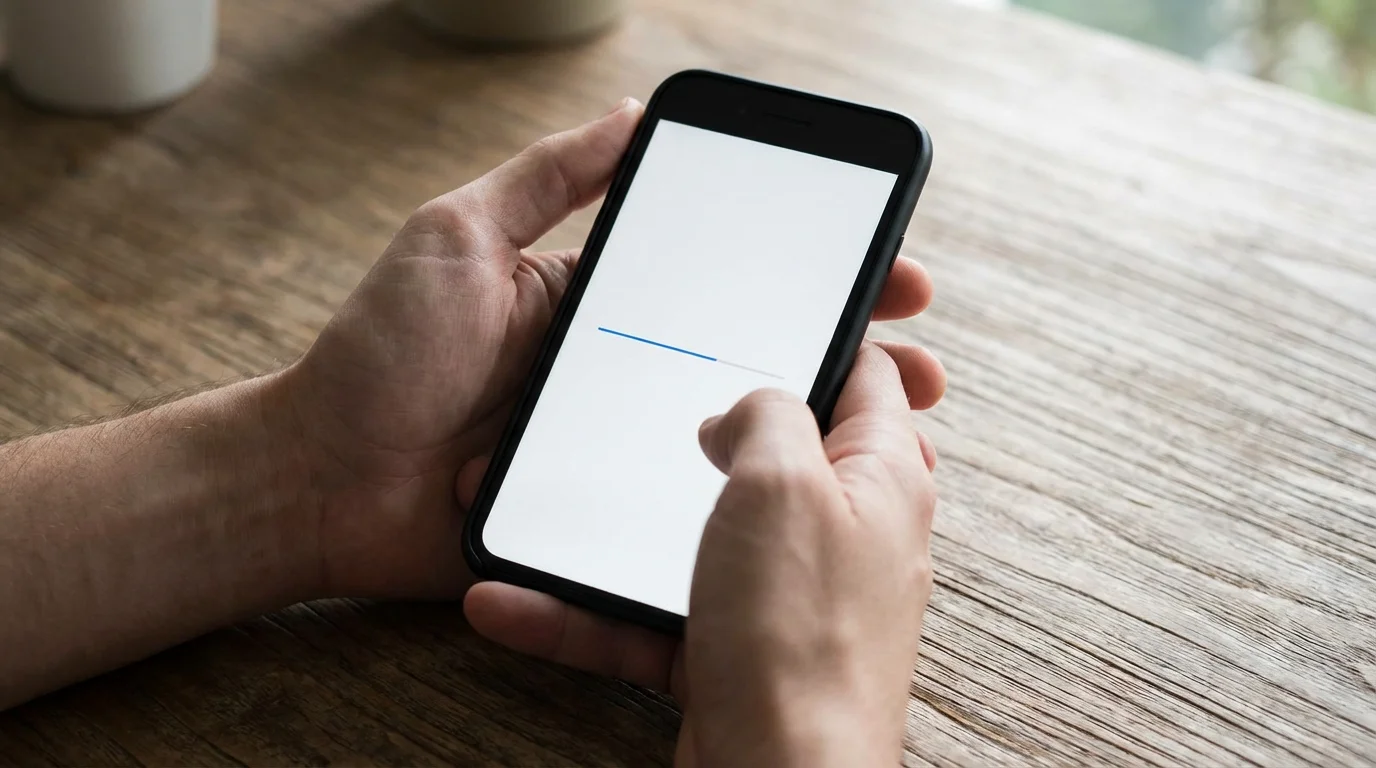
- Wait for the Download: Your iPhone will now begin downloading the new software. A progress bar or estimated time remaining might appear. This download can take quite a while, sometimes 15 minutes to an hour or more, depending on the update’s size and your Wi-Fi speed. Keep your iPhone connected to power and Wi-Fi during this time. You can still use your iPhone for other tasks while it downloads, but try to avoid heavy usage.
- Install the Update: Once the download finishes, the Download and Install button will change to Install Now. Tap Install Now. If you do not tap it immediately, your iPhone might ask if you want to install it later, or it might install it automatically overnight if you leave it connected to power and Wi-Fi.
- Your iPhone Restarts: The screen will go black, and your iPhone will restart. You will see the Apple logo (the white apple on a black background) and a progress bar underneath it. This part of the process is the actual installation, and it can also take some time, typically 5-15 minutes. It is important not to interrupt your iPhone during this phase. Let it complete on its own.
- Update Complete: After the installation, your iPhone will restart again. You will need to enter your passcode to unlock it. You might see a “Software Update Complete” message. Tap Continue to finish any final setup steps.
Congratulations! Your iPhone now runs on the latest software. You have successfully completed the iOS update process. Take a moment to check for any new features or improvements.
You have taken a proactive step to keep your device secure and performing its best. Feel proud of mastering this essential maintenance task!
Understanding Automatic Updates
Manually checking for and installing updates ensures you have full control, but your iPhone also offers a convenient feature called Automatic Updates. This can be a great option for keeping your iPhone current guide without needing to remember to check for updates yourself. Automatic updates ensure your device receives the latest software improvements and crucial security patches as soon as they become available.

How Automatic Updates Work
When enabled, your iPhone downloads new software updates in the background, typically overnight when your device is connected to Wi-Fi and power. It then installs the update during a similar quiet period. You wake up to an updated phone, often without having to do anything.

How to Turn On Automatic Updates
If you find the manual process a bit cumbersome, or simply prefer the convenience, you can easily enable automatic updates:
- Tap the Settings icon (the gray gear).
- Swipe down and tap General.
- Tap Software Update.
- Tap Automatic Updates.
- You will see two switches:
- Download iOS Updates: Tap this switch to turn it green (On). This allows your iPhone to download updates in the background.
- Install iOS Updates: Tap this switch to turn it green (On). This allows your iPhone to automatically install the downloaded updates.
With both switches turned green, your iPhone will manage the update process for you. You will usually receive a notification before an automatic installation, giving you a heads-up that your iPhone will update soon.

Pros and Cons of Automatic Updates
- Pros:
- Convenience: You do not have to remember to check for or install updates. Your iPhone handles it.
- Timely Security: Your device receives critical security fixes quickly, providing better protection against new threats.
- Always Current: Your iPhone always runs the latest version of iOS, ensuring compatibility with new apps and features.
- Cons:
- Less Control: You have less direct control over when an update installs. While typically occurring overnight, some people prefer to choose a specific time.
- Potential for Unexpected Changes: New updates sometimes introduce minor changes to how things look or work, and if you are not expecting it, this can be a surprise.
For most users, especially those who want to ensure their iPhone stays secure without much effort, enabling both automatic download and installation is a practical choice. It takes the guesswork out of maintaining your device.
What to Do If Something Goes Wrong (Troubleshooting Common Issues)
While the iPhone update process is usually smooth, sometimes you might encounter a minor issue. Do not worry; most problems have simple solutions. Here are common situations and how to address them.

Update is Stuck or Taking Too Long
If your iPhone seems stuck on the Apple logo with the progress bar, or if the “time remaining” estimate is excessively long and not changing:
- Check Your Wi-Fi Connection: Ensure your Wi-Fi is still active and stable. Sometimes a brief drop in internet can halt the download.
- Restart Your iPhone:
- For iPhones without a Home button (iPhone X and later): Press and hold the Side button (on the right) and either Volume Up or Volume Down button until the “Slide to Power Off” slider appears. Drag the slider, then wait 30 seconds for your device to turn off. To turn it back on, press and hold the Side button until you see the Apple logo.
- For iPhones with a Home button (iPhone 8 and earlier): Press and hold the Side button (on the right) until the “Slide to Power Off” slider appears. Drag the slider, then wait 30 seconds. To turn it back on, press and hold the Side button until you see the Apple logo.
- Force Restart Your iPhone: This is a more direct way to restart and can sometimes clear a stuck update.
- For iPhone 8 or later: Quickly press and release the Volume Up button. Then quickly press and release the Volume Down button. Finally, press and hold the Side button (on the right) until you see the Apple logo.
- For iPhone 7 or 7 Plus: Press and hold both the Volume Down button and the Sleep/Wake button (on the right) at the same time. Keep holding them until you see the Apple logo.
- For iPhone 6s or earlier: Press and hold both the Home button (the circular button below the screen) and the Sleep/Wake button (on the top or right side) at the same time. Keep holding them until you see the Apple logo.
After a force restart, try the update process again from the beginning.
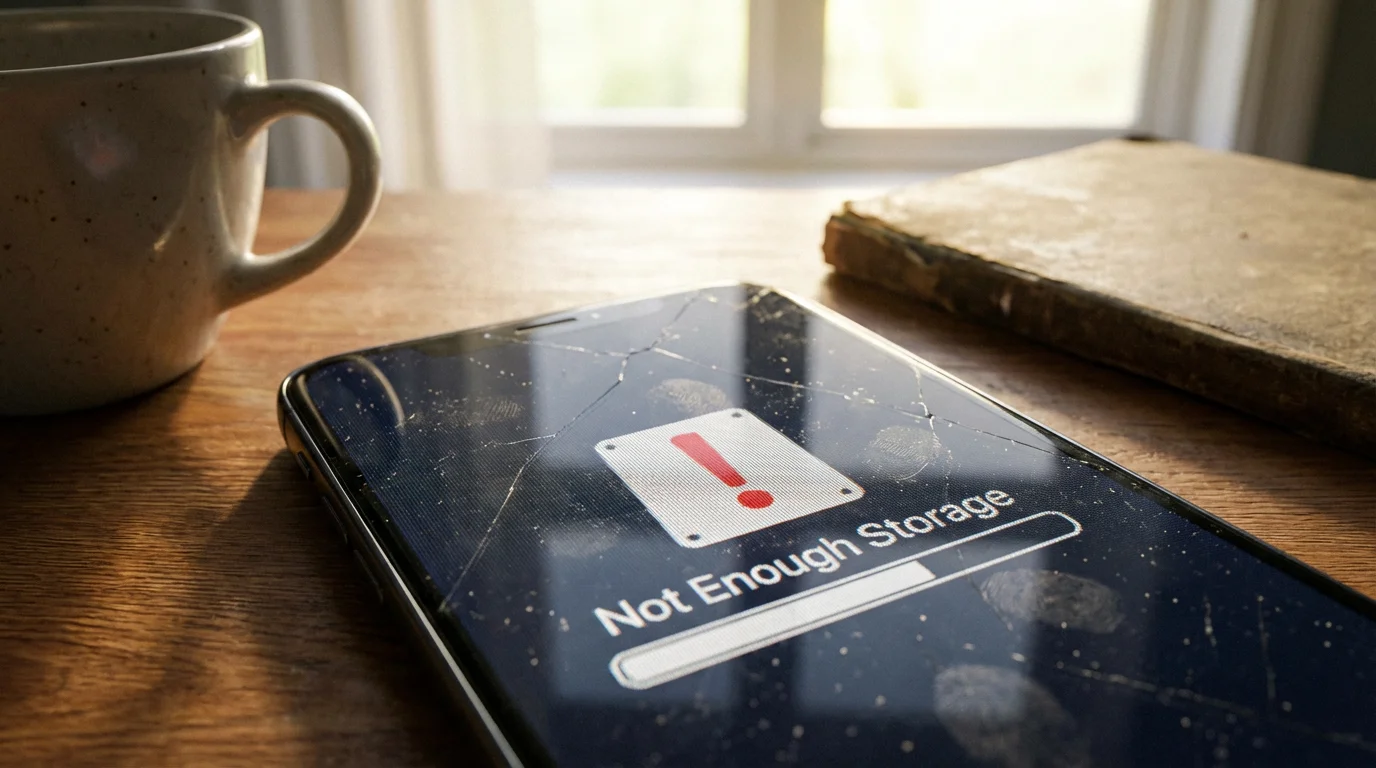
“Not Enough Storage” Message
If you get this message even after trying to clear space:
- Connect to a Computer: Sometimes, updating via a computer (using Finder on a Mac or iTunes on a PC) requires less free space on the iPhone itself. See the “Preparing Your iPhone” section for details on computer backups.
- Aggressively Free Up Space: Go back to the storage management tips. Consider offloading photos and videos to a cloud service or computer. Delete large message conversations. Remove downloaded music or movies.
Update Fails or Cannot Connect to Update Server
If you see a message indicating the update failed or could not connect to Apple’s servers:
- Retry the Update: Sometimes it is a temporary network hiccup. Wait a few minutes and try the update again.
- Check Your Internet Connection: Try browsing a website to ensure your Wi-Fi is working correctly. You might even try connecting to a different Wi-Fi network if available.
- Ensure Sufficient Battery: Make sure your iPhone is charged above 50% or, ideally, plugged into power.

When to Seek Expert Help
If you have tried these troubleshooting steps and still cannot update your iPhone, it is perfectly fine to seek additional help. You are not alone, and technology can sometimes be tricky.
- Apple Support: Visit the official Apple Support website. They have extensive guides and options to contact their support staff directly.
- Visit an Apple Store or Authorized Service Provider: If you live near an Apple Store, you can schedule an appointment at the “Genius Bar.” Their technicians can diagnose and fix more complex issues.
- Your Carrier Store: Your phone service provider (like Verizon, AT&T, T-Mobile) often has staff who can assist with basic iPhone troubleshooting and updates.
- Trusted Family Member or Friend: Do not hesitate to ask a tech-savvy family member or friend for assistance. They can often provide hands-on help.
Remember, encountering a problem does not mean you are doing anything wrong. It is simply part of using technology, and help is readily available.
Frequently Asked Questions
We understand you might have lingering questions or concerns about updating your iPhone. Here are answers to some common questions:
Q1: How long does an iPhone update take?
A1: The total time for an iPhone update varies. Downloading the update can take anywhere from 15 minutes to over an hour, depending on the update’s size and your Wi-Fi speed. The installation process itself, where your iPhone restarts and shows the Apple logo with a progress bar, typically takes 5 to 15 minutes. Plan for at least an hour from start to finish to be safe, especially if you have a slow internet connection or a large update.
Q2: Will I lose my photos or apps when I update?
A2: No, you will not lose your photos, apps, contacts, or other personal data during a standard software update. The update simply replaces the operating system, leaving your personal files untouched. However, backing up your iPhone before an update is always a crucial safety measure. This protects your data in the extremely rare chance of an unforeseen problem.
Q3: Is it really important to update my iPhone?
A3: Yes, it is very important. Updating your iPhone regularly is critical for security, as updates often contain patches for newly discovered vulnerabilities that could put your personal information at risk. Updates also bring performance improvements, bug fixes, and new features, ensuring your iPhone runs efficiently and you have access to the latest capabilities. Neglecting updates leaves your phone exposed and can lead to a less optimal user experience.
Q4: My iPhone is old, can it still update?
A4: Apple supports iPhones with software updates for many years. However, eventually, older models reach a point where they can no longer run the newest iOS versions due to hardware limitations. For example, an iPhone 7 can update to iOS 15, but not iOS 16 or newer. Your iPhone will tell you if an update is available for your specific model when you check in Settings > General > Software Update. If no update appears, it means your device already runs the latest software version it supports.
Quick Reference Checklist for Updating Your iPhone
Here is a concise checklist to guide you through the iPhone update process. Refer to this as a handy reminder of the key steps.
- Preparation:
- Charge your iPhone to at least 50% or, preferably, plug it into power.
- Connect your iPhone to a strong, stable Wi-Fi network.
- Ensure you have enough free storage space on your iPhone (check in Settings > General > iPhone Storage).
- Have your Apple ID password ready.
- Back up your iPhone to iCloud or a computer to protect your data.
- Update Steps:
- Tap the Settings icon (the gray gear).
- Tap General.
- Tap Software Update.
- Tap Download and Install for the available update.
- Enter your passcode if prompted.
- Tap Agree to the Terms and Conditions.
- Wait for the download to complete (keep connected to power and Wi-Fi).
- Tap Install Now.
- Allow your iPhone to restart and install the update.
- Enter your passcode after restarting.
- Tap Continue if prompted by a “Software Update Complete” message.
- Troubleshooting (If Needed):
- If stuck, check Wi-Fi, restart, or force restart your iPhone.
- If low on storage, delete unused apps, photos, or old messages.
- Seek help from Apple Support, your carrier, or a trusted person if issues persist.
You now possess a clear understanding and a practical guide for performing an iPhone update. By regularly applying these steps, you actively ensure your device remains secure, operates efficiently, and provides you with the best possible experience. This regular maintenance helps protect your digital life and keeps your technology working for you. You have successfully taken charge of your iPhone’s well-being.
Disclaimer: This article is for informational purposes only. Screens and menus may look slightly different depending on your device model and software version. When in doubt, visit your device’s official support website or ask a trusted family member for help.









Leave a Reply