
![[FEATURED]](https://cleartechguide.com/wp-content/uploads/2026/01/how-to-use-google-maps-on-your-phone-or-computer-featured-16x9-1-1200x630.webp)
Navigating the world today often means using helpful digital tools, and Google Maps stands out as an incredibly powerful one. Whether you want to find the quickest route to a new restaurant, locate the closest pharmacy, or simply explore a new area from the comfort of your home, Google Maps provides you with all the information you need. This guide will walk you through everything, from getting the app on your phone to mastering its most useful features, ensuring you feel confident and in control.
If you are on the go without a standard internet connection, you can even learn how to use your smartphone as a mobile hotspot to get your other devices online.
If you prefer learning through video, you can also search for visual tutorials on how to use YouTube as a companion to this guide.
You might feel overwhelmed by new technology, but Google Maps is designed to be user-friendly. We will break down each step so you can easily understand and apply it, helping you stay connected and independent in your daily travels and discoveries. By the end of this article, you will be using Google Maps like a pro, whether you prefer your phone, tablet, or computer.
Table of Contents
- What is Google Maps and What Can It Do For You?
- How to Get Google Maps on Your Phone or Computer
- Setting Up Google Maps (Using Your Google Account)
- Finding Your Way: Getting Directions on Your Phone or Computer
- Exploring Your Surroundings: Finding Places Nearby
- Using Advanced Features to Enhance Your Experience
- Tips for Getting the Most Out of Google Maps
- Common Questions and Problems
- Frequently Asked Questions
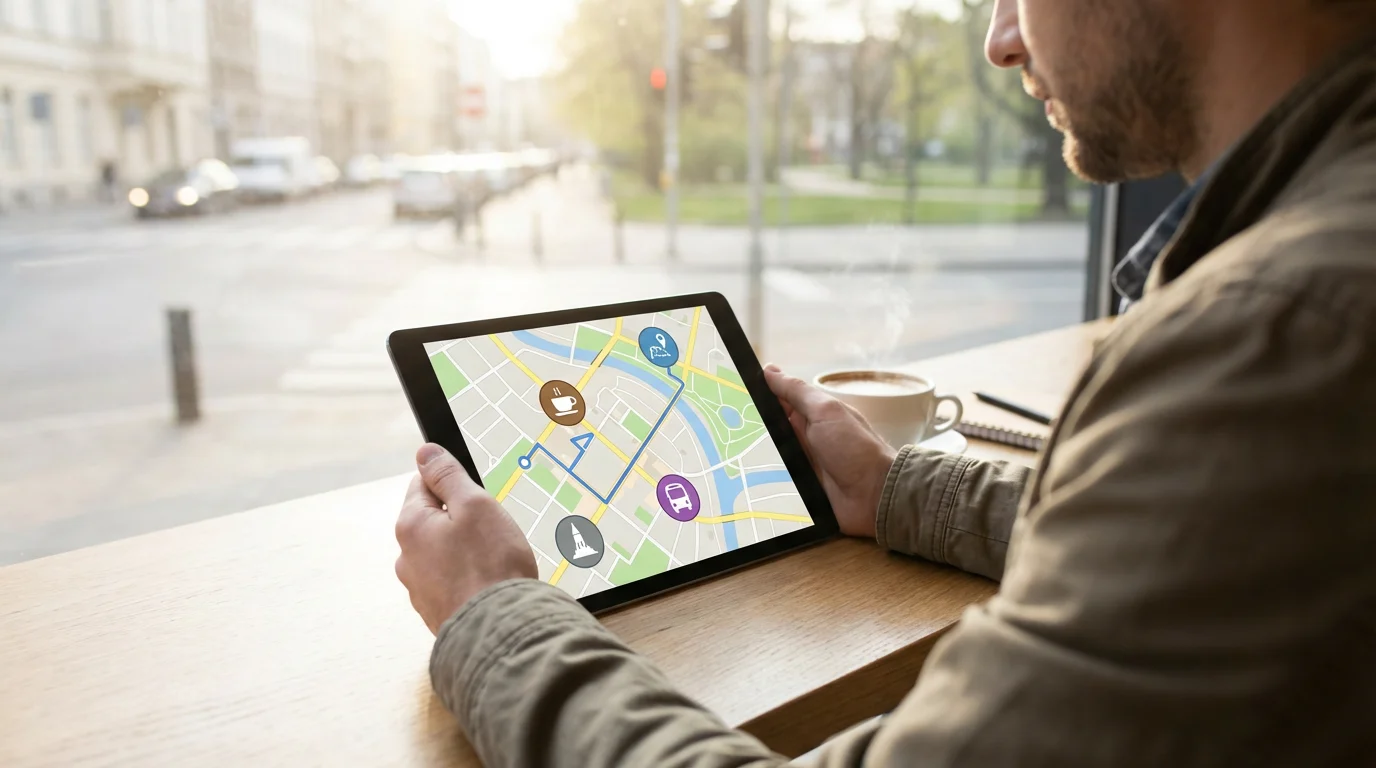
What is Google Maps and What Can It Do For You?
Google Maps is a free online mapping service that helps you find your way around the world. Think of it as a comprehensive digital atlas, combined with a powerful navigation system, available right on your phone, tablet, or computer. It does more than show you roads, it provides a wealth of information to help you navigate and explore.
Before you head out, it is often helpful to check the weather app on your phone to see if you need to bring an umbrella for your trip.
Here are some key things Google Maps allows you to do:
- Get Directions: You can quickly get directions for driving, walking, cycling, or using public transportation. Google Maps shows you the fastest routes, potential traffic delays, and estimated arrival times. This makes planning trips much simpler and helps you avoid getting lost.
- Discover Places: Are you looking for a nearby restaurant, a gas station, a pharmacy, or a park? Google Maps helps you find specific businesses, points of interest, and local services. You can even see reviews, phone numbers, and hours of operation for many places.
- Explore New Areas: With features like Street View, you can see panoramic images of streets and buildings, giving you a virtual tour of a location before you even arrive. This helps you familiarize yourself with your destination.
- Stay Informed: Google Maps often provides real-time traffic updates, public transit schedules, and information about local events. This keeps you aware of what is happening around you.
Google Maps empowers you to travel with confidence. It removes the guesswork from going to new places and helps you discover what is around you, making your daily life easier and more adventurous.
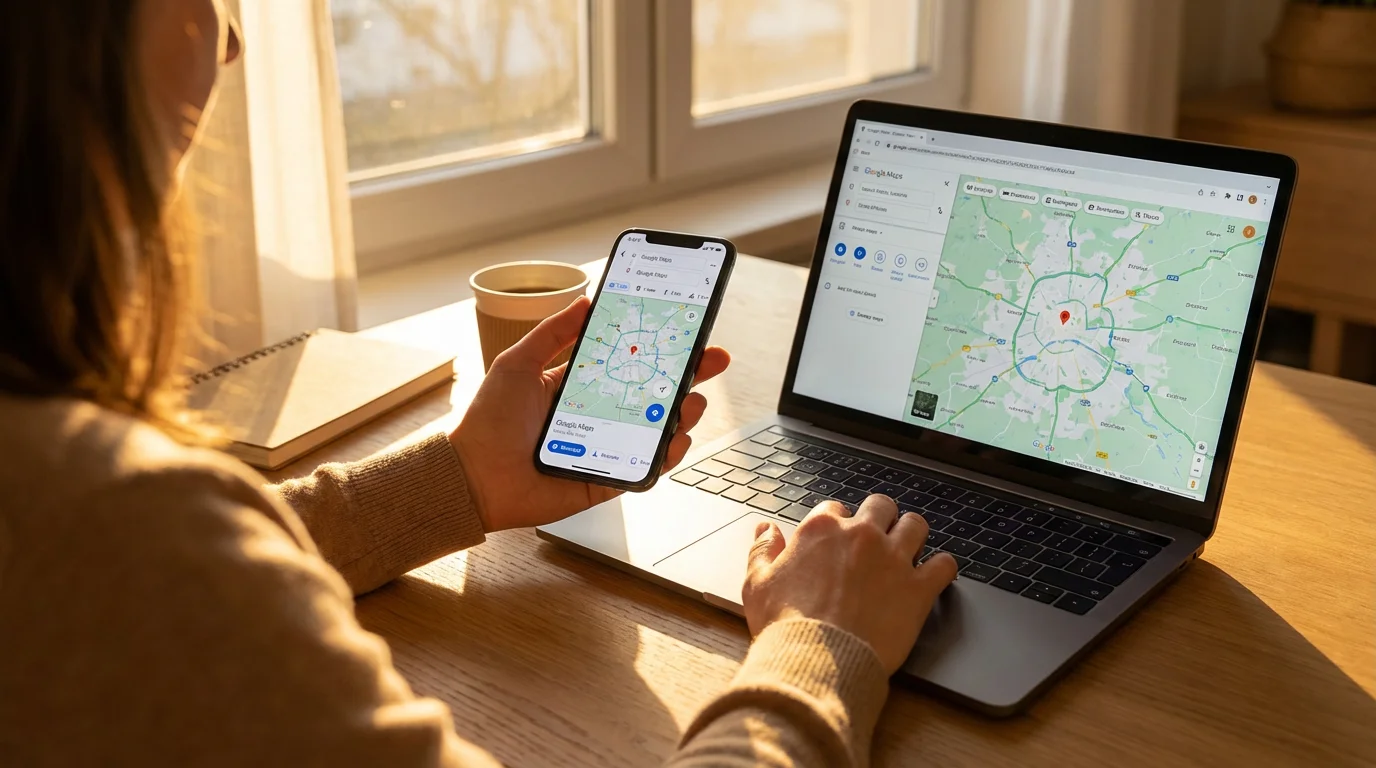
How to Get Google Maps on Your Phone or Computer
Google Maps is a free service. You can access it in two main ways: as an app on your smartphone or tablet, or through a web browser on your computer. We will walk through how to get it set up on each type of device.
If you are accessing the service on a desktop, learning how to use a computer mouse effectively will make it much easier to click, drag, and zoom on the map.
For Android users, once the app is installed, understanding your Android phone’s home screen will help you find and organize the Google Maps icon for easy access.
To avoid using your cellular data while downloading the app, you should connect your smartphone to Wi-Fi first.
Getting the Google Maps App on Your Phone or Tablet
An “app” is simply a program you can download and use on your phone or tablet. Getting the Google Maps app is usually a straightforward process.
For iPhones and iPads (Apple App Store)
- Open the App Store: Look for an icon on your device that looks like a blue square with a white “A” in the middle. Tap this to open the App Store.
- Search for Google Maps: At the bottom of the App Store screen, you will see a magnifying glass icon labeled “Search.” Tap it. Then, at the top of the screen, tap the search bar and type “Google Maps.” Press the “Search” button on your keyboard.
- Find the App: You will see a list of results. Look for “Google Maps” by Google LLC. It has a distinctive pin icon on a map background.
- Download and Install: Next to the Google Maps app listing, you will see a button that says “GET” or a cloud icon with a down arrow. Tap this button. You may need to verify your identity using Face ID, Touch ID, or by entering your Apple ID password. The app will then “download” (get the app from the app store and put it on your device) and “install” (set up the app so it is ready to use) automatically.
- Open the App: Once installed, you will see an “OPEN” button. You can tap this, or find the new Google Maps icon on your home screen to launch the app.
For Android Phones and Tablets (Google Play Store)
- Open the Google Play Store: Look for an icon on your device that looks like a colorful triangle (like a play button). Tap this to open the Google Play Store.
- Search for Google Maps: At the top of the Google Play Store screen, you will see a search bar. Tap it and type “Google Maps.” Then tap the search icon (magnifying glass) on your keyboard.
- Find the App: In the search results, look for “Google Maps” by Google LLC. It features the familiar pin icon.
- Install: Tap the “Install” button next to the Google Maps app listing. The app will “download” (get the app from the app store and put it on your device) and “install” (set up the app so it is ready to use) automatically.
- Open the App: Once installed, you will see an “Open” button. Tap this, or find the new Google Maps icon on your home screen to launch the app.
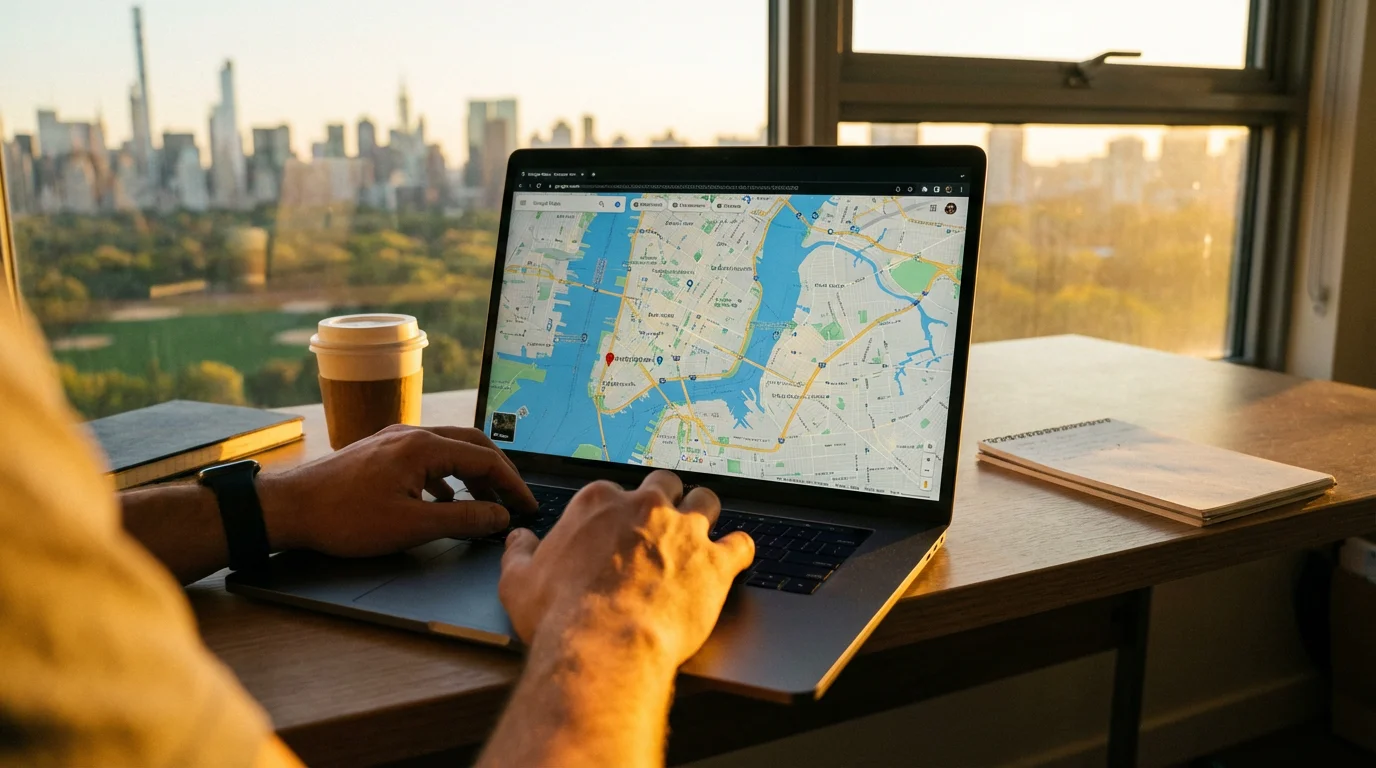
Accessing Google Maps on Your Computer
You do not need to download or install anything to use Google Maps on your computer. You simply need a web browser, such as Chrome, Firefox, Safari, or Edge.
- Open Your Web Browser: Click on the icon for your preferred web browser on your computer.
- Go to the Google Maps Website: In the address bar at the top of the browser window (where website addresses appear), type
maps.google.comand then press the Enter key on your keyboard. - Start Using Google Maps: The Google Maps website will load, ready for you to use.
Setting Up Google Maps (Using Your Google Account)
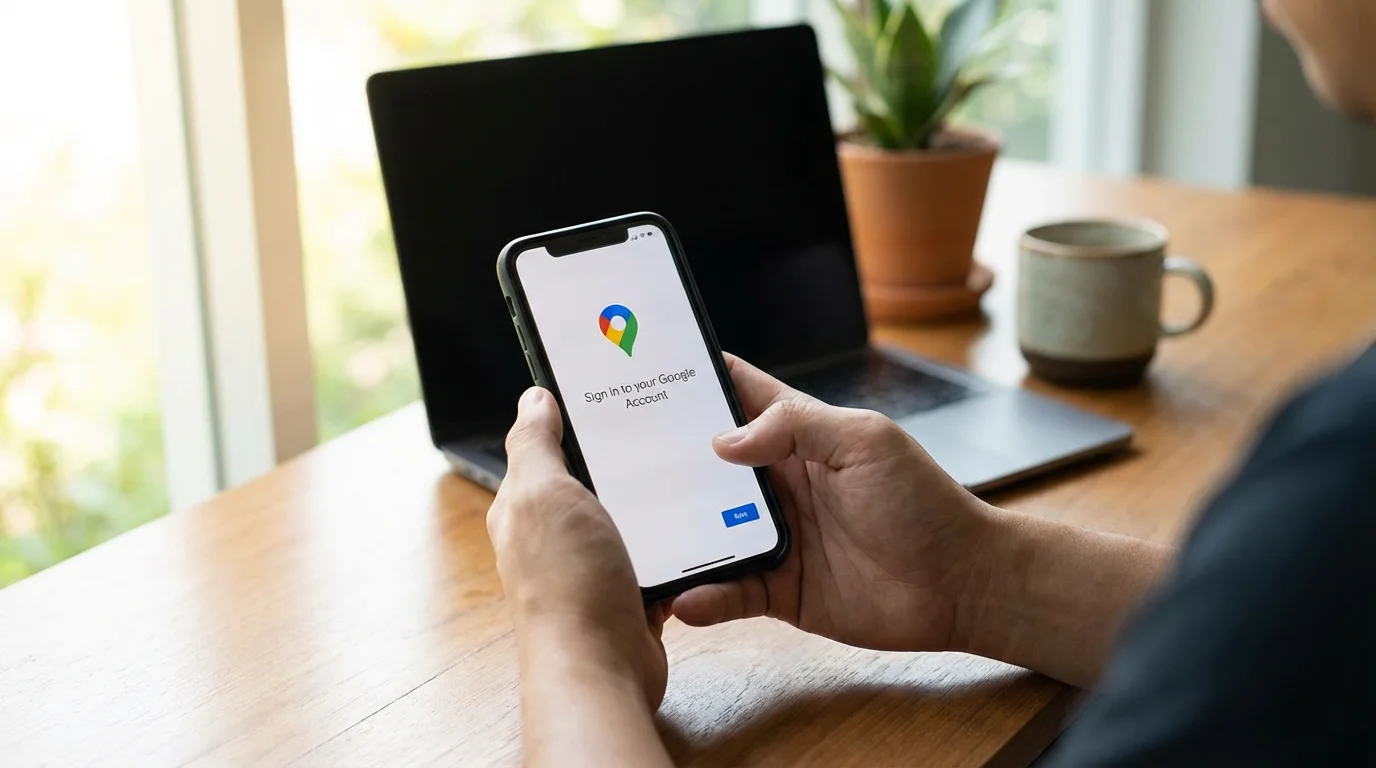
While you can use Google Maps without signing in, signing in with your Google “account” (your personal login with a username and password) offers several benefits. It allows you to save your favorite places, access your home and work addresses quickly, and synchronize (sync, meaning when information on different devices matches automatically) your search history across all your devices.
You can also coordinate your trips by learning how to use Google Calendar to keep track of appointment times and locations.
Your Google account also allows you to use other helpful tools, such as learning how to use Google Photos to save and organize images of the places you discover.
Signing In to Your Google Account
If you already have a Gmail address or use other Google services, you likely have a Google account. Use that same username and password.
On the Google Maps App (Phone/Tablet)
- Open Google Maps: Launch the app.
- Tap Your Profile Icon: In the top right corner of the screen, you will see a small circle. This is usually your initial or a profile picture if you have one. Tap it.
- Choose or Add Account: If you are not signed in, you will see an option to “Sign in” or “Add another account.” Tap this and follow the on-screen prompts to enter your Google email address and password. If you are already signed in to another Google service on your device, it may automatically offer to use that account.
On the Google Maps Website (Computer)
- Go to Google Maps: Open your web browser and navigate to
maps.google.com. - Click Sign In: In the top right corner of the Google Maps webpage, you will see a “Sign in” button. Click it.
- Enter Account Details: Follow the prompts to enter your Google email address and password.
Creating a Google Account (If You Do Not Have One)
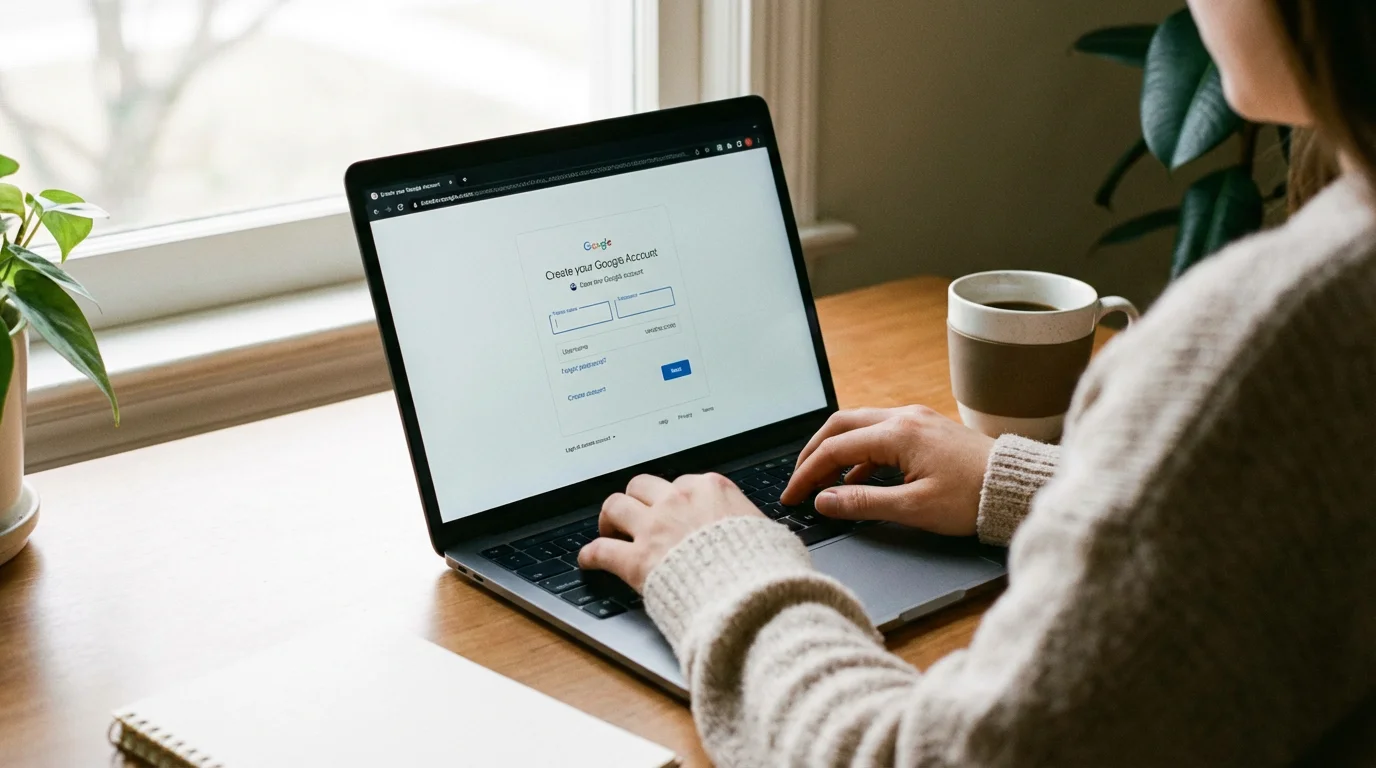
If you do not have a Google account, you can create one during the sign-in process, or by visiting accounts.google.com. Creating an account is free and opens up many Google services.
- Go to the Google Account Creation Page: Visit
accounts.google.com/signupin your web browser. - Fill in Your Information: Provide your first name, last name, preferred username (this will be your new Gmail address), and create a strong password.
- Follow Prompts: Google will ask for a phone number for verification and a recovery email, which helps if you ever forget your password.
- Review and Agree: Read the privacy policy and terms of service, then agree to complete your account creation.
Once you have created your account, you can then follow the sign-in steps above to link it with Google Maps.
Finding Your Way: Getting Directions on Your Phone or Computer
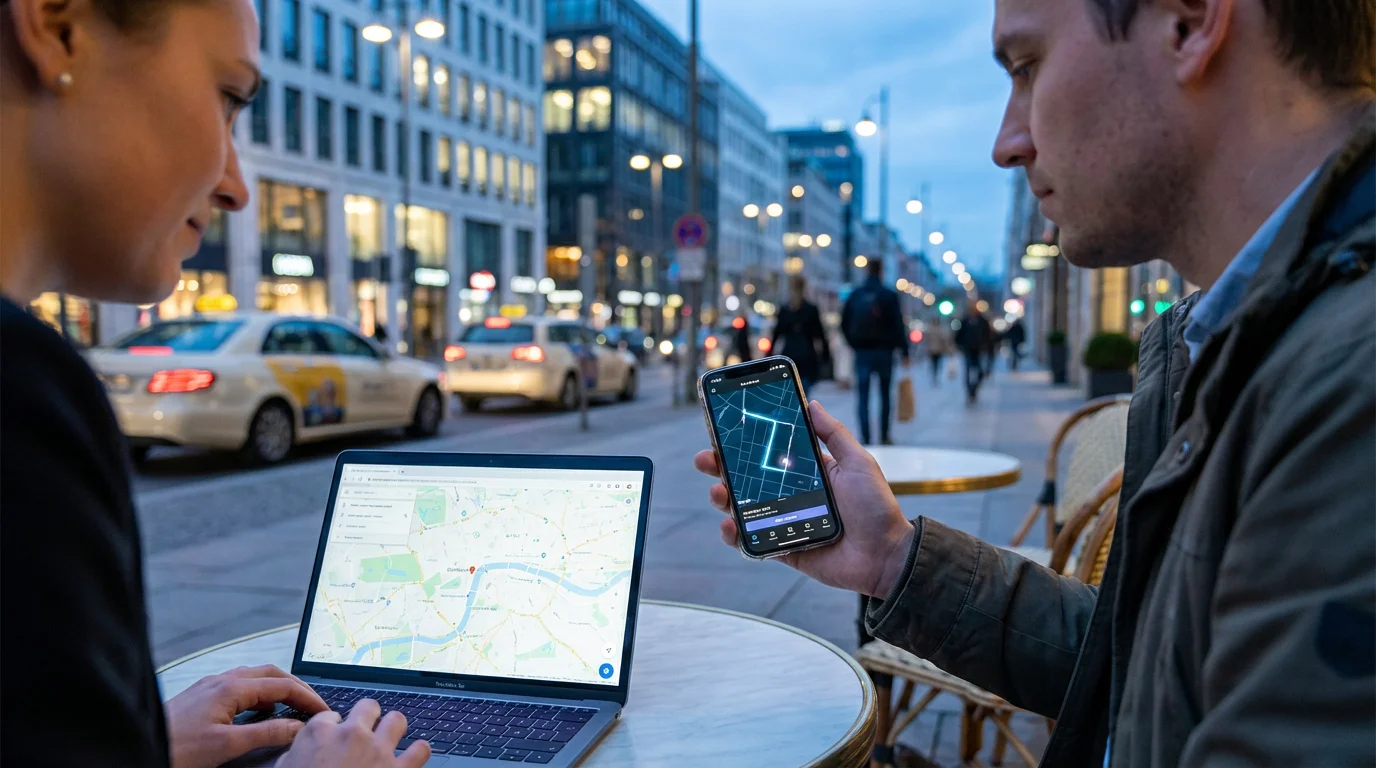
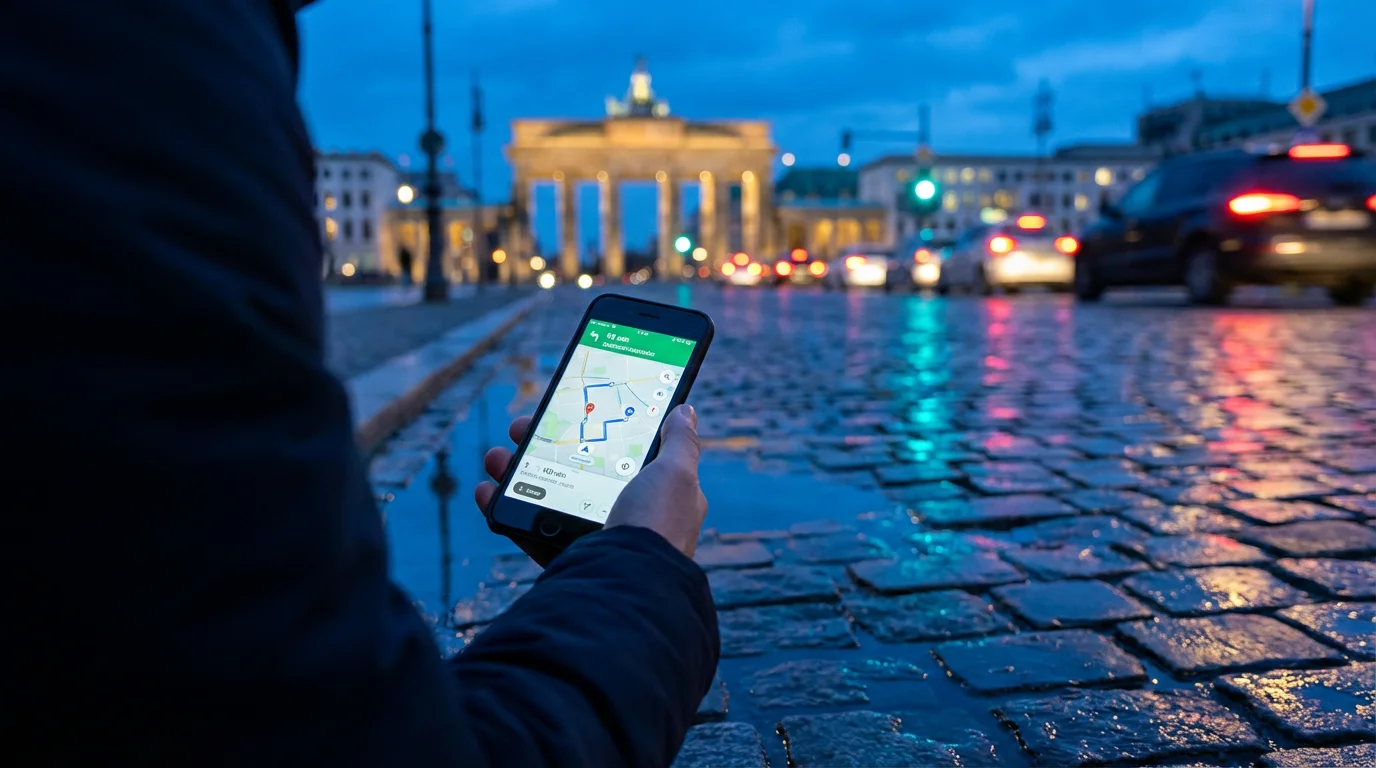
Getting directions is one of the most common and useful features of Google Maps. This section explains how to use Google Maps for beginners, helping you get directions on your phone or computer with ease.
As you begin exploring new areas, it is a great safety measure to know how to set up Emergency SOS on your smartphone in case you ever need urgent assistance.
If you find typing difficult, you can set up and use Google Assistant to ask for directions using just your voice.

Step-by-Step: Getting Directions
On the Google Maps App (Phone/Tablet)
- Open Google Maps: Tap the Google Maps app icon.
- Enter Your Destination: At the top of the screen, you will see a search bar that says “Search here.” Tap it and type in your destination. This could be an address, the name of a business (e.g., “Main Street Pharmacy”), or a landmark. As you type, Google Maps may suggest places, which you can tap to select.
- Select Your Destination: After typing, a list of potential destinations will appear. Tap the correct one. A pin will appear on the map at your chosen location, and a card with information about the place will slide up from the bottom of the screen.
- Tap “Directions”: On the information card, you will see a button labeled “Directions.” Tap this button.
- Choose Your Mode of Transport: At the top of the screen, you will see icons for different modes of transport: a car (driving), a person walking (walking), a bus (public transport), and a bicycle (cycling). Tap the icon for how you want to travel.
- Driving: This is often the default. Google Maps will show you the fastest route, often with different route options in lighter colors. You can tap on a different route to select it. It also displays estimated travel time and current traffic conditions.
- Walking: This provides pedestrian-friendly routes.
- Public Transport: This option shows bus, train, or subway routes, including schedules and estimated fares.
- Cycling: Provides bicycle-friendly routes, often avoiding major highways.
- Start Navigation: Once you have chosen your mode of transport, tap the “Start” button (it is usually a large blue button at the bottom of the screen). Google Maps will then give you turn-by-turn spoken directions and visually guide you on the map.
- End Navigation: To stop navigation, look for an “X” or “End” button, usually at the bottom or corner of the screen, and tap it.
On the Google Maps Website (Computer)
- Go to Google Maps: Open your web browser and navigate to
maps.google.com. - Enter Your Destination: In the search box at the top left of the screen, type your destination (e.g., address, business name, landmark). Press Enter on your keyboard or click the search icon.
- Click “Directions”: A pin will appear on the map, and a sidebar will show information about the location. Click the “Directions” button within this sidebar.
- Enter Your Starting Point: Google Maps will then ask for your starting location. Type your current address, a specific landmark, or simply “Your location” if your browser asks permission to use your current location.
- Choose Your Mode of Transport: Just like on the app, you will see icons for car, walking, public transport, and cycling at the top of the directions panel. Click the icon for your preferred method.
- Review Your Route: Google Maps will display the route on the map and provide step-by-step directions in the sidebar. You can zoom in and out of the map using your mouse scroll wheel or the +/- buttons on the map.
- Print or Send (Optional): You can print the directions by clicking the printer icon, or send them to your phone by clicking the phone icon (if you are signed into the same Google account on both devices).
Remember, Google Maps is always working to give you the most accurate directions. If you miss a turn, it will automatically recalculate your route, so there is no need to worry about making a mistake.

Exploring Your Surroundings: Finding Places Nearby
Beyond simply getting directions, Google Maps is excellent for discovering what is around you. This is very helpful when you are in an unfamiliar area or just looking for something specific close to home.

Finding Specific Types of Places
On the Google Maps App (Phone/Tablet)
- Open Google Maps: Tap the app icon.
- Use Category Buttons: Directly below the search bar at the top, you will often see quick access buttons for common categories like “Restaurants,” “Groceries,” “Gas,” “Coffee,” or “Pharmacies.” Tap one of these to see relevant businesses near your current location.
- Use the Search Bar for More Specifics: If you do not see the category you want, tap the main search bar and type what you are looking for (e.g., “dentist near me,” “bakery,” “hardware store”).
- Filter Results: After searching, you can often filter results by things like “Top-rated,” “Open now,” or “Price.” Look for filter buttons below the search results.
- View Details: Tap on a place from the list or on its pin on the map to see more details: address, phone number, website, opening hours, customer reviews, and photos. You can then tap “Directions” to go there.
On the Google Maps Website (Computer)
- Go to Google Maps: Open your web browser and navigate to
maps.google.com. - Use the Search Bar: In the search box at the top left, type what you are looking for, such as “pizza delivery,” “bank,” or “urgent care.” Press Enter.
- Browse Results: A list of matching places will appear in the left sidebar, and their locations will show on the map.
- Filter Options: Above the list of results, you might see options to refine your search, like “Open now” or “Ratings.”
- View Details: Click on a place from the list or its corresponding pin on the map. The left sidebar will then display detailed information about that specific location. From there, you can click “Directions” to get guidance to that spot.
Using Advanced Features to Enhance Your Experience
Google Maps offers many features beyond basic directions and local searches. These tools can make your planning and navigation even more efficient and enjoyable.

Saving Places
You can save locations you frequently visit or want to remember, like your favorite restaurant, a friend’s house, or a future vacation spot.
On Your Phone or Tablet
- Search for a Place: Find the location you want to save using the search bar.
- Open Place Details: Tap on the place’s name or its pin on the map to bring up its information card.
- Tap “Save”: On the information card, you will see a “Save” button (often with a bookmark icon). Tap it.
- Choose a List: You can save it to an existing list (like “Want to go,” “Starred places,” “Favorites”) or create a new list.
- Access Saved Places: To view your saved places, tap the “Saved” tab at the bottom of the Google Maps app.
On Your Computer
- Search for a Place: Find the location on the map.
- Click the Place: Click on its pin or name. Information about the place will appear in the left sidebar.
- Click “Save”: Look for the “Save” icon (a bookmark) and click it.
- Choose a List: Select an existing list or create a new one.
- Access Saved Places: To see your saved places, click the “Menu” icon (three horizontal lines) in the top left corner, then select “Your places,” and then “Saved.”

Checking Traffic Conditions
Google Maps uses real-time data to show you how busy roads are. This helps you choose the fastest route, especially during peak hours.
On Your Phone or Tablet
- Open Google Maps.
- Tap the Layers Icon: Look for a button that looks like two overlapping squares, usually on the right side of the map screen. Tap it.
- Select “Traffic”: Under the “Map Details” section, tap “Traffic.”
- View Traffic: Roads will now be colored: green (clear traffic), orange (medium traffic), and red (heavy traffic). Tap the layers icon again and unselect “Traffic” to turn it off.
On Your Computer
- Go to Google Maps.
- Click the Layers Icon: In the bottom left corner of the map, you will see a square icon that says “Layers.” Click it.
- Select “Traffic”: In the pop-up menu, click “Traffic.”
- View Traffic: Roads on the map will change color to reflect traffic conditions. Click “Traffic” again to turn it off.

Street View
Street View allows you to see panoramic, street-level images of many locations, giving you a virtual tour. This is useful for getting a feel for a place before you arrive.
On Your Phone or Tablet
- Search for a Location: Find the address or place on the map.
- Drop a Pin: Long-press (tap and hold) on a street or area where you want to see Street View. A red pin will appear.
- Tap the Street View Photo: At the bottom of the screen, a small photo thumbnail will appear if Street View is available for that spot. Tap this thumbnail. You can then drag your finger to look around or tap arrows to move down the street.
- Exit Street View: Tap the back arrow in the top left corner to return to the map.
On Your Computer
- Go to Google Maps.
- Drag the Pegman: In the bottom right corner of the screen, you will see a small yellow person icon, known as “Pegman.” Click and drag this Pegman onto the map. Areas with Street View available will highlight in blue.
- Release Pegman: Release Pegman onto a blue street. The view will switch to Street View. You can click arrows on the screen to move, or drag your mouse to look around.
- Exit Street View: Click the back arrow in the top left corner to return to the map.
Tips for Getting the Most Out of Google Maps
These tips will help you use Google Maps even more effectively and ensure a smoother experience.
- Use Voice Navigation: When driving, hands-free voice navigation is much safer. Once you start navigation on your phone, Google Maps will give spoken turn-by-turn directions. Listen carefully for these prompts.
- Download Offline Maps: If you know you will be in an area with poor cell service or want to save data, you can download a map area to your phone.
- On the app: Tap your profile icon (top right), then “Offline maps,” then “Select your own map.” Zoom and pan to select the area you need, then tap “Download.” This allows you to get directions even without an internet connection for that downloaded area.
- Customize Your Home and Work Addresses: Save your home and work addresses in Google Maps. This allows you to quickly get directions to or from these locations by simply typing “Home” or “Work” in the search bar.
- On the app: Tap “Saved” at the bottom, then scroll down to “Labeled places” and tap “Home” or “Work” to set your address.
- Share Your Location: If you want family or friends to know where you are, you can share your real-time location for a specific period.
- On the app: Tap your profile icon, then “Location sharing,” and follow the prompts. Remember to only share your location with trusted contacts.
- Stay Updated: Developers regularly “update” (get the newest version of an app) Google Maps with new features and improvements. Ensure your app is always updated for the best experience.
- For iPhone/iPad: Go to the App Store, tap your profile icon (top right), then scroll down to see pending updates.
- For Android: Go to the Google Play Store, tap your profile icon (top right), then “Manage apps & device,” then “Updates available.”
- Explore Accessibility Features: Google Maps offers features for users with accessibility needs, such as wheelchair-accessible routes for public transport or voice commands. Explore the settings for these options if they are relevant to you.

Common Questions and Problems
Even with a user-friendly app like Google Maps, you might encounter a few questions or minor issues. Here are some common ones and how to address them.
“My location is not accurate on the map.”
Google Maps uses your device’s GPS, Wi-Fi, and cellular data to pinpoint your location. If your location appears inaccurate:
- Check Location Services: Ensure your phone’s location services (GPS) are turned on. This is usually in your device’s main settings under “Location” or “Privacy.”
- Go Outdoors: GPS works best when you have a clear view of the sky. If you are indoors, especially in a large building, GPS signals can be weak.
- Restart Google Maps: Close the app completely and reopen it.
- Restart Your Device: A simple restart can often resolve minor technical glitches.
“I do not hear voice directions.”
If you are not hearing the turn-by-turn instructions:
- Check Device Volume: Make sure your phone’s volume is turned up and not muted.
- Check Google Maps Volume: Within the Google Maps navigation screen, there is often a speaker icon. Tap it to cycle through options like “Muted,” “Alerts only,” and “Sound on.” Ensure it is set to “Sound on.”
- Check Bluetooth Connection: If your phone is connected to a car or headphones via Bluetooth, the sound might be routing there. Check the volume on the connected device or disconnect Bluetooth if you want the sound from your phone’s speaker.
“The map looks cluttered or confusing.”
Sometimes too much information on the map can be overwhelming. You can adjust what appears on your map:
- Use Map Layers: Tap the “Layers” icon (two overlapping squares on the app, or the square icon in the bottom left on the computer). You can deselect options like “Traffic,” “Public transport,” or “Street View” to simplify the view.
- Zoom In and Out: Use pinch-to-zoom on your phone/tablet or the +/- buttons on your computer to focus on a smaller, more manageable area.
“My app is running slowly or crashing.”
Like any app, Google Maps can occasionally experience performance issues:
- Clear App Cache: On Android, you can go to your phone’s Settings > Apps > Google Maps > Storage > Clear cache. On iPhone, reinstalling the app is often the best way to clear its data.
- Ensure Sufficient Storage: Make sure your device has enough free storage space.
- Update the App: Make sure you have the latest version of the Google Maps app, as updates often include bug fixes and performance improvements. (Refer to the “Stay Updated” tip above).
Frequently Asked Questions
Is Google Maps safe to use?
Yes, Google Maps is safe to use. It comes from a reputable company, Google, and provides accurate navigation. It uses anonymized data to improve traffic information and protect your privacy. Always download the app from the official Apple App Store or Google Play Store to ensure you have the legitimate version.
Do I have to pay to use Google Maps?
No, Google Maps is completely free to use. You do not need to pay for the app itself or its core features like getting directions, searching for places, or viewing Street View. If you use it on your phone or tablet, it will use your mobile data, unless you have downloaded offline maps while connected to Wi-Fi.
Can I use Google Maps without an internet connection?
Yes, you can use Google Maps without a continuous internet connection if you download “offline maps” beforehand. This allows you to get directions and see map details for a specific area even when you do not have Wi-Fi or cellular data. However, real-time traffic updates and some advanced features require an internet connection.
How does Google Maps know about traffic?
Google Maps gathers real-time traffic information from a variety of sources. This includes anonymized data from users’ phones, historical traffic patterns, and reports from traffic sensors. It processes this vast amount of information to give you the most accurate picture of current road conditions and suggest the fastest routes.
Google Maps truly offers a world of information and navigation right at your fingertips. By following these steps, you gain the confidence to explore new places, manage your travel plans efficiently, and always know what is around you. Practice using these features, and you will soon find Google Maps an indispensable tool in your daily life, making every journey smoother and more enjoyable.
Disclaimer: This article is for informational purposes only. App interfaces change frequently with updates, so screens may look slightly different from what’s described. Always download apps from official app stores (Apple App Store or Google Play Store) to ensure safety.




Leave a Reply