

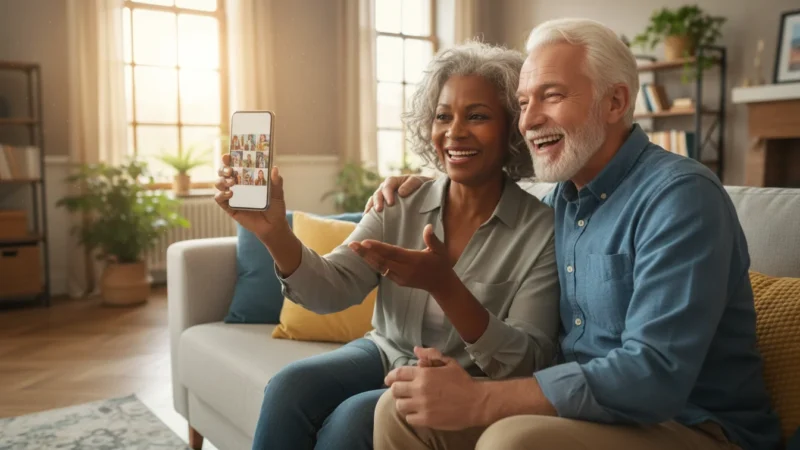
Staying connected with family and friends feels more important than ever. Video calls offer a wonderful way to see loved ones, share smiles, and feel closer, no matter the distance. While many apps allow video calls, Facebook Messenger stands out as a popular, user-friendly option for millions of people. You can use it on your phone, tablet, or computer.
This guide helps you understand exactly what Messenger does, how to get the app, set up your account, and most importantly, how to start a video call. You will find practical, step-by-step instructions, ensuring you feel confident using this powerful communication tool. Let’s make connecting with your dear ones easy and enjoyable.
Table of Contents
- What Facebook Messenger Does
- How to Get the Facebook Messenger App
- Setting Up Your Messenger Account
- Making a Video Call on Your Phone or Tablet
- Making a Video Call on Your Computer
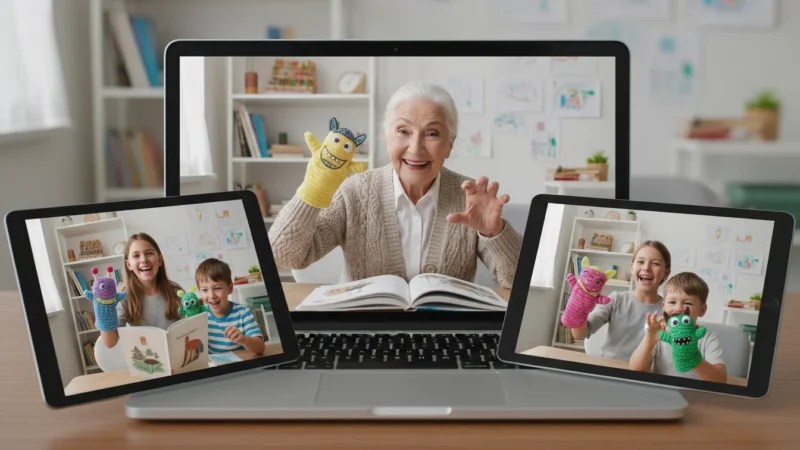
- Making Group Video Calls
- Tips for Better Video Calls
- Common Questions and Troubleshooting
- Frequently Asked Questions

What Facebook Messenger Does
Facebook Messenger, often called simply “Messenger,” is a free communication app from Facebook. You can use it to send messages, photos, and videos to friends and family. Its most cherished feature for many people is video calling. This allows you to see and talk to someone face-to-face over the internet, right from your device.
You probably know many people who use Facebook. Messenger works hand-in-hand with your Facebook account, making it simple to find and connect with your Facebook friends. Even if you do not use Facebook actively, you can still use Messenger with a phone number.
Here are some key benefits of using Messenger:
- Stay Connected: See and talk to loved ones, reducing feelings of isolation.
- Ease of Use: Messenger offers a straightforward interface, designed for easy navigation.
- Free Communication: You make calls and send messages without using your phone plan’s minutes or text allowance, as long as you have an internet connection.
- Group Calls: Talk to multiple people at once, perfect for family gatherings or catching up with friends.
- Cross-Device Compatibility: Use it on your smartphone, tablet, or computer, so you can connect from almost anywhere.
How to Get the Facebook Messenger App
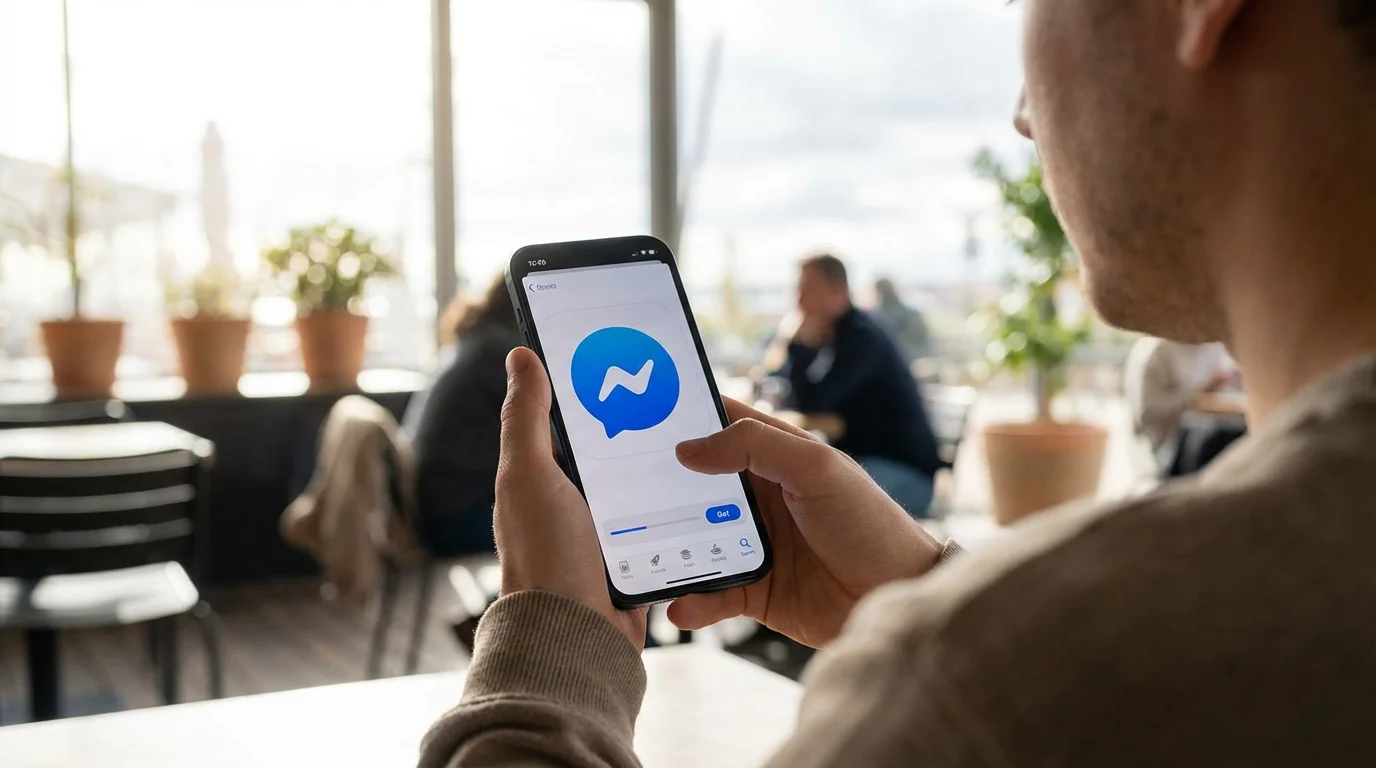
To use Messenger for video calls, you first need to get the app on your device. This process involves “downloading” and “installing” the app. Downloading means getting the app from an official store, and installing means setting it up so it is ready for you to use. This guide covers both phone/tablet and computer options.
On Your Phone or Tablet (Apple or Android)
Most people use Messenger on a smartphone or tablet. The steps are very similar for both Apple (iPhone, iPad) and Android devices (Samsung, Google Pixel, etc.).
For Apple Devices (iPhone or iPad)
- Open the App Store: Find the blue icon with a white ‘A’ in a circle on your home screen. Tap it to open the App Store.
- Search for Messenger: At the bottom of the App Store screen, you will see a ‘Search’ tab. Tap it. Then, at the top, tap the search bar and type “Messenger.” Tap ‘Search’ on your keyboard.
- Find the Official App: Look for “Messenger” by Meta (Meta is Facebook’s parent company). It has a blue speech bubble icon with a white lightning bolt.
- Download the App: Next to the app’s name, you will see a button that says ‘GET’ or shows a cloud icon with an arrow pointing down. Tap this button. You might need to confirm your choice using your face ID, fingerprint, or by entering your Apple ID password.
- Wait for Installation: The app will begin to download and then automatically install on your device. You will see a progress circle filling up.
- Open the App: Once it finishes, the button will change to ‘OPEN’. You can tap ‘OPEN’ directly from the App Store, or find the Messenger icon on your home screen and tap it there.
Remember, downloading apps from official app stores, like the Apple App Store or Google Play Store, ensures you get a safe and legitimate version of the software. Always be careful about where you download apps.
For Android Devices (Samsung, Google Pixel, etc.)
- Open the Google Play Store: Look for the colorful triangle icon on your home screen or in your app drawer. Tap it to open the Google Play Store.
- Search for Messenger: At the top of the Play Store screen, you will see a search bar. Tap it and type “Messenger.” Then tap the search icon (often a magnifying glass) on your keyboard.
- Find the Official App: Look for “Messenger” by Meta. It has a blue speech bubble icon with a white lightning bolt.
- Download and Install: Tap the ‘Install’ button. The app will begin to download and then automatically install on your device. You will see a progress bar.
- Open the App: Once it finishes, the button will change to ‘Open’. You can tap ‘Open’ directly from the Play Store, or find the Messenger icon on your home screen or in your app drawer and tap it.

On Your Computer (Windows or Mac)
You can also use Messenger on your computer, either through a dedicated desktop app or directly through your web browser. Using the browser version is often the quickest way to get started.
Using a Web Browser
This method does not require downloading or installing anything. You simply visit the Messenger website.
- Open Your Web Browser: Launch a web browser like Google Chrome, Mozilla Firefox, Microsoft Edge, or Apple Safari.
- Go to Messenger’s Website: In the address bar at the top of the browser window, type
messenger.comand press Enter on your keyboard. - Log In: The website will prompt you to log in with your Facebook account details. If you do not have a Facebook account, it offers an option to create one or use your phone number.
Using the Desktop App (Windows or Mac)
A dedicated desktop app can offer a smoother experience and sometimes provides more features than the web version. It also lets you receive “notifications,” which are alerts or messages, even if your browser is closed.
- Open Your Computer’s App Store:
- For Windows: Click the ‘Start’ button (Windows logo) and search for “Microsoft Store.”
- For Mac: Click the ‘App Store’ icon in your Dock or search for it using Spotlight (Command + Spacebar).
- Search for Messenger: In the App Store’s search bar, type “Messenger” and press Enter.
- Find and Install: Look for the official Messenger app by Meta. Click the ‘Get’ or ‘Install’ button. Your computer will download and install the app.
- Launch Messenger: Once installed, you can find the Messenger app in your ‘Start Menu’ (Windows) or ‘Applications’ folder (Mac). Click its icon to open it.
Setting Up Your Messenger Account
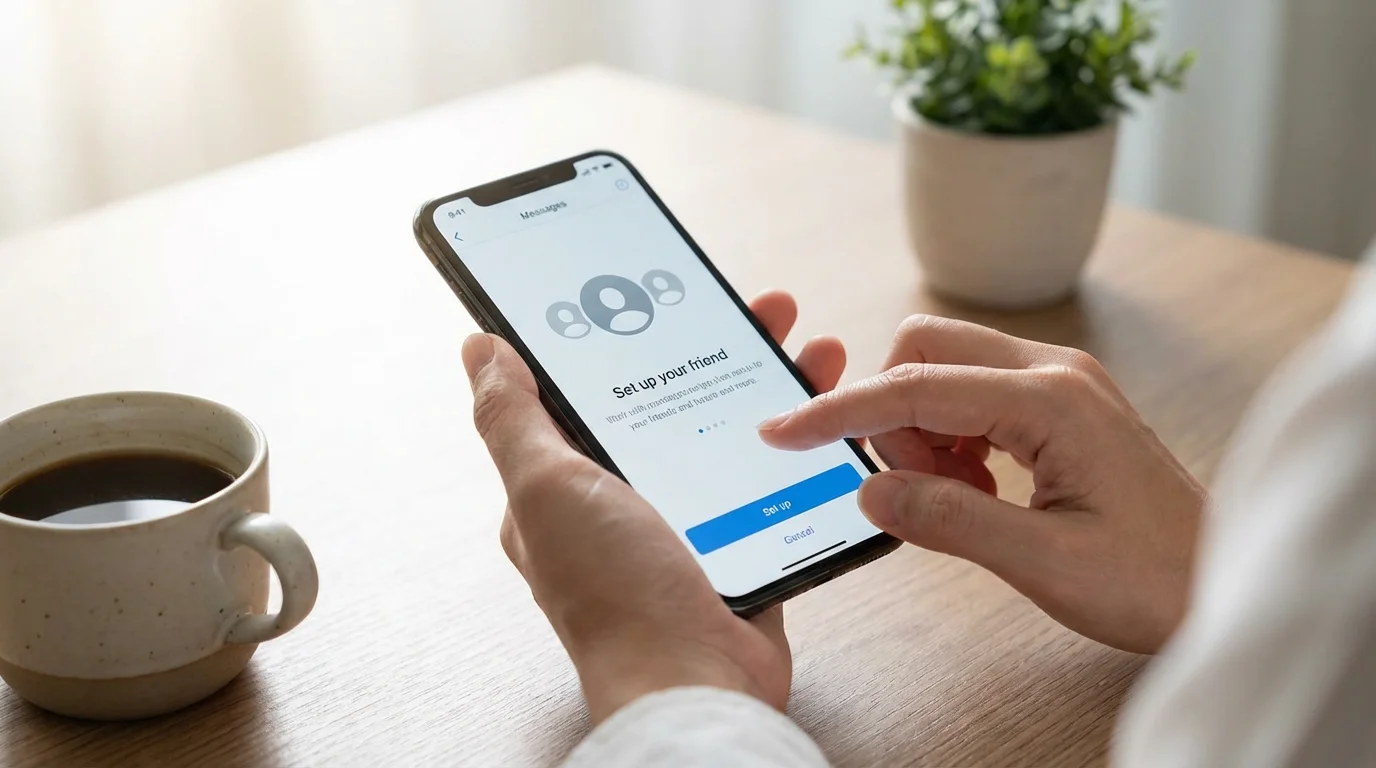
Once you have the Messenger app installed or open in your browser, you need to set up your “account.” An account is your personal login with a username and password, allowing the app to recognize you.
- Open Messenger: Tap the Messenger app icon on your phone/tablet or open the app/website on your computer.
- Log In with Facebook: Messenger will usually prompt you to ‘Continue with Facebook’. Tap or click this button.
- If you are already logged into Facebook on your device or browser, Messenger automatically connects to your existing Facebook account. This makes setting up very simple.
- If you are not logged in, it will ask for your Facebook email/phone number and password. Enter these details and click ‘Log In’.
- If You Do Not Have a Facebook Account:
- On the login screen, look for an option like ‘Not on Facebook?’ or ‘Create New Account’.
- It may allow you to create a Messenger-only account using your phone number. Follow the on-screen prompts, which usually involve entering your phone number and a verification code sent to that number. You will also create a password.
- Review Permissions: Messenger might ask for permissions, such as allowing it to access your contacts, camera, or microphone. For video calls, you MUST allow access to your camera and microphone. Granting access to your contacts helps Messenger find people you know who also use the app.
- Optional: Turn on Notifications: Messenger will ask if you want to receive notifications. Turning them on means you will get alerts when someone calls or messages you. This ensures you do not miss important calls.
- You Are Ready: Once you complete these steps, you will see your Messenger home screen, which often shows recent conversations.
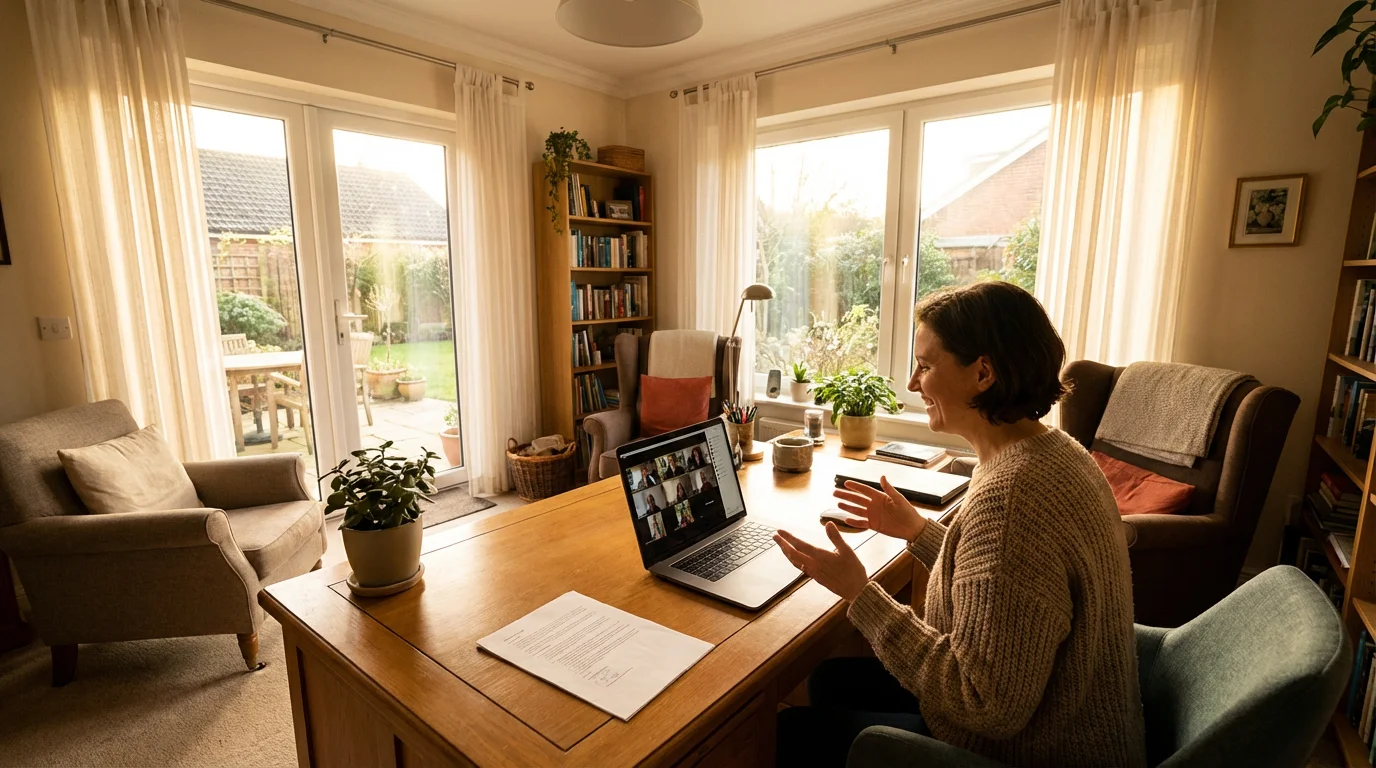
Making a Video Call on Your Phone or Tablet
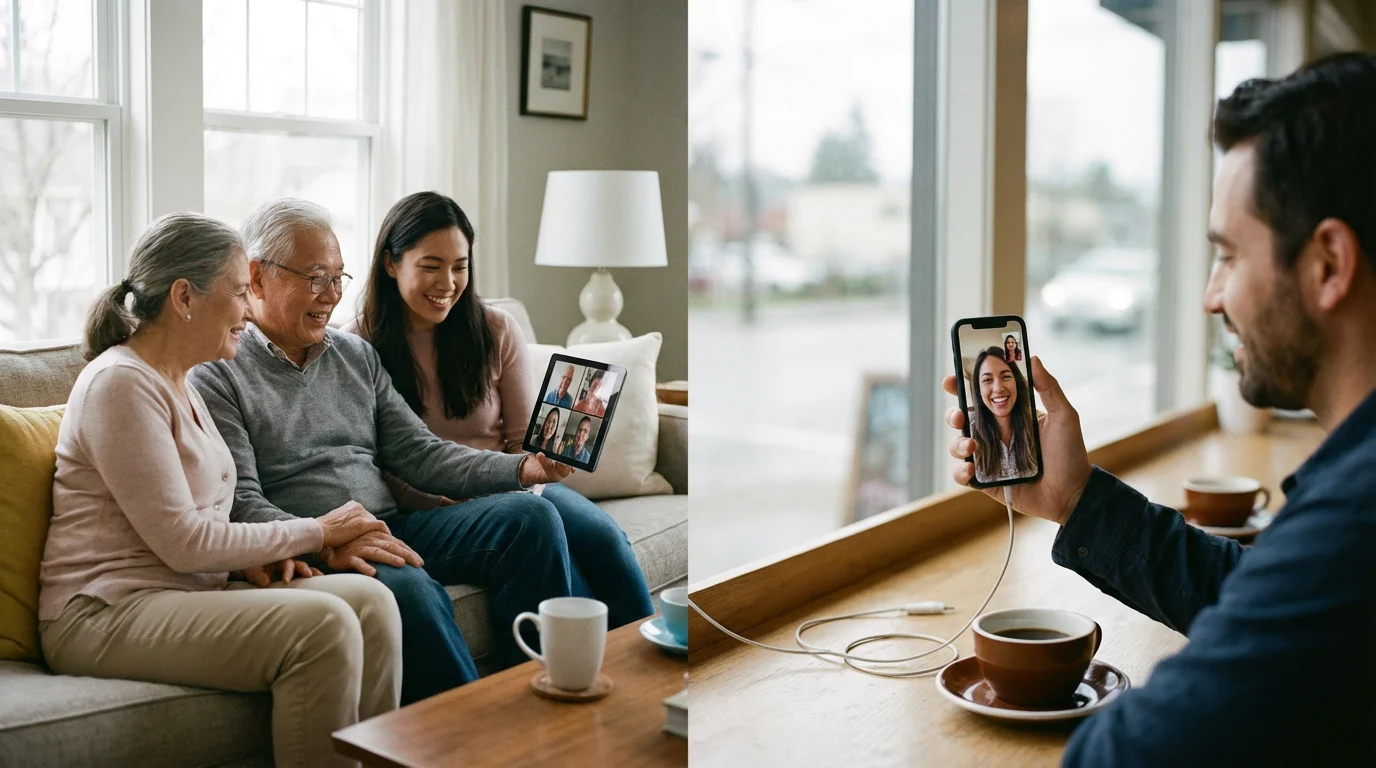
Now that you have Messenger set up, you can easily make a video call. This section focuses on making calls from your smartphone or tablet.
- Open the Messenger App: Tap the blue Messenger icon on your device.
- Find the Person You Want to Call:
- From Your Chats List: If you have recently chatted with the person, their name will appear in your main ‘Chats’ list. Tap their name to open your conversation with them.
- Using the Search Bar: If you do not see them, tap the ‘Search’ bar at the top of the screen. Type the person’s name. As you type, their name should appear. Tap their name from the results to open your conversation.
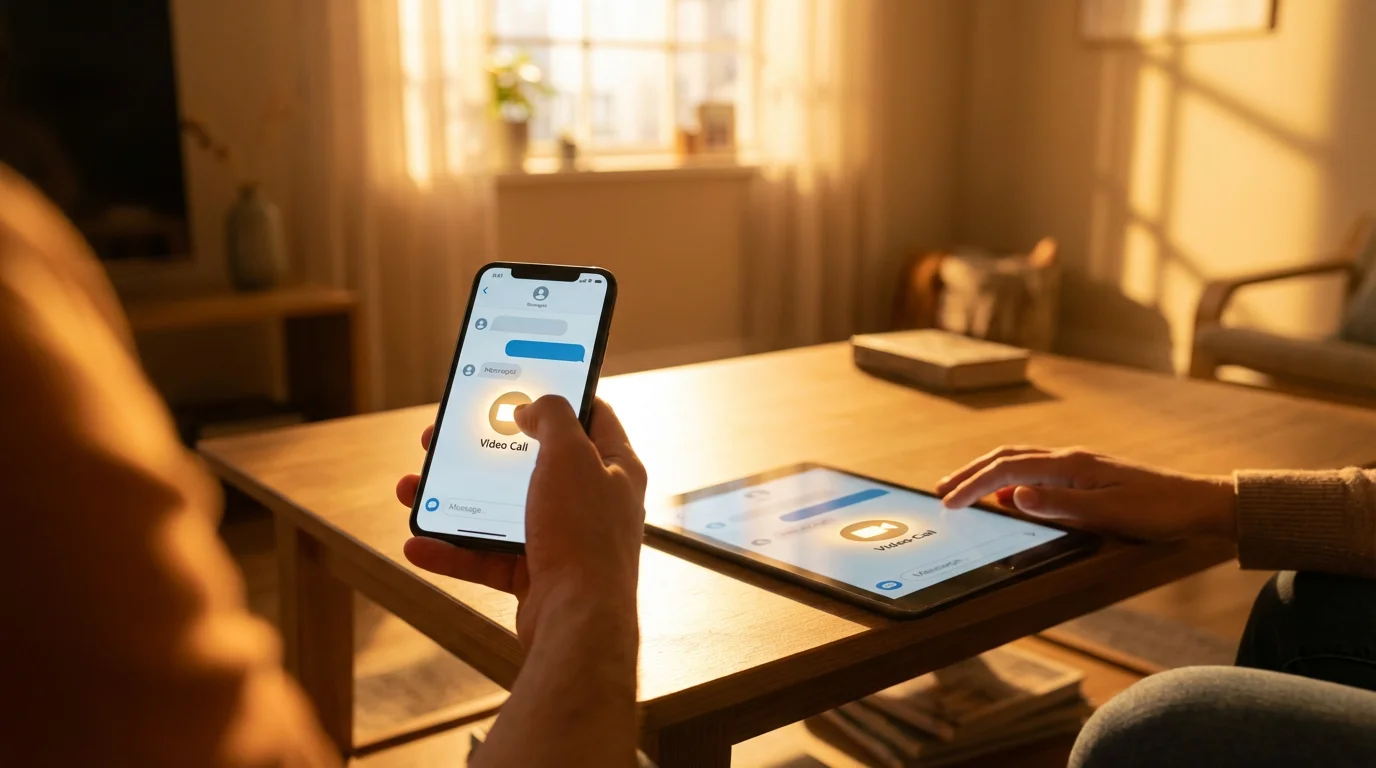
- Start the Video Call: Once you are in the conversation screen with that person, look at the top right corner of the screen. You will see two icons: a phone icon and a video camera icon. Tap the video camera icon to start a video call.
- Wait for Them to Answer: The app will start ringing the other person. You will see your own face appear on your screen, letting you know your camera works.
- During the Call:
- Mute/Unmute Microphone: You will see a microphone icon. Tap it to turn your microphone off (mute) if you need privacy or there is background noise. Tap it again to turn it back on (unmute).
- Turn Camera On/Off: You will also see a video camera icon. Tap it to turn off your camera if you prefer not to be seen for a moment. Tap it again to turn it back on.
- Switch Cameras: If your phone has both a front and back camera, you might see a flip-camera icon (often two arrows forming a circle). Tap it to switch between showing your face and showing what is in front of your device.
- End Call: To end the call, tap the red phone icon (often in the center bottom of the screen).
Practice makes perfect! Do not hesitate to make a test video call with a trusted family member or friend. This helps you get comfortable with the buttons and screen layout before an important call.
Making a Video Call on Your Computer
Making a Messenger video call on your computer, whether using the desktop app or the web browser, follows similar easy steps.
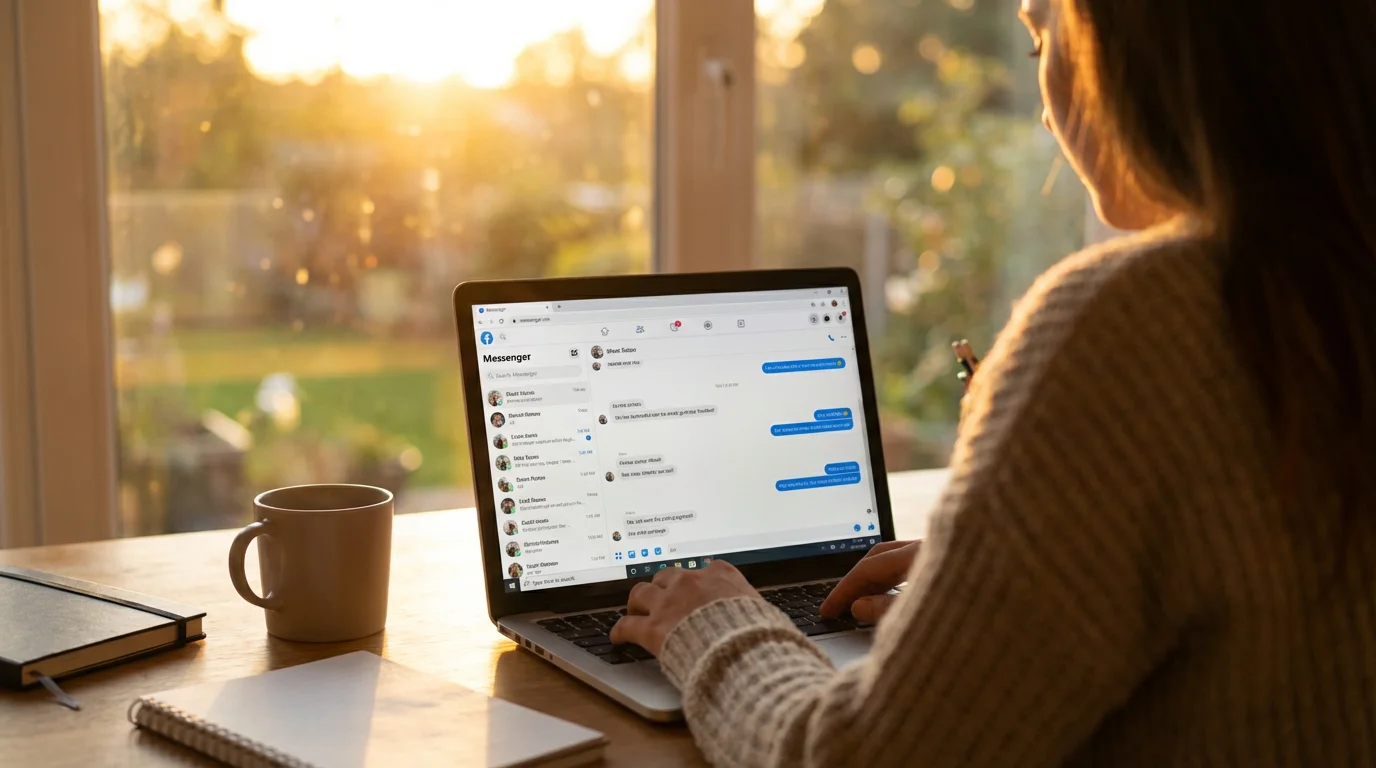
Using the Messenger Desktop App or Website (messenger.com)
- Open Messenger: Launch the Messenger desktop app or go to
messenger.comin your web browser. Make sure you are logged in. - Find the Person You Want to Call:
- On the left side of the screen, you will see your list of conversations. Click the name of the person you want to call.
- If you do not see them, use the ‘Search’ bar at the top left. Type their name and click on it from the results to open your chat.
- Start the Video Call: Once you have opened the conversation with that person, look at the top right corner of the chat window. You will see a video camera icon. Click this icon to initiate a video call.
- Grant Permissions (First Time Only): If this is your first time making a video call on your computer, your browser or desktop app might ask for permission to access your camera and microphone. Click ‘Allow’ or ‘Grant Access’ to proceed.
- Wait for Them to Answer: Your computer will ring the other person. Your own video feed will appear on your screen.
- During the Call:
- Mute/Unmute Microphone: You will see a microphone icon. Click it to mute your audio if needed. Click it again to unmute.
- Turn Camera On/Off: Click the video camera icon to turn your camera off or on.
- End Call: To end the call, click the red phone icon.
Making Group Video Calls
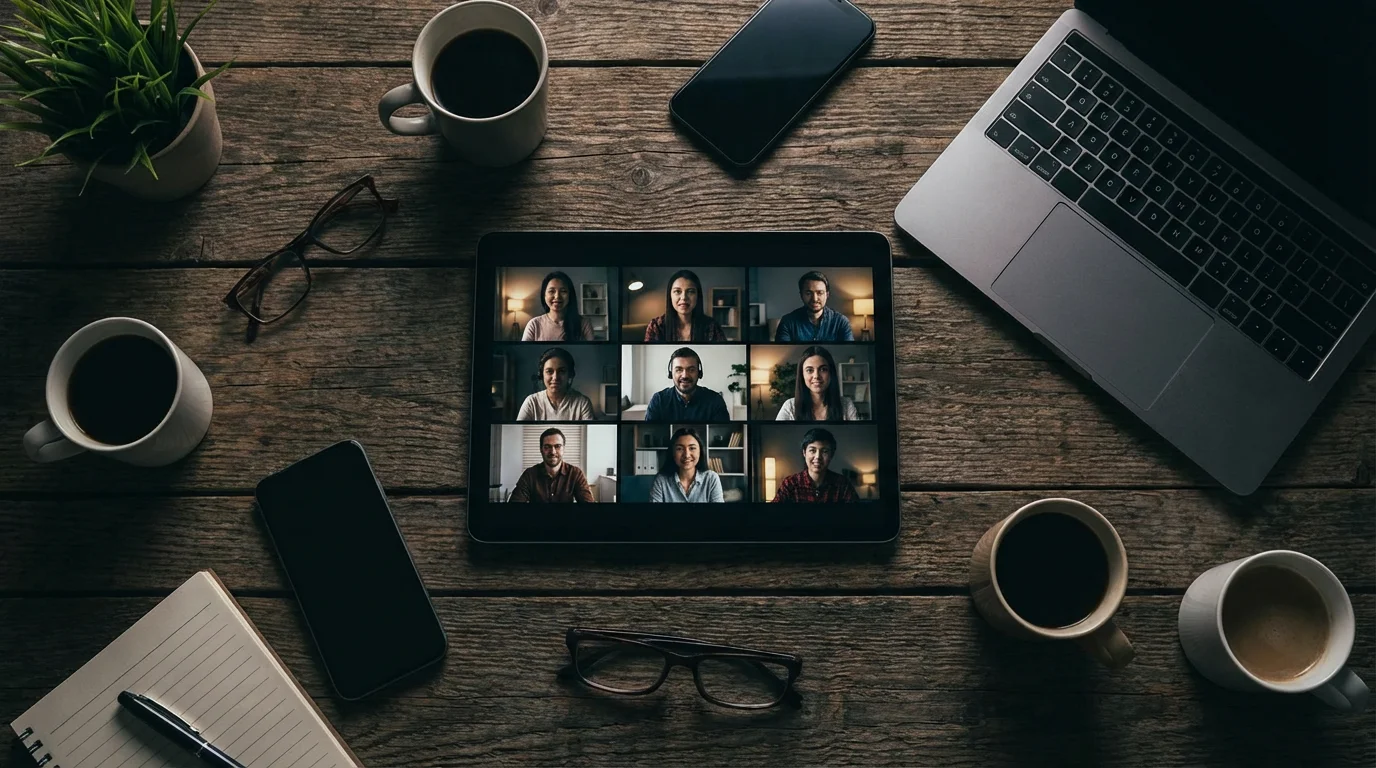
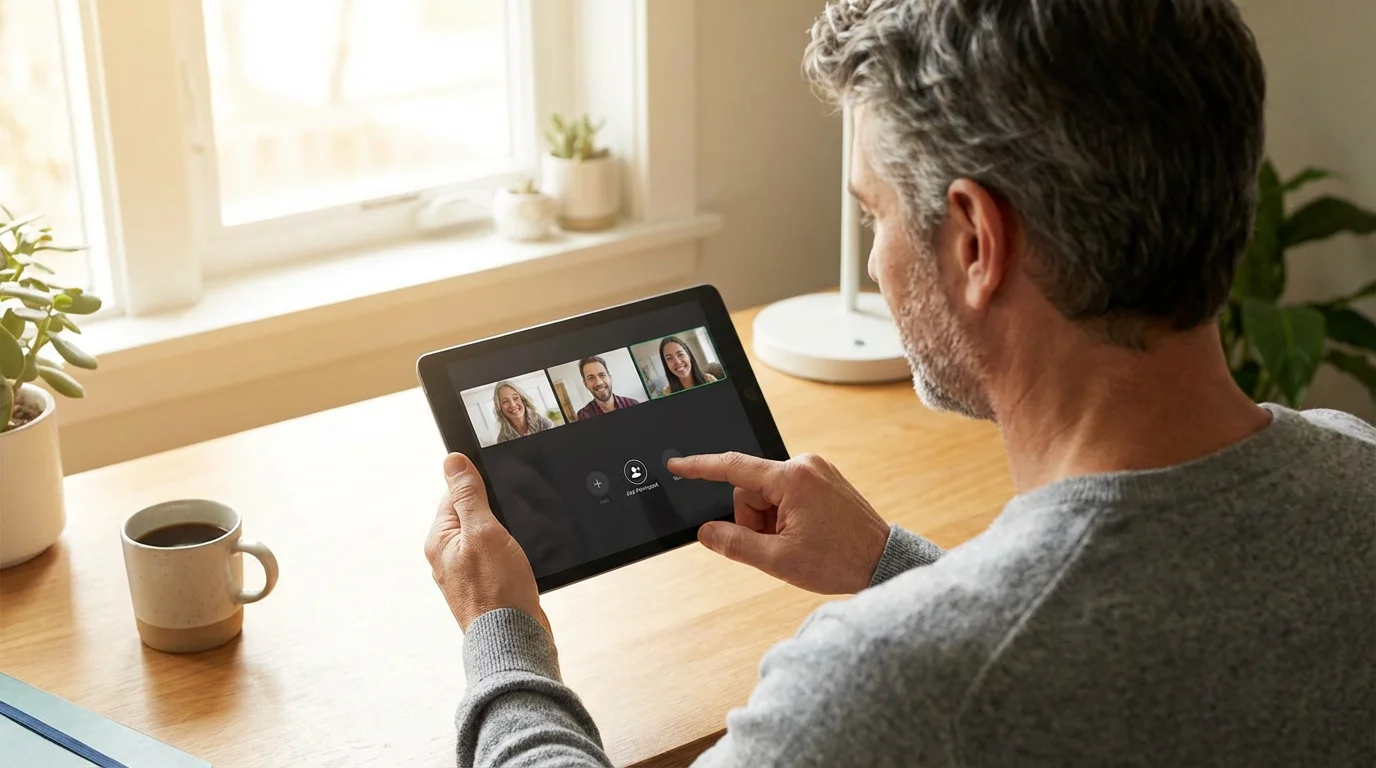
Messenger allows you to chat with multiple people at once, which is great for family meetings or virtual get-togethers. You can start a group video call from an existing group chat or by adding people to a one-on-one call.
Starting a Group Video Call from a Group Chat (Phone/Tablet or Computer)
- Open Messenger: Launch the app on your phone/tablet or open the app/website on your computer.
- Find or Create a Group Chat:
- Existing Group: If you already have a chat with the people you want to call, tap/click on that group chat from your ‘Chats’ list.
- New Group: If you need to create a new group, look for a ‘New Message’ or ‘Compose’ icon (often a pencil and paper icon) and choose ‘Create New Group’. Add the people you want to include in the group.
- Start the Video Call: Once inside the group chat, look for the video camera icon at the top of the screen (on mobile) or the top right of the chat window (on computer). Tap or click this icon.
- Invite Members: All members of the group chat will receive a notification that a video call has started. They can then join the call.
Adding People to an Existing Video Call (Phone/Tablet or Computer)
If you are already on a one-on-one video call and want to add another person:
- During a Call: While on an active video call, look for an ‘Add Person’ icon. This often looks like a person with a plus sign (+) next to them, or two silhouettes.
- Select Contacts: Tap or click this icon. Messenger will show you a list of your contacts. Select the person or people you want to add to the call.
- Send Invitation: Messenger will send them an invitation to join the ongoing call. Once they accept, they will appear in your video chat.
Tips for Better Video Calls
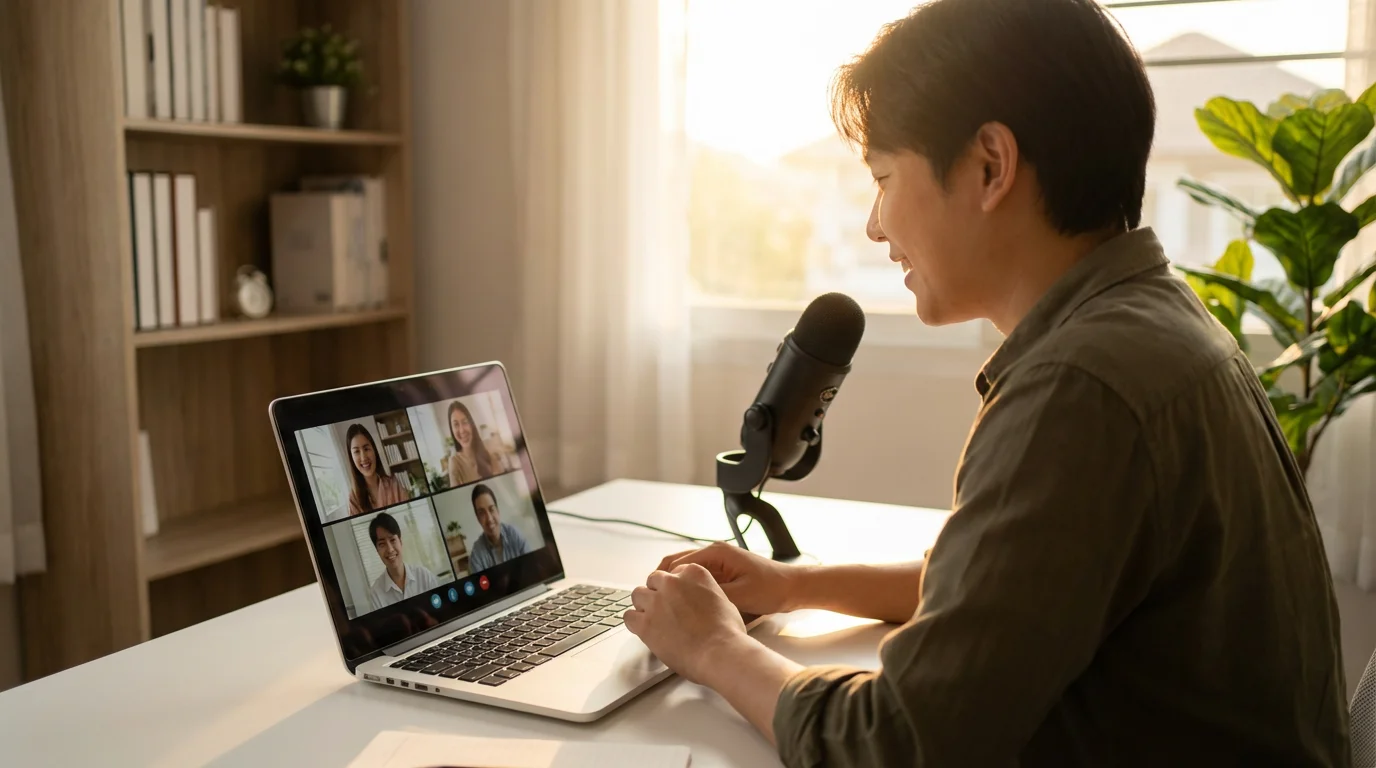
A few simple adjustments can significantly improve your video call experience. Follow these tips to ensure clear communication and enjoyable chats.
- Good Lighting: Sit in a well-lit room. Position yourself so the light source (like a window or lamp) faces you, not behind you. This helps others see your face clearly.
- Stable Internet Connection: Video calls use a fair amount of internet data. Connect to Wi-Fi if possible, as it is generally more stable and faster than cellular data. If your video freezes or the audio cuts out, a weak internet connection is often the cause. Consider moving closer to your Wi-Fi router.
- Use Headphones (Optional but Recommended): Headphones or earbuds can greatly improve audio quality by reducing echo and background noise. They also ensure your conversation remains private.
- Charge Your Device: Video calls can drain battery life quickly. Plug in your phone, tablet, or laptop before a long call.
- Minimize Background Noise: Find a quiet spot for your call. Close windows if there is street noise, and turn down TVs or radios.
- Position Your Camera: For computers, try to position your laptop or webcam at eye level. For phones, prop it up so you are not holding it the entire time. This helps create a more natural conversation.
- Privacy: Be mindful of what appears in your background. If you prefer privacy, you can sit against a plain wall or choose a virtual background if Messenger offers this feature (features can vary with updates).
- Stay Updated: Regularly update the Messenger app. Updates often fix bugs, improve performance, and introduce new features. You can usually find update options in your device’s app store settings.

Common Questions and Troubleshooting
Sometimes, technology presents small hurdles. Here are solutions to common issues you might encounter with Messenger video calls.
- “My camera or microphone is not working.”
- Check Permissions: Go into your device’s settings (for phone/tablet) or your computer’s system preferences (for computer) and ensure Messenger has permission to access your camera and microphone. Without these, video calls cannot function.
- Restart the App: Close Messenger completely and reopen it. Sometimes this resolves temporary glitches.
- Restart Your Device: Turning your phone, tablet, or computer off and then back on often fixes many minor technical issues.
- “The video is blurry or keeps freezing.”
- Check Your Internet: A slow or unstable internet connection is the most common reason for poor video quality. Try moving closer to your Wi-Fi router or temporarily disconnecting other devices using the internet.
- Close Other Apps: Other apps running in the background can consume your device’s resources. Close unnecessary apps before making a video call.
- “I hear an echo.”
- An echo usually means the other person’s audio is coming out of their speakers and then picked up by their microphone. Ask the other person to use headphones or lower their speaker volume. If you hear an echo of yourself, you might need to adjust your own settings.
- “I cannot find the person I want to call.”
- Check Spelling: Double-check the spelling of their name in the search bar.
- Are They on Messenger?: The person needs to have a Messenger account. If they are a Facebook friend, they should appear. If they are not, you might need their phone number to invite them, or they might need to set up their own Messenger account.
- Are You Connected?: Ensure you are friends on Facebook or have each other’s contact information stored.
- “Messenger keeps crashing.”
- Update the App: Make sure you have the latest version of Messenger. Older versions can sometimes have stability issues.
- Free Up Storage: If your device is very full, it might struggle to run apps. Delete old photos, videos, or unused apps to free up space.
Frequently Asked Questions
Here are answers to some common questions about using Facebook Messenger for video calls.
Q: Is Messenger video calling free?
A: Yes, Messenger video calls are completely free. You do not pay for the calls themselves. However, they use your internet data. If you are not connected to Wi-Fi, your mobile data plan will be used. Ensure you have an adequate data plan or connect to Wi-Fi to avoid potential charges from your mobile carrier for excessive data usage.
Q: Do I need a Facebook account to use Messenger for video calls?
A: While Messenger links closely with Facebook, you can use Messenger with just a phone number if you do not have a full Facebook account. When you set up Messenger, it offers an option to register using your phone number instead of a Facebook login. This still allows you to send messages and make calls.
Q: Is Facebook Messenger safe to use?
A: Facebook Messenger employs security measures like encryption for your messages and calls to help protect your privacy. It is generally safe for communication. However, always be cautious about sharing personal information with people you do not know, or clicking on suspicious links. Only add people you trust to your contact list.
Q: Can I video call someone who does not have Messenger?
A: No, both you and the person you want to video call must have the Messenger app installed and an active account. Messenger video calls work only between Messenger users. If the person does not have it, you can send them a link or invite to download the app.
Q: How do I update the Messenger app?
A: You update Messenger through your device’s app store. On Apple devices (iPhone/iPad), open the App Store, tap your profile picture, and look for available updates. On Android devices, open the Google Play Store, tap your profile icon, and go to ‘Manage apps & device’ to find updates. On computers, use the Microsoft Store (Windows) or App Store (Mac) to check for updates for the desktop app.
Making video calls on Facebook Messenger opens up a world of connection with your loved ones. We have walked through finding, downloading, installing, and using the app on both mobile devices and computers. With these clear, step-by-step instructions, you now have the tools to confidently initiate and enjoy video conversations. Embrace this technology to bridge distances and stay closer to the people who matter most to you.
Disclaimer: This article is for informational purposes only. App interfaces change frequently with updates, so screens may look slightly different from what’s described. Always download apps from official app stores (Apple App Store or Google Play Store) to ensure safety.

Leave a Reply