

Do you sometimes feel overwhelmed by the sheer number of entertainment options available today? Perhaps you hear friends or family talk about “streaming” and wonder if it is something for you. Many people, especially those over 55, find themselves curious about smart home technology but worry about complexity, privacy, or whether they will actually use a new gadget. Rest assured, you are not alone in these thoughts.
While streaming brings the world to your living room, there are many other ways to stay connected when family lives far away using your home’s internet.
In addition to entertainment, you can also use Zoom for video calls to see your children and grandchildren on your large television screen.
A streaming device offers a straightforward way to access a vast world of movies, TV shows, and more, all delivered over your home internet connection, also known as Wi-Fi. Think of it as opening up a whole new set of channels beyond traditional cable, but with much more choice and often at a lower cost. These devices make watching what you want, when you want it, simpler than ever before.
This guide cuts through the jargon and focuses on three popular streaming devices: Roku, Amazon Fire TV, and Apple TV. We will explore how these gadgets genuinely make your life easier, more entertaining, and help you decide if a streaming device is a smart addition to your home entertainment setup. You will learn what they are, how to set them up, and how to get the most out of them, all in plain, practical language. Our goal is to empower you to make an informed decision, ensuring you only bring technology into your home that truly serves your needs.
Table of Contents
- What Is a Streaming Device and What Can It Do?
- Is a Streaming Device Right for You?
- Understanding Your Choices: Roku, Fire TV, and Apple TV
- What You Will Need to Get Started
- Step-by-Step Setup: Your First Streaming Device
- Navigating and Finding What You Want to Watch
- Useful Things to Try with Your New Device
- Privacy and Security Considerations
- Common Problems and Solutions
- Understanding Costs: Devices, Services, and Hidden Fees
- Frequently Asked Questions
What Is a Streaming Device and What Can It Do?
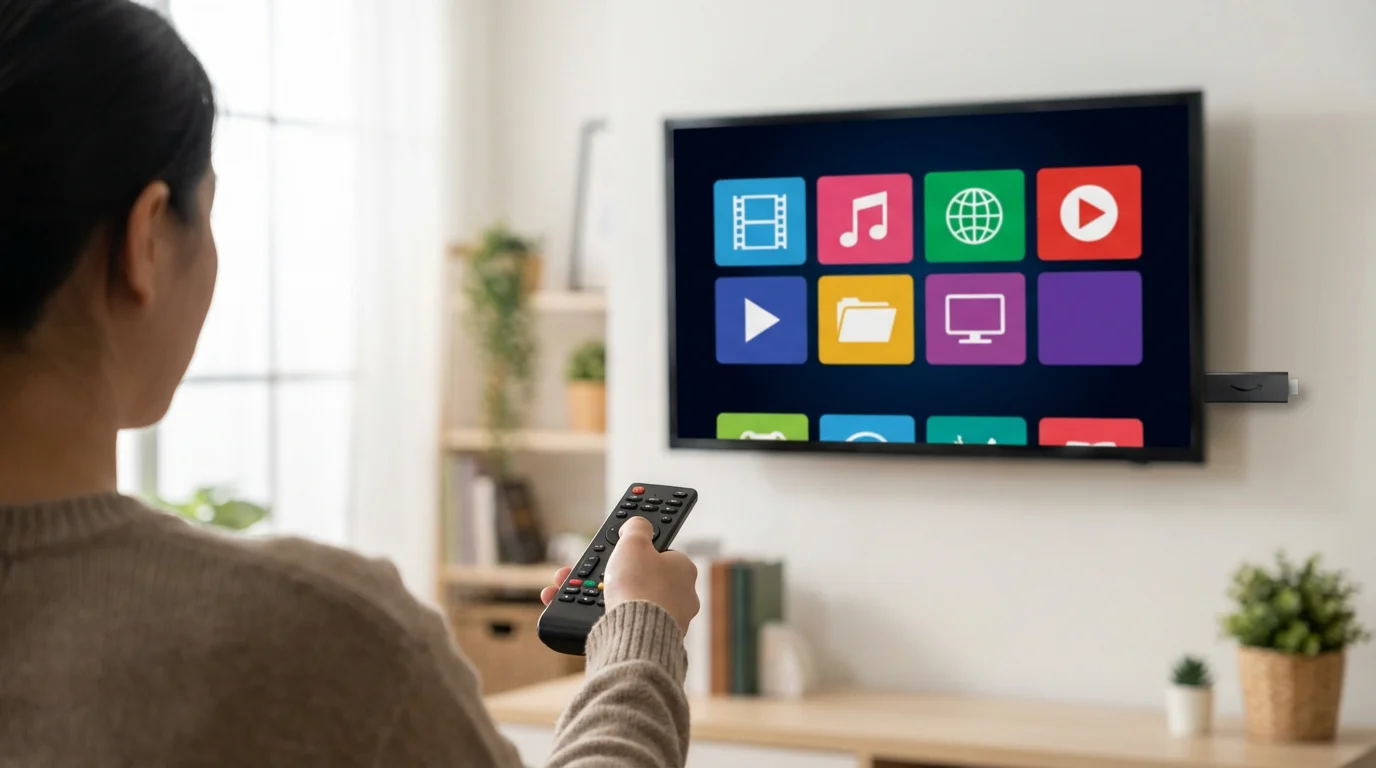
A streaming device acts as a bridge between your television and the internet. It transforms any modern TV into a smart TV, providing access to a vast library of movies, TV shows, live broadcasts, and music, all delivered over your home’s wireless internet connection, or Wi-Fi. Instead of relying on traditional cable television, you choose what you want to watch from services like Netflix, Hulu, YouTube, and many others, on demand.
If you enjoy the social side of technology, you might also like to learn how to read bedtime stories to grandchildren over video call to keep those family bonds strong.
Just as a streaming device upgrades your television, learning how to set up a video doorbell can upgrade your home security using the same Wi-Fi connection.
Many seniors who start with streaming also find it helpful to learn how to use smart plugs to easily control their lamps and other electronics by voice.
If you enjoy literature, these devices can also help you listen to audiobooks through various apps, turning your living room into a cozy library.
Think of it this way: your cable box receives channels through a wire, offering a fixed schedule of programs. A streaming device, however, uses your internet to pull specific shows or movies from online services whenever you decide you want to watch them. This gives you complete control over your viewing experience. You are no longer bound by programming schedules or limited channel packages. You pick the program, and the device streams it directly to your TV.
Streaming devices come in various forms, most commonly as small sticks that plug into your TV’s HDMI port or as compact boxes that sit near your TV. They all serve the same core purpose: bringing internet content to your big screen. This content includes popular movies, award-winning TV series, documentaries, news channels, and even specific interest channels like cooking shows or travel programs. Many people use streaming devices to “cut the cord” from expensive cable subscriptions, replacing them with more affordable streaming service subscriptions that offer a wider variety of content tailored to their preferences. A recent survey by AARP found that a significant portion of adults aged 50 and older now regularly stream video content, highlighting the growing adoption of this technology among seniors for its convenience and entertainment value.
Is a Streaming Device Right for You?
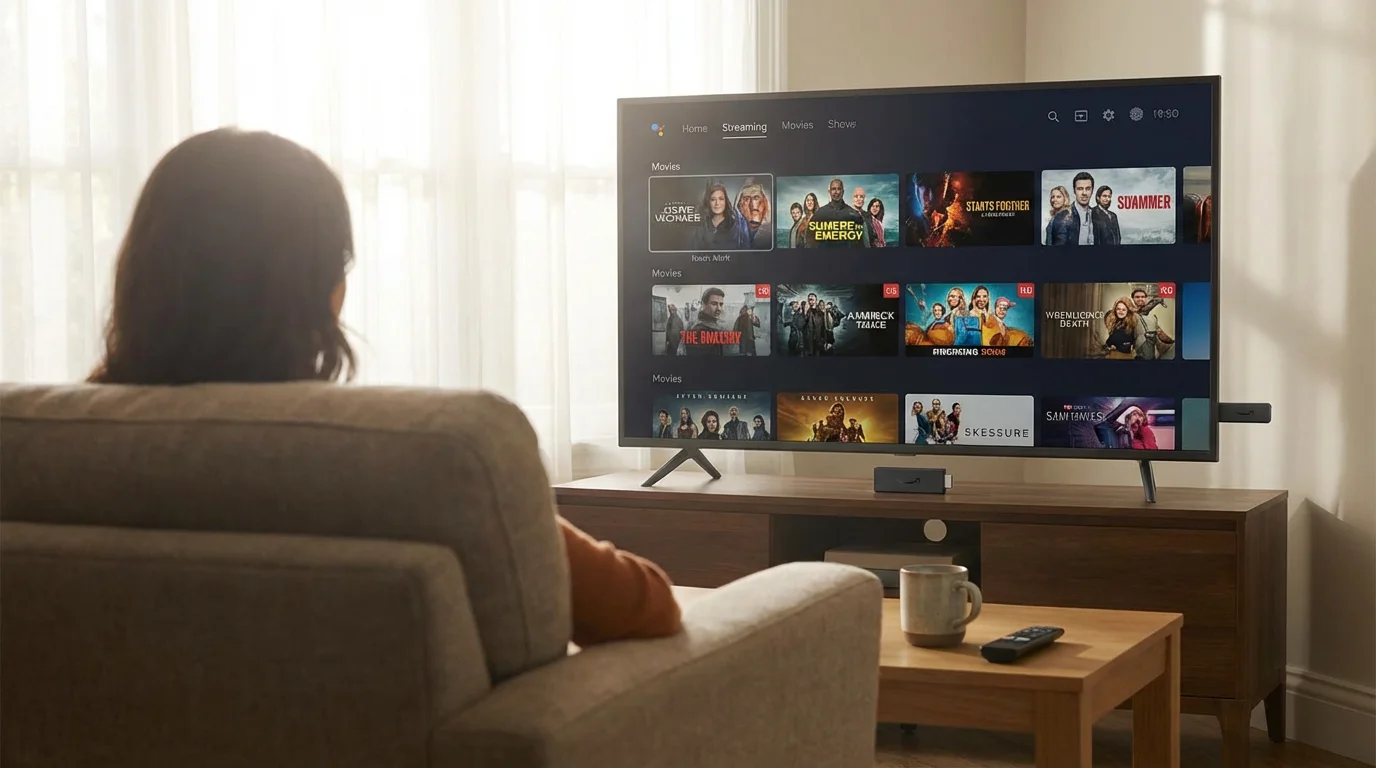
Deciding if a streaming device fits into your life involves considering your current entertainment habits, your comfort with new technology, and your internet access. Many people wonder if these devices offer genuine value, especially if they already have cable or a smart TV. The answer often lies in how much control and variety you desire over your viewing experience, and whether you are looking for potential cost savings.
You might benefit from a streaming device if:
- You want more control over what you watch. Streaming offers an unparalleled selection of content on demand. You can pause, rewind, or re-watch shows at your convenience.
- You find yourself watching only a few channels on cable. Many people pay for hundreds of cable channels but only regularly watch a handful. Streaming allows you to subscribe to only the services that offer the shows you love, potentially saving you money.
- You want access to exclusive content. Many popular and critically acclaimed shows are now exclusive to streaming services like Netflix, Disney+, or Apple TV+.
- You enjoy discovering new content. Streaming platforms use sophisticated algorithms to recommend shows and movies based on your viewing history, helping you find things you might not otherwise discover.
- You want to easily share family photos or videos on your TV. Many streaming devices allow you to display content from your smartphone or computer directly onto your television screen.
Consider these points before buying:
- Internet connection is essential. A streaming device requires a reliable Wi-Fi connection. If your internet is slow or unreliable, your viewing experience will suffer from buffering, which means the video stops to load.
- A learning curve exists. While user interfaces are generally designed for simplicity, navigating menus and finding specific shows will require some initial learning. If you struggle with new technology, prepare to spend a little time getting familiar with it. Many streaming remotes offer voice control, which simplifies searching significantly.
- Subscription costs add up. While you might save money by canceling cable, popular streaming services often require monthly subscriptions. Assess which services you truly need to avoid paying for content you do not watch.
Data consistently shows that older adults increasingly embrace streaming technology. For instance, a report from the Pew Research Center indicates that internet use among those aged 65 and older grew significantly, with many using it for entertainment. This suggests that the initial apprehension about technology often gives way to appreciation for its benefits. Ultimately, a streaming device empowers you to tailor your entertainment exactly to your preferences, providing a flexible and often more economical alternative to traditional television. This flexibility gives you the ability to personalize your entertainment choices in ways cable never could.
Understanding Your Choices: Roku, Fire TV, and Apple TV
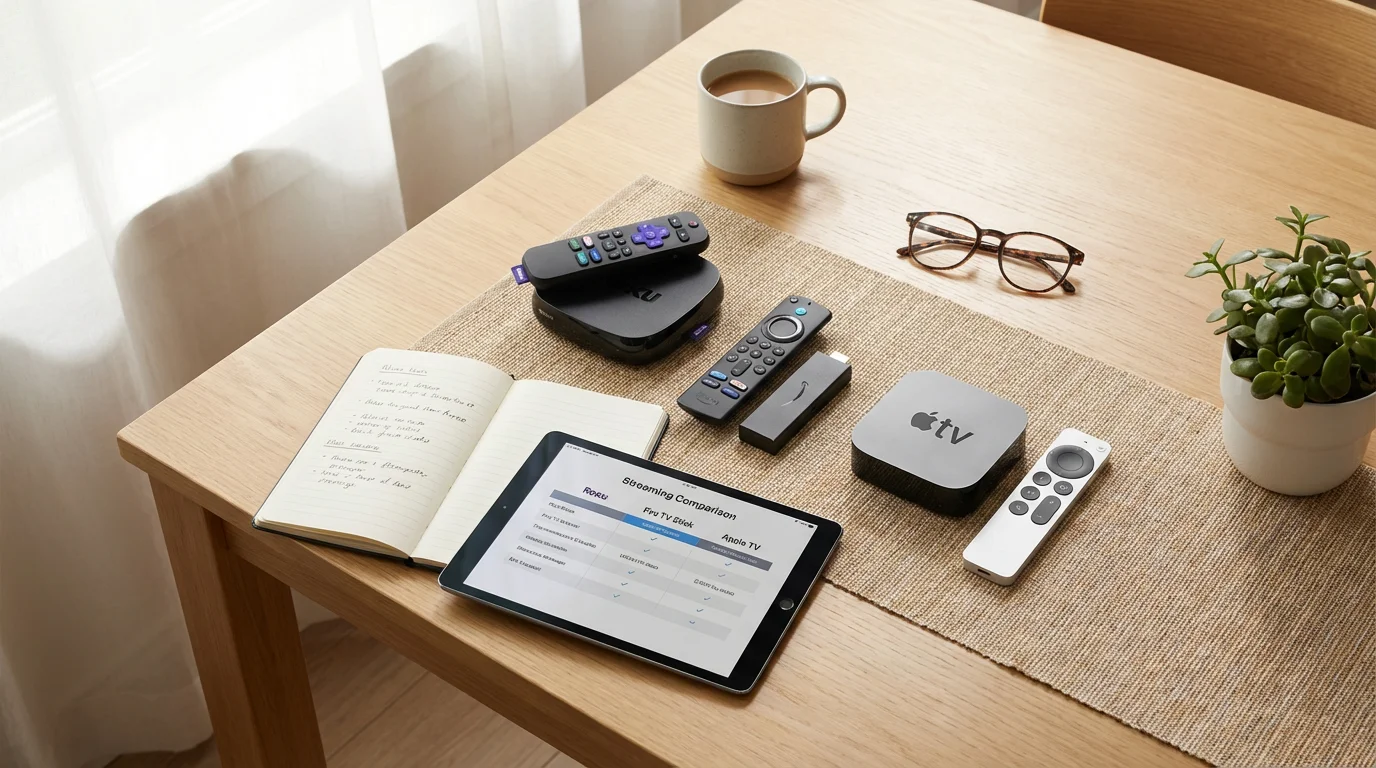
When you explore streaming devices, three major players stand out: Roku, Amazon Fire TV, and Apple TV. Each offers a unique blend of features, pricing, and user experience. Understanding these differences helps you select the device that best matches your needs and comfort level.
Roku: Simplicity and Broad Compatibility
Roku often earns praise for its user-friendly interface and wide selection of streaming channels, which Roku calls “channels.” Its operating system prioritizes simplicity, making it easy to navigate for newcomers. Roku devices come in various forms, from the budget-friendly Streaming Stick to more powerful boxes like the Roku Ultra. You generally find Roku devices to be very platform-agnostic, meaning they do not push you towards a specific ecosystem of services. They support virtually every major streaming service available.
Practical Insight: Many seniors find Roku’s straightforward menu system the easiest to learn. Its remote controls often feature dedicated buttons for popular services like Netflix, simplifying access. You also find models with voice search, allowing you to speak commands instead of typing.
Amazon Fire TV: Alexa Integration and Amazon Ecosystem
Amazon Fire TV devices integrate deeply with Amazon’s ecosystem and its voice assistant, Alexa. If you already use Alexa-enabled devices or frequently shop on Amazon, a Fire TV device might offer a more seamless experience. Fire TV offers various stick and cube models, often at competitive prices. You can use your voice remote to search for shows, control smart home devices, or even check the weather. However, its interface can feel a bit more focused on Amazon Prime Video content compared to Roku.
Apple TV: Premium Experience and Apple Integration
Apple TV represents the premium end of the streaming device spectrum. It typically carries a higher price tag but offers a robust, high-quality user experience, particularly if you own other Apple products like an iPhone or iPad. Apple TV integrates seamlessly with Apple services, including Apple TV+, Apple Music, and Apple Arcade. Its remote, while sleek, can sometimes feel less intuitive for those unfamiliar with touchpads. Apple TV focuses on delivering excellent picture and sound quality, often making it a favorite for videophiles. You experience a polished interface and strong privacy features, consistent with Apple’s brand.
Choosing the right device often comes down to your priorities. If ease of use and broad service support at an affordable price are key, Roku is an excellent starting point. If you value Alexa integration and a strong tie to Amazon services, Fire TV provides great value. If you desire a premium experience, deep integration with Apple products, and prioritize picture quality, Apple TV is an outstanding choice, provided you are comfortable with the higher investment. Consider your existing technology and how easily you adapt to new interfaces when making your decision.

What You Will Need to Get Started
Before you unbox your new streaming device, gathering a few essential items ensures a smooth setup process. You want to avoid any frustration, so prepare these things in advance. Having everything ready simplifies the steps involved in connecting your device and getting it running.
Once you have your connection ready, you might also want to use smart light bulbs to set the perfect dim lighting for your movie night.
1. A Television with an HDMI Port:
Most televisions purchased in the last 15 years include one or more HDMI ports. This is the standard connection type for modern video and audio devices. Look for rectangular ports, usually on the back or side of your TV, labeled “HDMI 1,” “HDMI 2,” or similar. Your streaming device will come with an HDMI cable or be designed to plug directly into this port, like a streaming stick.
2. A Reliable Wi-Fi Connection:
A streaming device relies entirely on your home’s wireless internet connection, or Wi-Fi, to access online content. You need a strong, stable Wi-Fi signal where your TV is located. If your Wi-Fi router is far from your TV, you might experience buffering or slow loading times. You will also need your Wi-Fi network name (SSID) and password during setup. Locate this information, often found on a sticker on your Wi-Fi router, before you begin.
Practical Insight: For optimal streaming quality, especially for high-definition video, a download speed of at least 5-10 megabits per second (Mbps) is recommended per streaming device. You can check your internet speed by searching “internet speed test” on your computer or smartphone.
3. A Power Outlet:
Every streaming device requires power. Most come with a power adapter that plugs into a standard wall outlet. Ensure you have an available outlet near your television. Some streaming sticks can draw power directly from a USB port on your TV, but using the provided power adapter is generally recommended for consistent performance.
4. Streaming Service Accounts and Payment Information:
While you can browse content on a streaming device without subscriptions, to watch most movies and shows, you will need accounts with services like Netflix, Hulu, Disney+, or Max. Have your login credentials (username and password) ready for any services you already use. If you plan to sign up for new services, have your payment information (credit card) accessible. Many services offer free trials, allowing you to try them out before committing to a monthly fee.
5. A Smartphone or Tablet (Optional but Helpful):
Some streaming devices, especially during initial setup, offer the option to use a companion app on your smartphone or tablet for easier text entry. This can be much faster than using the remote control to type out long passwords or usernames. You do not strictly need one, but it can streamline the setup process for you.
Gathering these items beforehand saves you time and reduces any potential stress during the installation. You will find that with these components in hand, setting up your new streaming device becomes a straightforward task.
Step-by-Step Setup: Your First Streaming Device
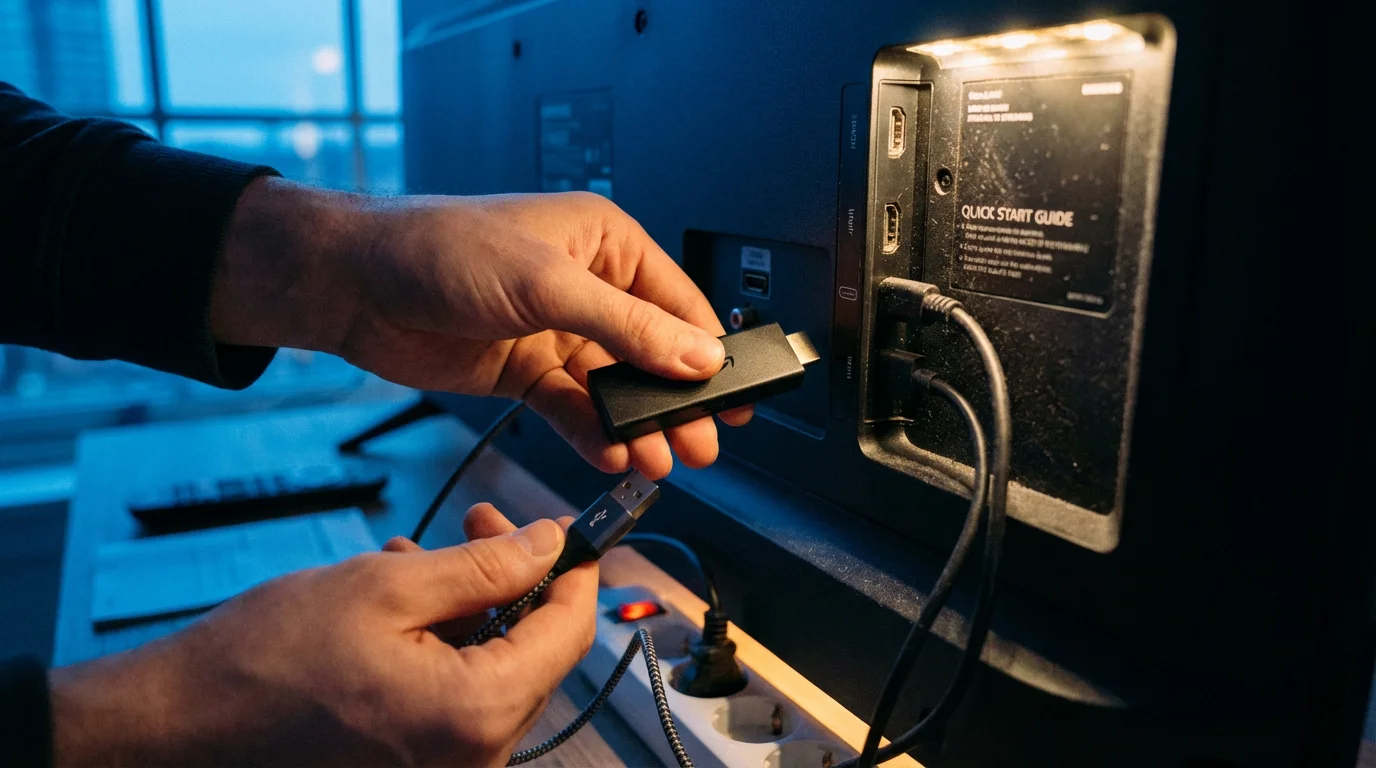
Setting up a new streaming device might seem daunting, but manufacturers design these products for ease of use. The process generally involves connecting the device to your TV, powering it on, connecting to your Wi-Fi, and then logging into your chosen streaming services. Follow these steps for a smooth installation experience.
Step 1: Connect the Device to Your TV
- For streaming sticks (Roku Streaming Stick, Fire TV Stick): Plug the stick directly into an available HDMI port on your television. If the stick is too wide and blocks other ports, use the short HDMI extender cable that often comes in the box.
- For streaming boxes (Roku Ultra, Apple TV 4K, Fire TV Cube): Connect one end of an HDMI cable (usually included) to the HDMI port on the back of the streaming box and the other end to an available HDMI port on your TV.
Note which HDMI port you use (e.g., HDMI 1, HDMI 2), as you will need to select this input on your TV later.
Step 2: Connect to Power
- Plug the small end of the power cable into your streaming device and the larger end into a wall power outlet. While some devices offer a USB power option from your TV, using a wall outlet generally provides more stable power. This ensures consistent performance for your streaming device.
Step 3: Turn On Your TV and Select the Correct Input
- Turn on your television and, using your TV remote, press the “Input” or “Source” button. Select the HDMI input where you connected your streaming device (e.g., “HDMI 1”). You should then see the streaming device’s welcome screen or logo appear on your TV.
Step 4: Connect to Your Wi-Fi Network
- The streaming device will guide you through connecting to your Wi-Fi. It will display a list of available wireless networks. Select your home network’s name (SSID).
- Enter your Wi-Fi password carefully. This is often the trickiest part for many people. Double-check that you type the password exactly as it appears, paying attention to uppercase and lowercase letters.
- Once connected, the device confirms the successful connection and proceeds to the next step.
Step 5: Sign In or Create an Account (Device Specific)
- Roku: You will be prompted to create or link a Roku account. You typically complete this step on a computer or smartphone by visiting the Roku website displayed on your TV screen.
- Amazon Fire TV: If you bought your Fire TV device from Amazon and it was linked to your account, it might automatically sign you in. Otherwise, you will log in with your Amazon account credentials.
- Apple TV: You will sign in with your Apple ID. If you own an iPhone or iPad, you can often use it to quickly transfer your Wi-Fi and Apple ID settings to the Apple TV, simplifying the process.
Step 6: Install Your Favorite Streaming Apps
- After initial setup, the device usually presents you with a screen to add popular streaming services. Select the apps you want, such as Netflix, Hulu, Disney+, or YouTube. The device will download and install them.
- You will need to open each app individually and log in with your specific account details for that service. This is a one-time process for each app.
Congratulations, you have successfully set up your streaming device! You are now ready to explore a world of entertainment. You will find that once the initial setup is complete, daily use becomes intuitive and enjoyable.
Navigating and Finding What You Want to Watch
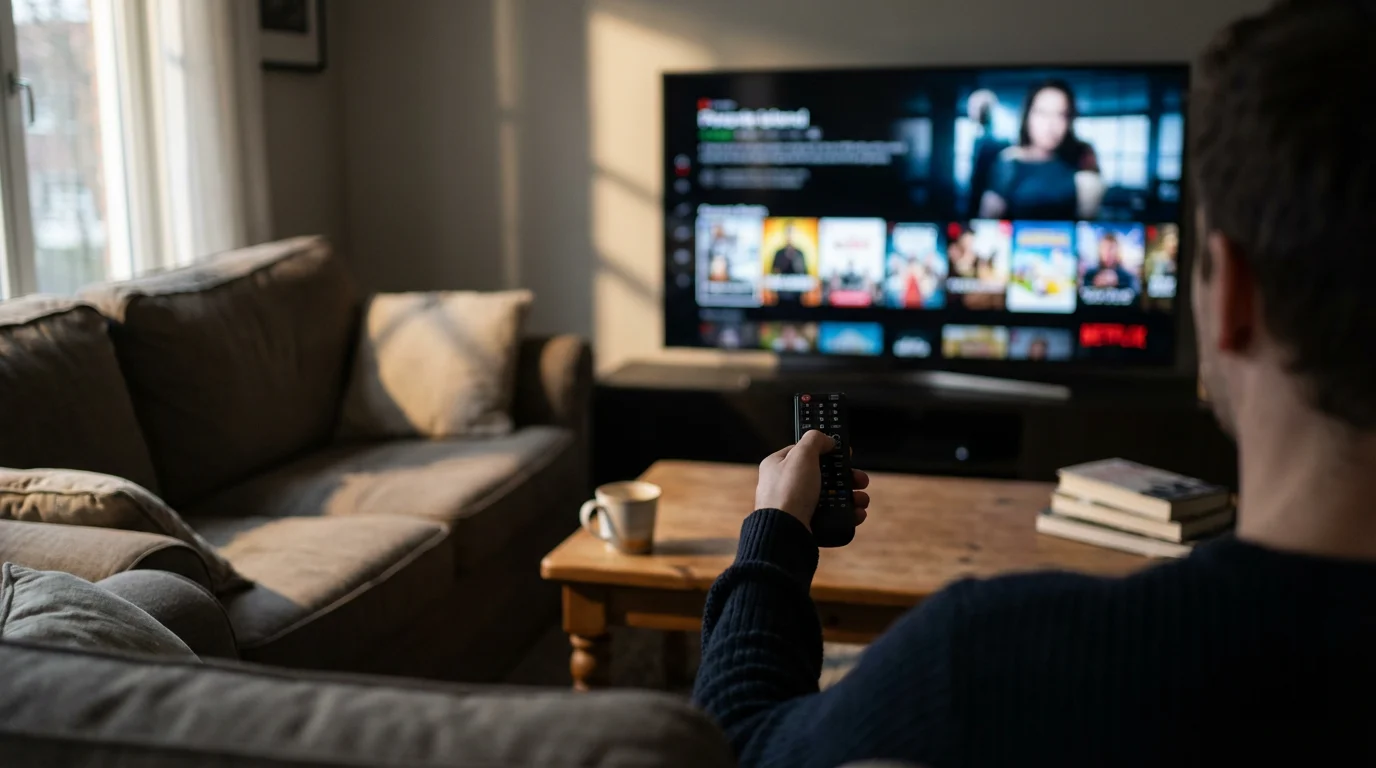
Once you complete the setup, your streaming device’s home screen appears. This screen acts as your central hub, displaying all your installed streaming apps as icons, similar to apps on a smartphone. Learning how to move around this screen and find content is the next step to becoming a confident streamer.
Using Your Remote Control:
Your streaming device comes with a remote control, typically simpler than a traditional TV remote. It usually features a directional pad (up, down, left, right) for moving around the screen, a central “OK” or “Select” button, a “Home” button to return to the main menu, and “Back” and “Play/Pause” buttons. Some remotes also include dedicated buttons for popular streaming services, allowing one-touch access.
- Navigate: Use the directional pad to highlight different app icons or menu options.
- Select: Press the “OK” or “Select” button to open an app or choose an option.
- Go Home: The “Home” button always takes you back to the main menu, no matter where you are in an app.
- Go Back: The “Back” button reverses your last action or takes you to the previous screen within an app.
Voice Search: A Game Changer for Simplicity:
Many streaming remotes include a microphone button, activating voice search. This feature revolutionizes how you find content. Instead of typing out titles or names using the remote, you simply speak your request. This significantly reduces the effort and time involved in searching.
- Roku Voice Remote: Press and hold the microphone button, then say, “Find movies starring Tom Hanks,” or “Open Netflix.”
- Amazon Fire TV with Alexa: Press and hold the Alexa button and say, “Play The Marvelous Mrs. Maisel,” or “Search for comedies.”
- Apple TV with Siri: Hold the Siri button on your remote and say, “Show me new releases,” or “What’s the weather like?”
Voice search often spans across multiple streaming services, so you do not need to know which app a particular show is on. The device finds it for you, telling you which service offers it, and if it is included with your subscription or available for rent/purchase.
Organizing Your Apps:
Most streaming platforms allow you to rearrange your app icons. You can place your most frequently used apps at the top or front of the home screen for quick access. This customization helps you personalize your experience and makes finding your favorites even faster. Look for an “Options” or “Move” function when an app icon is highlighted. You will find that spending a few minutes organizing your home screen greatly enhances your daily use.
Useful Things to Try with Your New Device
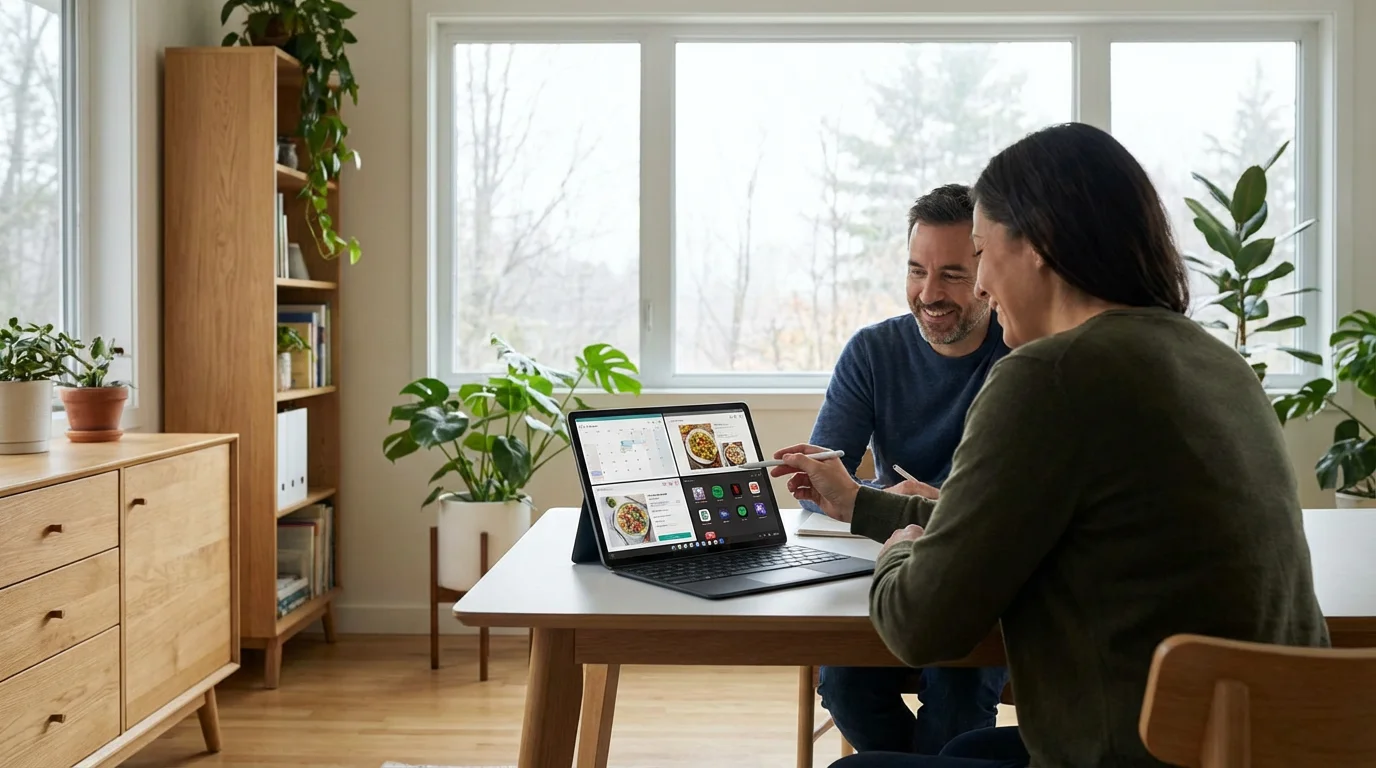
Your streaming device opens up much more than just movies and TV shows. It can enhance your daily life with a variety of practical and enjoyable features. Once you master the basics of navigation, explore these options to get the most out of your new gadget.
1. Watch Live News and Sports:
Many streaming services offer live news channels, allowing you to stay informed without a cable subscription. Apps like YouTube TV, Hulu + Live TV, and Sling TV provide live broadcasts of major networks. Even free apps often include live news from sources like CBS News Live or ABC News Live. For sports enthusiasts, dedicated sports apps or live TV services ensure you do not miss a game. You simply find the appropriate app and tune in, just as you would with traditional television.
2. Enjoy Your Photos and Videos on the Big Screen:
Most streaming devices allow you to display photos and videos from your smartphone or computer on your television. This is a fantastic way to share memories with family and friends. Roku has a “Roku Media Player” app, Fire TV integrates with Amazon Photos, and Apple TV works seamlessly with Apple Photos. You can easily cast pictures from your phone, creating a digital photo album on your TV. Imagine gathering loved ones and showcasing vacation pictures or family events on your large screen with ease.
3. Stream Music and Podcasts:
Transform your living room into a concert hall or a quiet reading nook with background music. Streaming devices support popular music apps like Spotify, Pandora, Apple Music, and Amazon Music. You can browse playlists, listen to your favorite artists, or discover new genres. Many devices also offer podcast apps, letting you catch up on news, storytelling, or educational content. You simply select the app and choose your audio entertainment.
4. Exercise and Wellness Programs:
Many apps offer exercise routines, yoga sessions, or meditation guides directly on your TV. This provides a convenient way to stay active and focus on your well-being from the comfort of your home. You can find free options on YouTube or subscribe to dedicated fitness apps. The large screen makes following along much easier than using a small tablet or phone.
5. Screen Mirroring and Casting:
This feature allows you to display the screen of your smartphone, tablet, or computer directly onto your television. It is useful for showing websites, presentations, or anything else on your small device to a larger audience. Roku uses “Screen Mirroring,” Fire TV uses “Display Mirroring,” and Apple TV uses “AirPlay.” You activate the feature on your mobile device and select your streaming device, and your screen immediately appears on your TV.
Real-world Example: “My grandchildren were visiting, and I used my Fire TV Stick to cast photos from my phone onto the big screen. They loved seeing old family pictures, and it was so much easier than passing my phone around.” – User Testimonial from Senior Planet
These capabilities demonstrate that a streaming device offers far more than passive entertainment. You gain a versatile tool for information, communication, fitness, and sharing, all controllable with a simple remote or your voice. You will find that these features quickly become invaluable parts of your daily routine.
Privacy and Security Considerations
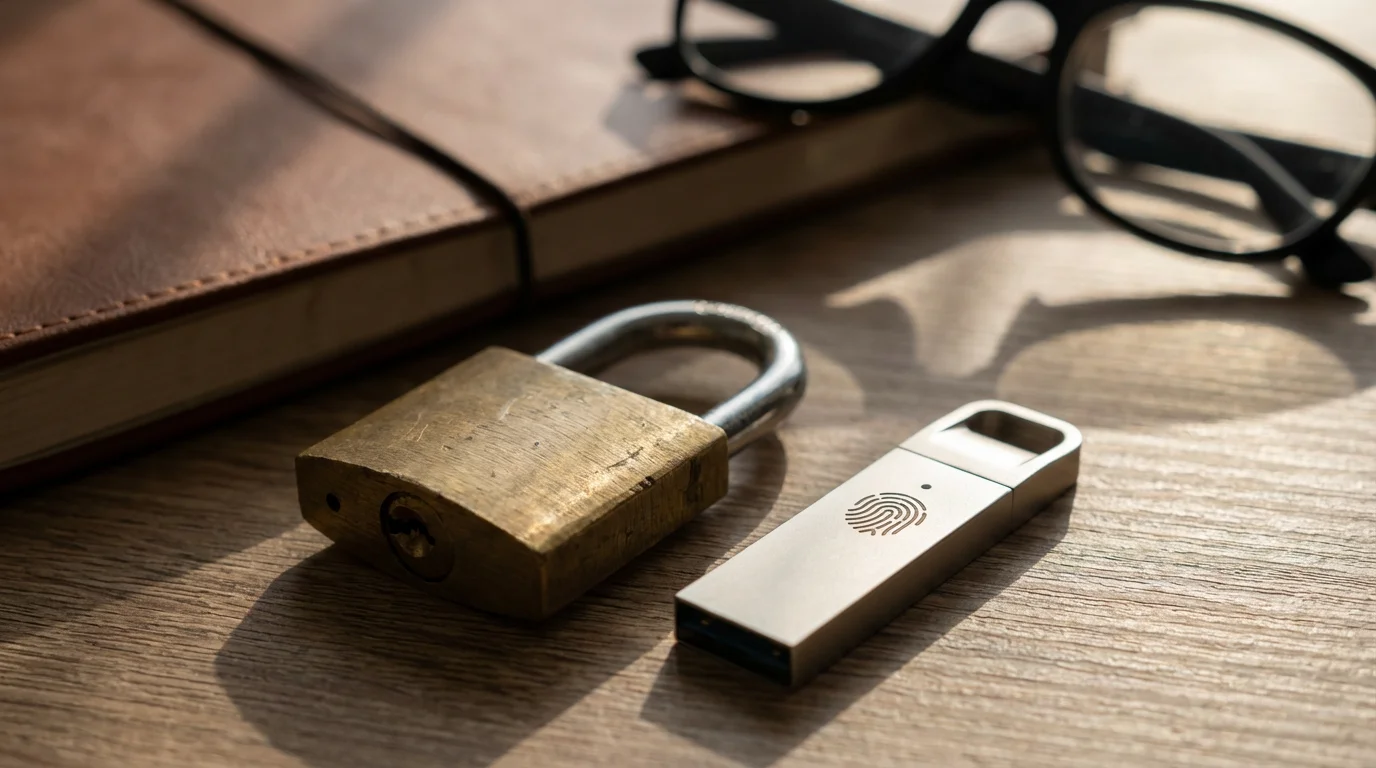
Understanding how streaming devices handle your privacy and what steps you can take to secure your experience is a valid and important concern. Many people worry about “smart” devices listening in or collecting excessive personal data. Companies collect data to personalize your experience, but you retain control over many aspects of your digital privacy.
What Data Do Streaming Devices Collect?
Streaming device manufacturers and the apps you install collect data primarily related to your viewing habits, device usage, and technical performance. This includes:
- Viewing History: What shows and movies you watch, how long you watch them, and your preferences. This data helps the device recommend content you might like.
- Device Usage: Which apps you open, how often you use the device, and general navigation patterns. This helps manufacturers improve their software.
- Voice Commands (if enabled): If you use voice search, the device records your commands to process your request and to improve its voice recognition accuracy.
- Location Information: Some apps may request access to your general location for local news or regional content.
You find this data collection is standard practice across most digital services, from your smartphone to your computer. Companies state they use this information to enhance your user experience, provide relevant advertising, and improve their products. For example, if you watch many mysteries, the device will suggest similar shows. While this is generally harmless, it is wise to be aware of what information you share.
Managing Your Privacy Settings:
All major streaming device platforms provide privacy settings that you can review and adjust. You should take time to explore these options in your device’s settings menu.
- Roku: Navigate to Settings > Privacy. Here, you can manage advertising settings and app permissions.
- Amazon Fire TV: Go to Settings > Preferences > Privacy Settings. You can turn off device usage data collection and interest-based ads. You can also manage Alexa privacy settings through the Alexa app on your phone.
- Apple TV: Access Settings > General > Privacy. Apple generally takes a strong stance on user privacy, offering clear controls over location services, analytics, and app tracking.
You can often review and delete voice command history through the associated mobile apps (e.g., Alexa app for Fire TV, Siri history for Apple TV) or directly on the device. Regularly reviewing these settings ensures they align with your comfort level.
Security Best Practices:
- Use Strong, Unique Passwords: Create complex passwords for your device account and all your streaming service accounts. Avoid using the same password for multiple services.
- Enable Two-Factor Authentication (2FA): If available, enable 2FA for your device account and streaming services. This adds an extra layer of security, requiring a code from your phone or email in addition to your password.
- Be Wary of Phishing: Never click on suspicious links or provide your account information in response to unsolicited emails or messages.
- Keep Software Updated: Your device periodically receives software updates. Install these promptly, as they often include security patches that protect your device from vulnerabilities.
You can confidently use streaming devices by understanding their data practices and actively managing your privacy and security settings. These steps empower you to enjoy the benefits of streaming while maintaining control over your personal information.

Common Problems and Solutions
Even with user-friendly technology, you might occasionally encounter a hiccup. Do not let these minor issues deter you. Most common problems with streaming devices have simple solutions. We empower you to troubleshoot effectively, quickly getting back to your entertainment.
1. “No Signal” or Blank Screen:
- Check HDMI Connection: Ensure your streaming device is firmly plugged into the HDMI port on your TV. Unplug it and plug it back in.
- Verify TV Input: Use your TV remote to cycle through the “Input” or “Source” options until you find the correct HDMI input your device is connected to (e.g., HDMI 1, HDMI 2).
- Power Cycle Device: Unplug the streaming device’s power cable from the wall outlet, wait 10-15 seconds, then plug it back in. This often resolves minor software glitches.
2. Buffering or Slow Performance:
Buffering occurs when your device cannot download data fast enough to keep playing the video smoothly. The video stops to load more content.
- Check Wi-Fi Signal: Ensure your Wi-Fi router is not too far from your streaming device or obstructed by thick walls. A weak Wi-Fi signal is a common culprit.
- Restart Your Router: Unplug your home Wi-Fi router from its power source, wait 30 seconds, then plug it back in. It takes a few minutes for the router to fully restart. This often refreshes your internet connection.
- Close Background Apps: Some streaming devices allow apps to run in the background. Close any apps you are not actively using.
- Test Internet Speed: Use a computer or smartphone connected to your Wi-Fi to run an internet speed test (search “internet speed test” online). Ensure your download speed meets the recommendations for streaming (e.g., 5-10 Mbps for HD). If your speed is consistently low, contact your internet service provider.
3. Remote Control Not Working:
- Replace Batteries: The simplest solution is often the right one. Replace the batteries in your remote control with fresh ones.
- Re-Pair Remote: If your remote uses Bluetooth (common for voice remotes), you might need to re-pair it with your device. Instructions vary by device, but usually involve pressing a button inside the battery compartment or holding specific buttons for a few seconds. Refer to your device’s manual or online support, like Apple Support for Apple TV issues.
- Clear Obstructions: Ensure nothing blocks the line of sight between an infrared remote and your streaming device (if applicable).
4. App Crashing or Freezing:
- Restart the App: Go back to the home screen, highlight the problematic app, and look for an option to “Close” or “Force Stop” the app (often found by pressing an “Options” button on Roku, or holding the Select button on Fire TV/Apple TV). Then, relaunch the app.
- Restart the Device: As mentioned, a full power cycle of your streaming device often resolves these issues.
- Check for App Updates: Apps occasionally require updates. Your device usually handles this automatically, but you can sometimes manually check for updates within the app store.
You empower yourself by knowing these common fixes. Many issues resolve quickly with a simple restart or connection check. Do not hesitate to consult the device manufacturer’s support website or online forums if a problem persists. You will find that most online communities are very helpful.
Understanding Costs: Devices, Services, and Hidden Fees
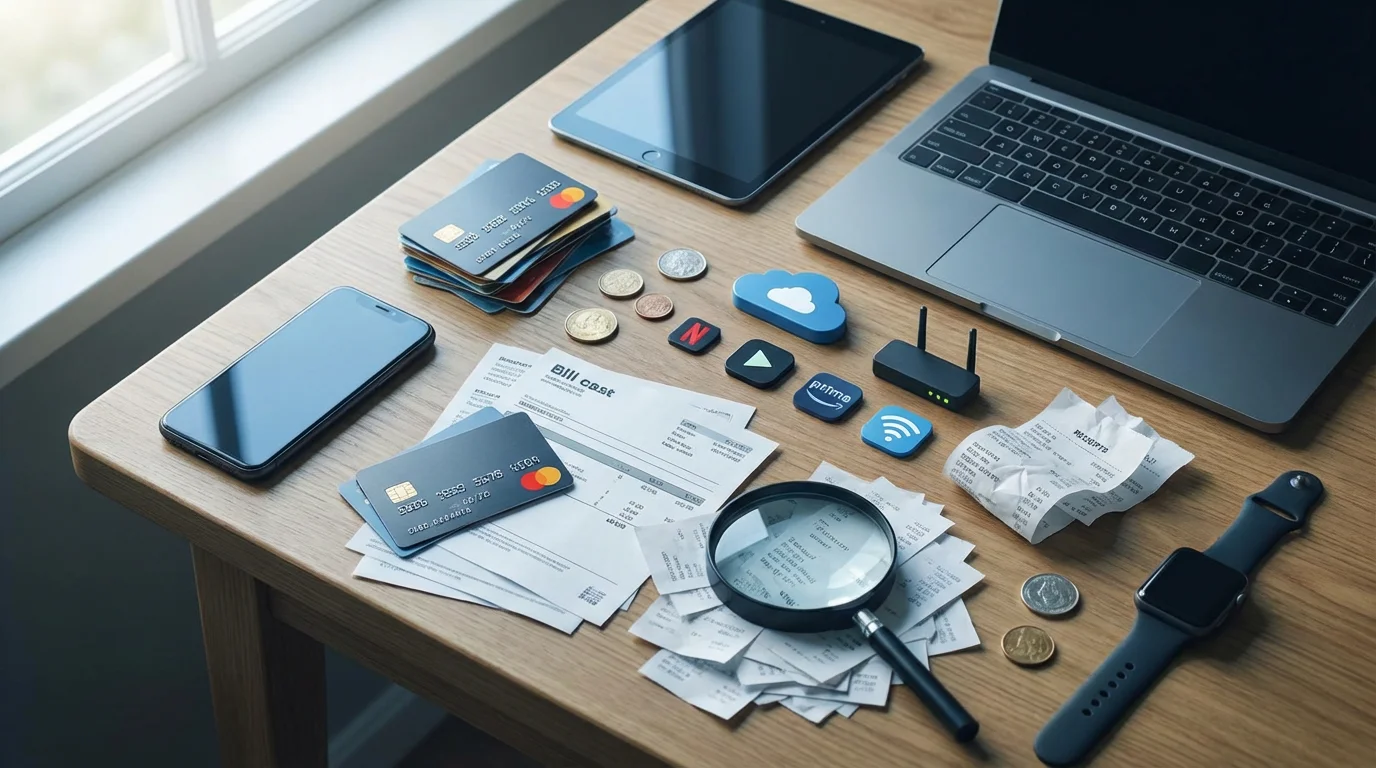
One of the most appealing aspects of streaming is its potential to save you money compared to traditional cable television. However, you need to understand the various costs involved to ensure you make an economical choice. These costs include the initial device purchase and ongoing subscription fees for streaming services, plus your internet connection.
1. Device Purchase Price:
The upfront cost for the streaming device itself varies significantly. You find options across a wide price range:
- Roku Streaming Stick / Express: Typically range from $30 to $50. These are excellent budget-friendly entry points.
- Amazon Fire TV Stick Lite / Fire TV Stick 4K: Often priced between $30 and $60. Amazon frequently offers sales, especially during holiday periods.
- Apple TV 4K: This is a premium device, usually costing between $129 and $149. It offers a more powerful processor and deeper integration with the Apple ecosystem.
You pay this cost once. There are no ongoing fees for the device itself after purchase, though some optional accessories might be available.
2. Monthly Streaming Service Subscriptions:
This is where the ongoing costs add up, but you have complete control over what you subscribe to. You pay only for the services you want. Popular services and their typical monthly costs include:
- Netflix: From $6.99 (with ads) to $22.99 (premium, ad-free) per month.
- Hulu: From $7.99 (with ads) to $17.99 (ad-free) per month, with live TV options at higher prices.
- Disney+: From $7.99 (with ads) to $13.99 (ad-free) per month.
- Max (formerly HBO Max): From $9.99 (with ads) to $19.99 (ad-free) per month.
- Apple TV+: $9.99 per month.
- Paramount+: From $5.99 (with ads) to $11.99 (ad-free) per month.
- YouTube TV / Sling TV (Live TV replacements): $40-$73 per month, depending on the service and package.
You can subscribe to as many or as few of these services as you like. Many people choose 2-4 services that offer their favorite content. Consider rotating subscriptions, canceling one service for a month or two after watching its new releases, and then subscribing to another. This strategy maximizes your content while minimizing monthly outlays.
Practical Insight: Research from organizations like Consumer Reports consistently finds that a well-managed streaming setup, even with multiple subscriptions, often costs significantly less than a comparable cable TV package. Many cable packages average $80-$150+ per month, while a few streaming services might cost you $30-$60 per month.
3. Internet Service Provider (ISP) Cost:
You need a reliable internet connection for streaming, which is an ongoing monthly cost separate from your streaming device or subscriptions. If you already have home internet, you simply use your existing service. If you do not have internet, you will need to factor in the monthly cost from an ISP, which typically ranges from $50-$80 or more, depending on speed and provider. You cannot stream without this foundational service.
Are there hidden fees?
Generally, streaming devices and services are transparent about their pricing. There are no hidden fees for the device itself. However, be aware of:
- Rental/Purchase of Movies: Beyond subscriptions, you can rent or buy individual movies and TV show seasons through platforms like Amazon Prime Video, Apple TV, or Google Play Movies. These are additional, optional costs.
- In-App Purchases: Some apps, particularly games, offer in-app purchases.
You empower yourself by carefully tracking your subscriptions and reviewing your bank statements. This ensures you only pay for services you actively use and enjoy. You gain significant control over your entertainment budget with streaming, a key benefit for many seniors.
Frequently Asked Questions
We address some common questions you might have about streaming devices to ensure you feel fully informed.
Q1: Do I need a smart TV to use a streaming device?
A1: No, you do not need a smart TV. A streaming device transforms any television with an HDMI port into a smart TV. If you have an older TV that is not “smart,” a streaming device is an excellent, cost-effective way to bring all the benefits of online entertainment to your big screen. Many people prefer using a dedicated streaming device even with a smart TV, as these devices often offer a faster, more user-friendly interface and more frequent updates than the built-in smart features of many televisions.
Q2: Do I need a monthly subscription to use a streaming device?
A2: You do not need monthly subscriptions for the device itself, only for the streaming services you choose. Many free streaming apps exist, such as YouTube, Pluto TV, Tubi, and Peacock (with ads), which offer a wealth of movies, shows, and live channels without any subscription cost. However, to access premium content from popular services like Netflix, Hulu, or Disney+, you will need a paid monthly subscription for each of those services.
Q3: Is it difficult to switch between streaming apps?
A3: No, switching between apps is very easy. Your streaming device’s home screen displays all your installed apps as icons. You simply use your remote control’s directional pad to highlight the app you want to open and press the “Select” or “OK” button. It functions just like navigating between apps on a smartphone or tablet. The process is intuitive and quick.
Q4: What if I lose the remote control?
A4: Losing a remote can be frustrating, but you have options. Most streaming devices offer free companion apps for your smartphone or tablet that function as a full remote control. You download the app, ensure your phone is on the same Wi-Fi network as your streaming device, and you can then control your TV with your phone. You can also purchase replacement remotes from the manufacturer or third-party sellers.
Q5: Can I watch local news channels?
A5: Yes, you can watch local news channels on a streaming device, although the method varies. Some streaming services, particularly live TV replacement services like YouTube TV or Hulu + Live TV, include local channels specific to your geographic area. Additionally, many local news stations offer their own apps on streaming platforms, or they stream their broadcasts live on platforms like YouTube or Pluto TV. You might need to do a quick search for your local news station within your device’s app store to see available options.
Disclaimer: This article is for informational purposes only. Product features and prices change frequently. Always check current specifications and reviews before purchasing. We recommend buying from authorized retailers with good return policies.




Leave a Reply