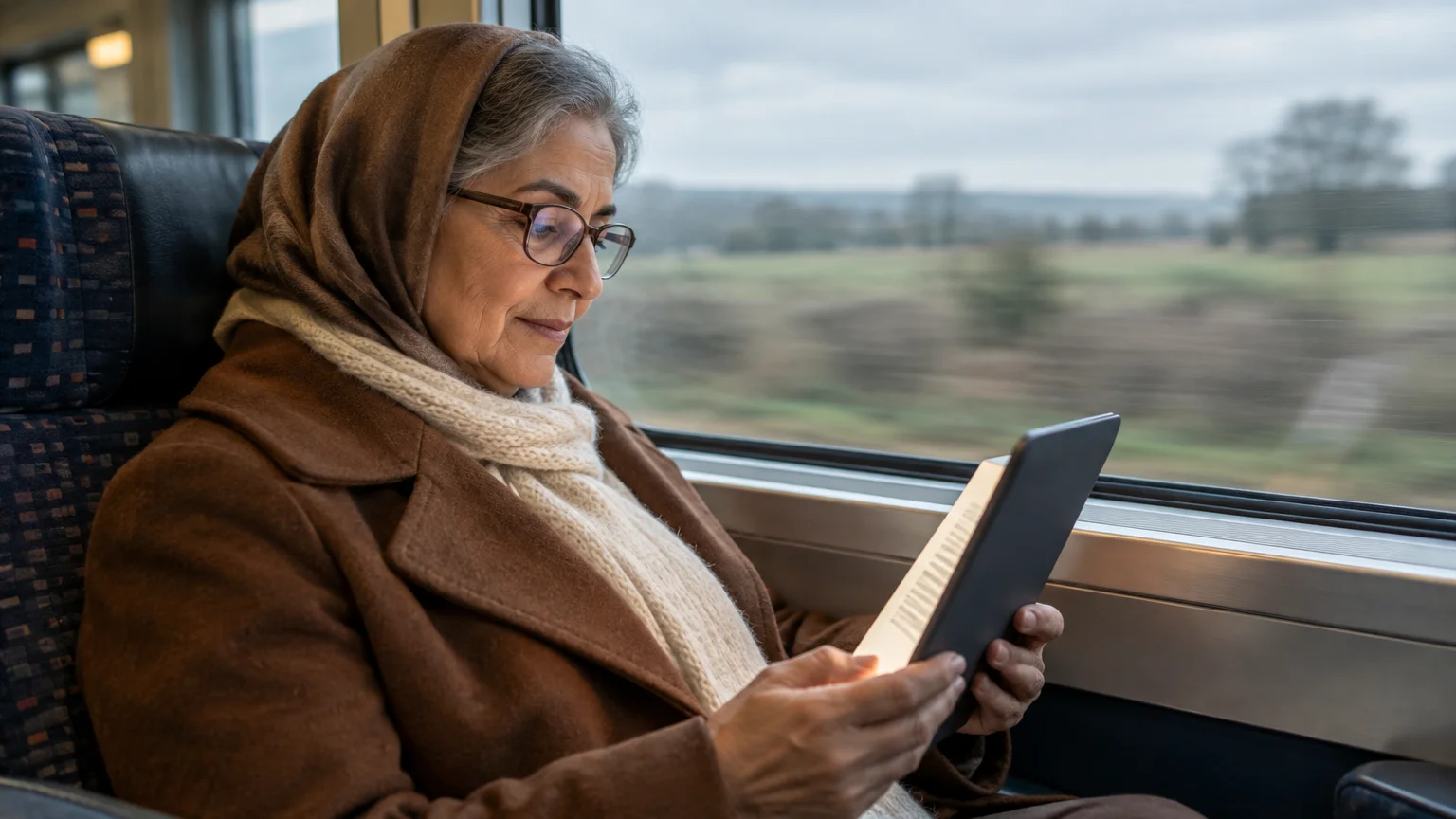
Reading has always been one of the best ways to explore the world, learn new skills, or simply relax with a great story. However, traditional physical books can be heavy to carry, and the print is sometimes too small to read comfortably.
This is where e-books—electronic books—change the game. They allow you to carry thousands of books on a single lightweight device, and best of all, you can adjust the text size to whatever is most comfortable for your eyes.
Digital devices offer many ways to relax, from reading books to watching movies on Netflix right from your tablet or computer.
You might believe that switching to digital reading requires expensive devices or costly subscriptions. Fortunately, that is not the case.
You likely already own the technology you need, and there are millions of books available to you completely free of charge. Whether you have a smartphone, a tablet (like an iPad), or a computer, you can start reading in minutes.
This guide will walk you through exactly how to find, download, and enjoy free e-books. We will focus on safe, legal sources so you can explore with confidence.
In this guide6 sections
Understanding the Basics: What You Need
Before we dive into downloading specific titles, let’s clarify the terminology. Technology often uses jargon that sounds more complicated than it actually is.
Here are the key terms we will use in this guide:
If you find that listening is more comfortable than reading, you may also want to learn how to use audiobooks on your tablet or phone.
If you are considering purchasing a dedicated device for your digital library, our e-reader buying guide can help you choose between a Kindle, Kobo, or Nook.
- App: Short for “application,” this is a program you download to your phone or tablet to perform a specific task, like reading or banking.
- E-Book: A digital file containing the text and images of a book.
- E-Reader: This can refer to a physical device made specifically for reading (like a Kindle Paperwhite), or it can refer to the app you use on your phone to read the book.
- Download: The process of transferring the book file from the internet onto your device so you can read it anywhere, even without an internet connection.
- Sync: Short for “synchronize.” This feature ensures that if you stop reading on your phone and pick up your tablet later, the book opens to the exact same page.
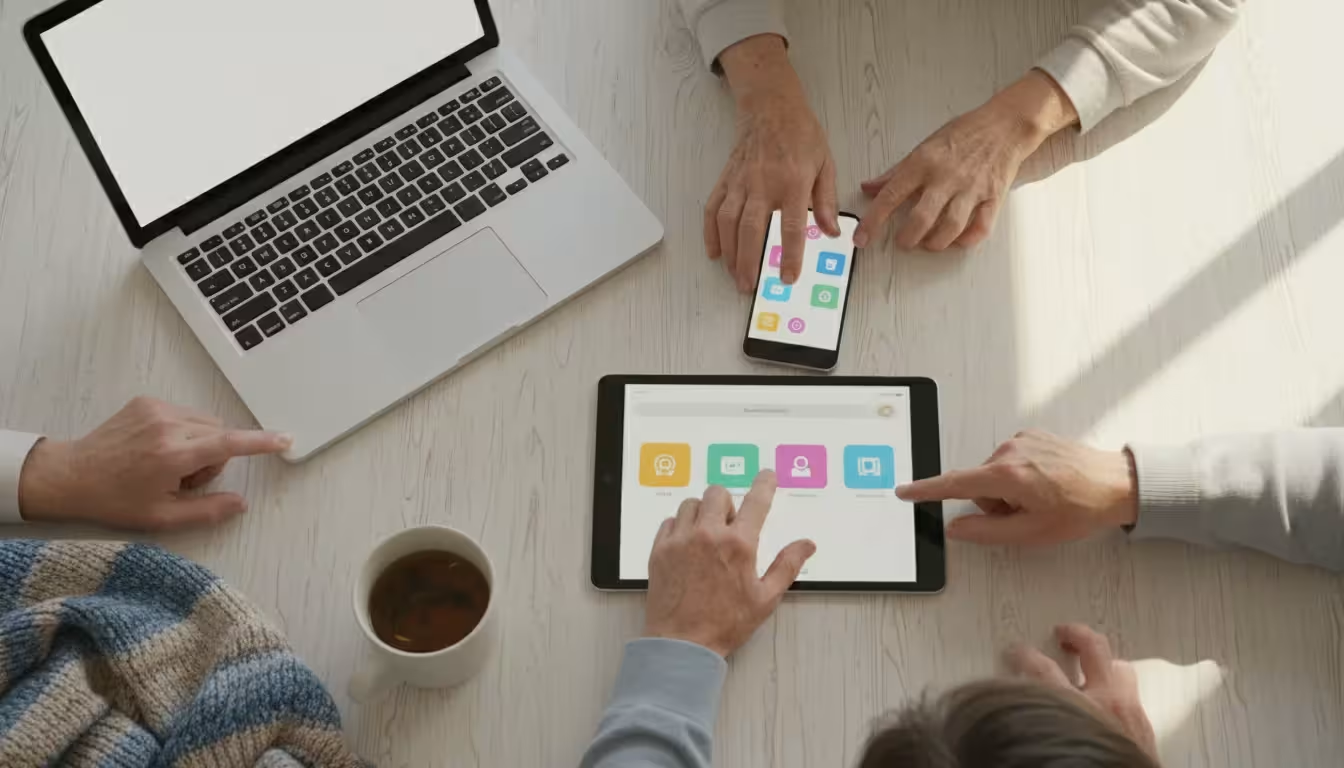
To follow this guide, you only need an internet connection (Wi-Fi is best) and a device such as an iPhone, Android phone, iPad, tablet, or computer.
The Public Library Option: Using the Libby App
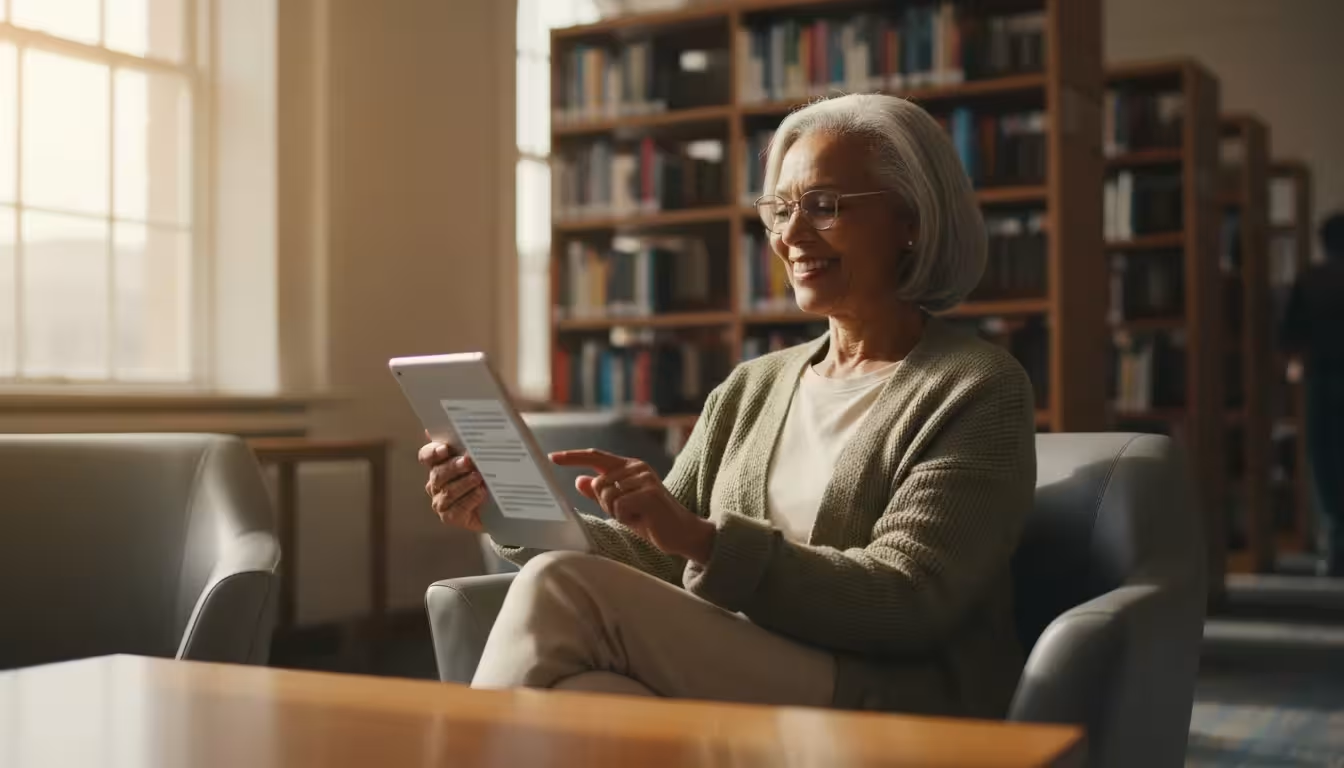
The absolute best way to read popular, modern books for free is through your local public library. Most libraries in the United States have partnered with a service called Libby (built by OverDrive).
It works exactly like a physical library: you borrow a book for a set time (usually 14 or 21 days), and it returns itself automatically when the time is up. No late fees, ever.
If you enjoy listening to stories through Libby, you might also like getting started with podcasts to hear expert interviews and news for free.
Step 1: Get Your Library Card Ready
You will need a valid library card from your local library system. If you do not have one, many libraries now allow you to sign up for a digital card directly through their website without visiting the branch in person.
Check your local library’s website for details.
Step 2: Download the Libby App
You need to install the Libby app on your device. Follow these steps based on what you own:
For iPhone and iPad Users:
- Locate the App Store icon (a blue square with a white “A”) on your home screen and tap it.
- Tap the Search button (usually a magnifying glass icon) at the bottom right.
- Type “Libby” in the search bar.
- Look for “Libby, by OverDrive.” Tap the button that says Get or shows a cloud icon with an arrow.
- You may need to double-click your side button or enter your Apple ID password to confirm.
For Android Phone and Tablet Users:
- Locate the Play Store icon (a multicolored triangle) on your home screen and tap it.
- Tap the search bar at the top of the screen.
- Type “Libby.”
- Tap the green Install button next to “Libby, by OverDrive.”
Step 3: Set Up Your Account
Once the app is installed, tap the icon to open it. Libby is very friendly and will guide you with questions on the screen.
- Libby will ask: “Do you have a library card?” Tap Yes.
- Select Search For A Library. You can enter your zip code or the name of your town.
- When your library appears, tap it.
- Tap Sign In With My Card.
- Enter the long number on the back of your library card and your PIN (if you don’t know your PIN, it is often the last 4 digits of your phone number, or you may need to call the librarian to reset it).
Step 4: Borrowing a Book
Now that you are logged in, you can browse the collection.
- Tap the Magnifying Glass icon at the bottom of the screen to search for a specific title or author (e.g., “John Grisham”).
- Tap the Building icon (library icon) to browse genres like “Mystery,” “Romance,” or “Biography.”
- When you find a book you want, look at the button next to it:
- Borrow: The book is available now. Tap it to start reading.
- Place Hold: Other people are reading all the digital copies. You can join the waiting list, and Libby will email you when it’s your turn.
- Once you tap Borrow, the book downloads to your device. You can turn off your Wi-Fi and still read it.
Expert Tip: If you prefer reading on a computer, you don’t need to download anything. Simply visit libbyapp.com in your web browser, sign in with your card, and read directly on the screen.
Using the Amazon Kindle App (Without a Kindle Device)
Many people believe they need to buy a specific Amazon Kindle tablet to read Kindle books. This is a myth.
Amazon provides a free Kindle app that turns your iPad, Samsung tablet, or smartphone into a Kindle. Amazon offers thousands of free books, often from new, independent authors or classic literature.
How to Get the App
Follow the same download instructions as the Libby section above, but search for “Amazon Kindle” in the App Store or Google Play Store. Sign in with your existing Amazon account (the same email and password you use to buy packages).
How to Find Free Books on Amazon
This process is slightly different because Amazon wants to sell books, so finding the free ones takes a specific step.
- Open your web browser (like Safari, Chrome, or Edge) on your computer or tablet. It is often easier to “buy” the books on a website than in the app.
- Go to Amazon.com.
- In the search bar, type “Top 100 Free Kindle Books” or simply “Free Kindle Books Mystery” (replace Mystery with your favorite genre).
- Look for books that say $0.00 to buy.
- Click Buy now with 1-Click. Since the price is $0.00, you will not be charged.
Once you “buy” the free book, open the Kindle app on your phone or tablet. The app will “sync” (check for new information), and your new book will appear in your Library, ready to download and read.
Important Note for iPhone and iPad Users
If you use an Apple device, you cannot buy books directly inside the Kindle app. Amazon removed this feature to avoid paying fees to Apple.
You must go to the Amazon website on your web browser (Safari or Chrome), “purchase” the free book there, and then open the app to read it.
Classics and Public Domain: Project Gutenberg
If you love classic literature—think Pride and Prejudice, Sherlock Holmes, or A Tale of Two Cities—you should visit Project Gutenberg. This is a volunteer effort to digitize cultural works.
Because the copyright has expired on these older books, they are in the “public domain,” meaning they are free for everyone to own forever.
Unlike Libby, these books do not expire. Once you download them, they are yours to keep.
How to Download from Project Gutenberg
This method works best if you are comfortable using a web browser on your phone or tablet.
- Open your browser (Safari, Chrome, etc.) and go to gutenberg.org.
- Use the search bar to type in a title or author (e.g., “Mark Twain”).
- Click on the title of the book you want.
- You will see a list of file formats. Look for the one that says EPUB (no images) or EPUB (with images). EPUB is the universal format for e-books.
- Tap the link to download.
Opening the Book
After you tap the download link:
- On iPhone/iPad: A prompt will appear asking if you want to download. Tap Download. A small blue arrow will appear in your address bar. Tap that arrow, tap the file, and it should automatically open in the Apple Books app (which comes pre-installed on your device).
- On Android: The file will download to your “Files” or “Downloads” folder. Tap the file notification. You may need to select an app to open it. Google Play Books is an excellent free choice if you don’t have an e-reader app installed.
How to Customizing Your Reading Experience
One of the greatest benefits of digital books is accessibility. If you find yourself squinting at newspapers or struggling with low light, e-books can solve these problems instantly.
Almost all reading apps (Libby, Kindle, Apple Books) share similar settings.
While reading apps offer great flexibility, you can also make text bigger on your iPhone for all your other menus and messages.
Changing Text Size
You do not need reading glasses to read an e-book if you adjust the settings correctly.
- Open a book in your app.
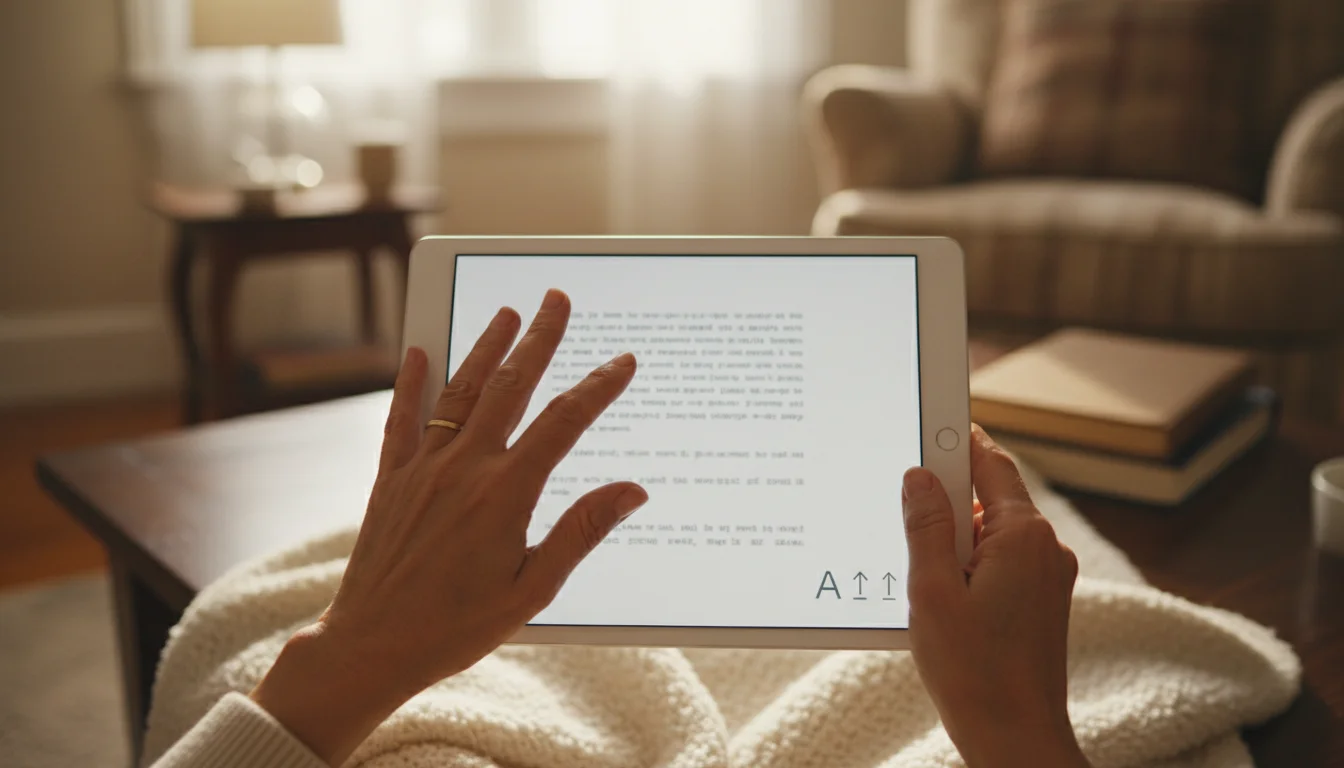
- Tap the center of the screen once. This will make the menu bars appear at the top and bottom.
- Look for an icon that looks like “Aa” or “Tt”. Tap it.
- You will see a slider or plus/minus buttons. Tap the Plus (+) or slide the bar to the right to make the text larger. You can make the font extremely large if needed.
Adjusting Lighting and Background
Reading a bright white screen in a dark room can strain your eyes. You can change this in the same “Aa” menu.
- Sepia Mode: This turns the page a soft, brownish-yellow color, similar to an old paperback. This is much gentler on the eyes than bright white.
- Dark Mode: This turns the background black and the text white. This is excellent for reading in bed without disturbing a partner, as it emits very little light.
For more tips on setting up your device for better visibility, AARP’s Technology Resources offer excellent guides on accessibility features.
Frequently Asked Questions
Is it safe to download these apps?
Yes, as long as you stick to the official methods described above. The Libby app connects directly to your local library, which is a trusted public institution.
The Kindle app is managed by Amazon, a major global company. Project Gutenberg is a reputable non-profit organization.
Avoid clicking on suspicious ads claiming “unlimited free bestsellers” on unknown websites, as these can sometimes be scams.
To stay safe while searching for e-books online, it is helpful to know how to spot fake websites and avoid common tricks.
Do I need Wi-Fi to read the books?
No. You only need Wi-Fi (or a cellular data connection) to download the book initially. Once the book is downloaded to your device, you can read it anywhere—on an airplane, in a car, or at a park—without any internet connection.
Do I have to pay for these books?
Library books via Libby are 100% free, just like visiting the physical library. Project Gutenberg books are public domain and always free.
Amazon has both free and paid books; if you strictly filter for “Free,” you will not be charged, but be careful to check the price before clicking “Buy.”
What happens when my library book is due?
Digital library books return themselves automatically. You do not need to do anything, and you will never be charged a late fee.
If you haven’t finished the book, you can try to renew it (if no one else is waiting), or simply borrow it again later. Your app will usually remember which page you were on.
Disclaimer: This article is for informational purposes only. App interfaces change frequently with updates, so screens may look slightly different from what’s described.
Always download apps from official app stores (Apple App Store or Google Play Store) to ensure safety.