
You might remember the days when banking meant driving to a local branch, standing in line, and filling out paper deposit slips. While visiting a teller can still be a pleasant social experience, it is not always convenient. Maybe the weather is bad, you are traveling, or you simply want to check your balance at 9:00 PM on a Sunday. This is where mobile banking apps come in.
A mobile banking app is simply a secure program provided by your bank that you download onto your smartphone or tablet. It acts like a 24/7 personal teller that fits in your pocket. With this tool, you can check your balance, pay bills, and even deposit checks without leaving your favorite chair.
Many seniors hesitate to use these tools because of security concerns. That caution is healthy—protecting your money is a priority. However, banks invest billions of dollars in cyber-security. When you follow the right steps, using an app on your smartphone is often safer than using a computer or mailing a check. This guide will walk you through exactly how to set up, use, and stay safe with mobile banking.
Table of Contents
- What Mobile Banking Actually Does
- Preparing Your Device for Safety
- How to Find and Download the Official App
- Setting Up Your Account Securely
- Navigating Your Bank’s Interface
- How to Deposit Checks and Pay Bills
- 7 Golden Rules for App Safety
- Troubleshooting Common Issues
- Frequently Asked Questions
What Mobile Banking Actually Does
Before we download anything, it helps to understand what these programs can do. A banking app connects directly to your financial institution’s secure system. It allows you to see the same information a teller sees on their screen.
Most standard banking apps allow you to:
- View Balances: See exactly how much money is in your checking or savings accounts instantly.
- Monitor Transactions: Check if a Social Security deposit arrived or if a check you wrote has cleared.
- Deposit Checks: Take a photo of a paper check to deposit it without driving to the bank.
- Transfer Funds: Move money between your checking and savings accounts.
- Pay Bills: Send payments to utility companies or credit cards electronically.
Using an app saves you time and gives you peace of mind. Instead of waiting for a monthly paper statement to spot an error, you can catch unauthorized charges the same day they happen.
Preparing Your Device for Safety
Safety starts with your phone or tablet. Before you install a banking app, you must ensure your “digital house” has a lock on the door. If your device does not have a passcode, anyone who picks it up could access your information.
To use your banking app without using up your monthly cellular data, it is a good idea to know how to connect your smartphone to Wi-Fi at home.
For more detailed guidance, you can also read our full walkthrough on how to update your Android phone to ensure you have the latest security patches.
Set a Lock Screen Passcode
If you have not done this yet, you need to secure your device.
- On iPhone/iPad: Go to Settings > Face ID & Passcode (or Touch ID & Passcode). Follow the prompts to create a 6-digit code.
- On Android: Go to Settings > Security > Screen Lock. Choose a PIN or Pattern.
Update Your Software
Software updates often contain security fixes that protect against new viruses or scams. An “update” is just the manufacturer sending improvements to your phone.
- On iPhone/iPad: Tap Settings > General > Software Update. If an update is available, tap “Download and Install.”
- On Android: Tap Settings > System > System Update.
How to Find and Download the Official App
One common fear is downloading a “fake” app. Scammers occasionally create apps that look like legitimate banks to steal information. You can avoid this entirely by following this specific method.
Once the app is installed, you may want to learn how to manage app permissions to understand exactly what information the app can access on your device.
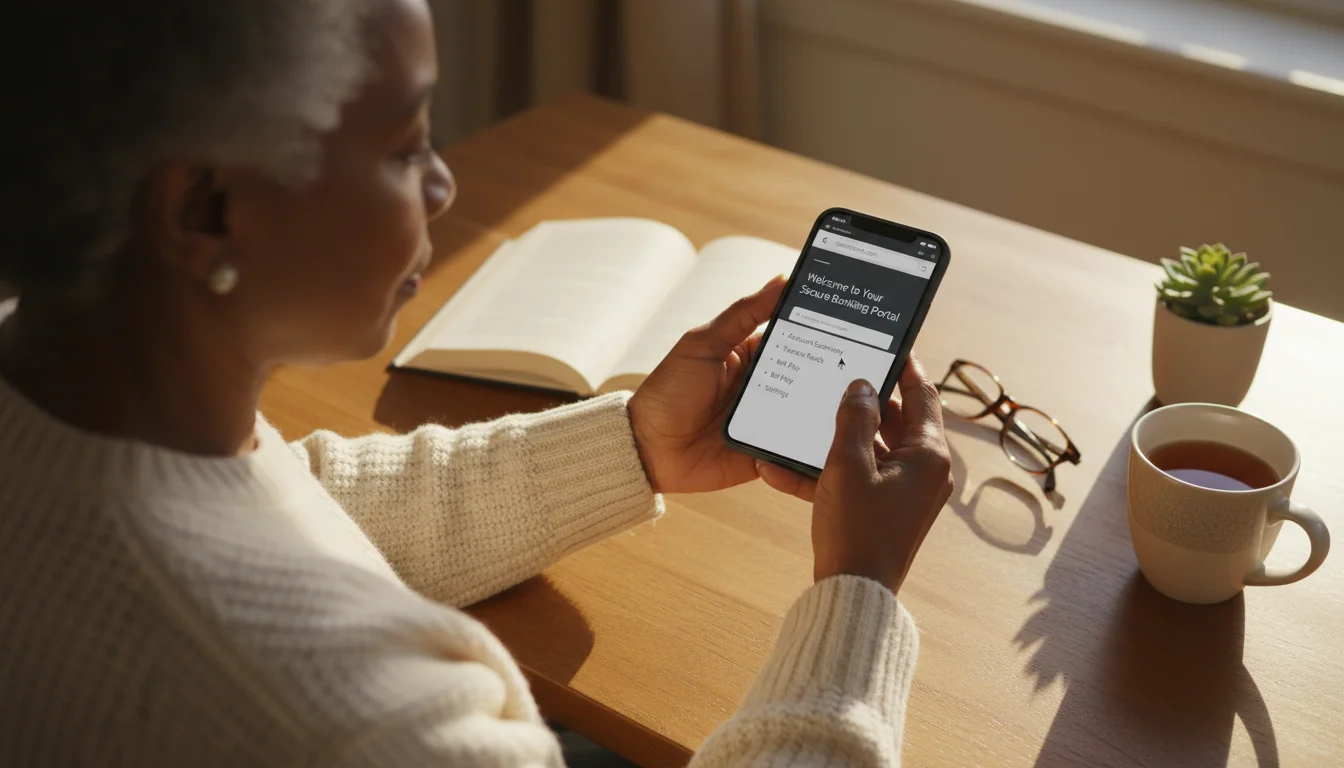
The safest way to find your app: Do not search for it in the app store immediately. Instead, open the web browser (like Safari or Chrome) on your phone or computer and go to your bank’s official website (e.g., chase.com, bankofamerica.com, wellsfargo.com). Look for a section on their homepage that says “Mobile Banking.” They will have direct buttons that say “Download on the App Store” or “Get it on Google Play.” Clicking these official buttons ensures you get the real app.
If you prefer to search the store directly, follow these steps carefully:
For iPhone and iPad Users (Apple App Store)
- Look for the blue icon with a white “A” that says App Store on your home screen. Tap to open it.
- Tap the Search icon (a magnifying glass) at the bottom right.
- Type the exact name of your bank (e.g., “Capital One Mobile”) and tap Search.
- Look at the results. The official app will usually be the first one, but verify the developer name underneath the title. It should match your bank’s name.
- Tap the button that says GET. You may need to double-click the side button or enter your Apple ID password to confirm.
- When the circle completes, the button will change to OPEN.
For Android Users (Google Play Store)
- Look for the triangular multi-colored icon that says Play Store. Tap to open it.
- Tap the search bar at the top of the screen.
- Type the name of your bank and tap the magnifying glass key on your keyboard.
- Select the app that matches your bank. Look for the “verified” badge or check the number of downloads—major banks usually have millions of downloads.
- Tap the green Install button.
- Once finished, tap Open.
Setting Up Your Account Securely
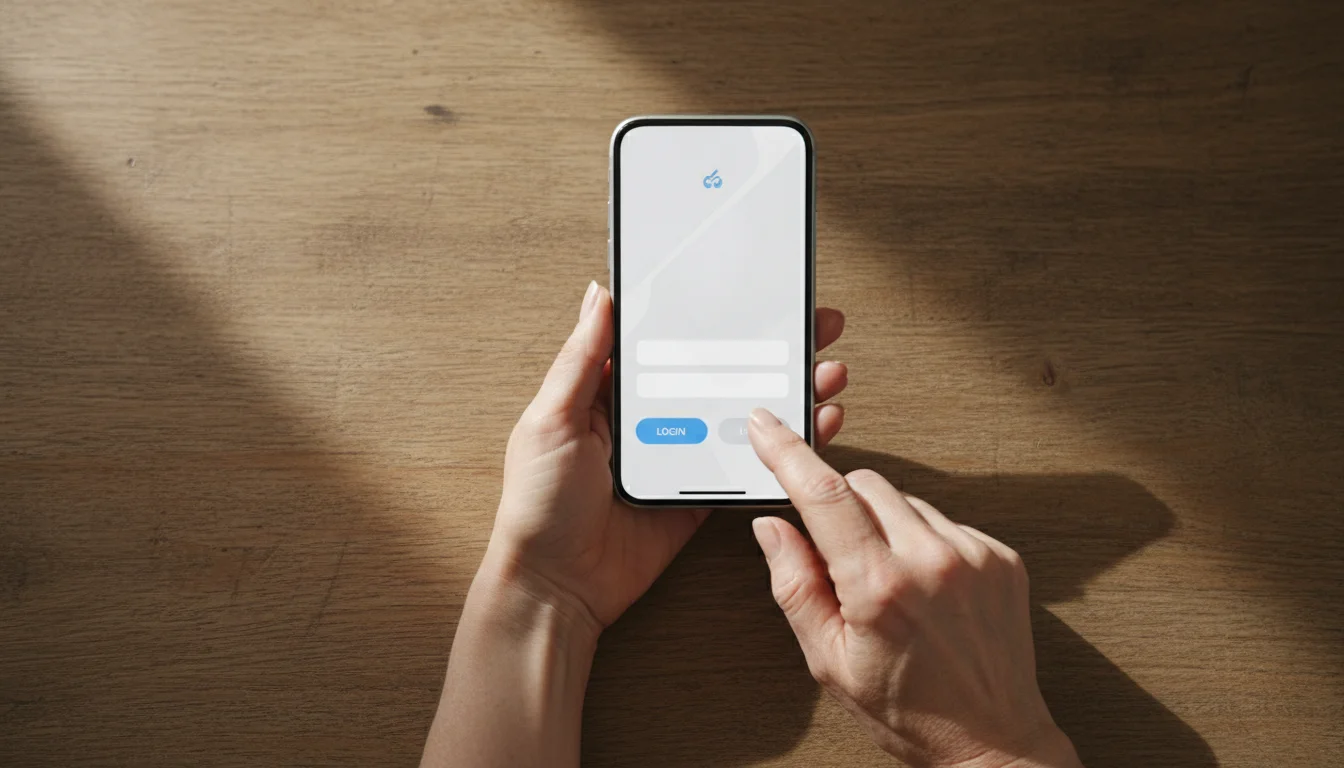
When you open the app for the first time, you will see a login screen. If you already manage your bank account on a computer, you can typically use the same Username and Password.
If you find it helpful to dictate notes to yourself, you might consider using voice memos on your phone to remember important things like security questions.
If you find it difficult to remember complex logins, using a password manager can help you keep your credentials organized and secure.
If you have never managed your finances online, look for a link on the app screen that says “Enroll,” “Sign Up,” or “New User.”
The Registration Process
You will need to prove you are who you say you are. Have these items ready on your desk:
- Your debit card or ATM card.
- Your account number (found on a paper statement).
- Your Social Security number.
Follow the prompts to enter your information. The app will ask you to create a Username and Password.
Expert Tip: Your password should be strong. Avoid using pet names or birthdays. A strong password uses a mix of capital letters, numbers, and symbols. For example, instead of “Bluebird1,” try “Blue-Bird#92!”
Enable Two-Factor Authentication (2FA)
This sounds technical, but it is simple. It acts like a second lock on your door. After you enter your password, the bank will send a specific code to your phone via text message or email. You must type that code into the app to get in. This ensures that even if a thief steals your password, they cannot access your money because they don’t have your physical phone. Always say “Yes” if the app asks to set this up.
Enable Biometrics (FaceID or Fingerprint)
Typing a complex password every time is tedious. Most modern apps allow you to log in using your face or fingerprint. This is actually safer than typing a password because no one can look over your shoulder and read your keystrokes. Look for settings labeled “Enable Face ID” or “Biometric Login” in the app’s menu.
Navigating Your Bank’s Interface
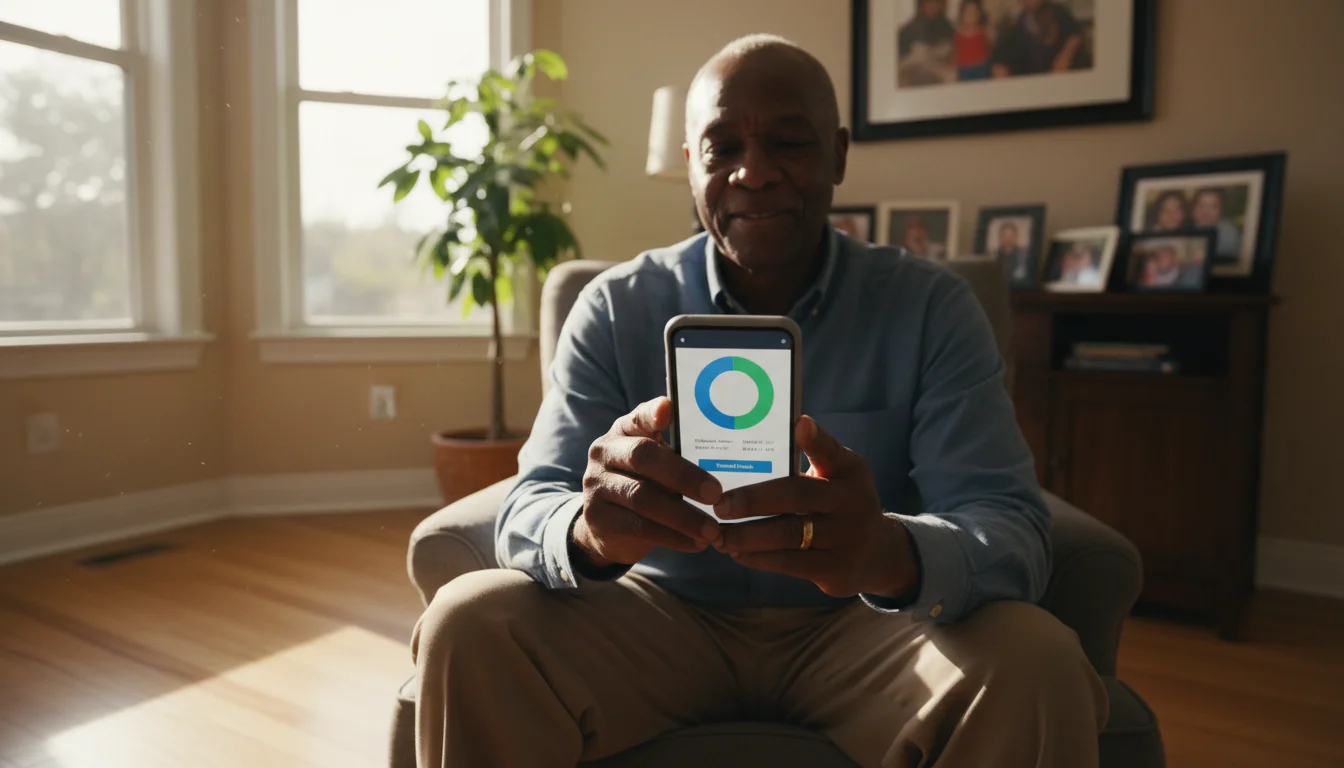
Every bank looks slightly different, but they all follow a standard “blueprint.” Understanding the common layout will help you feel confident regardless of which bank you use.
The Home Screen (Dashboard)
This is the first screen you see after logging in. It usually lists your accounts (Checking, Savings, Credit Card) and their current balances. Tapping on “Checking” will open a new screen showing your history—the list of money that has gone in and out recently.
The Menu
If you need to do something other than check a balance, look for the Menu. On iPhones, this is often a row of icons at the bottom of the screen. On Android phones, it might be three horizontal lines (often called a “hamburger menu”) in the top left or right corner.
How to Deposit Checks and Pay Bills
These two features offer the most convenience. Let’s break down how to use them safely.
Protecting your financial details is vital, especially since there are common scams targeting seniors on social media designed to look like legitimate bank messages.
To maintain maximum security, you should also learn how to safely use public Wi-Fi and avoid checking your balance on unencrypted networks at cafes or airports.
Mobile Check Deposit
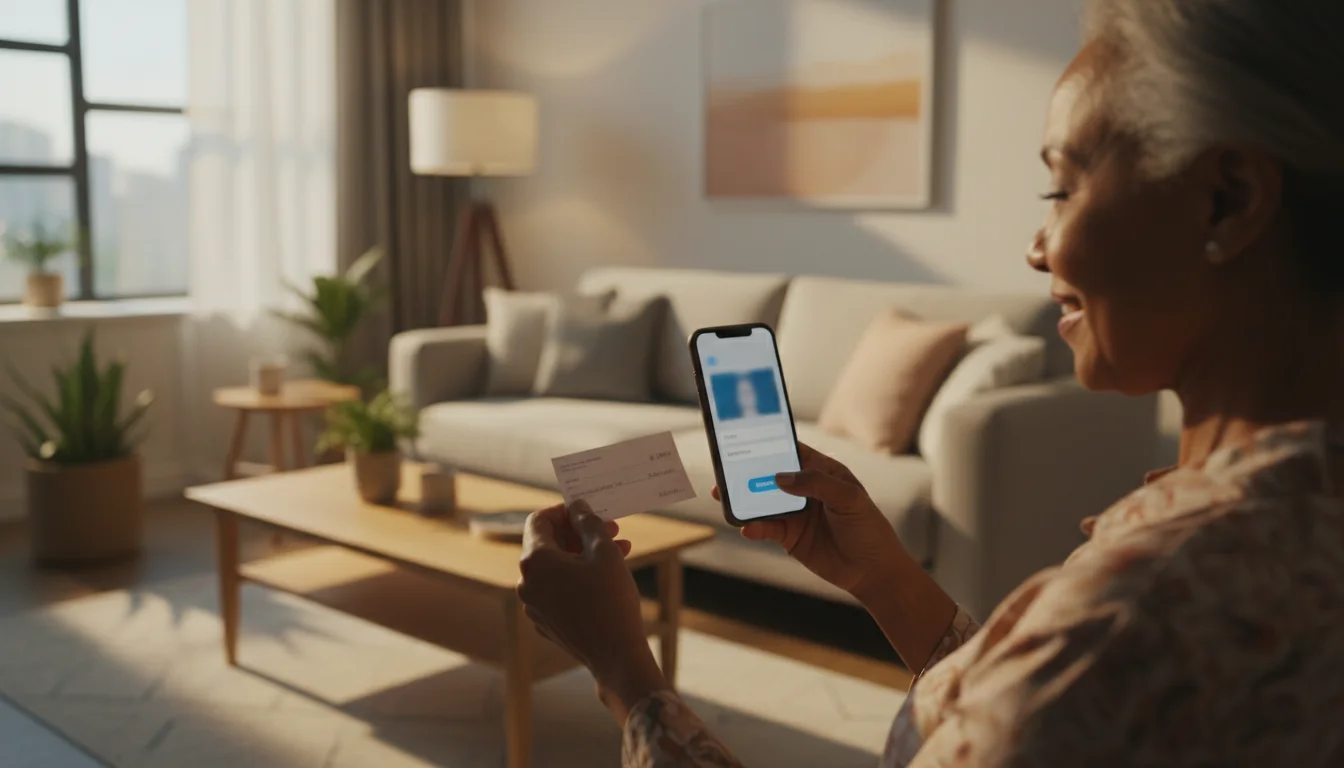
This feature allows you to deposit a paper check using your phone’s camera. It saves you a trip to the branch.
- Endorse the check: Flip your paper check over. Sign your name. Under your signature, write “For Mobile Deposit Only.” (Some banks require this specific phrase).
- Open the Deposit feature: Tap the button in your app labeled “Deposit” or “Deposit Checks.”
- Select the account: Choose where the money should go (usually Checking).
- Enter the amount: Type in exactly how much the check is for.
- Take the photos: The app will activate your camera.
- Place the check on a dark, flat background (like a dark table) for good contrast.
- Hold your phone steady directly above the check.
- Line up the check within the box on your screen. The app usually snaps the picture automatically when it is focused.
- Repeat for the back of the check.
- Confirm: Review the information and tap “Submit.” Keep the paper check in a safe place for 14 days until you see the money securely in your account, then shred it.
Paying Bills
You can use the “Bill Pay” feature to send checks digitally.
- Tap Pay Bills or Payments in the menu.
- Tap Add Payee.
- Type the name of the company (e.g., “City Electric”) and their account number from your paper bill.
- Once the payee is added, you simply type the amount you want to pay and the date you want it sent. The bank handles the rest, either transferring the money electronically or mailing a physical check for you.

7 Golden Rules for App Safety
You can use mobile banking with confidence if you follow these non-negotiable safety rules.
1. Avoid Public Wi-Fi
Never check your bank account while connected to public Wi-Fi at a coffee shop, airport, or hotel. Public networks are often insecure, and hackers can “eavesdrop” on the connection. If you are out of the house, turn off Wi-Fi and use your cellular data (4G/5G/LTE) instead. Your cellular connection is encrypted and much safer.
2. Log Out When Done
Although most apps will automatically log you out after a few minutes of inactivity, it is a good habit to manually tap Log Out or Sign Off when you finish your tasks.
3. Ignore “Urgent” Texts and Emails
This is the most common scam today. You might receive a text message saying, “Bank Alert: Your account has been suspended. Click here to verify.” Do not click the link. Banks will rarely ask you to click a link in a text message to solve a security problem. If you are worried, close the text, open your official banking app, and check for alerts there. If the app says nothing, the text was a scam.
4. Enable Push Notifications
Allow the app to send you notifications. You can set it up to alert you every time a transaction over a certain amount (e.g., $1.00) occurs. This means if someone steals your card number, your phone will buzz immediately when they use it, allowing you to stop them instantly.
5. Keep Your App Updated
When the App Store or Google Play Store indicates an update is available for your banking app, download it immediately. These updates often patch security holes.
6. Use Biometrics
As mentioned earlier, FaceID and Fingerprint scanners are unique to you. They are much harder to steal than a written-down password.
7. Verify the Source
For more information on avoiding online scams, you can visit the Federal Trade Commission consumer information site. They provide up-to-date alerts on current banking scams.
Troubleshooting Common Issues
Technology is wonderful, but it isn’t perfect. Here is how to handle common hiccups.
If you encounter a technical problem and receive an unexpected call for help, be sure you know how to recognize tech support scams so you don’t accidentally give a stranger access to your device.
“My password isn’t working.”
It happens to everyone. Tap the link that says “Forgot Password?” or “Trouble Logging In?” on the main screen. The bank will usually verify your identity by sending a code to your email or phone, allowing you to reset it. Do not panic; your money is safe.
” The check deposit photo won’t take.”
Lighting is usually the culprit. Move to a brighter room, but avoid direct glare on the paper. Ensure the check is on a dark background so the camera can see the edges of the paper clearly.
“I lost my phone.”
If your phone is lost or stolen, call your bank immediately. They can temporarily disable mobile access to your account. Because your app requires a password or face scan to open, your money is likely safe, but calling the bank adds an extra layer of protection.
Frequently Asked Questions
Is mobile banking safer than using a computer?
generally, yes. Official banking apps are highly encrypted, and smartphones are often less susceptible to the type of viruses that infect home computers. Additionally, using cellular data is safer than using home Wi-Fi if your home router is not secure.
Does it cost money to use the app?
Typically, no. Major banks provide their apps for free. However, your mobile phone carrier might charge you for data usage if you are not on a Wi-Fi plan, though banking apps use very little data.
What if I send money to the wrong person?
If you are using a feature like Zelle or bill pay, accuracy is vital. If you make a mistake, contact your bank immediately. While they can sometimes reverse a bill payment, sending cash via Zelle is often like handing someone cash—hard to get back. Always double-check the recipient’s information before hitting send.
Can the bank employees see my password?
No. Even the bank employees cannot see your password. If you lose it, they cannot tell you what it was; they can only help you reset it to a new one.
For more guidance on using technology, resources like Senior Planet from AARP offer wonderful courses and articles tailored specifically for older adults.
Disclaimer: This article is for informational purposes only. App interfaces change frequently with updates, so screens may look slightly different from what’s described. Always download apps from official app stores (Apple App Store or Google Play Store) to ensure safety.






Leave a Reply