

How many times have you searched for a scrap of paper to write down a phone number, a grocery item, or a doctor’s appointment time, only to lose that paper ten minutes later? We have all been there. Small pieces of paper tend to disappear into the depths of a purse, a kitchen drawer, or a car’s console. Fortunately, your smartphone—that device you likely keep close at hand—contains a powerful tool designed to solve this exact problem. It is called the Notes app.
The Notes app is a digital notepad that lives on your phone. Think of it as a never-ending stack of sticky notes that you can never lose. Whether you use an iPhone or an Android device (like a Samsung or a Google Pixel), you already have a version of this tool ready to use. This guide will walk you through everything you need to know, from opening the app for the first time to organizing your thoughts like a pro. You do not need to be a “tech whiz” to master this; you simply need a little patience and a willingness to explore.
Digital notes offer a level of convenience that paper simply cannot match. You can search for a specific word to find an old note in seconds, and your notes travel with you wherever your phone goes.
Table of Contents
- What a Notes App Actually Does
- How to Find and Open the App on Your Device
- Starting Your First Note: A Step-by-Step Guide
- Making Lists: Groceries, Tasks, and To-Dos
- Keeping Things Tidy: Folders and Searching
- Beyond Text: Photos, Voice, and Drawing
- Using Your Notes on a Computer
- Safety and Privacy: Protecting Your Information
- Frequently Asked Questions
What a Notes App Actually Does
An “app” is simply a program you can use on your phone or tablet. In the case of a Notes app, its primary job is to store text. Unlike a text message or an email, a note is meant for you. It is a private place to store information you want to remember later.
You can use this app for almost anything in your daily life. Some people use it to keep a running list of books they want to read or movies they want to watch. Others use it to track their daily blood pressure readings or symptoms to share with a doctor. It is also perfect for jotting down the dimensions of a window before you go curtain shopping, or for saving the name of a delicious wine you tried at a restaurant.
One of the greatest benefits of digital notes is “syncing.” Syncing means that when you write a note on your phone, it automatically appears on your tablet or computer as well. This happens through a “cloud,” which is essentially a secure filing cabinet on the internet that holds your data so you can see it from any of your devices. You will never have to worry about “saving” your work; the app does it for you the moment you stop typing.
How to Find and Open the App on Your Device
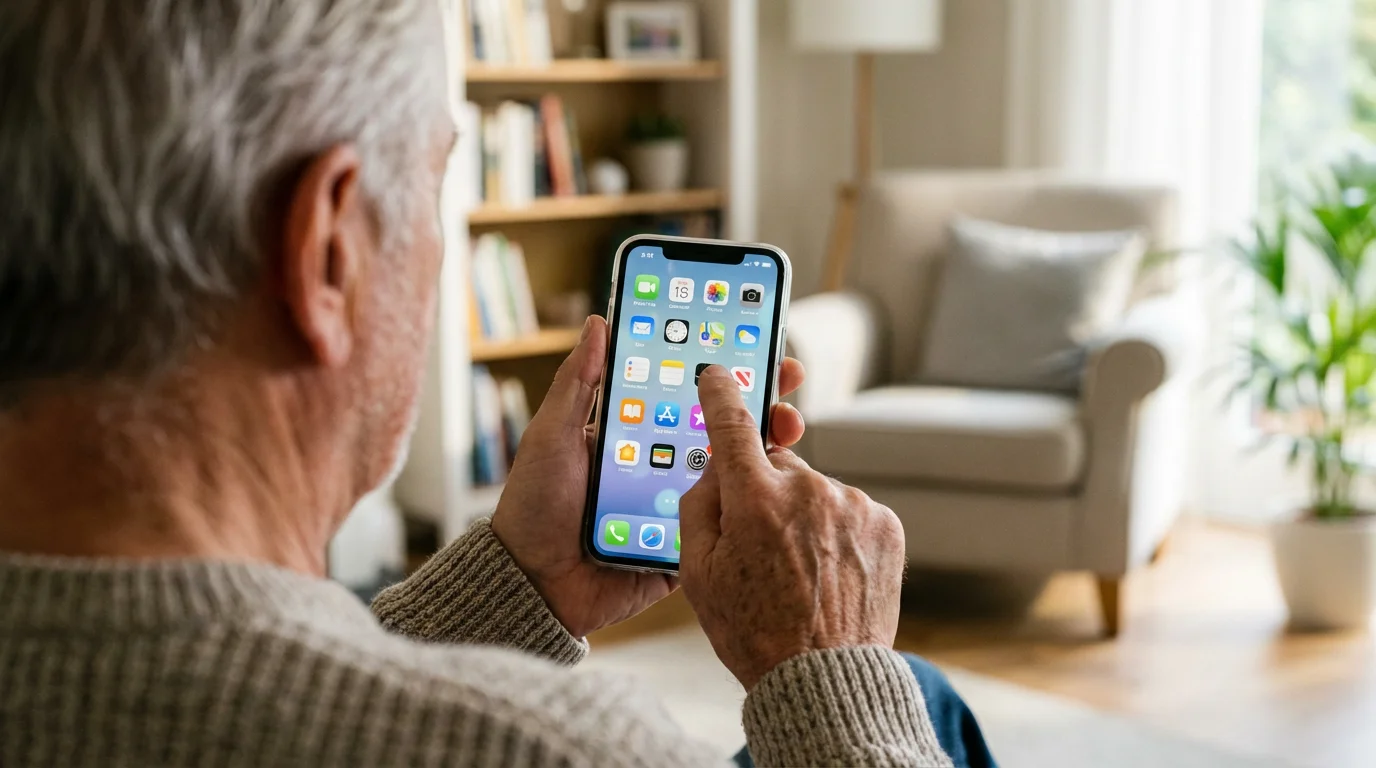
Depending on which phone you own, your Notes app might have a different name and icon (the small picture you tap to open it). Most phones come with a Notes app already installed, so you likely do not need to download anything new.
On an iPhone:
Look for an icon that looks like a yellow notepad with a white top. It is simply labeled “Notes.” If you cannot find it, swipe your finger from the middle of the home screen downward. A search bar will appear at the top. Type the word “Notes,” and the icon will pop up. Tap it to open.
On an Android Phone (Samsung, Google Pixel, etc.):
Android devices can be a bit more varied. Many Android phones use an app called Google Keep. Its icon is a bright yellow square with a white lightbulb in the center. Samsung phones often have an app called Samsung Notes, which features a red icon with a white sheet of paper and a pen. If you do not see either of these, you can download Google Keep for free from the Google Play Store—the app store where you get new programs for your phone.
To download Google Keep if you don’t have it:
- Tap the Play Store icon on your phone.
- Tap the search bar at the top and type “Google Keep.”
- Tap the button that says Install.
- Once it finishes, tap Open.
Starting Your First Note: A Step-by-Step Guide
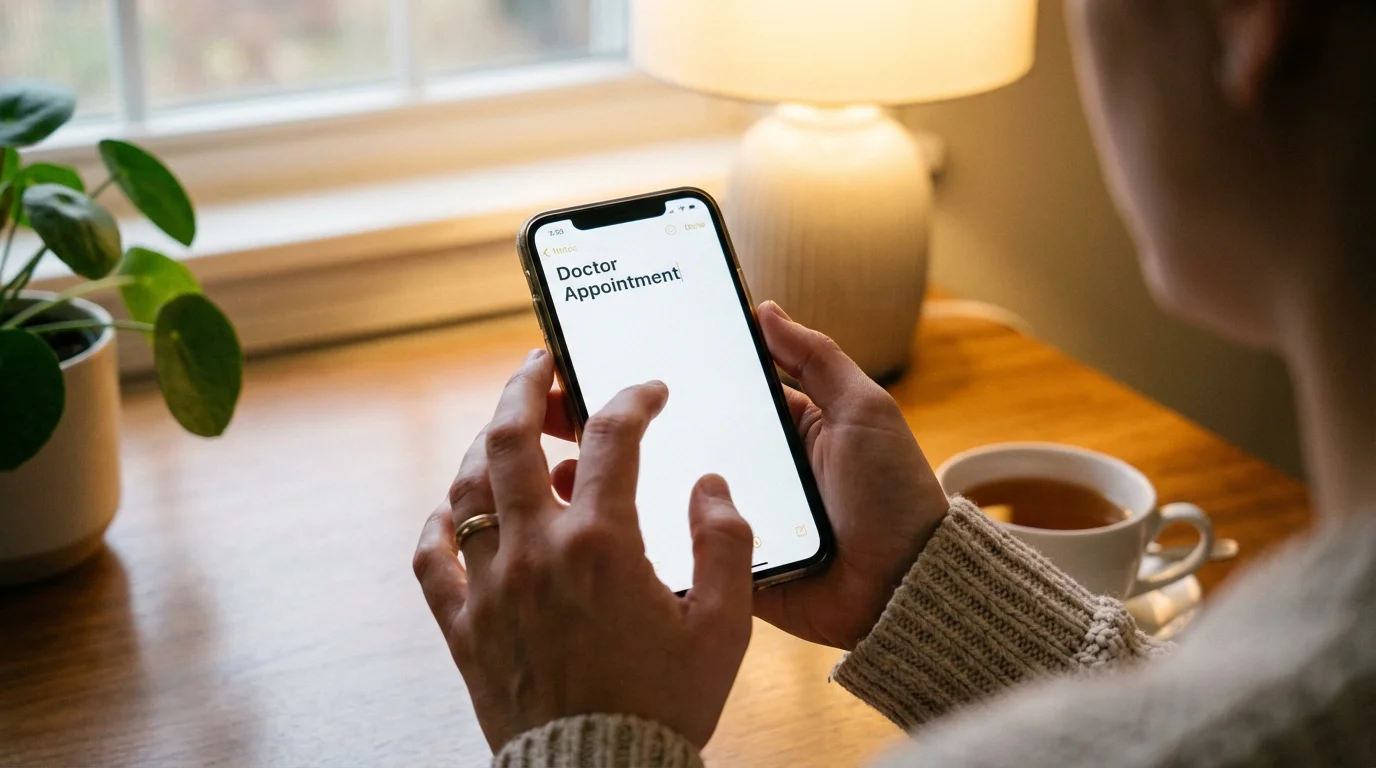
Once you have opened the app, the interface might look a bit empty. That is okay! You are about to fill it with your own ideas. Writing a note is very similar to sending a text message or writing an email.
For iPhone Users:
- Look for the Compose icon in the bottom right corner of the screen. It looks like a square with a pencil drawing in it. Tap it.
- A blank screen will appear, and your keyboard will pop up at the bottom.
- The first line you type will automatically become the title of your note. For example, type “Gift Ideas for the Grandkids.”
- Tap the Return or Enter key on your keyboard to move to the next line and start writing your list.
- When you are finished, tap the word Done in the top right corner. The note is now saved.
For Android Users (Google Keep):
- Look for the large Plus (+) sign, usually located in the bottom right corner. Tap it.
- You will see a space labeled Title and a space labeled Note. Tap where it says “Title” and give your note a name, like “Maintenance Log.”
- Tap the “Note” section below the title to start typing your information.
- On Google Keep, you don’t even need to hit “Done.” Just tap the Back arrow in the top left corner, and your note is automatically saved and added to your main list.
Don’t worry about making mistakes! You can always go back into any note, tap the screen, and use the backspace key to fix a typo. The app is very forgiving.

Making Lists: Groceries, Tasks, and To-Dos
One of the most practical ways to use the Notes app is by creating checklists. Instead of just a wall of text, a checklist gives you little circles or squares next to each item. When you tap the circle, a checkmark appears, and the item often moves to the bottom of the list or gets crossed out. It is incredibly satisfying to “check off” a task.
How to create a checklist on iPhone:
- Open a new or existing note.
- Look for the icon that looks like a circle with a checkmark inside it (located just above the keyboard). Tap it.
- Type your first item (e.g., “Milk”).
- Press the Return key. A new empty circle will appear for your next item.
- When you are at the grocery store, simply tap the circle next to “Milk” once you put it in your cart.
How to create a checklist on Android (Google Keep):
- Open a new note.
- Tap the Plus (+) sign in the bottom left corner.
- Select Tick boxes (or “Checkboxes”).
- Start typing your list. Each time you hit Enter on your keyboard, a new box appears.
Using checklists is a great way to manage daily medications. You can create a note titled “Morning Meds” and check them off as you take them. At the end of the day, you can “uncheck” them all to be ready for the next morning.
Keeping Things Tidy: Folders and Searching
As you become more comfortable, you might find yourself with dozens of notes. Finding the one you wrote three months ago can feel daunting if you have to scroll through everything. This is where folders and the search bar become your best friends.
Using Folders on iPhone:
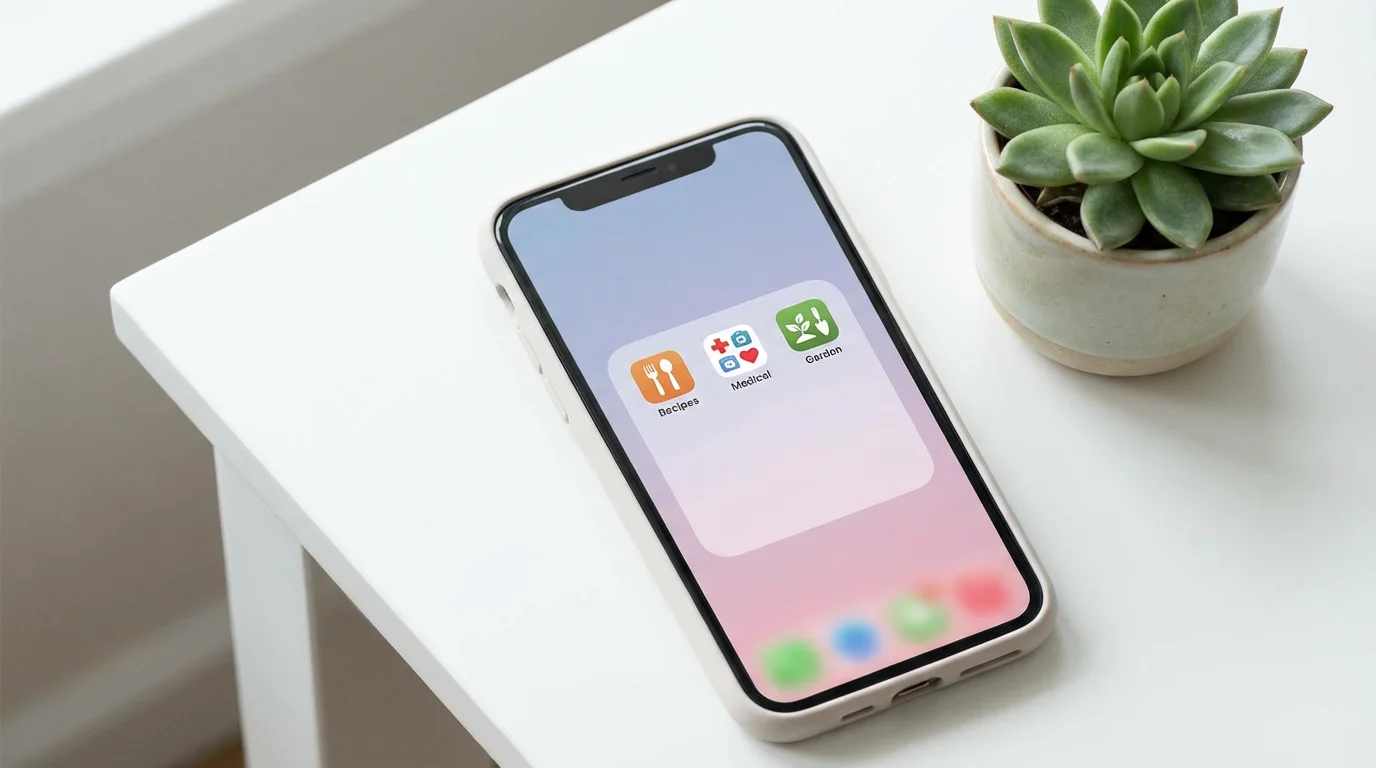
When you first open the Notes app, you will see a “Folders” screen (you may need to tap a back arrow in the top left to see it). You can tap the New Folder icon in the bottom left corner. Name your folders things like “Medical,” “Recipes,” or “Travel.” To move a note into a folder, swipe left on the note title in your main list, tap the purple folder icon, and choose the destination.
Using Labels on Android (Google Keep):
Google Keep uses “Labels” instead of folders. It’s like putting a sticky tab on a file. Tap the three dots in the corner of a note and select Labels. You can create a label called “Health.” Later, you can tap the menu (three horizontal lines) in the top left of the app and select “Health” to see only those notes.
The Search Bar:
This is the fastest way to find information. At the top of your app, there is a search bar. If you remember you wrote down a password for your Wi-Fi but can’t find the note, just type “Wi-Fi” into that search bar. Every note containing that word will instantly appear. This feature is a lifesaver for those of us who forget where we put things!
Beyond Text: Photos, Voice, and Drawing
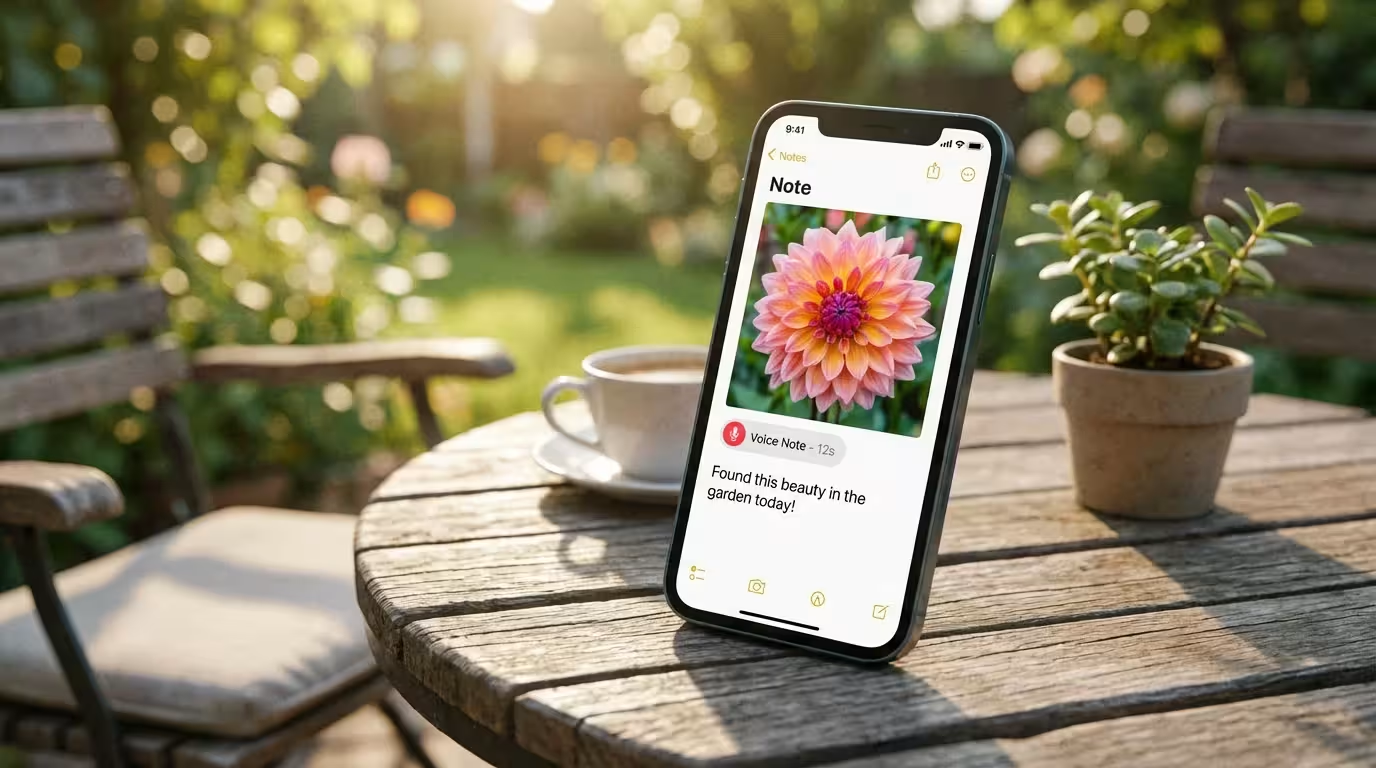
Modern Notes apps are not just for typing. You can add pictures, record your voice, or even use your finger to draw a sketch. This is helpful if you want to remember what a specific part for your sink looks like or if you want to save a photo of a recipe from a magazine.
Adding a Photo:
In both iPhone and Android apps, look for a Camera icon while you are inside a note. Tap it, and you will have the option to “Take Photo.” Your phone’s camera will open. Take the picture, and it will be embedded right inside your note. You can then type notes underneath the picture to explain what it is.
Voice Dictation:
If you find typing on a small screen difficult or your fingers get tired, use your voice! On your keyboard, look for a small Microphone icon. Tap it and start speaking. Your phone will turn your spoken words into written text. This is an excellent way to record a long story or a detailed list of questions for your doctor. Just remember to speak clearly and check the text afterward, as the phone sometimes mishears words.
Drawing or Handwriting:
If you miss the feeling of a pen, look for the Marker or Pen icon. You can use your finger to draw a map, sign your name, or just doodle. On the iPhone, this tool is very sophisticated, offering different “pens” and “highlighters.”
Using Your Notes on a Computer
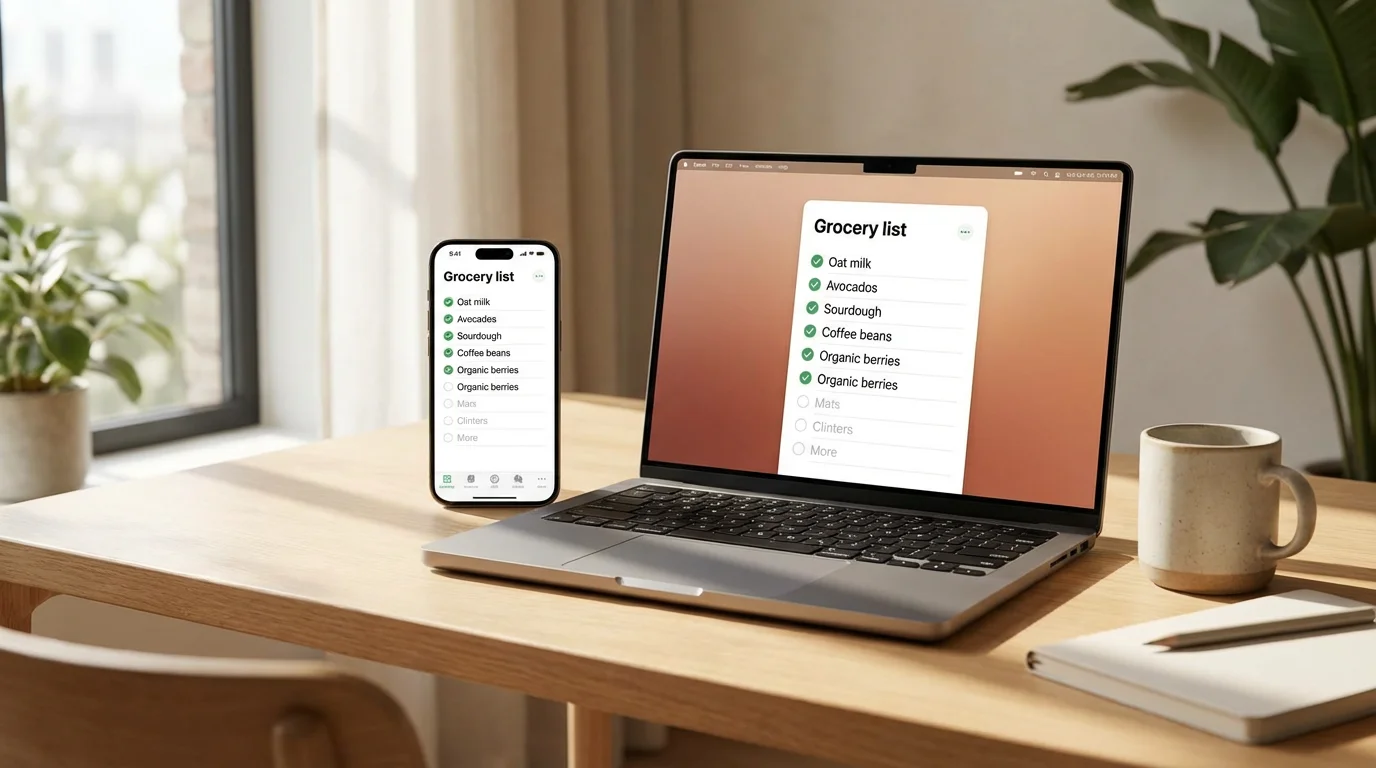
Sometimes it is easier to type on a full-sized keyboard or read your notes on a large monitor. One of the best “secrets” about Notes apps is that they are accessible on your computer.
For iPhone Users (iCloud):
Go to iCloud.com on your computer’s web browser (like Safari, Chrome, or Microsoft Edge). Log in with your Apple ID and password—the same one you use to download apps. Click on the Notes icon. All your notes from your phone will be right there, looking exactly the same.
For Android Users (Google Keep):
Go to keep.google.com on your computer. Log in with your Gmail account. Just like with the iPhone, your notes will appear instantly. Any changes you make on your computer will show up on your phone within seconds.
This “syncing” feature is particularly helpful for things like planning a trip. You can research hotels on your computer, copy and paste the addresses into a note, and then have those addresses ready on your phone when you are out on the road.
Safety and Privacy: Protecting Your Information
A common concern is whether it is safe to put personal information in a digital note. Generally, these apps are very secure because they are tied to your personal account (Apple or Google), which requires a password. However, you should still exercise caution.
Locking a Note:
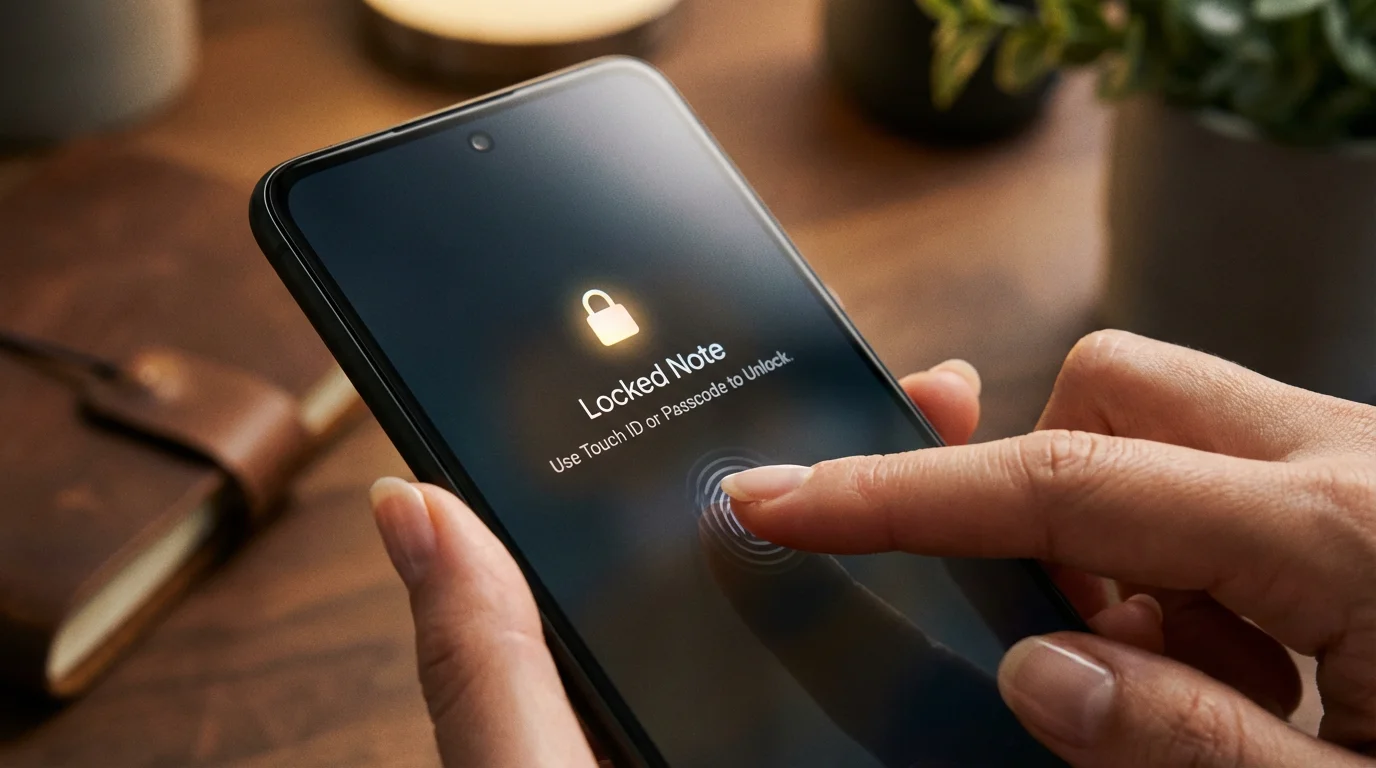
If you want to store something sensitive, like a list of passwords or your Social Security number (though we recommend being very careful with the latter), you can “Lock” a note on an iPhone. Open the note, tap the three dots in the top right, and select Lock. You will be asked to create a separate password or use your thumbprint/face to open it. This adds an extra layer of protection if someone else ever uses your phone.
Avoid “Public” Computers:
If you log into your notes on a computer at a library or a hotel, always remember to Log Out when you are finished. If you don’t, the next person using that computer might be able to see your private notes.
For more information on digital safety, you can visit the Federal Trade Commission’s Consumer Information site, which offers great tips for seniors on protecting personal data.
Frequently Asked Questions
| Question | Answer |
|---|---|
| Is the Notes app free? | Yes. The Notes app on iPhone and Google Keep on Android are completely free to use. There are no monthly fees or hidden costs. |
| Can I share my notes with someone else? | Yes! You can share a note with a family member so you can both add items to a grocery list. Look for the “Share” icon (a square with an upward arrow on iPhone, or three dots on Android) to send it via email or text. |
| What happens if I delete a note by accident? | Don’t panic! Most apps have a “Recently Deleted” folder. On an iPhone, go to your Folders screen and look for “Recently Deleted.” You usually have 30 days to recover a note before it is gone forever. |
| Does the app work without internet? | Yes. You can write and read notes even if you don’t have Wi-Fi or cellular service. The app will simply wait until you are back online to “sync” those changes to your other devices. |
Tips for Getting the Most Out of Your Notes
To truly make the most of this tool, try incorporating it into your daily routine. Here are a few practical tips to get you started:
- The “Brain Dump”: Every morning, open a note and write down everything you are worried about or need to do. Once it is on the screen, you can stop carrying it in your head.
- Medical Logs: Create a note for each of your doctors. Before your appointment, type out the questions you want to ask. During the appointment, you can type their answers so you don’t forget the details later. For more health-related tech tips, check out Senior Planet from AARP.
- Gift Ideas: When a friend mentions something they love in passing, jot it down in a “Gifts” note. When their birthday or the holidays roll around, you will be the most thoughtful person in the room.
- Voice to Text: Use the microphone icon on your keyboard if your hands are busy or if you have arthritis that makes typing uncomfortable. It is a very effective way to “write” quickly.
- Pin Important Notes: If you have one note you use every day (like a to-do list), you can “pin” it to the top. On an iPhone, swipe right on the note in the list and tap the pin icon. On Android, long-press the note and tap the pin icon at the top of the screen.
Learning to use the Notes app is a small step that leads to a much more organized life. It replaces the clutter of paper with a clean, searchable, and reliable digital assistant. Start today by writing down just one thing—perhaps a list of your favorite meals or a reminder to call a friend. Once you see how easy it is to keep that information safe and accessible, you will wonder how you ever managed without it.
If you find yourself stuck, remember that Apple Support and Google Support have very detailed guides with pictures to help you navigate your specific device. You are not alone in this journey; millions of people are learning these same skills every day. Take your time, explore the buttons, and enjoy the peace of mind that comes with never losing a “scrap of paper” again.
Disclaimer: This article is for informational purposes only. App interfaces change frequently with updates, so screens may look slightly different from what’s described. Always download apps from official app stores (Apple App Store or Google Play Store) to ensure safety.
Keywords: notes app, taking notes, iPhone, Android, digital organization for seniors
Meta Description: Learn how to use the Notes app on your iPhone or Android to stay organized, create grocery lists, and save important information with our easy guide.









Leave a Reply